

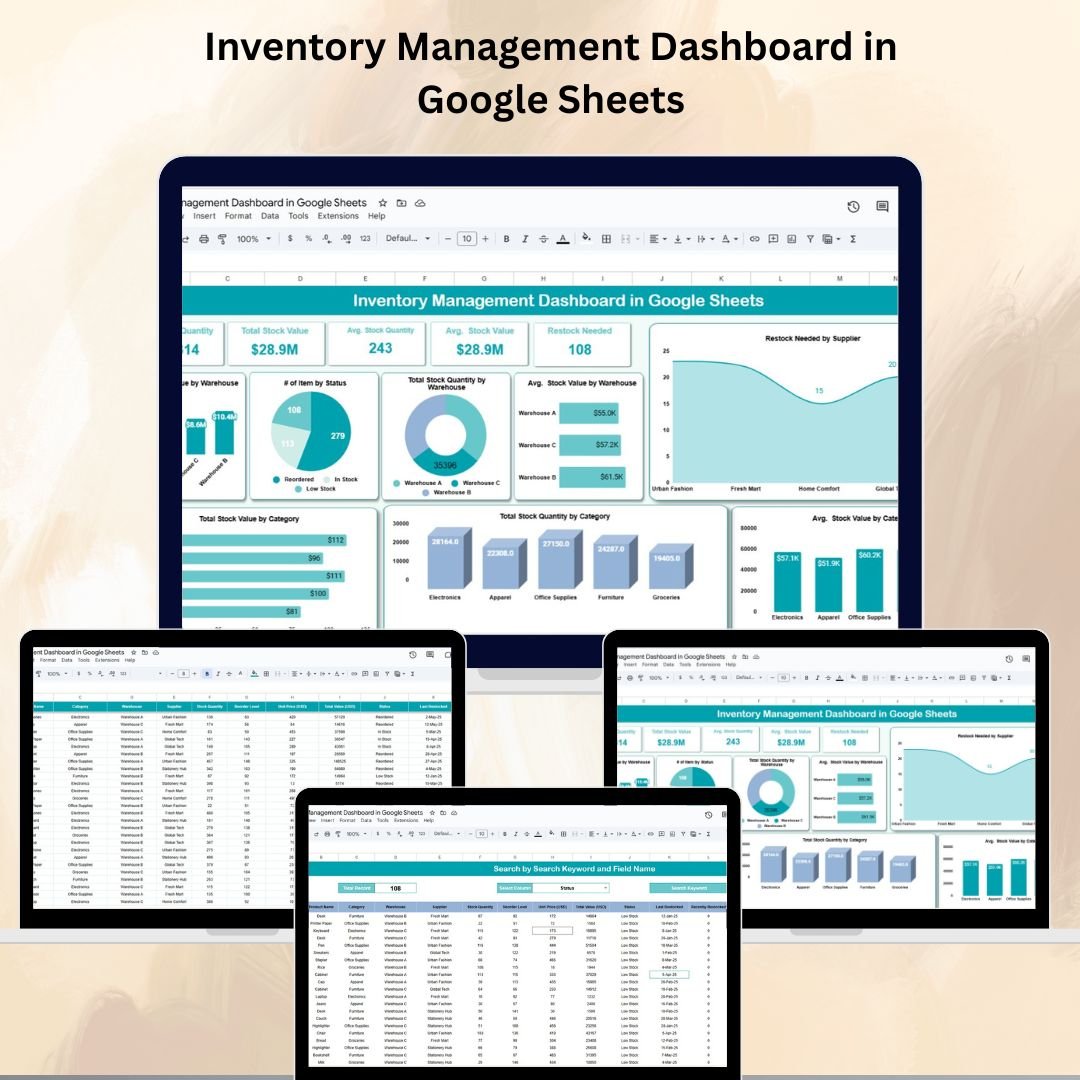

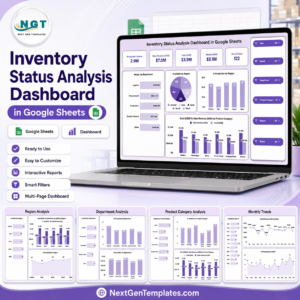
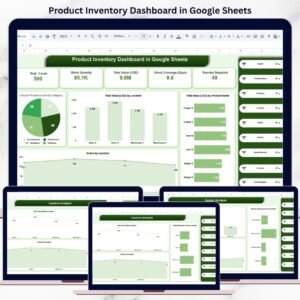
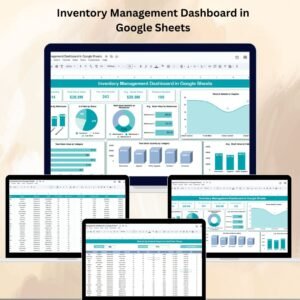
Efficient inventory management is the key to avoiding stockouts, reducing holding costs, and optimizing supply chain performance. The Inventory Management Dashboard in Google Sheets is a ready-to-use, fully customizable tool that gives you real-time insights into your stock quantities, values, warehouse distribution, and restock needs — all in one easy-to-use dashboard.Inventory Management Dashboard in Google Sheets
With clear visualizations, smart search functionality, and centralized data entry, this dashboard empowers business owners, warehouse managers, and procurement teams to make quick, informed decisions.Inventory Management Dashboard in Google Sheets
🔑 Key Features of the Inventory Management Dashboard
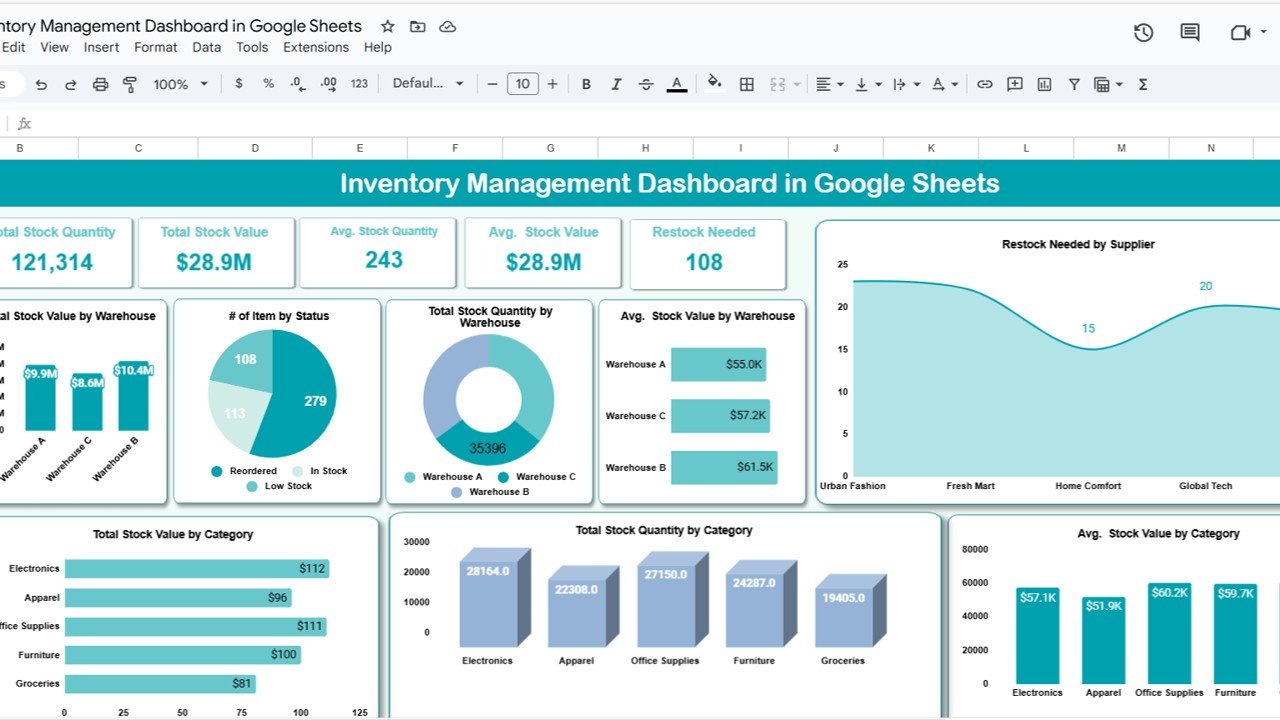
📌 Dashboard Sheet Tab – Performance Overview
Cards for Key Metrics – Total Stock Quantity, Total Stock Value, Average Stock Quantity, Average Stock Value, Restock Needed
Insightful Charts –
Total Stock Value by Warehouse
Number of Items by Status (In Stock, Low Stock, Out of Stock)
Total Stock Quantity by Warehouse
Average Stock Value by Warehouse
Restock Needed by Supplier
Total Stock Value by Category
Total Stock Quantity by Category
Average Stock Value by Category
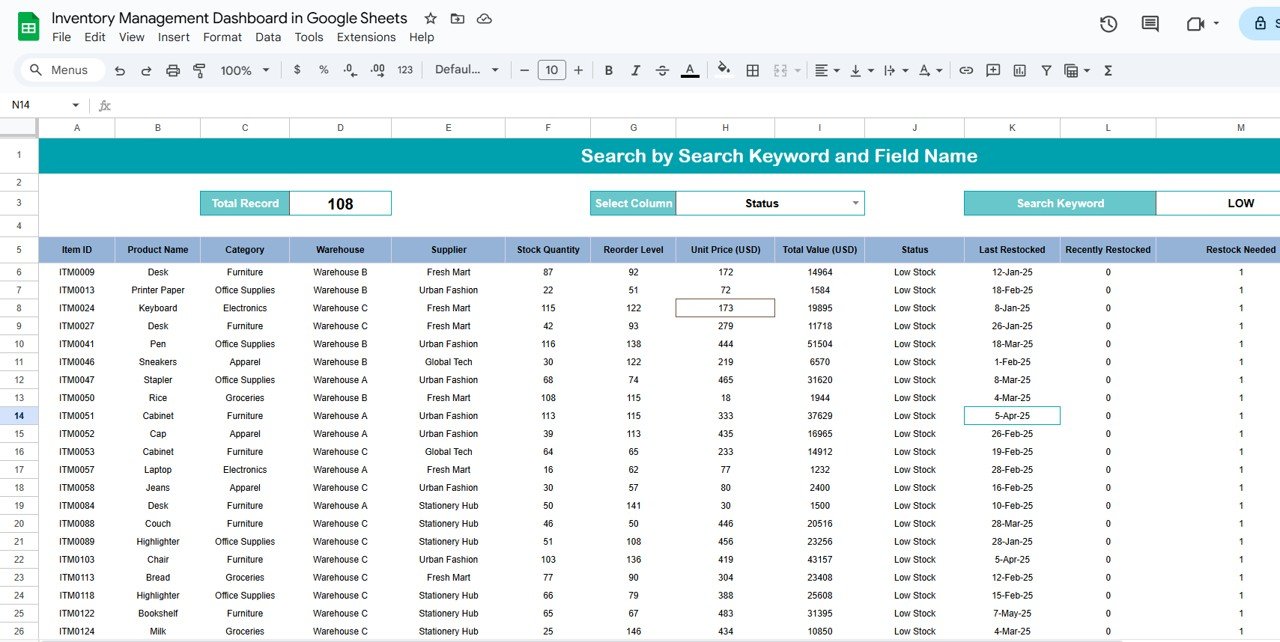
🔍 Search Sheet Tab – Quick Data Lookup
Search by Keyword – Instantly find items by product name, category, warehouse, supplier, or status
Column-Specific Filtering – Narrow searches to specific fields like “Status” or “Supplier”
Ideal for large inventories where scrolling is inefficient
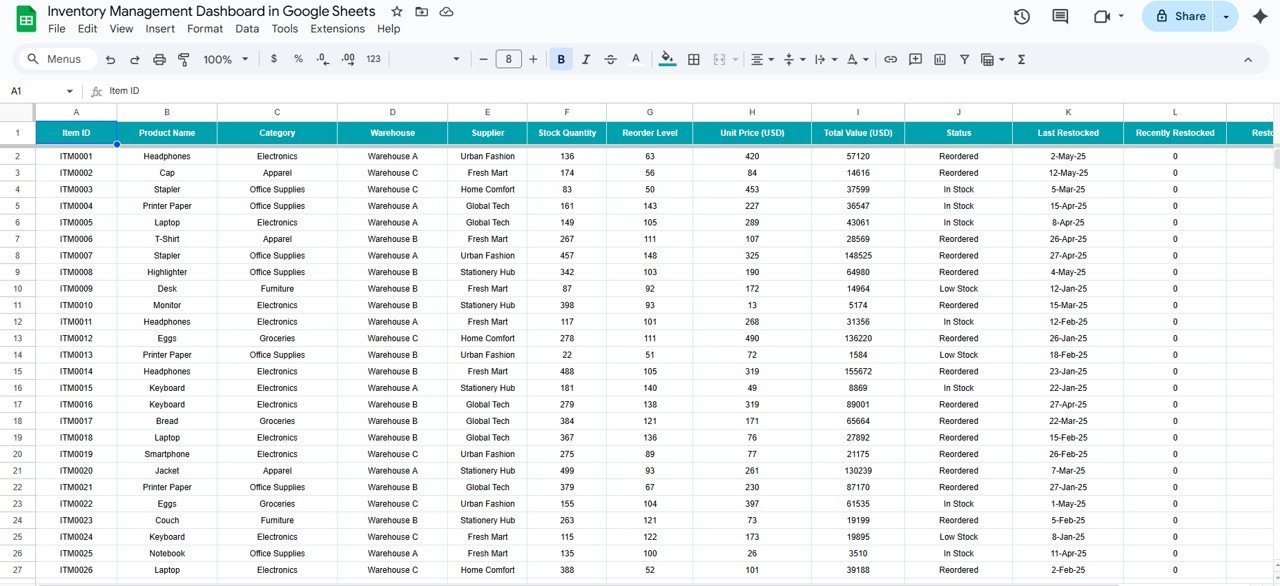
🧾 Data Sheet Tab – Centralized Data Entry
Fields for Product Name, Category, Supplier, Warehouse, Stock Quantity, Stock Value, Status, Reorder Level, etc.
Simple, organized structure to keep all records updated and accurate
Feeds all dashboard metrics and charts automatically
📦 What’s Inside the Inventory Management Dashboard?
✅ Dashboard Tab – At-a-glance metrics and visual insights
✅ Search Tab – Smart search for faster data retrieval
✅ Data Sheet Tab – Master inventory database
✅ Pre-Built Charts – Auto-update with new data entries
✅ Conditional Formatting – Highlights items needing restock
✅ Customizable Fields – Adapt to your business categories, warehouses, and suppliers
🧠 How to Use the Inventory Management Dashboard
Enter Inventory Data in the Data Sheet — product details, stock levels, values, reorder levels, and supplier info.
Monitor KPIs on the Dashboard to track stock quantities, values, and restock needs.
Use the Search Tab to quickly locate specific products or categories.
Analyze Restock Alerts and plan procurement to avoid shortages.
Review Warehouse & Category Charts to optimize distribution and purchasing strategies.
👥 Who Can Benefit from This Dashboard?
📦 Warehouse Managers – Track stock across locations and suppliers.
🛒 Retailers – Monitor product availability and avoid stockouts.
🏭 Manufacturers – Manage raw materials and finished goods.
🏢 E-commerce Businesses – Keep product availability updated in real-time.
📈 Procurement Teams – Identify restocking priorities and negotiate better with suppliers.
🔗 Click here to read the Detailed blog post
🔗 Visit our YouTube channel to learn step-by-step video tutorials
Watch the step-by-step video tutorial:
Compatibility and Requirements
- Works in Google Sheets with a free Google account and a web browser. Nothing to install.
- Make a copy to your own Google Drive and edit it there. Google explains charts in Add & edit a chart or graph.
Frequently Asked Questions
Which KPIs are on the dashboard?
Five cards: total stock quantity, total stock value, average stock quantity, average stock value and restock needed. Charts break stock down by warehouse, category, supplier and status.
How do I find a product quickly?
Use the Search tab. Search by keyword across product name, category, warehouse, supplier or status, or limit the search to one column.
How are items that need restocking shown?
Each item has a status (In Stock, Low Stock or Out of Stock) and a reorder level, and conditional formatting highlights the items that need restocking.
Is there an Excel or Power BI version?
Yes. See the Inventory Management Dashboard in Excel and the Inventory Management Dashboard in Power BI.
Related Inventory Templates
- Multi-Location Inventory Management in Google Sheets: record stock across several locations
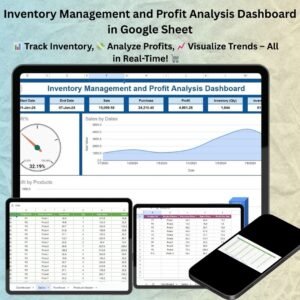
- Inventory Management and Profit Analysis Dashboard in Google Sheet: adds profit analysis to inventory
- Inventory Management Dashboard in Excel: the Excel edition
- Inventory Restocking Calendar in Excel: plan restock dates
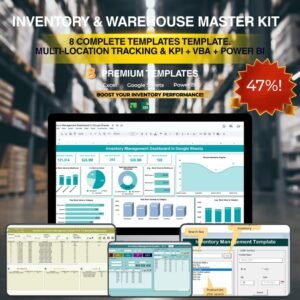
- Inventory & Warehouse Master Kit: 8 Excel, Google Sheets and VBA inventory templates
Browse all Google Sheets inventory templates or the Google Sheets dashboards.


Reviews
There are no reviews yet.