



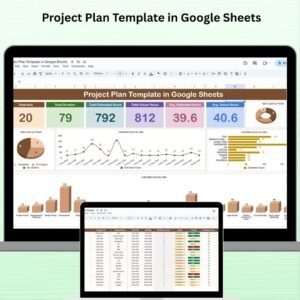
The Project Plan Template in Google Sheets is an essential tool designed to help organizations and teams efficiently manage and track their projects. This template provides a structured framework to plan, organize, and execute project tasks, ensuring that all goals are met within the specified time and budget. With Google Sheets, teams can collaborate in real-time, making it easier to monitor progress, share updates, and ensure that no task is overlooked.
By using this template, teams can streamline their project workflows, stay on top of deadlines, allocate resources effectively, and ensure the overall success of the project.

Key Features of the Project Plan Template in Google Sheets
📋 Structured Project Planning
Task Breakdown: Divide the project into manageable tasks or milestones, each with clear objectives, deadlines, and responsible team members.
Task Assignment: Assign specific tasks to team members, promoting accountability and ensuring that each part of the project is covered.
⏰ Comprehensive Scheduling
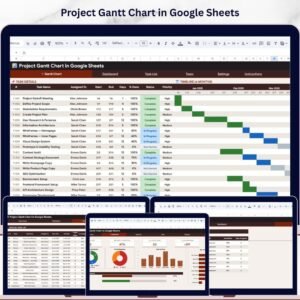
Timeline Visualization: Use Gantt charts or other visual tools to track project timelines, task durations, and dependencies, providing a clear overview of progress.
Milestone Tracking: Set and track key project milestones to ensure timely progress and that the project stays on track.
💻 Resource and Budget Management
Resource Allocation: Plan and allocate resources (e.g., team members, materials, equipment) to tasks, ensuring optimal utilization and avoiding bottlenecks.
Budget Tracking: Keep track of project expenses, budgets, and financial resources to ensure that the project stays within financial limits.
📊 Collaborative and Customizable
Real-Time Collaboration: Share and update the project plan with your team in real-time, making it easier to communicate and collaborate on tasks.
Customizable Template: Adapt the template to suit your specific project needs by modifying sections, adding new tasks, or adjusting timelines.
🔧 Task Progress Monitoring and Reporting
Progress Tracking: Monitor the progress of each task with status indicators such as “Not Started,” “In Progress,” or “Completed.”
Reporting Capabilities: Generate reports on project status, resource usage, and budget allocation, helping stakeholders stay informed and make timely decisions.
Benefits of Using the Project Plan Template in Google Sheets
✅ Improved Project Organization
Centralize all project tasks, schedules, resources, and budgets in one place, making it easier to track and manage every aspect of the project.
✅ Enhanced Team Collaboration
Allow team members to access and update the project plan in real-time, fostering better communication and collaboration.
✅ Better Time and Resource Management
Optimize the allocation of resources and ensure that tasks are completed on time, helping to prevent delays and resource shortages.
✅ Data-Driven Decision Making
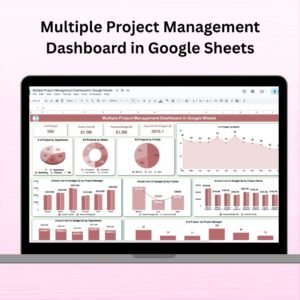
Use visual reports and data to make informed decisions, adjust project timelines, and allocate resources effectively to meet deadlines.
Getting Started with Your Project Plan Template in Google Sheets
Download the Template: Obtain the Project Plan Template to get started.
Define Project Tasks and Milestones: Break down your project into smaller, actionable tasks and set milestones that reflect key deliverables.
Assign Responsibilities: Assign each task to specific team members, ensuring accountability for task completion.
Set Project Timelines: Define task deadlines, set up timelines, and use visual tools like Gantt charts to monitor project progress.
Track Budget and Resources: Set up a section for resource allocation and budget tracking to stay on top of costs and resources.
Monitor Progress: Regularly update the plan to track progress, adjust timelines if necessary, and ensure that everything stays on track.
By using the Project Plan Template in Google Sheets, you can streamline your project management processes, keep your team aligned, and ensure that all tasks are completed efficiently and on time.
Click here to read the Detailed blog post
Project Plan Template in Google Sheets
Visit our YouTube channel to learn step-by-step video tutorials
Youtube.com/@NeotechNavigators
Watch the step-by-step video tutorial:
What the Template Covers
- Task breakdown with objectives, deadlines and a responsible team member for each task
- Milestone tracking for key deliverables
- Resource allocation for people, materials and equipment
- Budget tracking for project expenses
- Status indicators: Not Started, In Progress and Completed
- Reports on project status, resource use and budget
Who Uses This Template
Project managers, team leads and small teams who plan work together in Google Sheets and want tasks, owners, deadlines and budget in one shared file.
Compatibility and Requirements
- Works in Google Sheets with a free Google account and a web browser. Nothing to install.
- Share the file from the Share button so your team can update tasks at the same time.
- New to Google Sheets? Google explains the basics in How to use Google Sheets.
Frequently Asked Questions
What status options does each task have?
Each task can be marked Not Started, In Progress or Completed, so you can see progress at a glance.
Can my team update the plan at the same time?
Yes. It is a Google Sheets file, so team members can view and update the plan in real time once you share it.
Can I track the project budget?
Yes. The template includes budget tracking for project expenses alongside resource allocation.
Can I change the sections and add tasks?
Yes. The template is customizable. Add tasks, change sections or adjust timelines to fit your project.
Related Project Planning Templates
- Project Plan Gantt Chart in Google Sheet: see the schedule as a Gantt chart.
- Weekly Project Plan (Gantt Chart) in Google Sheets: plan work week by week.
- Project Planning and Tracking Template in Google Sheet: another planning and tracking layout.
- Project Management Dashboard in Excel: a dashboard view of project status in Excel.
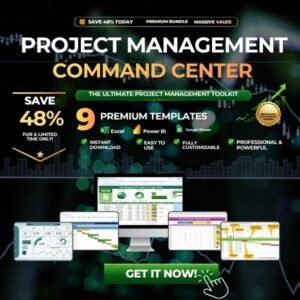
- Project Management Pro Bundle: 9 Excel and Google Sheets project templates.
Browse all Google Sheets project management templates or the Excel project management templates.








Reviews
There are no reviews yet.