


Inventory mismanagement silently drains profits. Stockouts lead to lost sales, overstock ties up working capital, and inactive products increase holding costs. Yet many businesses still rely on raw spreadsheets that fail to show what really matters. That is exactly why the Product Inventory Dashboard in Google Sheets becomes a must-have business tool.
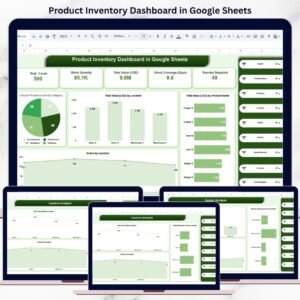
This ready-to-use dashboard transforms raw inventory data into clear KPIs, visual insights, and actionable trends. Instead of juggling multiple files, you get a single, centralized Google Sheets dashboard that shows stock levels, inventory value, reorder requirements, inactive items, and performance trends across categories, locations, vendors, and months.
Because the dashboard is built entirely in Google Sheets, it is cloud-based, collaborative, and easy to customize—without any technical complexity or expensive software.
🔑 Key Features of the Product Inventory Dashboard
📊 Instant Inventory Health Snapshot
KPI cards give you immediate clarity on stock quantity, inventory value, coverage days, and reorder needs.
🔍 Advanced Filtering & Search
Slice inventory by product, category, vendor, location, status, month, or reorder requirement.
📦 Reorder Requirement Tracking
Quickly identify items that need replenishment before stockouts occur.
🧊 Inactive & Dead Stock Visibility
Highlight slow-moving or inactive products that block cash flow.
🤝 Real-Time Collaboration
Multiple users can update and analyze inventory together in Google Sheets.
📦 What’s Inside the Product Inventory Dashboard
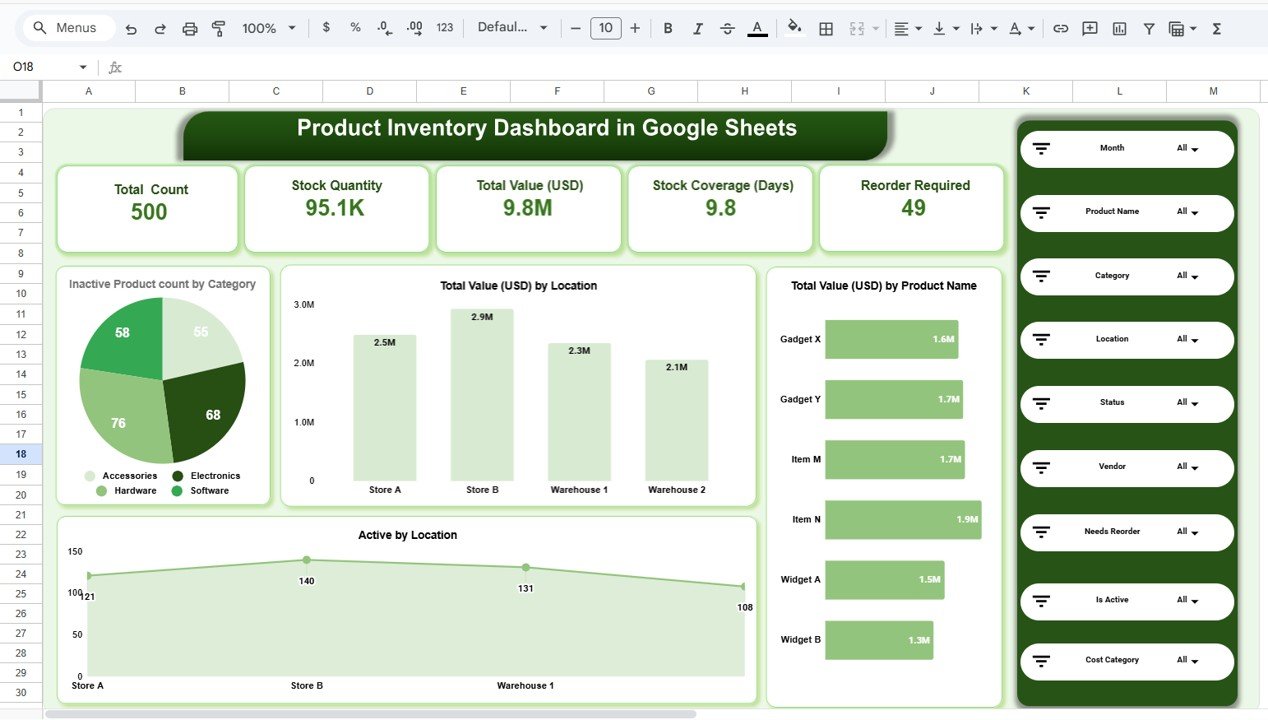
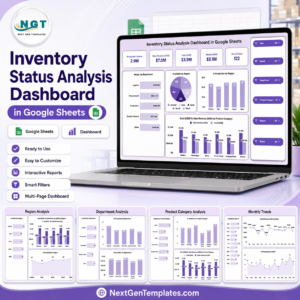
🗂️ Overview Sheet – Inventory Snapshot
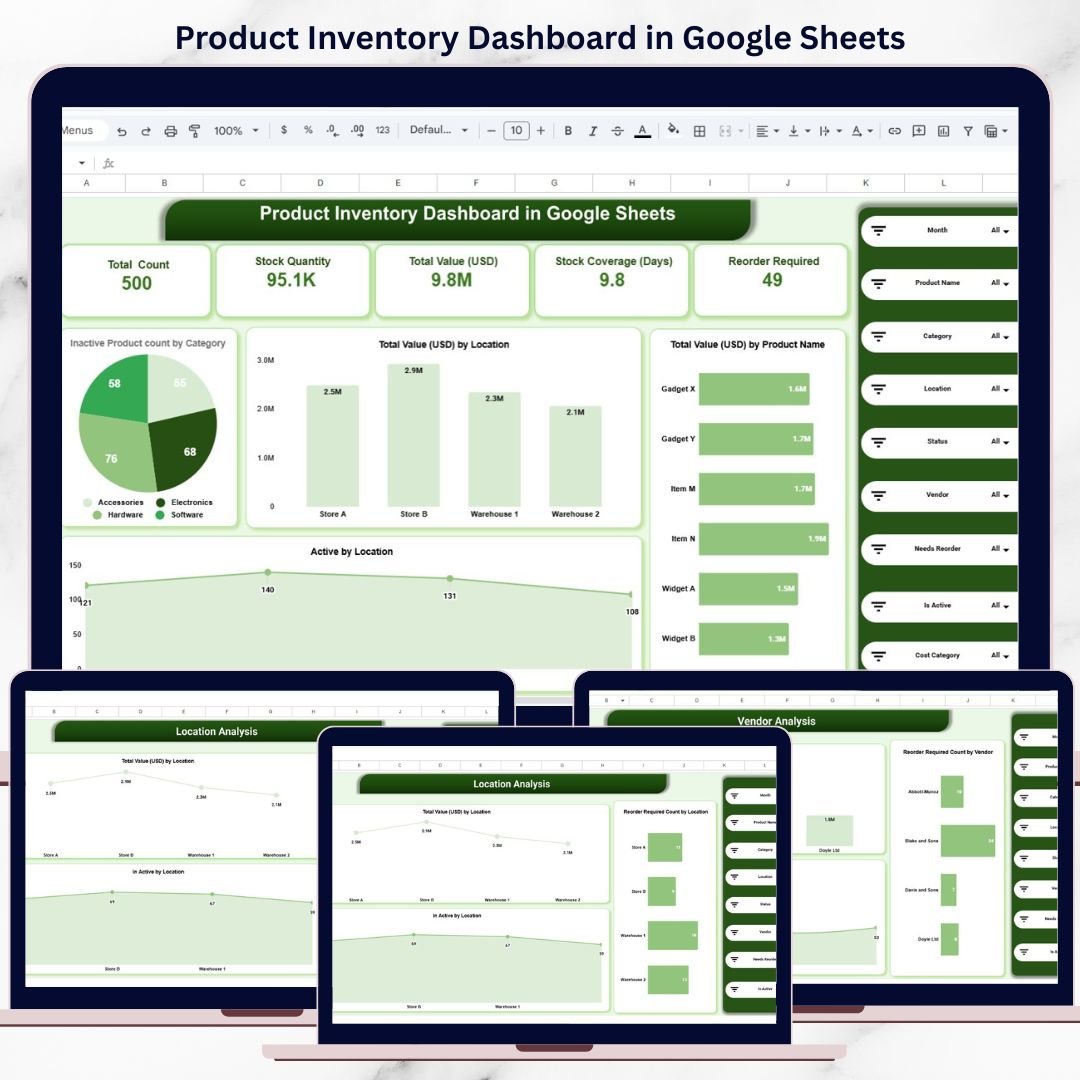
This is the main dashboard page that summarizes overall inventory performance.
Key KPI Cards Display:
Total Product Count
Total Stock Quantity
Total Inventory Value (USD)
Stock Coverage (Days)
Reorder Required Items
These KPIs help management assess inventory health in seconds.
🧮 Category Analysis – Product-Wise Insights
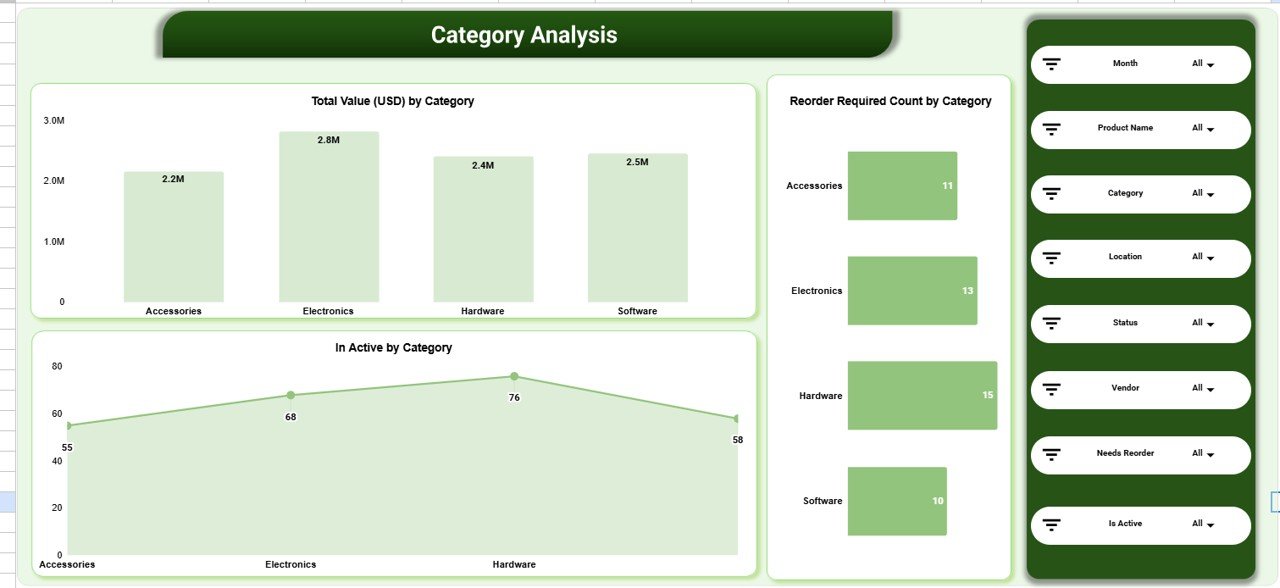
This section helps businesses understand how inventory distributes across product categories.
Charts Included:
📊 Total Inventory Value (USD) by Category
🔁 Reorder Required Count by Category
❄️ Inactive Products by Category
This analysis helps identify high-value categories, slow movers, and restocking priorities.
🏬 Location Analysis – Store & Warehouse Performance
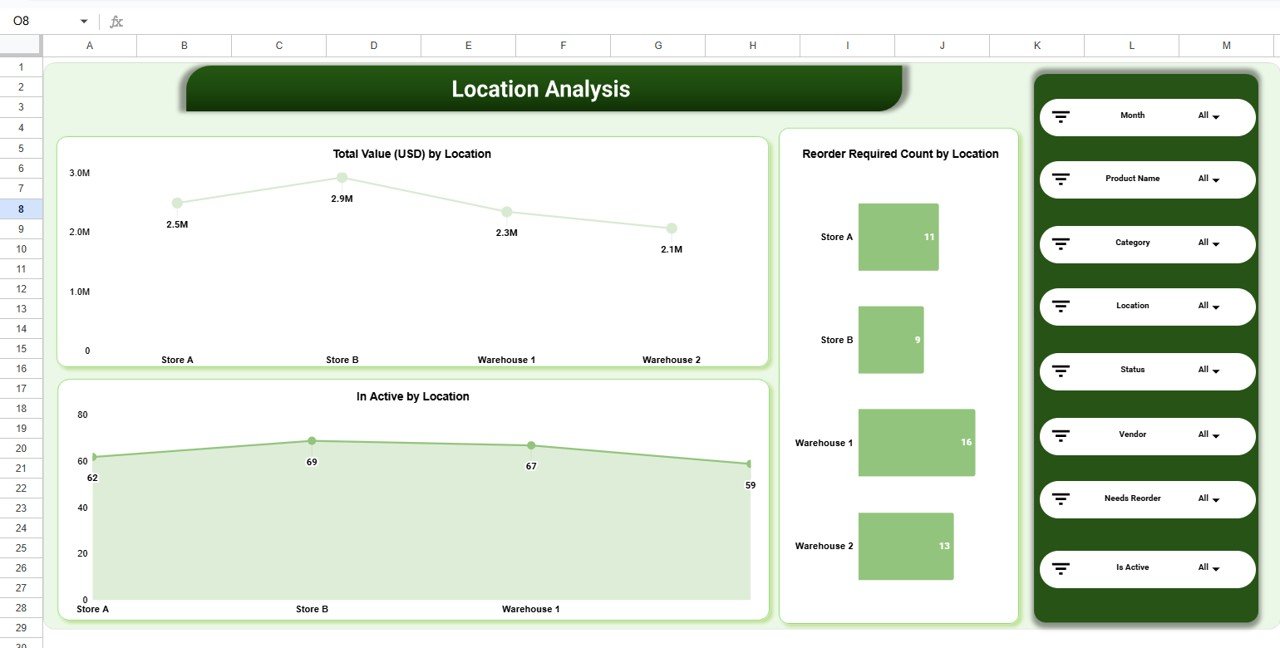
Inventory performance often varies by location. This section highlights location-wise insights.
Key Visuals:
📍 Total Inventory Value (USD) by Location
🚫 Inactive Products by Location
🔄 Reorder Required Count by Location
Operations teams use this view to optimize stock allocation and reduce location-level shortages.
🤝 Vendor Analysis – Supplier Performance Monitoring
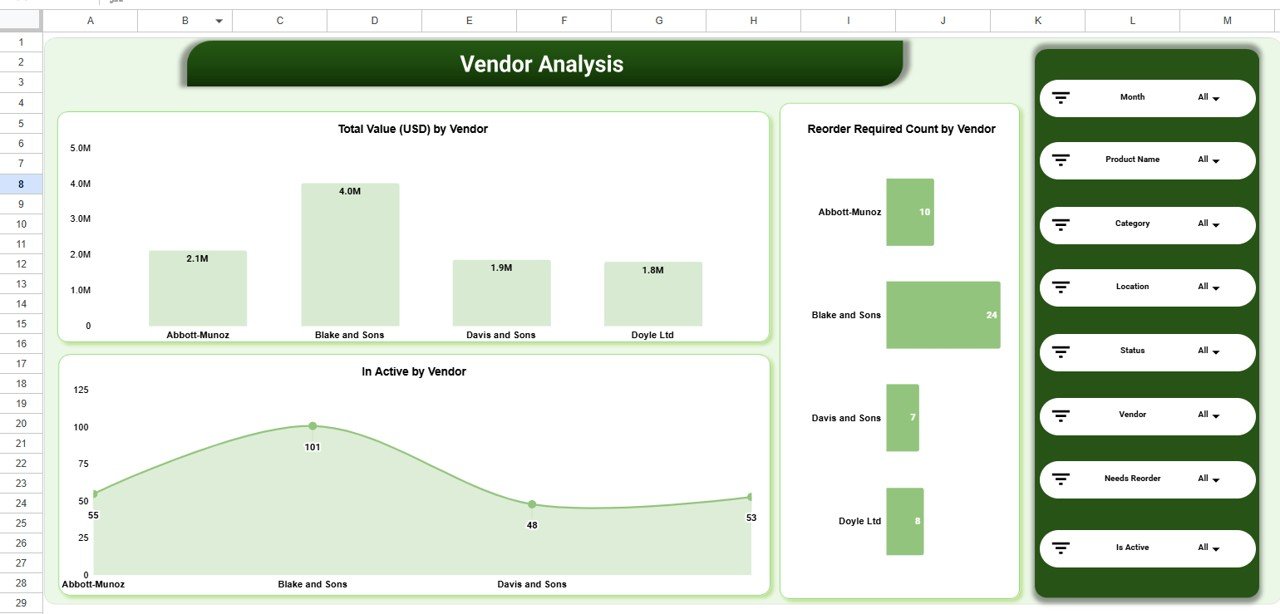
Suppliers play a critical role in inventory availability. This section focuses on vendor-wise inventory insights.
Charts Covered:
📦 Total Inventory Value (USD) by Vendor
❄️ Inactive Products by Vendor
🔁 Reorder Required Count by Vendor
Procurement teams can use this to improve vendor planning and negotiations.
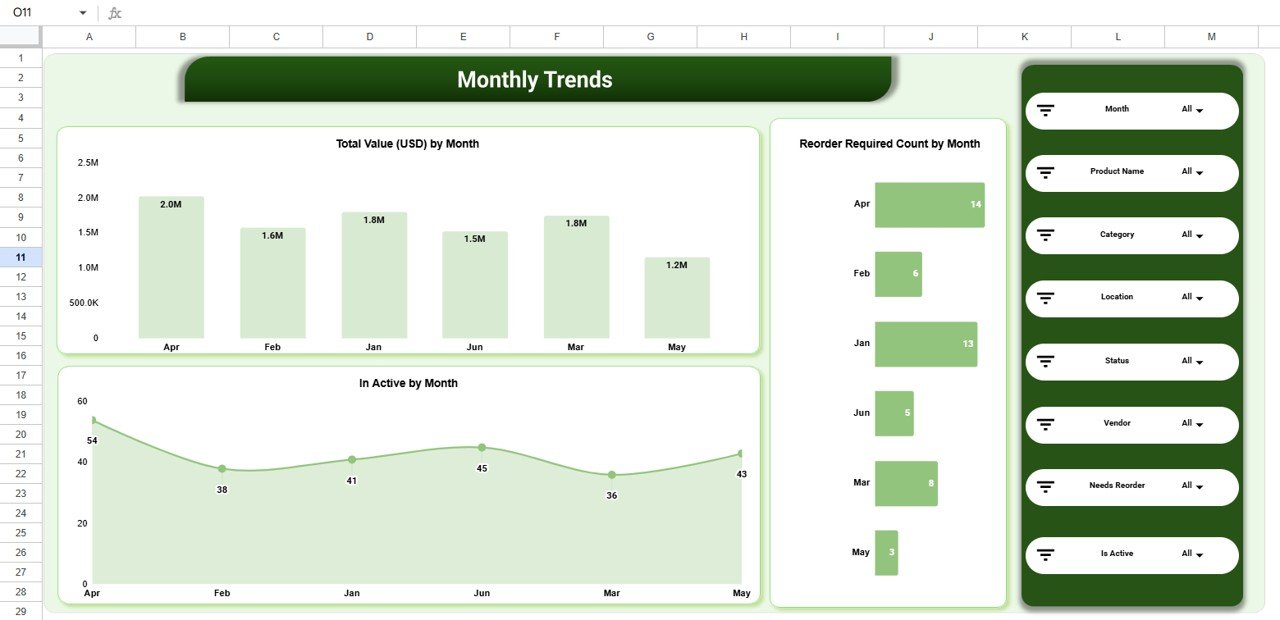
📈 Monthly Trends – Inventory Movement Over Time
This section tracks how inventory changes month by month.
Trend Charts Include:
📅 Total Inventory Value (USD) by Month
📉 Inactive Products by Month
🔄 Reorder Required Count by Month
These trends help forecast demand and prevent seasonal inventory issues.
🔎 Powerful Search & Slicers
The dashboard includes Search by Keyword and Field Name, along with slicers for:
Month
Product Name
Category
Location
Vendor
Status (Active / Inactive)
Reorder Required
This allows fast drill-downs during reviews and audits.
👥 Who Can Benefit from This Dashboard
🛍️ Retail businesses
🚚 Wholesale distributors
🏭 Warehouses & logistics teams
📦 Inventory & supply chain managers
🏢 Small and medium enterprises
🚀 How to Use the Product Inventory Dashboard
Enter inventory data in the data sheet
Use slicers to filter insights instantly
Monitor reorder indicators weekly
Review inactive products monthly
Share dashboard with procurement and operations teams
No advanced Google Sheets skills required.
### Click here to read the Detailed blog post
Watch the step-by-step video tutorial:
**Visit our YouTube channel to learn step-by-step video tutorials –
Youtube.com/@NeotechNavigators**
Compatibility and Requirements
- Works in Google Sheets. You need a free Google account and a web browser.
- The dashboard has charts for category, location, vendor and month. Google explains how charts work in Add and edit a chart or graph.
Frequently Asked Questions
What KPIs does the Overview sheet show?
The KPI cards show Total Product Count, Total Stock Quantity, Total Inventory Value (USD), Stock Coverage (Days) and Reorder Required Items.
Can I filter the dashboard by vendor or location?
Yes. Slicers cover Month, Product Name, Category, Location, Vendor, Status (Active or Inactive) and Reorder Required. There is also a search by keyword and field name.
How do I find items that need reordering?
Use the Reorder Required slicer, or check the Reorder Required Count charts by category, location, vendor and month.
Can I see inactive products?
Yes. Inactive Products charts are available by category, location, vendor and month, and you can filter by Status.
Is there an Excel or Power BI version?
Yes. See the Product Inventory Dashboard in Excel and the Product Inventory Dashboard in Power BI.
Related Inventory Templates
- Product Inventory Dashboard in Excel: the same dashboard in Excel
- Product Inventory Dashboard in Power BI: the Power BI edition
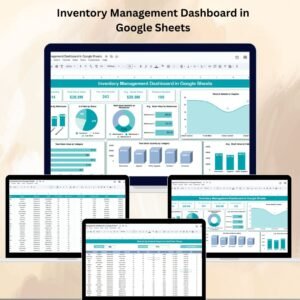
- Inventory Management Dashboard in Google Sheets: another inventory dashboard for Google Sheets
- Multi-Location Inventory Management in Google Sheets: stock tracking across several locations
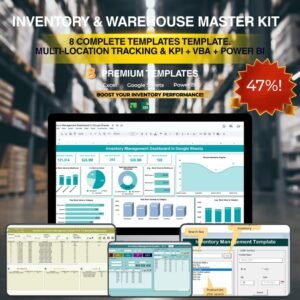
- Inventory & Warehouse Master Kit: 8 inventory templates in one download
Browse all Google Sheets dashboards.







Reviews
There are no reviews yet.