


In today’s fast-moving business environment, finance and marketing teams must constantly balance planning, execution, and performance tracking. With the growing role of artificial intelligence (AI), companies can now simplify operations, improve collaboration, and increase efficiency. One powerful way to align these functions is through the Finance Marketing AI Implementation Calendar in Excel.
This ready-to-use Excel template goes far beyond a traditional calendar. It combines structured scheduling with AI-inspired features like event automation, theme customization, and smart highlighting. Designed for finance and marketing professionals, it provides a centralized platform to plan, monitor, and analyze events, ensuring that both departments stay aligned and on schedule.
Whether it’s budget reviews, campaign launches, AI training sessions, or financial audits, this tool ensures no critical task slips through the cracks.
✨ Key Features of Finance Marketing AI Implementation Calendar
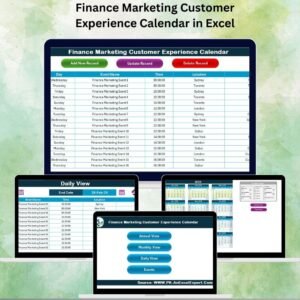
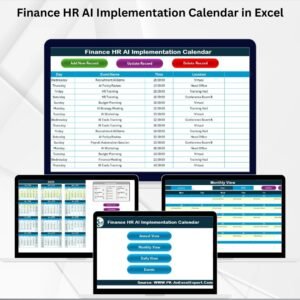
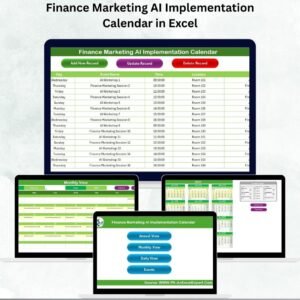
✅ Home Sheet Navigation – Central hub with quick-access buttons for Annual, Monthly, Daily, and Events views.
✅ Annual View – 12-month overview with control panel to set year, start month, and week preferences.
✅ Theme Customization – Apply one of five professional color themes to align with brand identity.
✅ Highlighting Options – Mark weekends, deadlines, or campaign start dates for better visibility.
✅ Monthly View – Zoom into specific months; multiple events on one date display as “more than 1…” for clarity.
✅ Daily View – Plan detailed tasks within a selected date range for precise day-to-day management.
✅ Events Database – Master sheet that captures all event details including ID, date, time, location, and description.
✅ Smart Event Management – Add, update, or delete events through simple forms with a single click.
✅ Scalable for All Businesses – Suitable for startups, SMEs, and large enterprises.
📦 What’s Inside the Finance Marketing AI Implementation Calendar

When you download this Excel template, you’ll receive:
Home Sheet Tab – Quick navigation across all sections.
Annual View – Big-picture planning for campaigns, audits, and finance events.
Monthly View – Month-specific schedules with instant event display.
Daily View – Focused task management for individual days or ranges.
Events Sheet – Centralized database for event records, complete with add/update/delete functionality.
This ensures both finance and marketing leaders have a single version of truth for all events and activities.
🛠️ How to Use the Finance Marketing AI Implementation Calendar
Start at the Home Sheet – Navigate quickly to Annual, Monthly, or Daily views.
Plan Yearly Activities – Use the Annual View to map out campaigns, audits, and major events.
Drill into Months – Track budget reviews, launches, or milestones in the Monthly View.
Manage Daily Tasks – Focus on event timelines and execution with the Daily View.
Update the Events Sheet – Add, modify, or delete records to keep the system current.
Leverage Highlights & Themes – Use themes and color coding for visual clarity.
The template is plug-and-play—no advanced Excel or technical skills required.
👩💼 Who Can Benefit from This Calendar?
Finance Teams – Track audits, reporting deadlines, and budget meetings.
Marketing Teams – Plan campaign launches, client meetings, and AI-related initiatives.
Executives & Leaders – Align financial forecasting with marketing execution.
Project Managers – Coordinate cross-departmental schedules effectively.
Training Teams – Schedule AI workshops, seminars, and team development sessions.
By consolidating finance and marketing events into one place, this tool ensures greater efficiency, accountability, and collaboration.
👉 Click here to read the Detailed blog post
Visit our YouTube channel to learn step-by-step video tutorials
Watch the step-by-step video tutorial:
Compatibility and Requirements
- Works in Microsoft Excel desktop (Excel 2016 or later, or Microsoft 365).
- Excel’s own guide covers the basics of working in workbooks: Excel for Windows training.
Frequently Asked Questions
Which sheets are included?
A Home sheet, an Annual View, a Monthly View, a Daily View and an Events sheet.
Can I see the whole year at once?
Yes. The Annual View shows 12 months. Its control panel sets the year, the start month and the week preferences.
What happens when two events fall on the same date?
The Monthly View shows “more than 1…” on that date. The Events sheet holds the full details of each event.
What details can I store for an event?
The Events sheet records the ID, date, time, location and description. You can add, update or delete events with a single click.
Can I change the colors?
Yes. You can apply one of five color themes and highlight weekends, deadlines or campaign start dates.
Is there a similar calendar for marketing alone?
Yes. See the Marketing AI Implementation Calendar in Excel.
Related Calendar Templates
- Marketing AI Implementation Calendar in Excel: the same calendar for the marketing team
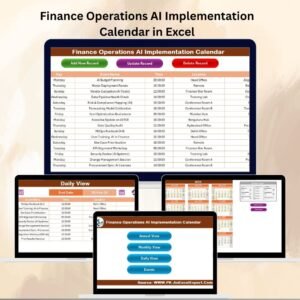
- Finance Operations AI Implementation Calendar in Excel: finance and operations on one calendar
- Finance Sales AI Implementation Calendar in Excel: finance and sales on one calendar
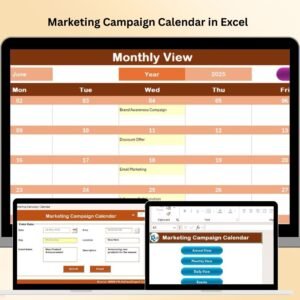
- Marketing Campaign Calendar in Excel: plan campaign dates
- Calendar & Planner Pack: 12 Excel and Google Sheets calendar templates in one download
Browse all Excel calendar templates.












Reviews
There are no reviews yet.