

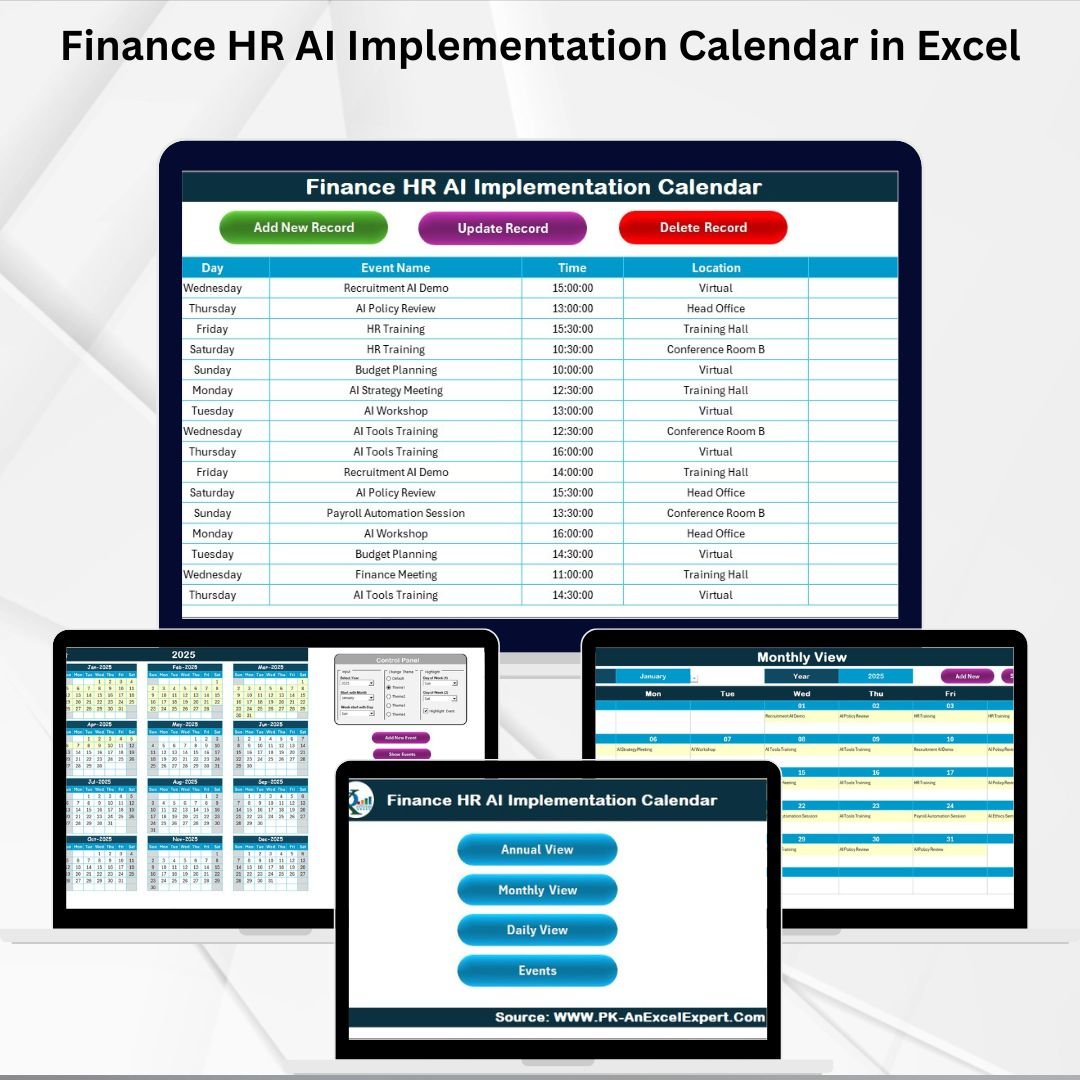

The fusion of Finance HR AI Implementation Calendar (AI) is changing how businesses operate. From automating payroll and improving recruitment to forecasting finances and enhancing workforce planning, AI is helping organizations work smarter and faster. But to truly harness these innovations, companies need a structured system to plan, track, and monitor AI-driven initiatives.
That’s where the Finance HR AI Implementation Calendar in Excel comes in. This ready-to-use calendar provides a centralized scheduling system that brings HR and Finance teams together to successfully implement AI initiatives. Built in Excel, it’s user-friendly, customizable, and cost-effective—making it ideal for businesses of all sizes.
✨ Key Features of Finance HR AI Implementation Calendar
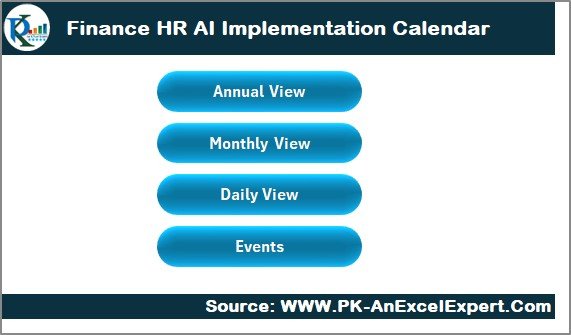
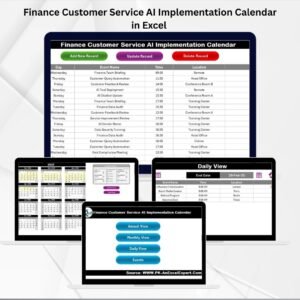
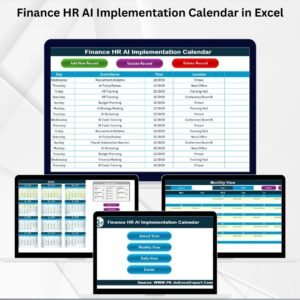
🏠 Home Sheet Tab – Acts as the control center with navigation buttons to Annual, Monthly, Daily, and Events views.
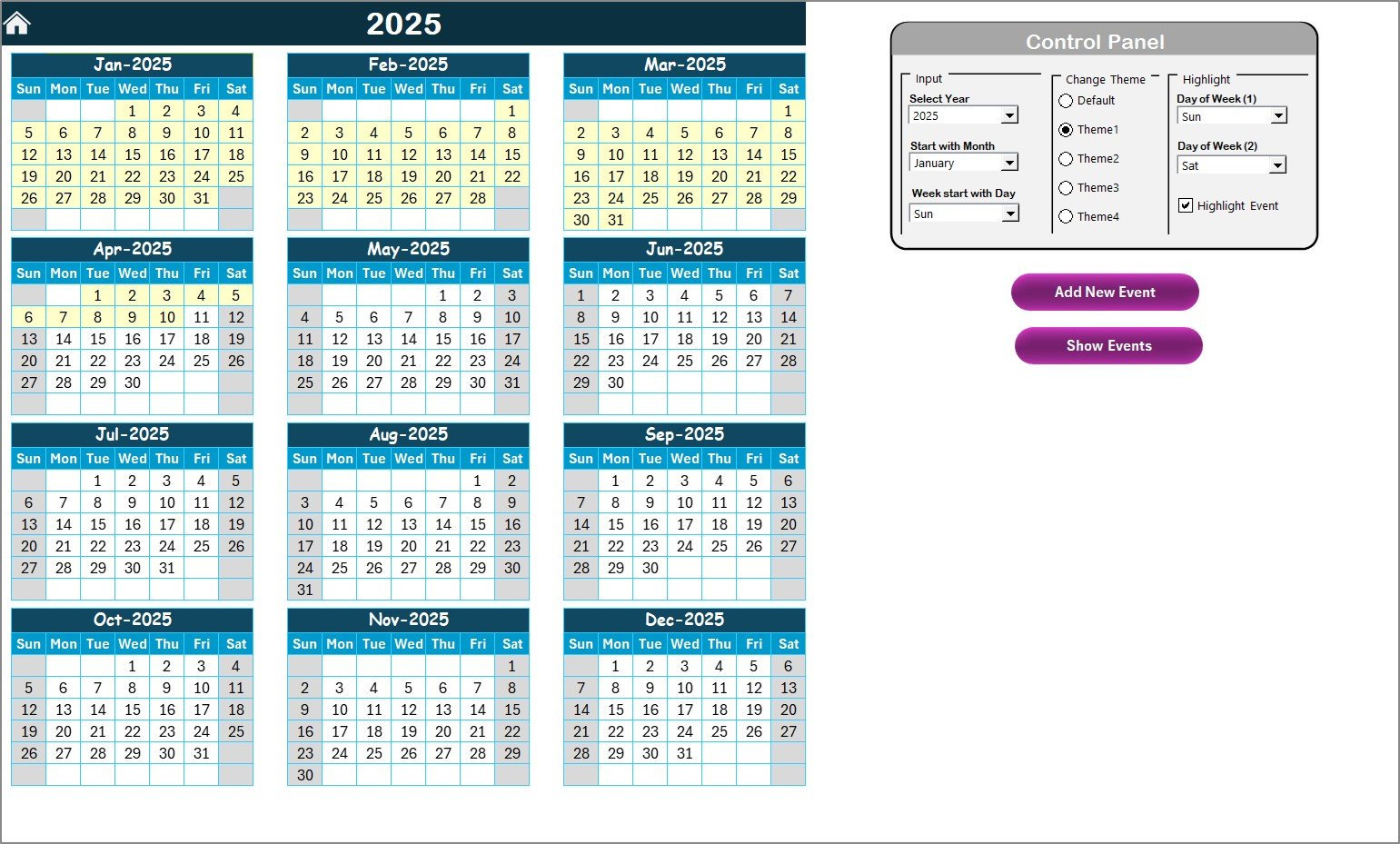
📅 Annual View – A 12-month calendar with customization options for year, start month, and theme. Highlight weekends or AI events for visibility.
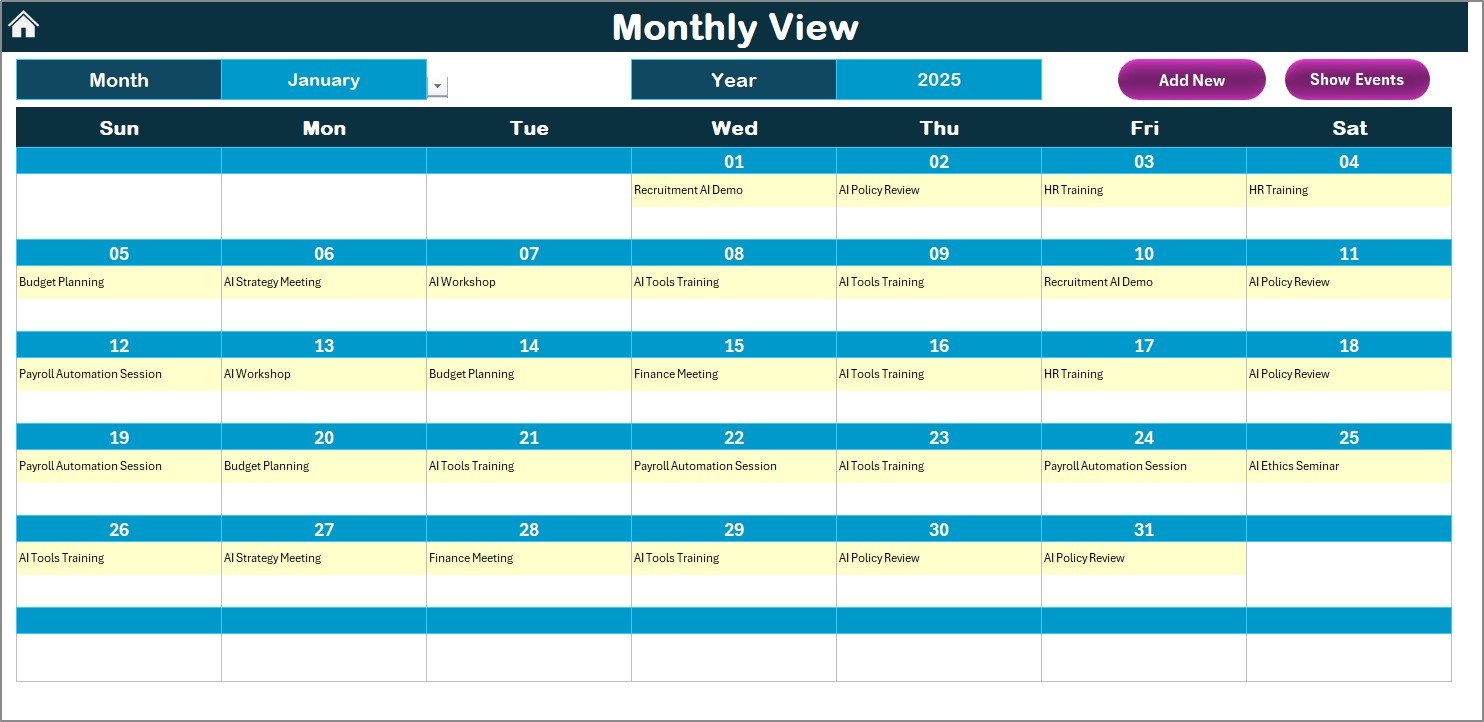
📆 Monthly View – Focus on one month. Add or view multiple events (e.g., AI training, payroll automation testing, compliance deadlines).
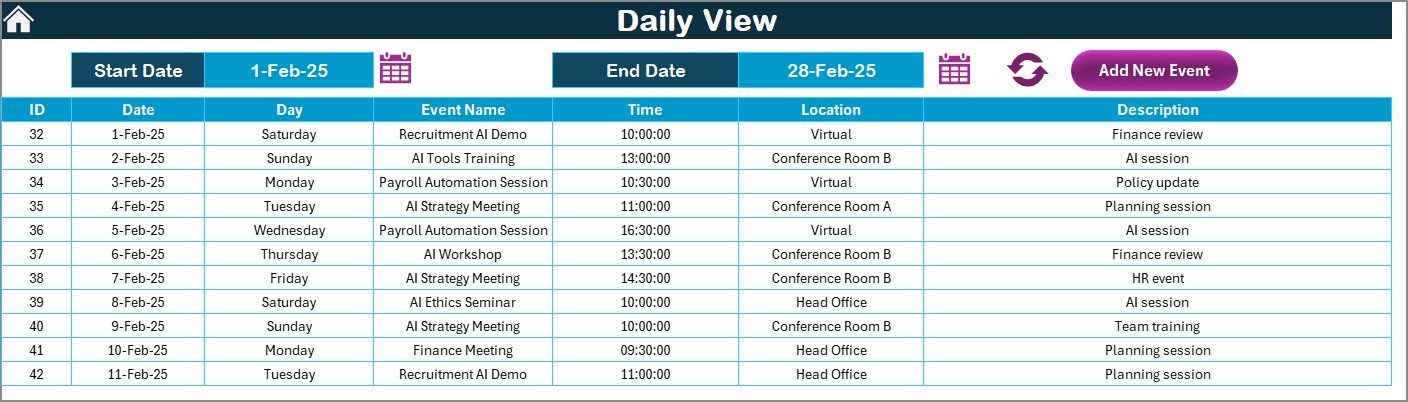
📋 Daily View – Select a date range to see detailed events with times, locations, and descriptions. Perfect for day-to-day AI project tracking.
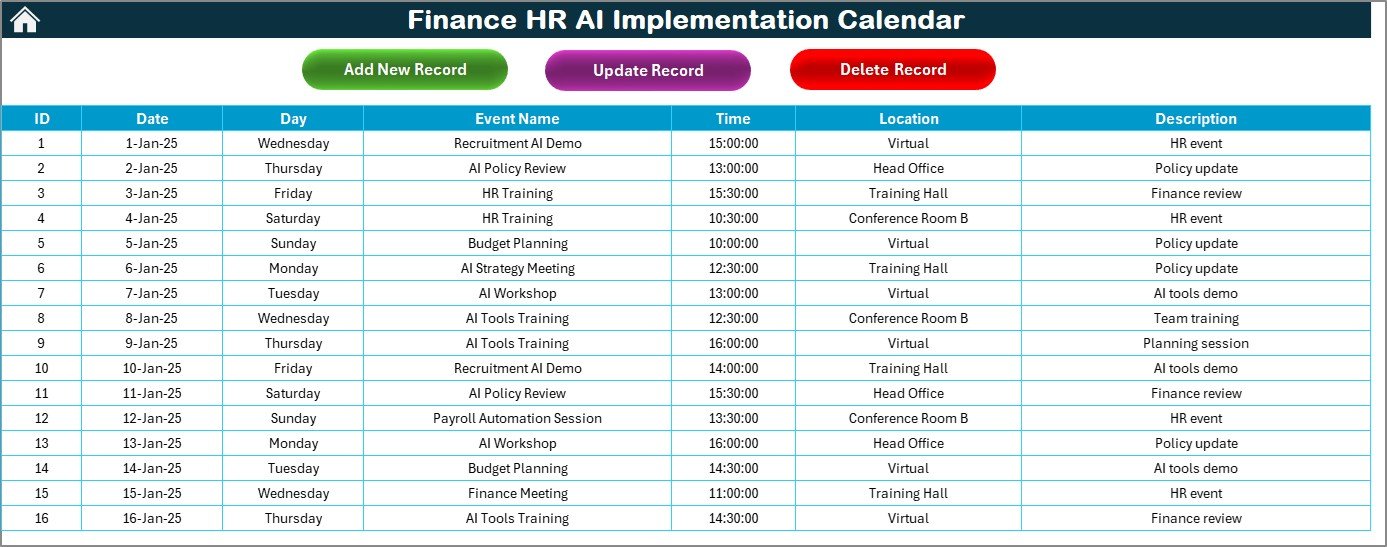
🗂️ Events Sheet – A complete event database storing ID, date, day, event name, time, location, and description. Includes Add, Update, and Delete record buttons.
🎨 Customizable Themes – Choose from five color themes to match your organization’s branding.
⚡ Quick Navigation – Jump to any sheet with a click, saving time and effort.
📦 What’s Inside the Calendar
This Excel template is designed with five powerful sheets:
Home Sheet Tab – Dashboard-style entry point with navigation buttons.
Annual View – Plan AI initiatives year-round with Add Event and Show Event functionality.
Monthly View – Track monthly HR and Finance AI activities in a simplified format.
Daily View – Manage events and tasks on a daily basis with precise details.
Events Sheet – Centralized event database with options to add, update, and delete records.
🛠️ How to Use the Finance HR AI Implementation Calendar
Open the Home Tab – Use buttons to navigate to different views.
Plan Annually – In the Annual View, select your year and highlight AI milestones.
Track Monthly Activities – Use Monthly View to manage shorter-term AI initiatives.
Monitor Daily Tasks – Drill into daily HR and Finance AI-related events.
Manage Events Database – Add, edit, or delete events in the Events Sheet to keep everything updated.
With this workflow, Finance and HR leaders gain real-time visibility into AI projects and ensure deadlines are never missed.
👥 Who Can Benefit from This Calendar
HR Managers – Track AI-driven recruitment, employee training, and compliance.
Finance Leaders – Plan payroll automation, forecasting models, and audits.
Executives – Gain visibility into cross-departmental AI initiatives.
Project Managers – Coordinate tasks and milestones between Finance and HR teams.
Startups & Enterprises – Suitable for organizations of all sizes.
📖 Click here to read the Detailed blog post
🎥 Visit our YouTube channel to learn step-by-step video tutorials
Watch the step-by-step video tutorial:
Compatibility and Requirements
- Works in Microsoft Excel desktop (Excel 2016 or later, or Microsoft 365).
- The Annual View highlights weekends and AI events, and the Events sheet has Add, Update and Delete record buttons. Microsoft explains how to color-code cells in Use conditional formatting to highlight information in Excel.
Frequently Asked Questions
Which sheets are included?
Five sheets: Home, Annual View, Monthly View, Daily View and Events.
What details can I store for each event?
The Events sheet stores the ID, date, day, event name, time, location and description. You can add, update or delete records with buttons.
Can I change the year and colors?
Yes. In the Annual View you choose the year and the start month, and you can pick one of five color themes.
How do I see the events for a range of dates?
Open the Daily View and select a date range. It lists the events in that range with their times, locations and descriptions.
Is there a version for other departments?
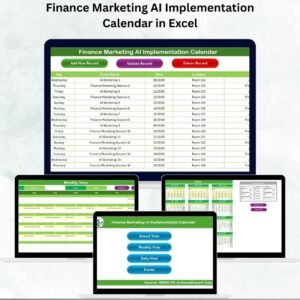
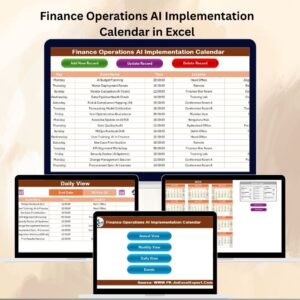
Yes. For example, see the Finance Operations AI Implementation Calendar in Excel and the HR AI Implementation Calendar in Excel.
Related AI Implementation Calendars
- HR AI Implementation Calendar in Excel: the same calendar for HR teams alone
- Finance Operations AI Implementation Calendar in Excel: for Finance and Operations teams
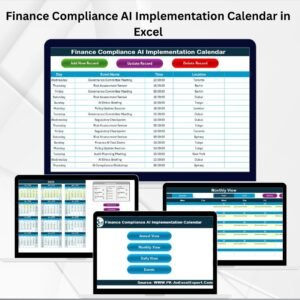
- Finance Compliance AI Implementation Calendar in Excel: for Finance and Compliance teams
- Finance IT AI Implementation Calendar in Excel: for Finance and IT teams
- Printable Holiday and Event Calendar in Excel: a free calendar for general events
Browse all Excel calendar templates.












Reviews
There are no reviews yet.