

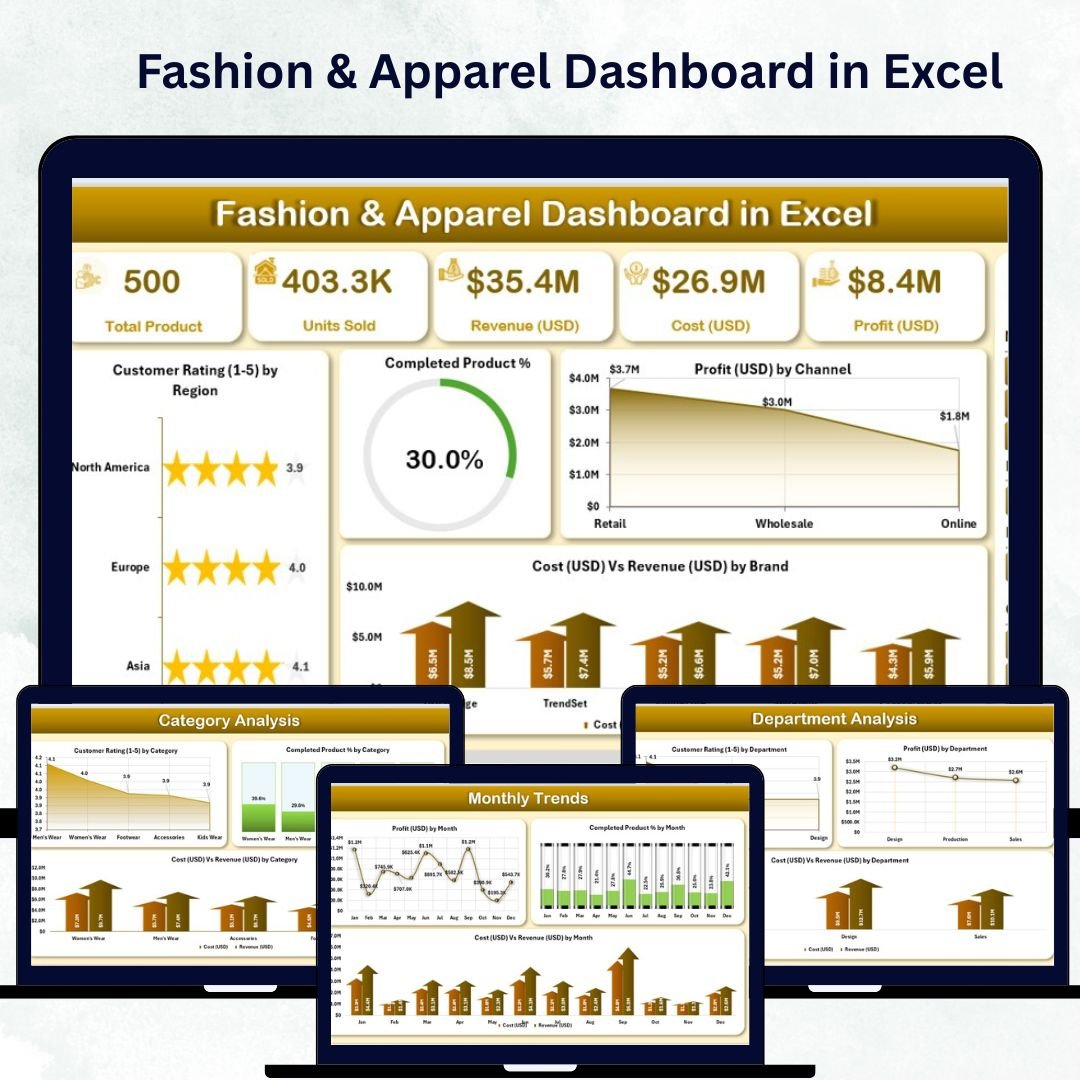

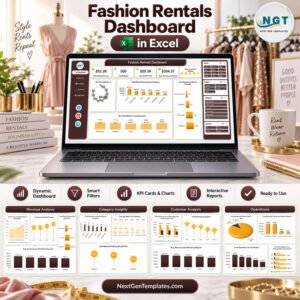
In the fast-moving world of fashion, staying ahead of trends while maintaining profitability is a constant challenge. The Fashion & Apparel Dashboard in Excel brings clarity, speed, and structure to your business decisions. Designed for retailers, designers, and apparel manufacturers, this ready-to-use Excel dashboard consolidates sales, profit, cost, and customer rating data into one visual, interactive file — making performance tracking effortless.
Whether you manage a boutique clothing line or a global brand portfolio, this dashboard delivers an instant overview of your company’s performance across departments, brands, categories, and regions. No coding, no complicated setup — just plug in your data and watch Excel transform it into actionable insights.
⚙️ Key Features of the Fashion & Apparel Dashboard in Excel
The template comes with five analytical pages and two support sheets, each designed to simplify analysis and accelerate decision-making.
🪞 1️⃣ Overview Page – Your Command Center
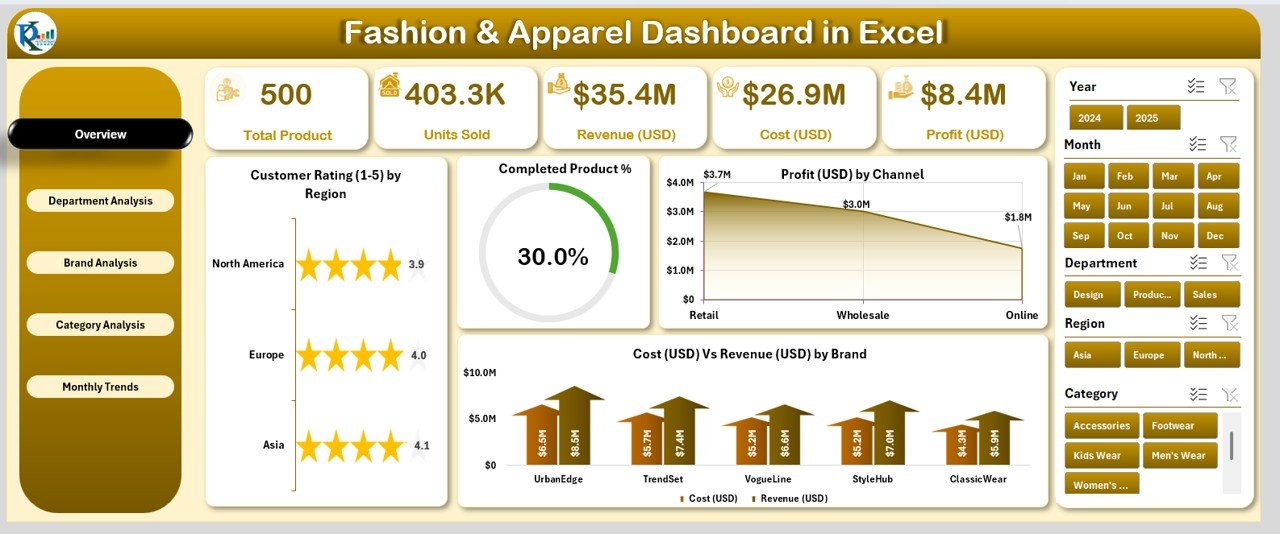
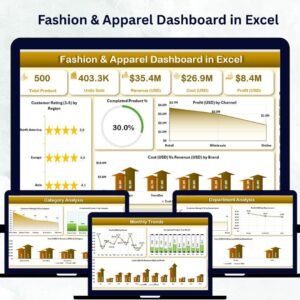
The Overview Page provides a top-level summary of key performance indicators across your entire fashion business.
Highlights:
Page Navigator: Switch seamlessly between pages using the left-side navigation panel.
5 KPI Cards: Track Total Revenue, Total Cost, Profit Margin, Completed Product %, and Average Customer Rating.
Charts Included:
Customer Rating (1–5) by Region
Completed Product %
Profit (USD) by Channel
Cost vs Revenue (USD) by Brand
This page offers an executive snapshot of overall brand performance, ensuring quick and confident decision-making.
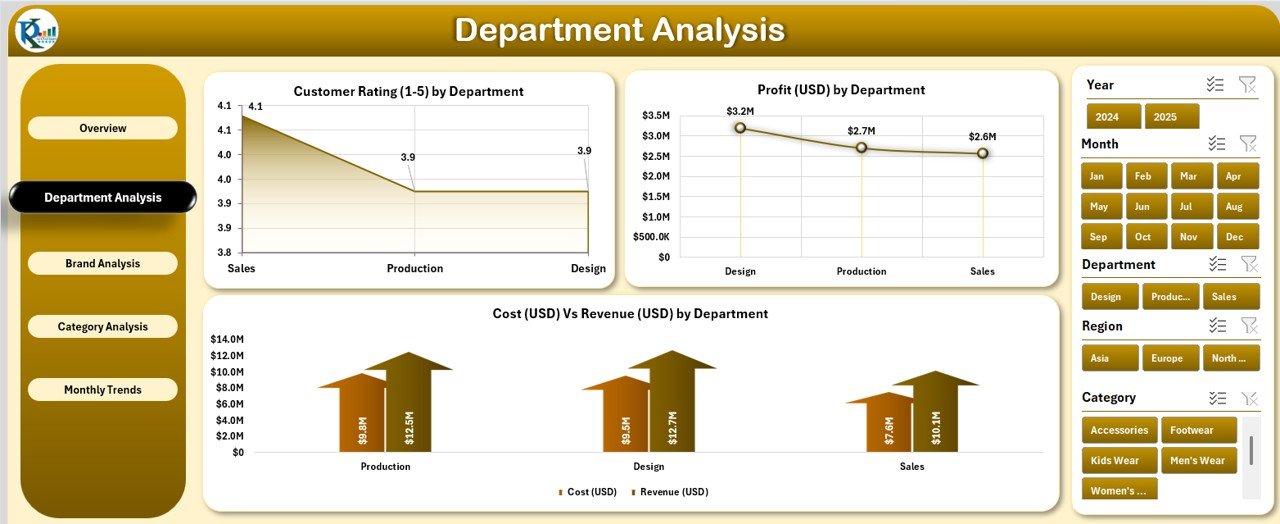
🧥 2️⃣ Department Analysis – Measure Team Performance
Each department — Men’s Wear, Women’s Wear, Footwear, or Accessories — can make or break your business.
Key Visuals:
Customer Rating (1–5) by Department
Profit (USD) by Department
Cost vs Revenue (USD) by Department
This analysis helps department heads focus on profitable product lines and improve efficiency where needed.
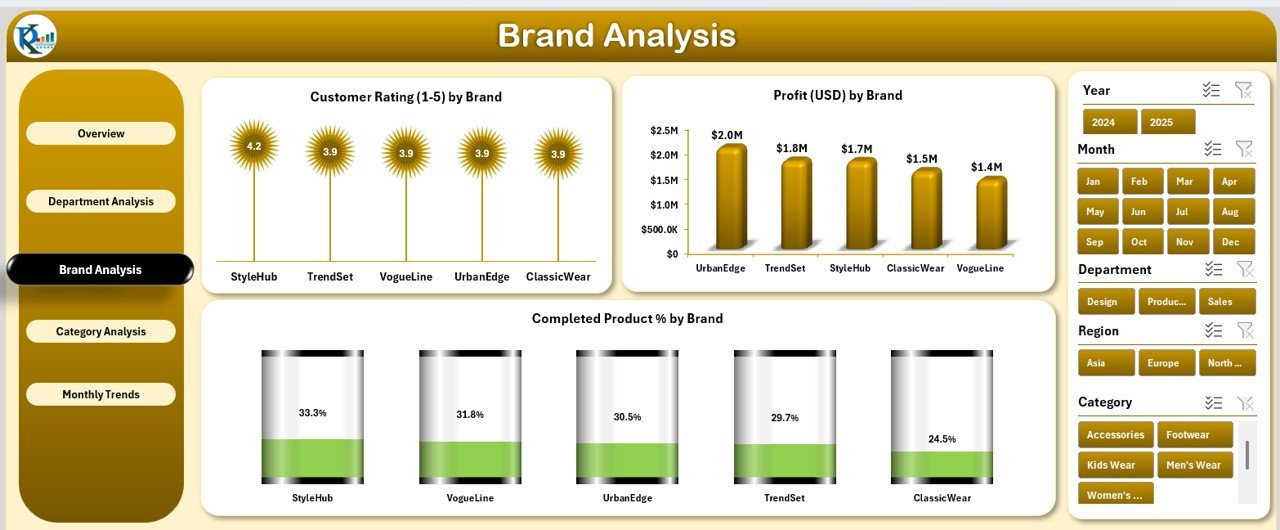
👠 3️⃣ Brand Analysis – Compare Brand Strengths
For multi-brand retailers, the Brand Analysis Page helps you pinpoint your strongest performers.
Charts Displayed:
Customer Rating (1–5) by Brand
Profit (USD) by Brand
Completed Product % by Brand
Quickly see which brands deliver the highest profitability, best quality, and top customer satisfaction.
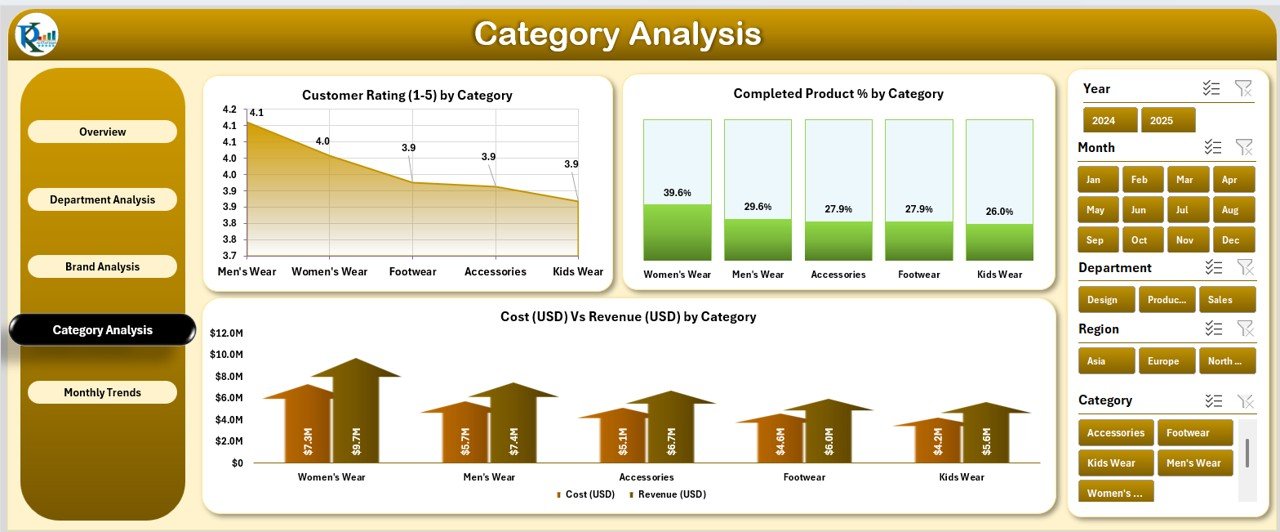
🧢 4️⃣ Category Analysis – Understand Product Trends
Fashion trends shift constantly, and this page helps you stay on top of them.
Charts Featured:
Customer Rating (1–5) by Category
Completed Product % by Category
Cost vs Revenue (USD) by Category
These visuals guide product planning, helping you invest in the right categories for maximum returns.
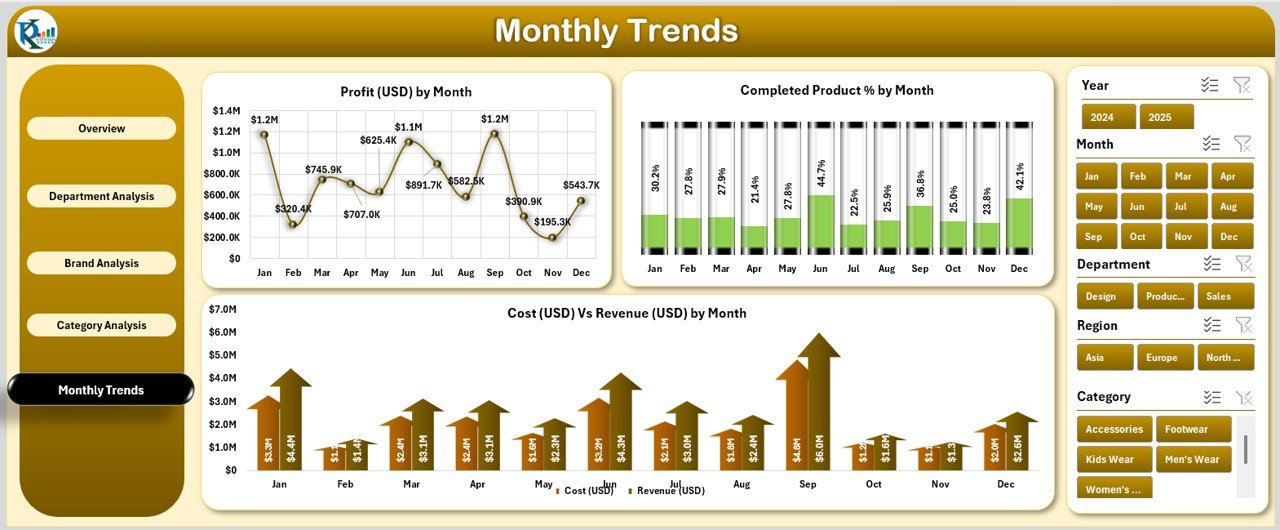
📅 5️⃣ Monthly Trends – Track Performance Over Time
Fashion is seasonal — this page highlights when your sales peak and profits surge.
Charts Included:
Profit (USD) by Month
Completed Product % by Month
Cost vs Revenue (USD) by Month
Plan production, promotions, and inventory around these insights to maximize performance throughout the year.
🧾 Support Sheets – The Dashboard Engine
Data Sheet: Enter raw data for brand, category, region, department, cost, revenue, and ratings.
Support Sheet: Houses slicer lists, reference tables, and formulas for seamless automation.
Every visual updates instantly when you refresh the data — making reporting fast and error-free.
🧭 What’s Inside the Fashion & Apparel Dashboard
✨ Interactive Excel File: Includes five dashboard pages and support sheets.
💡 Pre-Defined KPIs: Revenue, Cost, Profit Margin, Completed Product %, and Ratings.
🎨 Customizable Layout: Adjust visuals, add charts, or apply your brand colors.
📈 Smart Filters: Analyze by brand, category, department, month, or region.
🔄 Automatic Updates: Refresh once to update all visuals instantly.
Everything you need for complete business visibility — no extra tools required.
🪄 How to Use the Fashion & Apparel Dashboard
1️⃣ Open the File – Start from the Overview Page.
2️⃣ Input Data – Fill the Data Sheet with your latest performance numbers.
3️⃣ Refresh Dashboard – Watch visuals and KPIs update automatically.
4️⃣ Navigate Easily – Use the left-side navigator to explore departments, brands, and categories.
5️⃣ Filter with Slicers – View specific months, regions, or products.
Within minutes, you’ll have a complete, interactive performance report ready for review.
👥 Who Can Benefit from This Dashboard
👗 Retailers: Track brand and store-level performance.
🧵 Manufacturers: Monitor production efficiency and profitability.
👚 Designers: Understand customer preferences through ratings.
💼 Business Owners: View total performance from one place.
📊 Analysts: Turn raw data into clear, actionable visuals.
🌟 Advantages of the Fashion & Apparel Dashboard in Excel
✅ Real-Time Insights: Analyze sales, cost, and profitability instantly.
✅ Centralized Data: No need to juggle multiple spreadsheets.
✅ Customizable Design: Modify visuals and metrics as your business grows.
✅ Time-Saving: Automates manual reporting tasks.
✅ Affordable & Accessible: No subscription or advanced software required.
✅ Beautifully Visual: Professional charts and layouts make reporting engaging.
💡 Best Practices
✔️ Keep your data clean and consistent.
✔️ Update inputs weekly or monthly.
✔️ Focus on essential KPIs for clarity.
✔️ Backup files regularly.
✔️ Customize visuals to match your brand.
Follow these practices to ensure long-term, data-driven success in your fashion business.
🔗 Click here to read the Detailed Blog Post
🎥 Visit our YouTube channel for tutorials
🔗 YouTube.com/@PKAnExcelExpert
Watch the step-by-step video tutorial:
Compatibility and Requirements
- Works in Microsoft Excel desktop (Excel 2016 or later, or Microsoft 365).
- The pages filter with slicers. Microsoft explains them in Use slicers to filter data.
Frequently Asked Questions
Which pages are in the fashion dashboard?
Five analysis pages (Overview, Department Analysis, Brand Analysis, Category Analysis and Monthly Trends) plus a Data Sheet and a Support Sheet.
Which KPIs are on the Overview page?
Total Revenue, Total Cost, Profit Margin, Completed Product % and Average Customer Rating.
How do I add my own data?
Fill the Data Sheet with brand, category, region, department, cost, revenue and rating data, then refresh to update every chart.
Can I filter by brand or month?
Yes. Slicers let you view specific months, regions, brands or categories.
Related Fashion and Apparel Templates
- Fashion and Apparel KPI Dashboard in Excel: tracks KPIs against targets
- Fashion and Apparel Dashboard in Power BI: the same topic for Power BI users
- Fashion Retail KPI Dashboard in Excel: KPIs for fashion stores
- Fashion KPI Scorecard in Google Sheets: a scorecard for Google Sheets users
- Retail and Store Analytics Bundle: 8 retail templates in one bundle
Browse all Excel dashboards or the MS Excel templates.

Reviews
There are no reviews yet.