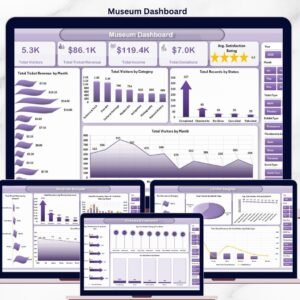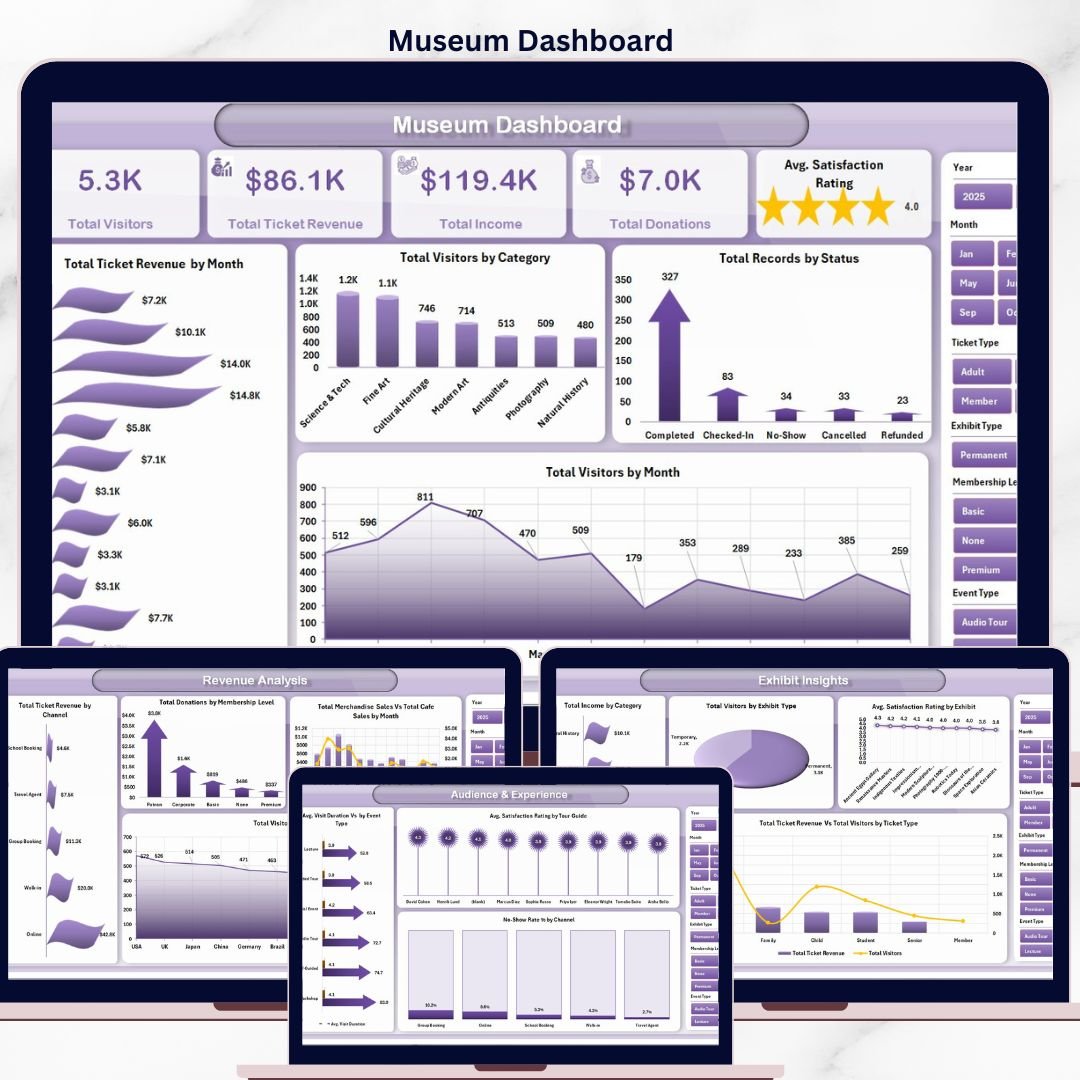


The Museum Dashboard in Excel tracks 5 headline KPIs across 5 interactive analysis pages, with 15 pre-built pivot charts and slicer-driven filters for visitor type, exhibit, channel, and event. Setup takes under 10 minutes — paste your visitor and ticketing data into the Data sheet, click Refresh All, and every KPI card and chart rebuilds automatically through native Excel pivot tables.
🌍 Join 8,400+ teams in 40+ countries using NextGenTemplates to replace paid SaaS tools with one-time-purchase Excel, Google Sheets, Power BI, and HTML templates.
✅ Instant download · One-time payment · No subscription · No per-user fees · Lifetime access
Museum Dashboard in Excel
This Excel Museum Analytics Dashboard is built for museum directors, visitor-experience managers, exhibit curators, and cultural-institution operations leads who need a single workbook to track ticket revenue, visitor flow, exhibit performance, donations, merchandise sales, café receipts, and satisfaction scores — without paying $99 to $499 per month for museum-management SaaS like Tessitura, Altru (Blackbaud), or ACME. Every sheet is unlocked, fully editable, and works on both Windows and Mac without add-ins or macros.
🔑 Key Features of the Museum Dashboard in Excel
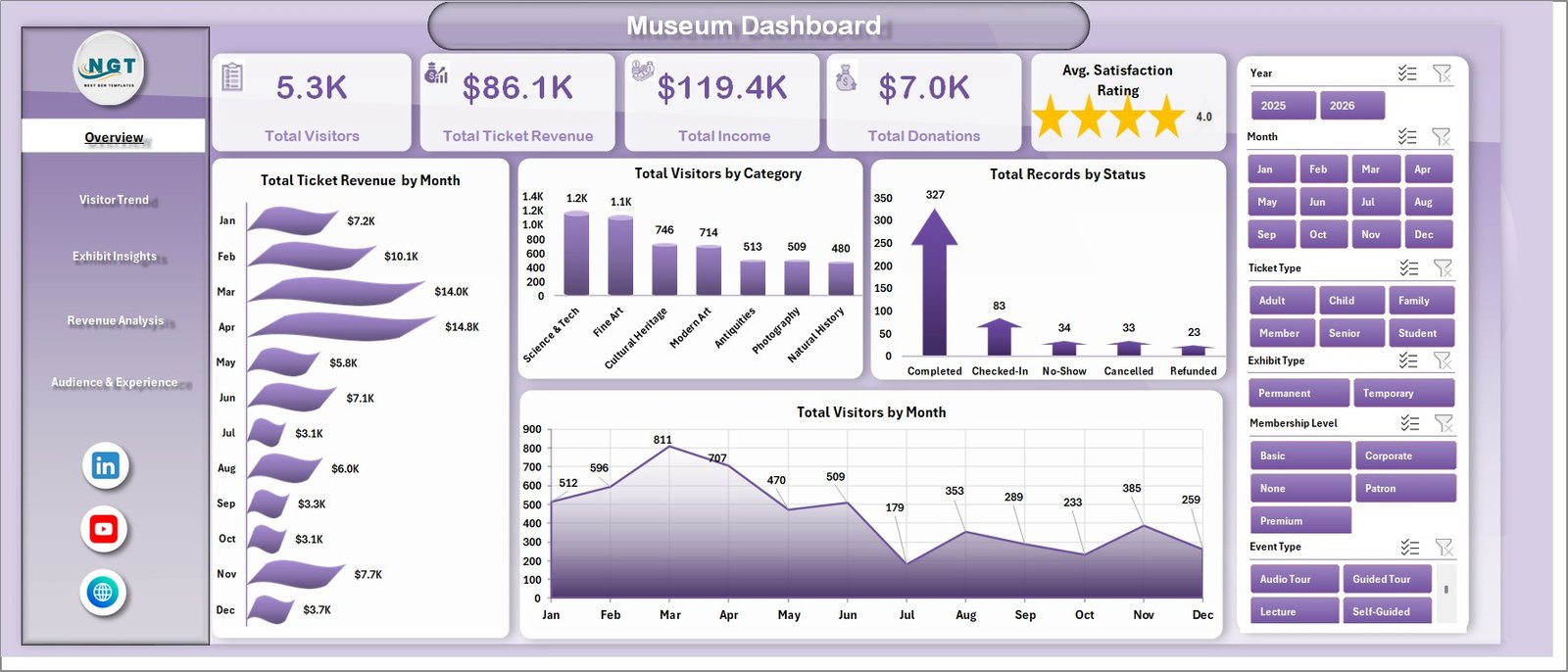
📊 5 KPI cards on the Overview page — Total Visitors, Total Ticket Revenue, Total Income, Total Donations, and Average Satisfaction Rating refresh instantly when you change a slicer or update the data.
🎨 5 interactive pages with 15+ pivot charts — Overview, Visitor Trend, Exhibit Insights, Revenue Analysis, and Audience and Experience pages cover ticket revenue patterns, visitor segmentation, exhibit-level satisfaction, channel performance, and no-show rates across the entire museum operation.
🎟️ Slicer-driven filtering — Drill into specific exhibit types, visitor categories, ticket types, channels, and date ranges to see segmented performance without rebuilding any reports.
💰 Multi-revenue tracking in one view — The dashboard separately tracks Ticket Revenue, Donations, Merchandise Sales, and Café Sales, then rolls them up into Total Income — useful for grant reporting and board reviews.
🔄 Refresh-All workflow, no formulas to break — Replace the sample bookings on the Data sheet with your own POS or ticketing-system export, click Data → Refresh All in the Excel ribbon, and the entire dashboard rebuilds in seconds.
🏛️ Designed for museums of any size — Whether you run a 5,000-visitor regional history museum, a mid-size science centre, or a national art institution, the template scales without performance issues up to 50,000 visitor rows.
🖨️ Print-ready and presentation-friendly — Each page is sized for A4/Letter landscape and exports cleanly to PDF for monthly board reports, donor updates, and trustee meetings.
📦 What’s Inside the Museum Dashboard in Excel
Page 1 — Overview Page
The Overview page presents the museum’s full performance picture in a single screen. Five KPI cards at the top display Total Visitors, Total Ticket Revenue, Total Income, Total Donations, and Average Satisfaction Rating. Four charts beneath them visualize Total Ticket Revenue by Month (the year’s revenue cycle including peak holiday and school-trip seasons), Total Visitors by Category (adults, students, seniors, families, members), Total Records by Status (attended, no-show, cancelled), and Total Visitors by Month (seasonality and footfall trends). Slicers above the cards let you filter the entire page by visitor type, exhibit, channel, or status.
Visitor Trend
Page 2 — Visitor Trend
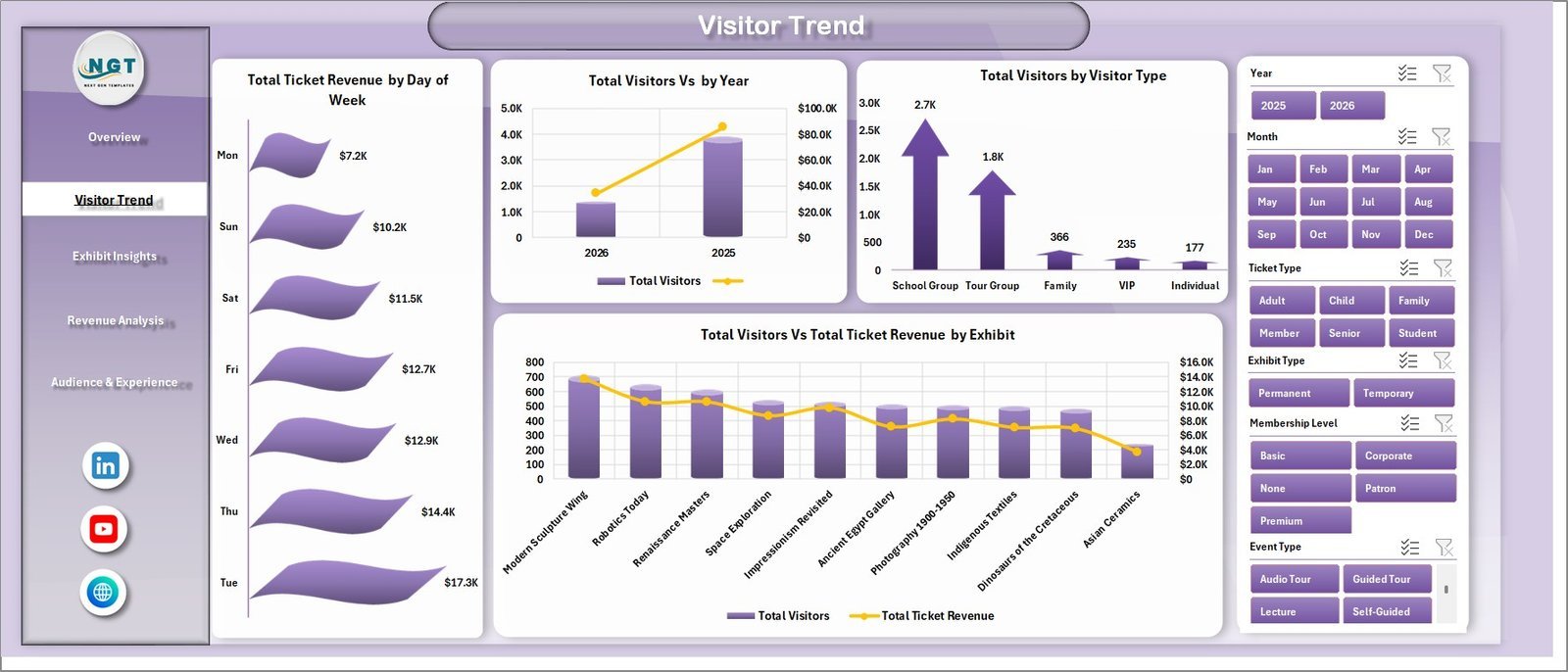
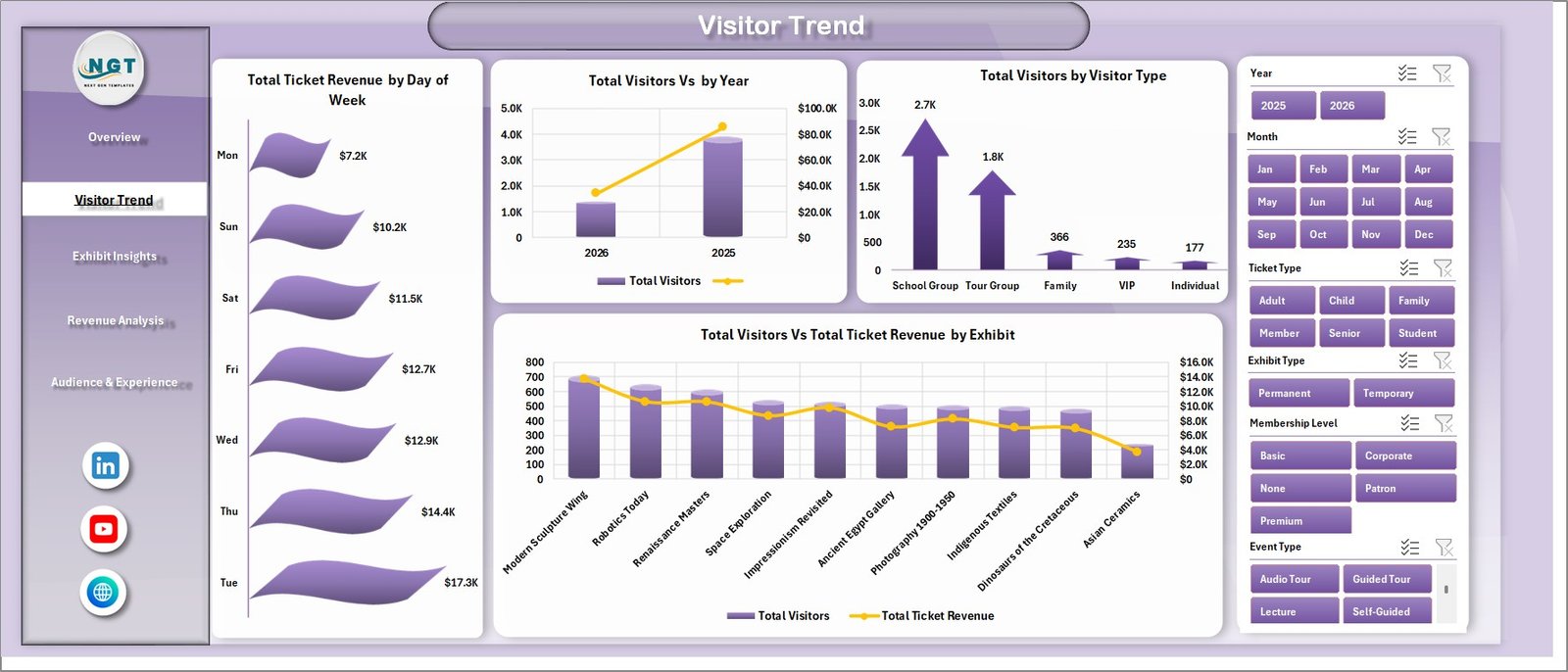
The Visitor Trend page focuses on attendance momentum and revenue patterns. It shows Total Ticket Revenue by Day of Week (weekday vs weekend demand), Total Visitors by Year (multi-year growth), Total Visitors by Visitor Type (adult, student, senior, member, school-group mix), and Total Visitors vs Total Ticket Revenue by Exhibit (which exhibits drive footfall versus which drive revenue). This page is ideal for marketing planning and capacity forecasting.
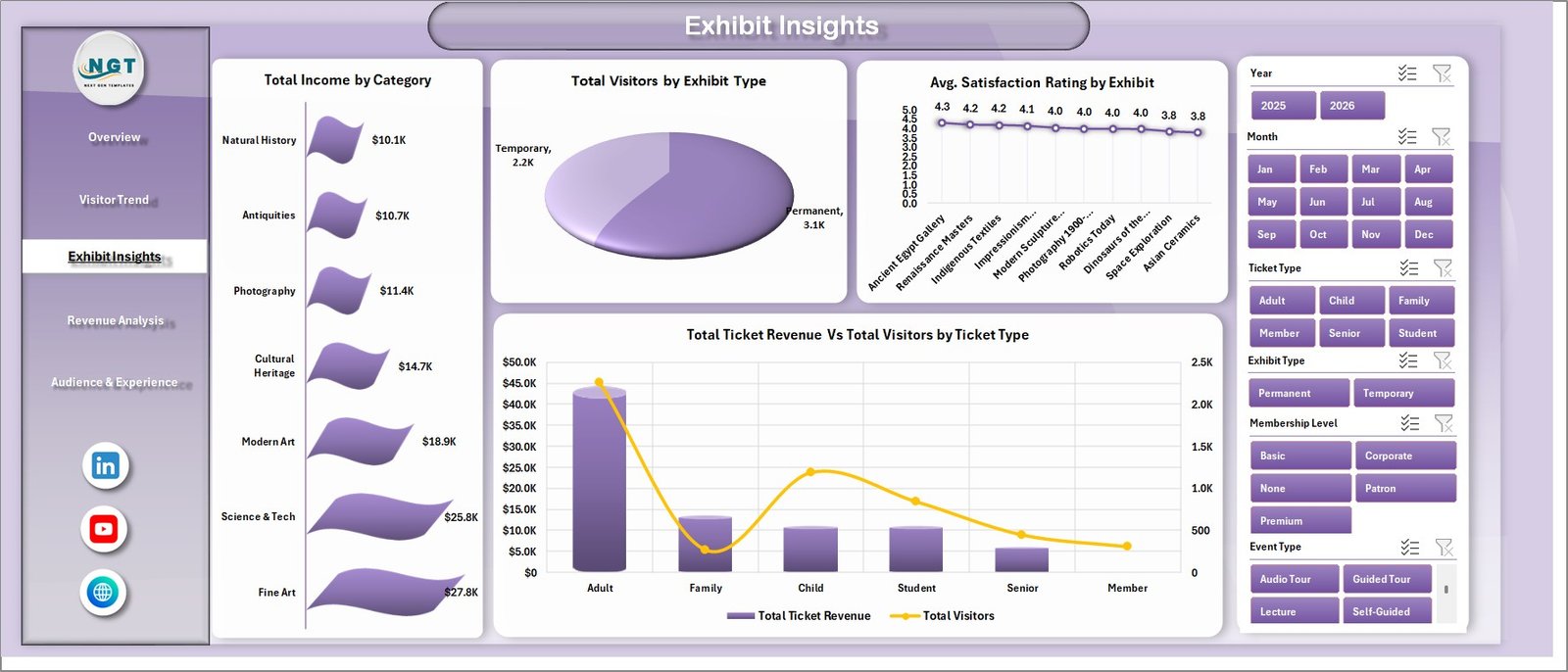
Exhibit Insights
Page 3 — Exhibit Insights
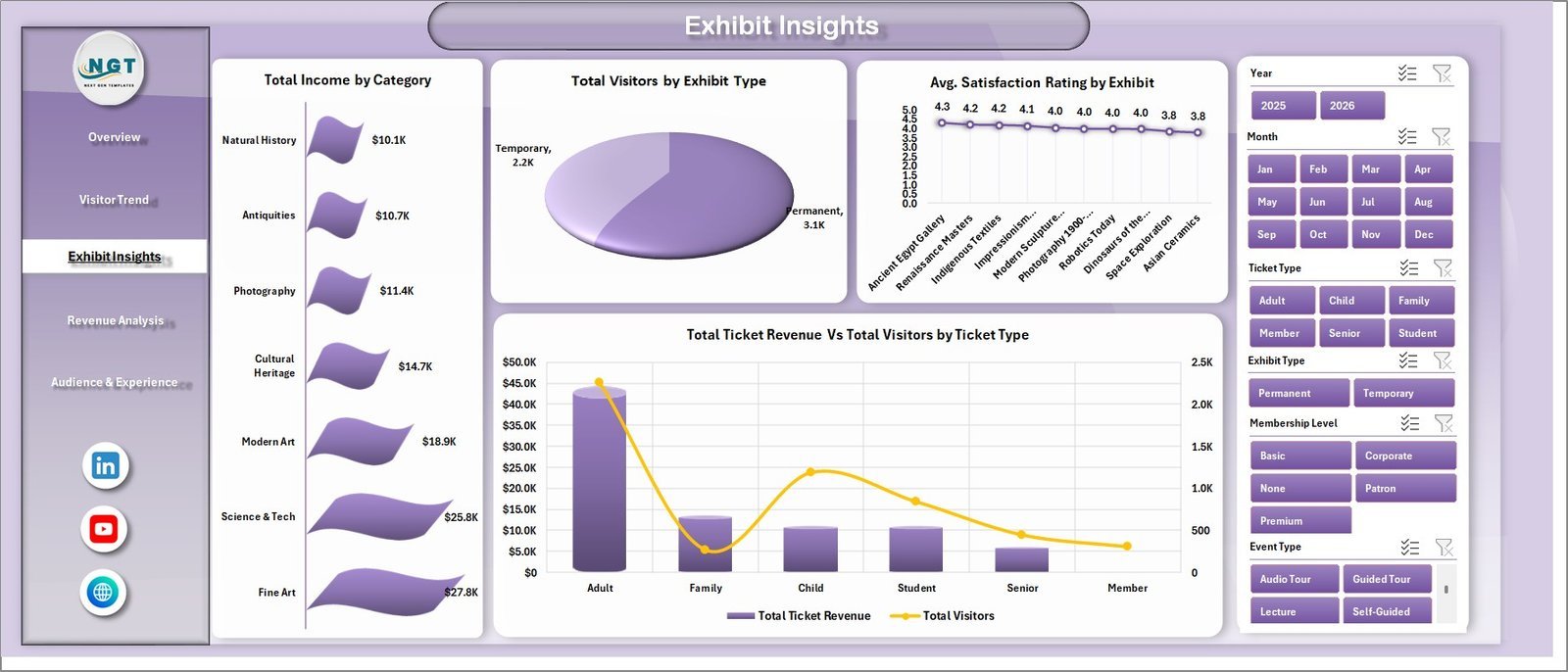
The Exhibit Insights page breaks down performance by exhibit and ticket category. Charts include Total Income by Category, Total Visitors by Exhibit Type (permanent, temporary, special, travelling), Average Satisfaction Rating by Exhibit, and Total Ticket Revenue vs Total Visitors by Ticket Type. Use this page to identify which exhibits deliver the highest visitor satisfaction and revenue per visitor — and which deserve extended runs or replacement.
Revenue Analysis
Page 4 — Revenue Analysis
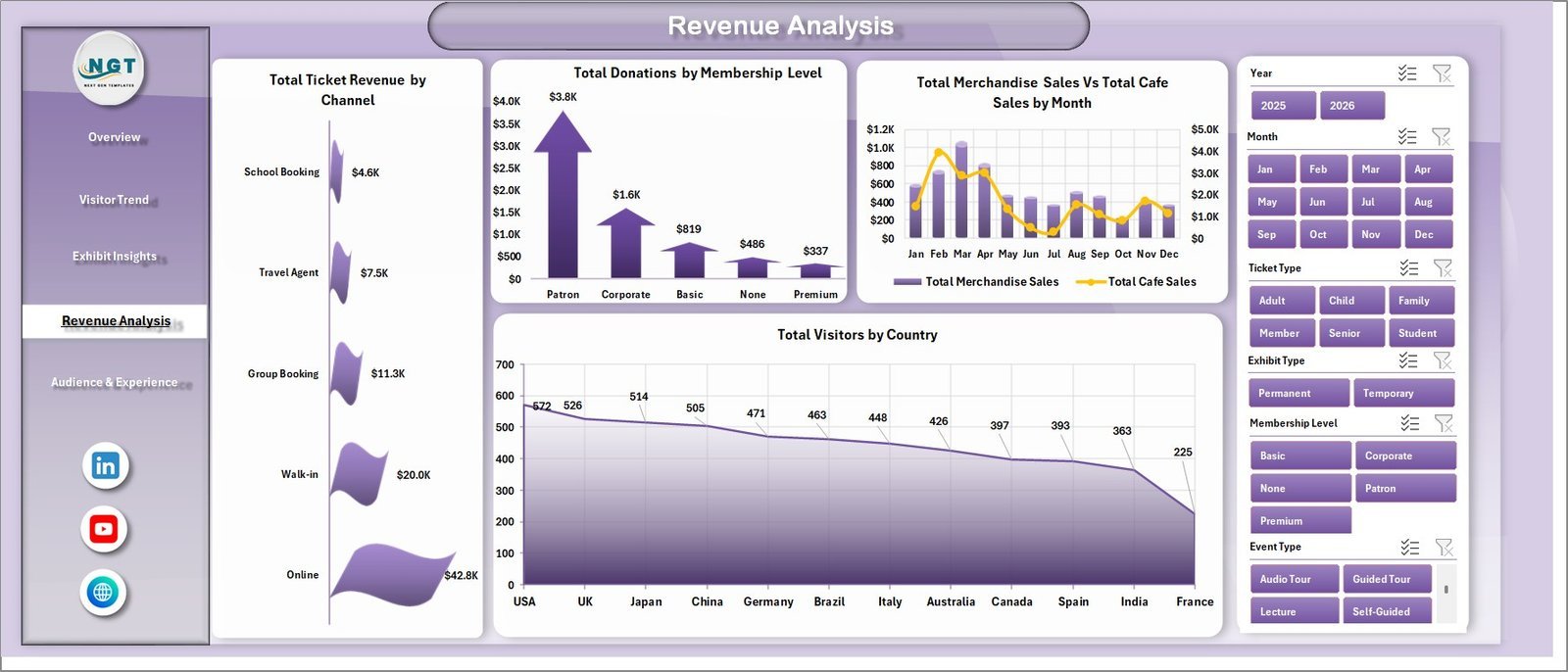
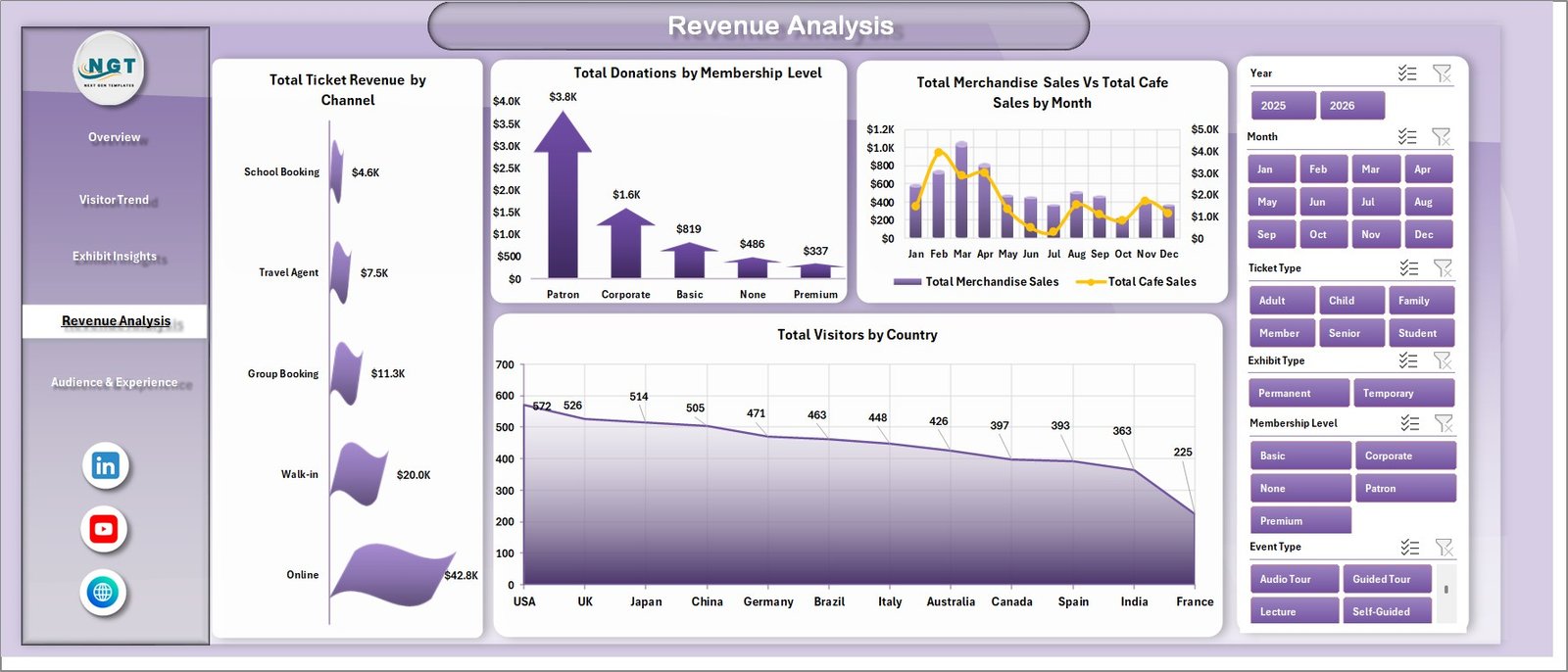
The Revenue Analysis page maps the museum’s entire income stream. Charts cover Total Ticket Revenue by Channel (online, walk-in, group bookings, partner sites), Total Donations by Membership Level, Total Merchandise Sales vs Total Café Sales by Month, and Total Visitors by Country (tourist demographics). Compare your direct online channel against third-party booking platforms, see which membership tiers drive the most philanthropic revenue, and track ancillary income side-by-side with admissions.
Audience and Experience
Page 5 — Audience and Experience
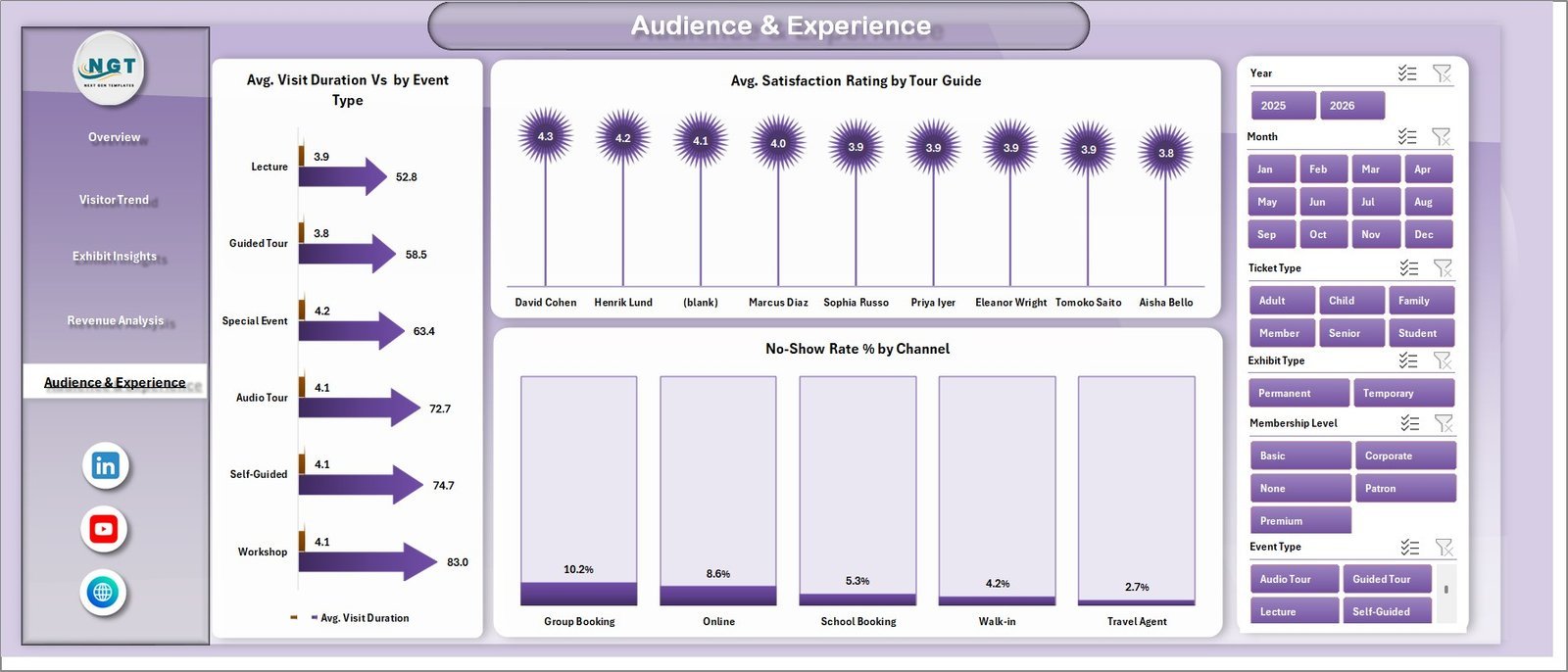
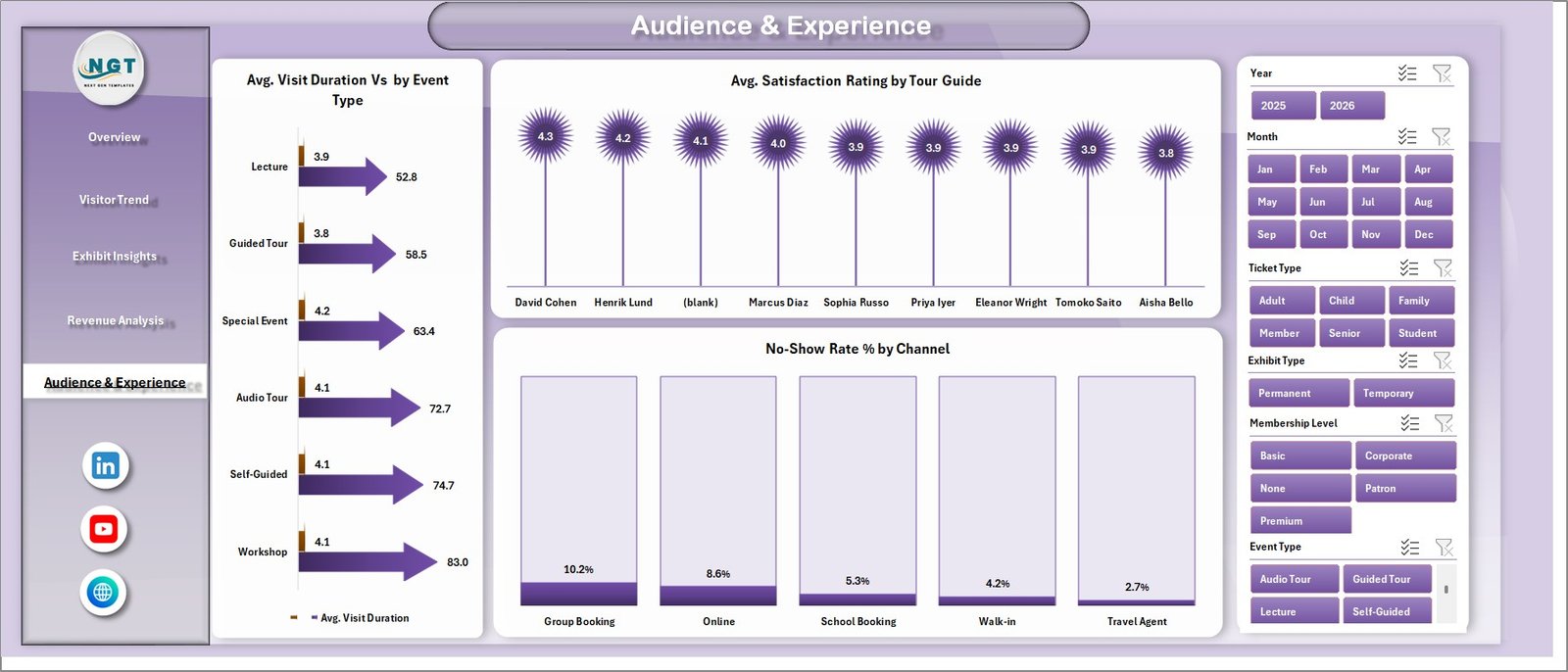
The Audience and Experience page profiles visitor behaviour and satisfaction. Charts include Average Visit Duration by Event Type, Average Satisfaction Rating by Tour Guide, and No-Show Rate Percent by Channel. Spot which guides consistently exceed satisfaction targets, which booking channels have the worst attendance reliability, and how event types differ in dwell time — useful inputs for staffing, training, and channel-mix decisions.

Data Sheet tab
Data Sheet Tab
This is the Data sheet — the only tab you need to edit. Add or paste your visitor and transaction records in the same column format (Date, Visitor Type, Exhibit, Ticket Type, Channel, Status, Ticket Revenue, Donations, Merchandise Sales, Café Sales, Satisfaction Rating, Tour Guide, Country, Event Type). All charts and KPIs reference this sheet through pivot tables on the Support sheet.

Support sheet tab
Support Sheet
The Support sheet contains all the pivot tables that drive the dashboard charts dynamically. After updating data on the Data sheet, go to the Data tab in the Excel Ribbon and click Refresh All — every pivot and every chart refreshes automatically. You can keep this sheet hidden in production use.
📊 Museum Dashboard in Excel vs. Google Sheets vs. Tessitura / Altru SaaS — Where This Fits
| Feature | Museum Dashboard in Excel | Google Sheets equivalent | Tessitura / Altru / ACME SaaS |
|---|---|---|---|
| Cost | $17.99 one-time | $0 (DIY, no template) | $99 – $499 / month + setup |
| Platform | Microsoft Excel (Win + Mac) | Google Sheets (browser) | Cloud SaaS (browser + mobile) |
| Setup time | Under 10 minutes | 3-5 hours to recreate manually | 2-8 weeks onboarding |
| Slicer filtering (Visitor, Exhibit, Channel, Status) | ✅ Native Excel slicers | Filter Views only | ✅ Built-in filters |
| Works offline | ✅ Yes | ❌ Internet required | ❌ Cloud-only |
| Customizable charts and KPIs | ✅ Fully editable | ✅ Editable | ❌ Vendor-controlled |
| Year-1 cost at 5 users | $17.99 total | $0 | $1,188 – $5,988 |
| Lifetime ownership | ✅ Yes | ✅ Yes | ❌ Subscription only |
| Built-in CRM and donor records | ❌ Analytics layer only | ❌ Manual | ✅ Full CRM |
For museums and cultural institutions that want fast, customizable performance visibility without paying $1,200+/year for SaaS, the Museum Dashboard in Excel sits in the sweet spot.
👥 Who This Template Is For — and Who It’s Not For
✅ This template is built for:
- Museum directors and operations managers preparing monthly board and trustee reports
- Visitor-experience managers tracking satisfaction by exhibit and tour guide
- Curators evaluating exhibit performance before extending or replacing temporary shows
- Marketing leads at cultural institutions analysing channel mix and tourist demographics
- Membership and development officers segmenting donations by membership level
- Independent science centres, art galleries, history museums, and heritage sites with 5,000 – 500,000 annual visitors
❌ This template is NOT for:
- Large national museums needing real-time live-feed integration with their CRM and ticketing
- Teams requiring built-in donor-management or fundraising-CRM features (use Altru or Salesforce NPSP)
- Operators wanting mobile-first ticket-scanning apps for entry staff (use ACME or Tessitura)
- Institutions needing automated email-marketing workflows triggered by visit data
⚙️ How to Use the Museum Dashboard in Excel
- Download and unzip the Museum Dashboard in Excel file from your purchase confirmation email.
- Open in Microsoft Excel on Windows or Mac (works in Excel 2016+, 365, and Excel for the web with minor chart fidelity loss).
- Go to the Data sheet and replace the sample visitor records with your own export from your ticketing system or POS, keeping the same column structure.
- Click Data → Refresh All in the Excel ribbon to rebuild every pivot table and chart with your live data.
- Use the slicers on each page to filter by visitor type, exhibit, ticket type, channel, or event type to instantly see segmented performance.
- Export to PDF via File → Export for monthly board reports, donor updates, or grant submissions.
💼 Real-World Use Cases
Marina is the operations director at a 60,000-visitor regional history museum. Each month she pastes her ticketing-system export and gift-shop POS data into the Data sheet, refreshes, and exports the Overview and Revenue Analysis pages to PDF for her board pack. She used to wrestle with three separate Power BI reports built by an outside consultant — now she owns the whole workflow in one Excel file and a 5-minute refresh.
Daniel curates temporary exhibits at a mid-size science centre. He uses the Exhibit Insights page to compare visitor counts and satisfaction ratings across permanent, temporary, and travelling exhibits. The data justified extending one temporary show by 6 weeks and helped him negotiate a higher fee for the next travelling exhibition booking — both decisions paid for the template thousands of times over.
Priya leads marketing and partnerships at an art museum group with three locations. She duplicates the Museum Dashboard for each site, then uses the Revenue Analysis page to compare channel-mix performance — particularly to identify how much commission third-party platforms cost compared to direct online sales. The Total Visitors by Country chart also gives her concrete data when pitching tourist-board partnerships.
❓ Frequently Asked Questions
What KPIs does the Museum Dashboard in Excel track?
The Museum Dashboard in Excel tracks 5 headline KPIs — Total Visitors, Total Ticket Revenue, Total Income, Total Donations, and Average Satisfaction Rating — plus 15+ supporting charts across Visitor Trend, Exhibit Insights, Revenue Analysis, and Audience and Experience pages. All KPIs update automatically when you replace the sample data with your own.
How does the Museum Dashboard in Excel compare to Tessitura or Altru?
Tessitura and Altru are full museum-management CRMs costing $1,000 – $5,000+ per year with built-in ticketing, membership, and fundraising modules. The Museum Dashboard in Excel is a $17.99 one-time analytics layer — ideal for institutions that already handle ticketing elsewhere and just need a customizable performance dashboard without a multi-year subscription.
How long does setup take?
Setup takes under 10 minutes for most museums. Open the file, paste your visitor and transaction export into the Data sheet matching the column structure, click Data → Refresh All, and the dashboard is live. No formulas to write, no macros to enable, no add-ins to install.
Will the Museum Dashboard in Excel work on Mac?
Yes — the Museum Dashboard in Excel works on both Windows and Mac in Excel 2016, Excel 2019, Excel 2021, and Microsoft 365. Slicers, pivot tables, and pivot charts all function natively. Excel for the web supports it with minor chart-styling differences. Microsoft’s official PivotTable documentation covers the underlying technology.
Can I add my own KPIs and charts?
Yes, the Museum Dashboard in Excel is fully unlocked and editable. You can add new KPI cards, modify the slicer fields, create additional pivot charts on the Support sheet, or restyle colors to match your museum’s brand. Any new fields you add to the Data sheet automatically become available in the pivot tables after a refresh.
Does the template include sample museum data?
Yes, the Museum Dashboard in Excel ships with sample visitor data covering ticket revenue, exhibit visits, donations, merchandise sales, café sales, satisfaction ratings, tour guides, channels, and 12 months of activity — so you can see the dashboard fully populated before plugging in your own data.
Is the Museum Dashboard in Excel a one-time purchase?
Yes — $17.99 one-time, no subscription, no per-user fees, no recurring charges. You receive instant download access, lifetime use rights, and free updates to the same template version.
👤 About the Author
Built by PK — Microsoft Certified Professional with 15+ years of Excel, Google Sheets, and Power BI experience. Founder of NextGenTemplates, reaching 300K+ subscribers across YouTube channels (@PK-AnExcelExpert, @NextGenTemplates, @NeoTechNavigators). Every template is hand-built and tested before release.
🔗 Explore Related Templates
If the Museum Dashboard in Excel fits your workflow, you may also like these culture-and-heritage templates from our Excel Dashboard Templates library:
- Museums & Cultural Centres Dashboard in Excel — broader cultural-centre KPI coverage with similar visitor-and-revenue logic.
- Museum Operations KPI Dashboard in Excel — purpose-built KPI scorecard view for operations leads.
- Heritage Tourism KPI Dashboard in Excel — adjacent template for heritage sites and tourist boards.
- Ticketing and Live Events Dashboard in Excel — complements the Museum Dashboard for institutions running ticketed events and exhibits.
- Also available as: Need the same data in another platform? Browse our Power BI Dashboards and Google Sheets Dashboards.
📖 Click here to read the Detailed Blog Post
🎥 Visit our YouTube channel for step-by-step video tutorials
👉 YouTube.com/@NextGenTemplates
📅 Last updated: May 2026
Watch the step-by-step video tutorial: