

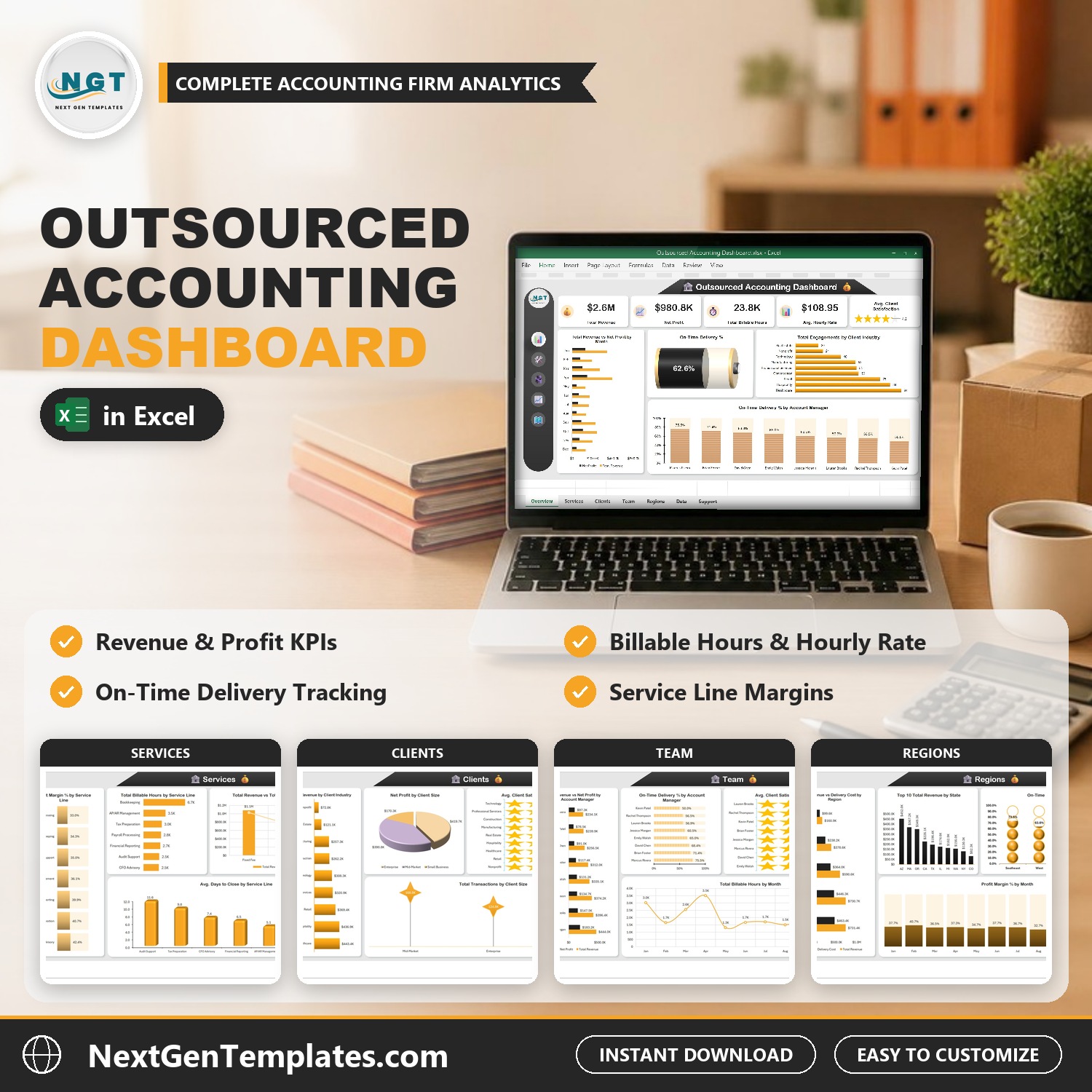

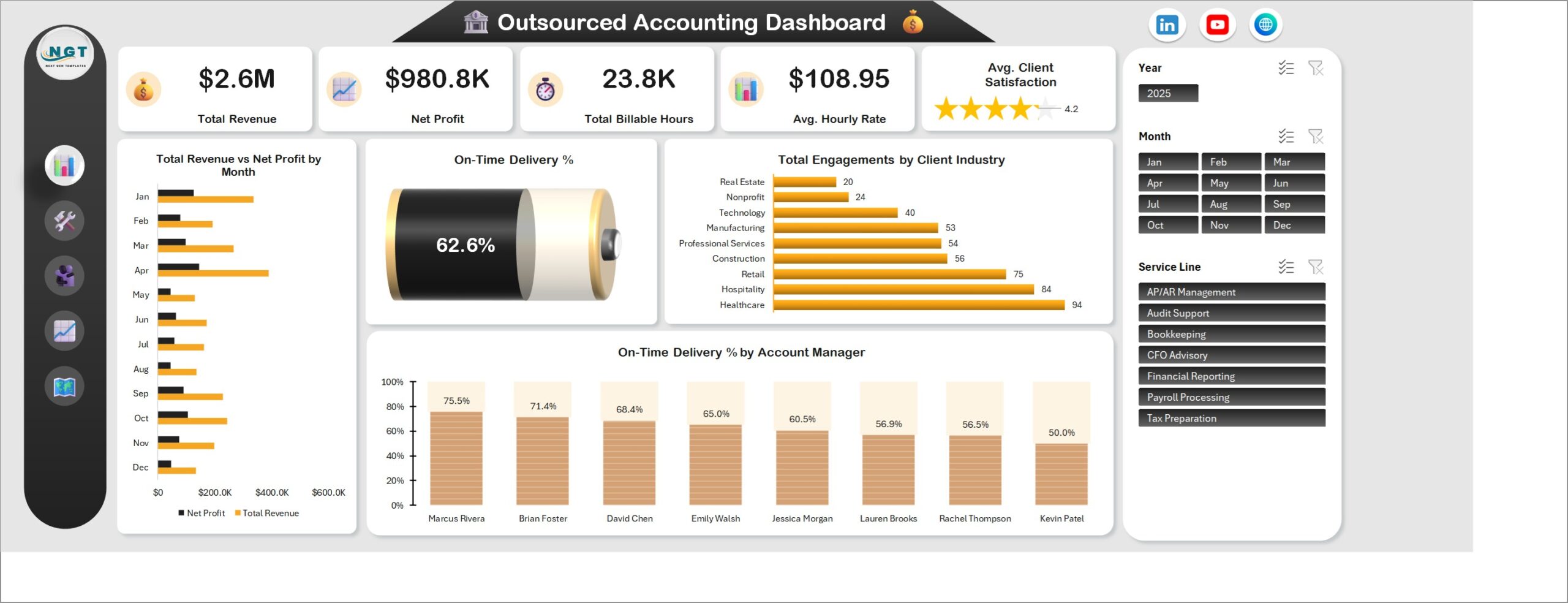
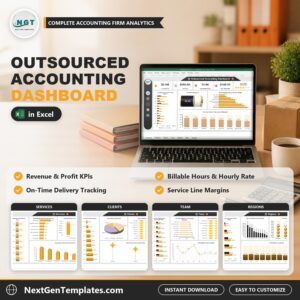
Outsourced Accounting Dashboard in Excel turns 500 sample client engagements into five interactive pages that show where an outsourced accounting firm earns its revenue and profit: by service line, by client, by account manager and by region. The overview reports $2.6M total revenue, $980.8K net profit, 23.8K billable hours, a $108.95 average hourly rate, a 4.2 star average client satisfaction score and 62.6% on-time delivery. All figures are fictional sample data. Replace them with your own engagements and click Refresh All to update every chart.
Watch the Outsourced Accounting Dashboard in Excel walkthrough
Key Features of Outsourced Accounting Dashboard in Excel
- Five analysis pages: Overview, Services, Clients, Team and Regions, linked by an icon menu on the left of every page.
- Six headline numbers: Total Revenue, Net Profit, Total Billable Hours, Avg. Hourly Rate, Avg. Client Satisfaction (star card) and On-Time Delivery % (battery card).
- Three slicers: Year, Month and Service Line sit on every page and filter all five pages together.
- Seven service lines: AP/AR Management, Audit Support, Bookkeeping, CFO Advisory, Financial Reporting, Payroll Processing and Tax Preparation.
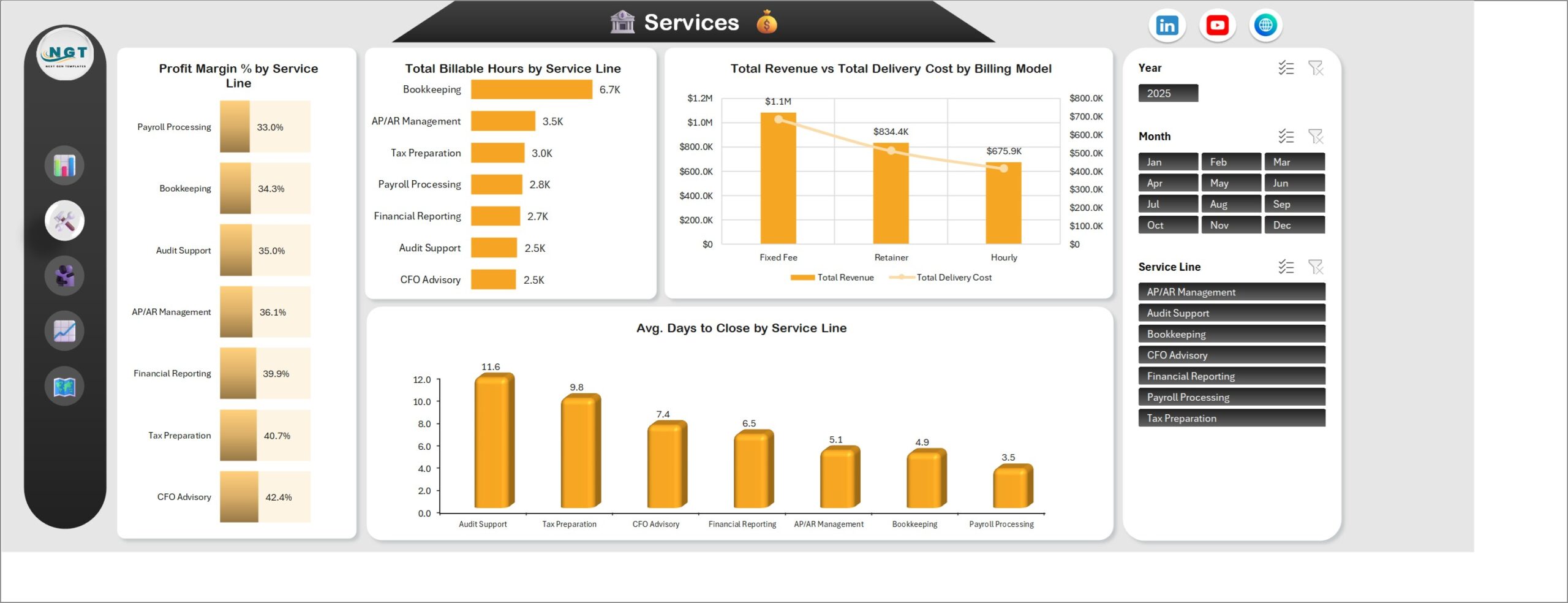
- Service view: profit margin %, billable hours and average days to close by service line, plus revenue vs delivery cost by billing model (Fixed Fee, Retainer and Hourly).
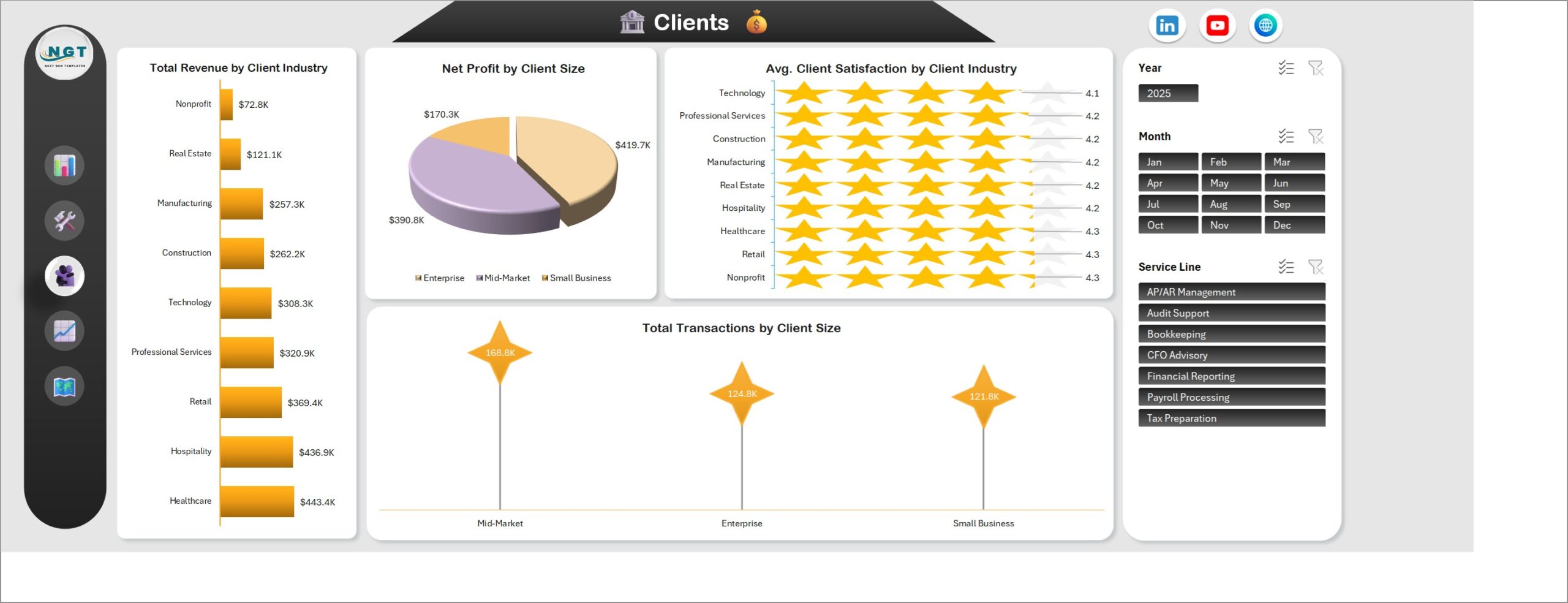
- Client view: revenue and satisfaction by client industry, net profit and transactions processed by client size.
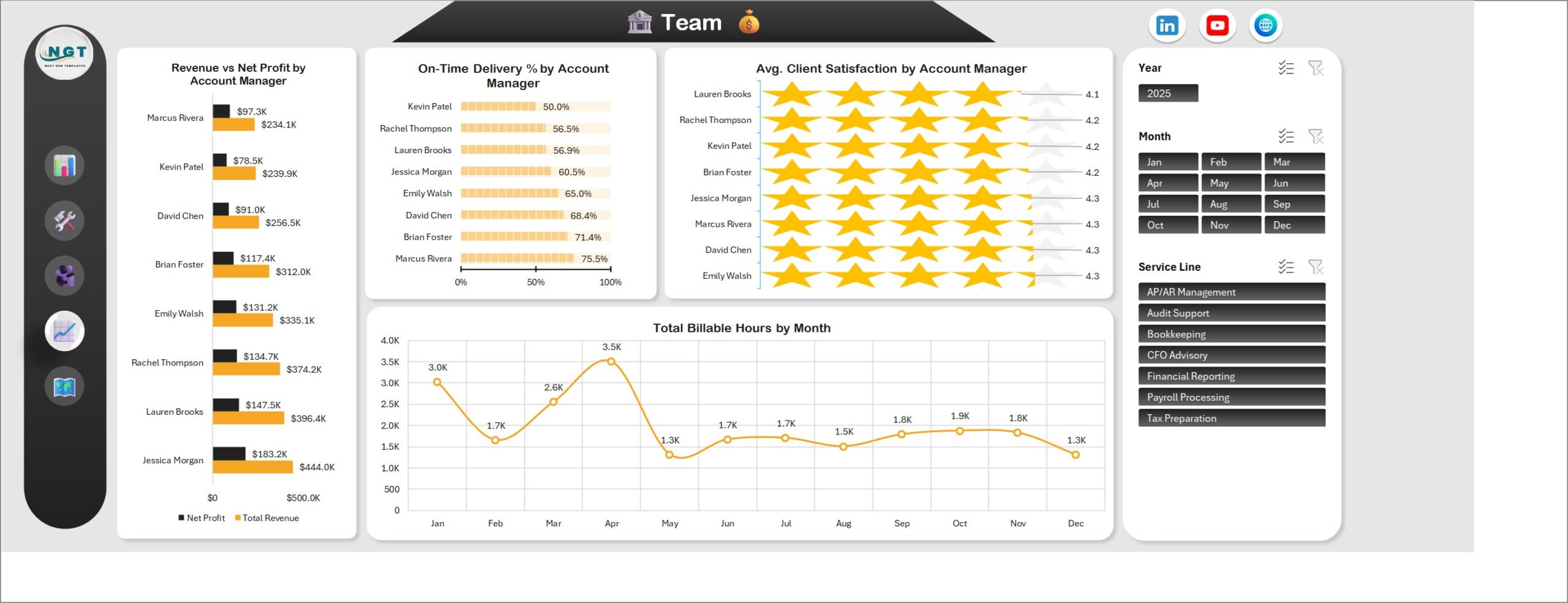
- Team view: revenue, net profit, on-time delivery % and client satisfaction for eight account managers, with billable hours by month.
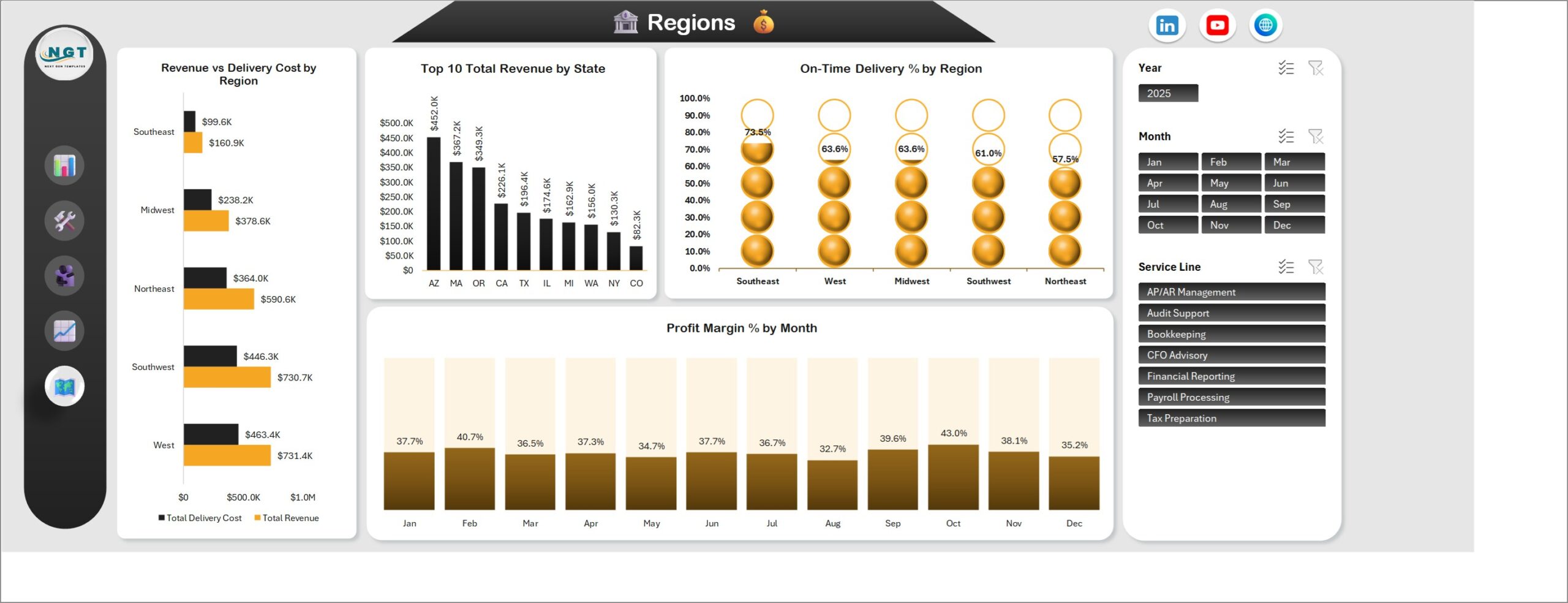
- Regional view: revenue vs delivery cost by region, the top 10 states by revenue, on-time delivery % by region and profit margin % by month.
- Plain .xlsx: built with pivot tables, pivot charts and slicers. No macros and no add-ins.
- Customer ZIP: includes the Excel workbook and the Excel Dashboard User Manual PDF.
What’s Inside This Excel Dashboard Template
Overview
The landing page shows the six KPI cards with Total Revenue vs Net Profit by Month, an On-Time Delivery % battery, Total Engagements by Client Industry and On-Time Delivery % by Account Manager. A firm owner can read the health of the whole practice here in a minute.
Services
Compare Profit Margin % by Service Line, Total Billable Hours by Service Line, Total Revenue vs Total Delivery Cost by Billing Model and Avg. Days to Close by Service Line. In the sample data CFO Advisory carries the highest margin and Bookkeeping uses the most hours, which is exactly the trade-off an outsourced bookkeeping and advisory firm needs to see.
Clients
See Total Revenue by Client Industry, Net Profit by Client Size, Avg. Client Satisfaction by Client Industry and Total Transactions by Client Size across nine industries, from Healthcare and Hospitality to Nonprofit, and three client sizes: Small Business, Mid-Market and Enterprise.
Team
Review Revenue vs Net Profit by Account Manager, On-Time Delivery % by Account Manager, Avg. Client Satisfaction by Account Manager and Total Billable Hours by Month. It shows who brings in the most revenue and who delivers on time, side by side.
Regions
Track Revenue vs Delivery Cost by Region, Top 10 Total Revenue by State, On-Time Delivery % by Region and Profit Margin % by Month for the Northeast, Southeast, Midwest, Southwest and West.
Excel Dashboard vs. Practice Software vs. Power BI: Where This Fits
| Consideration | This Excel dashboard | Accounting practice management software | Power BI report |
|---|---|---|---|
| Cost model | One-time template | Usually a monthly subscription per user | Desktop file plus licensing where needed |
| Best for | Reviewing revenue, profit, hours and delivery from your own engagement data | Time tracking, workflow, client portals and billing | Larger connected data models |
| Works offline in desktop Excel | Yes | Varies | Desktop analysis |
| Interactive filters | Three Excel slicers | Vendor-dependent | Report slicers |
| Live connection to accounting software | Not included | Often built in | Needs set-up |
| Invoicing and payments | Not included | Included | Not included |
Who This Template Is For, and Who It’s Not For
It suits owners and partners of firms that sell outsourced accounting services, outsourced bookkeeping, payroll or fractional CFO work, plus operations leads and consultants who already export engagement data from a time tracker, an accounting practice management tool or a spreadsheet. It is an analysis dashboard: you add your own data and refresh. It does not connect to your accounting software, and it does not send invoices or take payments.
How to Use This Outsourced Accounting Dashboard
- Download and unzip the package.
- Open the workbook in desktop Microsoft Excel and keep an untouched backup of the sample file.
- Paste your own engagements into the Data sheet using the existing columns.
- Click Data, then Refresh All, so the pivot tables and charts update.
- Use the Year, Month and Service Line slicers to filter every page.
- Check totals against your source records before you use the results in a decision.
Real-World Use Cases
A firm owner can see which service lines earn the best margin and which ones only add hours. An operations manager can follow on-time delivery % by account manager and region and find where deadlines slip. A client success lead can compare satisfaction scores across industries. A fractional CFO can use the same layout to prepare a monthly review for a partner meeting.
A monthly review can start on Overview, then move through Services, Clients, Team and Regions to find the drivers. Note the active slicer selections whenever you share a screenshot, so readers know which subset produced the totals. Keep service line, client and manager names consistent in the Data sheet before refreshing, otherwise one name can split into several chart entries.
Frequently Asked Questions
Can I use this Excel dashboard template with my own firm’s data?
Yes. Paste your engagements into the Data sheet using the existing columns, click Refresh All and every page updates.
Does it need macros or add-ins?
No. It is a standard .xlsx file built with pivot tables, pivot charts and slicers. Use it in desktop Excel.
Which slicers are included?
Year, Month and Service Line. They are connected to all five pages.
Does it connect to QuickBooks, Xero or my practice software?
No. It analyses engagement data you add. It does not connect to accounting or practice management software, and it does not create invoices or take payments.
Is the sample data real?
No. The 500 engagements, client names, account managers and figures are fictional and exist only to show how the dashboard works.
Is a user manual included?
Yes. The ZIP contains the Excel workbook and the Excel Dashboard User Manual PDF.
Is there a subscription?
No. It is a one-time payment.
About the Author
Built by PK, Microsoft Certified Professional with 15+ years of Excel, Google Sheets, and Power BI experience. Founder of NextGenTemplates, reaching 300K+ subscribers across YouTube channels. Every template is hand-built and tested before release.
Explore Related Templates
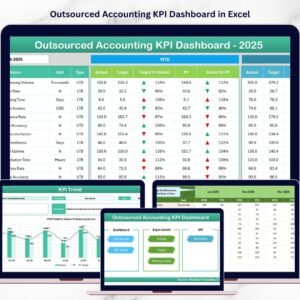
For a month-by-month KPI view of the same business, see the Outsourced Accounting KPI Dashboard in Excel or the Outsourced Accounting KPI Dashboard in Power BI. Compare the Accounting Firms Dashboard in Excel, the Finance and Accounting Dashboard in Excel and the Small Business CFO Dashboard in Excel. Browse more Excel dashboards. Microsoft explains how to use slicers to filter data.
See which services, clients and managers drive your firm’s profit. Download the dashboard, replace the sample engagements, refresh and review the five pages.
Last updated: October 19, 2026.



Reviews
There are no reviews yet.