



In an age where AI is transforming education, institutions must manage implementation timelines, training sessions, and deployment tasks with precision. That’s where our Education Customer Service AI Implementation Calendar comes in—a ready-to-use Excel template built to help schools, colleges, and universities plan and execute AI-based customer service projects effortlessly.
Whether you’re launching AI chatbots, automated ticketing systems, or smart learning platforms, this calendar template ensures you’re always on track!
💡 Key Features of Education Customer Service AI Implementation Calendar
🏠 Home Sheet: Your Command Center

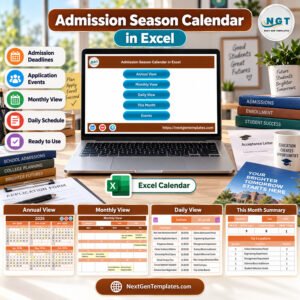
Intuitive navigation with buttons to access Annual, Monthly, Daily, and Events sheets
Easy entry point for new users—no technical skills required
📆 Annual View Sheet: Plan Your Year
Select your working year and starting month
Customize the start day (e.g., Monday or Sunday)
Highlight weekends, holidays, or key events
Choose from 5 beautiful color themes for visual personalization
📅 Monthly View Sheet: Drill Down by Month
Dynamic dropdown for month and year selection
Add new events or view scheduled activities for specific dates
Buttons for “Add New Event” and “Show Events” make planning seamless
📋 Daily View Sheet: Focused Scheduling
Filter events by date range for micro-level planning
Add new tasks, meetings, or training sessions within a specific timeframe
Perfect for managing busy implementation days
🗂️ Events Sheet: Your Event Database
Capture every important detail: event name, date, time, location, and description
Auto-generated Event IDs for easy reference
Add, update, or delete events anytime
📦 What’s Inside the Education AI Calendar Template
Your download includes a powerful Excel workbook featuring:
✅ Home Sheet – Navigate the calendar with ease
✅ Annual View – Full-year snapshot with flexible formatting
✅ Monthly View – Add & view events per month
✅ Daily View – Filter events by date range
✅ Events Sheet – Store, update, and manage all event data
All views are connected, giving you a seamless event management experience from macro to micro planning.
🛠️ How to Use the Product
📥 Download and open the Excel workbook
📅 Use the Annual View to set your working year and calendar preferences
🗓️ Go to the Monthly View to enter new AI events or training sessions
🔍 Use Daily View to zoom in on your busiest periods
📋 All events are saved and managed in the Events Sheet
🎯 Keep your AI project milestones visible and your team aligned!
No complicated software. Just Excel and a clear plan!
👥 Who Can Benefit from This Product
🎓 Ideal for any educational institution or team managing AI integration!
Customer Service Teams – Plan AI chatbot rollouts or support upgrades
IT Departments – Track software installation and technical training
Academic Admins – Schedule and monitor AI adoption activities
EdTech Consultants – Deliver structured plans to clients
Project Managers – Ensure timely delivery and stakeholder alignment
Universities, Schools & Colleges – From large to small institutions
🔗 Click here to read the Detailed blog post
🎥 Visit our YouTube channel to learn step-by-step video tutorials
👉 YouTube.com/@PKAnExcelExpert
Watch the step-by-step video tutorial:
Compatibility and Requirements
- Works in Microsoft Excel desktop (Excel 2016 or later, or Microsoft 365).
- The Annual View lets you pick the working year and starting month from dropdowns. Microsoft explains how in Create a drop-down list.
Frequently Asked Questions
Which sheets are in this calendar?
Five sheets: Home, Annual View, Monthly View, Daily View and Events. The Home sheet has buttons that take you to the other four.
What details can I store for each event?
Each event has a name, date, time, location and description. The Events sheet creates an Event ID automatically, and you can add, update or delete events there at any time.
Can I change the first day of the week?
Yes. In the Annual View you choose the working year, the starting month and the start day, for example Monday or Sunday. You can also highlight weekends, holidays and key events.
How do I see only the events in a certain period?
Open the Daily View and filter by date range. You can add new tasks, meetings or training sessions for that timeframe from the same sheet.
Is there a version for other customer service topics?
Yes. See the Customer Service AI Implementation Calendar in Excel and the Education Customer Service Customer Experience Calendar in Excel.
Related Calendar and Customer Service Templates
- Customer Service AI Implementation Calendar in Excel: the same AI rollout calendar without the education focus
- Education Customer Service Customer Experience Calendar in Excel: a calendar for customer experience activities in education
- Education Customer Service Remote Work Calendar in Excel: plan remote work schedules for the same team
- Customer Service Request Tracker in Excel: track incoming support requests
- Customer Service Dashboard in Excel: a dashboard view of customer service results
Browse all Excel calendar templates.








Reviews
There are no reviews yet.