

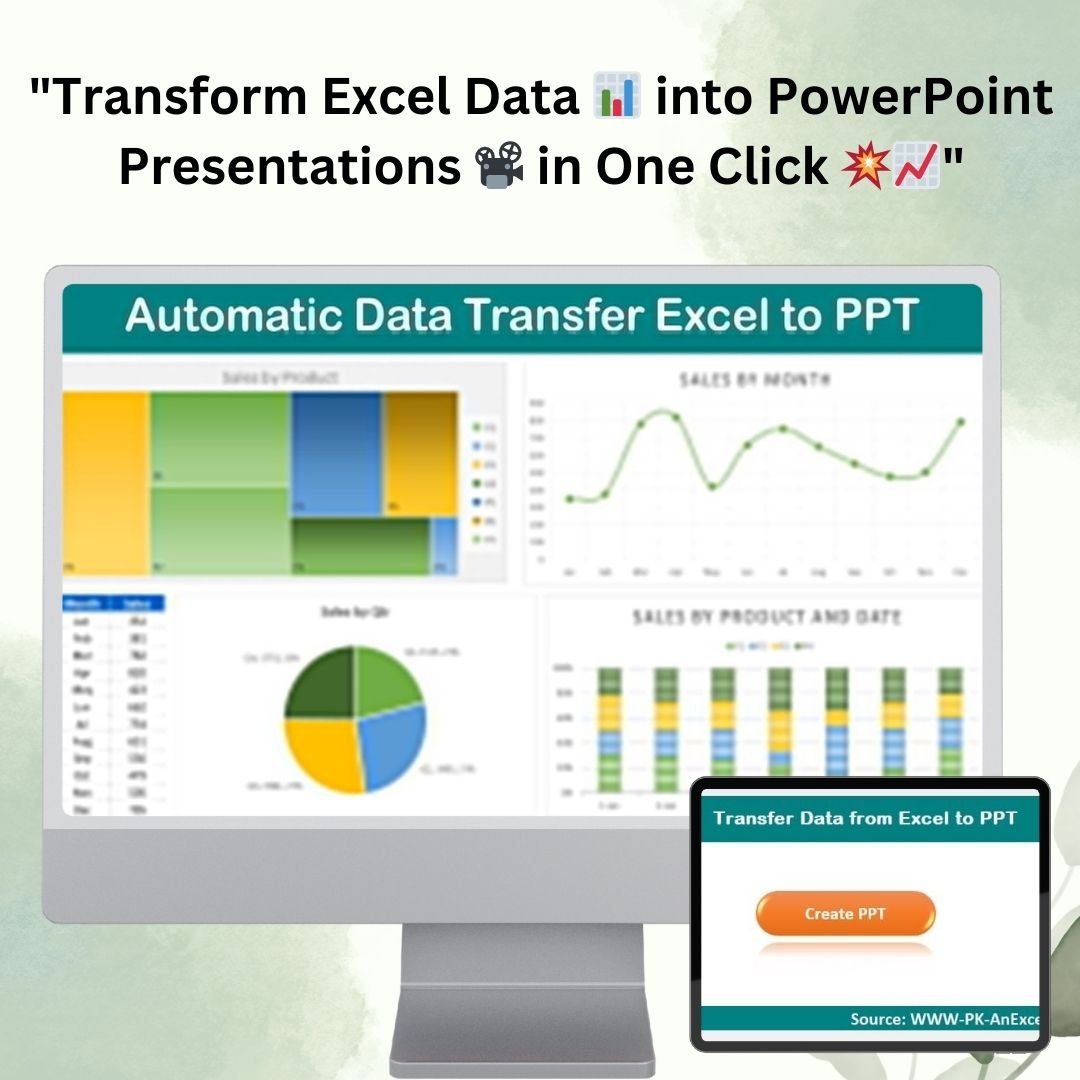


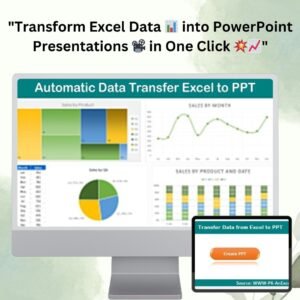
The Automatic Data Transfer Excel to PowerPoint tool generates presentation slides from Excel data, tables and charts. Its Create PPT button runs the transfer workflow. When source data changes, regenerate the PowerPoint presentation to include the updated workbook information.
With just a click of a button, you can instantly convert data-filled Excel sheets into professional, polished PowerPoint presentations, ensuring that all the information you need is accurately represented. By automating this process, the tool minimizes manual effort and ensures that your presentations are always up-to-date with the latest data. Whether you’re working with sales data, project milestones, or financial reports, this tool offers a simple and effective solution for turning your Excel data into compelling presentations.
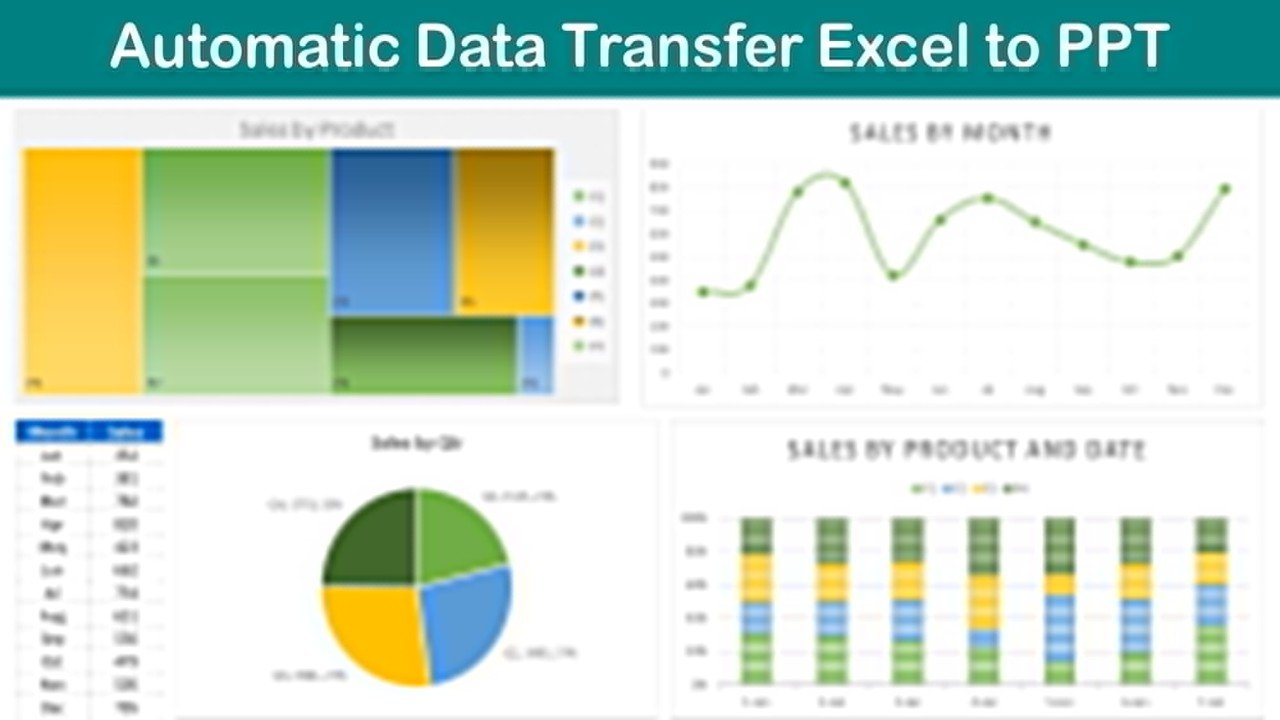
Key Features:
1. One-Click Presentation Creation:
- The Create PPT button allows you to instantly transform your Excel data into a well-organized PowerPoint presentation. With just a single click, the tool generates a presentation complete with slides that include your data, charts, and tables. This feature helps you save time, removing the need for manual copying and pasting.
2. Automatic Chart and Table Integration:
- The tool doesn’t just transfer textual data. It also includes all associated charts and graphs from your Excel sheets. Whether you have pie charts, bar graphs, or line charts, they are automatically embedded into your PowerPoint slides, ensuring a comprehensive and visually appealing presentation. This eliminates the need to manually recreate charts and ensures that the data is presented accurately.
3. Dynamic Data Update:
- Any updates made in the Excel worksheets will be reflected in the PowerPoint presentation when the PPT is regenerated. This means that if you make any changes to the data in Excel, you can simply click the button again, and your PowerPoint presentation will automatically update, ensuring that your presentations are always up-to-date with the latest information.
4. Customizable Template Options:
- The Automatic Data Transfer Excel to PowerPoint tool offers customizable templates, allowing you to tailor the output PowerPoint slides to your specific needs. You can choose from various templates to match your brand’s aesthetic or presentation style, giving you full control over the appearance of your slides. Whether you need a professional, corporate look or something more creative, the template options make it easy to create presentations that fit your requirements.
5. Comprehensive Data Integration:
- The tool transfers more than just raw data; it brings your entire dataset, including detailed charts, tables, and graphs, into PowerPoint with minimal effort. This means that your audience will see not only the numbers but also a visual representation of your data, making it easier to communicate complex information.
6. Streamlined Workflow:
- The Automatic Data Transfer Excel to PowerPoint tool streamlines the entire workflow of creating data-driven presentations. By automating the process, it reduces the time spent on manually transferring data and helps you focus more on presenting the insights and conclusions drawn from your data. This tool is perfect for professionals who need to quickly create high-quality presentations with minimal effort.
7. User-Friendly Interface:
- The interface of this tool is simple and easy to navigate. Even if you are not familiar with Excel or PowerPoint macros, you can still use the tool with ease. The Create PPT button is clearly labeled, and the process of transferring data from Excel to PowerPoint is straightforward. This user-friendly design ensures that anyone can create professional presentations without needing advanced technical skills.
8. Time-Saving Efficiency:
- Instead of spending hours formatting and copying data from Excel to PowerPoint, the tool does the work for you in a fraction of the time. This significantly boosts productivity, making it ideal for anyone who needs to create multiple presentations or handle large datasets regularly. Whether you’re a manager preparing quarterly reports or a consultant presenting to clients, this tool helps you streamline the process and save valuable time.
9. Consistent Formatting:
- By automating the data transfer process, the tool ensures that the formatting remains consistent across all your slides. This eliminates the common issues associated with copying and pasting data, such as mismatched fonts or misaligned tables. With the tool, your PowerPoint slides will have a clean, professional, and consistent look, ensuring that your audience is not distracted by formatting inconsistencies.
10. Versatile Application:
- The Automatic Data Transfer Excel to PowerPoint tool is versatile and can be used for a variety of purposes. Whether you are presenting sales performance, financial data, project milestones, or other key metrics, this tool makes it easy to create presentations that are both informative and visually appealing. It’s a must-have tool for anyone who needs to present data-driven insights in a clear and professional manner.
Why Choose the Automatic Data Transfer Excel to PowerPoint?
- Efficient: Save time by automating the process of transferring data to PowerPoint.
- Comprehensive: Transfers both data and associated charts for a complete presentation.
- Customizable: Tailor your presentations to match your brand or style with customizable templates.
- Real-Time Updates: Keep your presentations up-to-date by simply regenerating the slides with new data.
- User-Friendly: Simple to use, even for users with minimal experience in Excel or PowerPoint.
- Consistent and Professional: Ensure consistent formatting and high-quality presentations.
Conclusion:
The Automatic Data Transfer Excel to PowerPoint tool is an invaluable resource for anyone who regularly works with data and needs to present it in a clear, visually appealing format. By automating the process of transferring data, charts, and tables from Excel to PowerPoint, the tool saves time, reduces errors, and ensures your presentations are always up-to-date. With customizable templates and dynamic updates, this tool is perfect for creating professional presentations with ease. Download the tool today and elevate your presentations to the next level!
Click here to read the detailed blog post
Watch the step-by-step video tutorial:
Also check our Download Attachments from Multiple Emails Automatically using VBA
Questions about this template
Do slides update when the Excel data changes?
Run the Create PPT process again after updating the Excel workbook. The product description specifies that changed data is reflected when the presentation is regenerated.
Are charts copied as well as data?
Yes. Pie charts, bar graphs, line charts and tables from your Excel sheets are placed into the PowerPoint slides along with the data.
Can I change how the slides look?
Yes. The tool offers customizable templates, so you can match the output slides to your brand or presentation style.
Do I need to know macros to use it?
No. Click the Create PPT button and the transfer runs. You only need to enable macros when you open the file.
What You Get
- An Excel VBA tool with a Create PPT button that builds the presentation
- Automatic transfer of data, tables and charts into PowerPoint slides
- Customizable slide templates for your brand or style
- Regenerate the deck at any time to pick up changed workbook data
Compatibility and Requirements
- Made for Microsoft Excel desktop on Windows (Excel 2016 or later, or Microsoft 365), with Microsoft PowerPoint installed to open the slides.
- Macros must be enabled, because the Create PPT button runs on VBA. Microsoft explains how in Enable or disable macros in Microsoft 365 files.
- Excel for the web and the Excel mobile apps can’t run VBA, so use the Excel desktop app.
🎁 Try Before You Buy: 7-Day Free Trial
Download the free trial of the Automatic Data Transfer Excel to PowerPoint and use the complete system for 7 days. Every form, register, dashboard, printable document and setting works exactly as in the full version, so you can test it with your own records before you decide.
How the free trial works
- Click Get the 7-Day Free Trial below, enter your email and download the ZIP from the email we send you. Unzip it.
- Open it in Microsoft Excel for Windows (the desktop app, not Excel Online or Mac) and click Enable Content on the yellow bar. If there is no yellow bar, right-click the file, choose Properties, tick Unblock and open it again.
- Your 7 days start the first time the file opens with macros on. A banner on the Setting page shows how many days are left.
- After 7 days the trial locks and shows a Buy Full Version button. Buy the full version to keep working with no time limit.
| Free Trial | Full Version | |
|---|---|---|
| Every feature, form and dashboard | Yes | Yes |
| Time limit | 7 days | None, lifetime use |
| Trial banner | Yes | No |
| Editable (unlocked) VBA code | No, locked | Yes |
Enter your email and we send the download link straight to your inbox.
The trial runs once per computer: downloading it again does not restart the 7 days. Records you enter during the trial can be copied into the full version.
Related Excel Automation Templates
- Automated Multiple Emails with Multiple Attachments: send reports from Excel by email.
- Automation: Excel to PDF Converter: turn sheets into PDF files in one step.
- Data-Driven Gantt Chart in Power Point: a project timeline built in PowerPoint.
- Fully Automated Excel Dashboard with Multiple Source Files: combine several files into one dashboard.
- VBA Management Systems Mega Pack: 5 Excel VBA management systems in one bundle.
Browse all Excel VBA tools or the PowerPoint templates.


















Reviews
There are no reviews yet.