



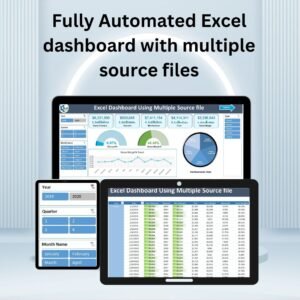
The Fully Automated Excel dashboard with multiple source files lets you consolidate, analyze and visualize data from several Excel workbooks without manual copying or merging. Built on Power Query, it is made for business analysts, finance professionals, project managers and team leaders who need reliable, up-to-date reporting. Drop new files into a folder, click refresh, and your KPIs, charts and tables update automatically.
Managing data from multiple sources is hard, especially when you track financial metrics, team performance or business KPIs. This Excel dashboard template handles the integration for you. Power Query extracts, transforms and loads (ETL) the latest data, and the interactive design turns raw numbers into clear insights for faster decisions.

Key Features of the Automated Excel Dashboard
Seamless Data Consolidation with Power Query
- Automatically fetch and merge data from multiple Excel workbooks stored in a designated folder.
- No manual data entry. Refresh the dashboard and Power Query extracts, transforms and loads the latest data.
- Works with multiple years, quarters, months and teams, making it well suited to business performance tracking.
- Use it to consolidate multiple Excel files into one reporting view without copy-paste.
Interactive Dashboard with Dynamic Visuals
- Real-time analytics on key business metrics, including:
- Gross Revenue
- Net Revenue
- Discounts
- Total Costs
- Gross Margin
- Slicers for Year, Quarter, Month and Team let you filter the data dynamically.
- Pie charts, line graphs and KPIs give deep insight into sales trends, revenue performance and cost analysis.
Date-Wise and Team-Wise Data Analysis
- Detailed tabular data lets you track performance by date and team.
- Conditional formatting highlights key insights such as high revenue months, discount trends and margin fluctuations.
Fully Automated with One-Click Refresh
- Simply place new Excel files in the designated folder, refresh Power Query, and the dashboard updates automatically.
- No manual calculations or merging of files. This automated reporting saves time and reduces human error.
Easy to Customize and Expand
- Fully customizable: add new metrics, modify visuals or integrate additional data sources.
- Compatible with Excel 2016 and later, including Office 365 and Microsoft 365.
Step-by-Step Video Tutorials Included
- The package includes detailed video tutorials explaining:
- How to set up the dashboard and integrate new data sources.
- How to customize slicers, charts and reports for your specific needs.
- How to automate report generation with Power Query and Pivot Tables.
What’s Inside the Template
| Component | What it does |
|---|---|
| Designated source folder | Holds the Excel workbooks that Power Query reads and merges. |
| Power Query connection | Extracts, transforms and loads data from all source files on refresh. |
| Interactive dashboard | KPIs, pie charts and line graphs for Gross Revenue, Net Revenue, Discounts, Total Costs and Gross Margin. |
| Slicers | Filter by Year, Quarter, Month and Team. |
| Date-wise and team-wise table | Detailed data with conditional formatting for revenue, discount and margin patterns. |
| Video tutorials | Step-by-step guidance on setup, customization and automation. |
Benefits of Using This Power Query Dashboard
- Saves time and effort: no manual data entry, merging or calculations. Everything updates automatically.
- Improves decision-making: get real-time insights into business performance, sales trends and cost efficiency.
- Reduces errors: automation lowers the risk of manual mistakes in financial reports.
- Boosts productivity: focus on analysis instead of data management.
- Supports team management: track team-wise performance across different periods.
Who Is This Dashboard For?
- Finance professionals: analyze revenue, costs and margins in real time.
- Sales and marketing teams: track sales trends, customer behavior and discount patterns.
- Project managers: monitor budget allocation, resource utilization and team efficiency.
- Business analysts and team leaders: streamline reporting and decision-making.
- Business owners and CEOs: get a high-level overview of business performance at a glance.
How to Use the Dashboard
- Download the template and unzip the folder.
- Place your data files (Excel workbooks) in the designated folder.
- Open the dashboard and refresh Power Query.
- Filter with the slicers and analyze the insights to make data-driven decisions.
Click here to read the detailed blog post:
Watch the step-by-step video tutorial:
Frequently Asked Questions
How does the dashboard combine multiple source files?
Power Query reads every Excel workbook placed in the designated folder, merges the data and loads it into the dashboard when you refresh. No manual copying or merging is needed.
Which Excel versions are supported?
The template is compatible with Excel 2016 and later, including Office 365 and Microsoft 365.
What metrics does the dashboard track?
It shows Gross Revenue, Net Revenue, Discounts, Total Costs and Gross Margin, with slicers for Year, Quarter, Month and Team plus date-wise and team-wise tables.
Can I add new metrics or data sources?
Yes. The dashboard is fully customizable, so you can add new metrics, modify visuals or integrate additional data sources.
How do I update the dashboard with new data?
Place the new Excel files in the designated folder and refresh Power Query. The charts, KPIs and tables update automatically.
Is any training included?
Yes. Detailed video tutorials cover setting up the dashboard, customizing slicers, charts and reports, and automating report generation with Power Query and Pivot Tables.
Let Excel do the heavy lifting while you focus on insights and strategy. Also check our Quality checklist template in Excel.
Last updated: October 2026
Related Dashboard Templates
- Finance Summary Dashboard in Excel: for revenue, cost and profit summaries
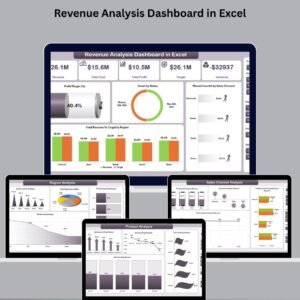
- Revenue Analysis Dashboard in Excel: to analyze revenue by period and segment
- Revenue Analysis Dashboard in Power BI: the same kind of analysis in Power BI
- Merge Queries in Power Query Excel Practice File: a free file to practice Power Query merges
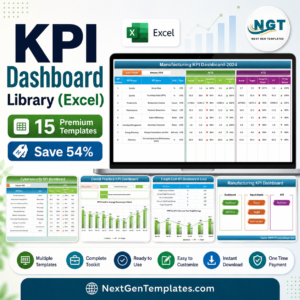
- KPI Dashboard Library (Excel): 15 Excel KPI dashboards in one bundle
Browse all Excel dashboards or the Excel financial tools.





Reviews
There are no reviews yet.