



The Download Attachments from Multiple Emails Automatically using VBA tool is a ready-made Excel and VBA solution. It extracts and saves attachments from multiple Microsoft Outlook emails in one click. It is built for professionals and teams who handle large volumes of email every day and want to stop saving files one by one. Set your download path, click a button, and Excel saves your attachments and logs every email subject and attachment count.

Why Use This VBA Email Automation Tool?
Saving email attachments by hand takes a lot of time, especially when reports, invoices and client documents arrive daily. This VBA email automation tool removes that repetitive work. You can download email attachments from multiple messages at once and keep every file in the folder you choose. The result is a simpler workflow and higher productivity, with no complex coding or external software.
Key Features
1. Automated Attachment Downloading
- One-click extraction: download attachments from multiple emails with a single click.
- Works with Microsoft Outlook: scans your emails and saves the attachments to a predefined folder.
- Made for recurring files: handles reports, invoices, client documents and any other attachments you receive often.
2. Customizable Download Settings
- Custom folder path: choose the folder where attachments will be saved to keep your workspace organized.
- Email folder selection: pick attachments from Inbox, Sent Items or Custom Folders.
- Advanced filtering: set rules for attachment selection based on sender, subject or file type.
3. Built-in Data Tracking
- Download log: keep a clear record of downloaded attachments, with Email Subjects and Attachment Counts tracked in an organized table.
- Easy reference: look up past downloads for compliance, reporting or future audits.
- No duplicates: each attachment is saved only once.
4. Simple and User-Friendly Interface
- One-click button: run the download instantly, with no coding or extra software needed.
- Minimal setup: just enter your Outlook folder and download path.
- Clean layout: easy to navigate for beginners and experts alike.
What’s Inside the Excel File
| Component | Purpose |
|---|---|
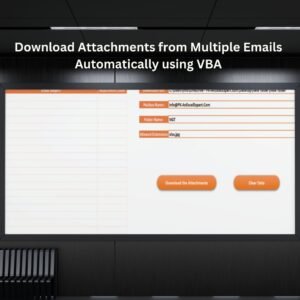
| Attachment Downloader section | The main working area where you set up and run the tool. |
| Download Path | The folder where your attachments will be saved. |
| Download Attachments button | Runs the VBA script that extracts attachments from your selected email folder. |
| Email Subject and Attachment Count table | Logs each processed email and how many attachments were saved. |
Who It’s For
This tool suits any business or professional who needs to save email attachments regularly from Outlook:
- Finance teams: automatically save invoices and financial reports from client emails.
- HR and recruitment: extract resumes, employee records or application forms from emails.
- Sales and marketing: download proposals, sales reports and promotional materials quickly.
- IT and admin: collect system logs, support tickets or internal reports.
How to Use It
- Download and unzip the file, then make sure macros are enabled in Excel.
- Open the Excel file and go to the Attachment Downloader section.
- Set your Download Path, which is the folder where attachments will be saved.
- Click the Download Attachments button. The VBA script will extract attachments from your selected email folder.
- Check the Email Subject and Attachment Count table to confirm all the files you need have been downloaded.
Macros must be enabled before you use the tool. For step-by-step instructions on enabling macros in Excel, see our tutorial: https://www.pk-anexcelexpert.com/4-easy-ways-to-enable-macros-in-excel-vba/
Click here to read the detailed blog post Download Attachments from Multiple Emails Automatically using VBA
Watch the step-by-step video tutorial: Download Attachments from Multiple Emails Automatically using VBA
Frequently Asked Questions
Which email application does this tool work with?
It works with Microsoft Outlook. The tool scans your Outlook emails and saves their attachments to the folder you specify, all from inside Excel.
Can I choose which Outlook folder to download attachments from?
Yes. You can download attachments from Inbox, Sent Items or Custom Folders. You can also set rules to filter attachments by sender, subject or file type.
Do I need coding knowledge to use it?
No. Setup is minimal: enter your Outlook folder and download path, then click the Download Attachments button. Beginners and experts can both use it.
Will the tool download the same attachment twice?
No. The tool prevents duplicate downloads by saving each attachment only once. It also logs every email subject and attachment count for easy reference.
Why do I need to enable macros?
The tool runs on VBA, so macros must be enabled in Excel after you download and unzip the file. Follow the macro tutorial linked above for step-by-step instructions.
Where can I learn more about how it works?
Read the detailed blog post and watch the step-by-step video tutorial above. Both explain how to download email attachments with this tool.
Also check our Inventory Management Form in Excel.
Last updated: October 2026
Compatibility and Requirements
- Needs Microsoft Excel desktop on Windows with macros enabled. Excel for the web, Google Sheets and mobile Excel do not run the VBA.
- The tool reads emails from Microsoft Outlook and saves their attachments to the folder you choose.
- Microsoft’s guide: Enable or disable macros in Microsoft 365 files.
Related Email and Outlook Automation Tools
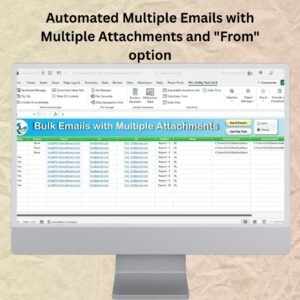
- Automated Multiple Emails with Multiple Attachments: sends many emails with attachments from Excel
- Send Bulk Emails using VBA and Outlook: bulk email from an Excel list
- Send Email with Outlook Mail Body Snapshot: emails a range snapshot in the mail body
- Outlook Calendar Events Automation in Excel VBA: creates Outlook calendar events from Excel
- Email Reminder Scheduler in Excel: schedules reminder emails
Browse all Excel VBA tools or the Excel utility tools.




Reviews
There are no reviews yet.