

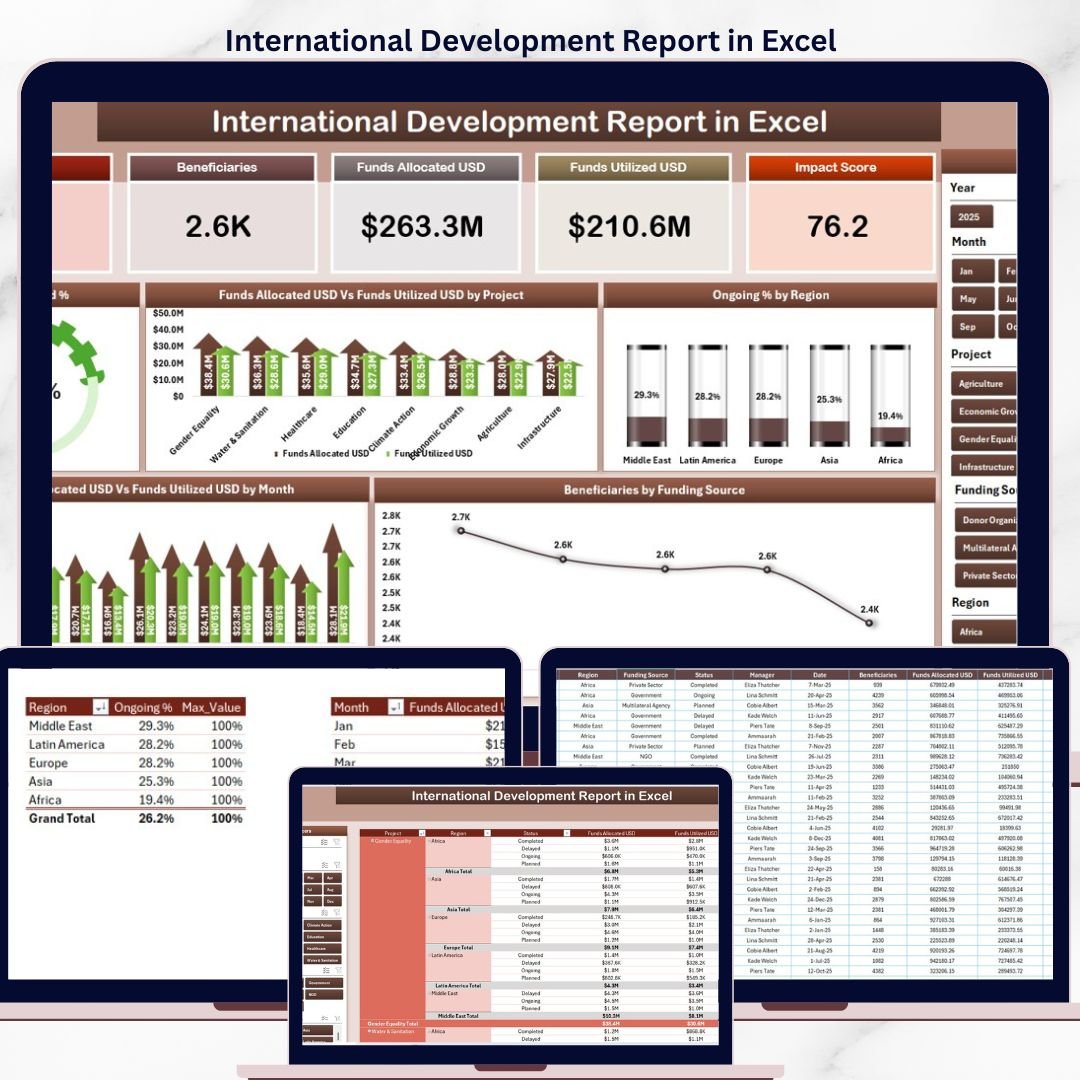
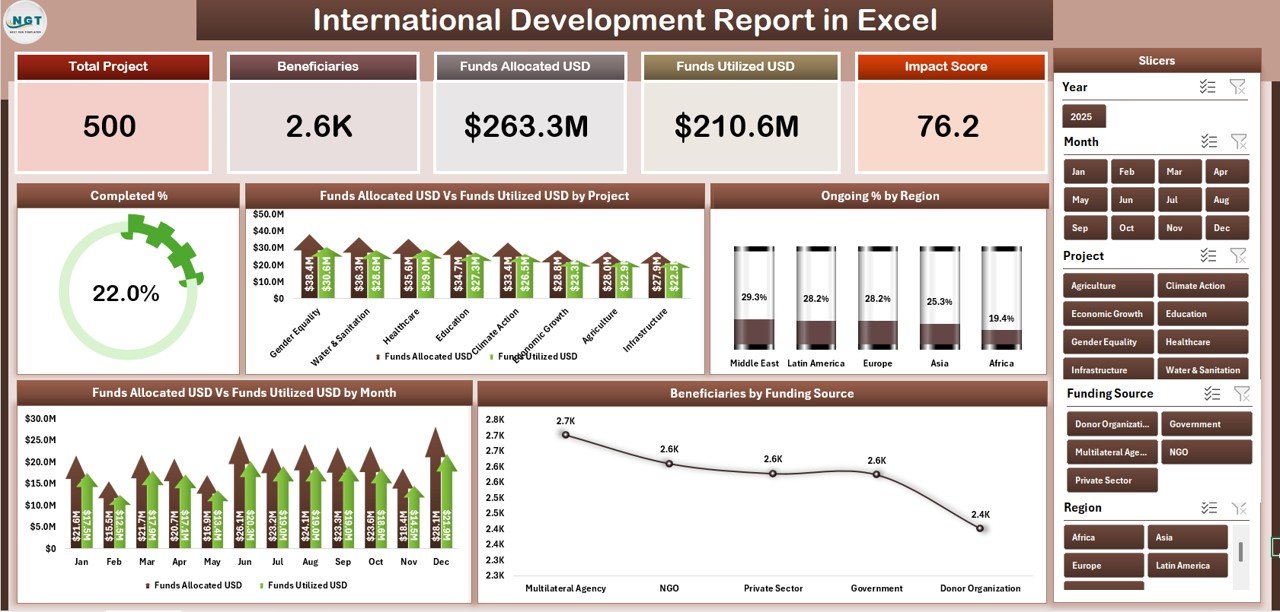
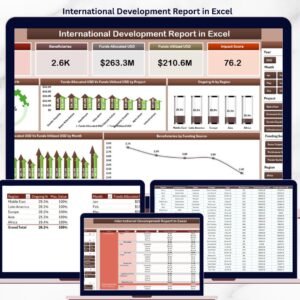
The International Development Report in Excel tracks 5 headline KPIs across 4 sheets, with 5 interactive charts and dual slicers covering project, region, funding source, and month. Setup takes under 10 minutes — paste your data into the Data sheet and every KPI card, chart, and table on the Summary Page and Report Page refreshes automatically.
🌍 Join 8,400+ teams in 40+ countries using NextGenTemplates to replace paid SaaS tools with one-time-purchase Excel, Google Sheets, Power BI, and HTML templates.
✅ Instant download · One-time payment · No subscription · No per-user fees · Lifetime access
🔑 Key Features of International Development Report in Excel
🔹 5 KPI cards on the Summary Page — Total Projects, Completed Projects, Total Funds Allocated, Total Funds Utilized, and Total Beneficiaries. Every card recalculates instantly when you replace the sample data with your own.
🔹 5 interactive charts — Completed %, Funds Allocated vs Utilization by Project, Ongoing % by Region, Funds Allocated vs Utilization by Month, and Beneficiaries by Funding Source.
🔹 Right-side slicer on the Summary Page that filters every card and chart at once — by project, region, funding source, or year.
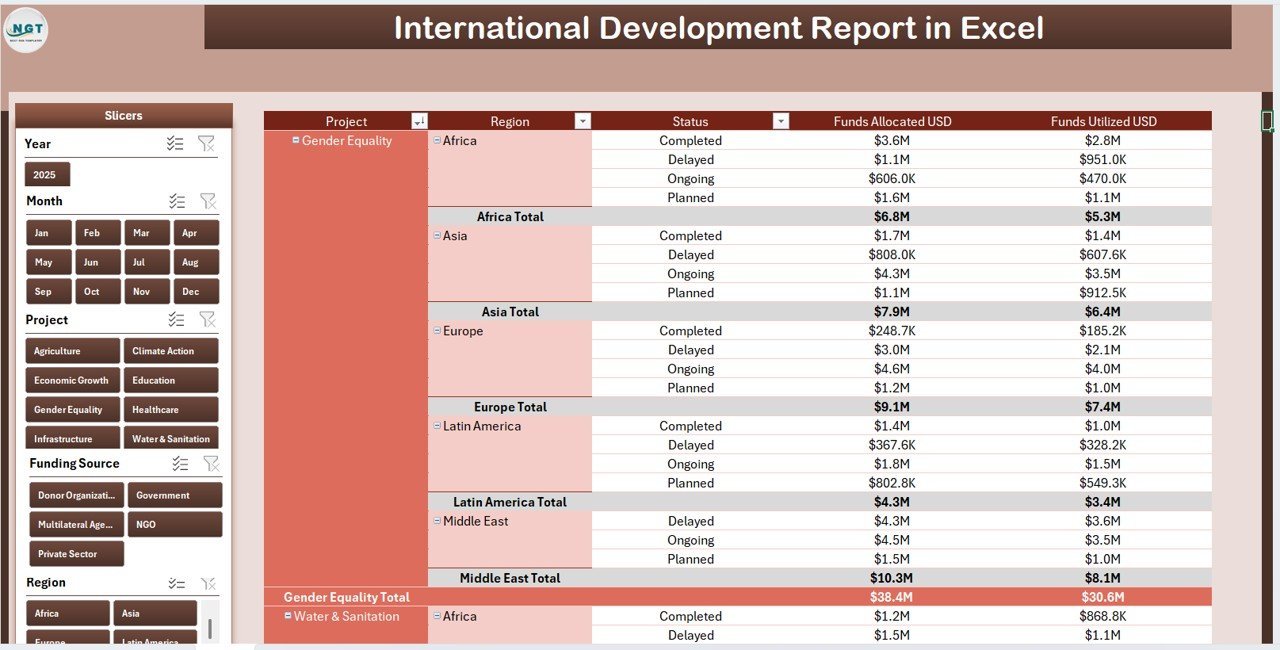
🔹 Dedicated Report Page with a left-side slicer and a clean tabular information view, designed for donor letters, grant reports, and board packs.
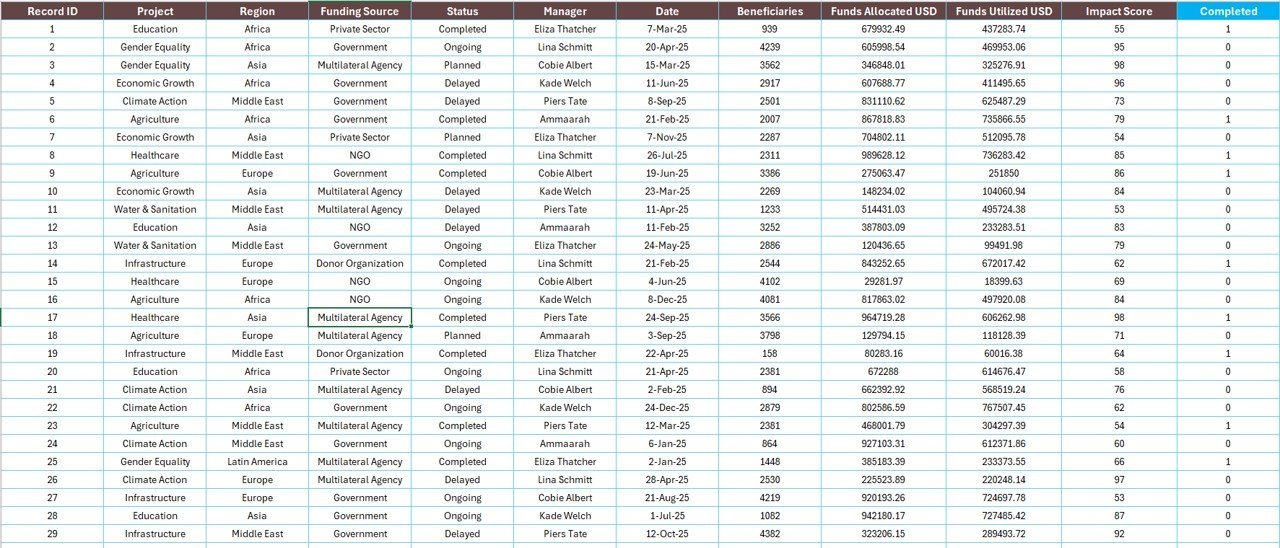
🔹 Editable Data sheet with pre-formatted column headers and 200+ sample rows covering projects, regions, donors, and beneficiaries.
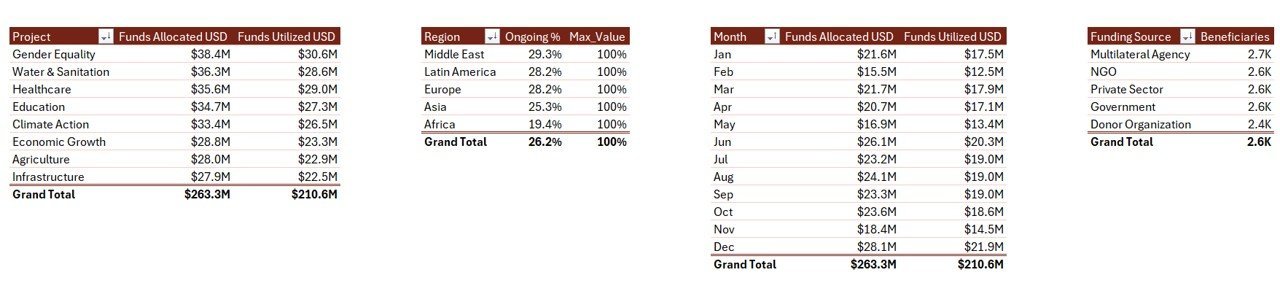
🔹 Support sheet housing all lookup lists for regions, funding sources, and project types — edit once, and every dropdown stays consistent.
🔹 Works offline on Microsoft Excel for Windows, Mac, Excel 2019, Excel 2021, and Microsoft 365 — no macros, no add-ins, no internet connection required.
🔹 One-time $7.99 sale price — no subscription, no per-user fee, lifetime access on unlimited devices inside your organization.
📦 What’s Inside the International Development Report in Excel
The workbook is structured as 4 sheets that work together: the Summary Page (KPI cards, slicer, 5 charts), the Report Page (slicer + information table for printing), the Data sheet (your editable source records), and the Support sheet (lookup lists and helper tables that drive the dropdowns and slicers). The file ships with realistic sample data covering international aid projects, regions, donors, fund flows, and beneficiary counts so you can see exactly how every chart behaves before adding your own records.
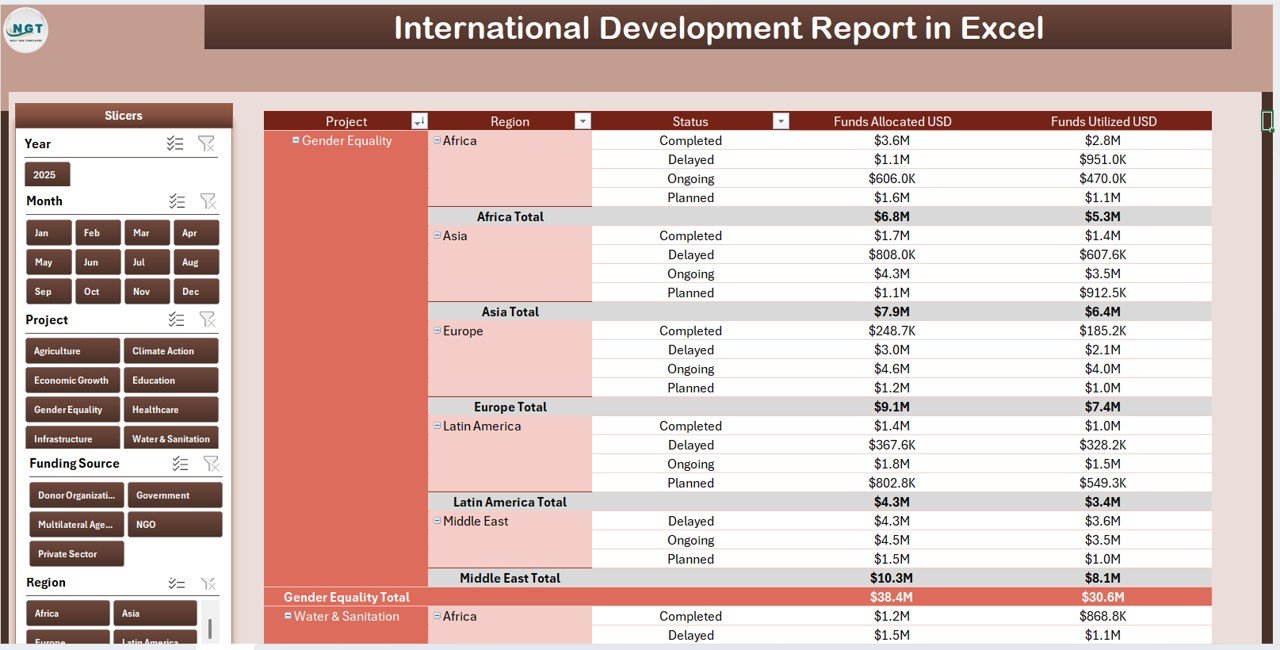
Report Page with left-side slicer and information table
📊 International Development Report vs. Google Sheets Equivalent vs. Paid NGO CRMs — Where This Fits
| Feature | International Development Report (Excel) | Google Sheets equivalent | Salsa / Bloomerang / NeonCRM |
|---|---|---|---|
| Cost | $7.99 one-time | Free, but you build it | $99–$499 / month |
| Platform | Microsoft Excel desktop | Google Sheets (web only) | Cloud SaaS |
| Setup time | Under 10 minutes | Hours of formula work | Multi-week onboarding |
| Real-time co-authoring | Via OneDrive / SharePoint | ✅ Native | ✅ Native |
| Works offline | ✅ | ❌ | ❌ |
| Customizable fields | ✅ Full control | ✅ | Vendor-defined |
| Donor & beneficiary data ownership | ✅ Your file | ✅ In your Drive | Hosted by vendor |
| Year-1 cost (5 users) | $7.99 once | $0 + your hours | $1,200–$6,000+ |
For NGOs, aid organizations, and development projects that want clean board-ready reports without paying $1,200+ a year for a donor CRM, the International Development Report in Excel sits in the sweet spot.
👥 Who This Template Is For — and Who It’s Not For
✅ This template is built for:
- Small to mid-size international development NGOs (5–100 staff) tracking projects, donor funds, and beneficiary impact
- Program managers preparing quarterly board reports and grant utilization summaries
- Country directors who need a single-file financial and impact snapshot across multiple regions
- Aid organizations and humanitarian charities running multi-donor, multi-region project portfolios
- Grant-funded teams reporting fund utilization to multiple donors separately
❌ This template is NOT for:
- Large international NGOs needing SOC 2, SSO, and full audit-trail compliance
- Teams that need a full donor CRM with individual donor profiles and pledge tracking
- Users who only have web-only Excel without the desktop app (slicers behave with limits in Excel for the web)
⚙️ How to Use the International Development Report in Excel
- Download and open the .xlsx file in Microsoft Excel desktop on Windows or Mac.
- Open the Data sheet and replace the sample rows with your own project records — date, project name, region, country, funding source, funds allocated, funds utilized, beneficiaries, and status.
- Update the Support sheet if you need to change the master lists for regions, funding sources, or project types.
- Refresh the workbook with Ctrl+Alt+F5 (Windows) or Cmd+Option+F5 (Mac).
- Open the Summary Page and use the right-side slicer to filter the 5 KPI cards and 5 charts by project, region, funding source, or year.
- Switch to the Report Page when preparing a donor letter or board pack — filter the table with the left-side slicer, then print or export to PDF.
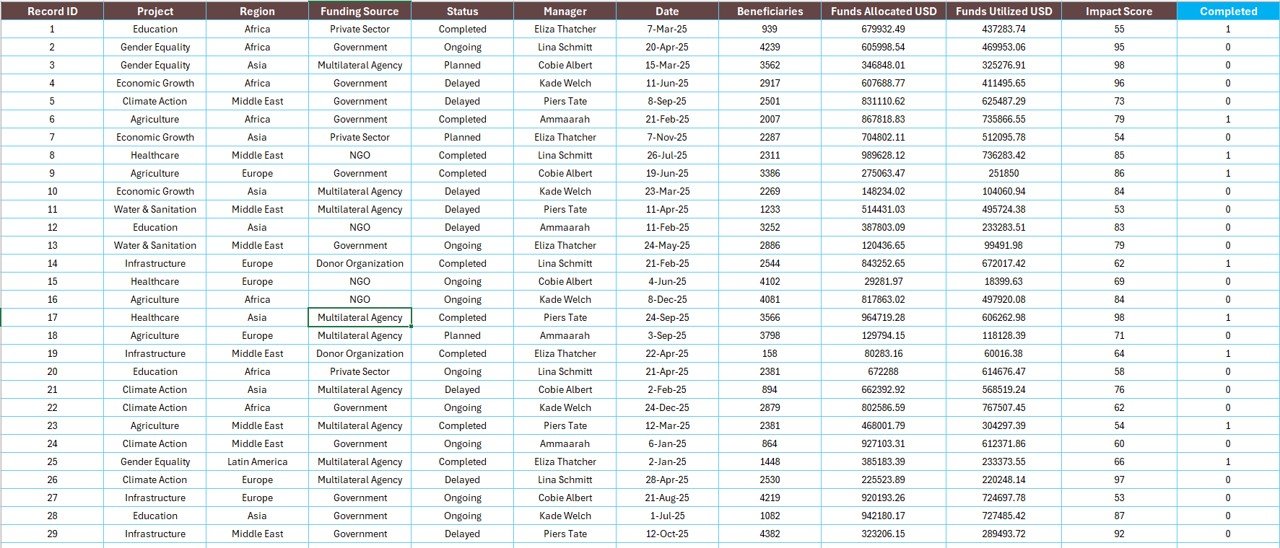
Data sheet — your editable source records
💼 Real-World Use Cases
Aisha runs operations at a 25-person education-focused international NGO in Nairobi. She uses the International Development Report each quarter to show her board exactly how much of the $480,000 in donor funds was utilized across 12 projects, broken down by region. The Funds Allocated vs Utilization by Project chart has saved her from rebuilding the same pivot every quarter — and the right-side slicer lets her show a single funder only their projects without exposing the rest.
David is the country director of a 40-person humanitarian aid charity working across East Africa. He uses the Report Page with its left-side slicer to filter the information table by funding source and export it for individual donor stewardship letters. Replacing his old Educational NGOs KPI Dashboard in Excel with this lighter report file means his program managers can update one Data sheet and he gets a clean snapshot in minutes instead of hours.
Priya volunteers as the finance lead for a community development NGO in Mumbai. Her team came off a $99/month nonprofit CRM and now shares this Excel report on OneDrive. Five program leads paste their monthly numbers into the Data sheet; the Summary Page keeps the Beneficiaries by Funding Source chart up to date, and the board sees the same view as the funders.
❓ Frequently Asked Questions
What KPIs does the International Development Report in Excel track?
The International Development Report tracks 5 headline KPIs on cards (Total Projects, Completed Projects, Total Funds Allocated, Total Funds Utilized, Total Beneficiaries) plus 5 charts covering Completed %, Funds Allocated vs Utilization by Project, Ongoing % by Region, Funds Allocated vs Utilization by Month, and Beneficiaries by Funding Source.
Does the International Development Report work in Excel for Mac?
Yes. The International Development Report works in Microsoft Excel for Windows and Mac (Excel 2019, Excel 2021, and Microsoft 365). Slicers, charts, and KPI cards all function on both platforms because the file uses standard Excel features only — no macros, no add-ins, no internet required.
How does this compare to a paid NGO CRM like Bloomerang or NeonCRM?
Bloomerang and NeonCRM are full donor CRMs starting at roughly $99–$499 per month. The International Development Report in Excel is a $7.99 one-time Excel reporting layer — perfect if you already track donors elsewhere and just need a clean board-ready report file with KPI cards, slicers, and 5 charts focused on funds and beneficiaries.
How long does setup take?
Setup of the International Development Report takes under 10 minutes. Open the file, replace the sample rows on the Data sheet with your own project and donor records, refresh the workbook (Ctrl+Alt+F5), and the Summary Page and Report Page update automatically.
Can I customize the regions, funding sources, and project types?
Yes. The International Development Report uses a Support sheet that holds lookup lists for regions, funding sources, and project types. Edit those lists once and every dropdown, slicer, and chart in the workbook reflects your NGO’s structure.
Can multiple staff members edit the Data sheet at the same time?
Yes — if you save the International Development Report on OneDrive or SharePoint, multiple staff members can edit the Data sheet simultaneously through Excel’s co-authoring. Charts on the Summary and Report pages refresh for everyone when a record is updated, with no extra cost per user.
Do slicers work in Excel for the web?
Slicers display in Excel for the web, but interactive filtering is most reliable in Excel desktop. For the smoothest experience with the International Development Report, open the file in Excel desktop on Windows or Mac.
👤 About the Author
Built by PK — Microsoft Certified Professional with 15+ years of Excel, Google Sheets, and Power BI experience. Founder of NextGenTemplates, reaching 300K+ subscribers across YouTube channels (@PK-AnExcelExpert, @NextGenTemplates, @NeoTechNavigators). Every template is hand-built and tested before release.
🔗 Explore Related Templates
- 📊 Nonprofit Organizations Report in Excel — sister Excel report focused on nonprofit donor analytics.
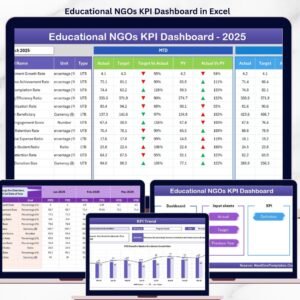
- 📚 Educational NGOs KPI Dashboard in Excel — fuller KPI dashboard if you need more than 5 charts.
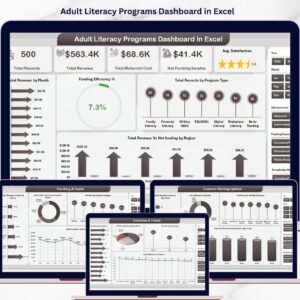
- 📖 Adult Literacy Programs Dashboard in Excel — adjacent education-focused NGO dashboard.
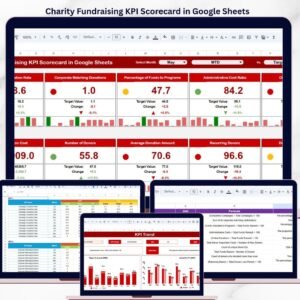
- ❤️ Charity Fundraising KPI Scorecard in Google Sheets — fundraising-specific scorecard for the Google Sheets version.
- 📂 Browse all Excel Dashboard Templates on NextGenTemplates.
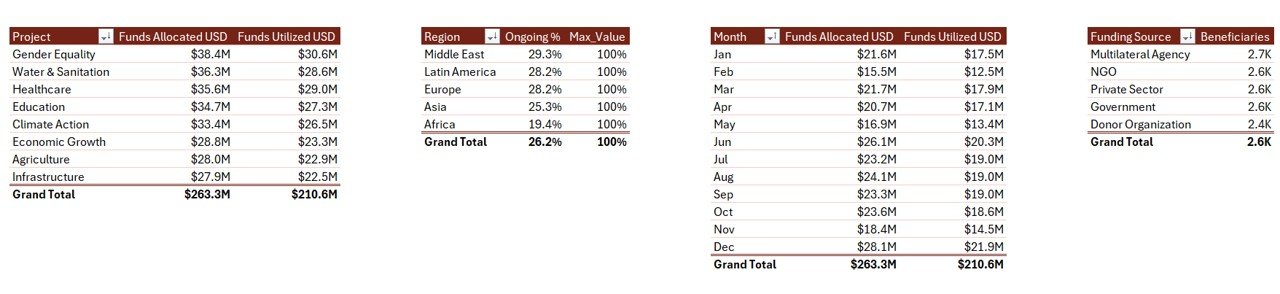
Support sheet — lookup lists driving slicers and dropdowns
📖 Click here to read the Detailed Blog Post
🎥 Visit our YouTube channel for step-by-step video tutorials
👉 YouTube.com/@NextGenTemplates
📅 Last updated: May 2026
Watch the step-by-step video tutorial:



Reviews
There are no reviews yet.