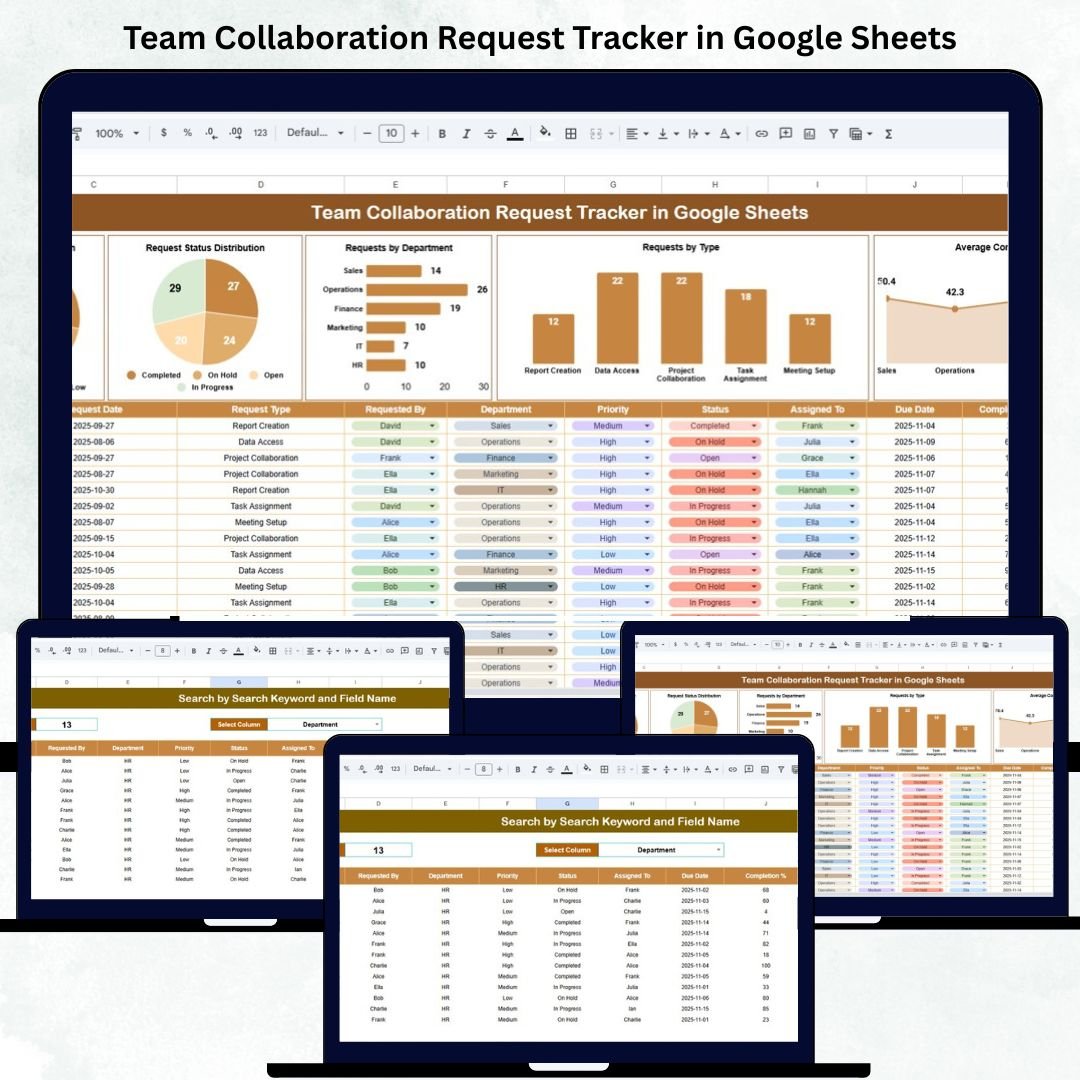
In modern workplaces, effective collaboration is the key to success — but managing inter-departmental requests manually often leads to chaos, confusion, and delays. The Team Collaboration Request Tracker in Google Sheets offers a smart, automated way to track and manage collaboration requests in real time.
This ready-to-use template simplifies coordination across departments like HR, IT, Marketing, and Operations. It enables teams to record, assign, and monitor requests efficiently while providing data-driven insights into performance, priority, and progress.
Built entirely in Google Sheets, this tracker combines simplicity, automation, and visualization — helping you transform teamwork into measurable results.
🤝 What Is a Team Collaboration Request Tracker in Google Sheets?
A Team Collaboration Request Tracker is an interactive tool designed to streamline how teams handle internal work requests and dependencies.
It allows organizations to:
Record new collaboration requests in one centralized system.
Track request progress and completion rates.
Visualize workload distribution by department or priority.
Monitor team responsiveness and overall productivity.
Since it’s hosted in Google Sheets, the tracker is fully cloud-based, editable, and accessible anytime, anywhere — no software installation needed.
📊 Tracker Sheet Tab Overview
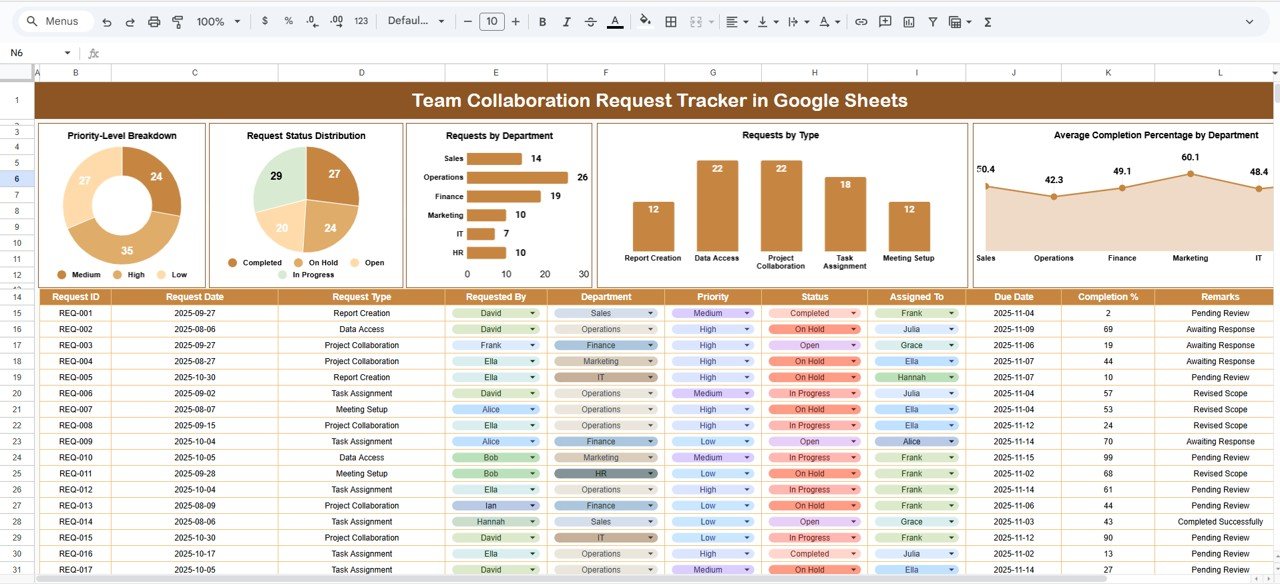
The Tracker Sheet serves as the main dashboard — displaying request statistics and performance metrics through automated KPIs and charts.
🔹 Key Charts & KPIs
1. Request Status Distribution
Visualizes request workflow stages such as Open, In Progress, Completed, and On Hold.
➡️ Helps identify backlogs and progress bottlenecks.
2. Priority-Level Breakdown
Shows how many requests fall under High, Medium, or Low priority.
➡️ Ensures critical issues are addressed promptly and helps with resource planning.
3. Requests by Department
Displays the number of active requests per department — IT, HR, Finance, Marketing, etc.
➡️ Useful for spotting workload imbalances and optimizing task delegation.
4. Requests by Type
Categorizes collaboration types such as:
Technical Support
Content Assistance
Policy Review
Training Request
Project Coordination
➡️ Helps analyze frequent request categories for process improvements.
5. Average Completion % by Department
Shows how efficiently each department completes requests.
➡️ Promotes accountability and identifies departments needing support or process refinement.
These charts automatically update when new data is added, giving managers real-time insights into teamwork efficiency.
🔍 Search Functionality
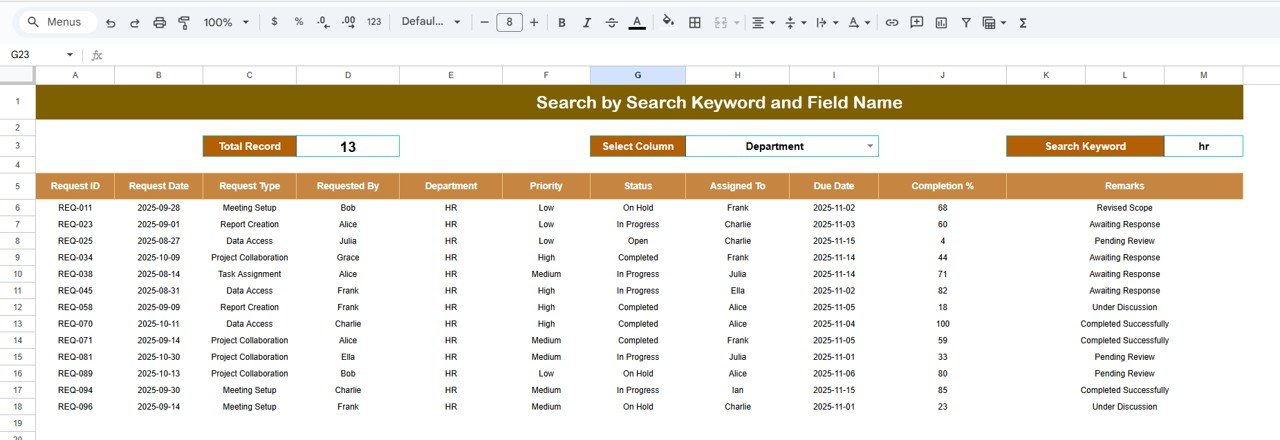
The Search Sheet Tab allows users to find specific collaboration requests instantly.
Just type a keyword — such as “Finance”, “High Priority”, or a Request ID — and the tracker filters relevant results automatically.
✅ Perfect for quick lookups in large organizations handling hundreds of requests.
📑 Data Sheet Structure
The Data Sheet is the foundation of this tracker.
Typical Columns Include:
Request ID | Request Date | Requester Name | Department | Request Type | Priority | Status | Assigned To | Completion % | Due Date | Remarks
All charts, KPIs, and summaries are powered by this dynamic dataset — ensuring real-time updates and accuracy across the tracker.
🌟 Advantages of the Team Collaboration Request Tracker
📋 Centralized Request Management: Track all team collaboration tasks in one place.
📈 Real-Time Visualization: Get automatic updates with charts and KPIs.
⏱️ Efficiency Boost: Identify overdue or delayed requests instantly.
🔍 Smart Search: Quickly locate specific requests or team updates.
💡 Data-Driven Decisions: Understand workload and completion trends.
🤝 Multi-User Collaboration: Google Sheets allows multiple editors at once.
🧩 Scalable System: Handles hundreds of requests without lag.
🚀 Opportunities for Improvement
Enhance this tracker’s power with automation and integrations:
📧 Email Notifications: Use Google Apps Script for automated reminders.
🧾 Google Form Integration: Collect new requests directly via online form submissions.
🧮 Progress Heatmaps: Add conditional formatting to highlight request aging.
🗓️ Dashboard Integration: Connect to Looker Studio for advanced visuals.
🧠 Auto-Assignment Rules: Automatically route tasks to departments based on request type.
💡 Best Practices for Using the Tracker
✅ Update daily to maintain accurate request statuses.
✅ Standardize categories for Priority, Status, and Department.
✅ Protect formula and chart ranges from accidental edits.
✅ Use color-coded filters for overdue or high-priority items.
✅ Review monthly reports for trend-based improvement.
✅ Integrate with Google Forms for faster data entry.
✅ Conclusion
The Team Collaboration Request Tracker in Google Sheets brings structure, speed, and clarity to workplace coordination. By centralizing request tracking and automating performance visualization, it empowers managers to identify bottlenecks, balance workloads, and improve interdepartmental collaboration.
Whether you’re running a small HR team or managing a large cross-functional operation, this tracker ensures that every collaboration request is logged, monitored, and completed — efficiently and transparently.
Click here to read detailed blog post
Watch the step-by-step video Demo: