

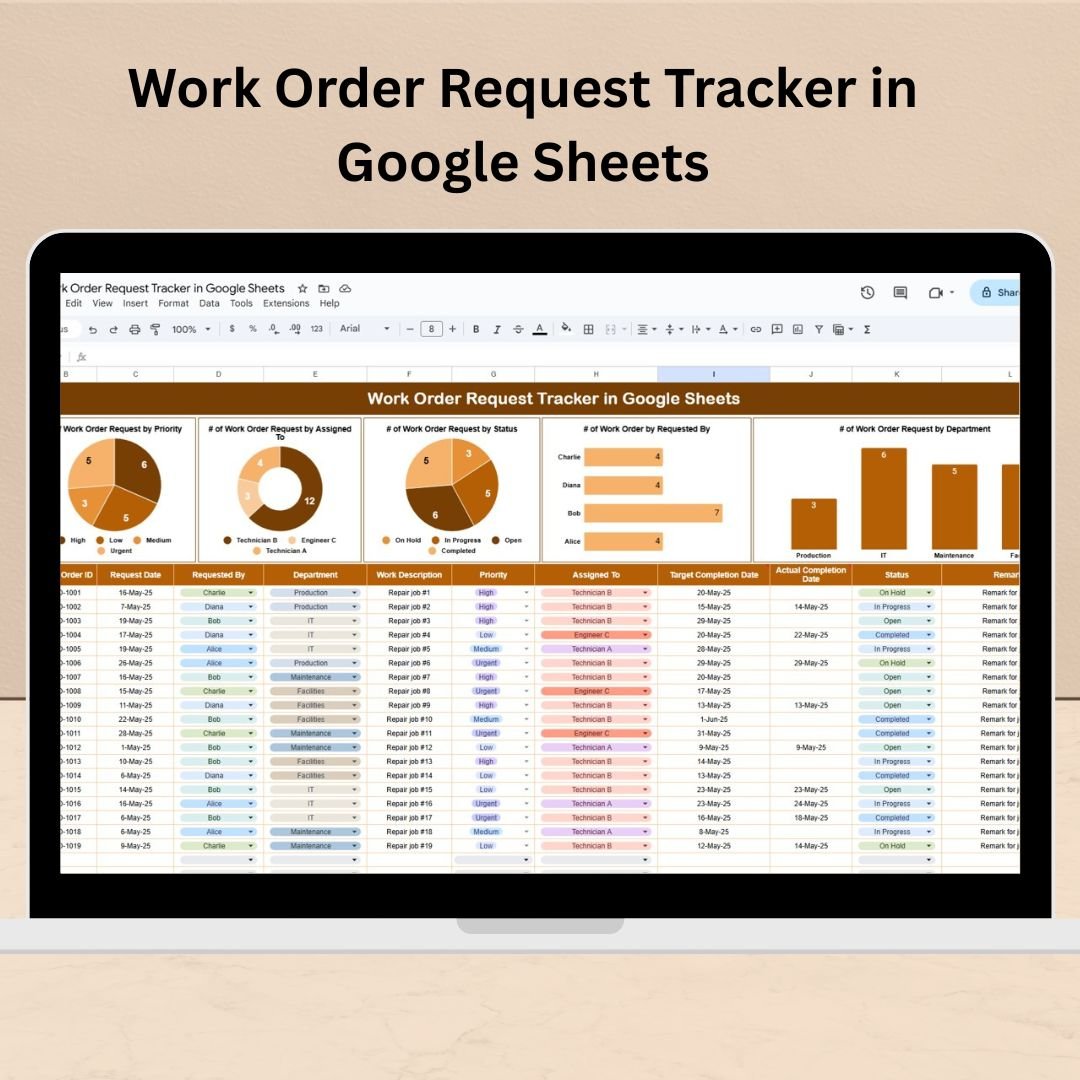
Tired of juggling paper requests or losing track of urgent work orders? The Work Order Request Tracker in Google Sheets is a smart, ready-to-use tool designed to help you manage work orders from submission to completion—efficiently, visually, and collaboratively. Whether you’re handling maintenance tasks, IT requests, or facility services, this tracker ensures everything is logged, assigned, and delivered on time.
🔧 Key Features of the Work Order Request Tracker
📋 Centralized Data Entry
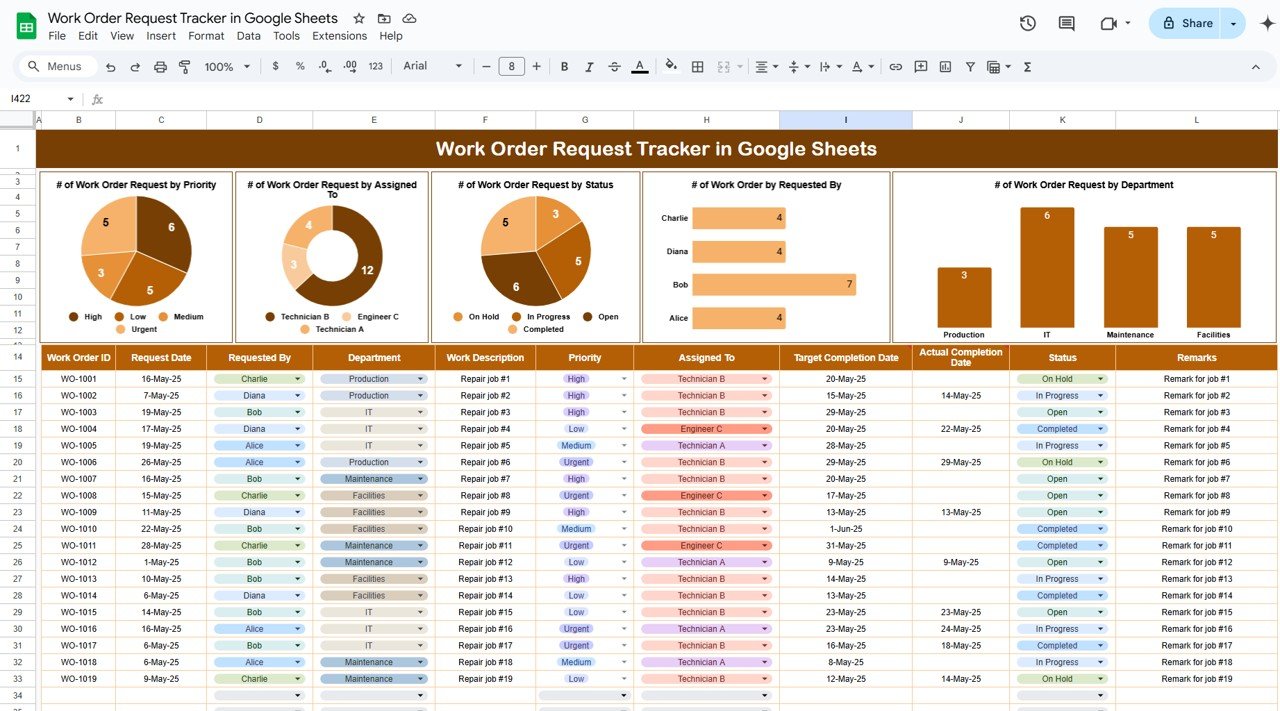
Track all your work orders in one easy-to-navigate sheet. Input includes:
Work Order ID
Request Date
Requested By
Department
Priority (High, Medium, Low)
Assigned To
Description
Status (Pending, In Progress, Completed)
Target Completion Date
Actual Completion Date
📊 Interactive Dashboard with Visual Charts
# of Work Orders by Priority – Instantly identify high-priority tasks
# of Work Orders by Assigned To – Balance workload across your team
# of Work Orders by Status – Know what’s done and what’s pending
# of Work Orders by Requested By – Track request volume by user or department
# of Work Orders by Department – Understand demand across internal functions
🔁 Real-Time Status Tracking
The status column updates your dashboard automatically. Just select ✔ “Completed”, ⏳ “In Progress”, or ⛔ “Pending” from the dropdown.
🧩 Fully Customizable Template
Need more fields? Want to track location, category, or urgency notes? This Google Sheets template is 100% editable to fit your exact workflow.
📦 What’s Inside the Work Order Request Tracker
The tracker consists of a single powerful sheet that combines:
✅ Work Order Log – A master database of every request
✅ Dynamic Charts – Auto-updating visuals to track distribution and workload
✅ Dropdown Menus – Simplify data entry and standardize categories
✅ Built-In Filters – Quickly sort by status, priority, department, or team member
No external tools. No setup time. Just enter your data and start tracking like a pro.
🧭 How to Use the Work Order Request Tracker
1️⃣ Log Requests – Input new work orders as they are submitted
2️⃣ Assign Tasks – Use the “Assigned To” field to designate responsibility
3️⃣ Prioritize Effectively – Choose a priority level for each task
4️⃣ Track Progress – Update the Status column as work progresses
5️⃣ Monitor Completion – Use Target and Actual dates to track timeliness
6️⃣ Visualize Trends – Use the dashboard to review workload, bottlenecks, and team performance
Everything you need is in one tab—intuitive, structured, and action-ready.
👥 Who Can Benefit from This Tracker?
🏢 Facilities & Maintenance Teams – Manage repairs, inspections, and upkeep
💻 IT Departments – Track helpdesk tickets and technical issues
🏬 Retail & Hospitality – Handle equipment repairs and vendor requests
🏗️ Construction Teams – Monitor job assignments and site tasks
🧰 Operations Managers – Stay ahead of service requests across departments
If your team receives, assigns, and completes work orders—this template is for you.
💡 Why You’ll Love This Google Sheets Tool
✅ Cloud-Based & Shareable – Collaborate in real time with your team
✅ No Software Required – Built entirely in Google Sheets
✅ Automated Visuals – See trends without manual charting
✅ Quick to Set Up – Start using in under 5 minutes
✅ Scale Across Teams or Locations – Adaptable for any size organization
✅ Easy Reporting – Export to PDF or share the live file
Keep your workflow clean. Keep your team accountable.
🔁 Click here to read the Detailed blog post
Click here to read the Detailed blog post
Watch the step-by-step video Demo:
🎥 Visit our YouTube channel to learn step-by-step video tutorials
Youtube.com/@NeotechNavigators
Compatibility and Requirements
- Works in Google Sheets with a free Google account and a web browser. Nothing to install.
- Dropdowns set the priority and status. Google explains dropdowns in Create an in-cell dropdown list.
Frequently Asked Questions
What fields does the work order log have?
Work Order ID, Request Date, Requested By, Department, Priority, Assigned To, Description, Status, Target Completion Date and Actual Completion Date.
Which charts are included?
Work orders by priority, by assigned person, by status, by requester and by department. They update from the log.
How do I mark a work order as done?
Pick Completed from the Status dropdown. The charts update on their own.
Can I add my own fields?
Yes. The sheet is fully editable, so you can add columns such as location or category.
Can my team use it at the same time?
Yes. It is a Google Sheets file, so you can share it and edit it together.
Related Work Order Templates
- Work Order Request Tracker in Excel: the same tracker for Excel users
- Work Order Dashboard in Google Sheets: a dashboard view of work order data
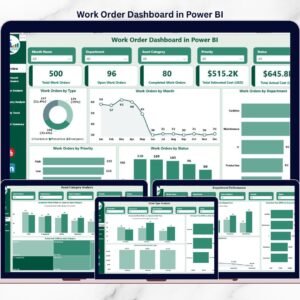
- Work Order Dashboard in Power BI: work order analysis in Power BI
- Work Order Dashboard in Excel: an Excel dashboard for work orders
Browse all Google Sheets Trackers.




Reviews
There are no reviews yet.