

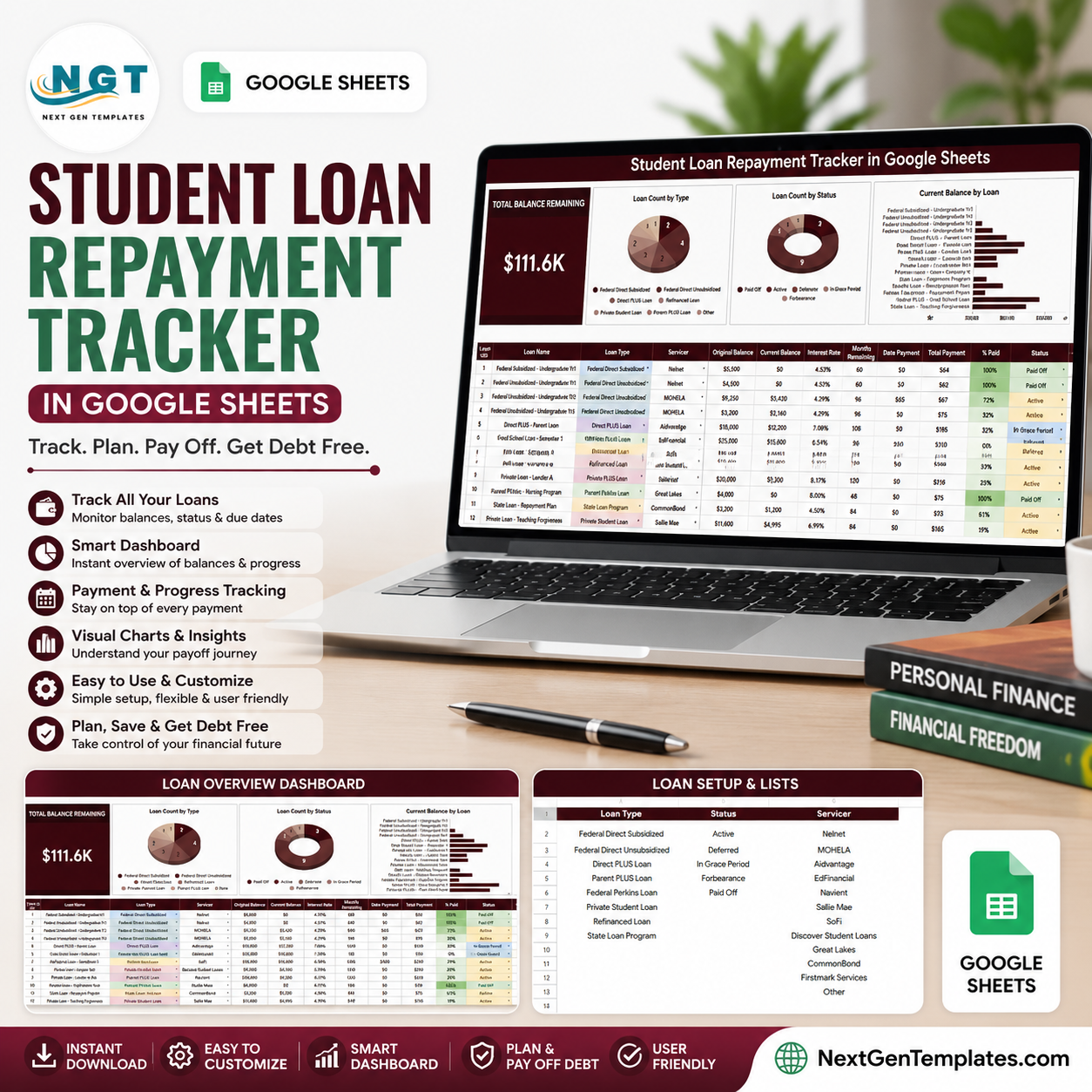

Student Loan Repayment Tracker in Google Sheets helps borrowers organize repayment details at a time when U.S. student loan balances reached about $1.86 trillion in Q1 2026, according to the Federal Reserve G.19 data, and 42.8 million borrowers hold federal student loan debt according to Education Data Initiative. For a one-time $6.99 sale price, this editable tracker gives you a clear overview page, setup lists, charts, and slicers without a monthly app subscription or bank-login connection. Built by PK, a Microsoft Certified Professional with 15+ years of spreadsheet experience and 300K+ subscribers, it is designed for practical student debt visibility.
Key Features of Student Loan Repayment Tracker in Google Sheets
- Total Balance Remaining card: See the selected loan balance still outstanding in one high-level KPI.
- Loan-by-loan tracking: Record loan names, types, servicers, status, original balance, and current balance in one structured Google Sheet.
- Four dashboard charts: Review loan count by type, loan count by status, current balance by loan, and original versus current balance by loan.
- Multiple slicers: Filter the dashboard quickly by key fields instead of manually sorting rows.
- Setup Lists sheet: Maintain dropdown options for loan type, repayment status, and loan servicer.
- Google Sheets access: Copy the file to Google Drive and update it from a browser or the Google Sheets mobile app.
- Manual-entry privacy: Track repayment information without connecting bank credentials or student loan accounts.
What’s Inside the Student Loan Repayment Tracker in Google Sheets
1 – Overview Page
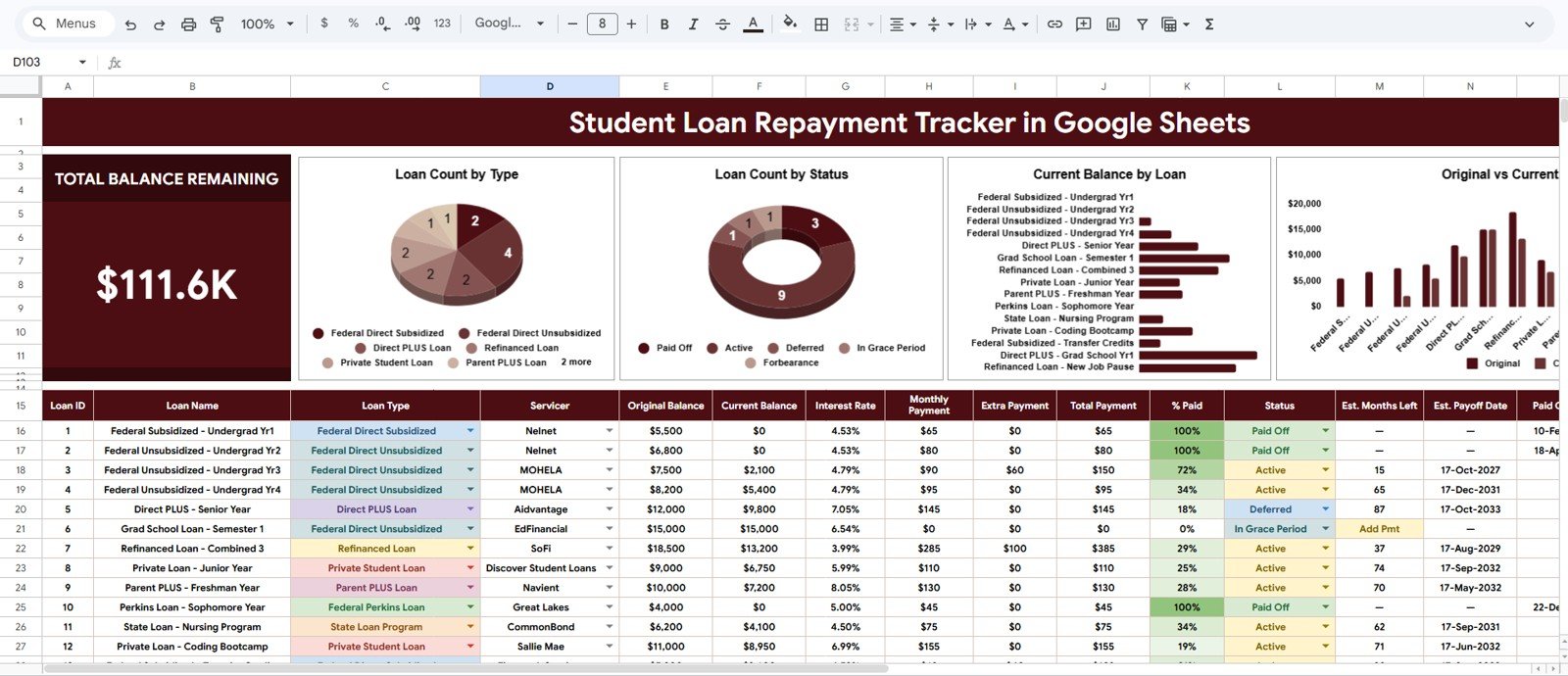
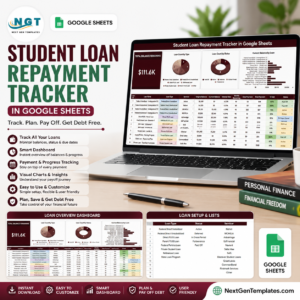
The Overview Page is the main dashboard sheet. At the top, the Total Balance Remaining card gives you a fast view of how much student loan balance remains after filters are applied.
Loan Count by Type: This chart groups the number of loans by loan type. It helps borrowers see whether their balances are spread across federal, private, subsidized, unsubsidized, Parent PLUS, or custom loan categories.
Loan Count by Status: This chart summarizes how many loans sit in each repayment status. It makes active, paused, paid off, deferment, forbearance, or custom status groups easier to review.
Current Balance by Loan: This chart compares the current balance for each individual loan. Use it to identify which loan has the largest remaining balance before planning extra payments or reviewing servicer statements.
Original Balance and Current Balance by Loan: This chart compares where each loan started against what remains now. It gives a visual progress check and helps highlight loans where balances are not falling as expected.
2 – Setup Lists
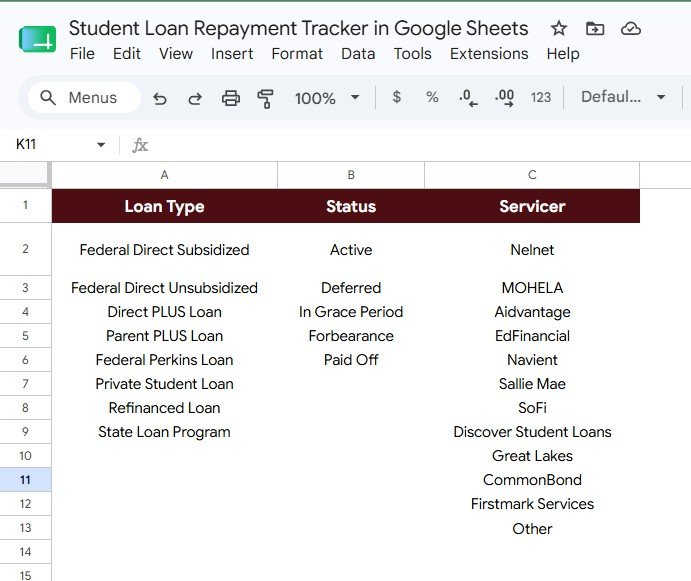
The Setup Lists sheet stores the dropdown values used by the tracker. This keeps data entry consistent and lets you adapt the template before adding your own loan records.
Loan Type Options by Loan Type: Add, rename, or remove loan type options so the tracker matches your actual borrowing mix. This is useful when you want to separate federal, private, graduate, parent, or refinanced loans.
Repayment Status Options by Status: Control the status labels used in the tracker. Consistent status choices make the loan count by status chart cleaner and easier to interpret.
Loan Servicer Options by Servicer: Maintain the servicer names used in your loan records. This makes it easier to filter by servicer when accounts are spread across multiple portals.
Student Loan Repayment Tracker in Google Sheets vs. Microsoft Excel vs. Paid Finance App – Where This Fits
| Feature | This Google Sheets tracker | Microsoft Excel alternative | Paid finance app |
|---|---|---|---|
| Cost | $6.99 sale price, one-time | Template cost plus any Microsoft license | Usually monthly or annual |
| Platform | Google Sheets in Drive | Excel desktop or web | Vendor-hosted web or mobile app |
| Setup time | Copy file, edit lists, enter loan records | Open workbook and customize | Create account and configure categories |
| Real-time team collaboration | Built into Google Sheets sharing | Available through Microsoft sharing tools | Depends on plan |
| Mobile access | Google Sheets mobile app | Excel mobile app | Usually included |
| Customizable fields | Edit lists, labels, loans, statuses, and servicers | Editable if workbook is unlocked | Often limited by app settings |
| Share with link | Yes, using Google Drive permissions | Yes, through OneDrive or SharePoint | Usually account-based |
| Year-1 cost at 5 users | $6.99 before any Google Workspace costs | Template plus license cost | Can increase with users or households |
| Loan servicer tracking | Included through setup lists and filters | Must be built or customized | Depends on app design |
Who This Template Is For – and Who It’s Not For
This template is for students, graduates, parents, household budgeters, financial coaches, and borrowers who want a clear spreadsheet view of student loan balances, loan types, repayment status, and servicers. It is especially useful when you prefer a manual tracker that stays in your Google Drive.
It is not a student loan servicer portal, repayment-plan calculator, refinancing quote engine, credit-reporting tool, bank-feed connector, or substitute for professional financial advice. Always reconcile this tracker with official loan servicer statements before making repayment decisions.
How to Use the Student Loan Repayment Tracker in Google Sheets
- Open the PDF guide after purchase and copy the Google Sheets file to your Drive.
- Review the Setup Lists sheet and update loan type, repayment status, and servicer options.
- Enter each student loan with its original balance, current balance, type, servicer, and status.
- Open the Overview Page to review the Total Balance Remaining card and four loan charts.
- Use slicers during monthly reviews to focus on selected loan types, statuses, or servicers.
Real-World Use Cases
Maya, recent graduate
Maya tracks six federal loans by type and status so she can see which balances are still active and which accounts need a servicer login check.
Jordan, parent borrower
Jordan separates Parent PLUS loans by servicer and compares original versus current balance before a household budget review.
Priya, finance coach
Priya duplicates the tracker for clients and uses the Overview Page to explain loan mix, repayment status, and balance concentration visually.
Frequently Asked Questions
What does this student loan tracker include?
It includes an Overview Page with one balance card, four charts, slicers, and a Setup Lists sheet for dropdown values.
Does it connect directly to student loan servicers?
No. It is a manual Google Sheets tracker. You enter balances and statuses from your official loan statements or servicer portals.
Can I customize the loan types?
Yes. The Setup Lists sheet lets you update loan type options for federal, private, subsidized, unsubsidized, parent, refinanced, or custom categories.
Can I track loans from multiple servicers?
Yes. Add each servicer to the Setup Lists sheet, then use the tracker and slicers to filter by servicer.
Does this calculate my repayment plan?
No. It focuses on organizing balances and dashboard analysis. Use official servicer tools or qualified financial guidance for repayment-plan decisions.
Can I share the tracker with someone else?
Yes. After copying it to Google Drive, you can share your file using Google Sheets permissions.
About the Author
Built by PK – Microsoft Certified Professional with 15+ years of Excel, Google Sheets, and Power BI experience. Founder of NextGenTemplates, reaching 300K+ subscribers across YouTube channels. Every template is hand-built and tested before release.
Explore Related Templates
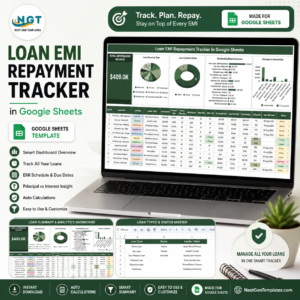
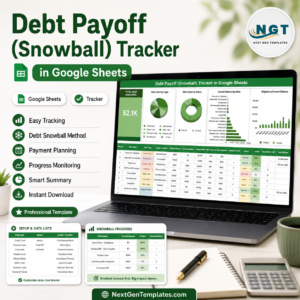
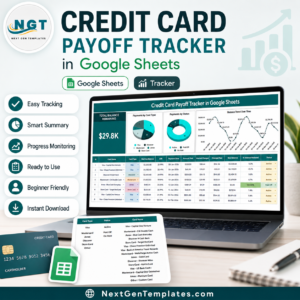
For adjacent repayment workflows, explore the Loan EMI Repayment Tracker in Google Sheets, Debt Payoff Snowball Tracker in Google Sheets, Credit Card Payoff Tracker in Google Sheets, Bill Payment Tracker in Google Sheets, and Personal Finance Net Worth Tracker in Google Sheets. Browse more Google Sheets templates and Google Sheets tracker templates.
Get the Student Loan Repayment Tracker in Google Sheets and turn scattered student loan details into a clean dashboard you can review every month.
Watch the step-by-step video Demo:
Last updated: July 17, 2026.






Reviews
There are no reviews yet.