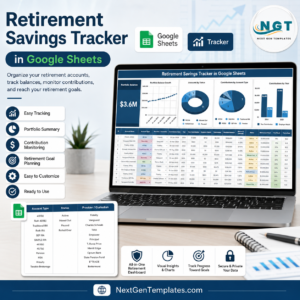
Retirement Savings Tracker in Google Sheets helps investors, households, and advisors monitor portfolio balance, contributions, account types, providers, custodians, and account status in one editable spreadsheet. Fidelity’s Q1 2026 retirement analysis reported an average 401(k) balance of $141,000 and a record 14.4% total 401(k) savings rate, while Vanguard recommends saving 12% to 15% of income for retirement. Built by PK, creator of NextGenTemplates and 300K+ spreadsheet learners, this template gives you a one-time purchase workflow with no brokerage login, no recurring app fee, and no locked SaaS account.
Use it when you want a practical retirement tracking file you can copy into Google Drive, update manually, and review with clean cards, charts, slicers, and controlled reference lists.
Key Features of Retirement Savings Tracker in Google Sheets
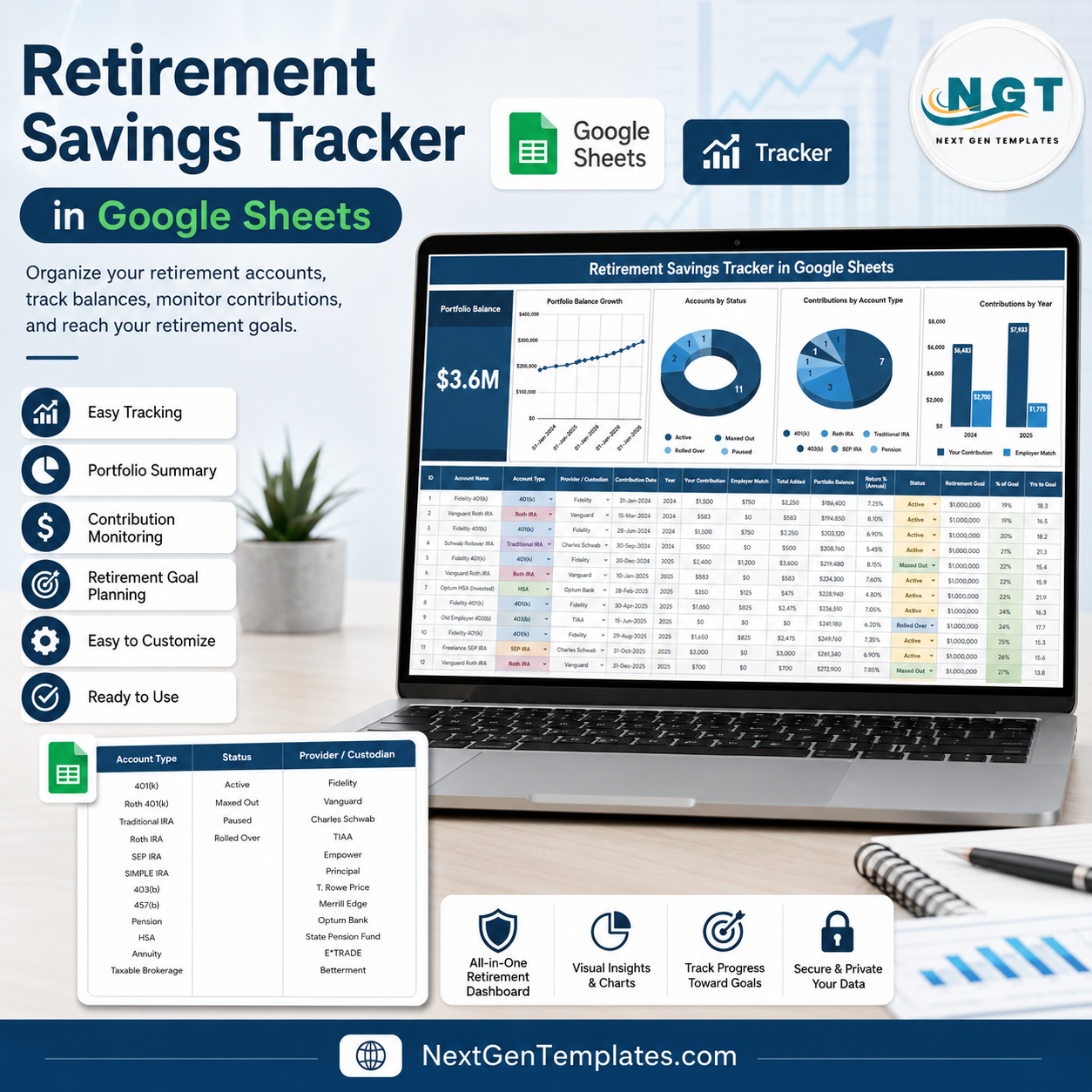
- Portfolio Balance card: See the high-level retirement portfolio value at the top of the Overview Page.
- Interactive Overview Page: Review balance, accounts, contribution behavior, and status from one dashboard-style sheet.
- Multiple slicers: Filter quickly by available fields such as account type, status, provider, custodian, year, or date.
- Four built-in charts: Analyze portfolio balance by date, account status, contribution mix, and yearly contribution totals.
- Reference Lists sheet: Maintain account types, statuses, and provider or custodian names in one setup tab.
- Google Sheets workflow: Copy the file to Drive, edit it in a browser, and share it with selected permissions.
- Manual-entry control: Keep your financial records under your own control without connecting bank or brokerage credentials.
What’s Inside the Retirement Savings Tracker in Google Sheets
1 – Overview Page
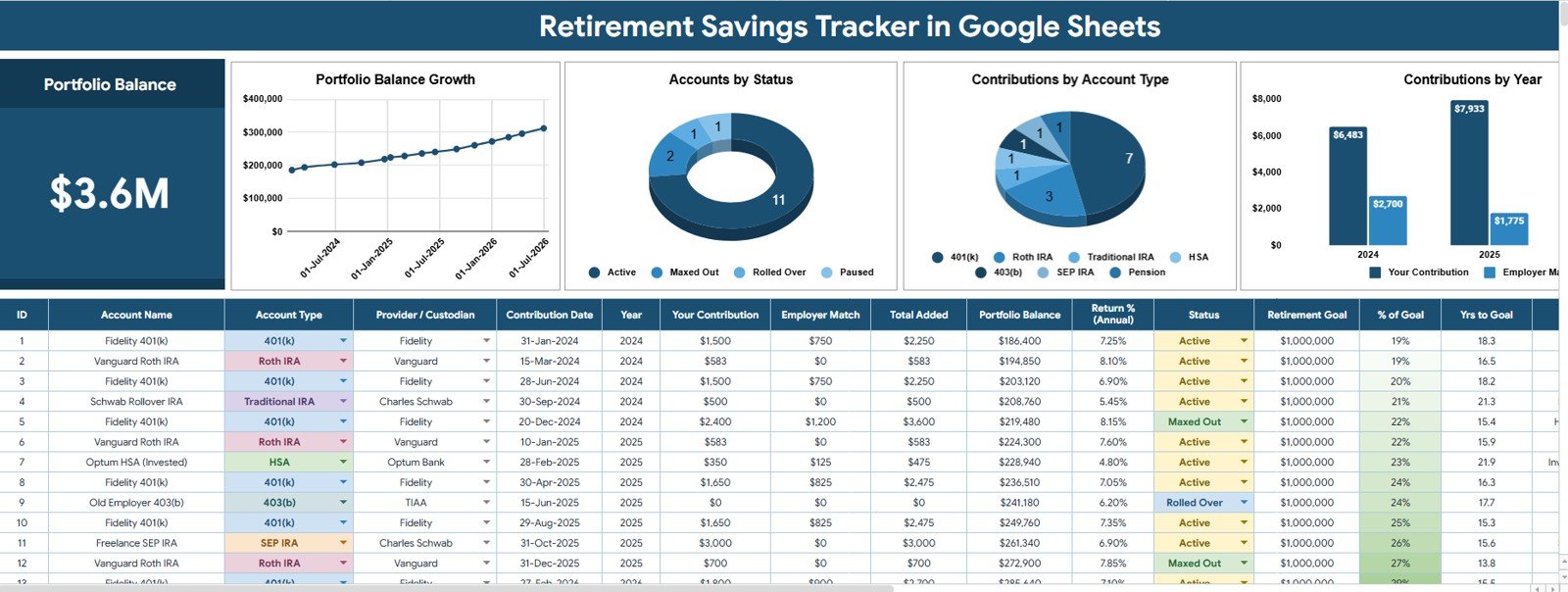
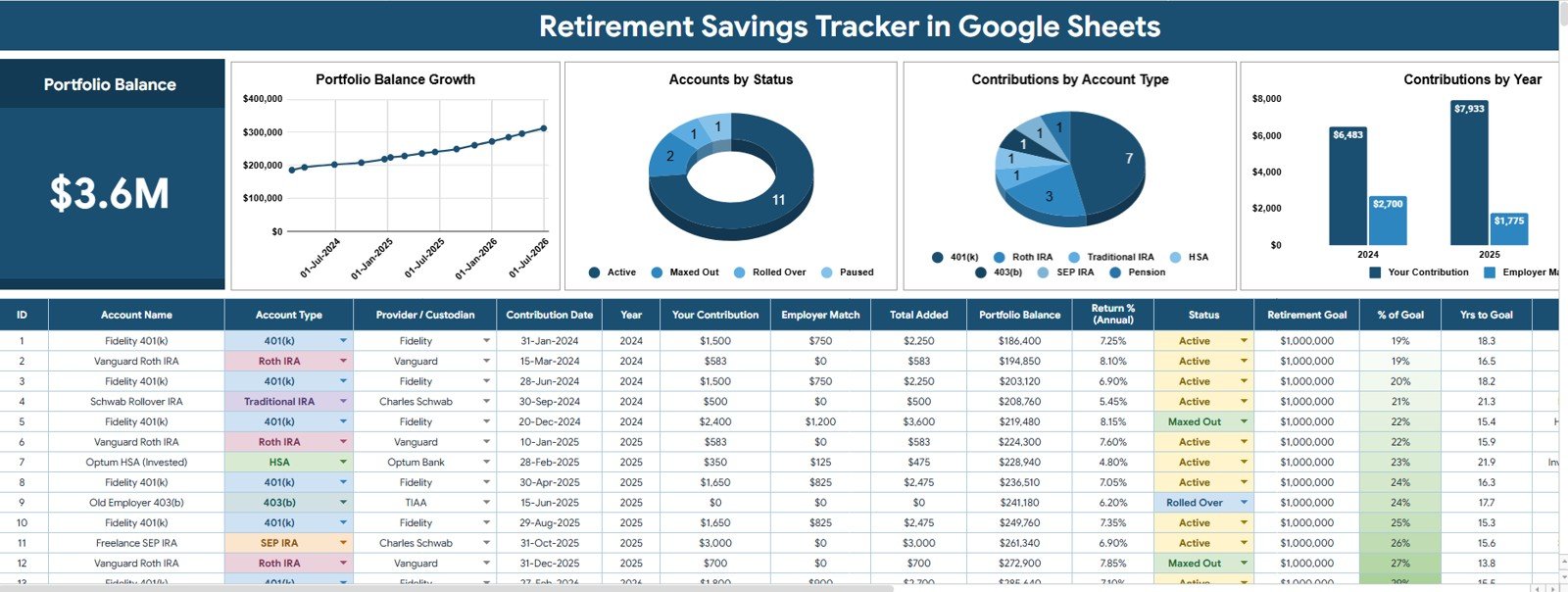
The Overview Page is the main dashboard sheet. At the top, the Portfolio Balance card gives a quick snapshot of total retirement savings before you move into charts and filtered analysis.
Portfolio Balance by Date: This chart shows how the retirement portfolio balance changes over time. It helps you spot long-term growth, flat periods, or drawdowns after market movement or contributions.
Accounts by Status: This chart groups retirement accounts by status. It helps you separate active, inactive, closed, rollover, or watchlist accounts so the dashboard stays easier to interpret.
Contributions by Account Type: This chart compares contributions across account types such as 401(k), IRA, Roth IRA, brokerage, pension, or custom categories. It helps you see where retirement money is being added.
Contributions by Year: This chart tracks yearly contribution totals. It is useful for checking whether annual savings habits are improving, declining, or staying consistent.
2 – Reference Lists
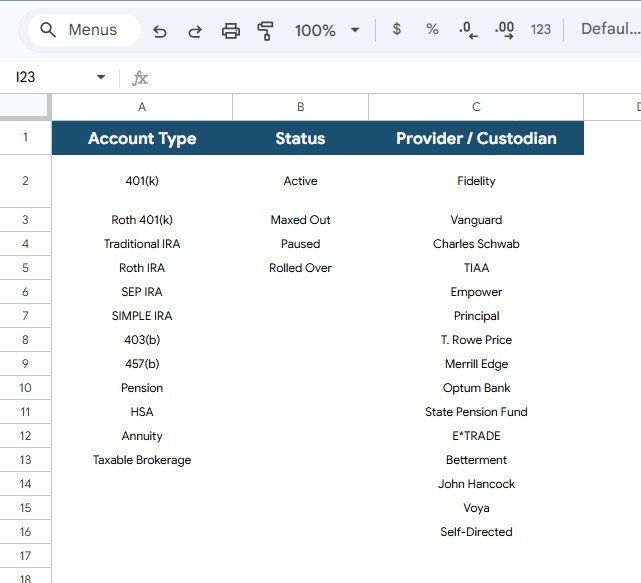
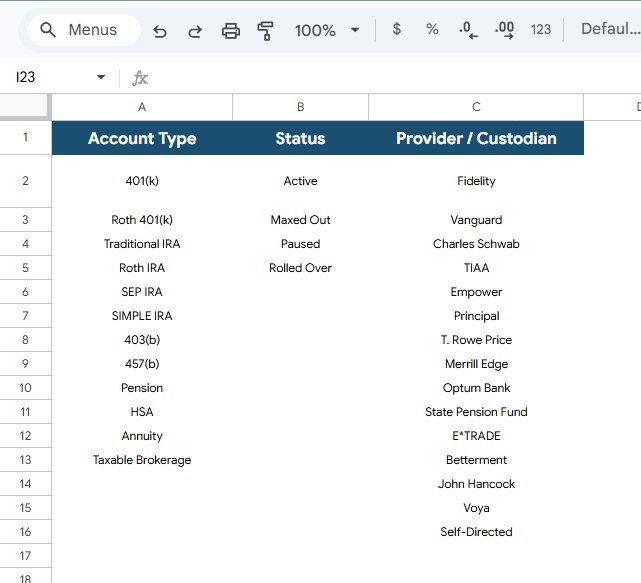
The Reference Lists sheet stores the dropdown values used across the tracker. Clean list values reduce spelling differences and make slicers, charts, and account summaries more reliable.
Account Type by Reference List: Use this list to standardize account categories such as 401(k), IRA, Roth IRA, brokerage, pension, HSA, or other savings vehicles.
Status by Reference List: Use this list to keep account status values consistent. Standard status names make the Accounts by Status chart cleaner.
Provider / Custodian by Reference List: Use this list to manage institutions or custodians. It helps you compare retirement balances and contributions by the companies that hold the accounts.
Retirement Savings Tracker in Google Sheets vs. Microsoft Excel Tracker vs. Paid Retirement SaaS – Where This Fits
| Feature | This Google Sheets tracker | Microsoft Excel tracker | Paid retirement SaaS |
|---|---|---|---|
| Cost | $6.99 one-time template price | Template cost plus possible Microsoft license | Often monthly or annual subscription |
| Platform | Google Sheets in Drive | Excel desktop or web | Vendor-hosted app |
| Setup time | Copy file, edit reference lists, enter records | Open workbook and customize manually | Create account, configure accounts, import data |
| Real-time team collaboration | Included through Google Drive sharing | Requires OneDrive or SharePoint workflow | Depends on plan |
| Customizable fields | Edit lists, labels, formulas, charts, and slicers | Editable if workbook is unlocked | Often limited by software settings |
| Account status analysis | Accounts by Status chart included | Must be built or customized | Depends on app features |
Who This Template Is For – and Who It’s Not For
This tracker is for individual retirement savers, couples, family finance planners, independent advisors, finance coaches, and spreadsheet users who want a simple way to review balances, yearly contributions, account types, statuses, providers, and custodians.
It is not a brokerage connection, retirement advice engine, tax filing tool, pension calculator, or substitute for a qualified financial advisor. Use it to organize and review the records you enter, then verify final decisions with official statements and professional guidance.
How to Use the Retirement Savings Tracker in Google Sheets
- Open the PDF guide after purchase and copy the Google Sheets tracker to your Drive.
- Review the Reference Lists sheet and update account types, statuses, providers, and custodians.
- Enter or paste retirement account records in the tracker data area.
- Open the Overview Page to review Portfolio Balance and the four dashboard charts.
- Use slicers to filter by account type, status, provider, custodian, date, or year.
- Reconcile the tracker with official account statements during monthly or quarterly reviews.
Real-World Use Cases
Maya, household finance planner: reviews 401(k), IRA, Roth IRA, and brokerage balances before a quarterly family money check-in.
Daniel, independent advisor: uses provider and custodian lists to organize client records before a planning conversation.
Priya, self-directed investor: checks contributions by year to see whether her savings habit is improving over time.
Frequently Asked Questions
What does the Portfolio Balance card show?
It shows the selected retirement portfolio balance based on the records and filters used in the tracker.
Can I customize account types?
Yes. The Reference Lists sheet lets you edit account type values, so you can track 401(k), IRA, Roth IRA, brokerage, pension, HSA, or custom account categories.
Does it connect to my retirement provider?
No. This is a manual Google Sheets tracker. That keeps setup simple and avoids requiring brokerage or bank login credentials.
Can I track multiple providers or custodians?
Yes. The provider and custodian reference list is designed to standardize institution names across your account records.
Can I share this file with a spouse or advisor?
Yes. Because it runs in Google Sheets, you can share your copied file with view or edit permissions through Google Drive.
Is this financial advice?
No. It is a tracking and reporting template. Retirement, tax, and investment decisions should be reviewed with qualified professionals and official account records.
About the Author
Built by PK – Microsoft Certified Professional with 15+ years of Excel, Google Sheets, and Power BI experience. Founder of NextGenTemplates, reaching 300K+ subscribers across YouTube channels. Every template is hand-built and tested before release.
Explore Related Templates
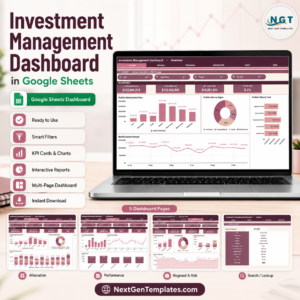
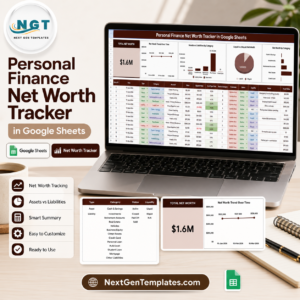
For adjacent finance workflows, explore the Investment Management Dashboard in Google Sheets, Stock Portfolio Tracker in Google Sheets, Dividend Income Tracker in Google Sheets, Investment Tracker in Google Sheets, and Personal Finance Net Worth Tracker in Google Sheets. Browse more Google Sheets tracker templates and Google Sheets financial tools.
Click here to read the detailed blog post<
Watch the step-by-step video Demo:
/h3>
Download the Retirement Savings Tracker in Google Sheets and turn account balances, contributions, account types, statuses, providers, and custodians into a clear retirement savings dashboard you can review every month.
Last updated: July 25, 2026.