


Supplier Delivery Schedule Calendar in Google Sheets
Managing multiple supplier deliveries can be stressful — missed shipments, last-minute changes, and scattered data often lead to costly supply chain delays. The Supplier Delivery Schedule Calendar in Google Sheets is your all-in-one solution to take control of delivery management like a pro 🚚✨
This interactive Google Sheets template brings all your supplier delivery events, timelines, and shipment schedules together in one automated calendar. No more juggling between emails or complex ERP systems — just a smart, visual, and easy-to-use tool that keeps your operations running smoothly.
🧩 Key Features of Supplier Delivery Schedule Calendar in Google Sheets
✅ All-in-One Dashboard: Centralized calendar for all supplier deliveries, events, and schedules.
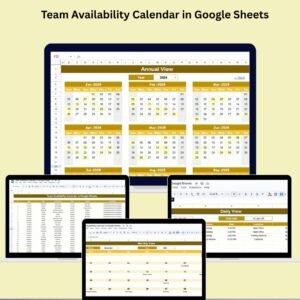
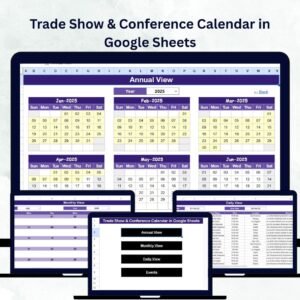
📅 Dynamic Views: Instantly switch between Annual, Monthly, and Daily views to analyze deliveries across different timelines.
🎨 Color-Coded Events: Identify key deliveries, delayed shipments, or special supplier milestones at a glance.
⚙️ Real-Time Collaboration: Multiple users can update, view, and comment simultaneously.
🔍 Smart Filters: Quickly filter events by date range, supplier, or status to focus on what matters.
💡 Customizable Design: Modify start month, week start day, or layout to fit your business calendar.
💰 Cost-Effective Alternative: A zero-cost solution compared to heavy ERP or scheduling software.
🧠 Beginner-Friendly: Simple navigation with pre-built buttons and no coding required.

📂 What’s Inside the Supplier Delivery Schedule Calendar in Google Sheets
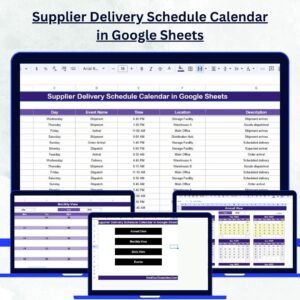
This professional calendar template includes five interactive worksheet tabs, each serving a unique purpose:
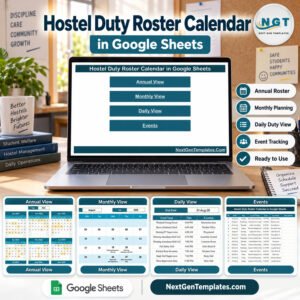
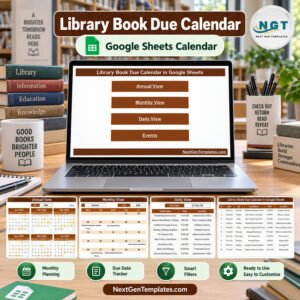
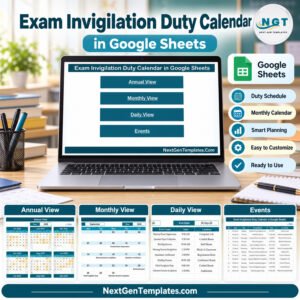
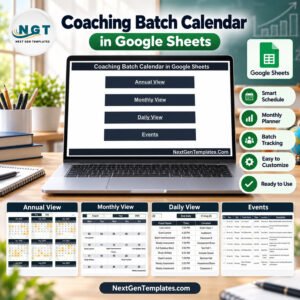
1️⃣ Home Sheet: Your navigation hub with buttons for Annual View, Monthly View, Daily View, and Events.
2️⃣ Annual View Sheet: See a 12-month snapshot of all supplier deliveries. Select any year, start month, or week format — everything updates automatically.
3️⃣ Monthly View Sheet: Focus on one month at a time, ideal for operational teams managing upcoming deliveries.
4️⃣ Daily View Sheet: Drill down into specific date ranges and get detailed information on delivery time, location, and description.
5️⃣ Events Sheet: The master database where all supplier events are stored in a structured, editable format.
Each tab is interconnected — update once, and the entire system refreshes dynamically! 🔄
🧭 How to Use the Supplier Delivery Schedule Calendar in Google Sheets
1️⃣ Open the Template in Google Sheets.
2️⃣ Add Your Supplier Data — input delivery dates, times, and details in the Events sheet.
3️⃣ Select a Year or Month from the drop-down menus to view planned deliveries.
4️⃣ Use Filters on the Daily View to focus on a particular time frame.
5️⃣ Collaborate in Real-Time with your procurement or logistics team — no version chaos!
💡 Pro Tip: Use Google Apps Script for automatic reminders or color-code deliveries by status (Completed, Pending, Delayed).
👥 Who Can Benefit from This Supplier Delivery Schedule Calendar
🏢 Procurement Teams — Manage multiple suppliers and stay updated on every delivery.
🚛 Logistics Managers — Plan truck schedules and optimize manpower based on delivery timelines.
🏭 Warehouse Supervisors — Track incoming shipments and avoid storage bottlenecks.
💼 Small Business Owners — Simplify supplier tracking without complex tools.
📊 Finance Teams — Monitor supplier payments and link them to delivery milestones.
🌍 Remote Teams — Collaborate effortlessly from anywhere using Google Workspace.
With this easy-to-use template, you’ll eliminate manual tracking, improve visibility, and ensure every supplier stays on schedule.
Click here to read the Detailed Blog Post
Watch the step-by-step video tutorial:
Visit our YouTube channel to learn step-by-step video tutorials —
Compatibility and Requirements
- Works in Google Sheets with a free Google account and a web browser.
- Make a copy to your own Google Drive, then share it with your team if you want to work on it together.
- New to Sheets? Google’s guide How to use Google Sheets covers the basics.
- The year and month pickers are dropdowns. Google’s guide Create an in-cell dropdown list explains how they work.
Frequently Asked Questions
What tabs are in the Supplier Delivery Schedule Calendar?
Five tabs: Home with navigation buttons, Annual View, Monthly View, Daily View and Events, the sheet that stores every delivery.
Where do I add deliveries?
In the Events sheet. Enter the delivery date, time and details, and the annual, monthly and daily views pick them up.
Can I change the calendar start?
Yes. You can change the start month and the week start day to match your business calendar.
How do I look at one period?
Pick a year or month from the dropdowns, or use the filters on the Daily View to focus on a date range.
Can my team use it together?
Yes. It runs in Google Sheets, so procurement and logistics staff can view and update it at the same time.
Related Supplier and Delivery Templates
- Supplier Delivery Schedule Calendar in Excel: the same supplier delivery calendar in Excel
- Supply Chain Delivery Calendar in Excel: plan supply chain deliveries in Excel
- Supplier Performance KPI Dashboard in Excel: measure supplier performance with KPIs
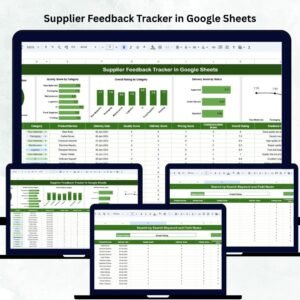
- Supplier Feedback Tracker in Google Sheets: log supplier feedback in Google Sheets
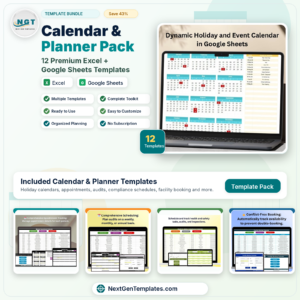
- Calendar & Planner Pack: 12 calendar and planner templates in one pack
Browse all Google Sheets calendars or the Excel calendars.









Reviews
There are no reviews yet.