


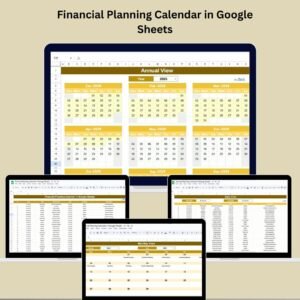
Take control of your finances effortlessly with the Budget Tracking Calendar in Google Sheets — your all-in-one financial companion designed to simplify expense management, boost savings, and make budgeting stress-free 💰✨. Whether you’re managing household bills, tracking small business expenses, or planning savings goals, this dynamic calendar template makes everything organized and visual — no accounting degree needed!Budget Tracking Calendar in Google Sheets…
💡 Key Features of the Budget Tracking Calendar in Google Sheets
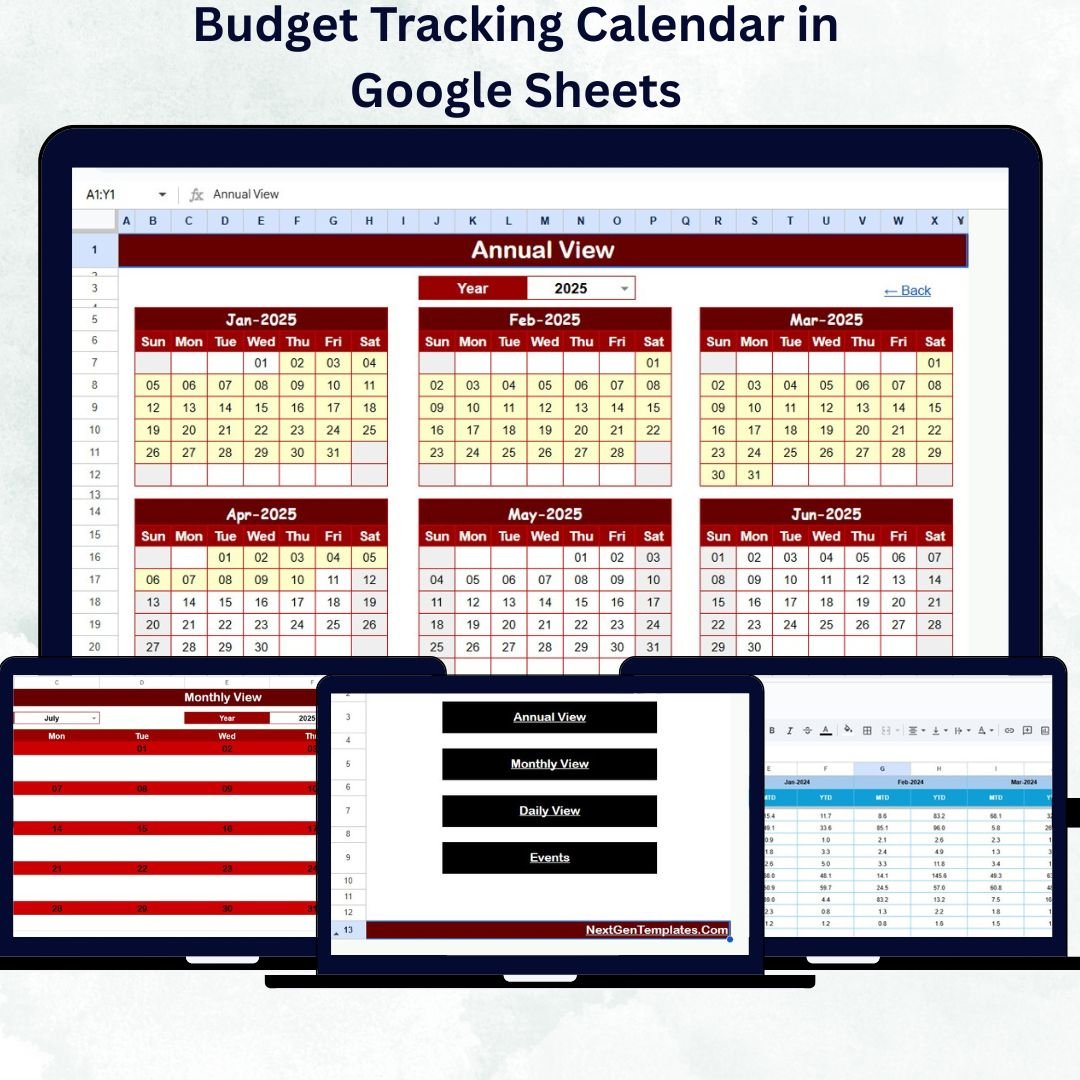
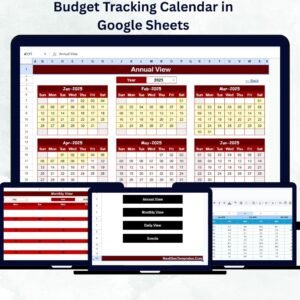
✅ All-in-One Dashboard: Access all views — Annual, Monthly, Daily, and Events — directly from the Home page. One click takes you anywhere!
✅ Cloud-Based & Accessible Anywhere: Built in Google Sheets for real-time collaboration and access across devices 🌐.
✅ Automated Summaries: Automatically calculate income, expenses, and totals for any selected month or date range.
✅ MTD & YTD Insights: Instantly view Month-to-Date and Year-to-Date performance.
✅ Smart Filters & Drop-downs: Select Year, Month, or Date range for precise financial tracking.
✅ No Subscription or Coding Needed: 100% free, easy to use, and customizable for any type of user.
✅ Visual Analytics: Built-in charts and color-coded cells highlight spending patterns for faster decisions.
✅ Event Integration: Plan due dates, bill payments, and income reminders directly on your calendar.
📦 What’s Inside the Budget Tracking Calendar in Google Sheets
This professional-grade template includes five powerful worksheet tabs, each designed for effortless financial organization:
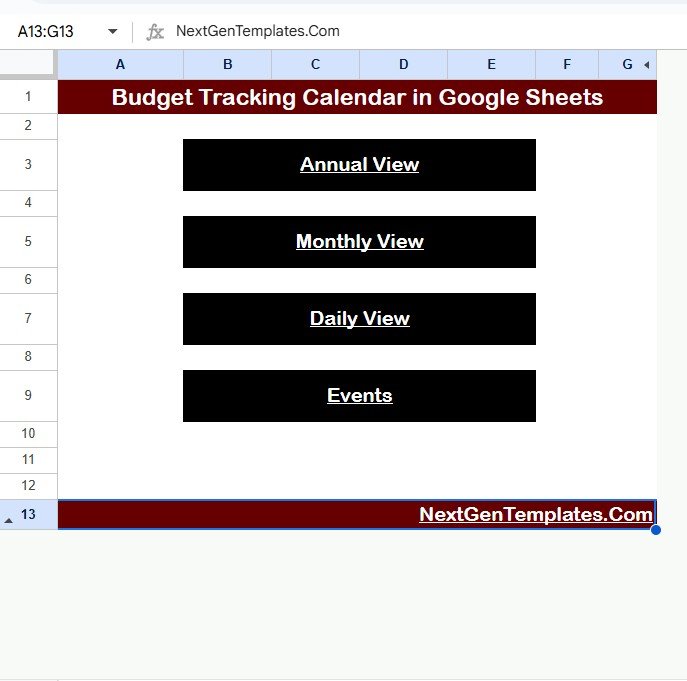
1️⃣ 🏠 Home Sheet Tab:
Acts as your control center with quick navigation buttons to Annual View, Monthly View, Daily View, and Events. Personalize it with your name or logo for a branded experience.
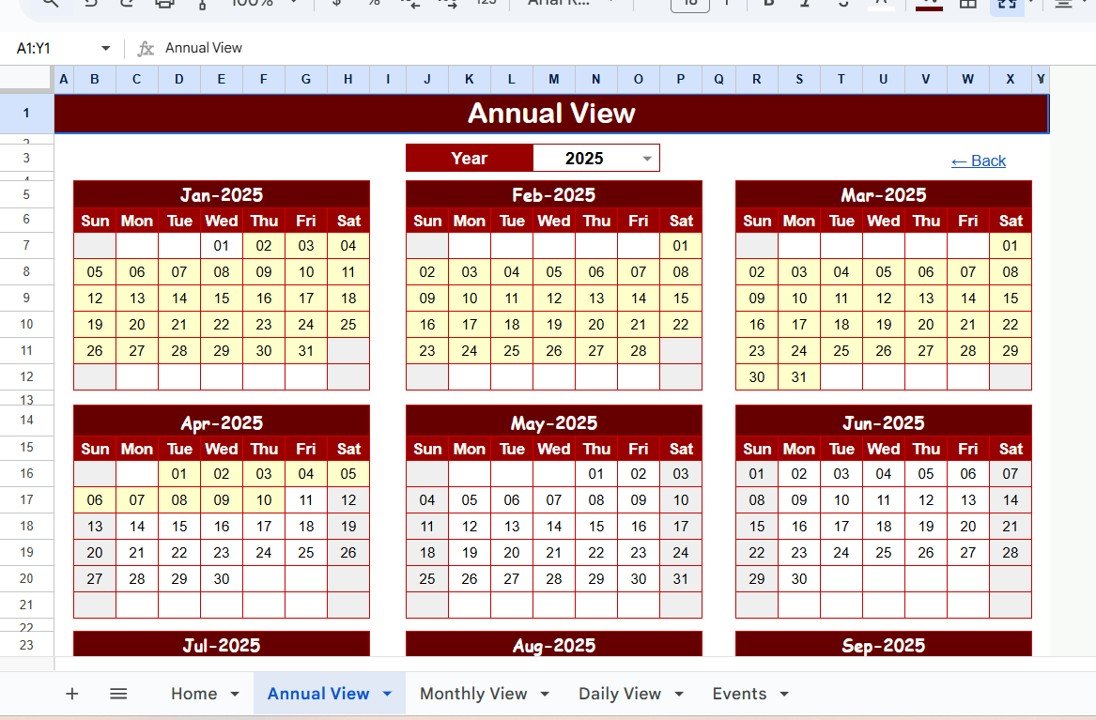
2️⃣ 📅 Annual View Sheet Tab:
View your entire financial year at once. Select your Year, Starting Month, and Week Start Day to tailor the calendar to your preferences. Instantly see monthly totals and upcoming payments.
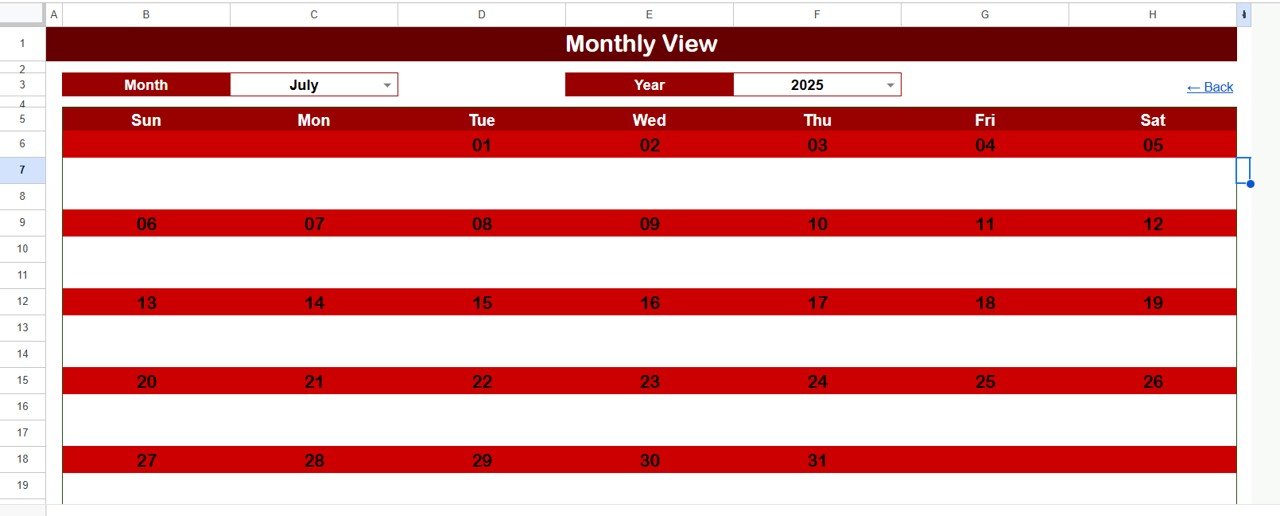
3️⃣ 🗓️ Monthly View Sheet Tab:
Focus on one month at a time. Displays income, bills, and expenses by date. Multiple entries are summarized neatly as “more than 1…” to keep your calendar clean.
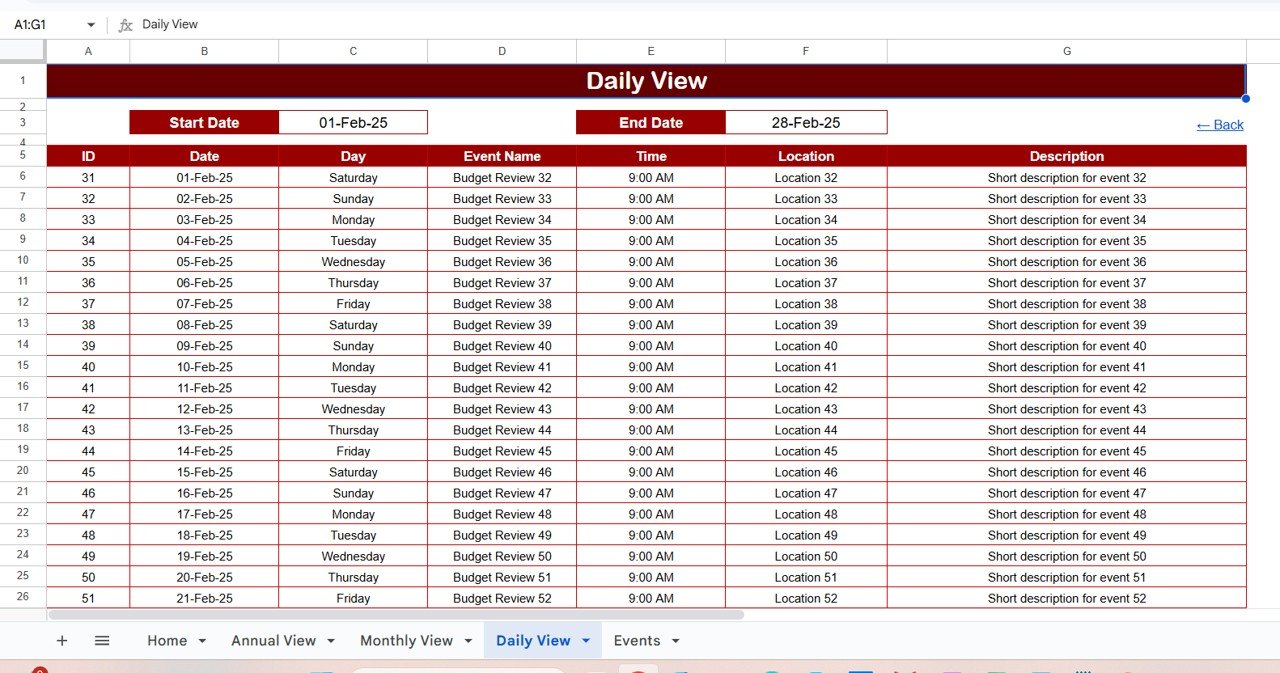
4️⃣ 📖 Daily View Sheet Tab:
Analyze your daily transactions. Select a Start and End Date to see all financial events within that period — perfect for spotting high-spend days and short-term trends.
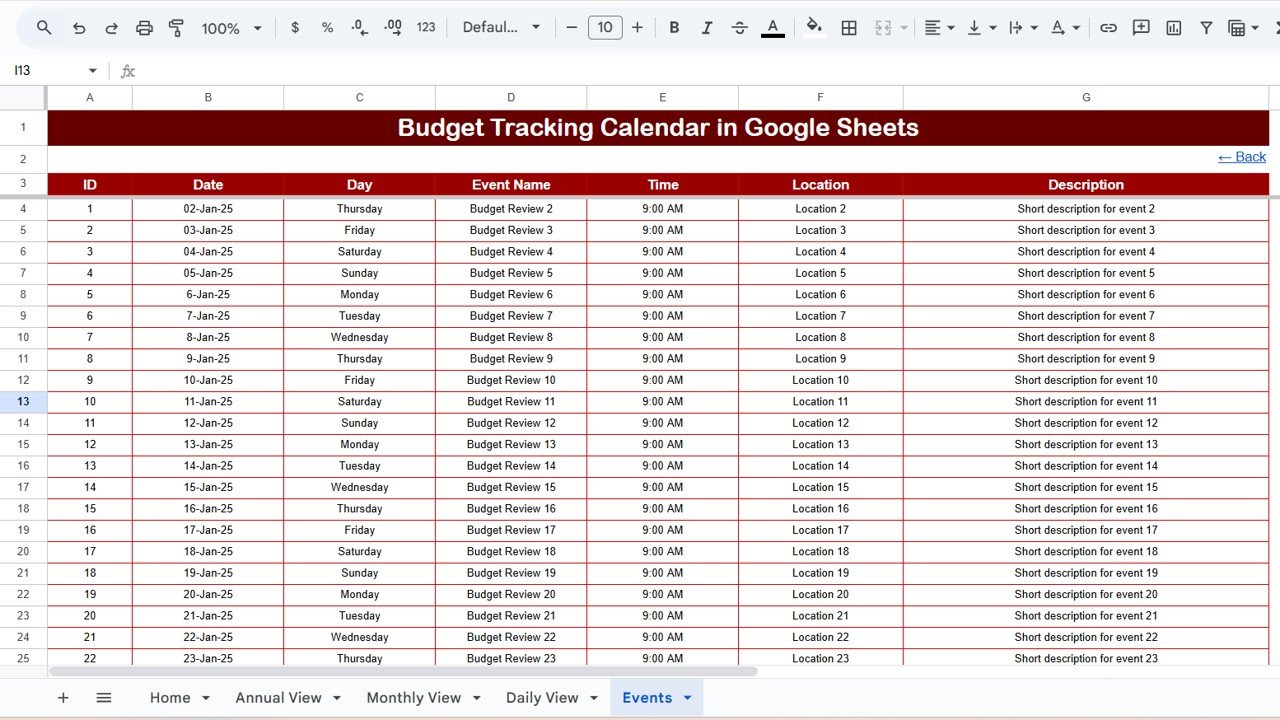
5️⃣ 💾 Events Sheet Tab:
The data engine of your calendar! Add all your expense and income details here. The rest of the sheets update automatically based on this input.
🧭 How to Use the Budget Tracking Calendar in Google Sheets
1️⃣ Enter your transactions — Add every expense, income, or reminder to the Events sheet.
2️⃣ Check annual insights — Use the Annual View to see year-long trends.
3️⃣ Plan monthly budgets — Switch to Monthly View for focused control.
4️⃣ Analyze daily data — Zoom in on specific dates in the Daily View.
5️⃣ Navigate easily — Use Home sheet buttons to switch between pages instantly.
💡 Tip: Color-code your entries — green for income, red for expenses, and blue for savings — for quick visual clarity!
👥 Who Can Benefit from This Budget Tracking Calendar
💼 Small Business Owners: Track operational costs, sales, and profits.
🏠 Households & Families: Manage grocery, utility, and rent payments effortlessly.
🎓 Students: Keep an eye on daily expenses, fees, and allowances.
🎯 Freelancers: Monitor income sources and monthly goals.
🙏 Nonprofits: Plan donations and track fund utilization transparently.
🎉 Event Planners: Record payments, bookings, and refunds with ease.
No matter your profession or lifestyle — this tool helps you stay financially disciplined, organized, and worry-free.
Click here to read the detailed blog post
Watch the step-by-step video tutorial:
Visit our YouTube channel to learn step-by-step video tutorials — YouTube.com/@PKAnExcelExpert
Compatibility and Requirements
- Works in Google Sheets. You need a free Google account and a web browser.
- New to Google Sheets? Google has a short guide: How to use Google Sheets.
Frequently Asked Questions
Which sheets are included?
Five sheets: Home, Annual View, Monthly View, Daily View and Events.
Can I choose when my year starts?
Yes. In the Annual View you select the year, starting month and week start day.
Where do I add income and expenses?
Add every expense, income or reminder to the Events sheet. The other views update from it.
What if a day has several entries?
The Monthly View shows “more than 1” on that date to keep the calendar clean.
How do I review a short period?
In the Daily View, pick a start and end date to list all financial events in that range.
Related Budget Templates
- Budget Tracking Calendar in Excel: the same calendar in Excel
- Monthly Budgeting Calendar in Excel: plan a budget month by month
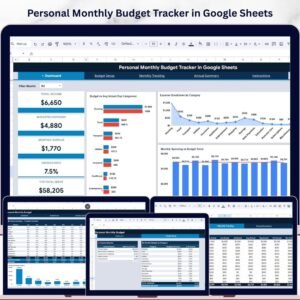
- Personal Monthly Budget Tracker in Google Sheets: track income and spending
- Cash Envelope Budget Tracker in Google Sheets: set spending limits by envelope
- Calendar & Planner Pack: 12 calendar and planner templates in one download
Browse all Google Sheets calendars.






Reviews
There are no reviews yet.