


✈ Office Travel and Expense Report in Excel – Track Every Trip, Every Expense
Managing office travel and expenses is critical for keeping budgets in check. Business trips, client meetings, and site visits all come with costs—and without a proper system, they can lead to budget overruns, delayed reimbursements, and lack of transparency.
The Office Travel and Expense Report in Excel is a ready-to-use, easy-to-customize template designed to help you record, track, and analyze all travel-related costs in one place. With a structured format, interactive dashboards, and detailed reporting, it empowers organizations to make smarter travel budget decisions.
✨ Key Features of Office Travel and Expense Report in Excel
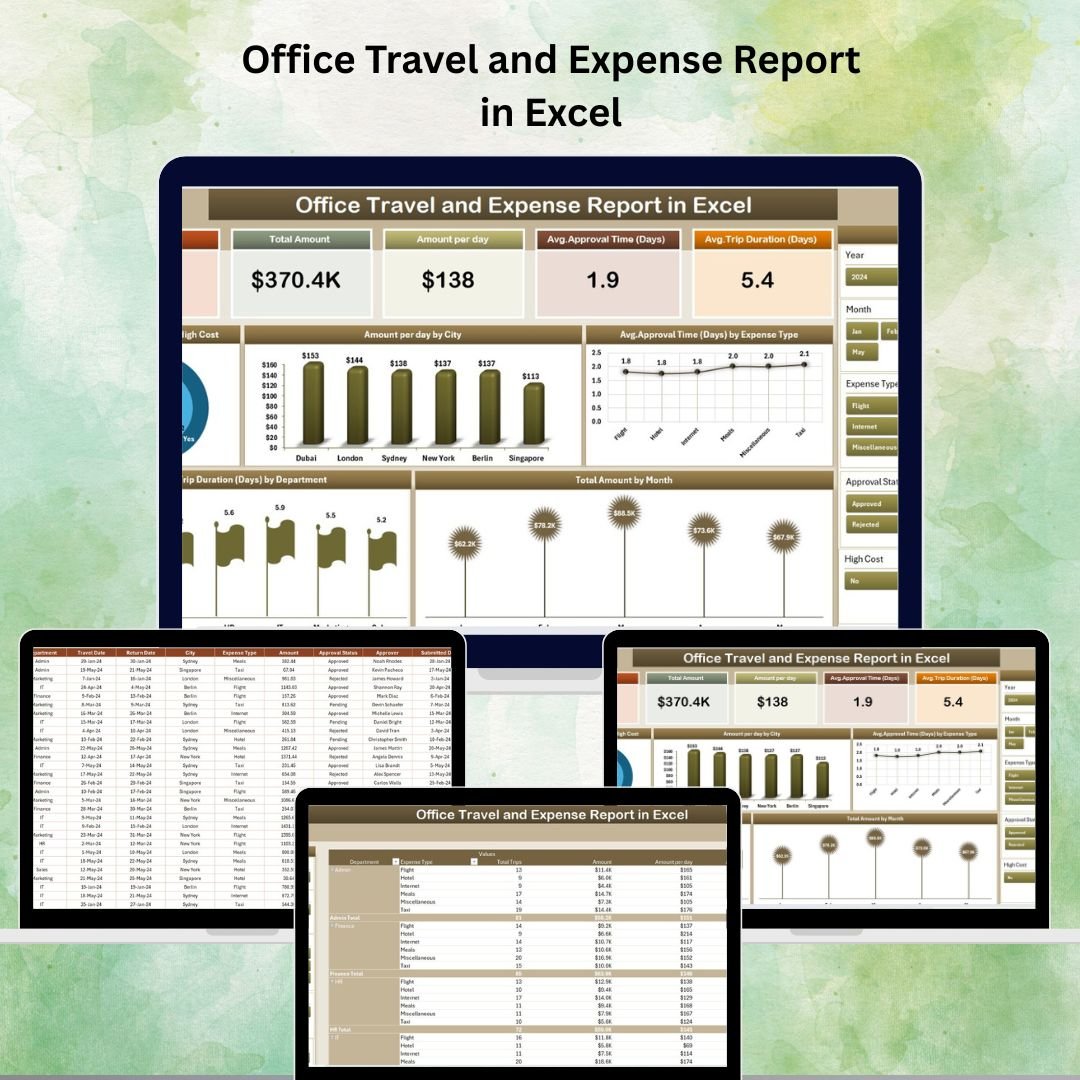
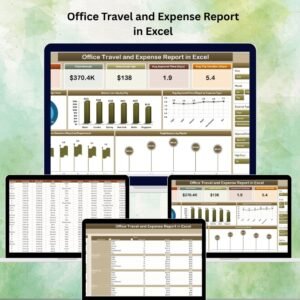
✅ Comprehensive Summary Page – Displays 5 key cards, slicers for filtering, and insightful charts for instant analysis.
✅ Interactive Charts – Track spending trends by city, department, expense type, and more.
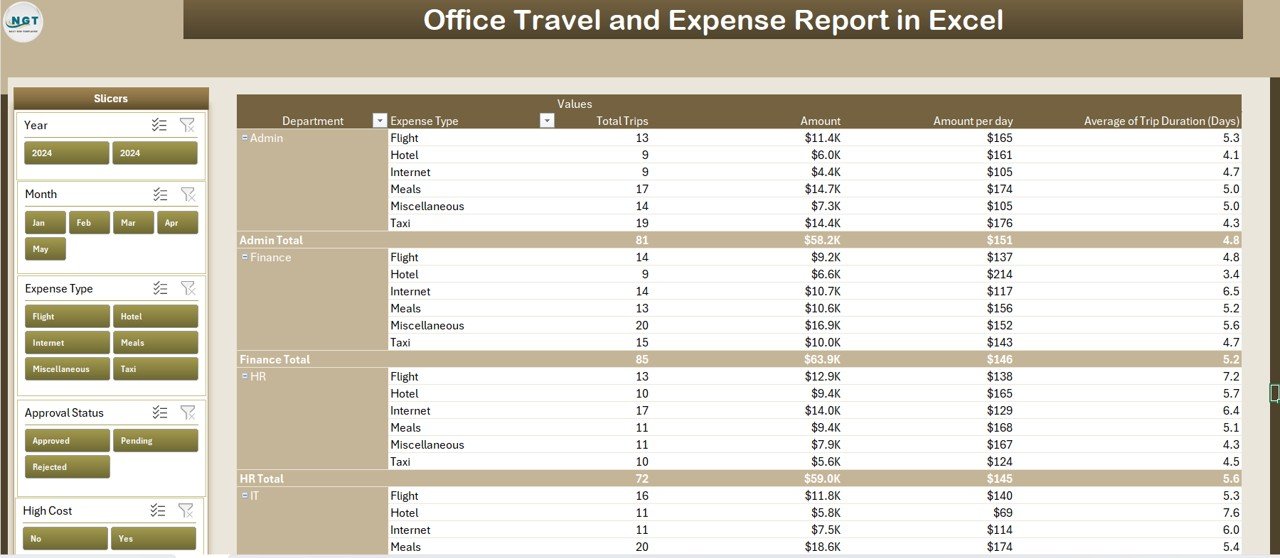
✅ Detailed Report Page – Full list of travel expenses with filtering options for deeper analysis.
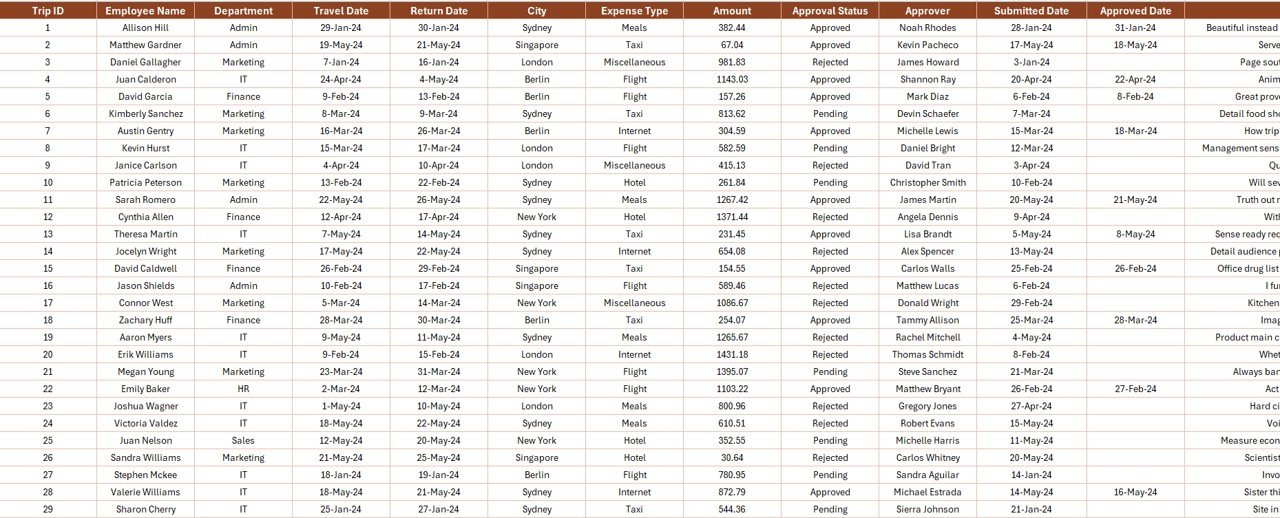
✅ Data Sheet – Centralized storage of all travel entries, including dates, departments, and amounts.
✅ Support Sheet – Maintains dropdown data for consistency and accuracy.
✅ Prebuilt Filters – Slicers make it easy to segment data instantly.
✅ Budget Insights – Identify overspending areas with targeted reports.
✅ Beginner-Friendly – No advanced Excel skills required to use this tool.
📦 What’s Inside the Office Travel and Expense Report
Summary Page – The control center of your report with filters and charts such as:
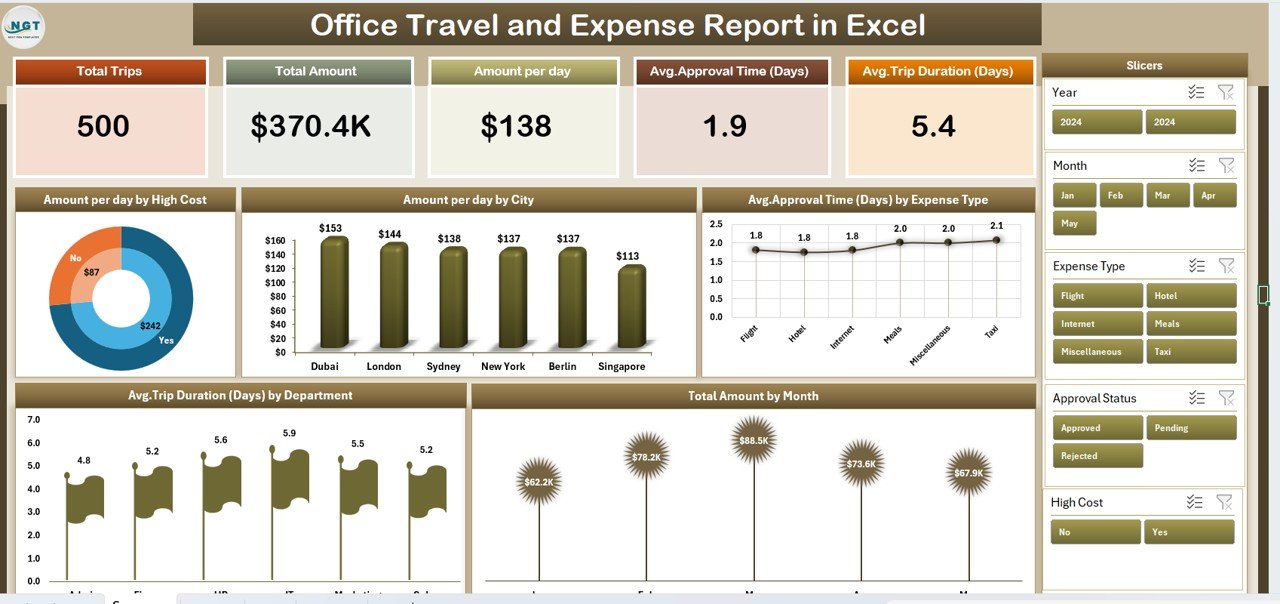
💰 Amount per Day by High Cost – Identify costly travel days.
🏙 Amount per Day by City – Compare city-wise spending.
🗓 Total Amount by Month – Spot monthly budget trends.
⏳ Average Approval Time by Expense Type.
🕒 Average Trip Duration by Department.
Report Page – A detailed view of every travel and expense entry with approval statuses.
Data Sheet – Enter travel data, including dates, destinations, expense types, and amounts.
Support Sheet – Store and manage dropdown data like departments, expense types, and approvers.
🛠 How to Use the Office Travel and Expense Report
1️⃣ Fill the Support Sheet – Add your departments, cities, expense types, and approval statuses.
2️⃣ Record Expenses – Enter details in the Data Sheet as soon as costs occur.
3️⃣ Filter & Review – Use slicers on the Summary or Report page to view specific expenses.
4️⃣ Analyze Trends – Study charts to identify cost drivers and potential savings.
5️⃣ Take Action – Adjust policies and budgets based on insights.
👥 Who Can Benefit from This Report
Finance Teams – For tracking company-wide travel costs.
HR & Admin Departments – For managing staff trip expenses and approvals.
Project Managers – For monitoring project-related travel spending.
Small Business Owners – For controlling costs without expensive software.
Corporate Travel Managers – For analyzing and optimizing travel policies.
📌 Advantages of Using This Template
📊 Better Budget Control – Compare actual spending with planned budgets.
⚡ Faster Approvals – View pending claims instantly.
🔍 Complete Transparency – Know who spent what, when, and why.
🛡 Fraud Prevention – Avoid duplicate or false claims.
📁 Audit-Ready Records – Maintain a clean digital trail for compliance.
📌 Best Practices
Define clear travel & expense policies.
Update expenses immediately after a trip.
Keep expense categories consistent for better analysis.
Review approvals regularly to avoid delays.
Train employees to fill in details correctly.
📌 Opportunities for Improvement
Integrate with online claim forms.
Add mobile access via Excel Online.
Attach scanned receipts for verification.
Enable manager approval alerts.
Automate monthly summary reports.
📢 Conclusion
The Office Travel and Expense Report in Excel transforms a basic spreadsheet into a powerful financial tracking tool. By using this template, you’ll not only save time but also gain control, transparency, and insights into your travel spending.
### Click here to read the Detailed blog post
📺 Visit our YouTube channel to learn step-by-step video tutorials.
Watch the step-by-step video tutorial:
Compatibility and Requirements
- Works in Microsoft Excel desktop (Excel 2016 or later, or Microsoft 365).
- Microsoft’s guide Use slicers to filter data explains the Excel feature this file is built on.
Frequently Asked Questions
Which sheets are in the report?
There are four sheets: the Summary page, the Report page, the Data sheet and the Support sheet.
What does the Summary page show?
It shows 5 key cards and charts for amount per day by high cost, amount per day by city, total amount by month, average approval time by expense type and average trip duration by department.
How do I filter the expenses?
Use the slicers on the Summary or Report page to view expenses for a city, department, expense type or other field.
Where do the dropdown options come from?
From the Support sheet. Add your departments, cities, expense types, approvers and approval statuses there.
Related Travel and Expense Templates
- Office Travel and Expense Dashboard in Power BI: the same topic as a Power BI dashboard
- Travel Expense Report Tracker in Excel: track each travel expense report in Excel
- Expense Reimbursement Tracker in Excel: follow expense reimbursements in Excel
- Travel Authorization Tracker in Excel: log travel approvals before a trip
- Finance & Accounting Command Center: 8 finance and accounting templates in one bundle
Browse all Excel reports.



Reviews
There are no reviews yet.