

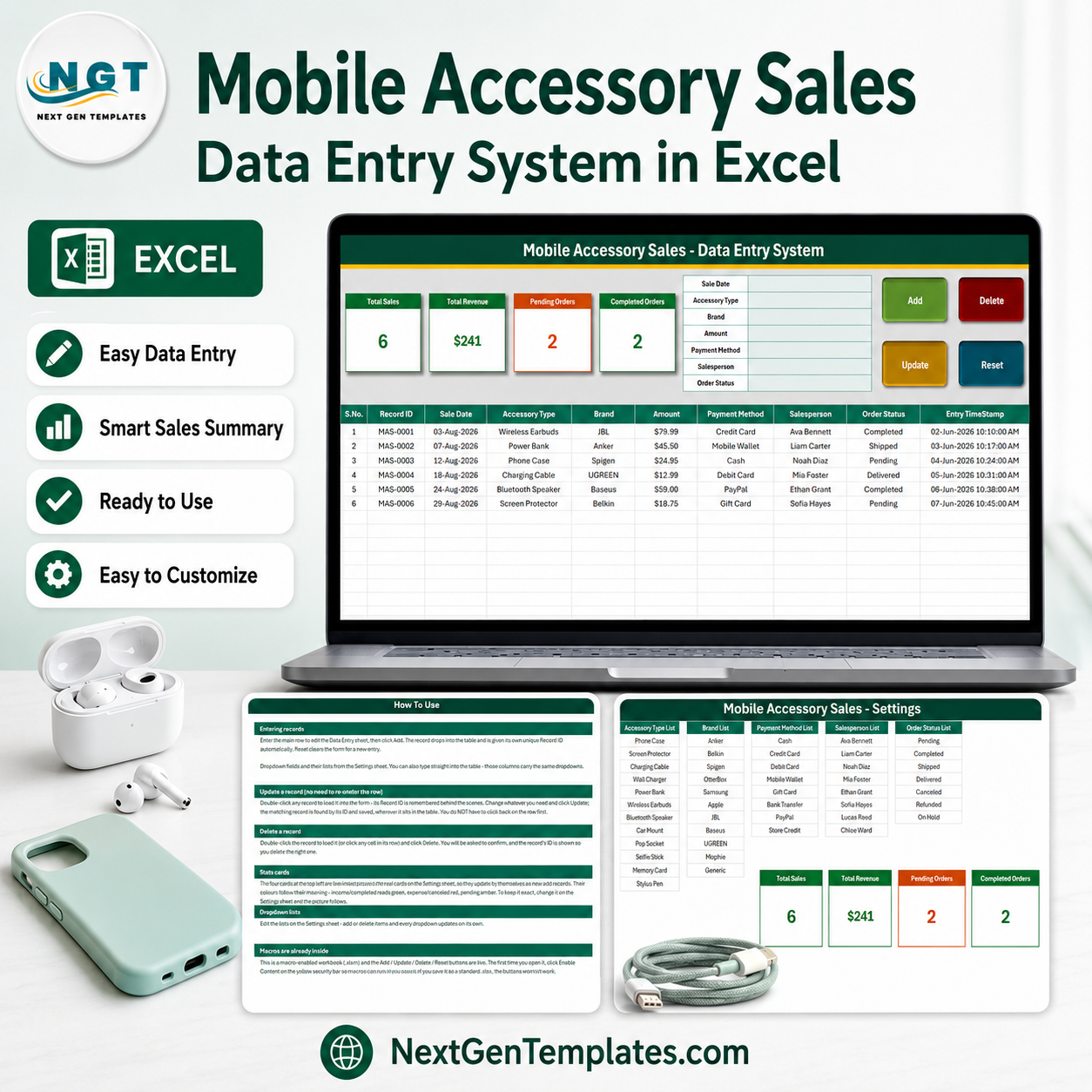

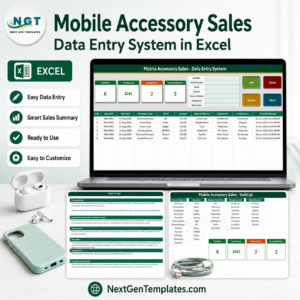
The Mobile Accessory Sales Data Entry System in Excel is a four-sheet macro-enabled workbook for logging phone-accessory sales one line at a time. A seven-field form feeds a records table of ten columns, every sale is filed with its own MAS-0001 style Record ID and an automatic entry timestamp, and four live stat cards sit above the form – Total Sales, Total Revenue, Pending Orders and Completed Orders – recalculating from the table itself. Built by PK, a Microsoft Certified Professional, and hand-tested before release. Instant download, lifetime access, no subscription, and support if the workbook does not work as this page describes.
This is a sales register, not a point-of-sale system. It does not scan barcodes, does not capture IMEI or serial numbers, does not hold stock levels or deduct a unit when you record a sale, does not print or e-mail a receipt, does not take payments, does not issue a GST, VAT or tax invoice, does not track warranties or returns as linked records, does not sync with Amazon, Flipkart, Shopify or any marketplace, and does not calculate profit or margin because there is no cost-price field. There is also no customer name, phone or address field anywhere in it – the only person named on a row is your own salesperson. What it does is keep a tidy, timestamped list of what sold, which brand, for how much, paid how, by whom and at what stage.
Key Features of the Mobile Accessory Sales Data Entry System in Excel
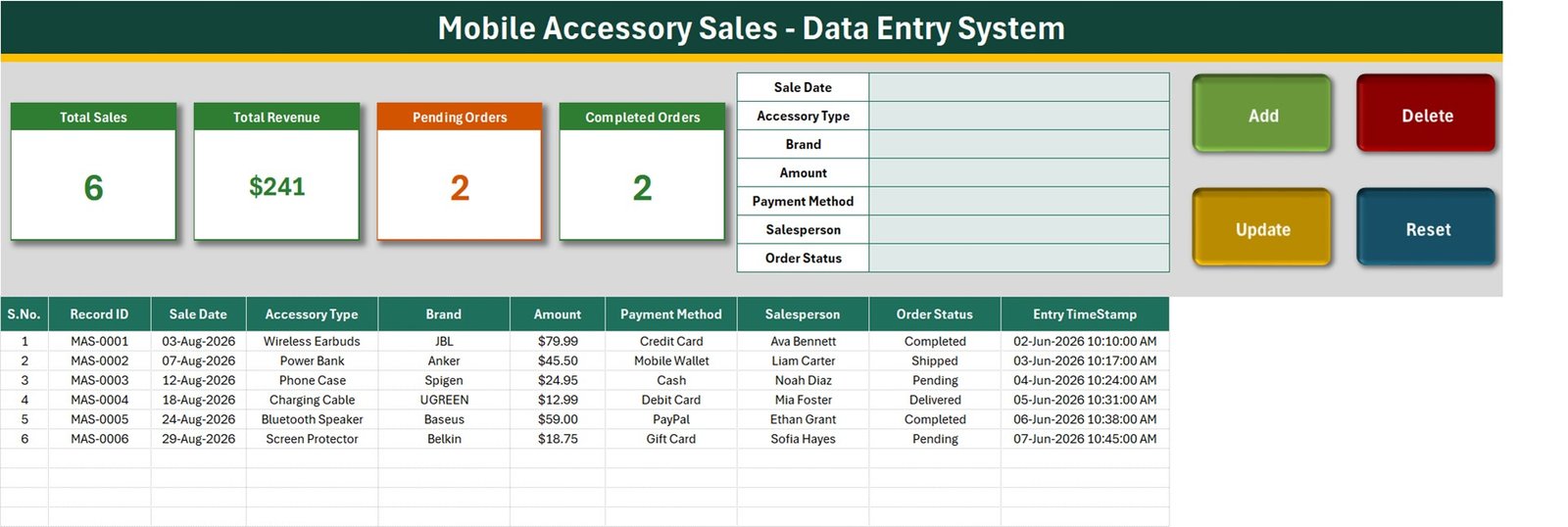
- Seven-field entry form – Sale Date, Accessory Type, Brand, Amount, Payment Method, Salesperson and Order Status, stacked down the middle of the Data Entry sheet.
- Four VBA buttons – Add (green), Delete (red), Update (gold) and Reset (teal), sitting to the right of the form and driving the whole workbook.
- Automatic Record ID – each sale is filed as MAS-0001, MAS-0002 and onward, so two identical phone cases sold on the same day never merge into one line.
- Entry TimeStamp column – the date and time the row was saved is written for you, to the second, in a dd-mmm-yyyy hh:mm:ss AM/PM format.
- Update by ID, not by row – double-click any record to pull it back into the form; the macro finds it again by its Record ID wherever it has been sorted to, and Delete names the ID before it removes anything.
- Four live stat cards – Total Sales, Total Revenue, Pending Orders and Completed Orders, built as linked pictures of the real cards on the Setting sheet so they update themselves.
- Five dropdown lists you own – 12 accessory types, 11 brands, 8 payment methods, 8 salespeople and 7 order statuses, all edited on the Setting sheet.
- An accessory list that already fits the counter – Phone Case, Screen Protector, Charging Cable, Wall Charger, Power Bank, Wireless Earbuds, Bluetooth Speaker, Car Mount, Pop Socket, Selfie Stick, Memory Card and Stylus Pen.
- Brands a real accessory counter carries – Anker, Belkin, Spigen, OtterBox, Samsung, Apple, JBL, Baseus, UGREEN, Mophie and Generic.
- Payment methods for a modern till – Cash, Credit Card, Debit Card, Mobile Wallet, Gift Card, Bank Transfer, PayPal and Store Credit.
- A seven-stage order status list – Pending, Completed, Shipped, Delivered, Cancelled, Refunded and On Hold, so counter sales and shipped orders can live in the same book.
- 200 pre-formatted record rows – rows 15 to 214 already carry the dropdowns, the dd-mmm-yyyy date format and the currency format.
- A How To Use sheet inside the file – six short sections covering entry, update, delete, the cards, the lists and enabling macros.
- Honest limits stated on this page – Total Revenue is an unfiltered SUM, only two of the seven statuses have a card, Total Sales counts the Sale Date column, and the dropdown ranges are fixed rather than self-extending. All four are explained below.
What Is Inside the Mobile Accessory Sales Data Entry System in Excel
The download is a ZIP containing one macro-enabled workbook, Mobile_Accessory_Sales_System.xlsm (65 KB). It has exactly four sheets and nothing else – no separate data file, no add-in, no external links, no user manual PDF.
1. Data Entry. The working sheet. A dark green title banner reading “Mobile Accessory Sales – Data Entry System”, the four stat cards, the seven-field form, the Add / Delete / Update / Reset buttons, and below them the records table: S.No., Record ID, Sale Date, Accessory Type, Brand, Amount, Payment Method, Salesperson, Order Status, Entry TimeStamp. S.No. is a formula that renumbers itself, so sorting the table never leaves gaps. Six sample sales ship with it – a JBL Wireless Earbuds at $79.99 on a Credit Card marked Completed, an Anker Power Bank at $45.50 on a Mobile Wallet marked Shipped, a Spigen Phone Case at $24.95 in Cash marked Pending, and three more – so you can watch Add, Update and Delete work before clearing them out.
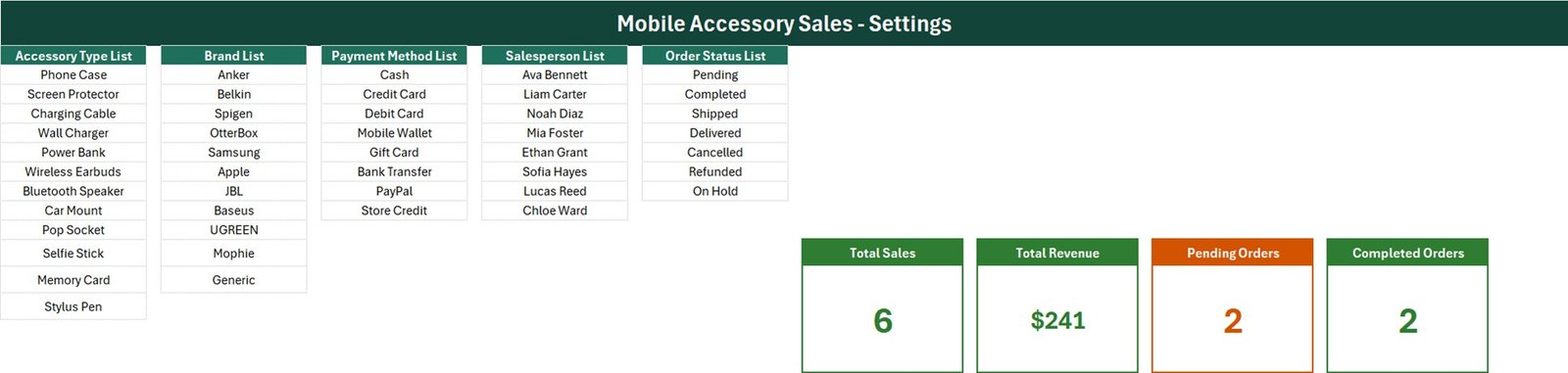
2. Setting. Five editable lists and the four real stat cards. Accessory Type List holds the twelve items above. Brand List holds the eleven brands above. Payment Method List holds the eight methods above. Salesperson List ships with eight placeholder names – Ava Bennett, Liam Carter, Noah Diaz, Mia Foster, Ethan Grant, Sofia Hayes, Lucas Reed and Chloe Ward – which you replace with your own counter staff. Order Status List is Pending, Completed, Shipped, Delivered, Cancelled, Refunded and On Hold. Replace any of them with your own shop’s ranges and every dropdown follows, within the limit described in the FAQ below.
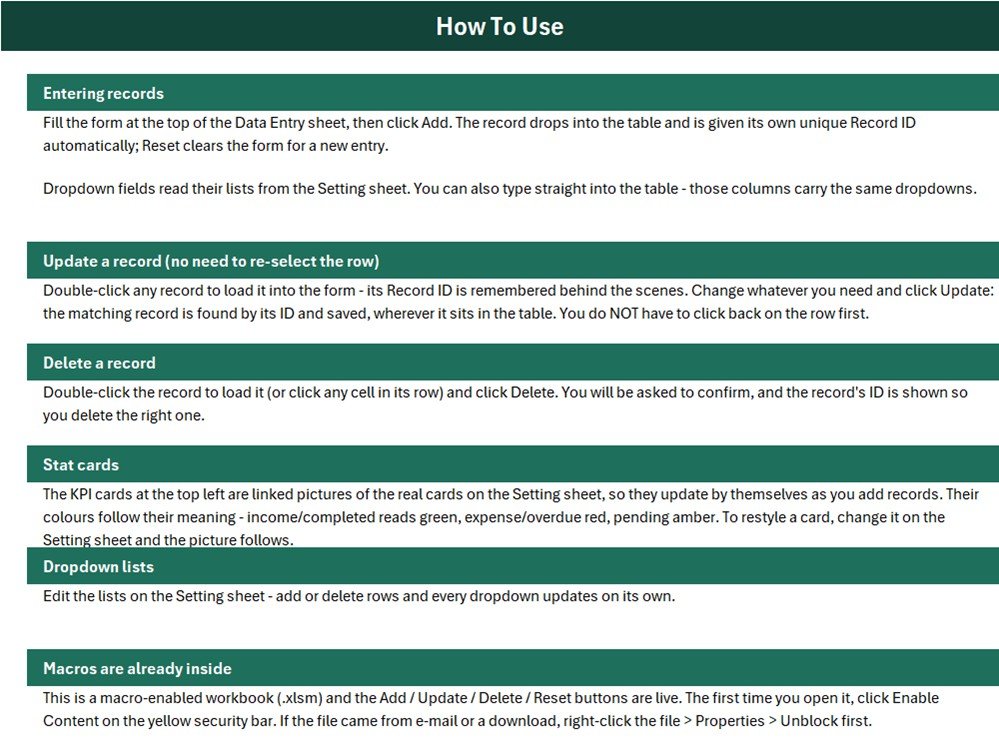
3. Instructions. The sheet tab is called Instructions; its banner reads “How To Use”. Six sections – entering records, updating without re-selecting the row, deleting, how the stat cards work, editing the dropdown lists, and enabling macros.
4. Get More Templates. Links back to the NextGenTemplates store.
Exactly What the Four Stat Cards Count
The cards are honest arithmetic, but they are simple arithmetic, and it is worth knowing what each one does before you quote a number off it. These are the formulas exactly as they are written on the Setting sheet:
| Card | Formula | What that means in practice |
|---|---|---|
| Total Sales | =COUNTA('Data Entry'!$C$15:$C$1048576) | Counts filled cells in column C, which is Sale Date – not the Record ID in column B. A row you save without a sale date is stored in the table but is never counted by this card. |
| Total Revenue | =SUM('Data Entry'!$F$15:$F$1048576) | Adds the Amount column with no status filter at all. Cancelled, Refunded, On Hold and Pending rows are inside the figure exactly like Completed ones. The card is also formatted $#,##0, so the shipped sample sums to $241.18 but displays as $241. |
| Pending Orders | =COUNTIF('Data Entry'!$I$15:$I$1048576,"Pending") | An exact text count of rows whose Order Status reads Pending. Correct, but it is one status out of seven. |
| Completed Orders | =COUNTIF('Data Entry'!$I$15:$I$1048576,"Completed") | The same, for Completed. Shipped, Delivered, Cancelled, Refunded and On Hold have no card of their own, so Pending plus Completed will not reconcile to Total Sales. |
You can see all of this in the six sample rows. Total Sales reads 6. Pending Orders reads 2 and Completed Orders reads 2, which leaves two records – one Shipped, one Delivered – with no card representing them; 2 + 2 does not make 6, and it is not meant to. Total Revenue reads $241 against an actual $241.18, of which only $138.99 sits on Completed rows. None of that is a fault in the numbers you typed; it is simply what these four formulas do. If you want a revenue figure that ignores Cancelled and Refunded lines, replace the SUM with a SUMIF on the Order Status column, and if you want the other five statuses on cards, copy the COUNTIF pattern across. Both are one-line edits on the Setting sheet, and the linked pictures on the Data Entry sheet follow automatically.
Mobile Accessory Sales Data Entry System in Excel vs. Google Sheets vs. Retail POS Software – Where This Fits
| What you need | This Excel workbook | A Google Sheets log | Retail POS software |
|---|---|---|---|
| One-off cost | Yes, a single purchase | Free, but you build it | Monthly subscription per till |
| Works with no internet | Yes, fully offline | No, needs a connection | Usually needs a connection |
| Guided entry form with Add / Update / Delete | Yes, four VBA buttons | Only if you write Apps Script | Yes |
| Automatic Record IDs and timestamps | Yes, MAS-0001 onward | You would script it | Yes |
| Barcode scanning | No | No | Yes |
| Live stock levels and reordering | No | No | Yes |
| Receipts, invoices and tax documents | No | No | Yes |
| Taking card or wallet payments | No, you only record the method | No | Yes |
| Profit and margin | No, there is no cost field | Only if you add one | Yes |
| Several people entering at once | No, one desktop file | Yes | Yes |
| You own the file and the data outright | Yes | Yes | No, it lives in the vendor’s account |
Who This Template Is For – and Who It Is Not For
It is for an independent mobile-accessory counter or kiosk that writes sales into a notebook today; a phone-repair shop that also sells cases, cables and chargers and wants the accessory side kept separately; a market stall or pop-up that needs a day’s takings recorded without any internet; a small online seller who wants one clean list of what shipped and what is still pending; a shop owner who pays two or three staff and wants to see who sold what; and anyone who simply wants Excel to stop being a blank grid and start behaving like a form.
It is not for a shop that needs live stock counts, barcode scanning or a cash drawer – buy real POS software; a business that must issue tax invoices or GST/VAT documents from the same record; anyone tracking IMEI or serial numbers for warranty claims; a multi-branch chain wanting one consolidated view; a team that needs several people typing into the same file at the same time; anyone who needs margin or profit reporting, since no cost price is captured anywhere; and Mac users, Excel-for-the-web users or Google Sheets users, because the four buttons are VBA and simply will not run there.
Not the Same as Our Mobile Repair Log or Daily Sales Entry Systems
Three products in the catalogue sit close to this one and are genuinely different templates, not editions of the same file.
- Mobile Repair Log Data Entry System in Excel covers the service side of a phone shop – devices brought in, faults, repair status – not the accessories you sell over the counter. Many shops will want both.
- Daily Sales Entry Data Entry System in Excel is a general sales log with generic fields. This one is pre-loaded for the accessory trade: twelve accessory types and eleven accessory brands are already in the dropdowns.
- Product Inventory Data Entry System in Excel records what you hold. This one records what you sold. Neither updates the other – they are separate workbooks with separate tables.
This listing is a Data Entry System: a single-file entry form plus a records table plus four counters. It is not one of our analytical Dashboards, KPI Dashboards or KPI Scorecards, which chart trends over a supplied dataset rather than capture records from a form.
How to Use the Mobile Accessory Sales Data Entry System in Excel
- Unzip the download and open
Mobile_Accessory_Sales_System.xlsmin desktop Excel on Windows. - Click Enable Content on the yellow security bar. If Excel still blocks it, right-click the file, choose Properties and tick Unblock.
- Go to the Setting sheet and overwrite the sample lists with your own accessory types, brands, payment methods, staff names and statuses – typing over the existing entries rather than adding rows below them.
- Back on Data Entry, delete the six sample rows once you have watched the buttons work.
- Fill the seven fields in the form and click Add. The row lands at the bottom of the table with its own MAS- Record ID and a timestamp.
- To change a sale, double-click its row, edit the form and click Update. To remove one, double-click it and click Delete; you will be asked to confirm and shown the ID.
- Reset clears the form without touching the table.
- Watch the four cards recalculate as you go, keeping in mind exactly what each one counts, as set out above.
Real-World Use Cases
- A single-counter accessory kiosk in a shopping centre logging the day’s sales at close, then reading Total Revenue for a rough day figure.
- A phone-repair shop keeping accessories out of the repair book so the two revenue streams stay separate.
- A weekend market stall recording sales offline on a laptop with no signal, then reviewing which brands moved.
- A small online seller using the Pending / Shipped / Delivered statuses to see what still has to go out.
- An owner checking the Salesperson column at month end to see how the counter staff compare.
- A wholesaler’s sample counter recording which accessory types get asked for most before deciding what to restock.
Frequently Asked Questions
Is this a point-of-sale system?
No. It records sales after the fact. It does not scan barcodes, does not hold or deduct stock, does not print receipts, does not take a payment, and does not open a cash drawer. You choose the payment method from a dropdown; no money moves.
Do I have to enable macros?
Yes. The Add, Update, Delete and Reset buttons are VBA. Without macros enabled they do nothing, and you would be left typing straight into the table – which works, but you lose the automatic Record ID and timestamp.
Will it work on a Mac, on Excel for the web, or in Google Sheets?
It is built and tested for desktop Excel on Windows. Excel for the web does not run VBA at all. On Mac the buttons are not supported by this build. Google Sheets cannot open an .xlsm’s macros.
Does Total Revenue show me what I have actually taken?
Not necessarily. Total Revenue is SUM over the whole Amount column with no status filter, so Cancelled, Refunded, On Hold and Pending rows are counted in it just like Completed ones. It is also formatted to whole dollars, so the sample’s true $241.18 appears as $241. Swap the SUM for a SUMIF on Order Status if you want a settled-only figure.
Why do Pending Orders plus Completed Orders not equal Total Sales?
Because only two of the seven statuses have a card. Shipped, Delivered, Cancelled, Refunded and On Hold are recorded on the rows but are not counted anywhere on the cards. In the shipped sample that is 2 + 2 against a Total Sales of 6.
What exactly does Total Sales count?
Filled cells in the Sale Date column, not Record IDs. If you ever save a row without a sale date, it sits in the table but does not raise the counter. Pointing that COUNTA at column B instead makes it count records.
If I add a new brand or accessory type, does the dropdown pick it up automatically?
Not below the current last item. The How To Use sheet says every dropdown updates on its own, and that is optimistic: each list is a fixed named range that is already exactly full – Accessory Type A3:A14 holds 12 of 12, Brand C3:C13 holds 11 of 11, Payment Method E3:E10 holds 8 of 8, Salesperson G3:G10 holds 8 of 8, Order Status I3:I9 holds 7 of 7. Type an item in the first empty row underneath and no dropdown will show it. Either overwrite an existing entry, or widen the named range in Formulas > Name Manager first. It takes a minute and only has to be done once.
How many sales can it hold?
The dropdowns and formats are laid down on rows 15 to 214, so 200 records are ready to go. The card formulas run to the bottom of the sheet, so rows past 214 are still counted – they just will not carry the dropdown validation or the formatting until you extend it yourself.
Does it store customer details?
No, and that is deliberate. There is no customer name, phone number, e-mail or address field anywhere in the workbook. The only person named on a record is your own salesperson, from a list you control.
Does it show me profit?
No. There is one money column, Amount, and no cost price, so margin cannot be calculated. You would need to add a cost column and your own formula.
Can I change the stat cards?
Yes. The four cards on the Data Entry sheet are linked pictures of real cells on the Setting sheet, so editing a formula, a label or a fill colour there updates the picture automatically.
Why does the Entry TimeStamp on the sample rows come before the Sale Date?
The demo data was generated that way – sale dates in August 2026 against entry timestamps in June 2026. It is cosmetic and only affects the six sample rows, which you delete. Your own entries get a real timestamp of the moment you press Add.
About the Author
Built by PK, a Microsoft Certified Professional who has spent years building Excel, VBA, Power BI and Google Sheets tools for small businesses. Every NextGenTemplates workbook is opened, clicked through and checked by hand before it goes on sale – which is why the limits of these four stat cards are written on this page rather than left for you to discover. Video walkthroughs of the data-entry range are on youtube.com/@PKAnExcelExpert.
Explore Related Templates
- Mobile Repair Log Data Entry System in Excel – the repair-side companion to this one.
- Product Inventory Data Entry System in Excel – what you hold, rather than what you sold.
- Uniform Sales Data Entry System in Excel – the same build, tuned for a uniform shop.
- Online Order Tracker Data Entry System in Excel – for sellers whose orders ship rather than walk out.
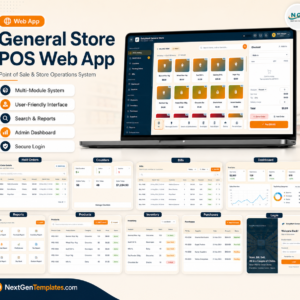
- General Store POS Web App – when you have outgrown a single workbook and want a real till.
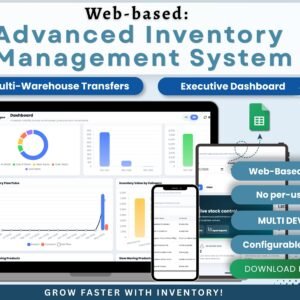
- Web-based: Advanced Inventory Management System – multi-user stock control in the browser.
- E-commerce Dashboard in Google Sheets – for charting sales once you have a few months of them.
Watch the demo video:
Compatibility and Requirements
- Works in Microsoft Excel desktop on Windows, with macros enabled. The Add, Update, Delete and Reset buttons are VBA, so the workbook does not run in Excel for the web, Google Sheets or mobile. Microsoft explains how to turn macros on in Enable or disable macros in Microsoft 365 files.
- The download is a ZIP with one macro-enabled workbook (.xlsm).
Related Data Entry Templates
- Daily Sales Purchase tracker V1.0: a daily log that covers both sales and purchases
- Sales Dashboard in Excel: charts for your sales figures once you have records to review
- Daily Sales Dashboard in Excel: a day-by-day view of sales
- Monthly Sales Tracker and Report in Google Sheets: the same idea in Google Sheets
- Retail Store Analytics Bundle: 8 templates for retail stores in one download
Browse all Excel VBA tools and Excel trackers.










Reviews
There are no reviews yet.