

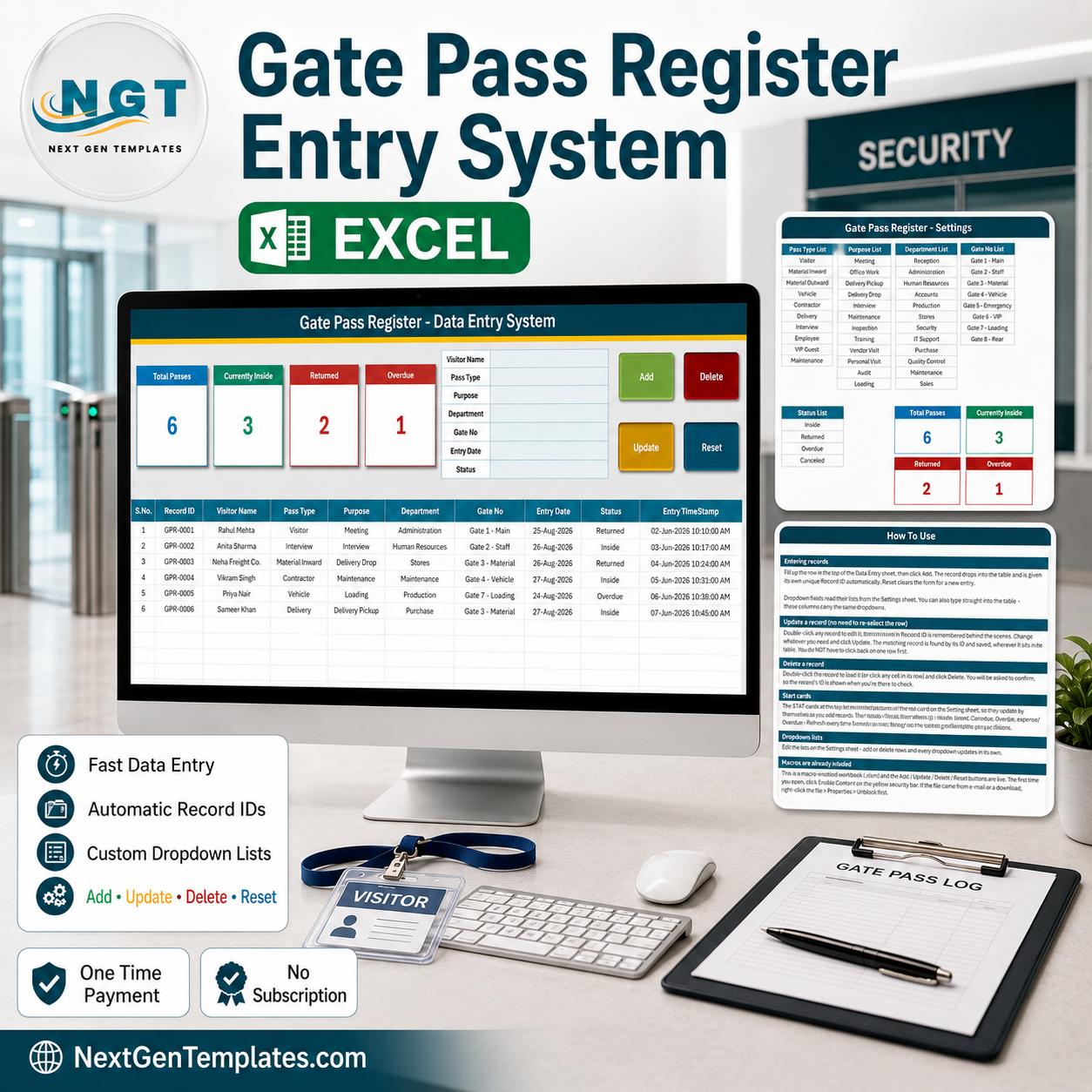

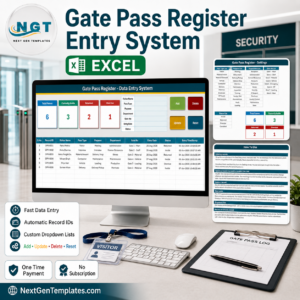
The Gate Pass Register Data Entry System in Excel is a single macro-enabled workbook that records every person, vehicle and consignment that passes your gate – who came in, what kind of pass they were given, why they were there, which department they were visiting, which gate they used, on what date, and whether they are still inside. One file, four sheets, a seven-field entry form, four live KPI cards and a ten-column record table. The Add, Update, Delete and Reset buttons are real VBA, so nothing has to be copied down and no formula can be broken by a paste. Six sample records ship inside so you can see it working in about thirty seconds. Instant download, one-time payment of $6.99, no subscription and no account to create. Gate Pass Register Data Entry System in Excel
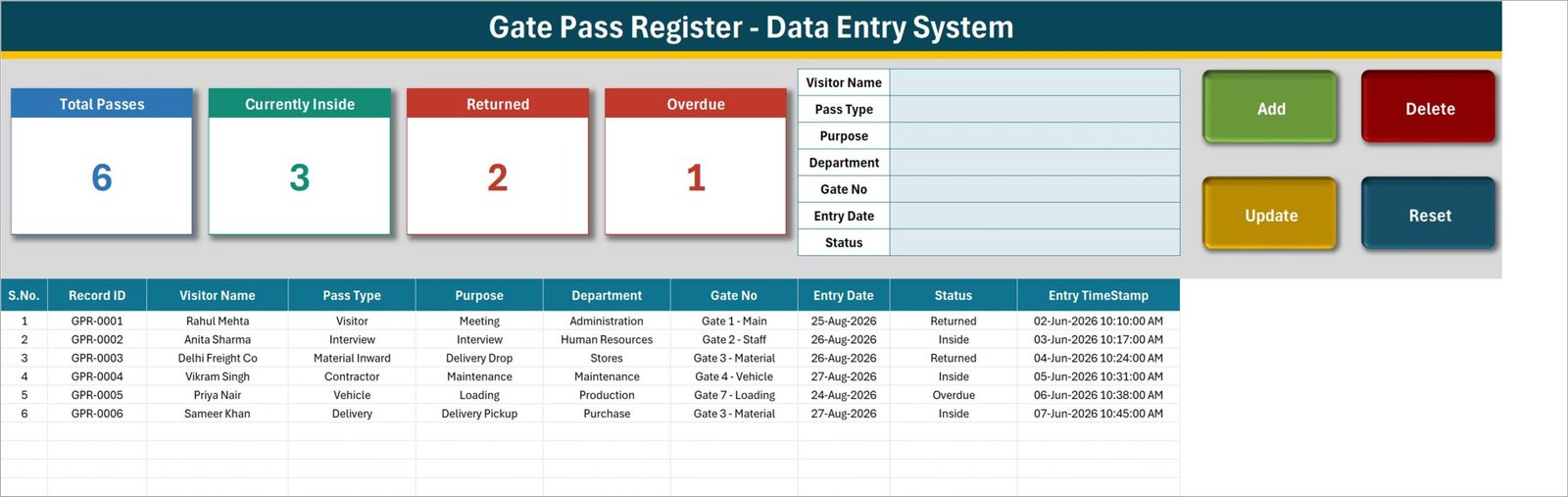
Key Features of the Gate Pass Register Data Entry System in Excel
- Seven-field entry form – Visitor Name, Pass Type, Purpose, Department, Gate No, Entry Date and Status, all in one panel at the top of the Data Entry sheet.
- Four live VBA buttons – Add, Update, Delete and Reset. Delete asks you to confirm and shows the Record ID first, so you cannot remove the wrong pass by accident.
- Automatic Record IDs – every entry is stamped GPR-0001, GPR-0002 and onwards. The next number is taken from the highest number already used, so IDs stay unique even after rows are deleted.
- Double-click to edit – double-click any record to load it back into the form. The Record ID is held behind the scenes, so Update finds the right row wherever it has moved to; you never have to re-select it first.
- Ten pass types – Visitor, Material Inward, Material Outward, Vehicle, Contractor, Delivery, Interview, Employee, VIP Guest and Maintenance. A returnable gate pass for material and a walk-in visitor are logged the same way, in the same table.
- Twelve purposes – Meeting, Official Work, Delivery Pickup, Delivery Drop, Interview, Maintenance, Inspection, Training, Vendor Visit, Personal Visit, Audit and Loading.
- Twelve departments – Reception, Administration, Human Resources, Accounts, Production, Stores, Security, IT Support, Purchase, Quality Control, Maintenance and Sales, so every pass is attached to whoever is receiving the visitor.
- Eight named gates – Gate 1 – Main, Gate 2 – Staff, Gate 3 – Material, Gate 4 – Vehicle, Gate 5 – Emergency, Gate 6 – VIP, Gate 7 – Loading and Gate 8 – Rear. Multi-gate sites can see which entrance an entry actually went through.
- Four-stage Status list – Inside, Returned, Overdue and Cancelled. That covers a pass from “they are on site right now” through to “the material never came back”, and the list is yours to edit.
- Four KPI cards – Total Passes, Currently Inside, Returned and Overdue. They live on the Setting sheet and appear on Data Entry as linked pictures, so they refresh on their own as you type.
- Visitor Name is free text – deliberately. Nobody can build a dropdown of every visitor and courier firm in advance, so you type the name and the four structured fields keep the reporting consistent.
- Entry timestamp column – each record stores the date and time it was saved, kept separate from the Entry Date you type for the pass itself.
- One .xlsm file – desktop Microsoft Excel for Windows, macros enabled, no add-ins, no cloud service, no monthly fee.
What’s Inside the Gate Pass Register Data Entry System in Excel
The download is a single zip holding one workbook with four sheets.
1. Data Entry. The working screen. The four KPI cards sit top left, the seven-field form sits top centre, and the Add, Delete, Update and Reset buttons sit top right. Below them the record table runs across ten columns: S.No., Record ID, Visitor Name, Pass Type, Purpose, Department, Gate No, Entry Date, Status and Entry TimeStamp. Records begin on row 15, and the dropdown-driven columns are set up down to row 214 – two hundred passes before you need to extend anything.
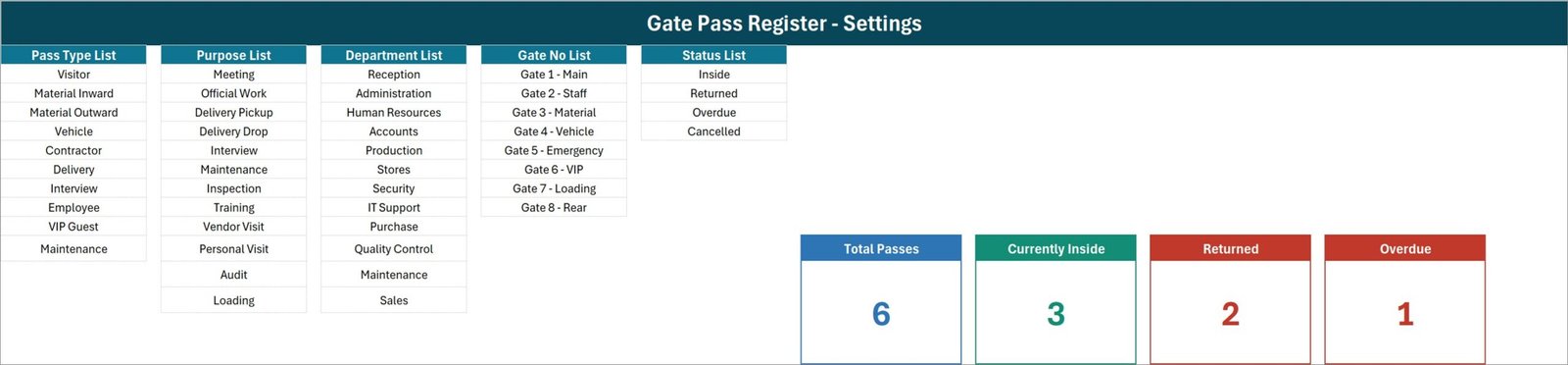
2. Setting. Five editable lists and the four real KPI cards. Pass Type List carries ten entries, Purpose List and Department List twelve each, Gate No List eight and Status List four. Every dropdown on the Data Entry sheet reads from here, so changing a list here changes the form and the table together.
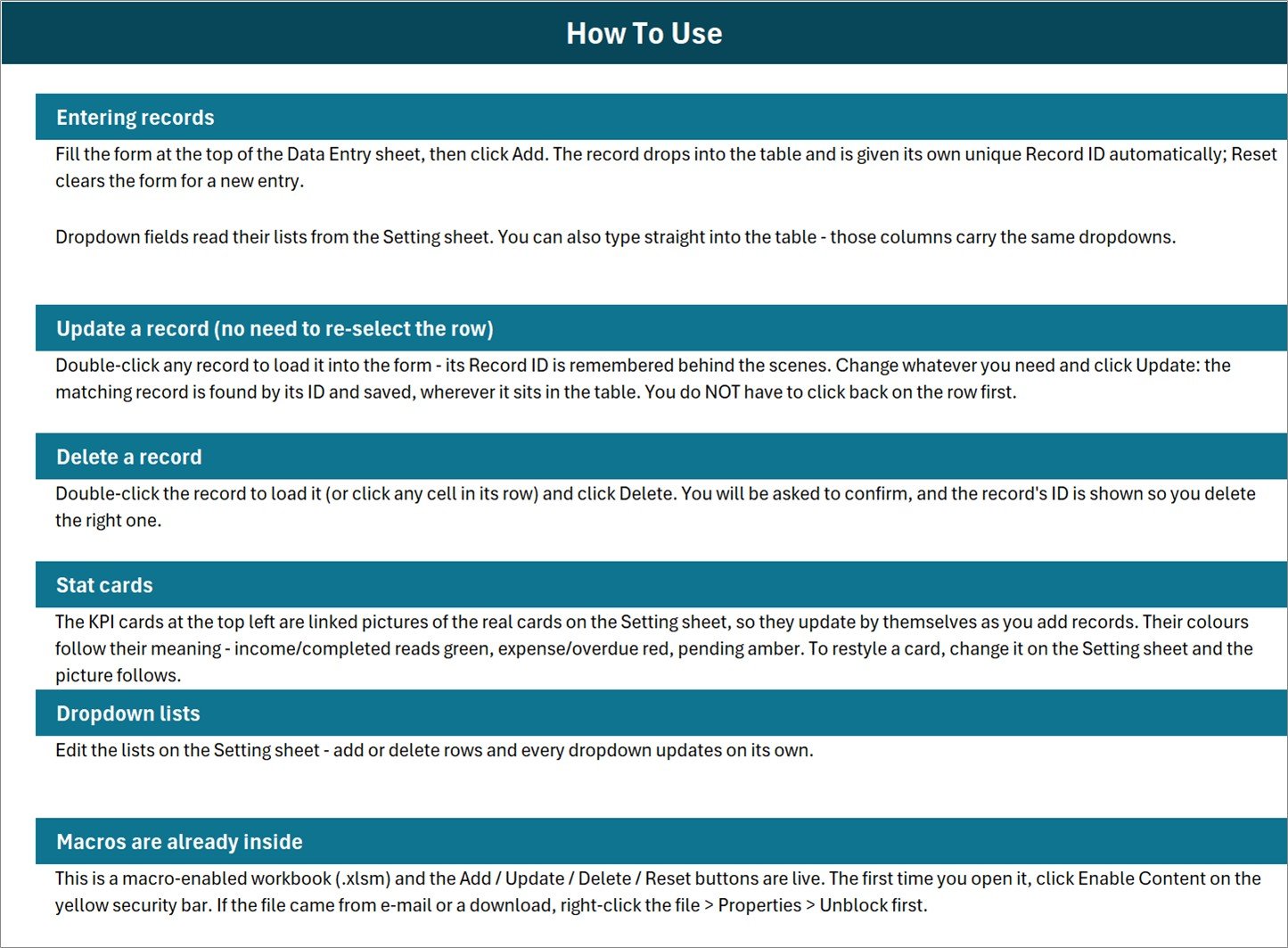
3. Instructions. A one-page How To Use sheet covering entering records, updating without re-selecting the row, deleting safely, what the stat cards do, editing the dropdown lists and enabling macros.
4. Get More Templates. Links back to the NextGenTemplates catalogue.
What the KPI Cards Actually Count
The four cards are ordinary Excel formulas on the Setting sheet, and it is worth knowing exactly what they count before you quote a number to a security manager.
- Total Passes counts filled Visitor Name cells in the record table. It counts the Visitor Name column rather than the Record ID column, so a row typed straight into the table with the name left blank is stored but not counted. Records added with the Add button are safe – the macro refuses to save without a Visitor Name.
- Currently Inside counts rows whose Status reads “Inside”.
- Returned counts rows whose Status reads “Returned”.
- Overdue counts rows whose Status reads “Overdue”.
Three of the four statuses have a card, and Cancelled does not. So Currently Inside plus Returned plus Overdue will fall short of Total Passes the moment a pass is cancelled. In the six shipped sample records nothing is cancelled, which is why the cards read 6, 3, 2 and 1 and appear to reconcile exactly; add one Cancelled row of your own and they will not. That is arithmetic, not a fault – but it is the sort of thing worth knowing on day one rather than in a meeting. Gate Pass Register Data Entry System in Excel
There is no money column anywhere in this workbook and therefore no total to mis-add: the register logs movement, not value.
Gate Pass Register in Excel vs. a Paper Gate Register vs. Visitor Management Software – Where This Fits
| What you need | Paper gate register | This Excel system | Visitor management software |
| Cost | Free | $6.99 once | Monthly fee per site |
| Setup time | None | Under 10 minutes | Days, plus hardware |
| One record per pass, with an ID | Handwriting-dependent | Yes, GPR-0001 onwards | Yes |
| Consistent pass type, department and gate spelling | No | Yes, dropdown driven | Yes |
| Running counts without a calculator | No | Yes, four live cards | Yes |
| Badge printing or QR passes | No | No | Yes |
| Exit time capture and automatic overdue alerts | No | No – you set the status yourself | Yes |
| Host notification by email or SMS | No | No | Yes |
| Turnstile, barrier or access-card integration | No | No | Yes |
| Works offline, no login | Yes | Yes | Rarely |
| You own the file | Yes | Yes | No |
What This Workbook Is Not
It is a register, and it is honest about that. It does not control a gate, a barrier, a turnstile or an access card, and it does not read a badge, a QR code or a number plate. There is no exit-time field: a pass moves from Inside to Returned because a human changes the status, so nothing goes Overdue on its own and no alarm is raised when it does. It does not print visitor badges or gate passes, does not notify the host by email or SMS, and has no approval workflow – a pass is not requested and authorised here, it is recorded. It holds no photographs or ID document scans, does not connect to CCTV, HR or an access-control system, and does not calculate any value for the material moving through the gate. It is one desktop file on one computer at a time. Gate Pass Register Data Entry System in Excel
Who This Template Is For – and Who It’s Not For
It fits a factory or warehouse security desk logging inward and outward material passes, a small office reception recording visitors and couriers, a construction site controlling contractor entry across two or three gates, a school or housing society gatehouse, and any operation that has outgrown a paper register but does not want a per-site subscription or a turnstile.
It does not fit a site that needs automatic entry and exit times, badge printing, host notifications or barrier integration; a multi-guard operation where several people must write to the register at the same moment; or a corporate campus that already runs an access-control platform. For those, look at a proper visitor management system – or at the multi-user web app linked below.
How to Use the Gate Pass Register Data Entry System in Excel
- Unzip and open the file in desktop Excel for Windows. Click Enable Content on the yellow security bar – the four buttons are VBA and will not run without it. If the file arrived by email, right-click it, choose Properties and tick Unblock first.
- Open the Setting sheet and make the lists yours. Rename Gate 1 to Gate 8 to your actual entrances, trim the department list to the departments you really have, and edit the pass types and purposes to match how your gate works.
- Delete the sample data. Rows 15 to 20 on the Data Entry sheet hold six demo records. Clear them before you start logging your own.
- Log your first pass. Fill the form – Visitor Name, Pass Type, Purpose, Department, Gate No, Entry Date, Status – and click Add. The record drops into the table with its own GPR number and a saved-at timestamp, and the cards update.
- Change the status as people leave. A pass usually starts at Inside and ends Returned. Double-click the record, change the Status to Returned – or to Overdue if the person or the material has not come back – and click Update.
- Review at the end of the shift. Read Currently Inside before you hand over, and filter the table by Gate No or Department to see where the traffic is. Gate Pass Register Data Entry System in Excel
Real-World Use Cases
- Shift handover at a factory gate. The Currently Inside card is the one number the outgoing guard has to explain, and the table behind it names every person still on site.
- Returnable material passes. Log a Material Outward pass as Inside while the item is off site, switch it to Returned when it comes back, and let the Overdue count surface what has not.
- Contractor control on a construction site. Contractor and Maintenance pass types, split across Gate 3 – Material and Gate 4 – Vehicle, keep trade traffic separate from visitors.
- Reception visitor book. Meeting and Interview purposes against the receiving department give HR and Administration a clean count of who they brought on site this month.
- Audit evidence. Every row carries a GPR reference and the date and time it was entered, so a movement can be traced back to a specific record rather than a line of handwriting.
Frequently Asked Questions
Does it capture the exit time automatically?
No. There is one date field for the pass and one Status field that you change by hand. The workbook has no exit-time column, no clock running against a pass and no rule that flips anything to Overdue on its own – a guard sets the status. If unattended exit capture matters to you, this is a register, not the tool. Gate Pass Register Data Entry System in Excel
Does it control the gate, a barrier or an access card?
No. Nothing in the file talks to hardware. It does not read badges, QR codes or number plates, does not open barriers, and does not connect to CCTV or an access-control system. It records what your guard writes down. Gate Pass Register Data Entry System in Excel
Why don’t Currently Inside, Returned and Overdue add up to Total Passes?
Because only three of the four statuses have a card. Rows sitting at Cancelled are counted in Total Passes but appear on none of the other three. In the shipped sample there are no cancelled passes, so the cards happen to reconcile at 6 = 3 + 2 + 1; the first cancellation you record will break that tie. Each count is still correct on its own terms.
What counts as a record for the Total Passes card?
A filled Visitor Name cell. The card counts the Visitor Name column rather than the Record ID column, so a row typed directly into the table with the name left blank is stored but not counted. The Add button will not save a record without a Visitor Name, so if you always use the form the two figures always agree.
Can I add more pass types, departments, gates or statuses?
Yes, and the way to do it matters. The dropdowns read from named ranges that are fixed to exactly the rows the lists ship with – ten for Pass Type, twelve each for Purpose and Department, eight for Gate No and four for Status. Every one of those lists is already full to the last row of its range, so an eleventh pass type or a thirteenth department typed underneath will not appear in the dropdown. Either overwrite an entry you do not use, or extend the range in Formulas > Name Manager. The Instructions sheet says the dropdowns grow on their own; that is the one line on it to disregard.
How many records can it hold?
The dropdown validation and the numbering formula are laid out from row 15 to row 214, which is two hundred passes. You can copy the validation and the S.No. formula further down when you get there, but plan on starting a new file each year rather than running one workbook to ten thousand rows.
It holds visitors’ names – what about data protection?
The file stores whatever you type, on your own computer, and sends nothing anywhere. That also means the personal data in it is yours to look after: a gate register is a list of named people and when they were on your premises, so keep the workbook where your organisation’s policy says visitor records belong, share it only with people entitled to see it, and delete records when your retention policy says so. We never see the file and cannot recover it for you.
Will it work on my Mac, my phone, or in Excel for the web?
The workbook opens, but the buttons will not run. VBA macros need desktop Microsoft Excel for Windows. Excel for the web, Excel for iPad and Android, and Google Sheets do not run the code, so Add, Update, Delete and Reset will do nothing there. Gate Pass Register Data Entry System in Excel
Can two guards use it at the same time?
No. It is a single .xlsm file, not a shared database. Put it on the gatehouse machine and have one person own the entries per shift. If two gates must log passes simultaneously, you want a shared cloud tool instead.
Do I need to know VBA to change it?
Not for normal use. Renaming a field, editing the lists, recolouring the sheet and adding columns to the right of the table are all ordinary Excel work. Only changing what the four buttons do requires opening the code. Gate Pass Register Data Entry System in Excel
About the Author
Built by PK – Microsoft Certified Professional with 15+ years of Excel, Google Sheets, and Power BI experience. Founder of NextGenTemplates, reaching 300K+ subscribers across YouTube channels. Every template is hand-built and tested before release.
Explore Related Templates
- Scrap Record Data Entry System in Excel – the material that leaves your gate as scrap, logged with the same form-and-cards build.
- Machine Maintenance Data Entry System in Excel – what the contractors you let through the gate actually came to fix.
- Job Work Order Data Entry System in Excel – the work order behind an outward material pass.
- Incident Near Miss Data Entry System in Excel – the safety log that sits next to a gate register on the same desk.
- Access Control and ID Card Management System Web App – the multi-user version of this idea, with logins and ID card handling, for when one file on one desk is no longer enough.
- Parking Management System Web App – vehicle-side control for sites where the gate is mostly about cars and trucks.
More in Excel VBA Tools and MS Excel Templates. Gate Pass Register Data Entry System in Excel
Get Your Copy
Download the Gate Pass Register Data Entry System in Excel for $6.99 instead of $11.99, pay once, and keep the file. Add it to your cart above, and the zip is yours to download the moment checkout finishes. A full walkthrough of how the workbook is built – including exactly what each KPI card counts – is on the PK-AnExcelExpert blog. Gate Pass Register Data Entry System in Excel
Last updated: 30 August 2026.
Watch the demo video:
Compatibility and Requirements
- Works in Microsoft Excel desktop for Windows with macros enabled. It does not run in Excel for the web, Google Sheets or mobile Excel, because the Add, Update, Delete and Reset buttons are VBA.
- Excel explains how to turn macros on in Enable or disable macros in Microsoft 365 files.
More Questions About This Template
Is there a multi-user version of this gate register?
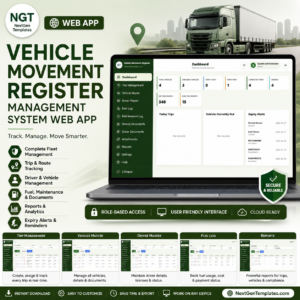
Yes. The Vehicle Movement Register Management System Web App is a web app for tracking vehicle movement, and the Access Control and ID Card Management System Web App covers logins and ID cards.
Is there a separate register for visitors only?
Yes. The Visitor Entry Register V1.0 in Excel is built for visitor logging. This workbook also logs visitors, using the Visitor pass type, alongside material, vehicle and contractor passes.
Is there a register for vehicles?
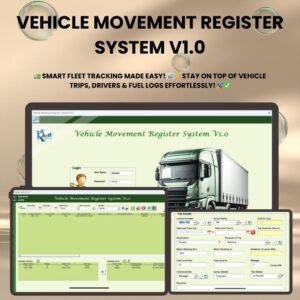
Yes. The Vehicle Movement Register System V1.0 is an Excel register for vehicle movement. In this workbook you can also log vehicles with the Vehicle pass type.
Related Gate and Register Templates
- Visitor Entry Register V1.0 in Excel: a dedicated register for visitors
- Vehicle Movement Register System V1.0: an Excel register for vehicle movement
- Vehicle Movement Register Management System Web App: the web app version for vehicle movement
- Bar Stock Register Data Entry System in Excel: the same form-and-cards build for stock records
Browse all Excel trackers and Excel operations templates.
























Reviews
There are no reviews yet.