



In today’s fast-paced business environment, HR departments need to monitor employee performance effectively to foster growth and optimize team dynamics. The HR Performance Dashboard in Power BI provides a powerful, interactive platform to visualize key HR metrics and make data-driven decisions. Here’s a look at its key features:
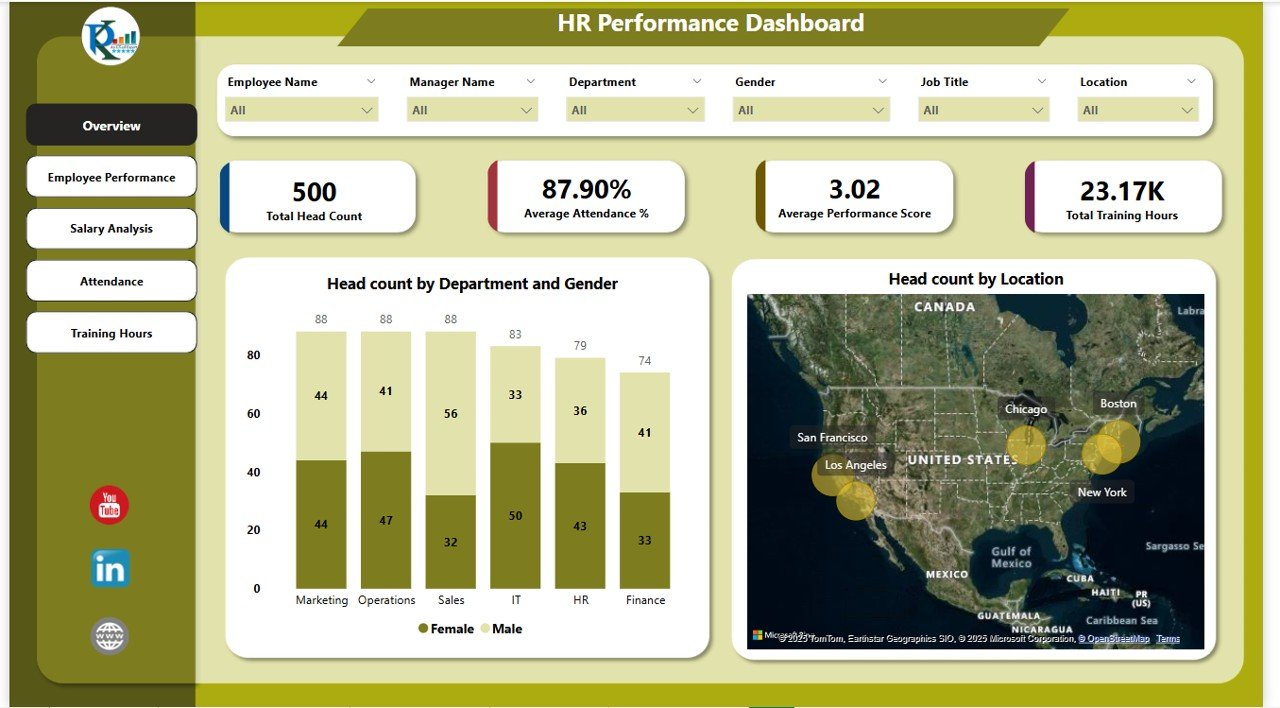
Comprehensive Data Visualizations: Power BI transforms HR data into intuitive visuals like maps, charts, and graphs, making it easier to track employee performance, attendance, salary distribution, and more.
Employee Performance Insights: Analyze employee performance across various metrics such as department, job title, location, and more.
Salary and Compensation Analysis: Monitor and compare salaries across departments, job titles, and locations to ensure equity and transparency.
Attendance Monitoring: Track attendance trends, absenteeism, and department-level attendance patterns.
Training and Development Tracking: Measure employee participation in training programs and monitor their growth and development.
Customizable Dashboard: Tailor the dashboard to fit your organization’s unique HR needs, adding or modifying metrics as necessary.
What’s Inside the HR Performance Dashboard in Power BI 📈
The HR Performance Dashboard includes several sections, each with a dedicated sheet to analyze key HR aspects:
Overview Sheet Tab: This sheet provides a snapshot of the most critical HR metrics:
Cards: Key metrics like Total Head Count, Average Performance Score, Average Attendance %, and Total Training Hours.
Charts: Visual representations such as Head Count by Department and Gender (stacked column chart), Head Count by Location (map chart), and Actual Cost by Department (line chart).
Employee Performance Sheet Tab: Dive deeper into employee performance:
Charts: Performance scores by department, location, and job title. Also includes visualizations for the top and bottom-performing employees.
Salary Analysis Sheet Tab: Analyze salary distributions across departments, locations, and job titles:
Charts: Average salary by department (pie chart), job title (bar chart), and location (map chart).
Attendance Sheet Tab: Track attendance trends across departments, locations, and job titles:
Charts: Attendance visualizations, highlighting the top and bottom 5 employees in terms of attendance.
Training Hours Sheet Tab: Monitor the total number of training hours by department, location, and job title:
Charts: Visuals like training hours by department (donut chart), job title (bar chart), and location (map chart).
Data Sheet Tab: The data foundation where all employee-related information is input, such as:
Employee ID, Name, Gender, Department, Job Title, Location, Performance Scores, Attendance %, Salary, and more.
How to Use the HR Performance Dashboard in Power BI 🛠️
Input Data: Begin by entering your employee-related data in the Data Sheet. This will drive all the charts and reports in the dashboard.
Track Key Metrics: Use the Overview Sheet to monitor high-level metrics, such as employee performance, salary distribution, and attendance trends.
Analyze Employee Performance: Dive deeper into specific performance metrics using the Employee Performance Sheet.
Salary and Attendance Insights: Use the Salary Analysis Sheet and Attendance Sheet to evaluate compensation trends and monitor absenteeism across departments.
Monitor Training Progress: Keep an eye on employee development by tracking training hours and performance improvements through the Training Hours Sheet.
Collaborate and Share: Share the dashboard with HR teams, managers, and executives to provide visibility into HR performance metrics and foster data-driven decision-making.
Who Can Benefit from This HR Performance Dashboard? 👨💼
This dashboard is ideal for:
HR Managers: Monitor employee performance, salaries, attendance, and training in one place.
Department Heads: Track how your department is performing relative to others in terms of attendance, training hours, and performance scores.
Business Owners: Gain insights into workforce performance and compensation to make informed decisions.
Training Managers: Evaluate the effectiveness of training programs by tracking training hours and performance improvements.
Payroll and Finance Teams: Ensure salary equity across departments and track overall compensation trends.
Click here to read the Detailed blog post 📚
Watch the step-by-step video Demo:
Visit our YouTube channel to learn step-by-step video tutorials
Compatibility and Requirements
- Needs Power BI Desktop, which is free from Microsoft. See Get Power BI Desktop to install it.
- The dashboard reads its data from the Data sheet, so you update the numbers there and refresh.
Frequently Asked Questions
Which pages are in the dashboard?
It has an Overview page, an Employee Performance page, a Salary Analysis page, an Attendance page and a Training Hours page, plus the Data sheet behind them.
Which KPIs are on the Overview page?
The cards show Total Head Count, Average Performance Score, Average Attendance % and Total Training Hours.
What data do I need to enter?
Enter employee ID, name, gender, department, job title, location, performance score, attendance %, salary and training hours in the Data sheet.
Can I see the top and bottom performers?
Yes. The Employee Performance page shows the top and bottom performing employees, and the Attendance page shows the top and bottom 5 for attendance.
Can I add my own HR metrics?
Yes. You can add or change metrics to fit your organization’s HR needs.
Related HR Performance Templates
- HR Performance Dashboard in Excel: the same topic for Excel users
- HR Performance Dashboard in Google Sheets: the Google Sheets edition
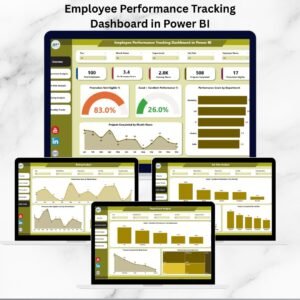
- Employee Performance Tracking Dashboard in Power BI: tracks performance scores over time
- Employee Performance Review Dashboard in Power BI: built around review results
- HR and Workforce Analytics Bundle: 10 HR templates for Excel, Google Sheets and Power BI
Browse all Power BI dashboards or the Power BI templates.




Reviews
There are no reviews yet.