

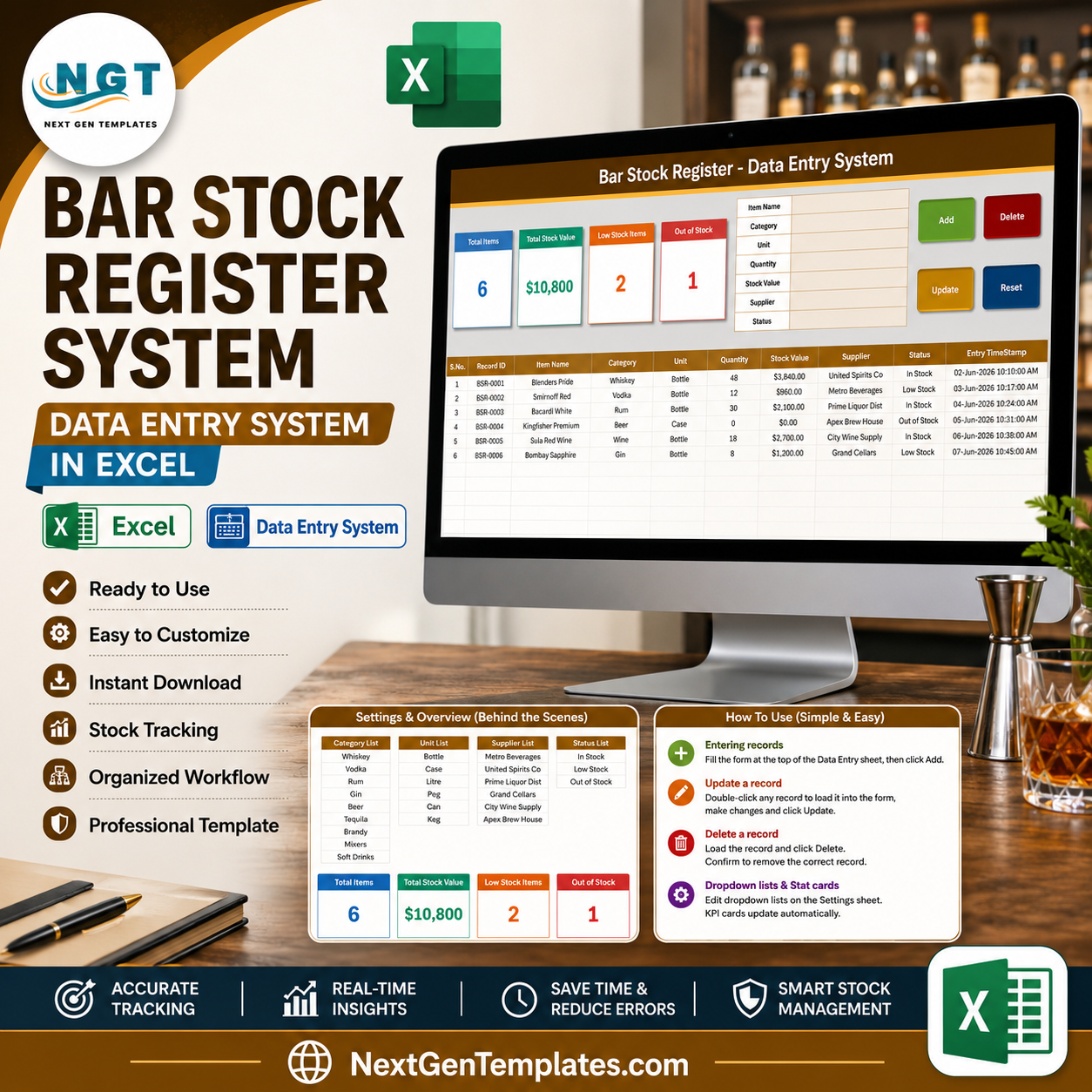
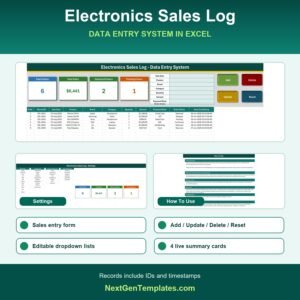
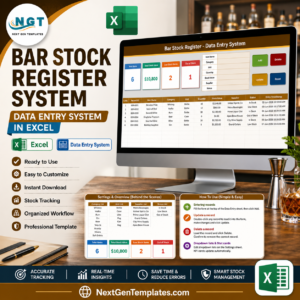
The Bar Stock Register Data Entry System in Excel records every bottle, case and keg through a 7-field entry form, shows 4 live KPI cards (Total Items, Total Stock Value, Low Stock Items, Out of Stock) and stores 10 columns per record including an auto-generated Record ID and an entry timestamp. The sample file opens with 6 stock lines worth $10,800 so you can see exactly how it behaves before you clear it.
Setup takes under 5 minutes: unzip, enable macros, edit the 25 dropdown values on the Setting sheet, then start entering stock. Nothing to install, nothing to configure, no account to create.
🌍 Join 8,400+ teams in 40+ countries using NextGenTemplates to replace paid SaaS tools with one-time-purchase Excel, Google Sheets, Power BI and HTML templates.
✅ Instant download · One-time payment · No subscription · No per-user fees · Lifetime access
🔑 Key Features of the Bar Stock Register Data Entry System
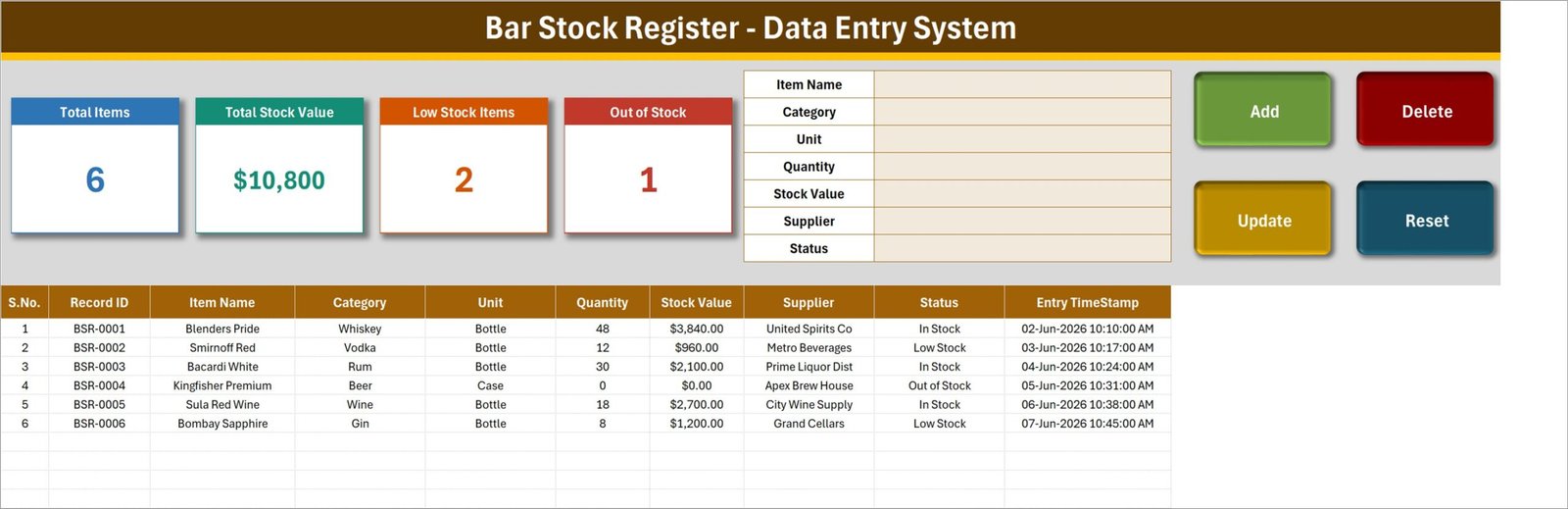
🍾 A form that writes the register for you. The Data Entry sheet carries seven fields — Item Name, Category, Unit, Quantity, Stock Value, Supplier and Status. Fill them in, click Add, and the record drops into the table below with a unique Record ID such as BSR-0004 and an Entry TimeStamp down to the minute.
📊 Four KPI cards that never need refreshing. Total Items, Total Stock Value, Low Stock Items and Out of Stock sit across the top of the Data Entry sheet. They are linked pictures of the real cards on the Setting sheet, so they recalculate the moment a record changes — no pivot refresh, no manual recalculation.
🖱️ Genuine VBA buttons, not formula tricks. Add, Update, Delete and Reset are macros. Double-click any record to load it into the form; the workbook remembers its Record ID behind the scenes, so Update finds and saves the right row wherever it has moved to in the table. Delete asks you to confirm and shows the ID it is about to remove.
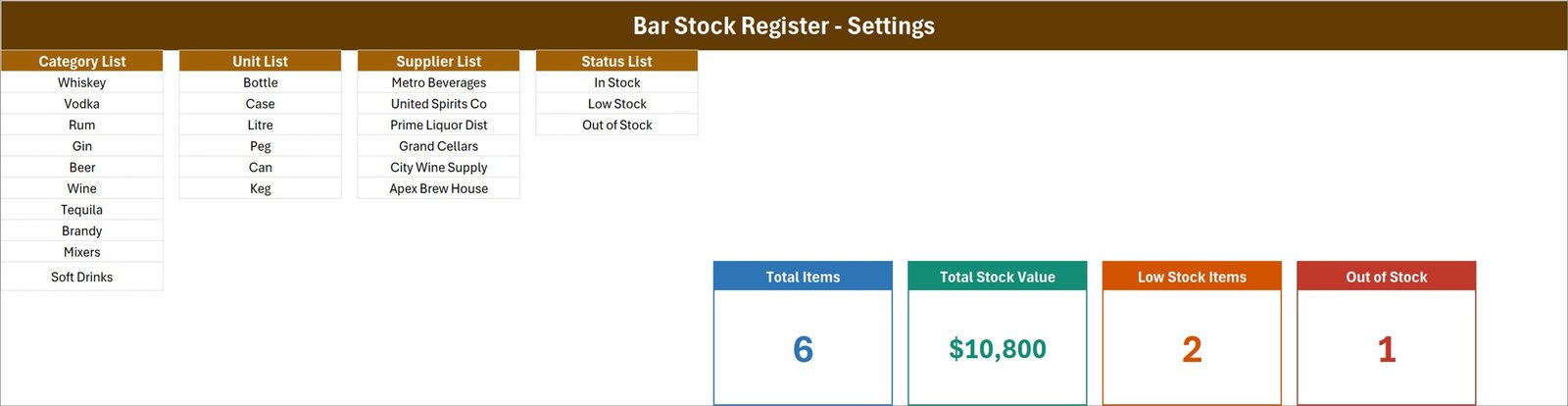
📋 Twenty-five dropdown values you control. The Setting sheet holds four lists: 10 categories (Whiskey, Vodka, Rum, Gin, Beer, Wine, Tequila, Brandy, Mixers, Soft Drinks), 6 units (Bottle, Case, Litre, Peg, Can, Keg), 6 suppliers and 3 stock statuses (In Stock, Low Stock, Out of Stock). Add or delete rows and every dropdown — in the form and in the table columns — updates on its own.
⚠️ This is a desktop Excel product. The workbook is macro-enabled (.xlsm). You must click Enable Content the first time you open it, or the four buttons will do nothing. Excel for the web and Google Sheets do not run VBA, so the buttons will not work there. Windows or Mac desktop Excel only.
📦 What’s Inside the Bar Stock Register Data Entry System
Sheet 1: Data Entry
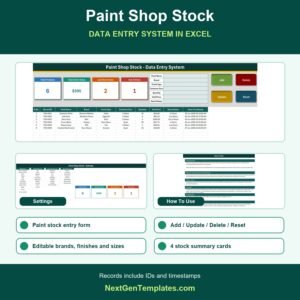
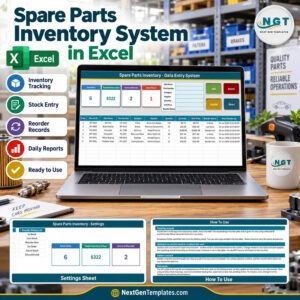
The working screen. Four KPI cards run across the top left, the seven-field entry form sits to their right, and the Add, Delete, Update and Reset buttons stack on the far right. Below them the register lists every record with S.No., Record ID, Item Name, Category, Unit, Quantity, Stock Value, Supplier, Status and Entry TimeStamp — ten columns in all. The sample data shows six lines, two flagged Low Stock and one Out of Stock.
Sheet 2: Setting
Where the dropdowns and the KPI cards actually live. Four lists sit side by side — Category List, Unit List, Supplier List and Status List — and the four real KPI cards sit to the right. Restyle a card here (colour, font, border) and the linked picture on the Data Entry sheet follows automatically.
Sheet 3: How To Use
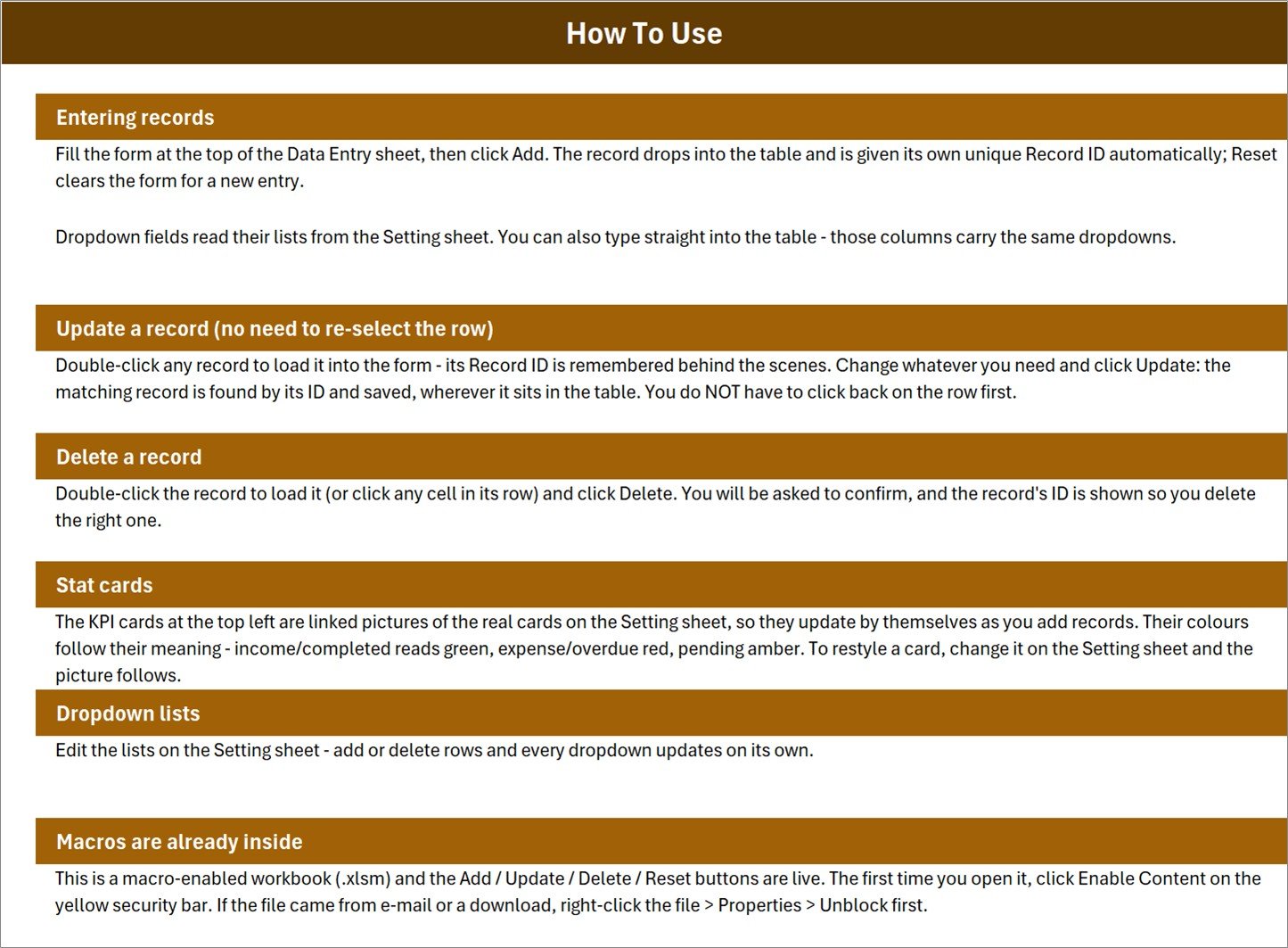
Six short sections built into the workbook: Entering records, Update a record, Delete a record, Stat cards, Dropdown lists, and Macros are already inside. It covers the double-click-to-edit trick and the Enable Content step, so a new bar manager can be productive without a training call.
📊 Bar Stock Register in Excel vs. a Google Sheets Register vs. Paid Bar-Inventory SaaS — Where This Fits
| Feature | Bar Stock Register Data Entry System in Excel | Google Sheets stock register | BevSpot / Partender / Zoho Inventory |
|---|---|---|---|
| Cost | $6.99 one-time ✅ | Free to build, hours to make | $25-$180 per venue / month |
| Platform | Desktop Excel (.xlsm) | Browser, any device | Web + mobile app |
| Setup time | Under 5 minutes ✅ | 2-4 hours to build from scratch | 1-2 days onboarding |
| One-click Add / Update / Delete | Yes, VBA buttons ✅ | Apps Script required | Yes |
| Works fully offline | Yes ✅ | No | No |
| Real-time team collaboration | No — single-file | Yes ✅ | Yes ✅ |
| Mobile access | View only | Yes ✅ | Yes ✅ |
| Editable categories, units, suppliers | Yes, 25 values on one sheet ✅ | Manual named ranges | Yes, in settings |
| Your data stays on your machine | Yes ✅ | In Google’s cloud | In the vendor’s cloud |
| Year-1 cost, one venue | $6.99 ✅ | $0 + your time | $300-$2,160 |
For bar owners who want a fast, private stock register without paying a monthly per-venue fee, the Bar Stock Register Data Entry System in Excel sits in the sweet spot.
👥 Who This Template Is For — and Who It’s Not For
✅ This template is built for:
- Bar, pub and lounge owners running a single venue who count stock on a laptop rather than a tablet
- Bar managers and head bartenders who need a clean weekly stock count with supplier names attached
- Restaurant and banquet-hall managers keeping a beverage section separate from the food store
- Cafe and club operators who want Low Stock and Out of Stock visible at a glance before ordering
- Anyone replacing a paper register or a loose spreadsheet with something structured
❌ This template is NOT for:
- Teams that need several people editing the same register at the same time — use a Google Sheets tracker instead
- Anyone working only in Excel for the web, Excel on iPad, or Google Sheets — VBA does not run there
- Multi-venue groups needing consolidated reporting across locations
- Operators who need POS integration, pour-level measurement, or automatic purchase orders
- Anyone looking for licensing, excise or regulatory paperwork — this is a stock register, nothing more
⚙️ How to Use the Bar Stock Register Data Entry System
- Unzip the download and open Bar_Stock_Register_System.xlsm in desktop Excel.
- Click Enable Content on the yellow security bar. If Excel still blocks it, right-click the file, choose Properties and tick Unblock.
- Open the Setting sheet and edit the Category, Unit, Supplier and Status lists so they match your bar.
- Go back to Data Entry, delete the six sample rows, and you have an empty register.
- Fill the seven form fields and click Add. The record lands in the table with its own Record ID and timestamp.
- To edit, double-click the record, change what you need, then click Update.
- To remove a line, double-click it and click Delete, then confirm the Record ID shown.
- Click Reset whenever you want a clean form for the next entry.
💼 Real-World Use Cases
Ravi runs a 40-seat gastropub. Every Monday he counts the back bar, types each line into the form and clicks Add. The Total Stock Value card tells him what is tied up in inventory before he calls Metro Beverages, and the Low Stock count tells him what to order — a job that used to mean a notebook and a calculator.
Meera manages beverages for a banquet hall. She keeps a separate register for the bar so it never mixes with the kitchen store. Because Supplier is a dropdown, she can sort the table by supplier and build one order per vendor in a couple of minutes.
Dan is a head bartender at a hotel lounge. He double-clicks a line after every delivery, updates Quantity and Stock Value, and clicks Update. The Out of Stock card drops to zero, and his GM can see the register without asking him for a report.
❓ Frequently Asked Questions
Do I need to enable macros for the Bar Stock Register Data Entry System in Excel?
Yes. The Bar Stock Register Data Entry System in Excel is a macro-enabled .xlsm workbook and the Add, Update, Delete and Reset buttons are VBA. Click Enable Content on the yellow security bar the first time you open it, or right-click the file, choose Properties and tick Unblock.
Does this work in Google Sheets or Excel for the web?
No. The Bar Stock Register Data Entry System in Excel needs desktop Microsoft Excel on Windows or Mac. Excel for the web, Excel on iPad and Google Sheets cannot run VBA, so the four buttons will not respond there. For a browser-based option, look at the Google Sheets trackers in our catalogue.
What exactly does the register track?
Each record stores ten fields: S.No., Record ID, Item Name, Category, Unit, Quantity, Stock Value, Supplier, Status and Entry TimeStamp. Four KPI cards summarise the table as Total Items, Total Stock Value, Low Stock Items and Out of Stock. All figures shown in the screenshots are sample data.
Can I change the categories, units and suppliers?
Yes. The Setting sheet holds all 25 dropdown values across four lists. Add or delete rows there and every dropdown in the entry form and in the table columns updates automatically. No formulas or named ranges to edit by hand.
How long does setup take?
Under five minutes. Unzip the file, enable macros, replace the sample categories, units and suppliers with your own, then clear the six demo rows. The Bar Stock Register Data Entry System in Excel is ready to use straight after that.
How does this compare to BevSpot or Zoho Inventory?
Paid bar-inventory platforms cost roughly $25 to $180 per venue each month and add POS integration and mobile counting. The Bar Stock Register Data Entry System in Excel is a one-time $6.99 purchase, runs offline, and keeps your data on your own machine — it covers the register and the stock summary, not the integrations.
Is there a limit on how many records I can add?
No practical limit. The table expands as you click Add, and Excel handles tens of thousands of rows comfortably. The four KPI cards keep recalculating as the register grows, so the summary stays accurate however long the list gets.
👤 About the Author
Built by PK — Microsoft Certified Professional with 15+ years of Excel, Google Sheets and Power BI experience. Founder of NextGenTemplates, reaching 300K+ subscribers across YouTube channels (@PK-AnExcelExpert, @NextGenTemplates, @NeoTechNavigators). Every template is hand-built and tested before release.
🔗 Explore Related Templates
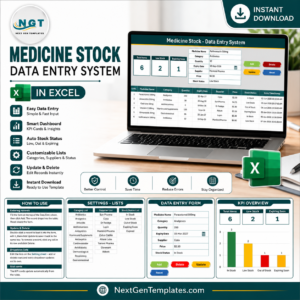
If you are stocking more than a bar, the Medicine Stock Data Entry System in Excel uses the same form-and-KPI layout for pharmacy shelves, and the Restaurant Order Data Entry System in Excel covers the kitchen side of the same venue. For staff paperwork, the Employee Document Data Entry System in Excel follows the identical button set.
New systems joining this line: Livestock Register, Supplement Sales, Gift Register and Petty Reimbursement Data Entry Systems.
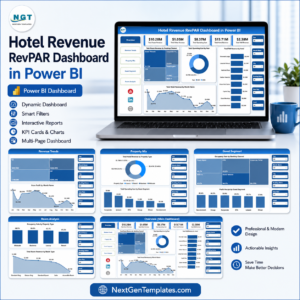
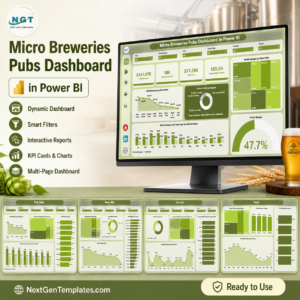
Want the reporting layer too? The Micro Breweries & Pubs Dashboard in Power BI and the Hotel Revenue RevPAR Dashboard in Power BI turn beverage data into management reporting. Browse more Inventory Management Templates and Excel VBA Tools.
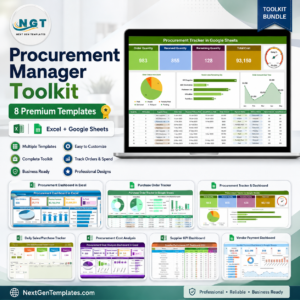
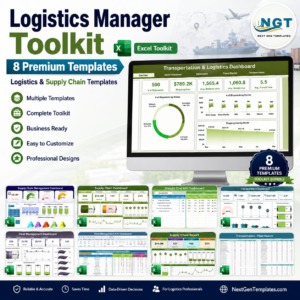
💎 Stocking a whole operation? The Procurement Manager Toolkit (8 templates) and the Logistics Manager Toolkit (8 templates) bundle the supplier and stock side together at a large saving.
📖 Click here to read the Detailed Blog Post
🎥 Visit our YouTube channel for step-by-step video tutorials
👉 YouTube.com/@NextGenTemplates
📅 Last updated: August 2026










Reviews
There are no reviews yet.