

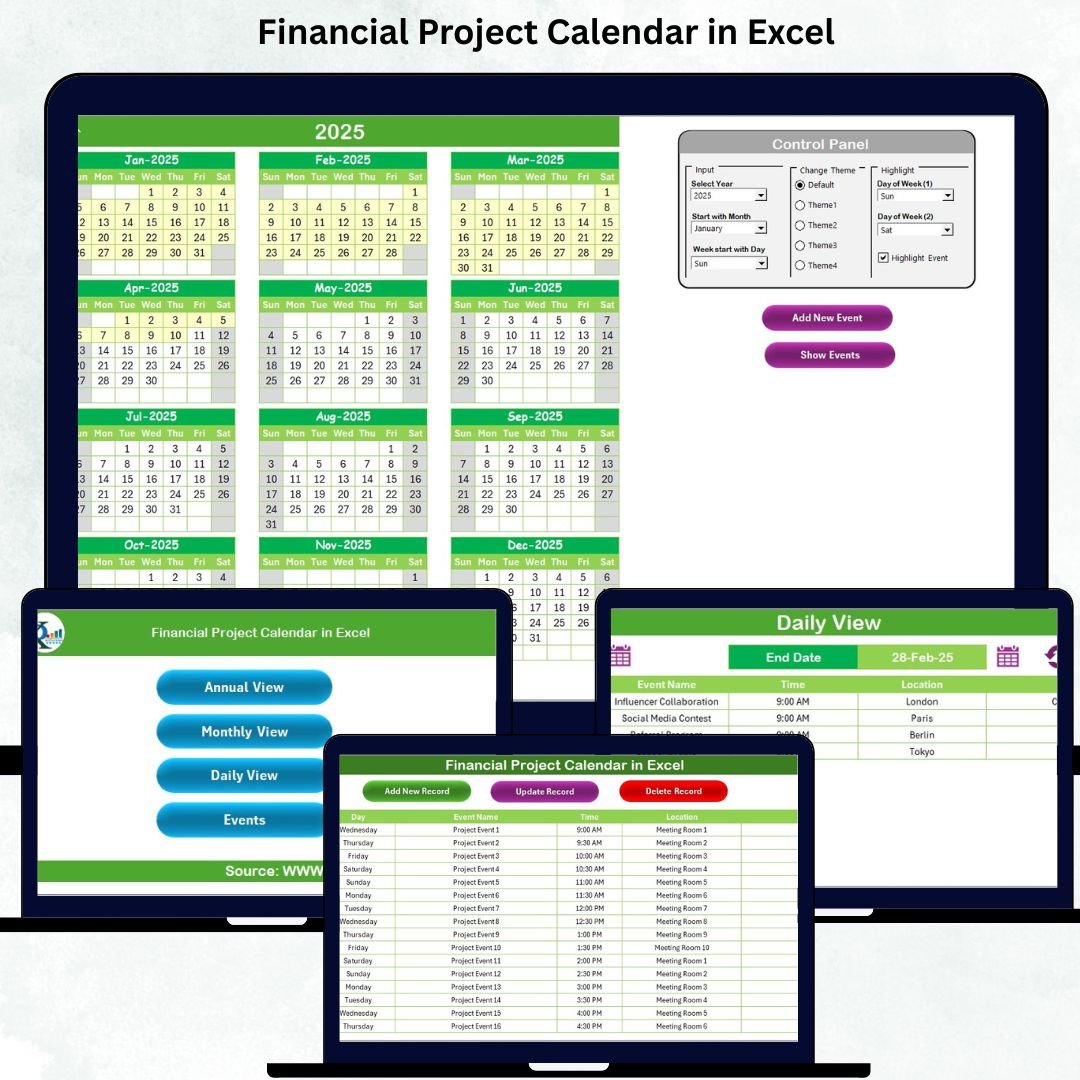

Managing financial tasks can often feel overwhelming—deadlines overlap, events change unexpectedly, and team schedules rarely match. A single missed date can disrupt budgets, delay projects, and create unnecessary confusion. That’s exactly why the Financial Project Calendar in Excel is designed—to give you a clean, organized, and automated system to plan, track, and manage all your financial activities effortlessly. This ready-to-use Excel template brings structure, clarity, and complete control to your financial workflow.
Whether you handle monthly closings, audit timelines, tax filings, billing cycles, reporting deadlines, or team meetings, this calendar serves as your powerful all-in-one planning companion.
✨ Key Features of Financial Project Calendar in Excel
Here’s what makes this template a must-have for finance teams and professionals:
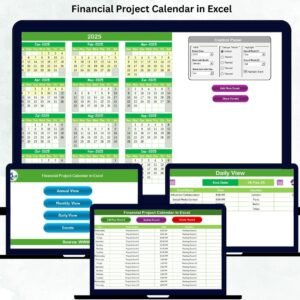
📅 Annual, Monthly & Daily Views
View your entire financial year at once or drill down into specific months and days for detailed planning.
🎨 5 Professional Color Themes
Switch between themes instantly to match your branding or personal preference.
⚙️ Smart Control Panel
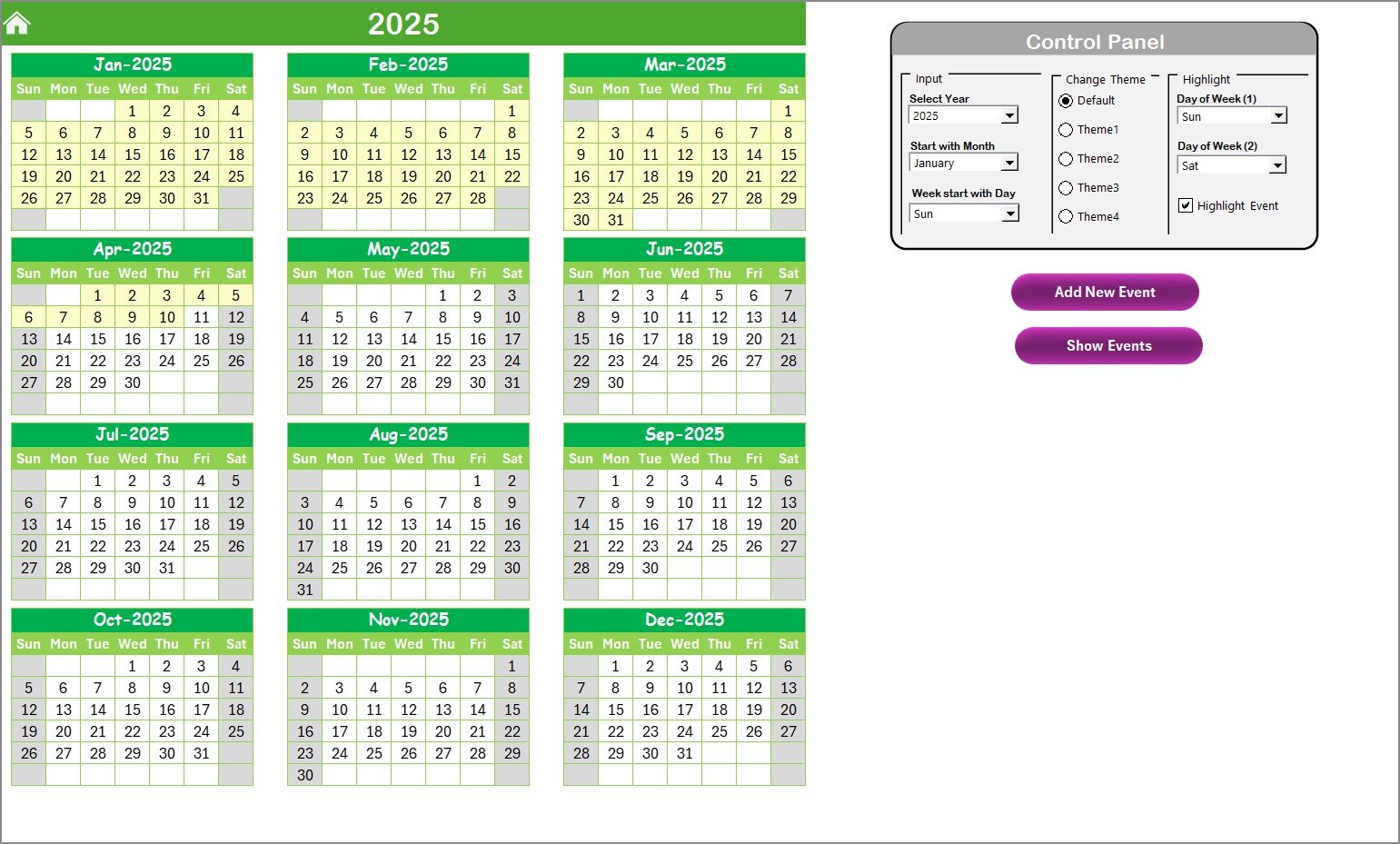
Select year, starting month, day of the week, and more—with just a few clicks.
📝 Event Management System
Create, edit, update, and delete any event using automated forms—no manual entry required.
🔍 Highlight Important Dates
Highlight weekends, holidays, review dates, or critical deadlines easily.
🚀 No Coding Needed
Enjoy full automation without writing a single line of VBA—everything works instantly.
These features help you stay organized, aligned, and fully in control of your financial schedule.
📂 What’s Inside the Financial Project Calendar in Excel
You get 5 professionally designed worksheets that make financial planning smooth and error-free:
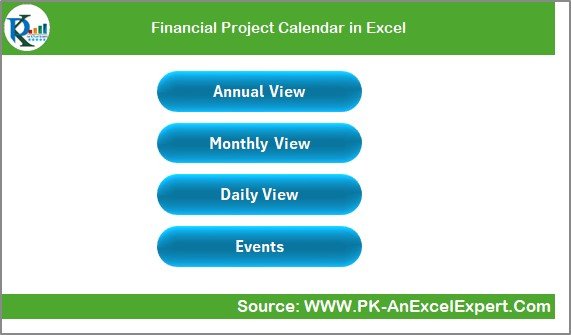
🏠 Home Sheet – Navigation Hub
Jump instantly to Annual View, Monthly View, Daily View, or Events Database using quick-access buttons.
📆 Annual View Sheet – Yearly Planning at a Glance
See all 12 months together, plan long-term activities, and use theme & highlight tools for better clarity.
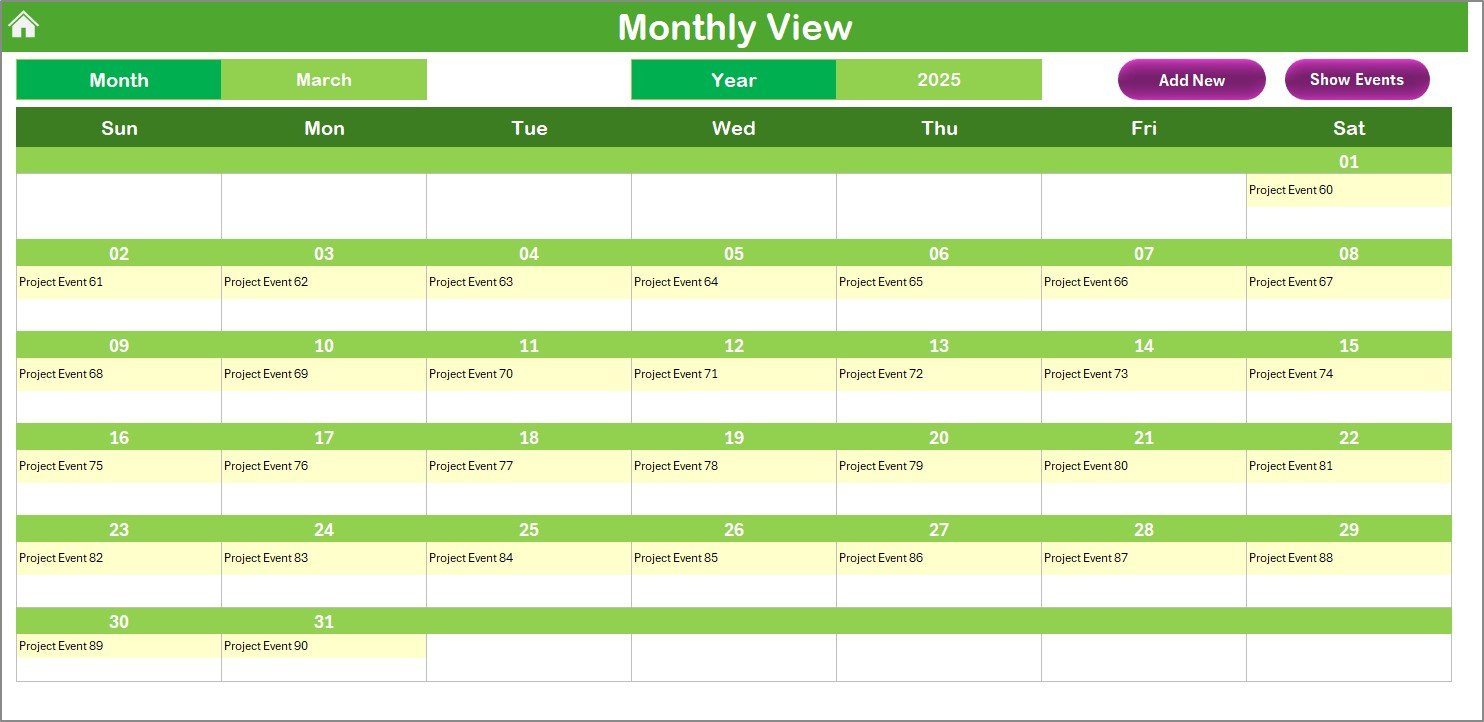
📅 Monthly View Sheet – Month-Level Planning
Shows detailed schedules for each month along with “more than 1…” indicators for days with multiple events.
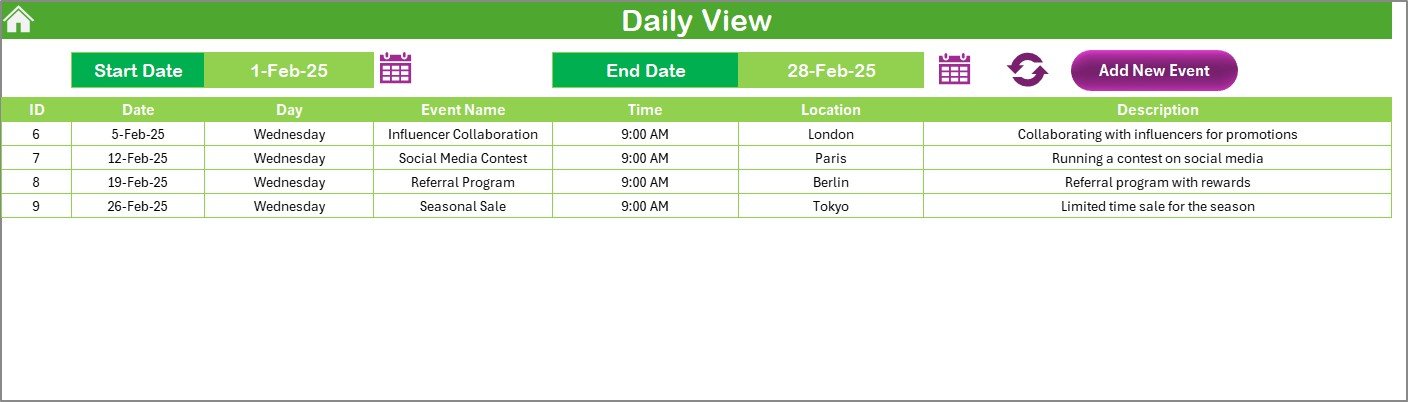
🗓️ Daily View Sheet – Daily Activity Breakdown
Select date ranges to view every financial event scheduled within that period.
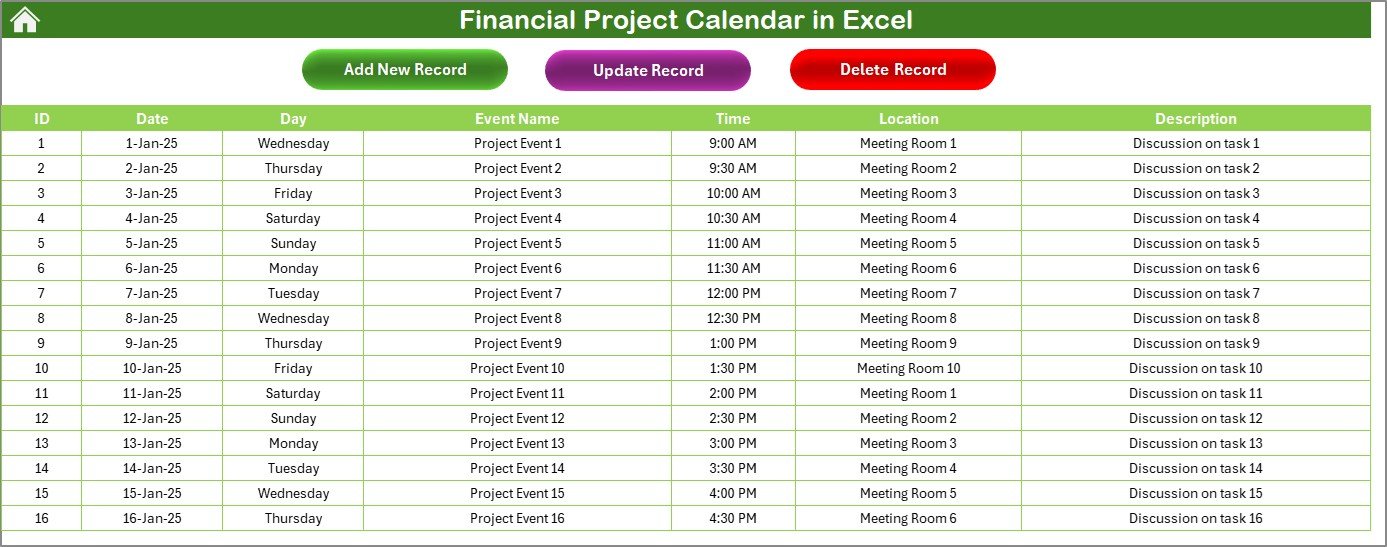
📘 Events Sheet – Complete Event Database
Stores all your financial tasks, with easy options to add, update, and delete records using built-in buttons.
Everything is structured to help you plan smarter and manage deadlines with complete confidence.
🛠️ How to Use the Financial Project Calendar in Excel
Using this template is incredibly simple—even for beginners:
🔸 Step 1: Open the Home Sheet
Use the navigation buttons to move between pages.
🔸 Step 2: Adjust Calendar Settings
Select your Year, Starting Month, and Week Start Day from the Annual View Control Panel.
🔸 Step 3: Add Financial Events
Click Add New Event, fill the form, and save—your calendar updates automatically.
🔸 Step 4: Track Tasks Daily, Monthly, or Yearly
Use the views to visualize upcoming schedules easily.
🔸 Step 5: Manage Your Database
Edit or delete events in the Events Sheet when needed.
In just minutes, your entire year’s financial planning becomes structured and easy to manage.
👥 Who Can Benefit from This Financial Project Calendar in Excel
This template is perfect for:
💼 Finance Managers & CFO Teams
Plan audits, reconciliations, reporting tasks, and closing cycles.
🧮 Accountants & Bookkeepers
Organize payment cycles, tax deadlines, and billing schedules.
🏢 Corporate Finance Departments
Track project reviews, compliance dates, and team meetings.
🧑💻 Freelancers & Consultants
Manage project milestones and client deliverables efficiently.
🏫 Educational & Government Institutions
Plan grants, budgets, and review cycles with ease.
If your work involves handling dates, deadlines, or financial events—you’ll benefit from this calendar.
### Click here to read the Detailed blog post
Watch the step-by-step video tutorial:
Visit our YouTube channel to learn step-by-step video tutorials
👉 Youtube.com/@PKAnExcelExpert
Compatibility and Requirements
- Works in Microsoft Excel desktop (Excel 2016 or later, or Microsoft 365).
- The Add New Event form, the navigation buttons and the theme switch are built for the desktop app, so use Excel desktop rather than Excel for the web or Google Sheets.
Frequently Asked Questions
Which calendar views are included?
There are three: an Annual view with all 12 months, a Monthly view and a Daily view for a date range you pick.
How do I add a financial event?
Click Add New Event, fill in the form and save. The calendar updates, and the event is stored on the Events sheet.
Can I set the year and the start of the week?
Yes. The Control Panel on the Annual View lets you choose the year, the starting month and the week start day.
Can I change the colors?
Yes. You can switch between 5 color themes and highlight weekends, holidays and key deadlines.
What happens when a day has several events?
The Monthly view shows a “more than 1” marker on that day, and the Daily view lists every event.
Related Financial Calendar Templates
- Financial Event Calendar in Excel: another calendar for finance events
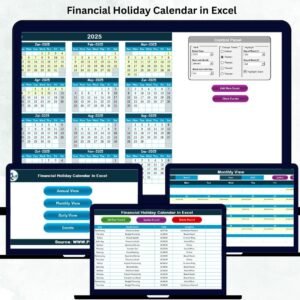
- Financial Holiday Calendar in Excel: plan around finance holidays
- Financial Project Checklist in Excel: a task checklist for the same projects
- Freelancer Project Calendar in Excel: for client project dates
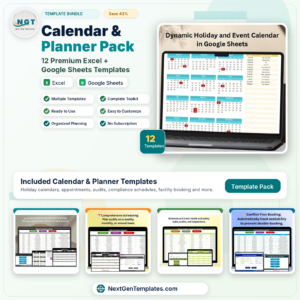
- Calendar and Planner Pack: 12 premium Excel and Google Sheets calendars in one bundle
Browse all Excel calendars or the Excel financial tools.









Reviews
There are no reviews yet.