


In today’s fast-moving education landscape, especially with the rise of remote work, it’s crucial to maintain order, meet deadlines, and ensure communication across teams. That’s where the Education Quality Control Remote Work Calendar in Excel comes in—a beautifully designed, easy-to-use template built to help education professionals manage their events, meetings, and deadlines with clarity and control 📊💼.
Whether you’re a school administrator, teacher, consultant, or part of a quality control team, this Excel-based calendar ensures you’re always on top of your schedule and responsibilities—all while being fully customizable, shareable, and packed with productivity features.
💡 Key Features of Education Quality Control Remote Work Calendar in Excel
🗂️ Five Comprehensive Worksheet Tabs

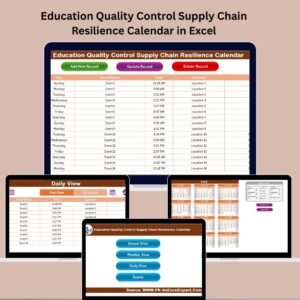
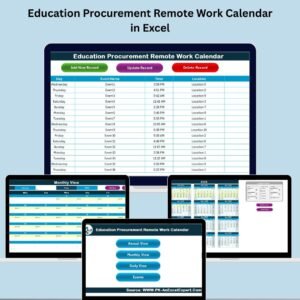
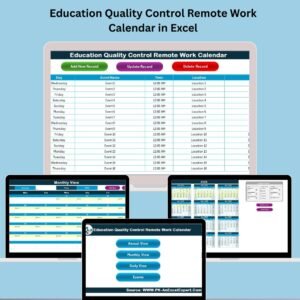
This template includes Home, Annual View, Monthly View, Daily View, and Events Sheet—each with its own functionality for efficient calendar control.
🎨 Customizable Theme Options
Choose from five color themes to personalize your calendar experience. Match it to your school branding or personal style!
📅 Annual, Monthly & Daily Views
Navigate through the entire year, focus on a single month, or drill down to specific dates with ease—perfect for both high-level and detailed planning.
🧭 Easy Navigation Buttons
The Home sheet offers intuitive buttons to switch between views, saving time and boosting productivity.
📝 Add, Update, and Delete Events Instantly
Manage events in just a few clicks! Whether it’s a new meeting or a rescheduled task, the event manager has you covered.
💡 Highlights & Alerts
Use custom highlighting to mark holidays, weekends, or critical deadlines so they stand out at a glance.
🛠️ No Advanced Excel Skills Required
Designed for educators, not Excel experts. If you know how to click buttons and enter data, you’re good to go.
📦 What’s Inside the Education Quality Control Remote Work Calendar?
🔹 Home Sheet
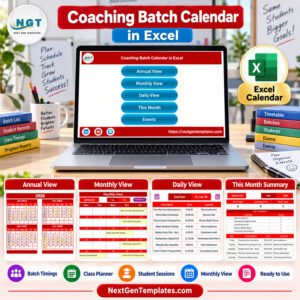
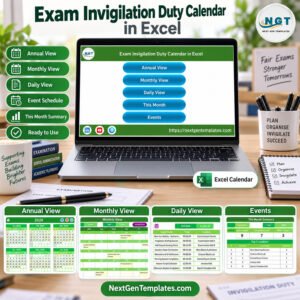
This is your command center! Four interactive buttons allow you to jump straight to the Annual, Monthly, Daily, or Events sheets. Add your logo for a branded look.
🔹 Annual View
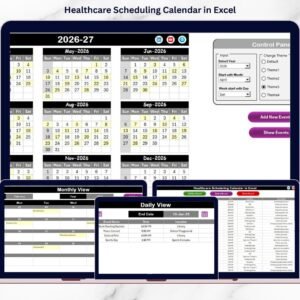
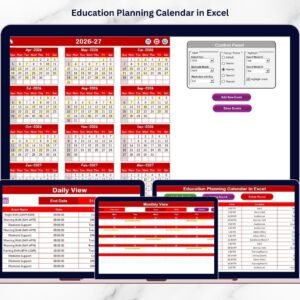
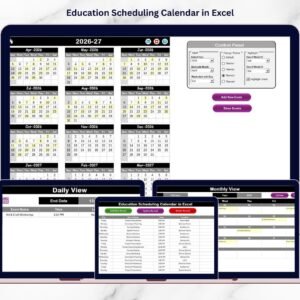
See the full year on one page. Use the control panel to modify the calendar year, start month, or weekday layout. Instantly add or view events with just a click.
🔹 Monthly View
Focus on one month at a time with visible daily events. If more than one event occurs, it notes “more than 1…” so you never miss anything.
🔹 Daily View
Pick a custom date range to get a list of all scheduled tasks, events, and deadlines—perfect for focused, short-term planning.
🔹 Events Sheet
This acts as the database of all your events. Easily add, edit, or delete events with a user-friendly form interface.
🔧 How to Use the Education Remote Work Calendar
🎨 Customize Your Theme: Choose a look that suits your institution or personal style.
🗓️ Add Annual Events: Use the Annual View sheet to input major academic dates, holidays, and quality checkpoints.
🧾 Input Monthly Tasks: Organize events per month using the Monthly View with built-in event indicators.
🕒 Drill Down with Daily View: Select specific date ranges for detailed task lists and reporting.
✅ Manage via Events Sheet: Add or update events with dedicated buttons and forms—quick and error-free.
👥 Who Can Benefit from This Calendar?
🎓 School Administrators – Track key academic dates, inspections, and remote meetings
👩🏫 Educators and Professors – Organize virtual classes, deadlines, and collaborative projects
📚 Quality Control Teams – Monitor scheduled audits, follow-ups, and documentation timelines
🏫 Consultants and Trainers – Stay on track with webinars, training sessions, and client meetings
🖥️ Remote Education Coordinators – Ensure seamless coordination for distributed teams and students
This tool is built to suit both solo educators and large academic institutions!
🔗 Click here to read the Detailed blog post
📺 Visit our YouTube channel to learn step-by-step video tutorials
Watch the step-by-step video tutorial:
Compatibility and Requirements
- Works in Microsoft Excel desktop (Excel 2016 or later, or Microsoft 365).
- The Annual View, Monthly View, Daily View and Events sheets are reached with the buttons on the Home sheet. Microsoft covers the basics in Excel for Windows training.
Frequently Asked Questions
Which sheets are included?
Five sheets: Home, Annual View, Monthly View, Daily View and Events.
How do I add or change an event?
Use the Events sheet. It works as the database of all your events, with buttons and a form to add, update or delete them. You can also add events from the Annual View.
Can I change the look of the calendar?
Yes. You can choose from five color themes, and you can add your logo on the Home sheet.
What happens when a day has more than one event?
The Monthly View shows “more than 1…” on that day so you know to check the full list. The Daily View lists every event for the date range you pick.
Can I change the calendar year or the first month?
Yes. The control panel in the Annual View lets you change the year, the start month and the weekday layout.
Related Calendar Templates
- Quality Control Remote Work Calendar in Excel: the same calendar for general quality control teams
- Education Compliance Remote Work Calendar in Excel: a remote work calendar for education compliance
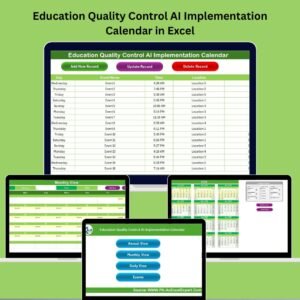
- Education Quality Control AI Implementation Calendar in Excel: an education quality control calendar for AI projects
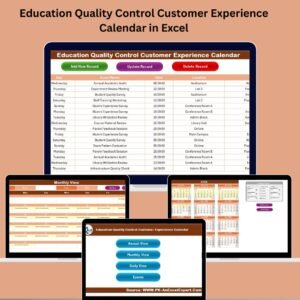
- Education Quality Control Customer Experience Calendar in Excel: an education quality control calendar for customer experience work
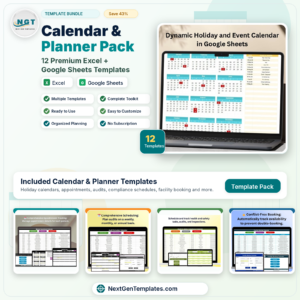
- Calendar & Planner Pack: 12 Excel and Google Sheets calendar templates in one download
Browse all Excel calendar templates.






Reviews
There are no reviews yet.