



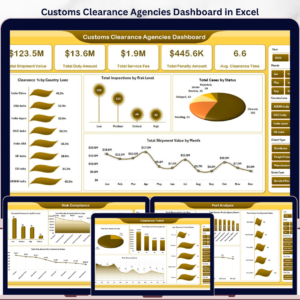
Customs Clearance Agencies Dashboard in Excel gives customs brokers, freight forwarders, import-export teams, and compliance managers a ready-to-use workbook for monitoring shipment value, duty amount, service fees, penalties, clearance time, inspections, document rejection, client ratings, and broker performance. The workbook includes 5 dashboard pages, 5 top-level KPI cards, multiple slicers, 18+ charts, a Data Sheet, and a Support Sheet powered by pivot tables. Join 8,400+ teams in 40+ countries using NextGenTemplates to replace manual reporting and subscription tools with one-time-purchase Excel templates. Instant download, lifetime access, no subscription, and no per-user template fee.
Key Features of Customs Clearance Agencies Dashboard in Excel
- 5 interactive dashboard pages: Overview, Clearance Trend, Port Analysis, Risk Compliance, and Client Brokerage.
- Executive KPI cards: Track Total Shipment Value, Total Duty Amount, Total Service Fee, Total Penalty Amount, and Avg. Clearance Time.
- 18+ pre-built charts: Review country lanes, risk levels, case status, monthly shipment value, ports, branches, shipment modes, brokers, and commodity groups.
- Multiple slicers: Filter the dashboard quickly during branch, broker, client, country, port, status, and risk reviews.
- Pivot-driven Excel setup: Update the Data Sheet, click Refresh All, and the support pivots, charts, and dashboard pages refresh together.
- Editable workbook: Change colors, headings, slicers, chart types, formulas, and input fields to match your customs agency reporting process.
What’s Inside the Customs Clearance Agencies Dashboard in Excel
1. Overview Page
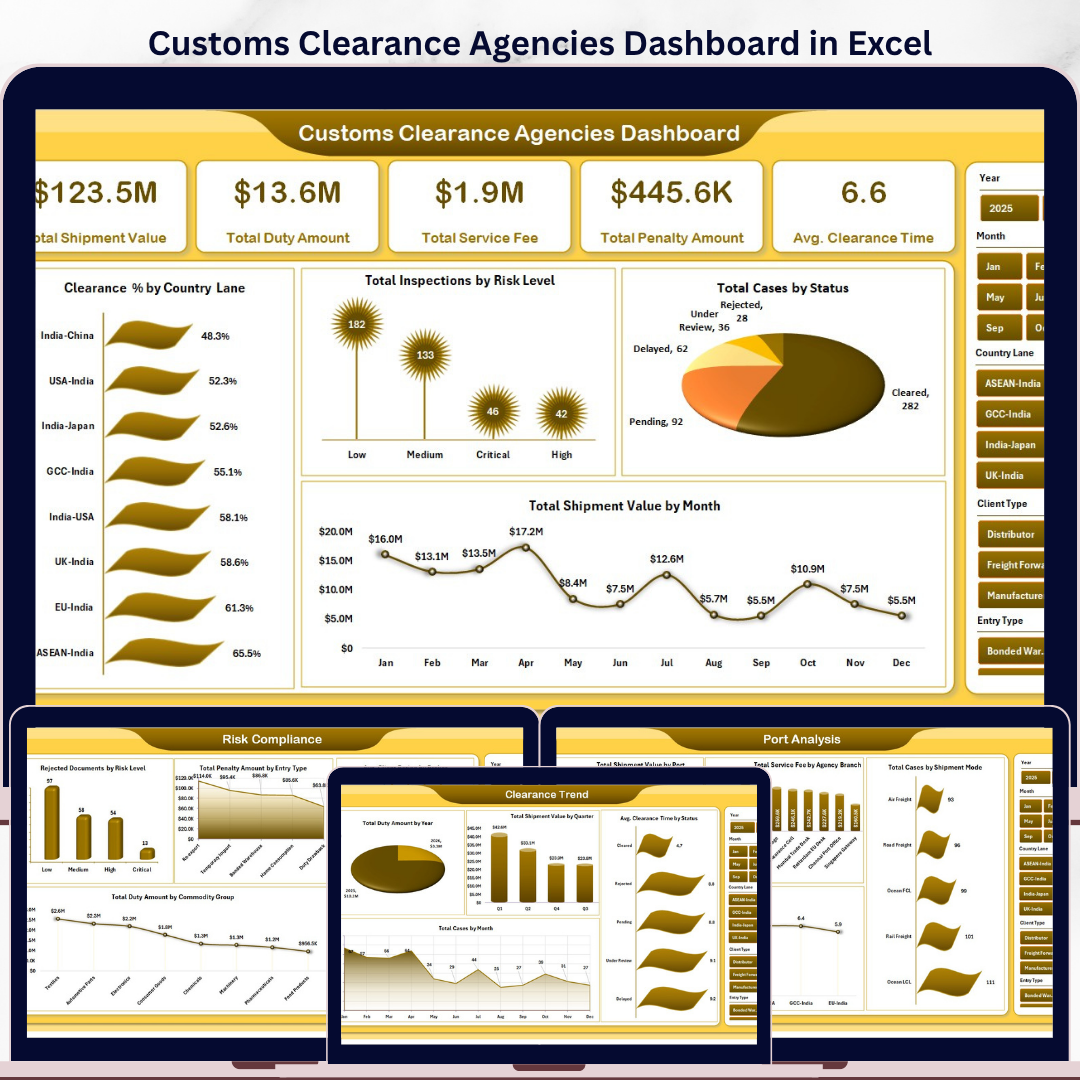
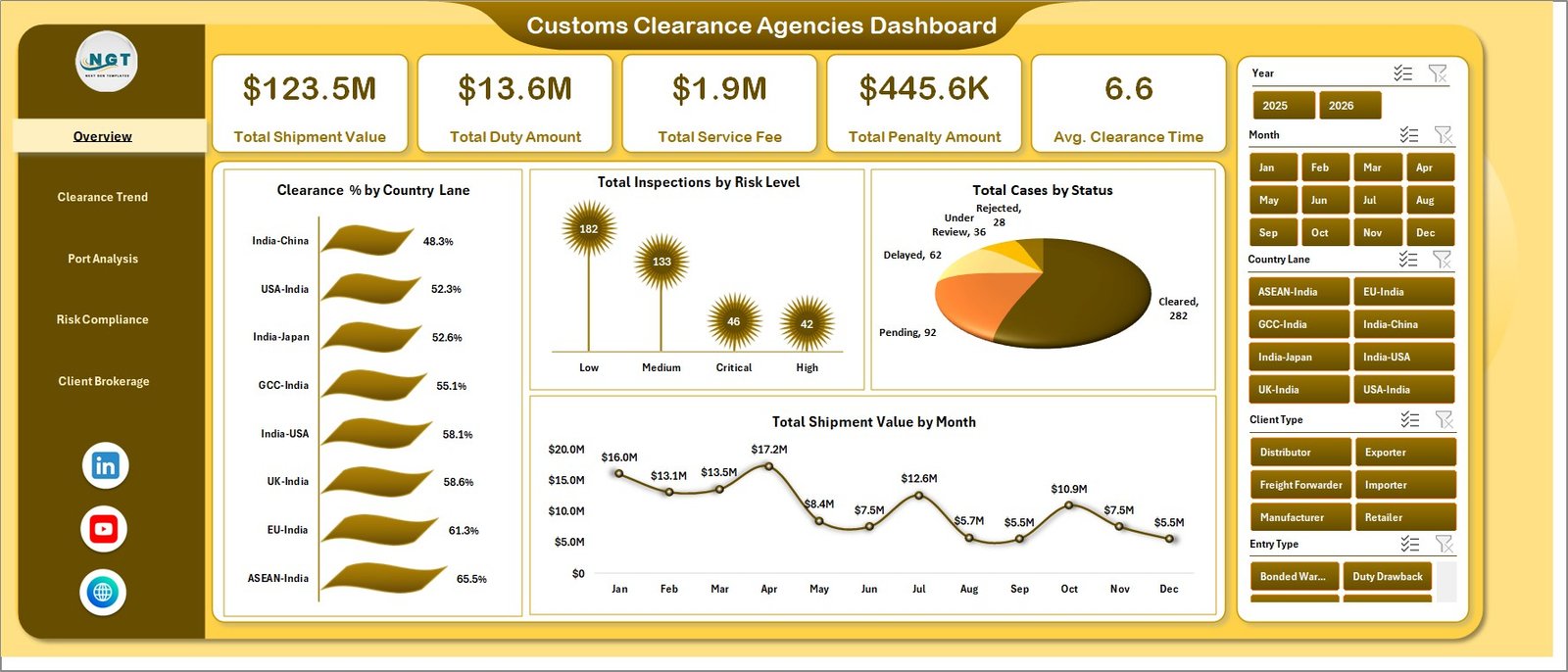
The Overview page provides the high-level read for customs clearance operations. KPI cards summarize Total Shipment Value, Total Duty Amount, Total Service Fee, Total Penalty Amount, and Avg. Clearance Time so managers can see financial value, charges, penalties, and processing speed before drilling into details.
Clearance % by Country Lane compares clearance performance across import-export lanes. Use it to find lanes where documentation, inspections, or regulatory steps slow down completion.
Total Inspections by Risk Level shows how inspection activity changes by risk category. Compliance teams can use it to understand where high-risk shipments consume the most review effort.
Total Cases by Status separates cases by workflow status. It helps teams identify pending, cleared, rejected, delayed, or in-review workload at a glance.
Total Shipment Value by Month shows monthly movement in shipment value. Finance and operations teams can compare clearance workload with fee and duty trends.
Customs Clearance Agencies Dashboard in Excel
2. Clearance Trend
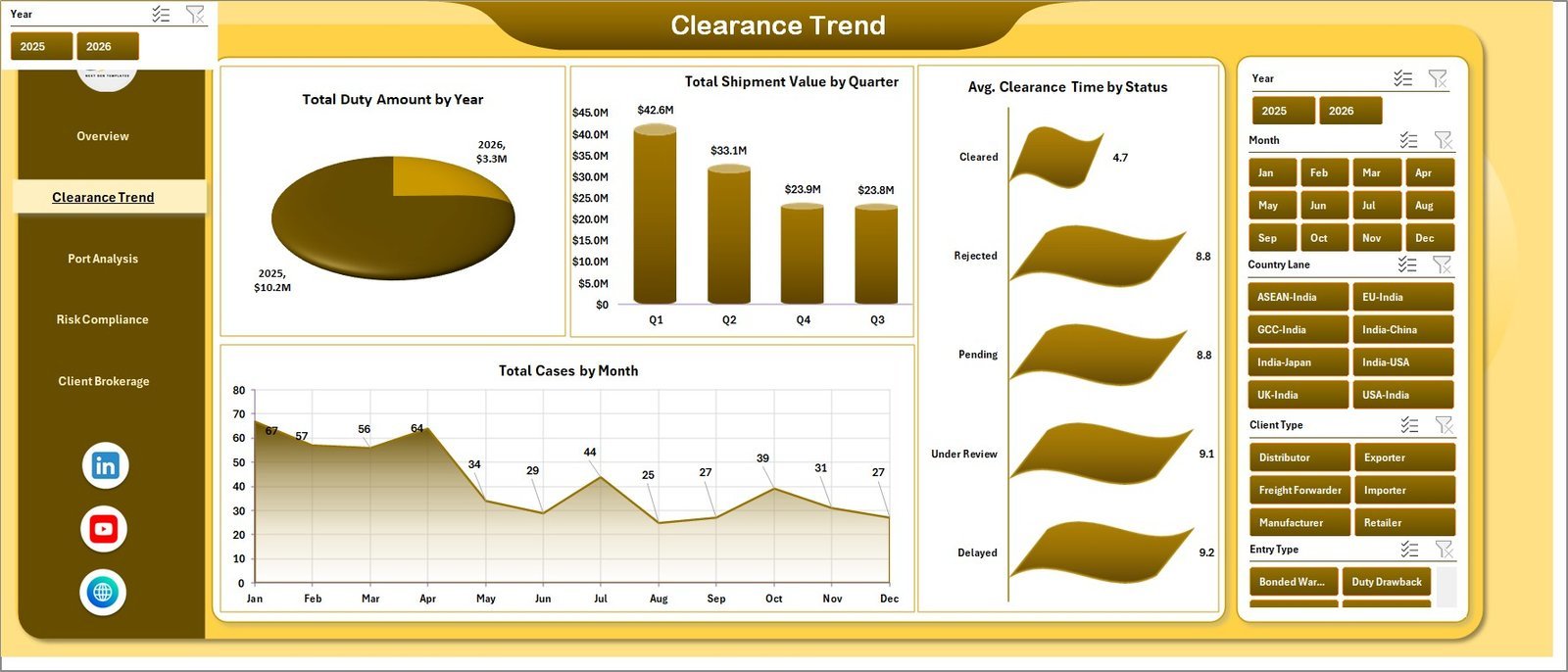
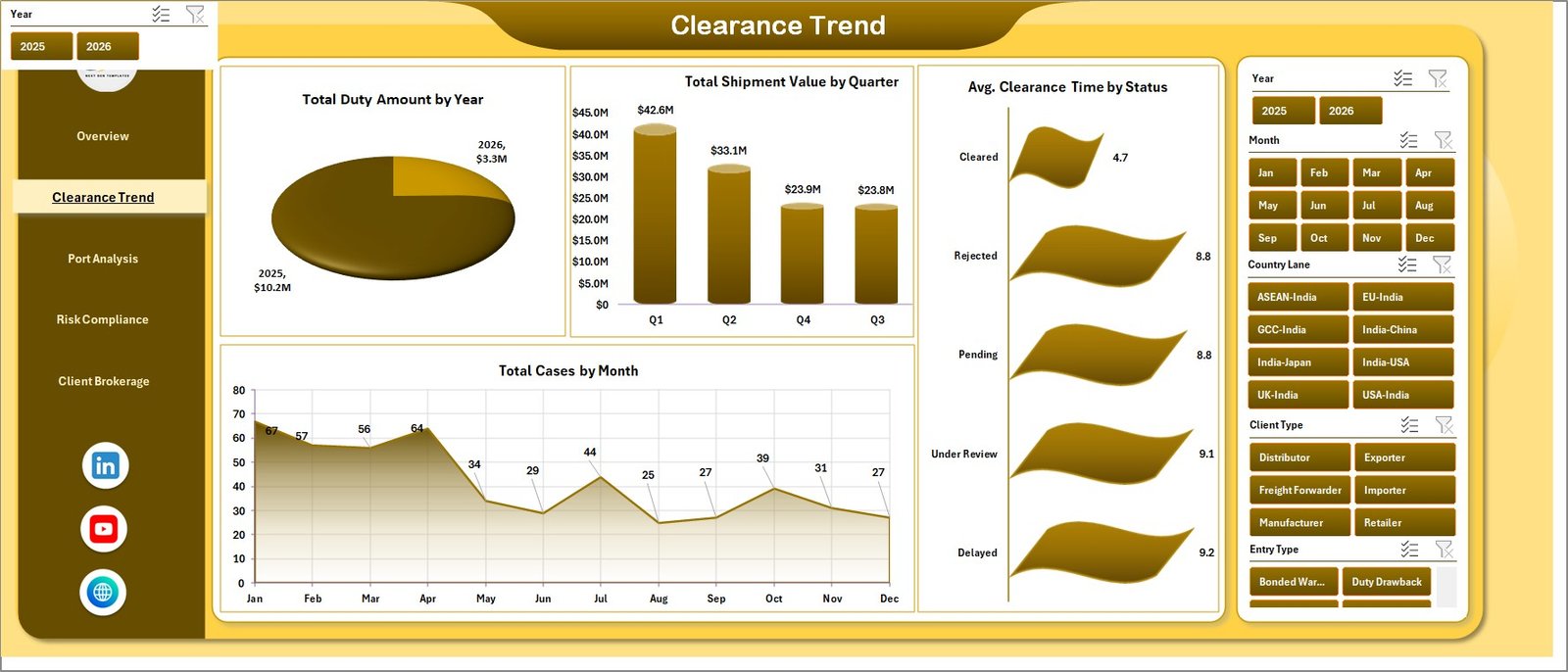
The Clearance Trend sheet tracks customs performance over time. It includes Total Duty Amount by Year, Total Shipment Value by Quarter, Avg. Clearance Time by Status, and Total Cases by Month so teams can identify annual duty patterns, quarterly value shifts, bottlenecks by status, and monthly case volume.
Clearance Trend
3. Port Analysis
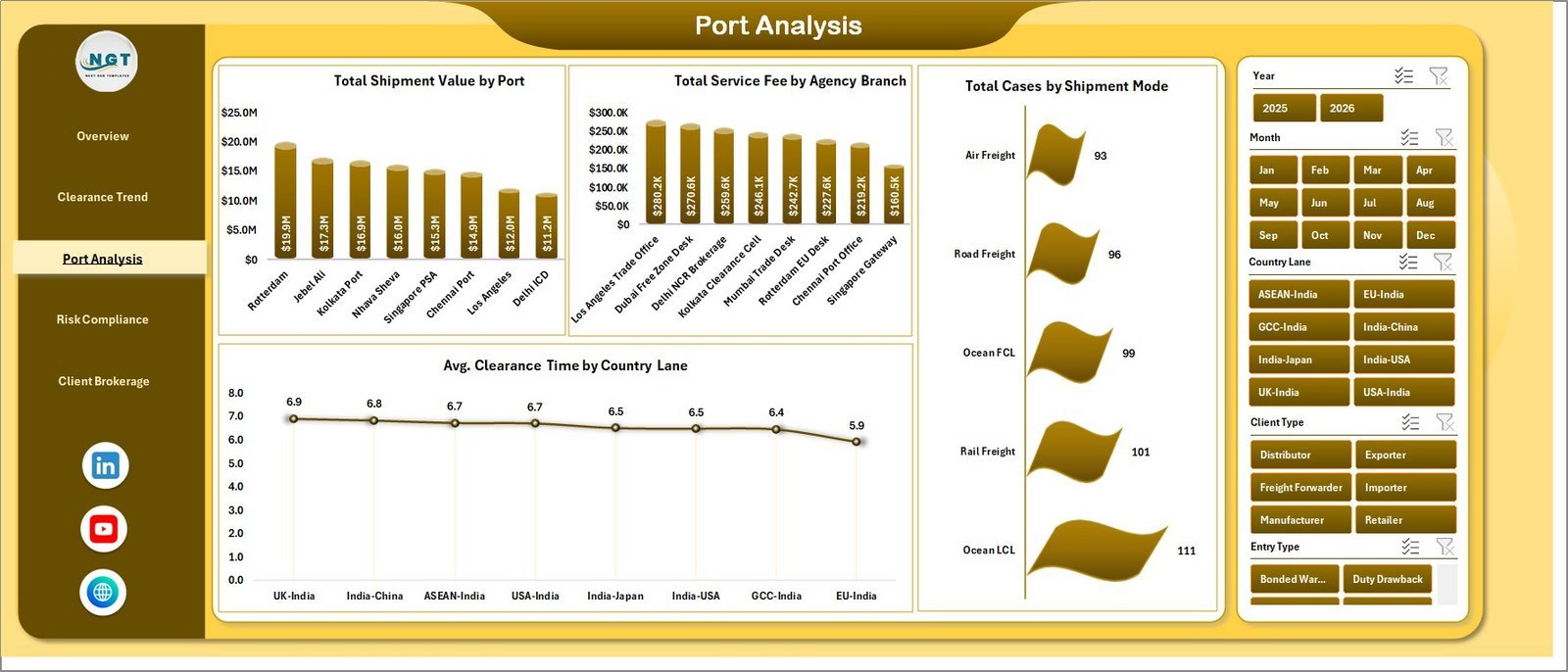
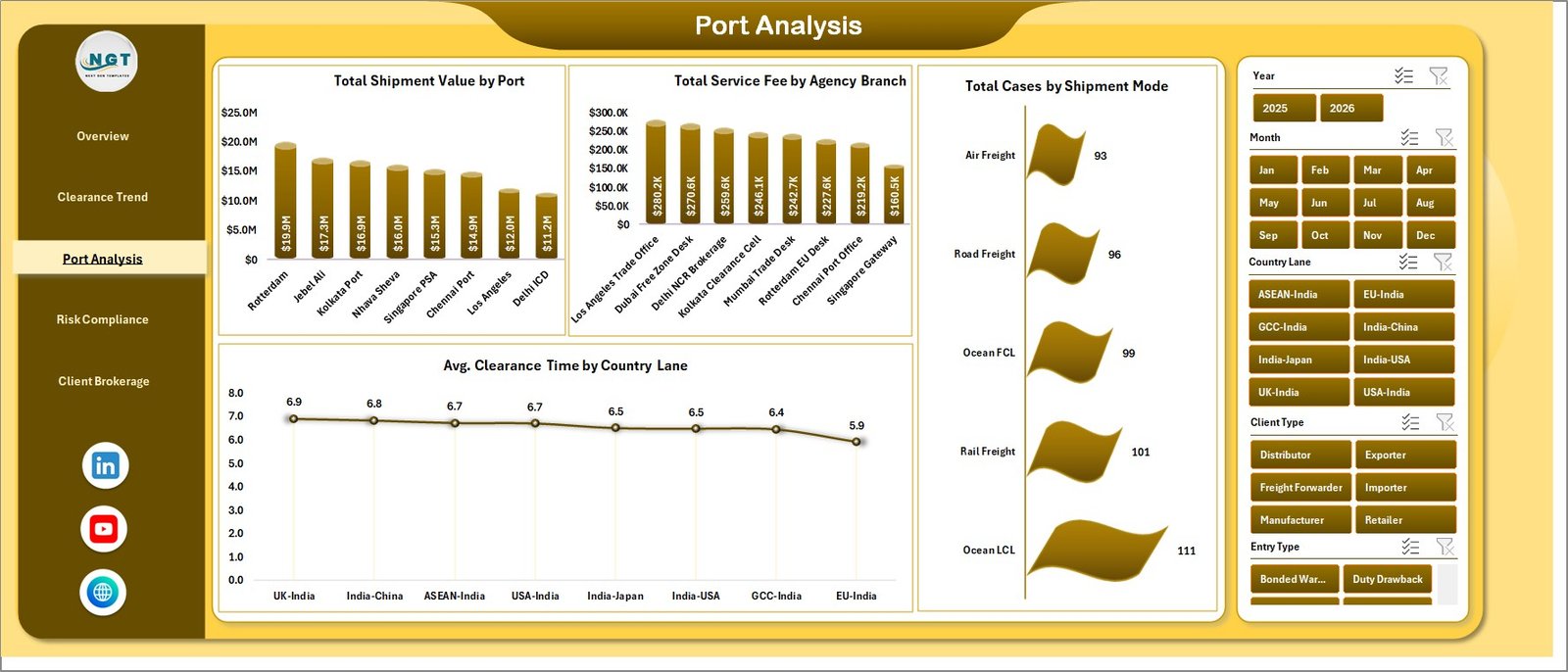
The Port Analysis page focuses on operational performance by port, branch, shipment mode, and country lane. Total Shipment Value by Port shows where value is concentrated, Total Service Fee by Agency Branch compares branch revenue, Total Cases by Shipment Mode highlights air, sea, road, or rail workload, and Avg. Clearance Time by Country Lane supports lane-level process review.
Port Analysis
4. Risk Compliance
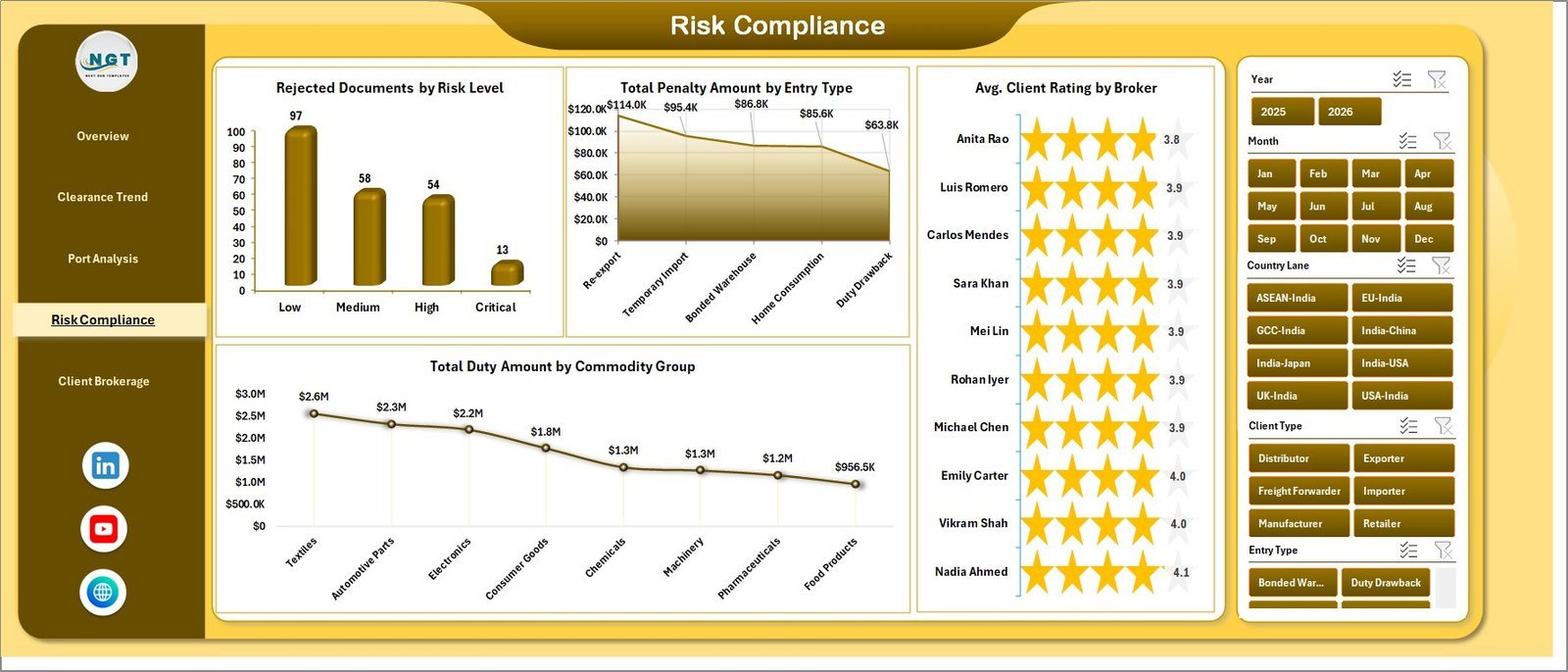
The Risk Compliance page connects documentation quality, penalties, brokers, and commodities. Rejected Documents by Risk Level helps spot documentation risk, Total Penalty Amount by Entry Type shows where penalties occur, Avg. Client Rating by Broker compares service experience, and Total Duty Amount by Commodity Group supports compliance and tariff review.
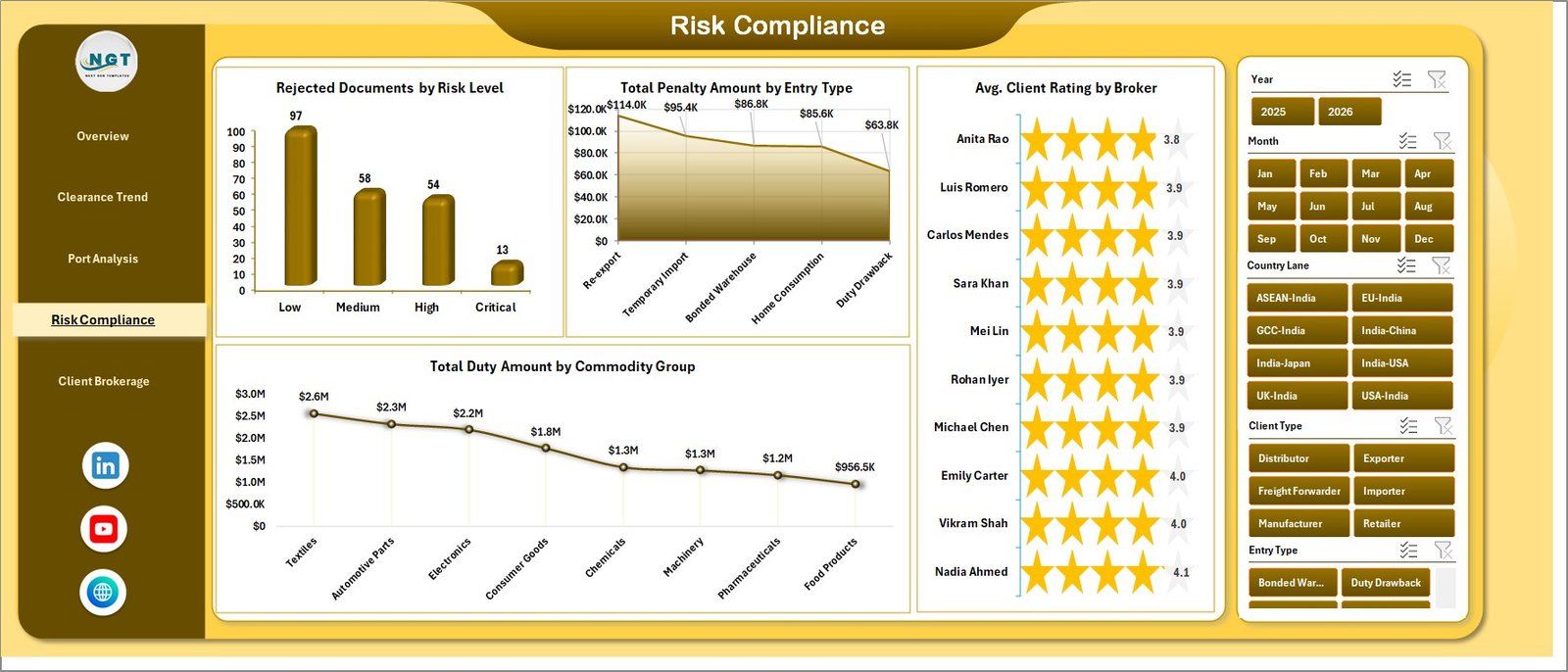
Risk Compliance
5. Client Brokerage
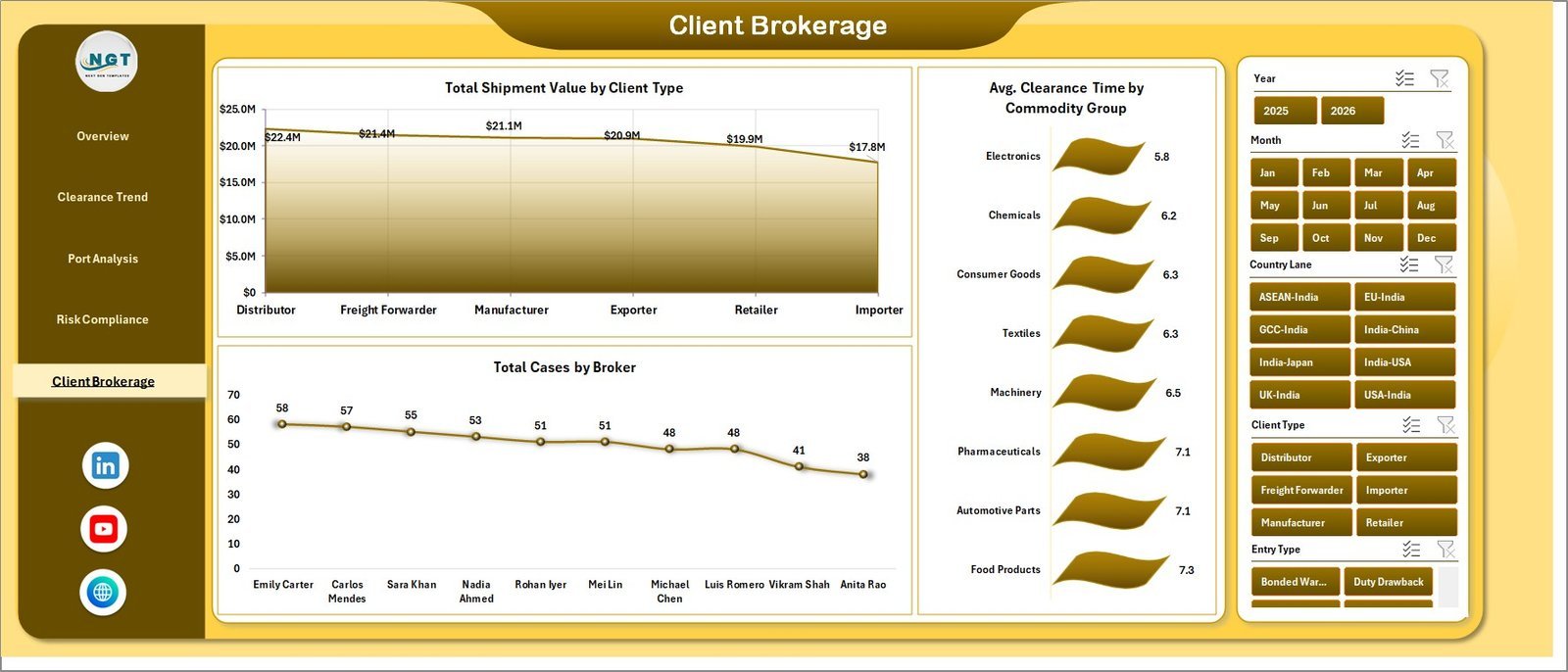
The Client Brokerage page explains client mix, broker workload, and commodity processing speed. Total Shipment Value by Client Type shows which client groups drive value, Total Cases by Broker compares broker workload, and Avg. Clearance Time by Commodity Group reveals commodity categories that need closer review.
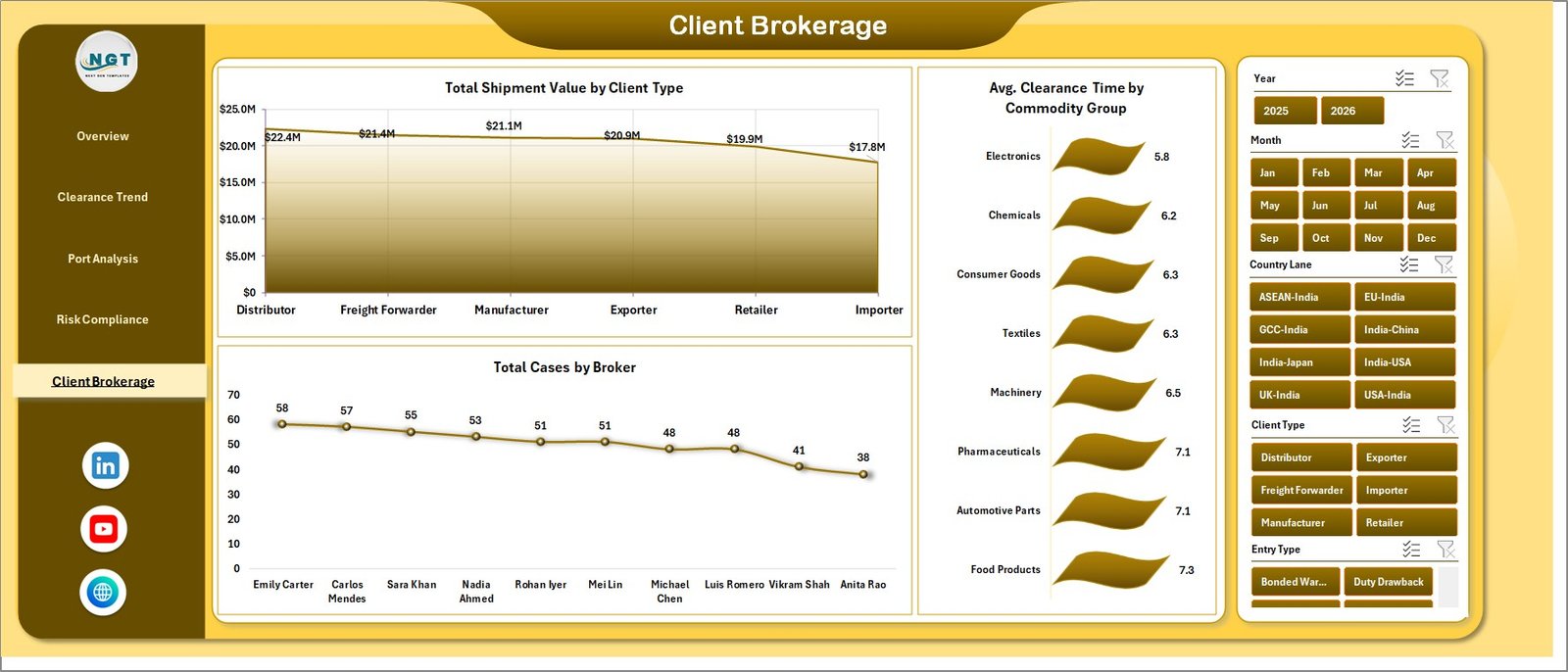
Client Brokerage
6. Data Sheet Tab
The Data Sheet is where you add or replace customs clearance records in the same column format. Keep the structure consistent, then refresh the workbook to update the dashboard pages.

Data Sheet tab
7. Support Sheet
The Support Sheet contains the pivot tables used to build the charts dynamically. After updating the Data Sheet, go to the Data tab in the Excel Ribbon and click Refresh All. All pivots and charts refresh together, and you can keep this sheet hidden for end users.

Support sheet tab
Customs Clearance Agencies Dashboard in Excel vs. Google Sheets vs. Paid Logistics SaaS – Where This Fits
| Feature | This Excel Dashboard | Google Sheets Alternative | Paid Logistics SaaS |
|---|---|---|---|
| Cost | $17.99 one-time | Low cost, browser based | Monthly or annual subscription |
| Platform | Microsoft Excel | Google Sheets | Vendor cloud platform |
| Setup time | Update data and refresh | Copy sheet and configure sharing | Implementation and onboarding |
| Works offline | Yes | Limited | No |
| Customizable fields | Fully editable workbook | Editable sheet | Depends on vendor plan |
| Year-1 cost at 5 users | $17.99 total | Usually low | Often hundreds or thousands of dollars |
| Customs clearance metrics | Pre-built | Manual setup needed | May require configuration |
Who This Template Is For – and Who It’s Not For
This template is for customs clearance agencies, customs brokers, import-export teams, freight forwarders, trade compliance analysts, brokerage managers, and operations leaders who need repeatable Excel reporting for cases, duties, penalties, ports, brokers, branches, inspections, and client performance.
It is not a live customs filing system, e-filing portal, shipment tracking API, or government compliance platform. If you need automated declaration filing or live port-system integration, use this dashboard as the management reporting layer beside your operational systems.
How to Use the Customs Clearance Agencies Dashboard in Excel
- Download and unzip the product file.
- Open the workbook in Microsoft Excel.
- Go to the Data Sheet and replace the sample records with your own customs clearance data.
- Keep the same column structure for best results.
- Click Data, then Refresh All in the Excel Ribbon.
- Use slicers to filter by country lane, port, branch, broker, commodity group, entry type, status, risk level, and month.
- Keep the Support Sheet hidden when sharing the workbook with reviewers.
Real-World Use Cases
Arjun, Brokerage Operations Manager: Arjun reviews Total Cases by Status and Avg. Clearance Time by Status every morning to spot delayed files before client escalations begin.
Meera, Trade Compliance Lead: Meera uses Rejected Documents by Risk Level and Total Penalty Amount by Entry Type to identify recurring compliance problems and coach documentation teams.
Daniel, Finance Analyst: Daniel compares Total Shipment Value by Port, Total Duty Amount by Year, and Total Service Fee by Agency Branch before monthly performance reviews.
Frequently Asked Questions
Does this dashboard require macros?
No. The workbook is designed around Excel tables, pivot tables, slicers, and charts. Update the Data Sheet and refresh the workbook.
Can I use my own customs data?
Yes. Replace the sample records with your own clearance cases while keeping the same column structure.
What KPIs are shown on the Overview page?
The Overview page includes Total Shipment Value, Total Duty Amount, Total Service Fee, Total Penalty Amount, and Avg. Clearance Time.
Can I customize brokers, ports, and country lanes?
Yes. Add your own brokers, ports, country lanes, shipment modes, commodity groups, and entry types in the Data Sheet, then refresh the pivots.
Which Excel version should I use?
Use Microsoft Excel 2016 or later, including Microsoft 365, for the best slicer and pivot chart experience.
Is this a one-time purchase?
Yes. It is a one-time download with no subscription and no per-user fee.
About the Author
Built by PK – Microsoft Certified Professional with 15+ years of Excel, Google Sheets, and Power BI experience. Founder of NextGenTemplates, reaching 300K+ subscribers across YouTube channels. Every template is hand-built and tested before release.
Explore Related Templates
Explore more Excel Dashboard Templates and Logistics Excel Templates. Related products include Trucking and Logistics Dashboard in Excel, Cryogenics Dashboard in Excel, and Warehouse Efficiency Dashboard in Google Sheets.
Ready to track customs clearance performance in Excel? Download the Customs Clearance Agencies Dashboard in Excel, update the Data Sheet, refresh the workbook, and start reviewing duties, fees, penalties, ports, brokers, status, and clearance time today.
Click here to read the detailed blog post
Last updated: May 24, 2026








Reviews
There are no reviews yet.