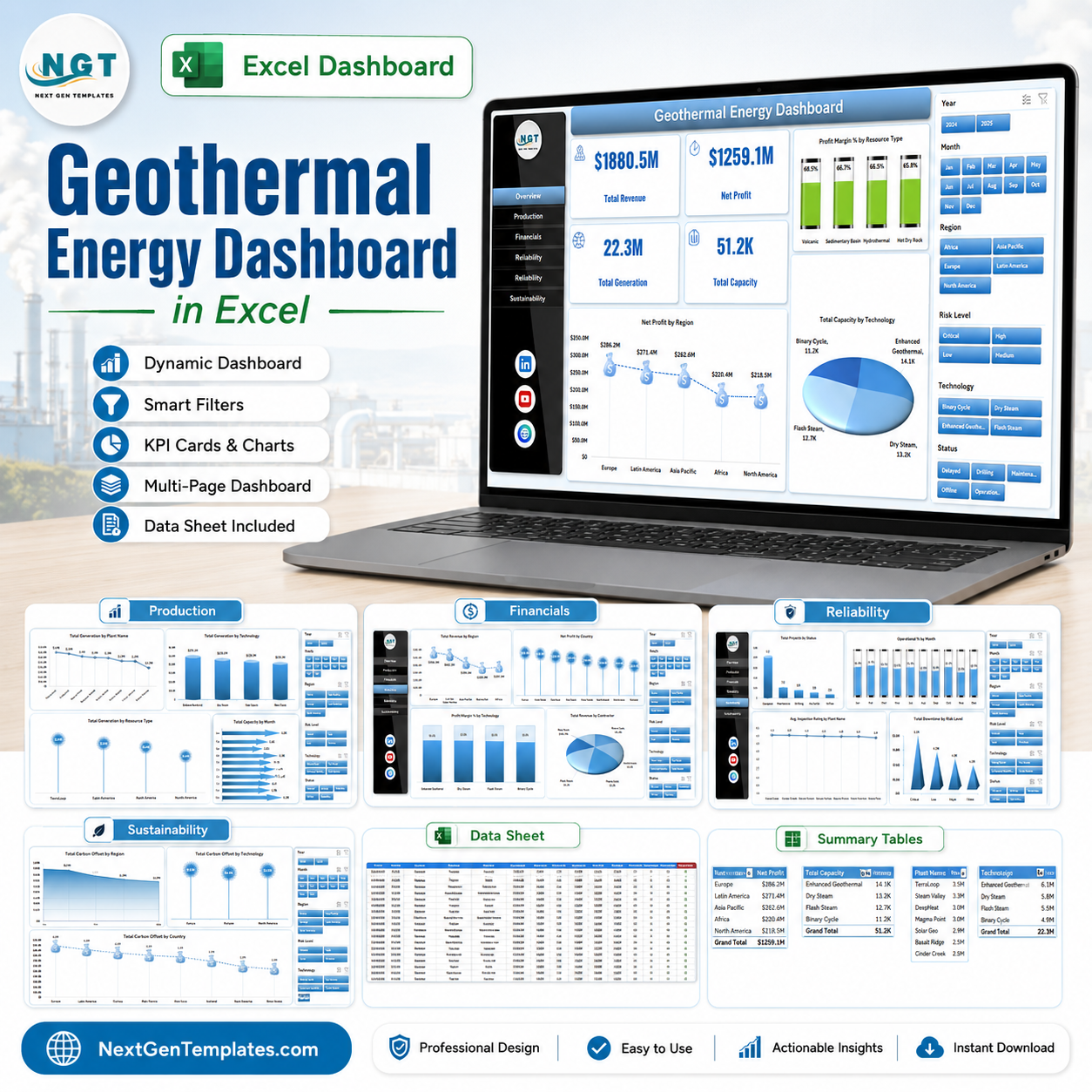



Geothermal Energy Dashboard in Excel gives geothermal operators, renewable energy analysts, and energy finance teams a ready-to-use workbook for tracking revenue, profit, generation, capacity, reliability, and carbon offset performance. The template includes 5 dashboard pages, 4 executive KPI cards, 17 chart views, slicers, a structured Data Sheet, and a Support Sheet that powers the pivot charts. Built for Microsoft Excel, it is a one-time purchase with no dashboard subscription, no per-user fee, and a simple refresh workflow after you replace the sample data.
Key Features of Geothermal Energy Dashboard in Excel
- 5 dashboard pages for Overview, Production, Financials, Reliability, and Sustainability analysis.
- 4 executive KPI cards covering Total Revenue, Net Profit, Total Generation, and Total Capacity.
- 17 geothermal analytics charts for region, resource type, technology, plant, country, contractor, status, downtime, inspection rating, and carbon offset reporting.
- Interactive slicers to filter the workbook quickly without rebuilding formulas or charts.
- Editable Data Sheet where users replace sample geothermal plant records in the same structure.
- Pivot-powered Support Sheet so all cards and charts refresh through Excel’s Data > Refresh All command.
- No macros required; the dashboard uses native Excel tables, slicers, pivots, and charts.
What’s Inside the Geothermal Energy Dashboard in Excel
1. Overview Page
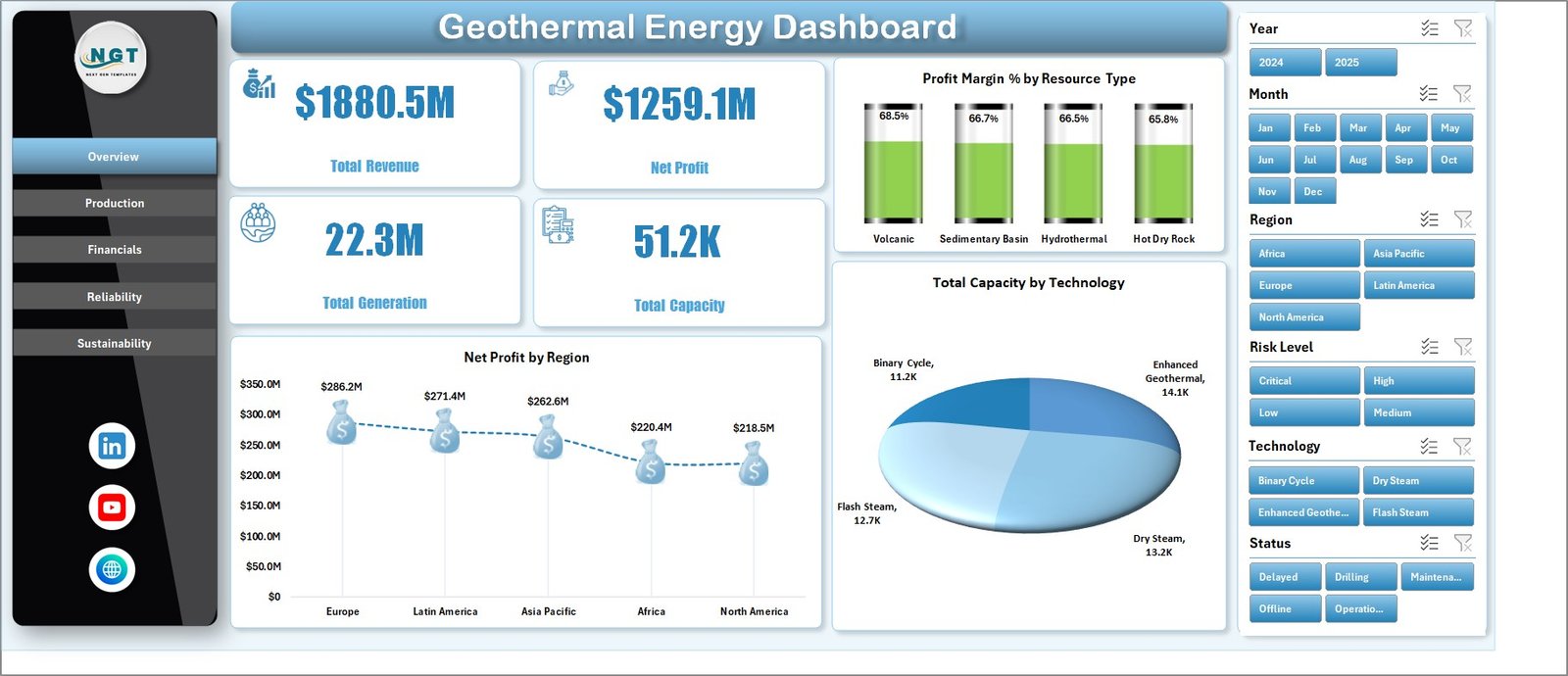
The Overview page gives a high-level view of geothermal business performance. Cards show Total Revenue, Net Profit, Total Generation, and Total Capacity, helping leaders review financial and operational scale before moving into detailed tabs.
Net Profit by Region: This chart compares geothermal profitability across regions. It helps managers identify where plants are delivering stronger returns and where cost or generation performance may need review.
Profit Margin % by Resource Type: This chart shows margin performance by geothermal resource type. It helps compare steam, brine, or other resource groups from a profitability perspective.
Total Capacity by Technology: This chart breaks installed capacity by geothermal technology. It helps teams see whether capacity is concentrated in flash, binary, dry steam, or other technology types.
2. Production
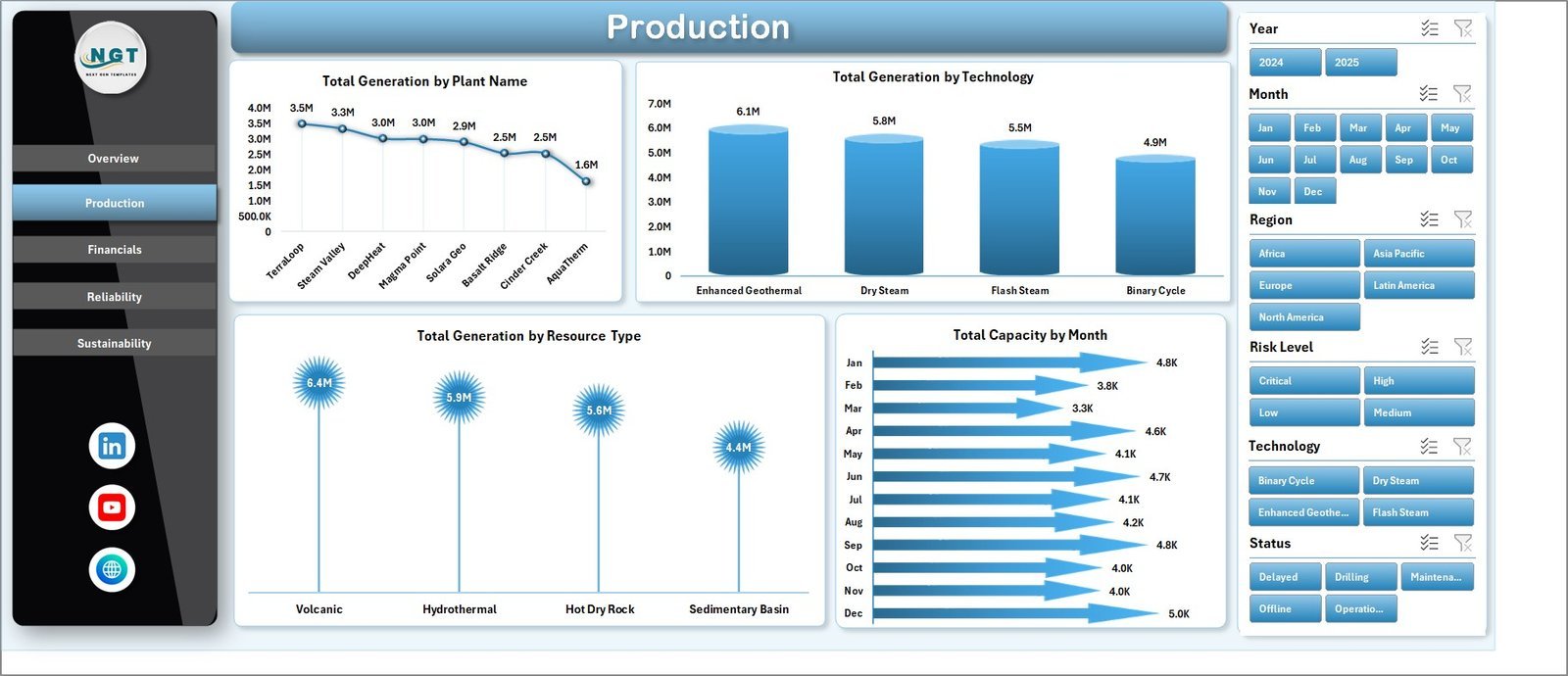
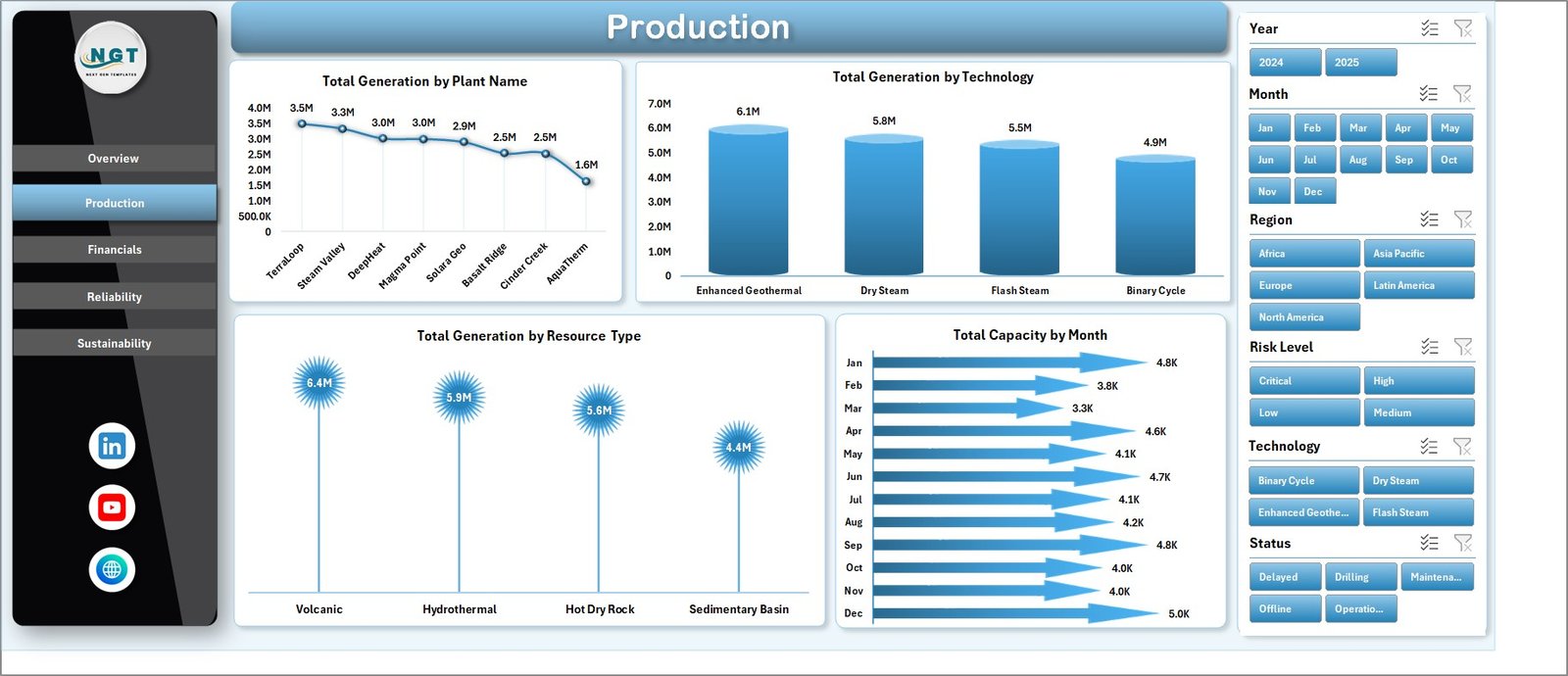
The Production tab focuses on output and capacity. Total Generation by Plant Name identifies the highest-output plants. Total Generation by Technology compares production across technology types. Total Generation by Resource Type shows how resource categories contribute to total generation. Total Capacity by Month helps users track capacity movement over time.
3. Financials
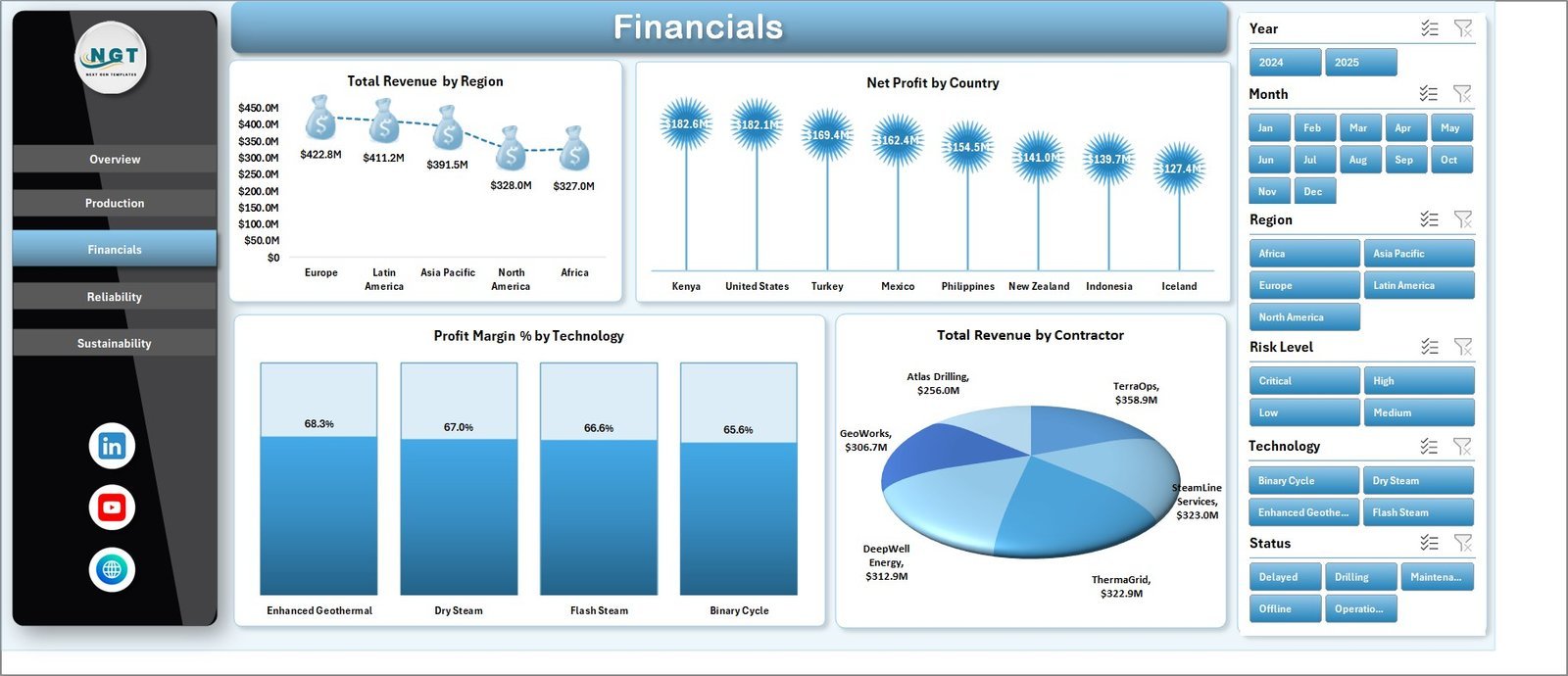
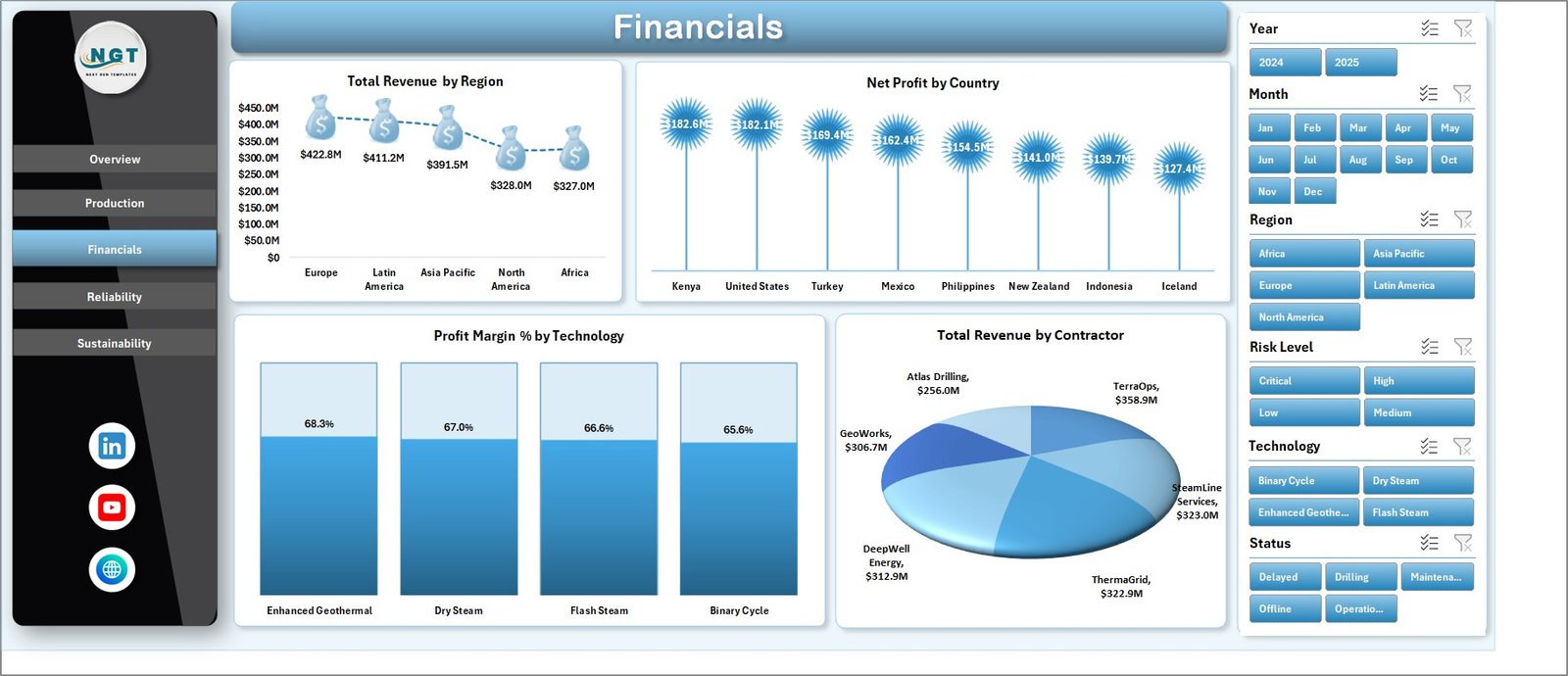
The Financials page helps teams review geothermal economics. Total Revenue by Region compares market contribution by geography. Net Profit by Country highlights country-level profitability. Profit Margin % by Technology shows which technology mix produces stronger margins. Total Revenue by Contractor supports contractor and partner performance reviews.
4. Reliability
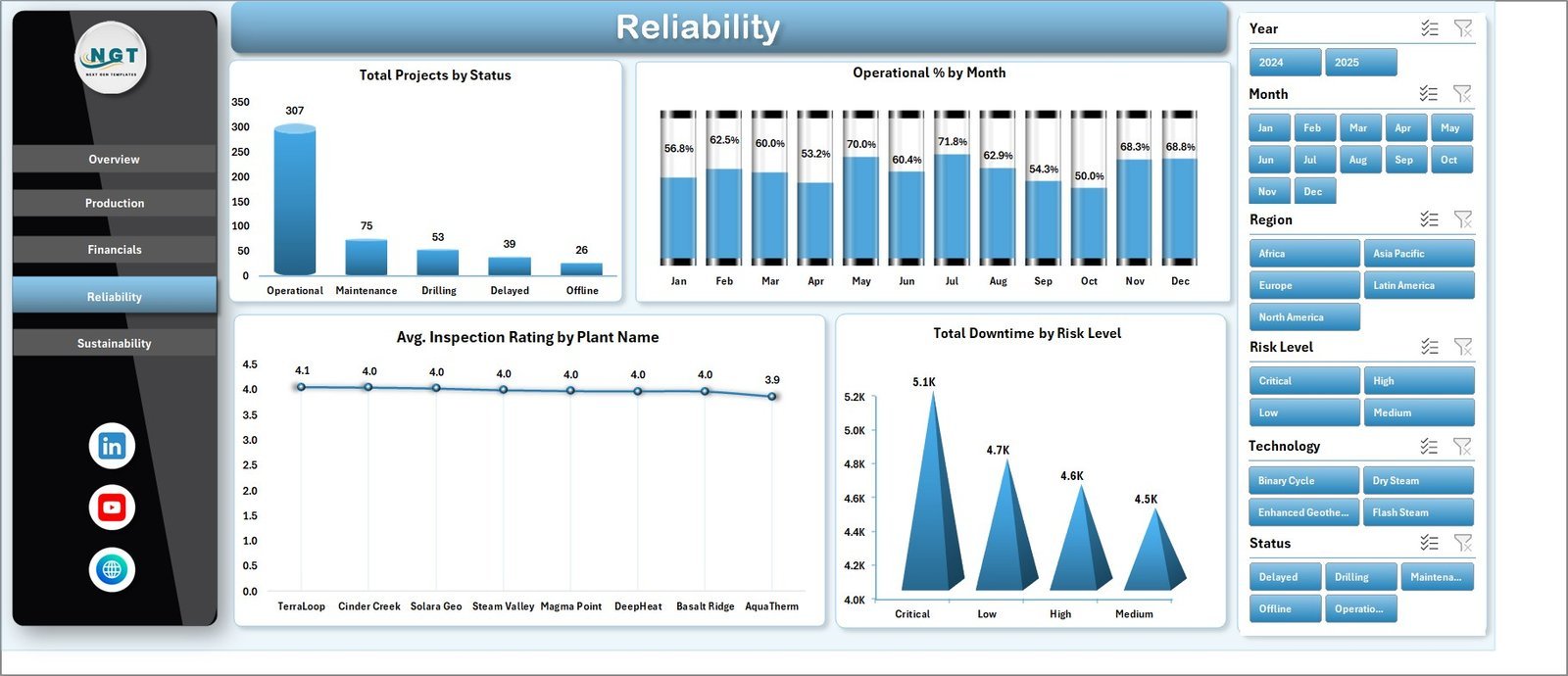
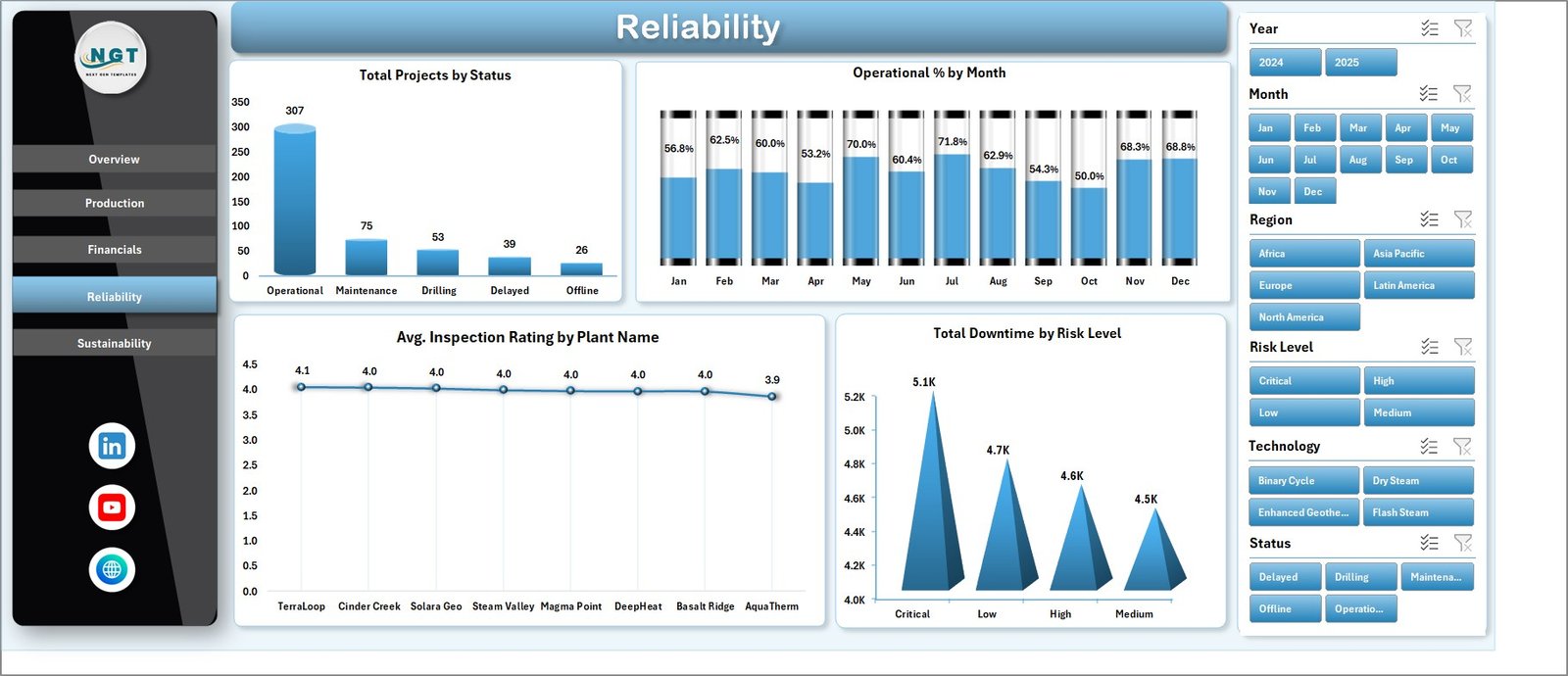
The Reliability page connects project status, uptime, inspections, and risk. Total Projects by Status shows the operating pipeline. Operational % by Month tracks reliability over time. Avg. Inspection Rating by Plant Name helps compare plant condition. Total Downtime by Risk Level highlights where downtime risk needs attention.
5. Sustainability
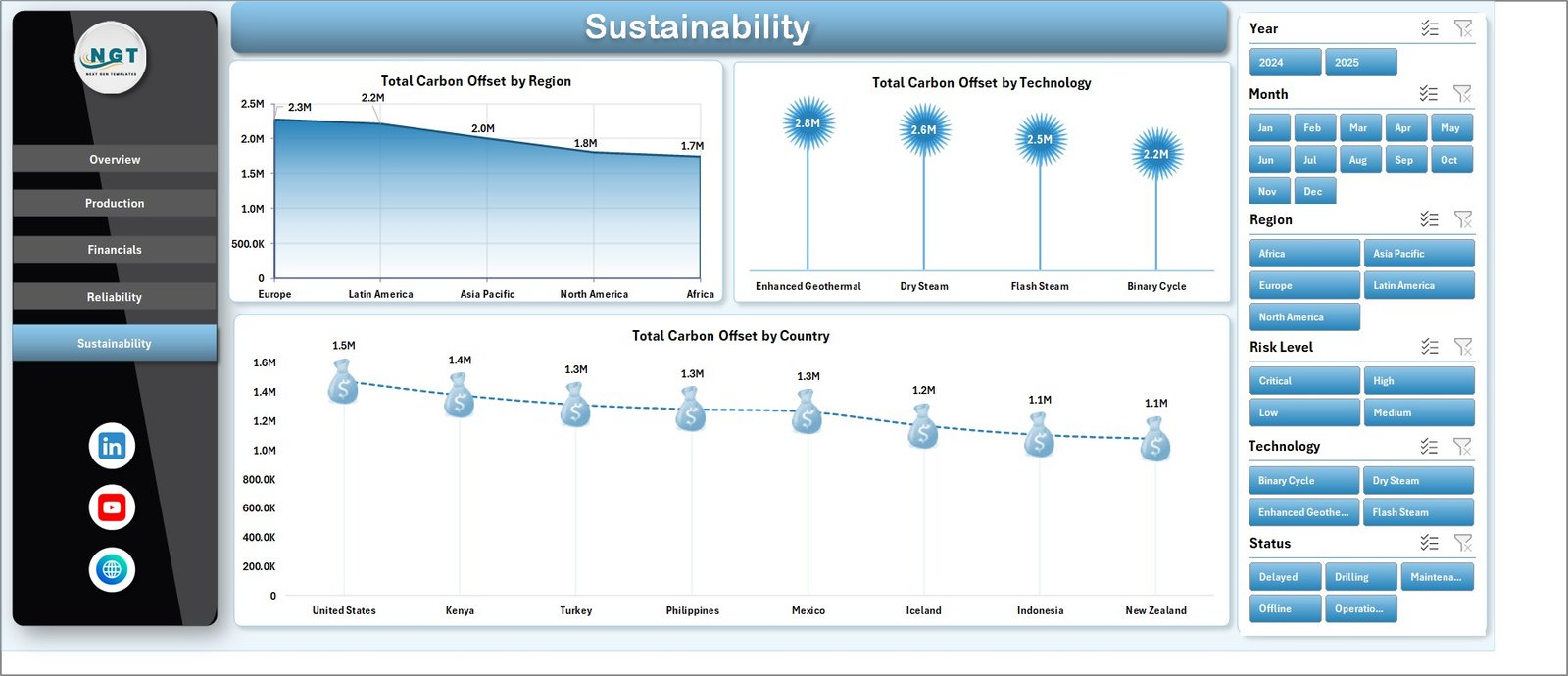
The Sustainability tab tracks geothermal environmental contribution. Total Carbon Offset by Region compares impact by geography. Total Carbon Offset by Technology shows how technology choices affect sustainability outcomes. Total Carbon Offset by Country supports country-level ESG and reporting views.
6. Data Sheet Tab
The Data Sheet is where users add geothermal plant records in the same format as the sample file. Keep the headers and column order consistent, paste your own data, and refresh the workbook to update slicers, pivots, cards, and charts.

7. Support Sheet
The Support Sheet contains multiple pivot tables used to create the dashboard dynamically. After updating the Data Sheet, go to the Data tab in the Excel Ribbon and click Refresh All. All pivots and charts refresh together, and this sheet can be hidden before sharing the workbook.

Geothermal Energy Dashboard in Excel vs. Google Sheets vs. Paid Energy SaaS – Where This Fits
| Feature | This Excel Dashboard | Google Sheets Alternative | Paid Energy SaaS |
|---|---|---|---|
| Cost | $17.99 one-time | Low software cost, manual build time | Monthly or annual subscription |
| Platform | Microsoft Excel | Browser-based spreadsheet | Vendor cloud platform |
| Setup time | Replace data and refresh pivots | Build formulas and charts manually | Configuration, onboarding, and imports |
| Customizable fields | Fully editable workbook | Editable if custom-built | Limited by vendor settings |
| Year-1 cost at 5 users | $17.99 plus existing Excel access | Low license cost, higher build effort | Often hundreds or thousands |
| Geothermal plant analytics | Included across 5 pages | Requires custom setup | Depends on product and plan |
Who This Template Is For – and Who It’s Not For
This template is for geothermal plant managers, renewable energy analysts, utility finance teams, ESG reporting teams, operations managers, contractors, country managers, and consultants who need a clear Excel reporting layer for generation, capacity, revenue, margin, downtime, project status, inspections, and carbon offset.
It is not a live SCADA system, plant control system, automated meter data platform, IoT monitoring layer, or replacement for audited financial systems. It works best when your geothermal data is already available in rows and columns and you need fast dashboard reporting.
How to Use the Geothermal Energy Dashboard in Excel
- Download and unzip the file after purchase.
- Open the workbook in Microsoft Excel.
- Go to the Data Sheet and replace the sample geothermal records with your own data.
- Keep the same column structure so the pivot tables stay connected.
- Click Data > Refresh All in the Excel Ribbon.
- Use slicers on the dashboard pages to filter by region, country, technology, plant, contractor, status, or other available fields.
- Hide the Support Sheet before sharing a polished version with stakeholders.
Real-World Use Cases
Meera, renewable operations manager: Meera reviews the Overview and Reliability pages every month to explain revenue, generation, capacity, operational percentage, inspection ratings, and downtime risk to leadership.
Daniel, geothermal finance analyst: Daniel uses the Financials page to compare revenue by region, net profit by country, margin by technology, and contractor contribution before preparing board reporting notes.
Asha, sustainability reporting lead: Asha updates the Data Sheet, refreshes the workbook, and uses the Sustainability tab to summarize carbon offset by region, technology, and country for ESG reporting.
Frequently Asked Questions
What KPI cards are included?
The Overview page includes Total Revenue, Net Profit, Total Generation, and Total Capacity cards.
How many pages are included?
The workbook includes five dashboard pages plus a Data Sheet and Support Sheet, making seven sheet tabs in total.
Can I use my own geothermal plant data?
Yes. Replace the sample rows in the Data Sheet, keep the same format, and click Refresh All.
Does this dashboard require macros?
No. It is built with native Excel tables, pivot tables, slicers, and charts.
Can I customize the dashboard?
Yes. You can adjust labels, charts, slicers, colors, fields, and worksheet names based on your reporting needs.
Does it replace plant monitoring software?
No. It is an Excel reporting dashboard, not a real-time plant control or telemetry platform.
About the Author
Built by PK – Microsoft Certified Professional with 15+ years of Excel, Google Sheets, and Power BI experience. Founder of NextGenTemplates, reaching 300K+ subscribers across YouTube channels. Every template is hand-built and tested before release.
Explore Related Templates
- Geothermal Energy KPI Dashboard in Excel
- Energy & Utility Dashboard in Excel
- Solar Energy Dashboard in Excel
- ESG Environmental Dashboard in Excel
Browse more MS Excel templates and Excel dashboard templates.
Read the supporting blog post: Geothermal Energy Dashboard in Excel.
Download the Geothermal Energy Dashboard in Excel and turn geothermal plant, financial, reliability, and sustainability data into a clean Excel reporting system.
Last updated: June 17, 2026.