

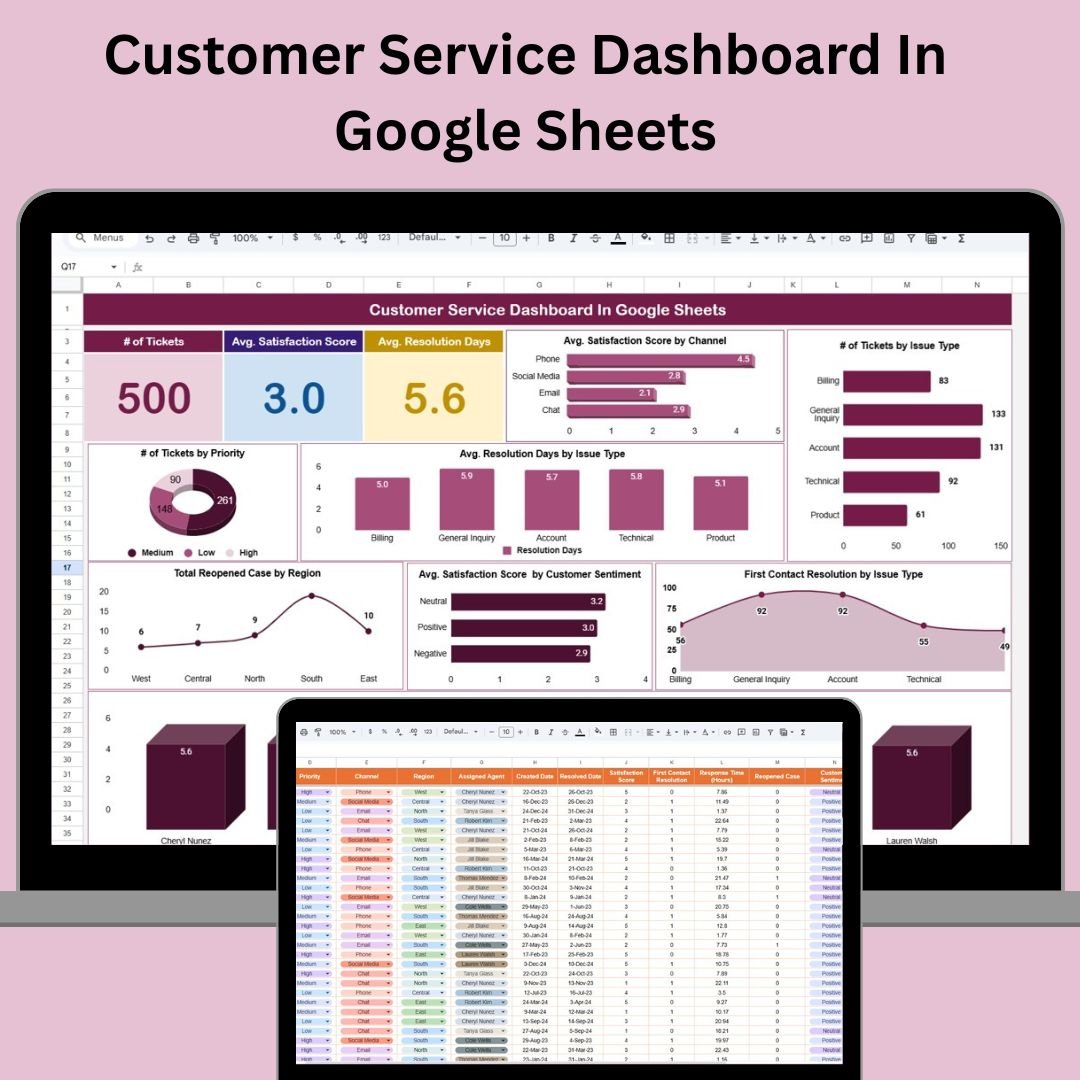
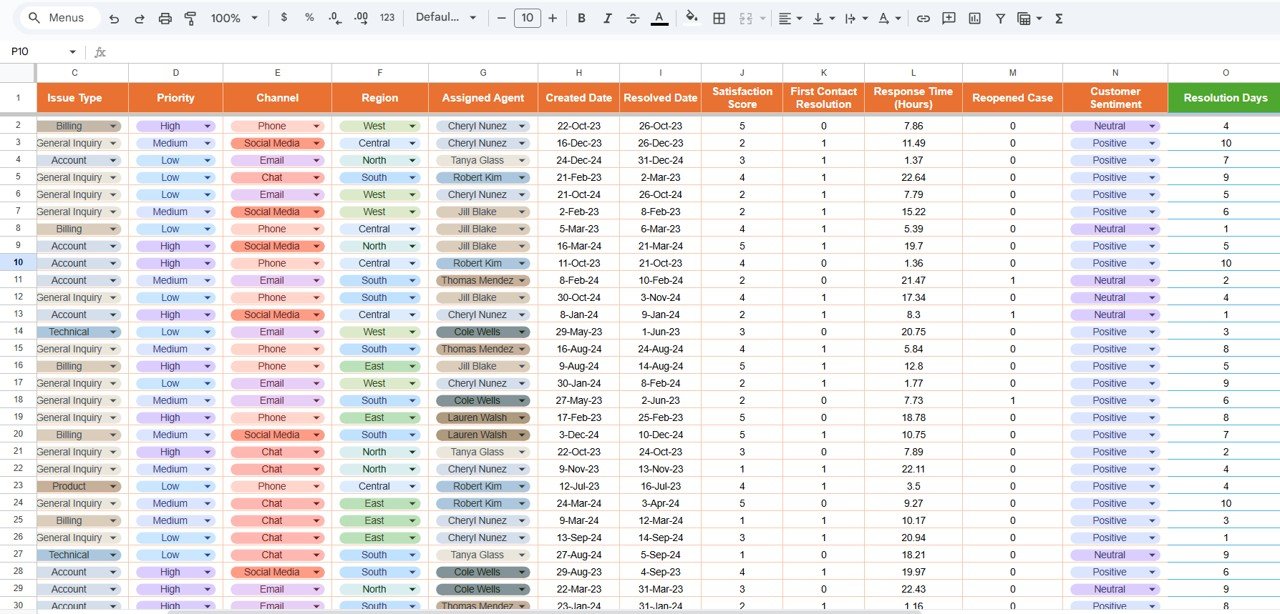

Planning and managing an effective customer service department requires real-time tracking of key performance indicators (KPIs). The Customer Service Dashboard in Google Sheets is a powerful tool designed to help businesses monitor their customer service performance. With this dashboard, you can keep track of important metrics, evaluate team efficiency, and make informed decisions to improve customer satisfaction.
Key Features:
Real-Time Data Integration: Automatically update your dashboard with real-time data inputs, ensuring that your performance metrics are always current and accurate.
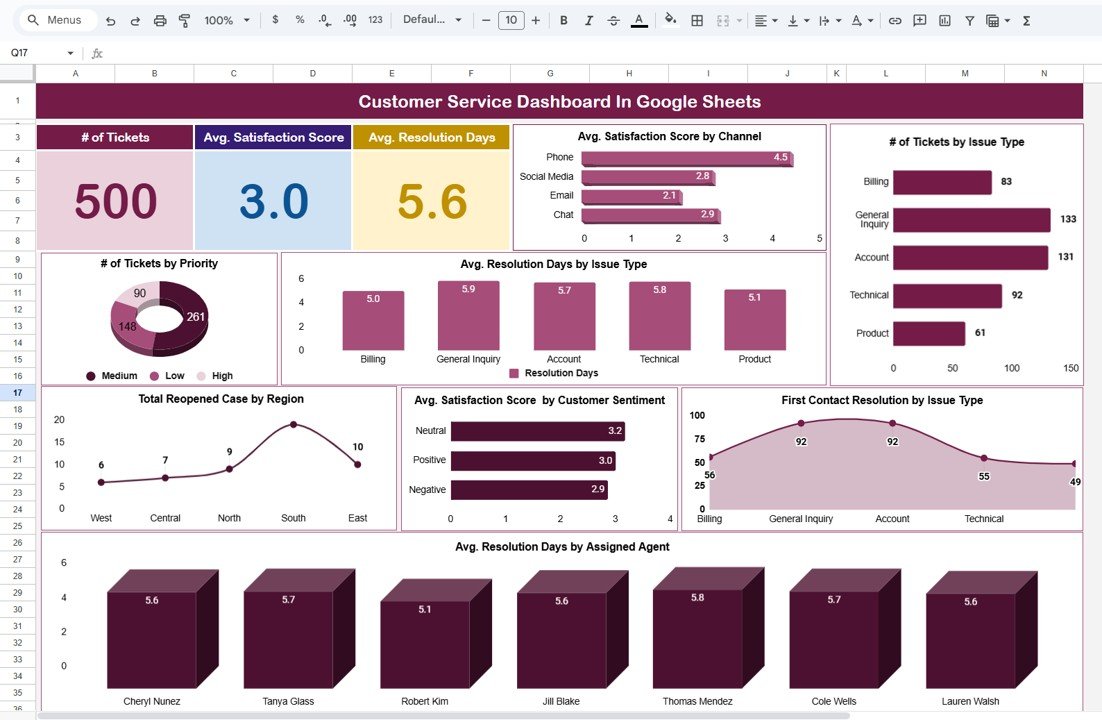
Customizable Metrics: Tailor the dashboard to your specific customer service goals, such as response time, resolution time, customer satisfaction scores, and ticket volume.
Interactive Visualizations: Utilize charts, graphs, and trend lines to visualize your data, making it easier to identify patterns, anomalies, and areas for improvement.
User-Friendly Interface: Navigate through the dashboard with ease, thanks to its intuitive design and layout, making it accessible for users with varying levels of technical expertise.
Collaboration Tools: Share the dashboard with team members and stakeholders to foster transparency and collaborative decision-making.
Benefits:
Enhanced Decision-Making: With real-time data and visualizations, make informed decisions that can improve your customer service strategy and reduce costs.
Increased Accountability: Track progress towards your customer service goals and identify areas for improvement, promoting accountability within your organization.
Resource Optimization: By identifying trends and patterns, allocate resources more effectively to areas that require attention, ensuring optimal use of assets.
Regulatory Compliance: Stay compliant with customer service regulations by monitoring key metrics and ensuring that your operations meet required standards.
How to Use:
Access the Template: Open the provided Google Sheets template link.
Customize Metrics: Modify the existing metrics or add new ones that align with your organization’s goals.
Input Data: Regularly update the dashboard with your organization’s data to keep it current.
Analyze Trends: Use the visualizations to identify trends and make data-driven decisions.
Share Insights: Collaborate with team members and stakeholders by sharing the dashboard and discussing the insights gathered.
Who Can Benefit:
Customer Service Managers: Oversee the performance of customer service teams and ensure they meet their objectives.
Support Agents: Monitor personal performance and identify areas for improvement.
Team Leaders: Analyze team performance and implement strategies to enhance efficiency.
Business Analysts: Provide insights into customer service performance and recommend improvements.
By implementing the Customer Service Dashboard in Google Sheets, organizations can enhance their ability to monitor performance, make informed decisions, and ultimately improve the efficiency and impact of their customer service strategies.
Click here to read the Detailed blog post
Visit our YouTube channel to learn step-by-step video tutorials
Youtube.com/@PKAnExcelExpert
Watch the step-by-step video tutorial:
Compatibility and Requirements
- Works in Google Sheets. You need a free Google account and a web browser.
- The charts and trend lines are built into the sheet. Google explains charts in Add & edit a chart or graph.
Frequently Asked Questions
Which customer service metrics can I track?
Response time, resolution time, customer satisfaction scores and ticket volume. You can also add your own metrics.
How do I get the template?
You open the Google Sheets template link provided with your purchase, then enter your own data.
Can my team use the same dashboard?
Yes. You can share the dashboard with team members and stakeholders so everyone sees the same figures.
How does it show trends?
Charts, graphs and trend lines show patterns, anomalies and areas that need work.
Is there an Excel version?
Yes. The Customer Service Dashboard in Excel covers the same topic in Excel.
Related Customer Service Templates
- Customer Service Dashboard in Excel: the same topic in Excel
- Customer Service Performance Dashboard in Google Sheets: team performance in Google Sheets
- Customer Service KPI Dashboard in Power BI: service KPIs in Power BI
- Customer Service Request Tracker in Google Sheets: log each customer request
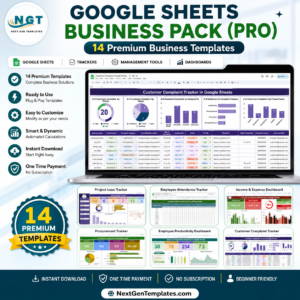
- Google Sheets Business Pack (Pro): 14 Google Sheets business templates in one download
Browse all Google Sheets dashboards or the Google Sheets sales and marketing templates.






Reviews
There are no reviews yet.