

The Comparative Analysis Dashboard in Power BI is an interactive tool for analysing sales performance, budget adherence and year-over-year growth trends in one place. It is built for analysts, sales managers and business executives who need to compare actual vs. budgeted sales, review past year comparisons and look ahead with future projections. The result is a clear view of where sales are growing, where budgets are being missed, and which products need attention.

Key Features of the Comparative Analysis Dashboard
Dynamic Year Selector
An interactive year slicer lets you filter and compare sales data across different time periods. This makes it easier to analyse yearly trends and pinpoint variations in performance without rebuilding any visuals.
Insightful Visuals for Performance Tracking
- Headline figures for Current Year (CY) Sales, Previous Year (PY) Sales, Budgeted Sales and Variance Percentages are displayed prominently.
- Doughnut charts show sales distribution across product categories, so stakeholders can see which segments contribute most to revenue.
- Scatter plots compare sales growth percentage vs. total sales by product name, helping you spot high- and low-performing products.
Trend and Forecast Analysis
- A monthly trend line tracks CY Sales, PY Sales and Budgeted Sales, showing seasonal trends and performance fluctuations over the year.
- The Sales Trend with Forecast chart uses predictive analytics to estimate future sales and support data-driven decisions.
Budget Variance Analysis
- A budget variance percentage by category and month shows how actual sales compare to projected figures.
- A waterfall chart highlights monthly deviations, identifying where budgets were exceeded or fell short.
Product-Level Sales Comparison
- Bar charts display CY Sales, PY Sales and Budgeted Sales for individual products, so you can track performance at a granular level.
- Quickly identify which products are exceeding expectations and which require strategic interventions.
What’s Inside the Dashboard
| Section / Visual | What It Shows |
|---|---|
| Year slicer | Filter and compare sales across different years |
| KPI figures | CY Sales, PY Sales, Budgeted Sales and Variance % |
| Doughnut charts | Category-wise sales distribution |
| Scatter plot | Sales growth % vs. total sales by product name |
| Monthly trend line | CY, PY and Budgeted Sales month by month |
| Sales Trend with Forecast | Estimated future sales based on predictive analytics |
| Budget variance by category and month | Actual vs. projected sales performance |
| Waterfall chart | Monthly deviations from budget |
| Product bar charts | Product-level sales comparison of CY, PY and Budget |
Why Use This Power BI Sales Dashboard?
- Optimize sales performance – gain real-time insights into key sales metrics and identify growth opportunities.
- Make data-driven decisions – analyse trends, set realistic targets and align sales strategies with business goals.
- Streamline budgeting and forecasting – improve financial planning with budget variance tracking and predictive analytics.
- User-friendly and interactive – Power BI slicers, filters and drill-through features let users explore data effortlessly.
Who It’s For
- Sales managers who want to compare this year’s results against last year and against budget.
- Business and data analysts who need a ready-made structure for year-over-year growth and variance reporting.
- Business executives who want a clear, visual summary of performance, budget adherence and future projections.
- Finance and planning teams focused on budgeting processes and forecasting.
How to Use It
- Open the dashboard in Power BI.
- Use the year slicer to choose the period you want to analyse and compare.
- Review the CY Sales, PY Sales, Budgeted Sales and Variance % figures at the top.
- Explore category distribution in the doughnut charts and product growth in the scatter plot.
- Check the monthly trend line, forecast chart and waterfall chart to understand seasonality and budget deviations.
- Use the product bar charts and drill-through features to investigate individual products.
Click here to read the detailed blog post Comparative Analysis Dashboard in Power BI
Watch the step-by-step video tutorial: Comparative Analysis Dashboard in Power BI
Frequently Asked Questions
What does the Comparative Analysis Dashboard in Power BI compare?
It compares Current Year (CY) Sales, Previous Year (PY) Sales and Budgeted Sales, along with variance percentages, by category, by month and by product.
Does the dashboard include a sales forecast?
Yes. The Sales Trend with Forecast chart uses predictive analytics to estimate future sales, helping you plan ahead.
How does the budget variance analysis work?
The dashboard shows budget variance percentage by category and month, and a waterfall chart highlights monthly deviations where budgets were exceeded or fell short.
Can I filter the data by year?
Yes. A dynamic year slicer lets you filter and compare sales data across different time periods.
Can I analyse individual products?
Yes. Bar charts provide a product-level sales comparison of CY, PY and Budgeted Sales, and a scatter plot shows sales growth % vs. total sales by product name.
Is there a tutorial available?
Yes. A detailed blog post and a step-by-step video tutorial are linked above on this page.
Also check our Inventory Management Form in Excel
Last updated: October 2026
Compatibility and Requirements
- Opens in Power BI Desktop, which is free for Windows. Microsoft explains how to install it in Get Power BI Desktop.
- The dashboard uses Power BI slicers, filters and drill-through, which all work in Power BI Desktop.
Related Sales and Variance Templates
- Comparative Analysis Dashboard in Excel: the same CY, PY and budget comparison in Excel
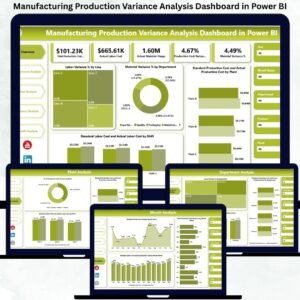
- Manufacturing Production Variance Analysis Dashboard in Power BI: variance analysis for production figures
- Dynamic Variance Arrows Chart with Slicers: an Excel chart for budget vs actual
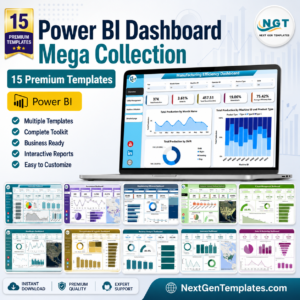
- Power BI Dashboard Mega Collection: 15 Power BI dashboards in one download
Browse all Power BI dashboards or the Excel sales and marketing templates.




Reviews
There are no reviews yet.