

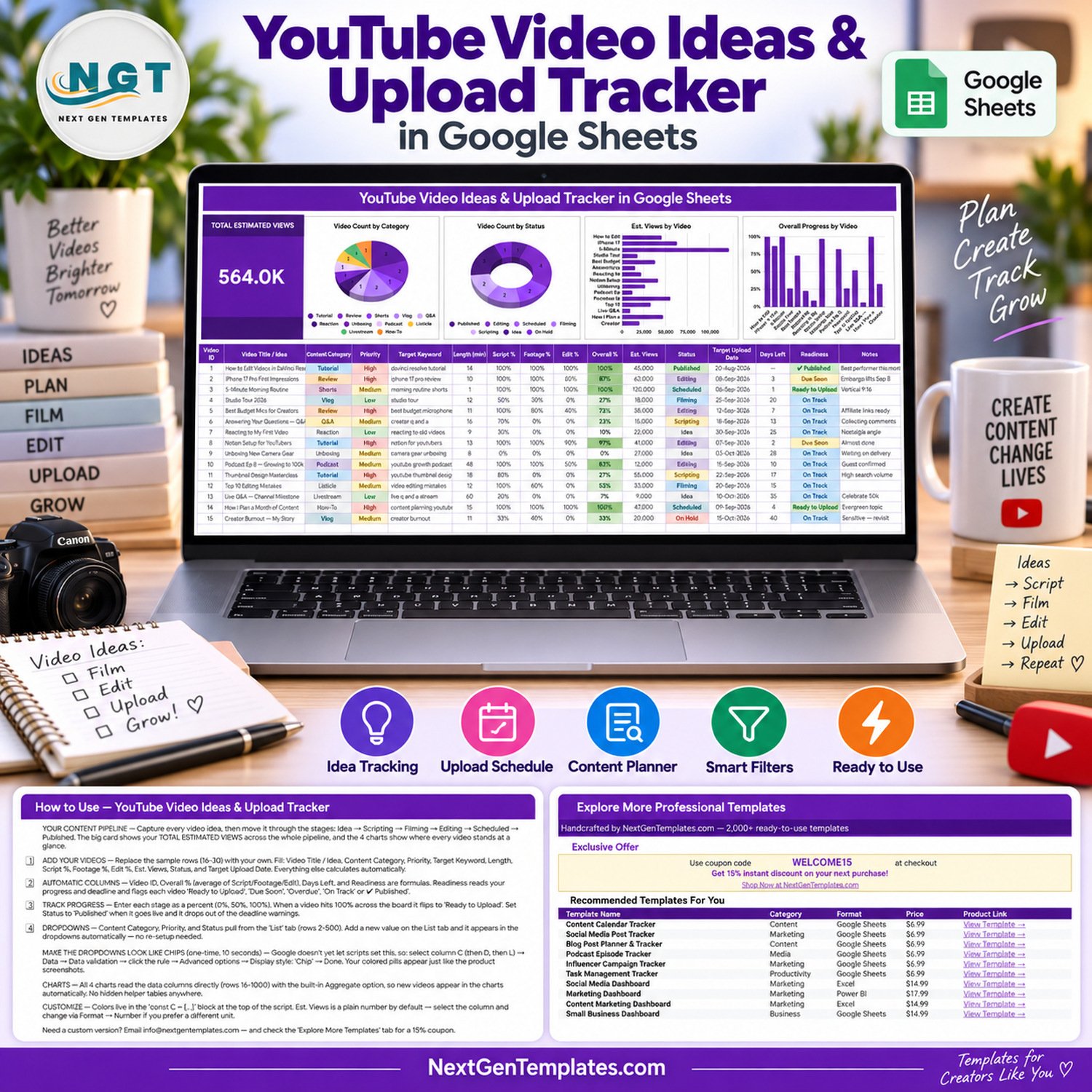

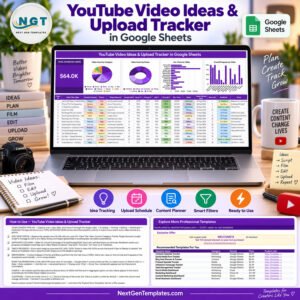
Most channels do not run out of ideas; they lose them between a notes app, a half-written script and a forgotten upload date. The YouTube Video Ideas Upload Tracker in Google Sheets keeps every idea on one page and walks it from Idea to Published. The sample file ships with 15 videos, 16 columns of which 4 calculate themselves, 4 live charts and one headline card reading 564.0K Total Estimated Views across the whole pipeline. Your download is a PDF with a “Make a copy” link, so the tracker lands in your own Google Drive in about a minute.
🌍 Built by NextGenTemplates, whose catalogue runs past 2,000 ready-to-use Excel, Google Sheets, Power BI and HTML templates.
✅ Instant download · One-time payment · No subscription · No per-user fees · Lifetime access
🔑 Key Features of the YouTube Video Ideas & Upload Tracker
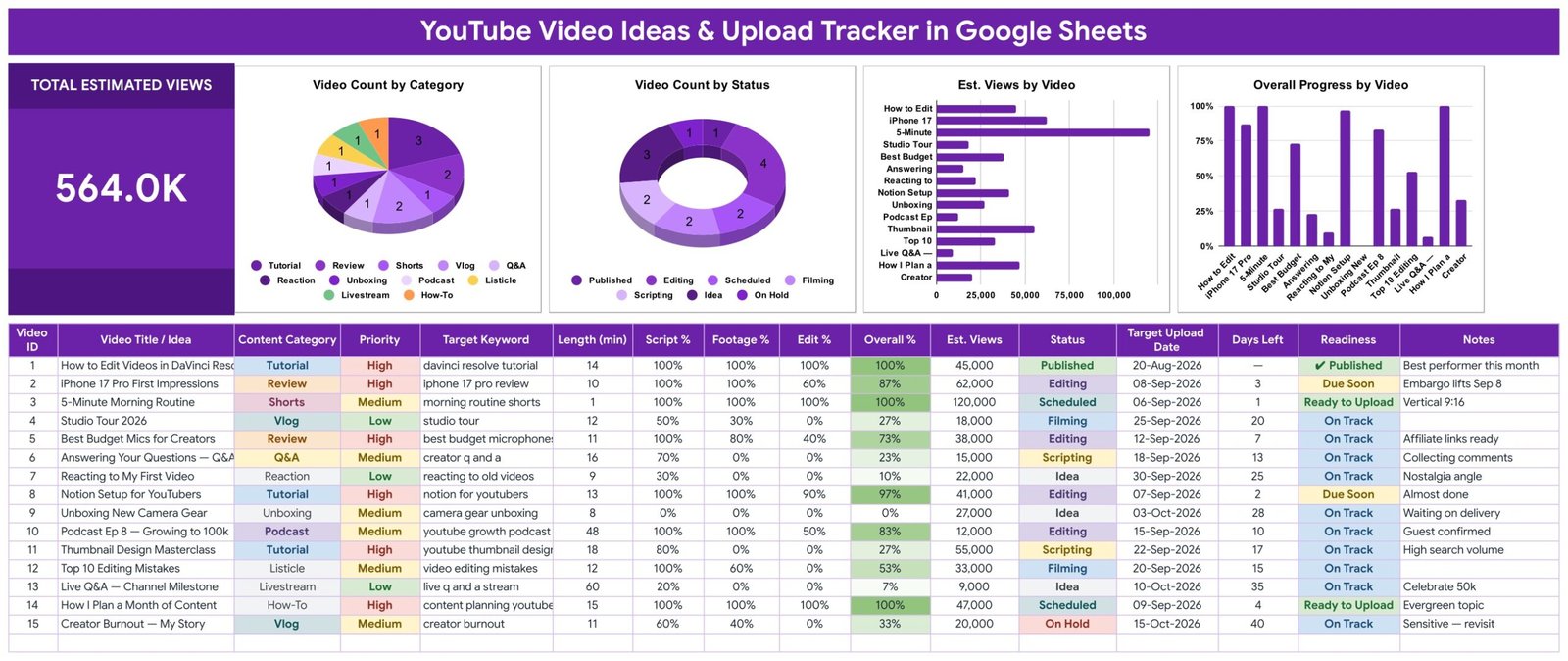
🎯 Total Estimated Views card. One big number adds the Est. Views column for every video in the log. With the 15 sample videos it reads 564.0K, and it updates the moment you type a new estimate or add a row.
🎬 A six-stage content pipeline. Every video carries a Status of Idea, Scripting, Filming, Editing, Scheduled or Published, plus On Hold for anything parked. The Video Count by Status chart shows at a glance where the work is piling up.
📈 Stage progress in percent. Enter Script %, Footage % and Edit % for each video. Overall % is calculated automatically as the average of the three and is shaded green as it climbs towards 100%.
⏰ Deadline-aware Readiness flags. Days Left counts down to the Target Upload Date, and the Readiness column reads your progress and deadline to label each video Ready to Upload, Due Soon, Overdue, On Track or ✔ Published.
🗂️ Categories, priorities and keywords. Tag each idea with one of 11 content categories (Tutorial, Review, Shorts, Vlog, Q&A, Reaction, Unboxing, Podcast, Listicle, Livestream, How-To), a High, Medium or Low priority and the target keyword you want it to rank for.
📊 Four charts linked straight to the data. Video Count by Category, Video Count by Status, Est. Views by Video and Overall Progress by Video all read rows 16-1000 directly, so new videos appear without any helper table.
🔽 Self-growing dropdowns. Content Category, Priority and Status pull from the List tab (rows 2-500). Add a new category there and it shows up in the dropdown immediately.
📦 What’s Inside the YouTube Video Ideas Upload Tracker
Tracker Page: KPI Card, Charts and the Video Log
The main tab opens with the Total Estimated Views card and four charts: Video Count by Category, Video Count by Status, Est. Views by Video and Overall Progress by Video. Below them sits the 16-column log: Video ID, Video Title / Idea, Content Category, Priority, Target Keyword, Length (min), Script %, Footage %, Edit %, Overall %, Est. Views, Status, Target Upload Date, Days Left, Readiness and Notes.
How to Use Tab
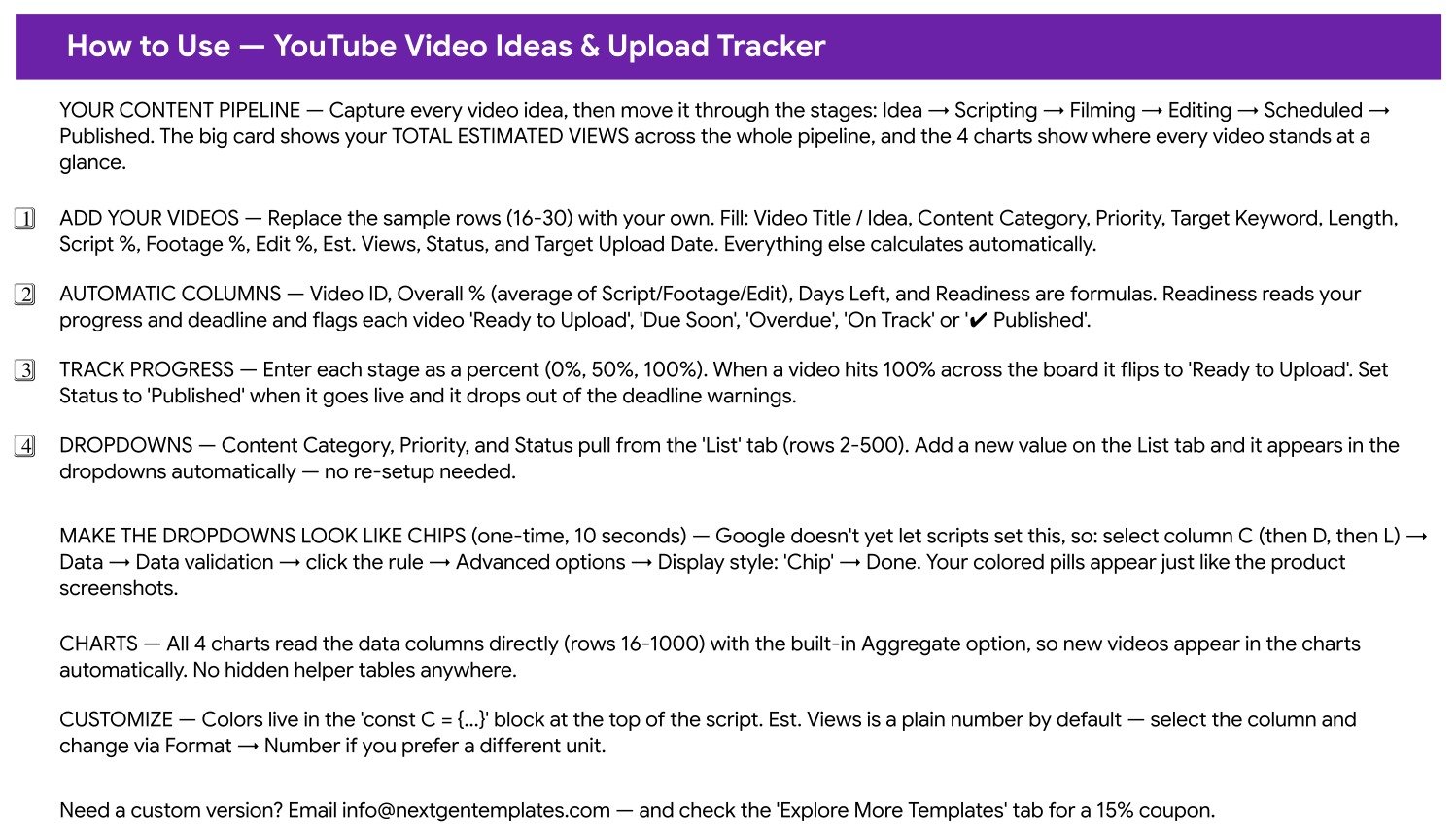
A plain-language guide to the pipeline stages, which columns you fill in, which ones are formulas, how Readiness decides its label, how the dropdowns grow and the one-time step that turns the dropdowns into coloured chips.
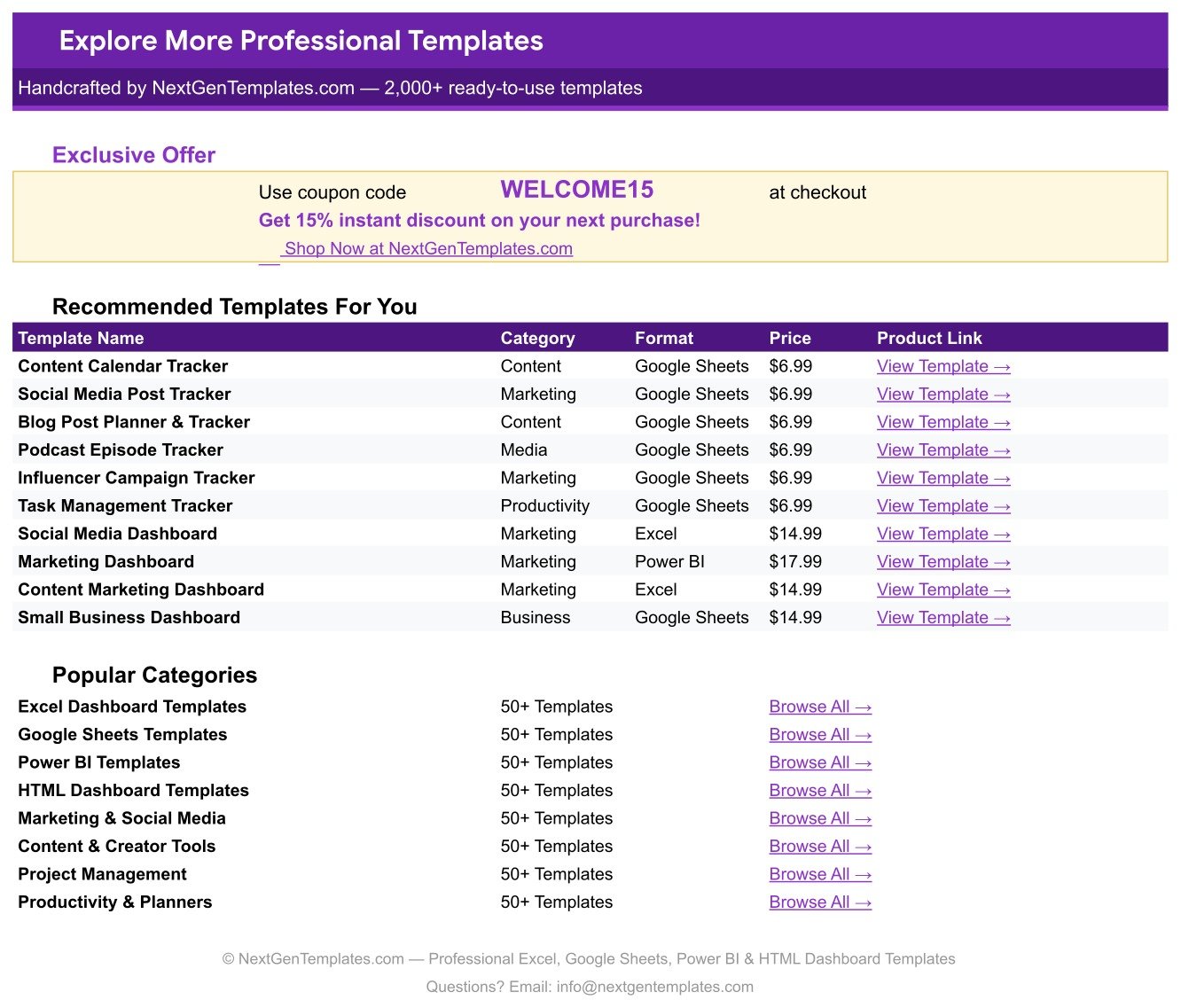
Explore More Templates Tab
A list of recommended templates and popular categories, plus the WELCOME15 coupon code for 15% off your next purchase at NextGenTemplates.com.
A List tab holds the dropdown values for Content Category, Priority and Status.
📊 YouTube Video Ideas Upload Tracker vs. an Excel Content Calendar vs. Paid Planning Apps – Where This Fits
| Feature | YouTube Video Ideas & Upload Tracker (Google Sheets) | Excel content calendar | Notion / Airtable / Trello paid plans |
|---|---|---|---|
| Cost | ✅ $6.99 one-time | One-time template price, needs Excel | Monthly fee per member on paid plans |
| Platform | ✅ Browser, any Google account | Excel desktop or Microsoft 365 | Web and mobile apps |
| Setup time | ✅ About a minute (Make a copy) | Download and open | Build boards, fields and views yourself |
| Real-time collaboration with an editor | ✅ Share the sheet | Via OneDrive / SharePoint | ✅ Yes |
| Mobile access | ✅ Google Sheets app | Excel mobile app | ✅ Native apps |
| Customizable fields | ✅ Any column, any dropdown value | ✅ Yes | Limited by plan |
| Stage progress and Readiness flags built in | ✅ Overall %, Days Left, Readiness | Usually manual | Needs formulas or automations |
| Views and progress charts built in | ✅ 4 charts plus a KPI card | Varies by template | Charts often need a higher plan |
| Year-1 cost for a 5-person channel team | ✅ $6.99 total | Template plus Microsoft 365 licences | Five monthly seats |
For creators who want a clear idea-to-upload pipeline without paying for another monthly seat, the YouTube Video Ideas & Upload Tracker sits in the sweet spot.
👥 Who This Template Is For – and Who It’s Not For
✅ This template is built for:
- 🎥 Solo YouTubers juggling tutorials, reviews, vlogs and Shorts on one upload calendar
- ✂️ Small channel teams where a creator and an editor need to see the same stage progress
- 🏢 Brands and agencies planning a video series against target keywords and upload dates
❌ This template is NOT for:
- Anyone who wants real view counts pulled from YouTube Analytics – Est. Views is a number you type in, and the sheet does not connect to YouTube
- Teams that need automatic uploading, publishing, reminders or approval workflows
⚙️ How to Use the YouTube Video Ideas & Upload Tracker
- Open the PDF from your download and click the link to make your own copy in Google Drive.
- Add or rename categories, priorities and statuses on the List tab if you need different values.
- Replace sample rows 16-30 with your videos: title, category, priority, keyword, length, stage percents, Est. Views, Status and Target Upload Date.
- Update Script %, Footage % and Edit % as each stage moves forward; Overall %, Days Left and Readiness update themselves.
- Set Status to Published when a video goes live so it drops out of the deadline warnings.
- Optional: switch the dropdowns to chip style via Data, Data validation, Advanced options, Display style: Chip.
💼 Real-World Use Cases
Maya runs a tech-review channel on her own. She logs every product idea the day it comes up, tags it Review or Unboxing, and watches the Readiness column so an embargoed review never slips past its Target Upload Date.
Dev edits for two creators. Both creators share one copy of the tracker with him. He updates Edit % as he works, and the Overall Progress by Video chart shows the creators which uploads are nearly ready without a status call.
A small marketing team plans a tutorial series. They enter a target keyword and a realistic view estimate for each episode, then use Est. Views by Video to decide which topics deserve filming first.
❓ Frequently Asked Questions
How do I get the tracker after buying?
Your download is a PDF that contains the Google Sheets copy link. Click it while signed in to a Google account and a fully editable copy of the YouTube Video Ideas & Upload Tracker is saved to your own Google Drive. No add-on or script authorisation is needed to start logging videos.
Does it pull real views from my YouTube channel?
No. Est. Views is a planning estimate you type in yourself, and the Total Estimated Views card adds those estimates. The tracker has no connection to YouTube or YouTube Analytics, so it will not import views, subscribers or upload data automatically.
How is the Readiness label decided?
Readiness reads each video’s Overall % together with its Days Left to the Target Upload Date. It shows Ready to Upload when all stages are complete, Due Soon or Overdue as the deadline approaches or passes, On Track otherwise, and ✔ Published once Status is set to Published.
Will new videos appear in the charts?
Yes. All four charts read the data columns directly from rows 16 to 1000 using the built-in Aggregate option, so any video you add below the sample rows is counted in the category, status, views and progress charts automatically.
Can I add my own content categories?
Yes. Content Category, Priority and Status dropdowns read from the List tab, rows 2 to 500. Type a new value there, such as Behind the Scenes, and it appears in the dropdown on the tracker straight away with no re-setup.
Why do my dropdowns look like plain text instead of coloured chips?
Google does not let a script set the chip display style. Select the Content Category column, open Data, Data validation, click the rule, choose Advanced options and set Display style to Chip. Repeat for Priority and Status; it takes about ten seconds.
How does this compare to Notion or Airtable?
Notion and Airtable are flexible databases billed per member on paid plans. The YouTube Video Ideas & Upload Tracker is a one-time $6.99 Google Sheet with the pipeline, Readiness logic and charts already built, which suits creators who only need a focused upload planner.
👤 About the Author
Built by PK – Microsoft Certified Professional with 15+ years of Excel, Google Sheets and Power BI experience. Founder of NextGenTemplates, reaching 300K+ subscribers across YouTube channels (@PKAnExcelExpert, @NextGenTemplates, @NeoTechNavigators). Every template is hand-built and tested before release.
🔗 Explore Related Templates
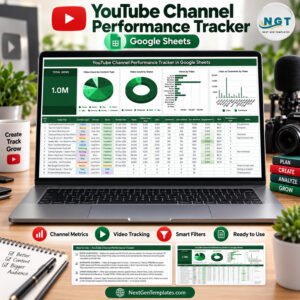
📺 Once your videos are live, measure them with the YouTube Channel Performance Tracker in Google Sheets.
💰 Follow the money side of your channel in the Content Creator Revenue Dashboard in Google Sheets.
🤝 Working with sponsors or collaborators? Try the Social Media Influencer Tracking Dashboard in Google Sheets or the Copywriting and Content Dashboard in Google Sheets.
🗃️ Browse every Google Sheets tracker template. For help with dropdown rules, see Google’s guide to creating an in-cell dropdown list.
📖 Click here to read the Detailed Blog Post
🎥 Visit our YouTube channel for step-by-step video tutorials
👉 YouTube.com/@NextGenTemplates
Watch the step-by-step video Demo:
📅 Last updated: September 2026























Reviews
There are no reviews yet.