

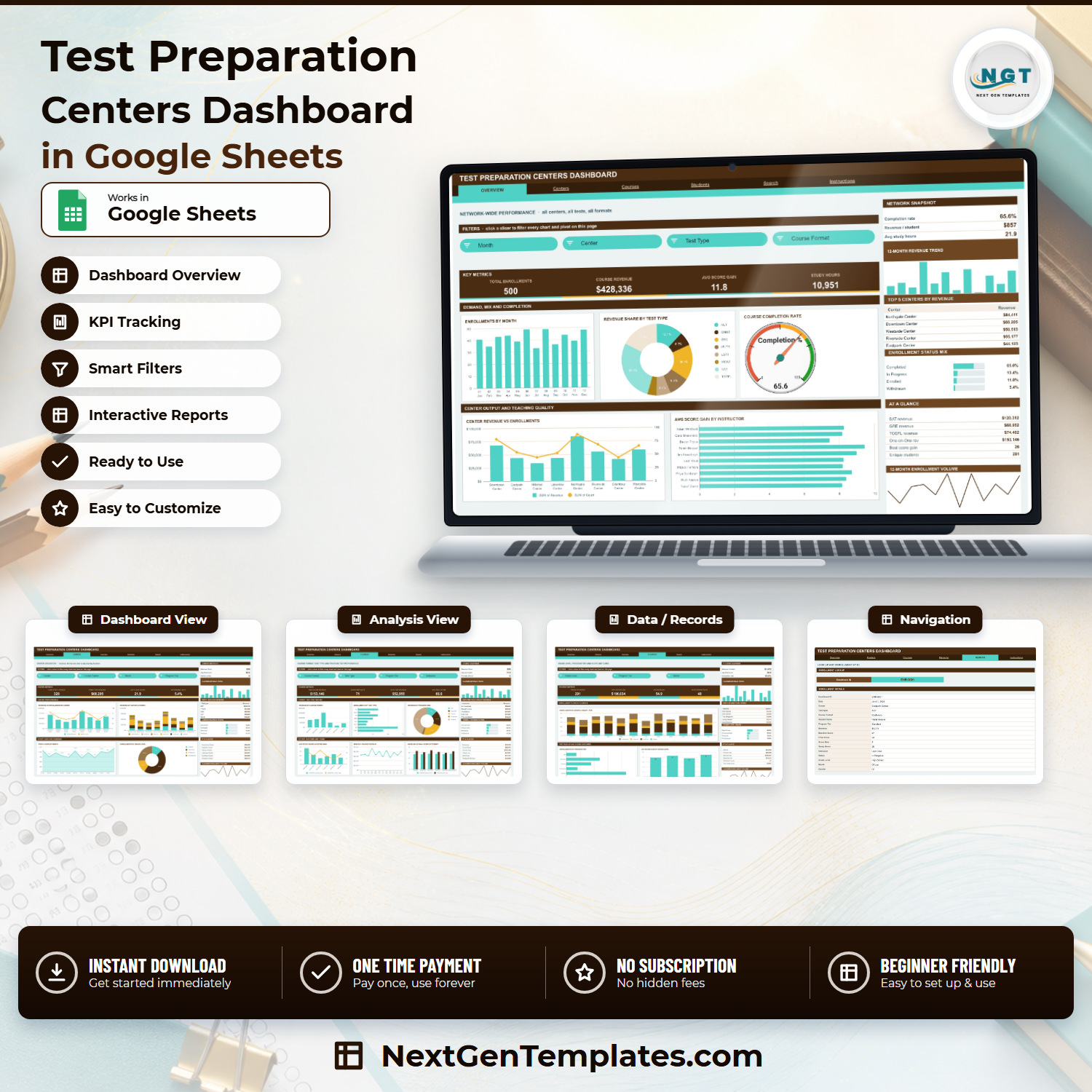

The Test Preparation Centers Dashboard in Google Sheets reports on 500 sample enrollments across 8 centers, 8 test types, 6 course formats and 5 program tiers, spread over 6 tabs with 15 slicers and 21 charts and panels. Setup takes under 10 minutes: open the copy link in the PDF, paste your own enrollment rows over the sample data, and every pivot, chart and Top 5 panel recalculates on its own.
🌎 Join 8,400+ teams in 40+ countries using NextGenTemplates to replace paid SaaS reporting tools with one-time-purchase Excel, Google Sheets, Power BI and HTML templates.
✅ Instant download · One-time payment · No subscription · No per-user fees · Lifetime access
🔑 Key Features of the Test Preparation Centers Dashboard in Google Sheets
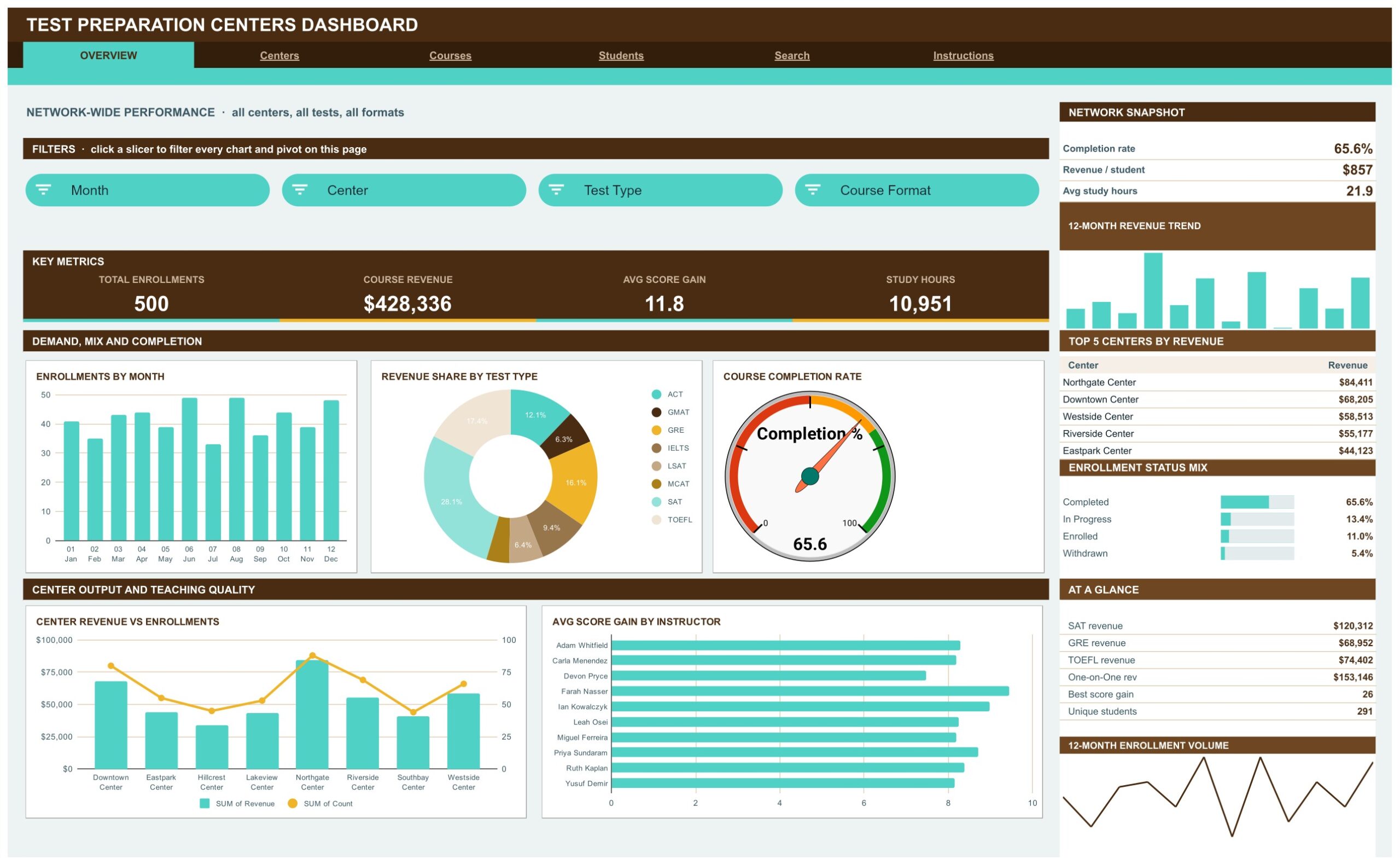
📊 Four KPI cards on every analysis page. The Overview page reports Total Enrollments 500, Course Revenue $428,336, Avg Score Gain 11.8 and Study Hours 10,951. The Centers, Courses and Students pages each carry their own four-card strip, so twelve headline numbers are visible without scrolling.
🎟️ 15 native Google Sheets slicers. Overview filters on Month, Center, Test Type and Course Format; Centers adds Program Tier; Courses filters on Course Format, Test Type, Program Tier and Instructor; Students filters on Grade Level, Program Tier and Month. Slicers are per page, so each tab keeps its own view.
📈 Built on native pivot tables, not helper formulas. Every chart reads a pivot table parked to the right of its page. There are no volatile helper columns behind the visuals, so the file stays responsive as the enrollment log grows.
🎯 Score-gain measurement is built in. Score Gain is Final Score minus Baseline Score, and only Completed and In Progress rows carry a gain — Enrolled, Deferred and Withdrawn rows are zero by design, so your averages are not diluted by students who never sat the test.
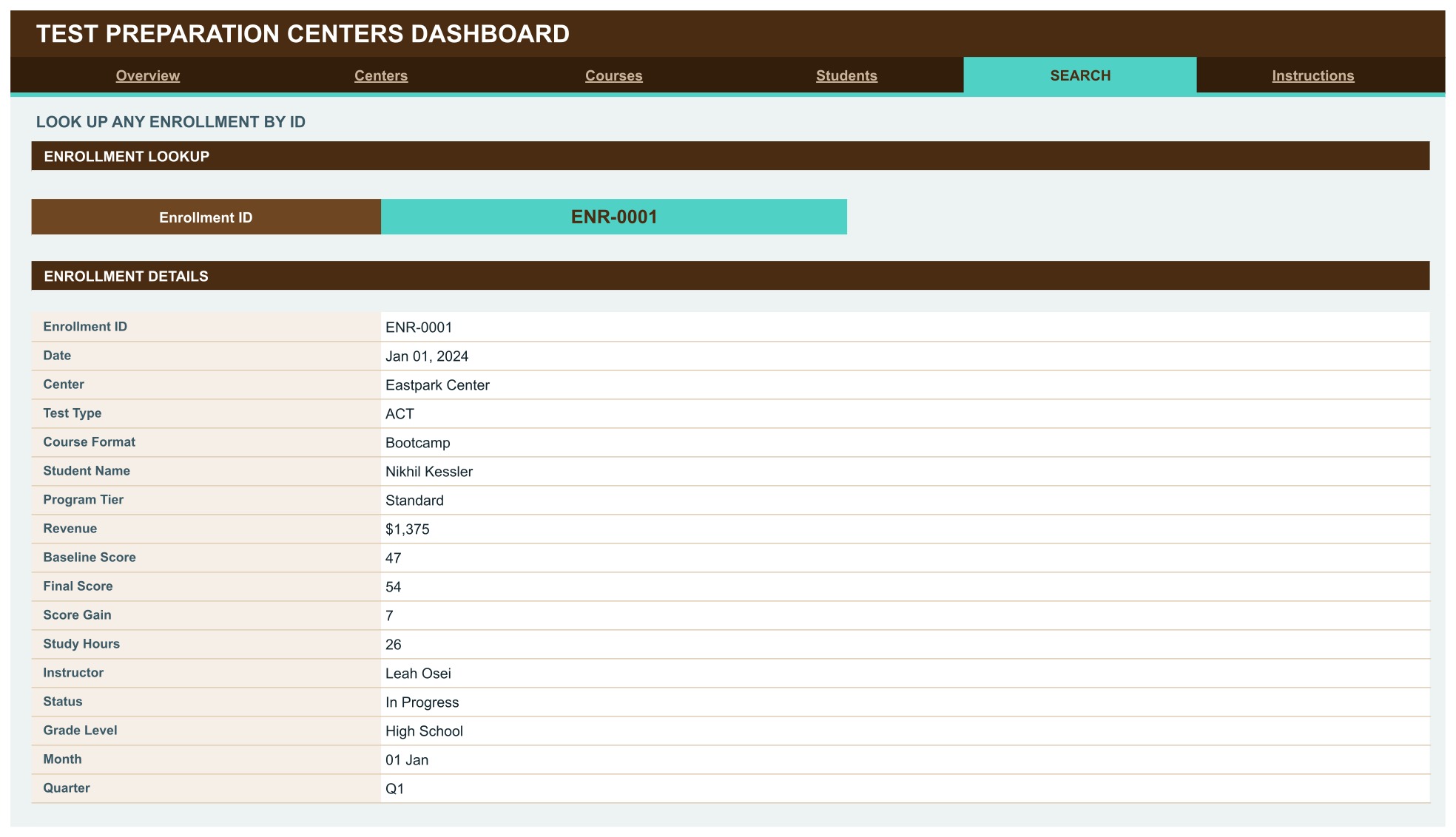
🔍 An Enrollment ID lookup page. Pick any Enrollment ID from a dropdown and the Search tab returns all 17 fields for that record, from Center and Test Type through Baseline Score, Final Score, Study Hours and Instructor.
🔁 Room for 1,000 rows out of the box. Pivots, slicers and every formula already cover data rows 2 to 1001. Paste new enrollments anywhere in that range and the whole dashboard updates without touching a single range reference.
📦 What’s Inside the Test Preparation Centers Dashboard in Google Sheets
Page 1: Overview — Network-Wide Performance
The network view across all centers, all tests and all formats. KPI cards report Total Enrollments, Course Revenue, Avg Score Gain and Study Hours; charts include Enrollments by Month, Revenue Share by Test Type, Course Completion Rate on a gauge, Center Revenue vs Enrollments and Avg Score Gain by Instructor. The right rail holds a Network Snapshot, a 12-Month Revenue Trend, Top 5 Centers by Revenue, an Enrollment Status Mix and an At a Glance list.
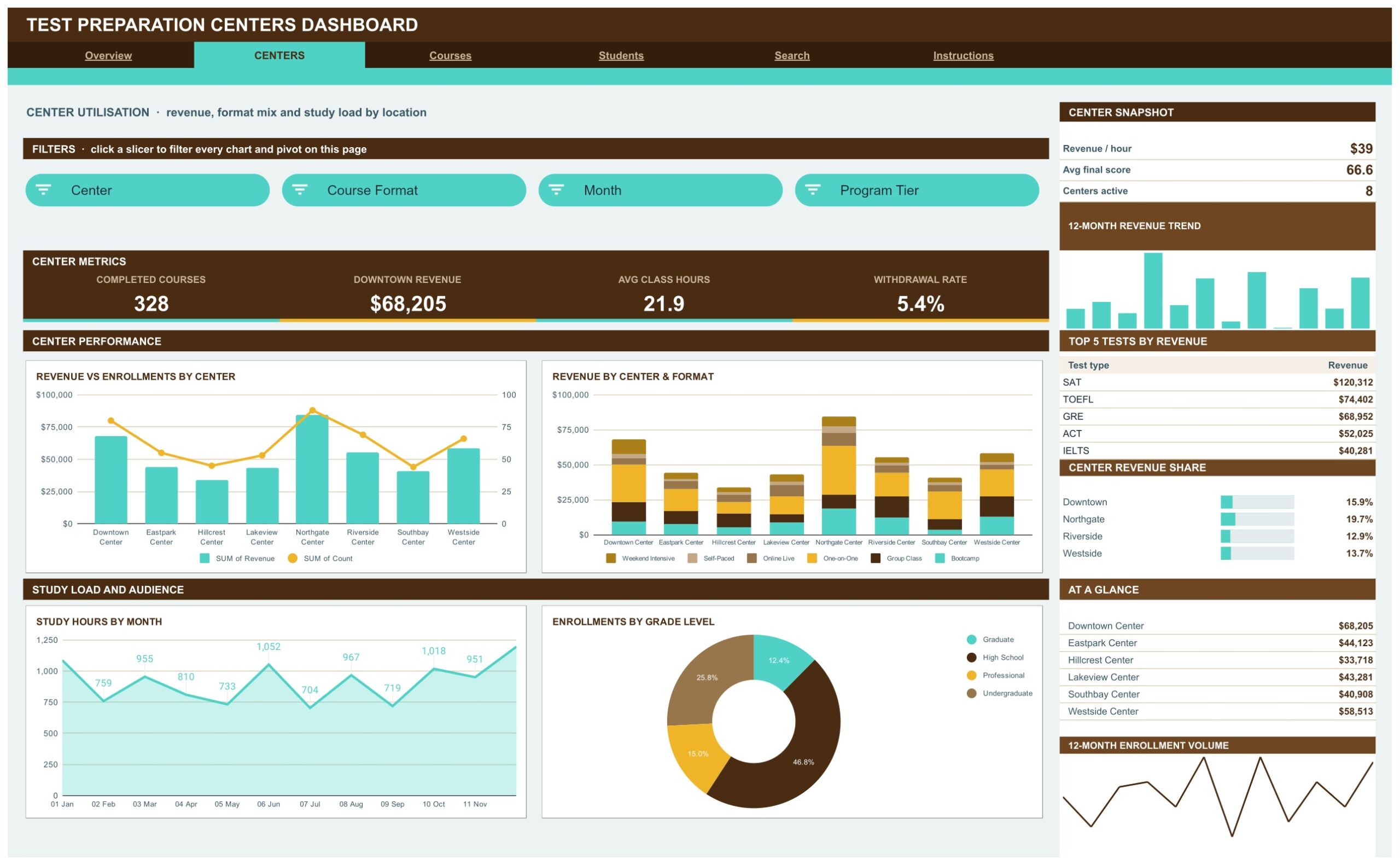
Page 2: Centers — Revenue, Format Mix and Study Load by Location
Location performance for all 8 centers. Cards report Completed Courses, Downtown Revenue, Avg Class Hours and Withdrawal Rate; charts include Revenue vs Enrollments by Center, Revenue by Center & Format, Study Hours by Month and Enrollments by Grade Level. The rail adds a Center Snapshot, Top 5 Tests by Revenue and a Center Revenue Share bar list.
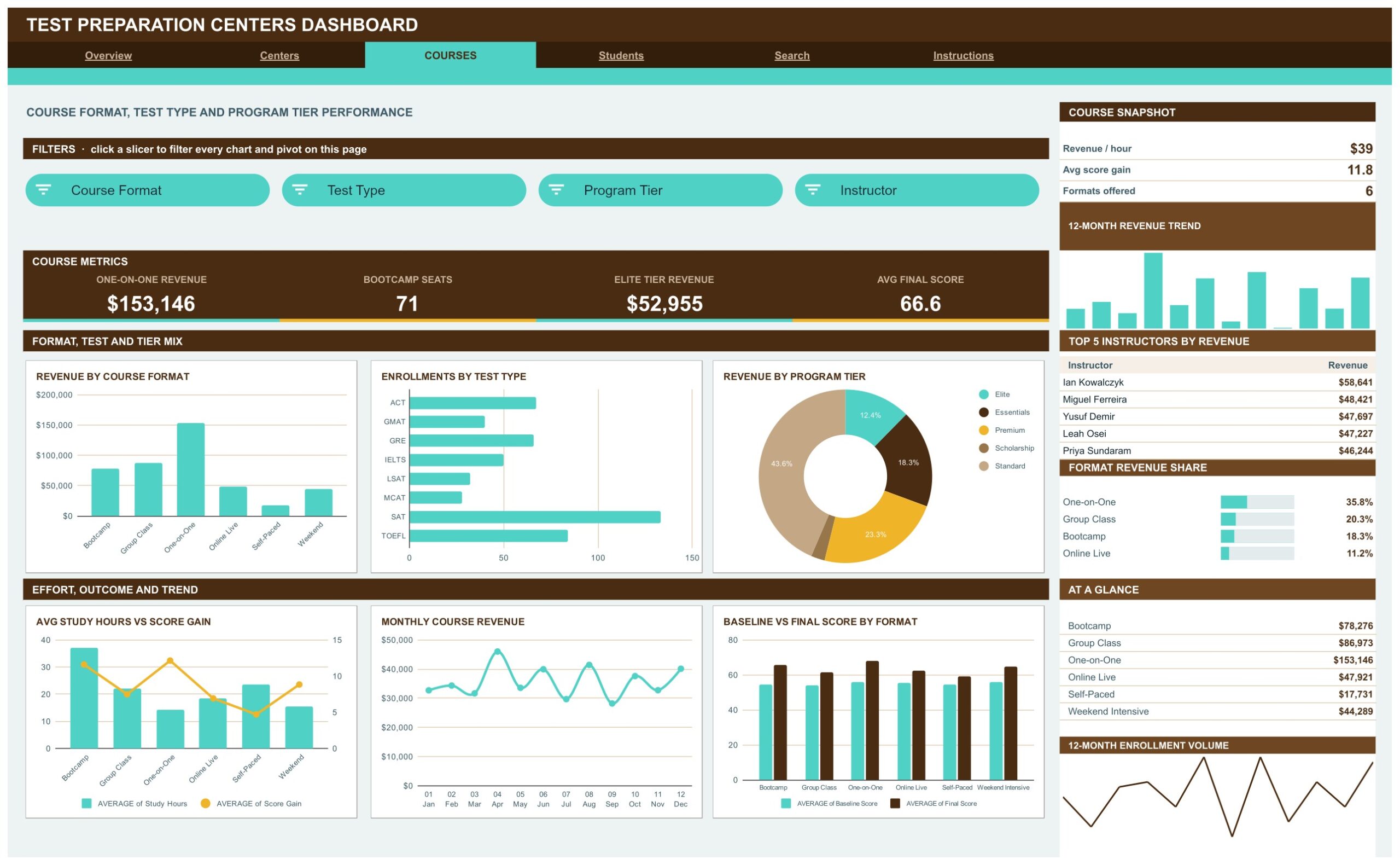
Page 3: Courses — Format, Test Type and Program Tier Performance
Where the money and the score gains actually come from. Cards report One-on-One Revenue, Bootcamp Seats, Elite Tier Revenue and Avg Final Score; charts include Revenue by Course Format, Enrollments by Test Type, Revenue by Program Tier, Avg Study Hours vs Score Gain, Monthly Course Revenue and Baseline vs Final Score by Format. The rail lists Top 5 Instructors by Revenue and a Format Revenue Share.
Page 4: Students — Grade Level, Program Tier and Score Outcomes
The audience view. Cards report Unique Students, High School Rev, Avg Baseline and Scholarship Seats; charts include Enrollments by Month & Grade Level, Enrollments by Program Tier and Avg Score Gain by Grade Level. The rail carries a Student Snapshot, Top 5 Students by Spend, a Grade Level Share and tier-by-tier revenue in At a Glance.
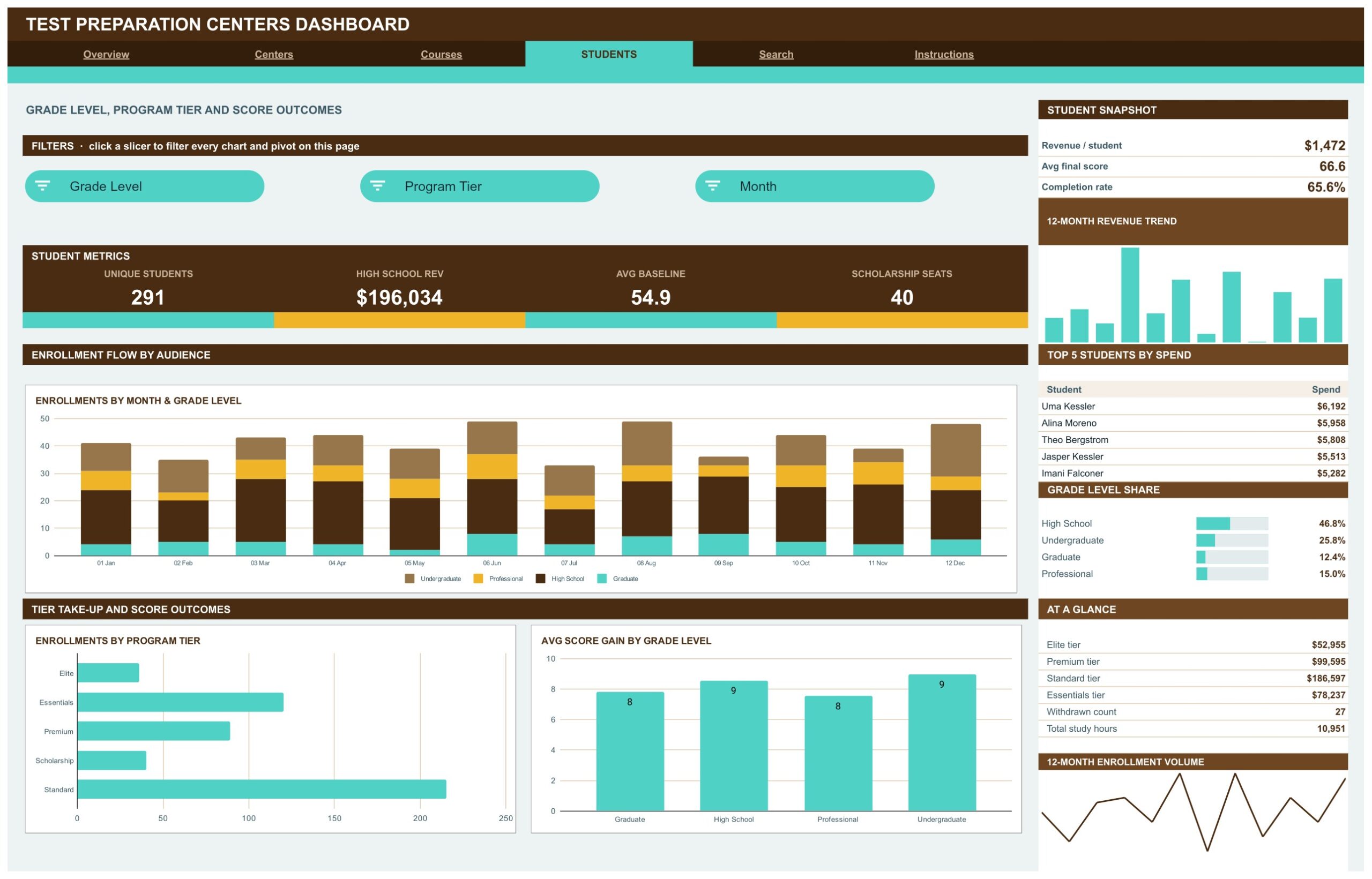
Page 5: Search — Look Up Any Enrollment by ID
Choose an Enrollment ID and read the whole record: Date, Center, Test Type, Course Format, Student Name, Program Tier, Revenue, Baseline Score, Final Score, Score Gain, Study Hours, Instructor, Status, Grade Level, Month and Quarter.
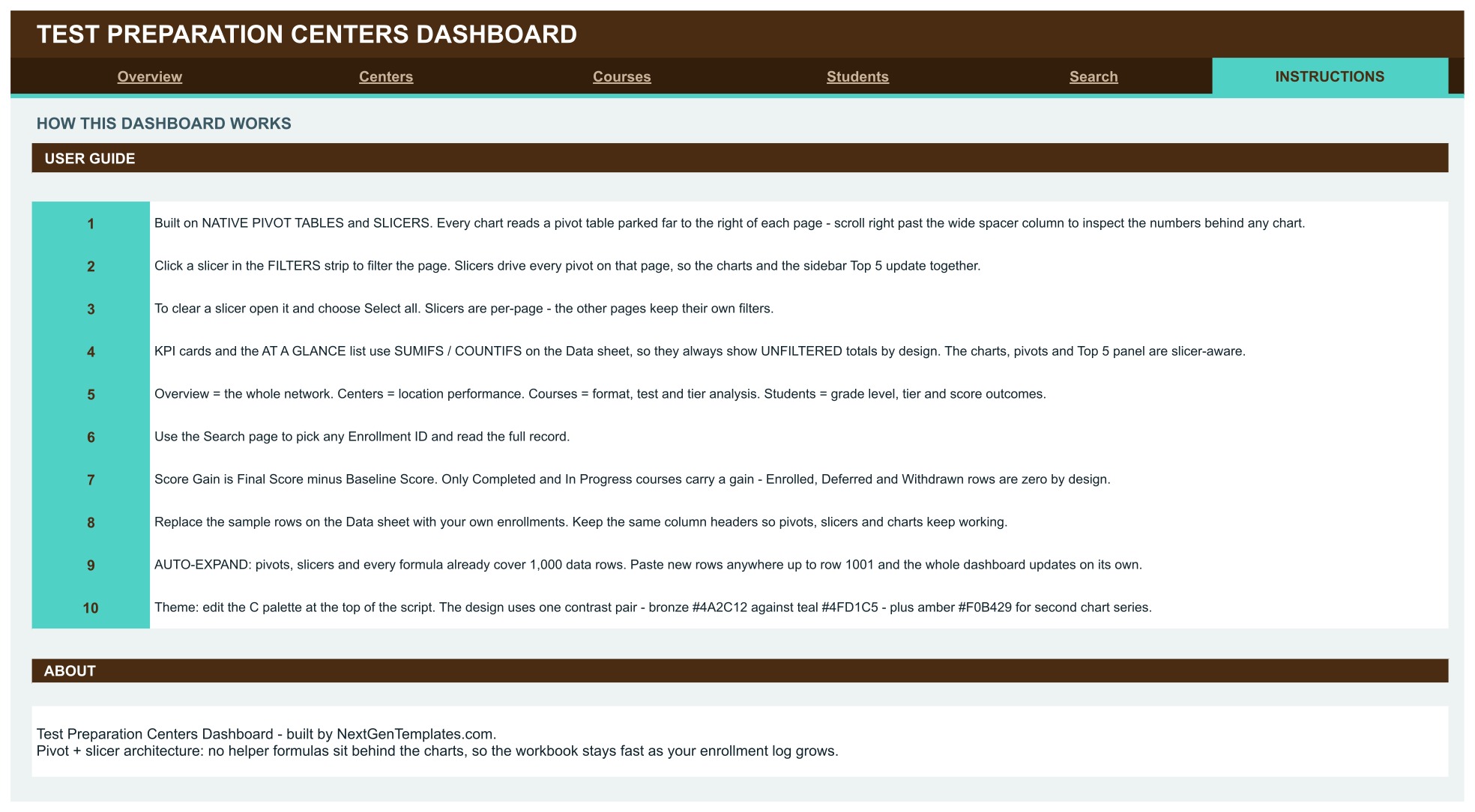
Page 6: Instructions — How the Dashboard Works
A ten-point user guide covering the pivot and slicer architecture, how to clear a slicer, which numbers are slicer-aware and which are deliberately unfiltered, how Score Gain is calculated, how to swap in your own data and how to change the colour theme.
A hidden Data sheet sits behind all six pages and holds the 500 sample enrollment rows that feed every pivot.
📊 Google Sheets vs. Microsoft Excel Dashboard vs. Paid Tutoring SaaS — Where This Fits
| Feature | Test Preparation Centers Dashboard in Google Sheets | Microsoft Excel Dashboard | TutorCruncher / Teachworks / Pike13 |
|---|---|---|---|
| Cost | ✅ $9.99 one-time | $19.99 one-time | $39-$199 / month |
| Platform | ✅ Browser, nothing to install | Microsoft Excel licence needed | Vendor-hosted web app |
| Setup time | ✅ Under 10 minutes | Under 10 minutes | Days — onboarding and data import |
| Real-time team collaboration | ✅ Built into Google Drive | Only via OneDrive co-authoring | ✅ Yes, per seat |
| Mobile access | ✅ Google Sheets app | Excel mobile app | ✅ Native apps |
| Customisable fields and charts | ✅ Every pivot and chart is yours to edit | ✅ Fully editable | Limited to vendor’s report builder |
| Share with a link | ✅ Any Drive share link | File must be sent or synced | Login required |
| Baseline vs final score analysis | ✅ Built in on 3 pages | ✅ Built in | Usually an add-on module |
| Year-1 cost at 5 users | ✅ $9.99 total | $19.99 total | $2,340-$11,940 |
For a centre owner who wants enrollment, revenue and score-gain reporting without a per-seat subscription, the Test Preparation Centers Dashboard in Google Sheets sits in the sweet spot.
👥 Who This Template Is For — and Who It’s Not For
✅ This template is built for:
- Owners and directors of test-prep, coaching or tutoring centres running 1 to 15 locations
- Centre managers who report monthly revenue, enrollments and completion rates to a founder or board
- Academic leads who want to compare average score gain by instructor, course format and program tier
- Franchise operators comparing centre-by-centre revenue share and withdrawal rates
- Anyone already keeping enrollments in a spreadsheet who wants reporting on top of it without changing tools
❌ This template is NOT for:
- Anyone needing a booking, billing or payment system — this reports on enrollment data, it does not collect it
- Teams that need live sync from a student information system; you paste or import data yourself
- Organisations requiring SSO, audit logs or role-based permissions beyond Google Drive sharing
- Anyone wanting predictive score forecasting or admissions-chance modelling — every number here is descriptive
- Centres that must keep identifiable student records under a formal data-protection regime without first reviewing where the file is stored and who it is shared with
⚙️ How to Use the Test Preparation Centers Dashboard in Google Sheets
- Open the PDF in your download and click the Google Sheets copy link inside it.
- Choose Make a copy to create your own editable file in your Google Drive.
- Open the Data sheet and replace the 500 sample enrollment rows with your own, keeping every column header exactly as it is.
- Paste new rows anywhere up to row 1001 — pivots, slicers and formulas already cover that range.
- Return to the Overview tab and click a slicer in the FILTERS strip to filter every chart and pivot on that page.
- To clear a filter, open the slicer and choose Select all. Slicers are per page.
- Use the Centers, Courses and Students tabs for location, format and audience analysis.
- Use the Search tab to pull the full record behind any Enrollment ID.
- To rebrand, edit the colour palette described on the Instructions tab.
💼 Real-World Use Cases
Priya runs a four-branch SAT and ACT coaching chain. She uses the Centers page each month to compare revenue share and withdrawal rate across her branches, and the Revenue by Center & Format chart to decide which branch should add a bootcamp cohort next term.
Daniel is academic head at a single-site test-prep centre. He filters the Courses page by Instructor and reads Avg Study Hours vs Score Gain and Baseline vs Final Score by Format, so instructor reviews rest on measured score movement rather than student feedback alone.
Meera manages admissions for a graduate-exam programme. She works from the Students page, watching Grade Level Share and Scholarship Seats to see whether the scholarship tier is reaching the intended audience, then exports the tab as a PDF for the trustees’ quarterly pack.
❓ Frequently Asked Questions
What KPIs does the Test Preparation Centers Dashboard track?
The Test Preparation Centers Dashboard in Google Sheets tracks total enrollments, course revenue, average score gain, study hours, completion rate, withdrawal rate, revenue per student, revenue per hour, average baseline and final score, scholarship seats and unique students across four analysis pages.
How long does setup take?
Under 10 minutes. Open the copy link in the PDF, make your own copy in Google Drive, then paste your enrollment rows over the sample data on the Data sheet. Because pivots and slicers already cover 1,000 rows, nothing needs re-ranging.
Do I need Excel or any paid software?
No. The Test Preparation Centers Dashboard in Google Sheets runs entirely in a browser on a free Google account. There is no add-on, no Apps Script to authorise and no macro to enable.
Why do the KPI cards not change when I click a slicer?
By design. The KPI cards and the At a Glance lists use SUMIFS and COUNTIFS against the whole Data sheet, so they always show unfiltered totals as a stable reference. The charts, pivot tables and the Top 5 panels are the slicer-aware parts of each page.
How does this compare to TutorCruncher or Teachworks?
Those platforms manage scheduling, invoicing and payments and charge $39 to $199 a month. The Test Preparation Centers Dashboard in Google Sheets is reporting only, costs once, and is the cheaper choice when you already have an enrollment log and simply need analysis on top of it.
Can I add more centers, test types or course formats?
Yes. The pivots read whatever values appear in the Data sheet columns, so adding a ninth centre or a seventh course format needs no formula edits. Refresh the page and the new value appears in the slicers and charts.
Is the sample student data real?
No. All 500 rows, including every student and instructor name, are fictional demo data generated for this template. Replace them with your own records, and review your own privacy obligations before storing identifiable student information in a shared Drive file.
👤 About the Author
Built by PK — Microsoft Certified Professional with 15+ years of Excel, Google Sheets and Power BI experience. Founder of NextGenTemplates, reaching 300K+ subscribers across YouTube channels (@PK-AnExcelExpert, @NextGenTemplates, @NeoTechNavigators). Every template is hand-built and tested before release.
🔗 Explore Related Templates
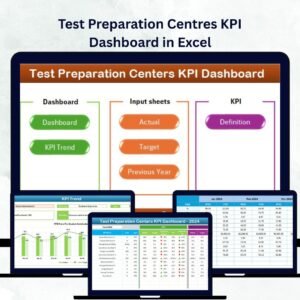
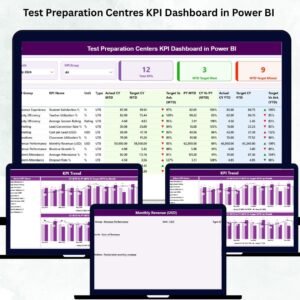
Also available as: the same topic is already published as the Test Preparation Centers Dashboard in Excel and, in KPI-scorecard form, as the Test Preparation Centres KPI Dashboard in Power BI. Pick the platform your team already lives in.
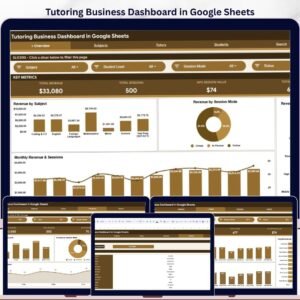
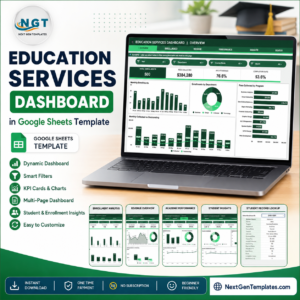
If you run a wider coaching operation, the Tutoring Business Dashboard in Google Sheets and the Education Services Dashboard in Google Sheets cover the same reporting habit from a business-wide angle, while the Student Academic Insights Dashboard in Google Sheets and the EdTech Dashboard in Google Sheets go deeper on learner outcomes and platform metrics.
Browse the full range of Google Sheets Dashboards or the wider Dashboard Templates catalogue.
📖 Click here to read the Detailed Blog Post
🎥 Visit our YouTube channel for step-by-step video tutorials
👉 YouTube.com/@NextGenTemplates
Watch the step-by-step video Demo:
📅 Last updated: September 2026
Compatibility and Requirements
- Works in Google Sheets. You need a free Google account and a web browser.
- The Search tab uses a dropdown to pick an Enrollment ID. Google explains dropdowns in Create an in-cell dropdown list.











Reviews
There are no reviews yet.