


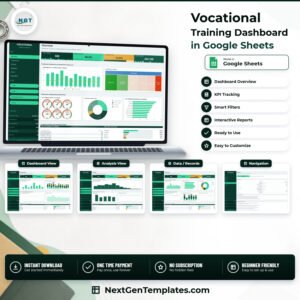
The Vocational Training Dashboard in Google Sheets runs on 6 live tabs, 4 headline KPI tiles and 17 charts plus a six-dial placement gauge panel, all driven by one 16-column Data tab that ships with 500 sample trainee rows and formulas already stretched to 1,000. Replace the sample rows and every KPI, chart, slicer and ranking recalculates on its own – setup is a paste, not a rebuild.
🌍 Join 8,400+ teams in 40+ countries using NextGenTemplates to replace subscription analytics seats with one-time-purchase Excel, Google Sheets, Power BI and HTML templates.
✅ Instant download · One-time payment · No subscription · No per-user fees · Lifetime access
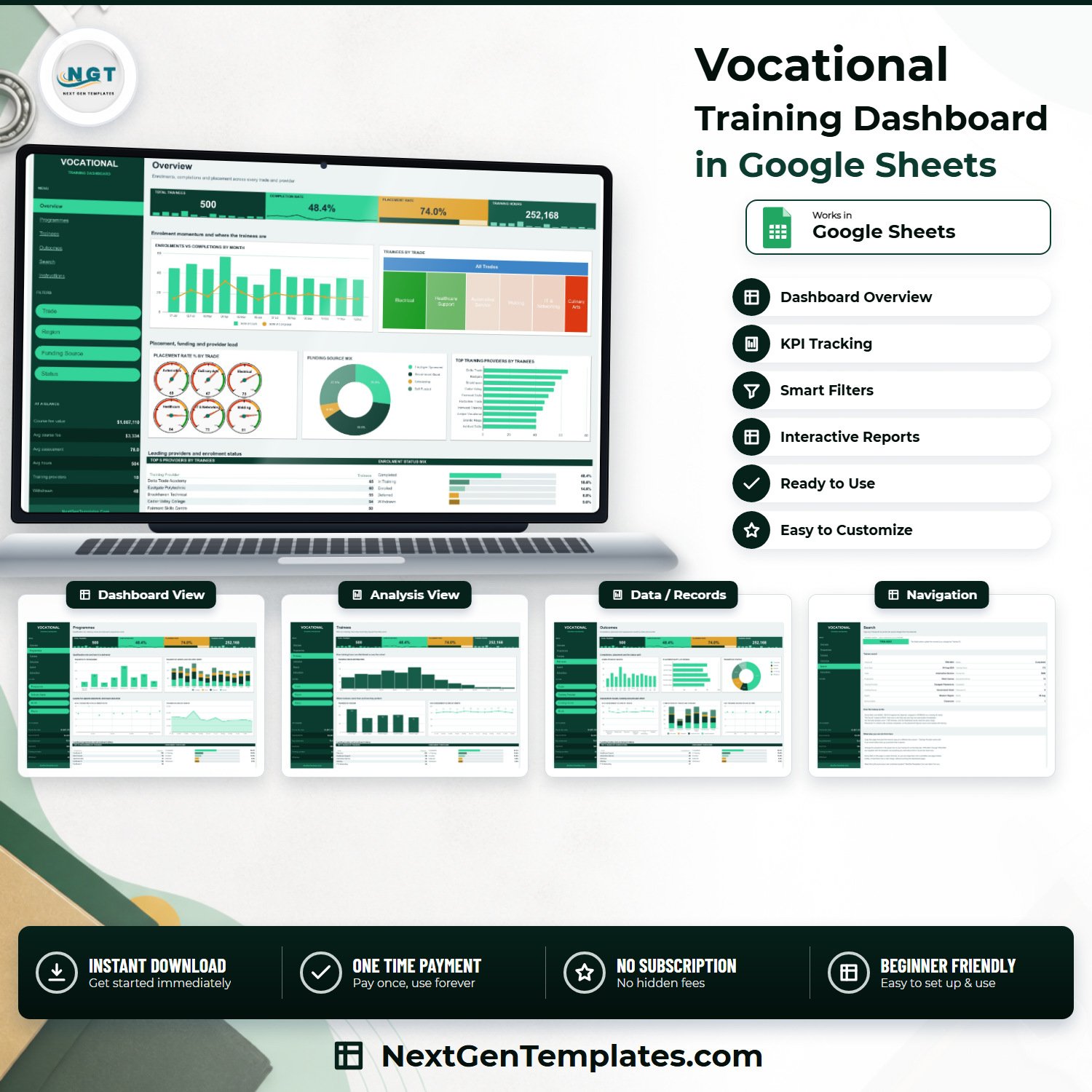
🔑 Key Features of the Vocational Training Dashboard in Google Sheets
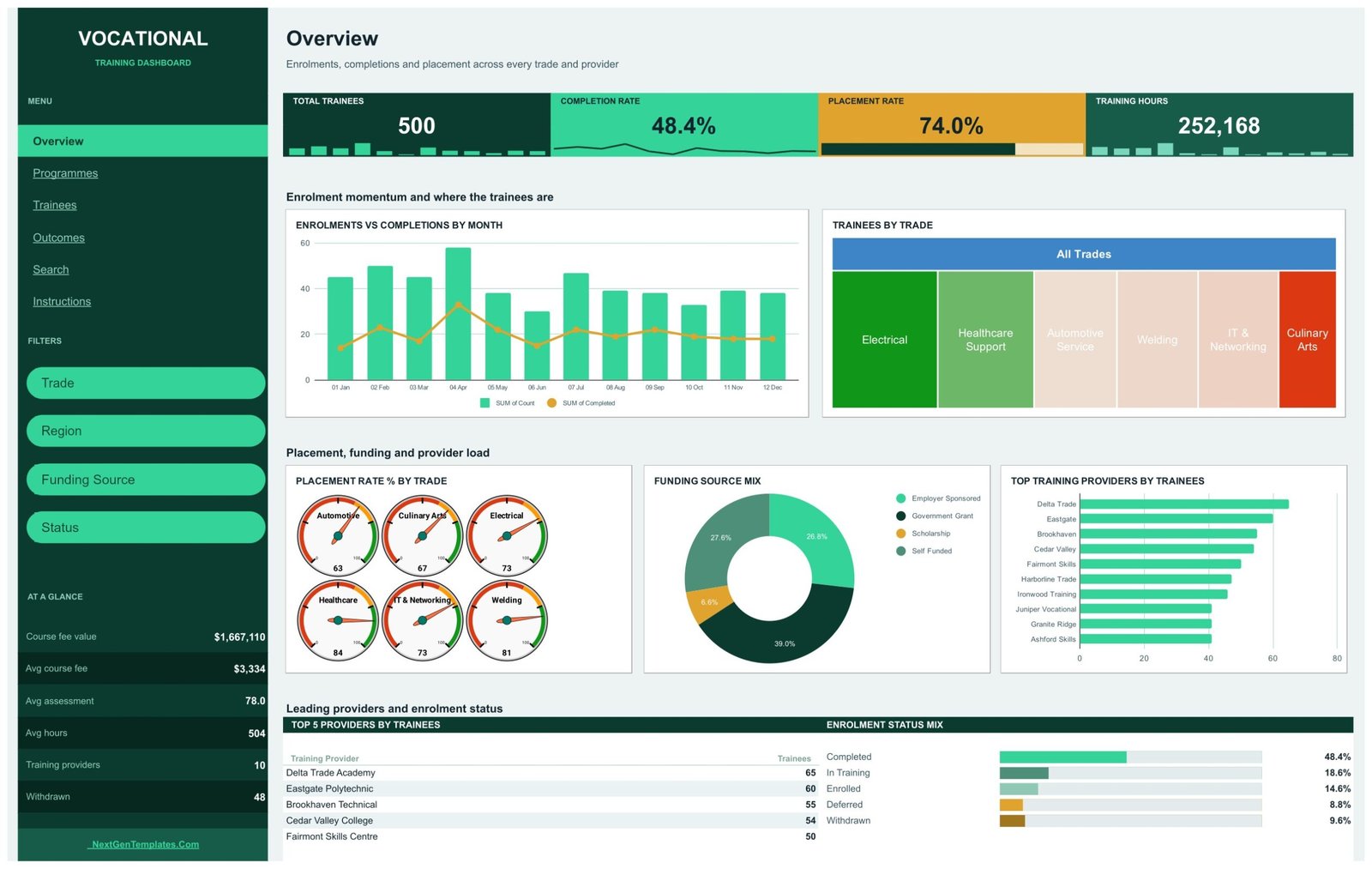
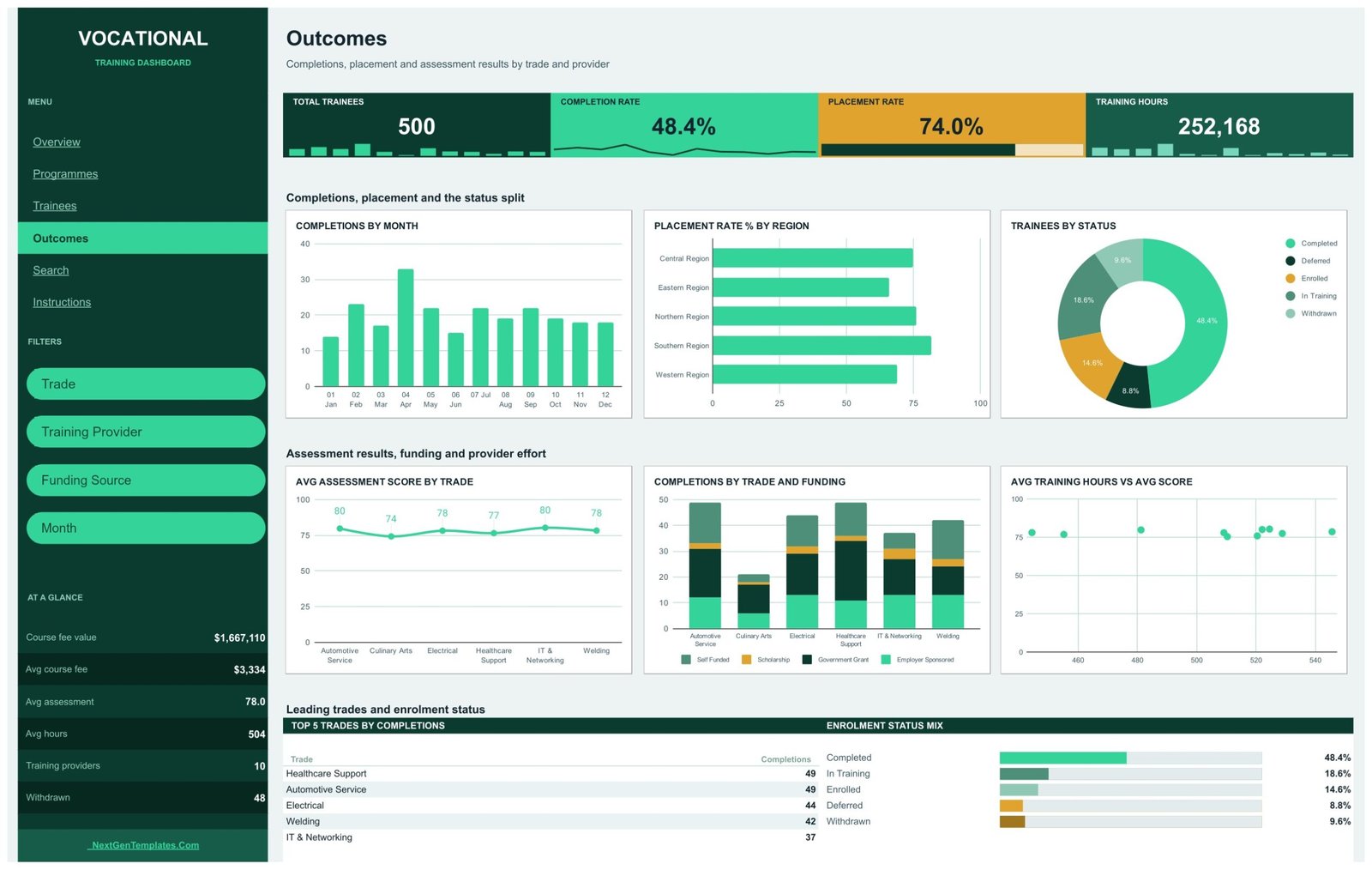
🔹 Four KPI tiles carried on every analysis page. Total Trainees, Completion Rate, Placement Rate and Training Hours sit under each page title with an inline spark strip. In the shipped sample they read 500 trainees, 48.4% completion, 74.0% placement and 252,168 training hours, and each one recalculates from the Data tab rather than from the charts above it.
🔹 A permanent “At a glance” rail. The dark left rail carries six standing figures beneath the navigation – Course fee value, Avg course fee, Avg assessment, Avg hours, Training providers and Withdrawn – so the money and quality numbers stay on screen while you read any page.
🔹 Fifteen slicer chips across four analysis pages. Overview filters by Trade, Region, Funding Source and Status. Programmes filters by Programme, Delivery Mode, Month and Region. Outcomes filters by Trade, Training Provider, Funding Source and Month. Trainees carries three – Trade, Region and Status – because it runs a wider chart set. Slicers apply per page, so each page can hold its own view.
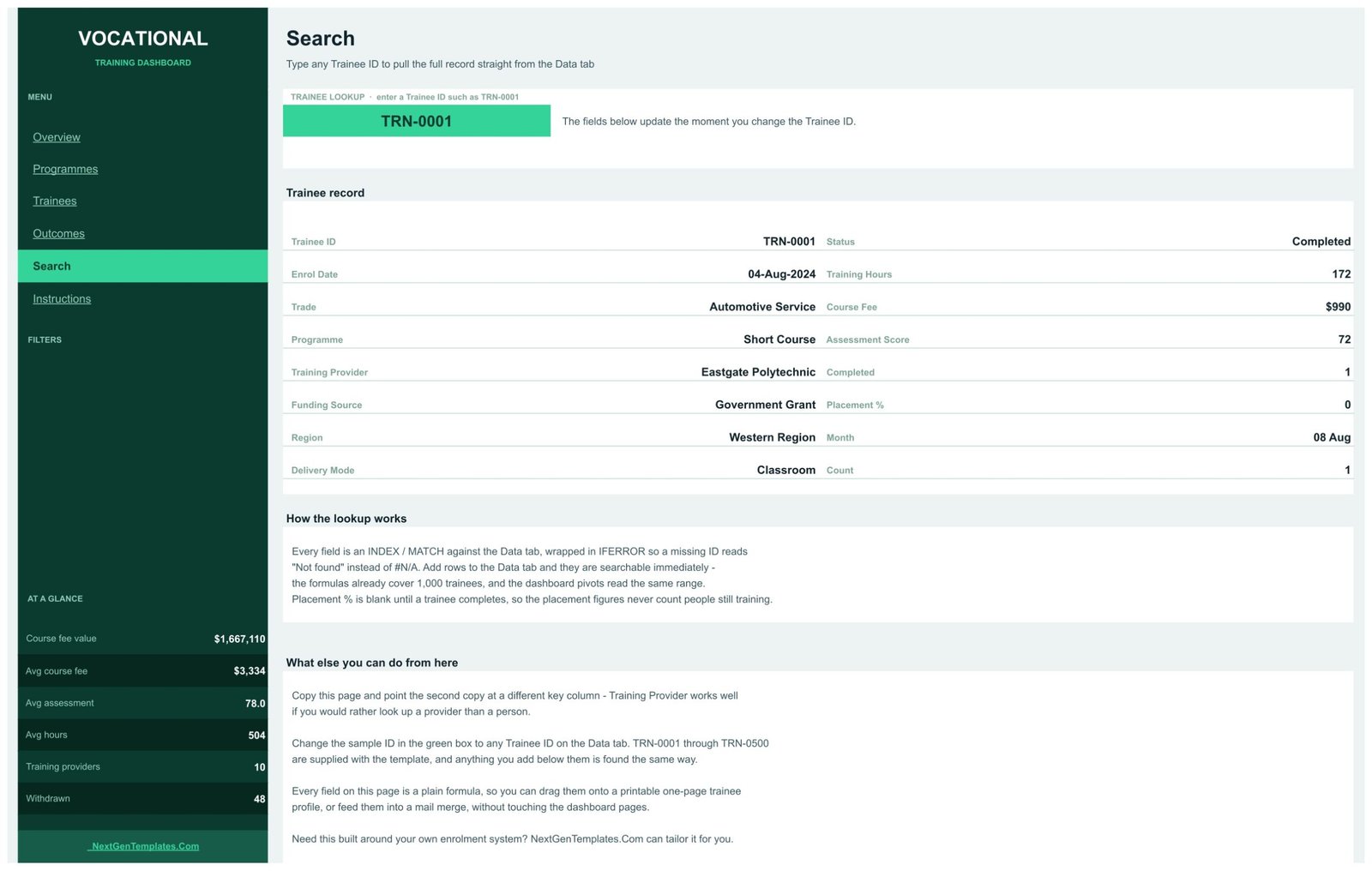
🔹 A Trainee ID lookup that is pure formula. The Search page returns all 16 record fields for any Trainee ID through INDEX/MATCH wrapped in IFERROR, so a missing ID reads “Not found” instead of #N/A. Nothing is hidden in Apps Script – you can drag the fields onto a printable profile or a mail merge.
🔹 Honest placement maths. Placement % is left blank while a trainee is still in training, so the Placement Rate is never diluted by people who have not finished. The Overview gauges band placement below 60% red, 60-75% amber and above 75% green, and you can move those bands from the Chart editor.
🔹 Six trades, eight programmes, ten providers. The sample data covers Automotive Service, Culinary Arts, Electrical, Healthcare Support, IT & Networking and Welding; Advanced Diploma through Traineeship; four delivery modes (Blended, Classroom, Online, Workplace); four funding sources (Employer Sponsored, Government Grant, Scholarship, Self Funded); five regions and five enrolment statuses. Rename any of them on the Data tab and the slicers follow.
📦 What’s Inside the Vocational Training Dashboard in Google Sheets
Page 1: Overview
Enrolments, completions and placement across every trade and provider. Charts are Enrolments vs Completions by Month, Trainees by Trade, Placement Rate % by Trade (a six-dial gauge panel), Funding Source Mix and Top Training Providers by Trainees, closed by a Top 5 Providers by Trainees table and an Enrolment Status Mix bar panel. Filters: Trade, Region, Funding Source, Status.
Page 2: Programmes
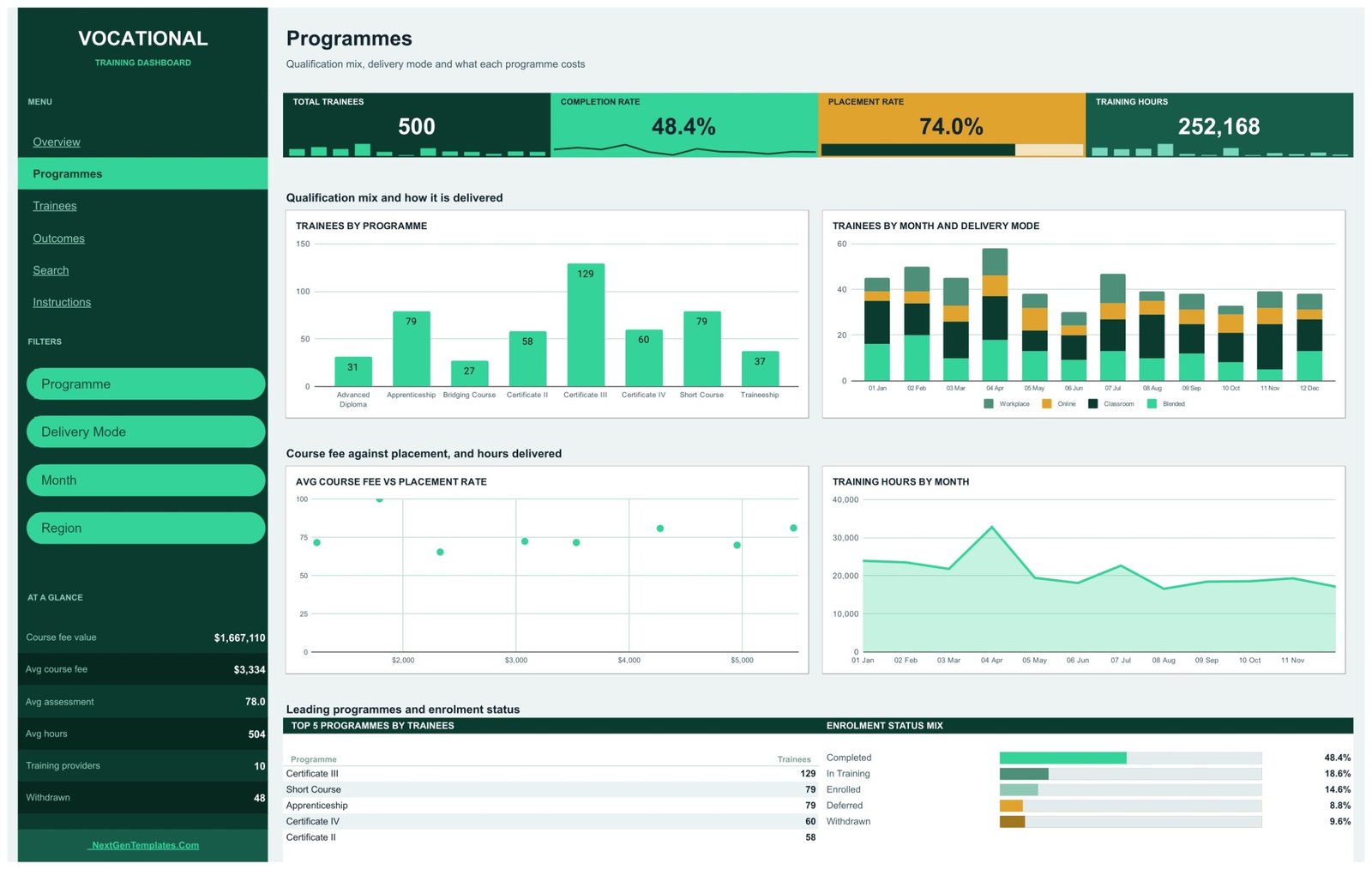
Qualification mix, delivery mode and what each programme costs. Charts are Trainees by Programme, Trainees by Month and Delivery Mode, Avg Course Fee vs Placement Rate and Training Hours by Month, with a Top 5 Programmes by Trainees table. Filters: Programme, Delivery Mode, Month, Region.
Page 3: Trainees
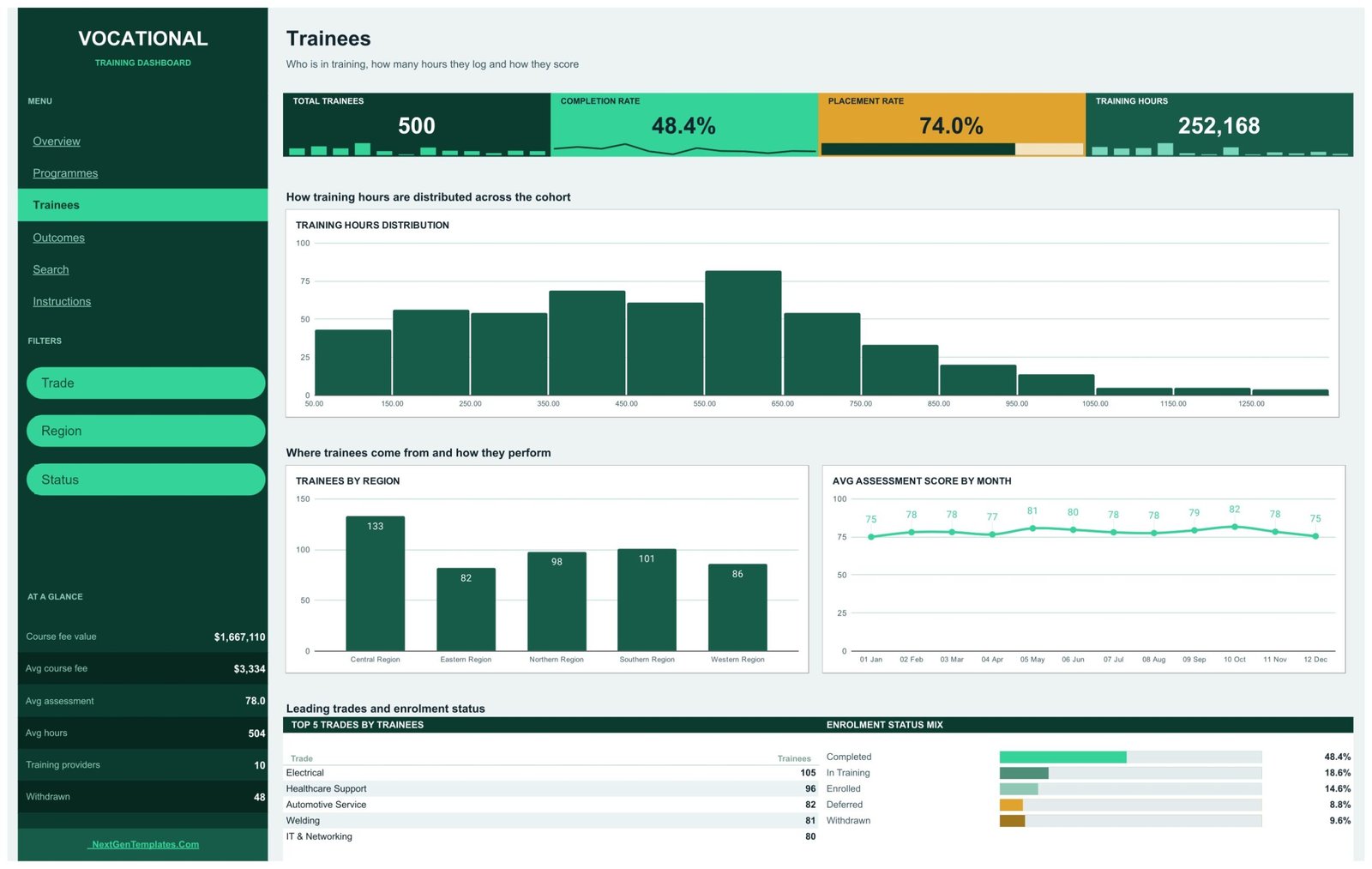
Who is in training, how many hours they log and how they score. Charts are Training Hours Distribution, Trainees by Region and Avg Assessment Score by Month, with a Top 5 Trades by Trainees table. Filters: Trade, Region, Status.
Page 4: Outcomes
Completions, placement and assessment results by trade and provider. Six charts: Completions by Month, Placement Rate % by Region, Trainees by Status, Avg Assessment Score by Trade, Completions by Trade and Funding, and Avg Training Hours vs Avg Score, with a Top 5 Trades by Completions table. Filters: Trade, Training Provider, Funding Source, Month.
Page 5: Search
Type any Trainee ID into the green box and the page pulls that record straight from the Data tab – Enrol Date, Trade, Programme, Training Provider, Funding Source, Region, Delivery Mode, Status, Training Hours, Course Fee, Assessment Score, Completed, Placement %, Month and Count. Sample IDs run TRN-0001 to TRN-0500.
Page 6: Instructions
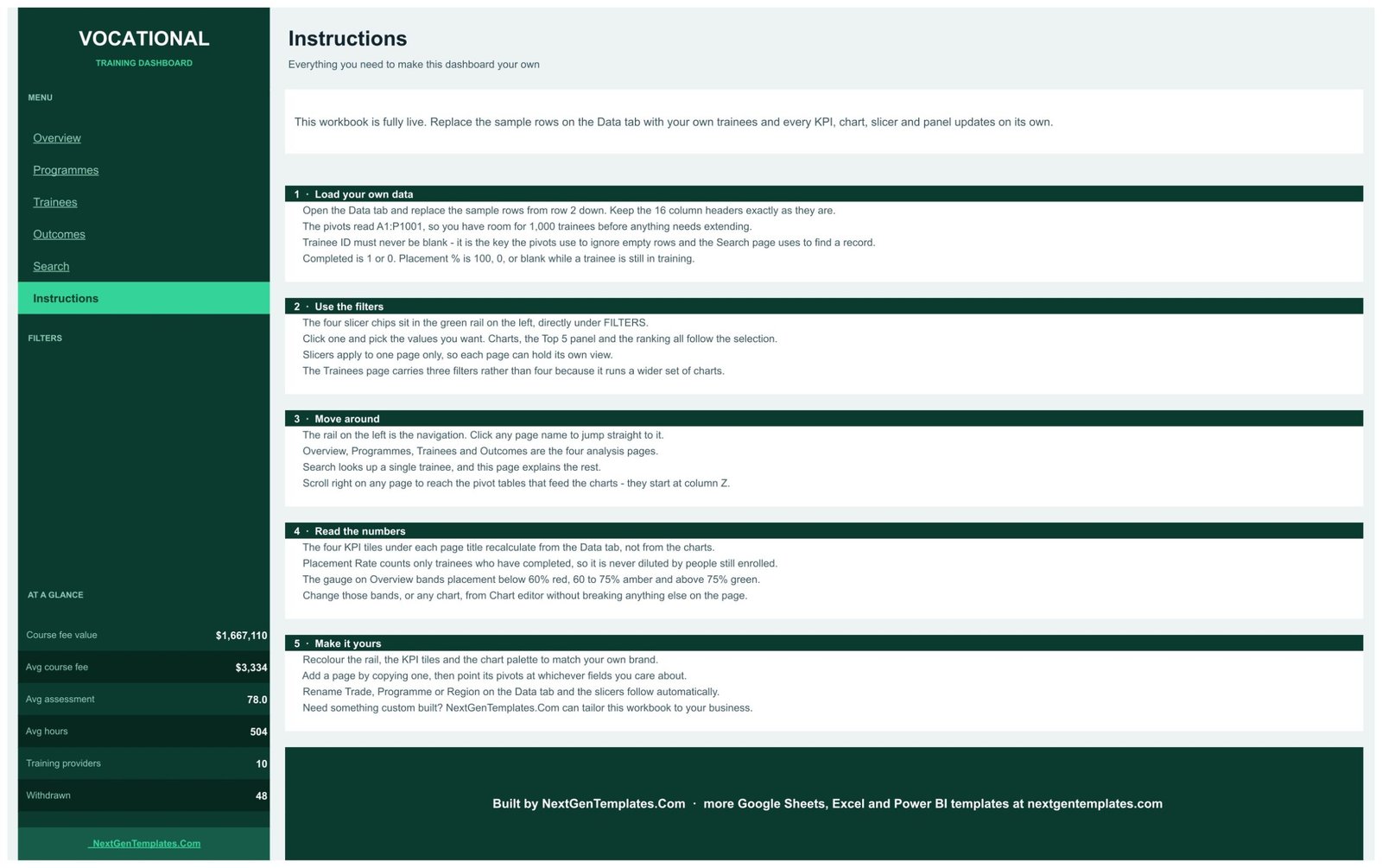
Five numbered sections covering loading your own data, using the slicers, moving around, reading the numbers and recolouring the workbook. It tells you the pivots read A1:P1001, that Trainee ID must never be blank, and that the pivot tables that feed the charts start at column Z on every page.
The Data tab
Sixteen columns: Trainee ID, Enrol Date, Trade, Programme, Training Provider, Funding Source, Region, Delivery Mode, Status, Training Hours, Course Fee, Assessment Score, Completed, Placement %, Month, Count. There is no name, date-of-birth, address, phone, email, employer, funding-eligibility or disciplinary column anywhere in the file – the only identifier is a short code such as TRN-0142. Keep it that way: put your own internal reference in Trainee ID rather than a person’s name, because a Google Sheet shared by link shows every row to whoever holds the link.
📊 Vocational Training Dashboard in Google Sheets vs. a Microsoft Excel build vs. a paid BI suite
| Feature | Vocational Training Dashboard in Google Sheets | Microsoft Excel dashboard build | Paid BI suite (Tableau / Power BI Pro) |
|---|---|---|---|
| Cost | $16.99 one-time (currently $9.99) ✅ | $0 if you build it yourself, plus your own hours | Per-user monthly licence, billed indefinitely |
| Platform | Google Sheets in the browser, no install ✅ | Microsoft Excel desktop | Desktop authoring plus a cloud service |
| Setup time | Under 10 minutes – paste your rows over the sample ✅ | Days to model, chart and lay out from scratch | Hours to model, plus admin provisioning |
| Real-time team collaboration | Native, multiple editors at once ✅ | Co-authoring only via OneDrive/SharePoint | Yes, once every viewer is licensed ✅ |
| Mobile access | Google Sheets mobile app ✅ | Excel mobile, layout often breaks | Dedicated mobile app ✅ |
| Customisable fields | Rename any of the 16 Data columns; slicers follow ✅ | Yes, if you rewire the formulas yourself | Yes, through the semantic model |
| Share with a link | Yes – view-only or edit, no seat needed ✅ | File attachment or a cloud link | Viewer usually needs a paid seat |
| Year-1 cost at 5 users | $9.99 total ✅ | Existing Microsoft 365 seats | Five recurring licences for twelve months |
| Single-trainee record lookup | Built in on the Search page ✅ | Needs a lookup sheet you build | Drill-through, once modelled |
For training providers who want trade, provider and placement reporting on a link they can share with a manager tomorrow, the Vocational Training Dashboard in Google Sheets sits in the sweet spot. A student MIS or training-management system is a different category of product altogether – it captures enrolments, registrations and evidence day to day. This template reports on data you export from one; it does not replace it, and the two are not comparable on price.
👥 Who This Template Is For – and Who It’s Not For
✅ Built for:
- Independent training providers and trade schools reporting on a few hundred to a few thousand trainees a year
- Apprenticeship and traineeship coordinators who need completion and placement figures split by trade, provider and funding source
- Skills programme managers who currently rebuild the same board pack by hand every month
- Anyone who has to hand a manager a link rather than a file
❌ Not for:
- Anyone needing a learner record system, an e-portfolio or an assessment platform – this is a reporting workbook, not a system of record
- Anyone preparing an awarding-body, regulator or funding-audit submission. This template makes no claim of compliance with any awarding organisation, regulator or funding-body requirement, and no figure in it is audit evidence
- Anyone wanting a live feed. It is a static Google Sheet with no connection to any MIS, enrolment portal or funding system – you refresh it by pasting a fresh export
- Teams storing sensitive learner data who need row-level permissions, audit logs or SSO – Google Sheets sharing is all-or-nothing per tab
⚙️ How to Use the Vocational Training Dashboard in Google Sheets
- Open the PDF in your download and click the Google Sheets link to create your own copy in Drive.
- Open the Data tab and paste your own rows from row 2 down, keeping the 16 headers exactly as they are.
- Put an internal code in Trainee ID – never leave it blank, and prefer a code over a person’s name.
- Set Completed to 1 or 0, and Placement % to 100, 0, or blank while a trainee is still training.
- Click any slicer chip in the green rail and pick your values; the charts, Top 5 panel and ranking all follow.
- Use the left rail to jump between Overview, Programmes, Trainees, Outcomes and Search.
- Recolour the rail, KPI tiles and chart palette from the Chart editor to match your own brand.
💼 Real-World Use Cases
Marcus runs a 900-trainee trade school with four campuses. Every month he exports enrolments to CSV, pastes them over the Data tab and screenshots the Outcomes page for his board pack – Completions by Month, Placement Rate % by Region and the Top 5 Trades by Completions table answer the three questions the board always asks, without him touching a chart.
Priya coordinates apprenticeships for a regional skills partnership. She sets the Outcomes page’s Training Provider slicer to one provider at a time and sends each of them a view-only link to their own numbers, so the conversation about completion rates starts from the same figures on both sides of the table.
Tom manages employer-sponsored intakes at a polytechnic. He uses the Funding Source slicer on Overview to isolate Employer Sponsored trainees, checks the placement gauges by trade, and uses the Search page to pull one trainee’s full record when a sponsor asks about a specific enrolment.
❓ Frequently Asked Questions
What KPIs does the Vocational Training Dashboard in Google Sheets track?
The Vocational Training Dashboard in Google Sheets tracks four headline KPIs – Total Trainees, Completion Rate, Placement Rate and Training Hours – plus six standing figures in the side rail: course fee value, average course fee, average assessment score, average hours, training provider count and withdrawn count.
How long does setup take?
Under ten minutes. Open the Data tab, paste your rows from row 2 down and keep the 16 headers as they are. The formulas already cover 1,000 trainees, so the Vocational Training Dashboard in Google Sheets recalculates without you extending a single range.
Does it store learner names or personal details?
No. The Data tab in the Vocational Training Dashboard in Google Sheets has 16 columns and none of them hold a name, date of birth, contact detail, employer, funding-eligibility flag or disciplinary note. Trainees are identified only by a code such as TRN-0142, and we recommend keeping your own data pseudonymous the same way.
Can I use it for a funding claim or an awarding-body return?
No. The Vocational Training Dashboard in Google Sheets is a business reporting template. It is not a learner record system, an e-portfolio or a funding-claim system, and it makes no claim of compliance with any awarding organisation, regulator or funding-body requirement.
Does it connect to my student MIS or enrolment system?
No. The Vocational Training Dashboard in Google Sheets is a static workbook with no live connection to any system. You refresh it by pasting a fresh export over the Data tab, which takes a few seconds and keeps the file fully under your own control.
How does this compare to a paid BI suite?
A paid BI suite bills a licence per viewer every month and needs a model built first. The Vocational Training Dashboard in Google Sheets is a one-time purchase, opens in a browser, and can be shared view-only with anyone by link. For a few hundred to a few thousand trainees it does the same reporting job.
Can I add more than 500 trainees?
Yes. The pivots and Search formulas in the Vocational Training Dashboard in Google Sheets read A1:P1001, so you have room for 1,000 trainees before anything needs extending – and extending the ranges is a normal Google Sheets edit, not a rebuild.
👤 About the Author
Built by PK – Microsoft Certified Professional with 15+ years of Excel, Google Sheets and Power BI experience. Founder of NextGenTemplates, reaching 300K+ subscribers across YouTube channels (@PK-AnExcelExpert, @NextGenTemplates, @NeoTechNavigators). Every template is hand-built and tested before release.
🔗 Explore Related Templates
Browse the full Google Sheets Dashboards range, or the wider Dashboard Templates category.
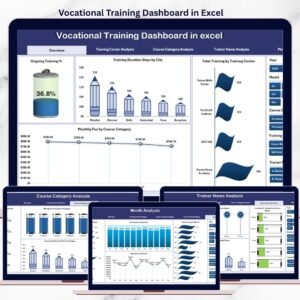
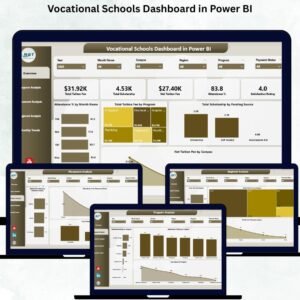
- Also available as: Vocational Training Dashboard in Excel and Vocational Training Dashboard in Power BI – the same subject built for those platforms.
- Vocational Training KPI Dashboard in Google Sheets – a different product: a month-picker KPI scorecard with traffic lights and trend pages, rather than the analytical pages you get here.
- Education Services Dashboard in Google Sheets – the broader education-provider view, for groups running more than trade programmes.
📖 Click here to read the Detailed Blog Post
🎥 Visit our YouTube channel for step-by-step video tutorials
👉 YouTube.com/@NextGenTemplates
Watch the step-by-step video Demo:
📅 Last updated: September 2026
Compatibility and Requirements
- Works in Google Sheets. You need a free Google account and a web browser.
- You pick values from slicer chips on each analysis page. Google explains dropdown lists in Create an in-cell dropdown list.
- The pivots and Search formulas read A1:P1001 on the Data tab, so the file holds up to 1,000 trainee rows.


















Reviews
There are no reviews yet.