

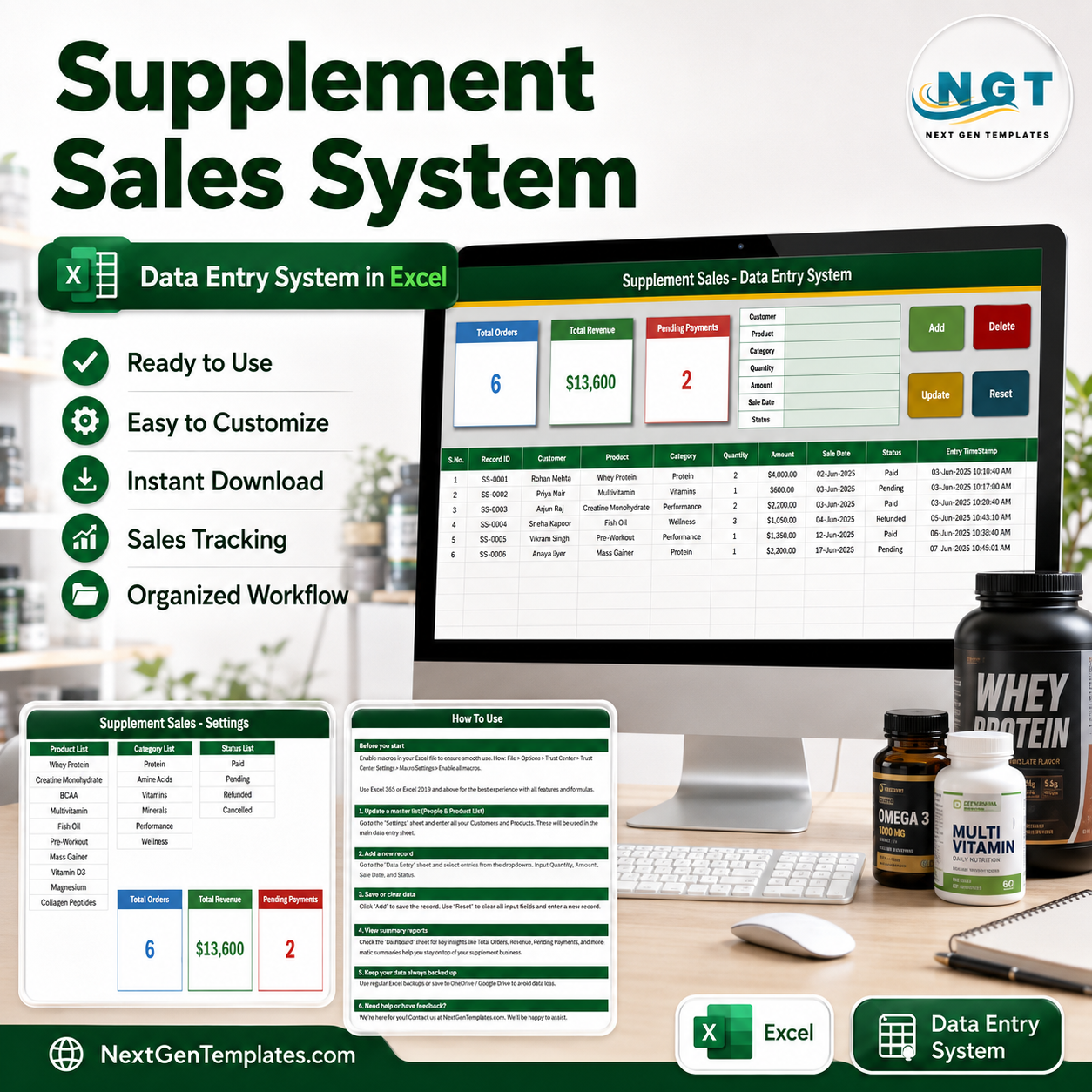
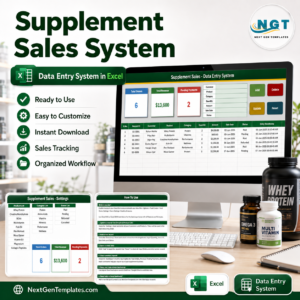
The Supplement Sales Data Entry System in Excel records supplement orders through a 7-field form, keeps 3 live KPI cards on screen – Total Orders, Total Revenue and Pending Payments – and writes every sale into a 10-column records table with its own Record ID and entry timestamp. Four VBA buttons (Add, Update, Delete, Reset) run the entire workbook, and the Setting sheet ships with 10 editable products, 6 categories and 4 payment statuses. Setup takes under 10 minutes: enable macros, clear the sample rows, edit the three lists, start logging.
🌍 Join 8,400+ teams in 40+ countries using NextGenTemplates to replace paid SaaS tools with one-time-purchase Excel, Google Sheets, Power BI and HTML templates.
✅ Instant download · One-time payment · No subscription · No per-user fees · Lifetime access
Please note: this is a sales and stock record-keeping tool for a retail or distribution business. It records what was sold, to whom, for how much and whether payment cleared. It makes no health, nutrition or product claims of any kind, and all product names and figures shown in the screenshots are sample data.
🔑 Key Features of the Supplement Sales Data Entry System in Excel
- 📝 A 7-field entry form. Customer, Product, Category, Quantity, Amount, Sale Date and Status sit in one block at the top of the Data Entry sheet. Product, Category and Status are dropdowns; the same dropdowns are applied to the matching columns in the records table, so you can type directly into a row too.
- ⚙️ Four macro buttons that do the work. Add appends a new record, Update saves an edited one, Delete removes a record after a confirmation prompt, and Reset clears the form. This is a macro-enabled workbook (.xlsm) – the buttons only run once you click Enable Content.
- 📊 Three KPI cards that never need refreshing. Total Orders counts every saved record, Total Revenue sums the Amount column, and Pending Payments counts the rows still marked Pending. The cards on the Data Entry sheet are linked pictures of the real cards on the Setting sheet, so restyling one restyles both.
- 🆔 Automatic Record IDs and timestamps. Each sale is stamped with a sequential ID in the SS-0001 format and an Entry TimeStamp down to the minute. Updates find the record by its ID, so a row can move anywhere in the table and still be edited correctly.
- 🖱️ Double-click to edit. Double-click any record and it loads back into the form with its ID remembered behind the scenes. Change what you need, click Update, and the matching row is rewritten – you never have to re-select the row first.
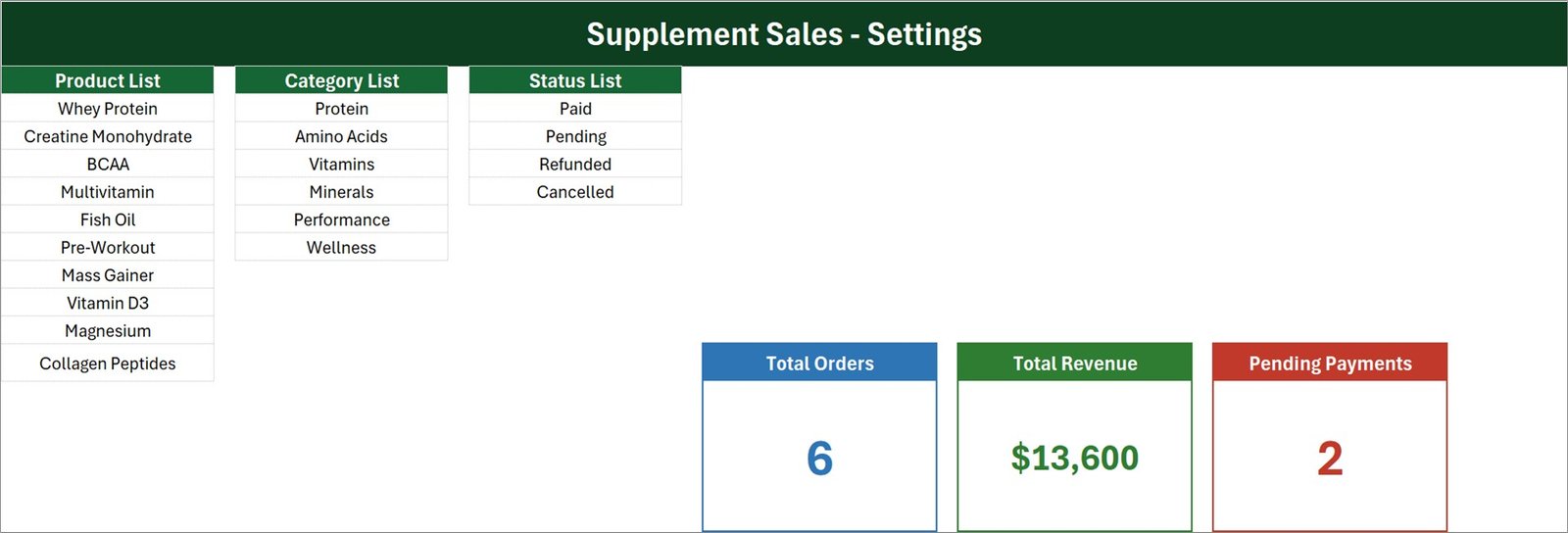
- 🗂️ Dropdown lists you own. The Setting sheet holds a 10-row Product List (Whey Protein, Creatine Monohydrate, BCAA, Multivitamin, Fish Oil, Pre-Workout, Mass Gainer, Vitamin D3, Magnesium, Collagen Peptides), a 6-row Category List (Protein, Amino Acids, Vitamins, Minerals, Performance, Wellness) and a 4-row Status List (Paid, Pending, Refunded, Cancelled). Add or delete rows and every dropdown follows.
- 📄 A records table built for reporting. Ten columns – S.No., Record ID, Customer, Product, Category, Quantity, Amount, Sale Date, Status and Entry TimeStamp – filter, sort and pivot like any Excel table.
📦 What’s Inside the Supplement Sales Data Entry System in Excel
The download is a single macro-enabled workbook with four sheets. Three of them are shown below.
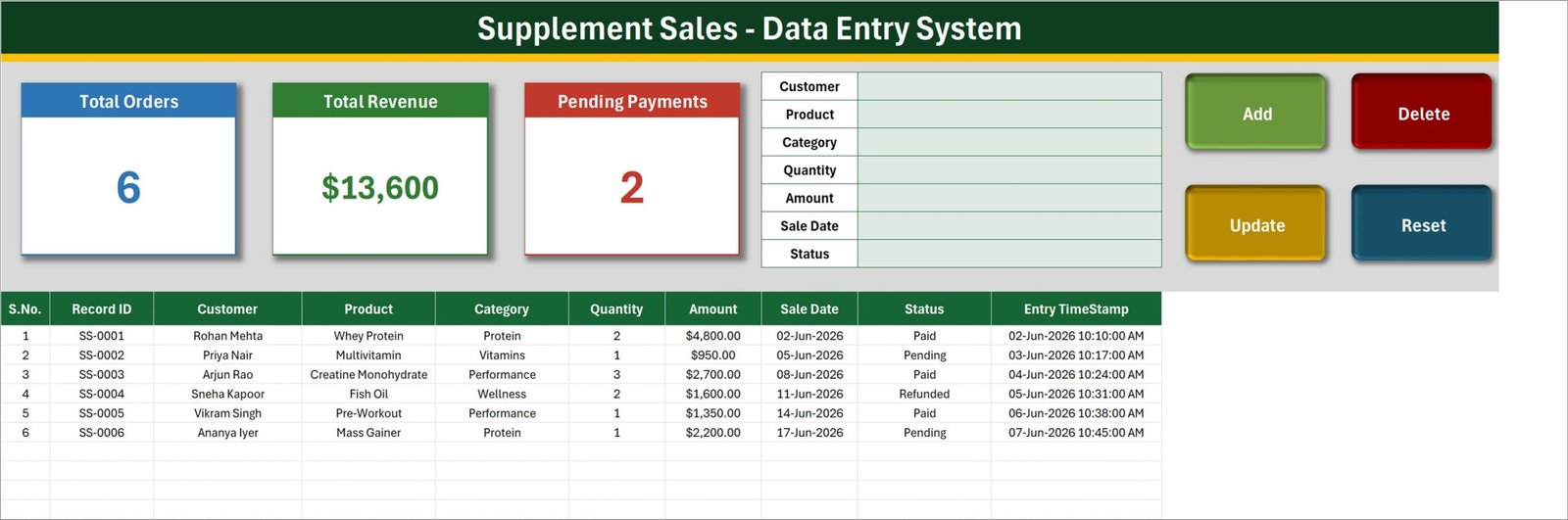
Sheet 1: Data Entry
The working screen. Three KPI cards (Total Orders, Total Revenue, Pending Payments) sit across the top next to the 7-field entry form and the Add, Update, Delete and Reset buttons. Underneath, the records table lists every saved sale with its Record ID, customer, product, category, quantity, amount, sale date, payment status and entry timestamp.
Sheet 2: Setting
The control sheet. It holds the Product List, Category List and Status List that feed every dropdown, plus the three source KPI cards that the Data Entry sheet mirrors as linked pictures. Edit a list here and the form updates instantly; restyle a card here and the card on the entry screen follows.
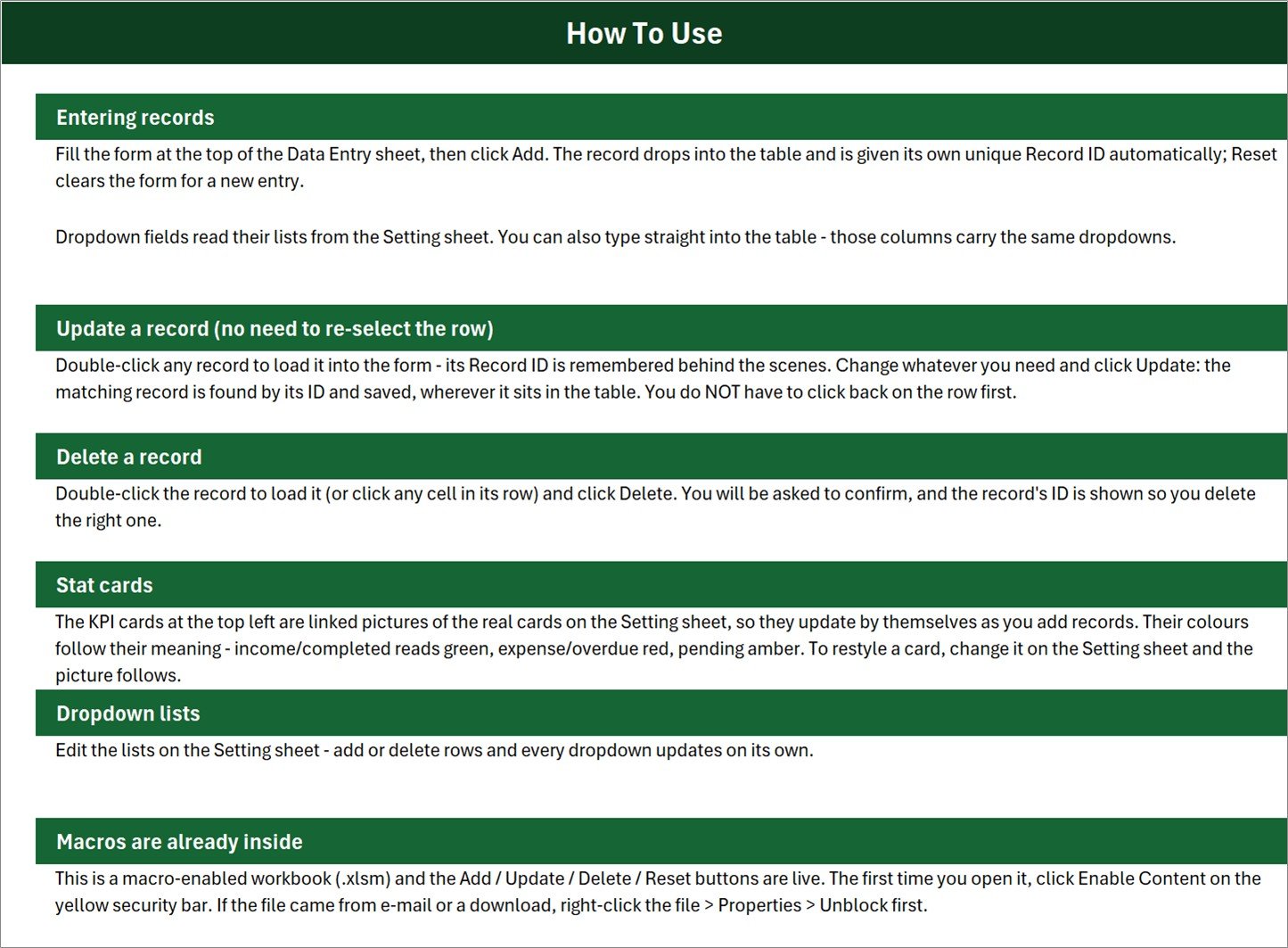
Sheet 3: Instructions (How To Use)
A built-in help sheet covering entering records, updating without re-selecting the row, deleting safely, how the stat cards are wired, how to edit the dropdown lists, and the macro-security step you need on first open.
Sheet 4: Get More Templates
A short in-workbook page linking back to the wider NextGenTemplates library of Excel Dashboard Templates and data-entry tools.
📊 Supplement Sales Data Entry System in Excel vs. a Google Sheets Log vs. Retail POS Software – Where This Fits
| Feature | Supplement Sales Data Entry System in Excel | Google Sheets sales log | Zoho Inventory / Square for Retail |
|---|---|---|---|
| Cost | $6.99 one-time ✅ | Free, but you build it yourself | $29-99 / month, per location |
| Platform | Desktop Microsoft Excel (.xlsm) | Browser, any device | Cloud app + card reader |
| Setup time | Under 10 minutes ✅ | 2-4 hours to build the form and formulas | 1-2 days incl. catalogue import |
| Guided entry form with dropdowns | Built in, 7 fields ✅ | You have to build it | Yes |
| Update and delete a record safely | Yes – ID-matched, with confirmation ✅ | Manual row editing, easy to break | Yes |
| Real-time team collaboration | No – single-file, desktop | Yes ✅ | Yes ✅ |
| Mobile access | No | Yes ✅ | Yes ✅ |
| Your data stays on your machine | Yes ✅ | Stored in Google Drive | Stored on the vendor’s cloud |
| Year-1 cost at 5 users | $6.99 total ✅ | $0 + your build time | $1,700-5,900 |
For a supplement store or distributor that wants a clean, auditable sales log without paying for POS software it does not need, the Supplement Sales Data Entry System in Excel sits in the sweet spot.
👥 Who This Template Is For – and Who It’s Not For
✅ This template is built for:
- Independent supplement and nutrition retailers logging 10-500 orders a month by hand
- Small distributors and wholesalers who invoice offline and need a tidy record of what shipped and what is still unpaid
- Gym and studio owners who resell products at the counter and want the takings recorded separately from memberships
- Online sellers who export orders from a marketplace and want one consolidated Excel log with payment status
- Bookkeepers and virtual assistants who need a structured entry screen instead of a raw spreadsheet
❌ This template is NOT for:
- Teams that need several people entering sales at the same time – this is a single desktop file, not a shared database
- Anyone working only in Excel for the web or Google Sheets – neither runs the VBA behind the buttons
- Businesses that need card processing, barcode scanning, batch or expiry-date tracking, or automatic stock deduction
- Anyone looking for product, health, nutrition or regulatory guidance – this workbook records transactions only and offers none of that
⚙️ How to Use the Supplement Sales Data Entry System in Excel
- Unzip the download and open Supplement_Sales_System.xlsm in desktop Microsoft Excel. If the file came from e-mail, right-click it, choose Properties and tick Unblock first.
- Click Enable Content on the yellow security bar. The Add, Update, Delete and Reset buttons will not run until macros are enabled.
- Go to the Setting sheet and replace the sample Product List, Category List and Status List with your own. Add or delete rows freely – the dropdowns follow.
- Return to the Data Entry sheet and delete the six sample records so you start from an empty table.
- Fill the form – Customer, Product, Category, Quantity, Amount, Sale Date, Status – and click Add. The record is saved with a new ID and a timestamp.
- To change a record, double-click it, edit the form and click Update. To remove one, select or double-click it and click Delete, then confirm.
- Watch the Total Orders, Total Revenue and Pending Payments cards update as you work, and filter or pivot the records table whenever you need a report.
💼 Real-World Use Cases
Nadia runs a single-store supplement shop. She logs each counter sale at the end of the day using the form, marks card payments Paid and account customers Pending, and glances at the Pending Payments card on Monday morning to see who still owes her – without buying a POS subscription for a shop with one till.
Marcus supplies gyms in three cities. He enters every wholesale order as it ships, uses the Category List to separate Protein, Performance and Wellness lines, and pivots the records table at month end to see which categories carried the revenue.
Priya does the books for two nutrition retailers. She keeps one copy of the workbook per client, imports the month’s orders through the entry form, and hands over a filtered records table with Record IDs and timestamps that reconciles cleanly against the bank statement.
❓ Frequently Asked Questions
Do I need to enable macros to use the Supplement Sales Data Entry System in Excel?
Yes. The Supplement Sales Data Entry System in Excel is a macro-enabled workbook (.xlsm), and the Add, Update, Delete and Reset buttons are VBA. Click Enable Content on the yellow security bar the first time you open it, or the buttons will do nothing.
Will this work in Google Sheets or Excel for the web?
No. The Supplement Sales Data Entry System in Excel is a desktop Excel product. Neither Google Sheets nor Excel for the web runs VBA, so the four buttons will not work there. Use Microsoft Excel for Windows or Mac.
How long does setup take?
Under 10 minutes. Enable macros, edit the three lists on the Setting sheet, delete the six sample records, and the Supplement Sales Data Entry System in Excel is ready. No formulas need editing and nothing needs to be re-linked.
Can I change the products, categories and payment statuses?
Yes. All three lists live on the Setting sheet of the Supplement Sales Data Entry System in Excel – 10 products, 6 categories and 4 statuses out of the box. Add or delete rows and every dropdown on the form and in the table updates on its own.
How does this compare to Zoho Inventory or Square for Retail?
Those are full POS and inventory platforms with card processing, and they cost $29-99 per month. The Supplement Sales Data Entry System in Excel is a $6.99 one-time record-keeping workbook: it logs sales, customers, amounts and payment status, and leaves payment processing to your existing setup.
Does it track stock levels or expiry dates?
No. The Supplement Sales Data Entry System in Excel records sales transactions – product, category, quantity, amount, date and payment status. It does not deduct stock, scan barcodes or track batch or expiry information.
Are the figures in the screenshots real?
No. Every customer name, product name and amount shown is sample data used to demonstrate the layout of the Supplement Sales Data Entry System in Excel. Delete the six sample rows before you start.
👤 About the Author
Built by PK – Microsoft Certified Professional with 15+ years of Excel, Google Sheets and Power BI experience. Founder of NextGenTemplates, reaching 300K+ subscribers across YouTube channels (@PK-AnExcelExpert, @NextGenTemplates, @NeoTechNavigators). Every template is hand-built and tested before release.
🔗 Explore Related Templates
- Purchase and GRN Data-Entry System in Excel – the other half of the cycle: log what you buy in before you sell it out.
- Bar Stock Register Data Entry System in Excel – the same four-button engine applied to a stock register.
- Gift Register Data Entry System in Excel and Petty Reimbursement Data Entry System in Excel – two more sibling systems from the same line.
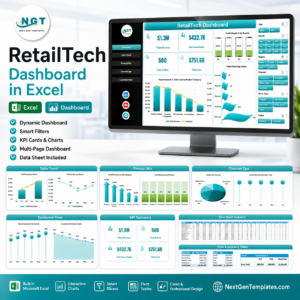
- RetailTech Dashboard in Excel – when the log has enough history, step up to a full multi-page retail dashboard.
- HealthTech Dashboard in Google Sheets – a browser-based option if your team needs shared access.
Browse the full MS Excel template library for more entry systems, trackers and dashboards.
📖 Click here to read the Detailed Blog Post
🎥 Visit our YouTube channel for step-by-step video tutorials
👉 YouTube.com/@NextGenTemplates
📅 Last updated: August 2026











Reviews
There are no reviews yet.