

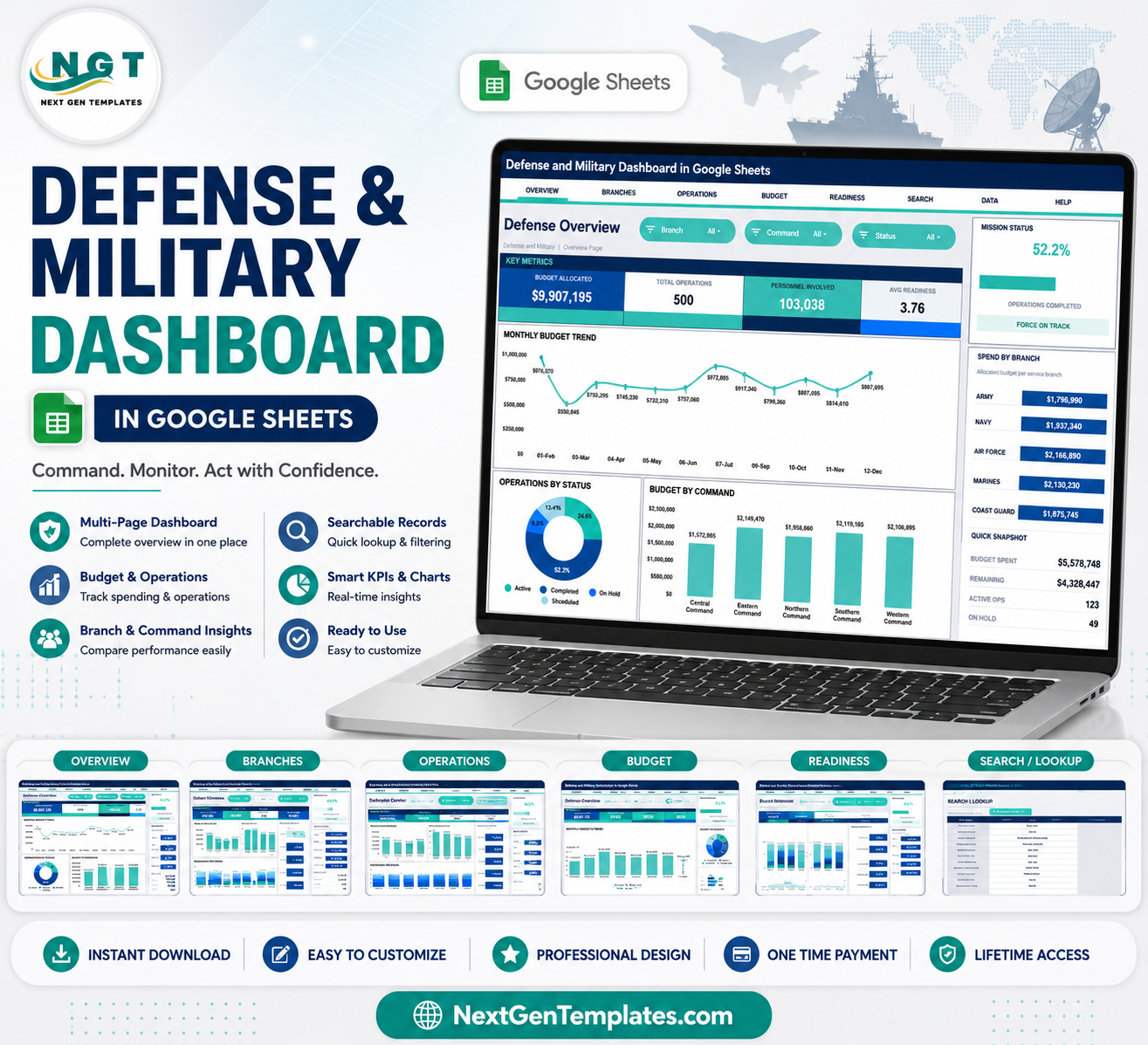

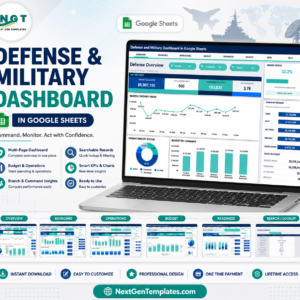
Defense and Military Dashboard in Google Sheets gives defense operations, administration, and readiness teams seven sheet tabs, nine high-level KPI cards, 25 chart views, slicer-based filtering, a Search sheet, and a structured Data sheet in one editable Google Sheets file. It is designed for approved, non-sensitive reporting records such as branch, operation type, command, facility, status, priority, officer, budget, personnel, and readiness score. Join 8,400+ teams in 40+ countries using NextGenTemplates to replace recurring software costs with one-time-purchase templates. Instant access, lifetime use, no subscription, no per-user fee, and full edit control after purchase.
Key Features of Defense and Military Dashboard in Google Sheets
- Seven organized tabs: Overview, Branch Performance, Operations Center, Budget and Spend, Force Readiness, Search, and Data.
- Nine executive cards: Budget Allocated, Total Operations, Personnel Involved, Avg Readiness, Mission Status, Budget Spent, Remaining, Active Ops, and On Hold.
- 25 dashboard charts: Review budget, spend, branch performance, command activity, facility workload, operation types, priorities, officers, and readiness.
- Multiple slicers: Filter the dashboard quickly by key operating fields without rebuilding charts or formulas.
- Search sheet: Select a Record ID and view the full operation record instantly.
- Editable Data sheet: Replace the sample rows with your own records while keeping the same column structure.
- Google Sheets collaboration: Share the working file with approved team members through Google Drive permissions.
- No subscription: Buy once and use the template for recurring reporting cycles.
What’s Inside the Defense and Military Dashboard in Google Sheets
1. Overview Page
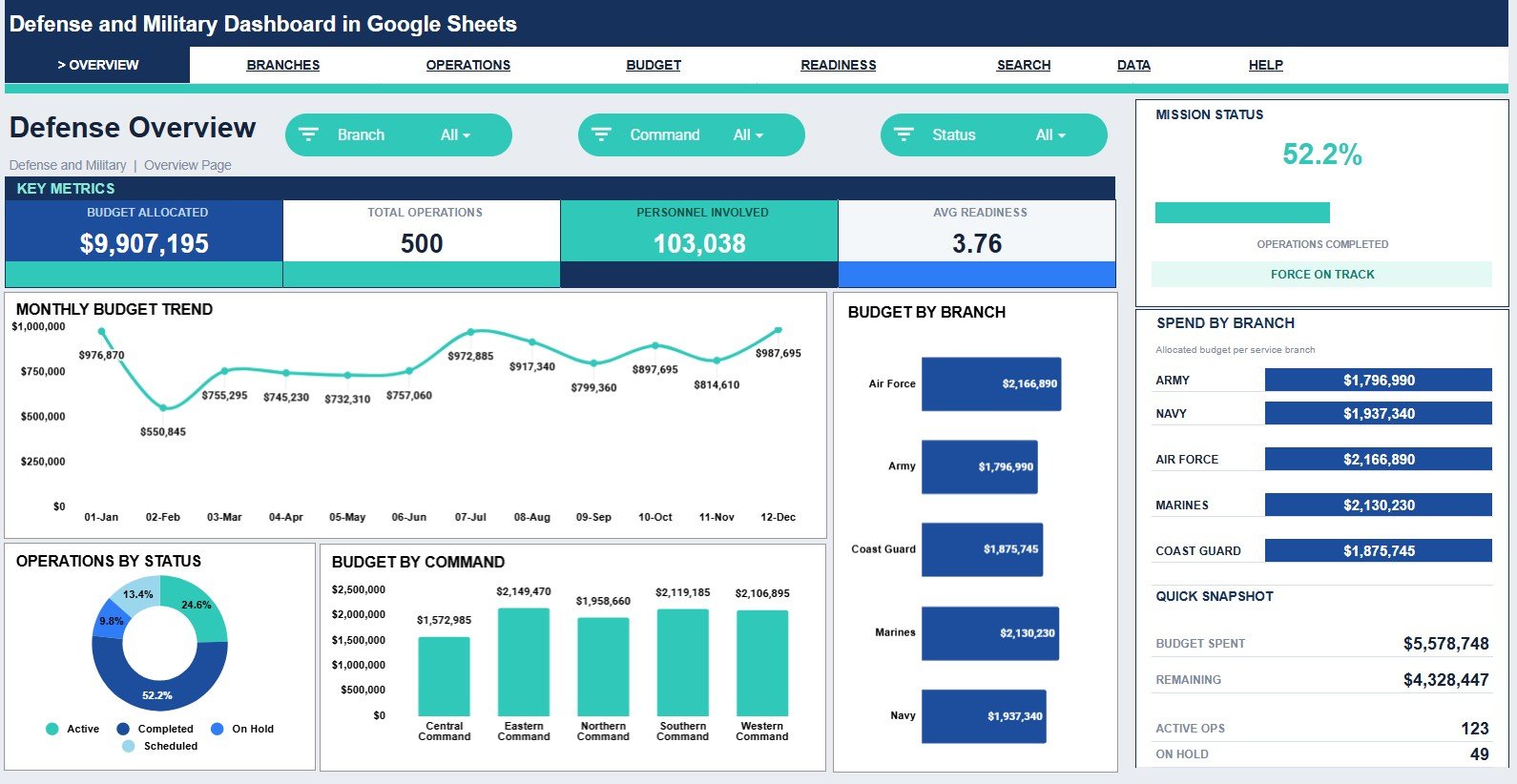
The Overview page gives leadership a fast command-level snapshot. Cards summarize Budget Allocated, Total Operations, Personnel Involved, Avg Readiness, Mission Status, Budget Spent, Remaining, Active Ops, and On Hold.
Monthly Budget by Month: Shows how budget allocation changes across months. Use it to spot periods with higher funding needs or unusual budget concentration.
Operations by Status: Breaks operations into active, on hold, completed, or other status groups. Use it to understand workload flow and stalled activity quickly.
Budget by Command: Compares allocated budget across commands. Use it to identify which command groups carry the largest funding responsibility.
Budget by Branch: Shows how planned funding is distributed by branch. Use it to compare branch-level resourcing at a glance.
Spend by Branch: Compares actual spend across branches. Use it to review where spending is tracking closest to or furthest from allocation.
Defense and Military Dashboard in Google Sheets
2. Branch Performance
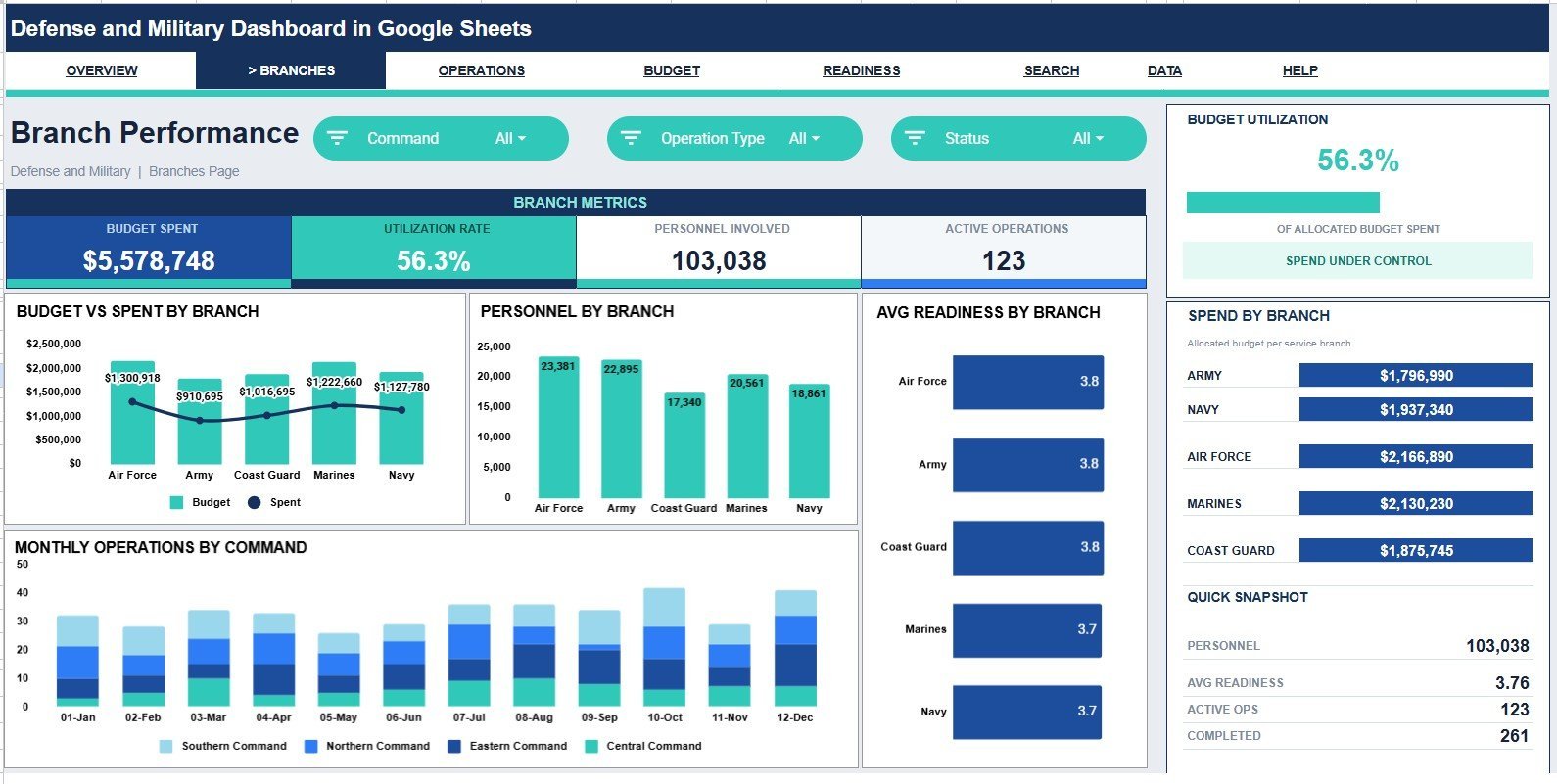
Budget vs Spent by Branch: Compares allocated budget against actual spend for each branch. Use it to identify branches that are overspending, underspending, or on track.
Personnel by Branch: Shows personnel involvement across branches. Use it to check whether manpower levels align with operational load.
Avg Readiness by Branch: Compares readiness score by branch. Use it to find branches that may need support, training, or resource review.
Monthly Operations by Command: Tracks how operation count changes by command over time. Use it to see command activity trends and seasonal pressure.
Spend by Branch: Reviews branch-level expenditure. Use it with budget charts to compare resource usage and operating focus.
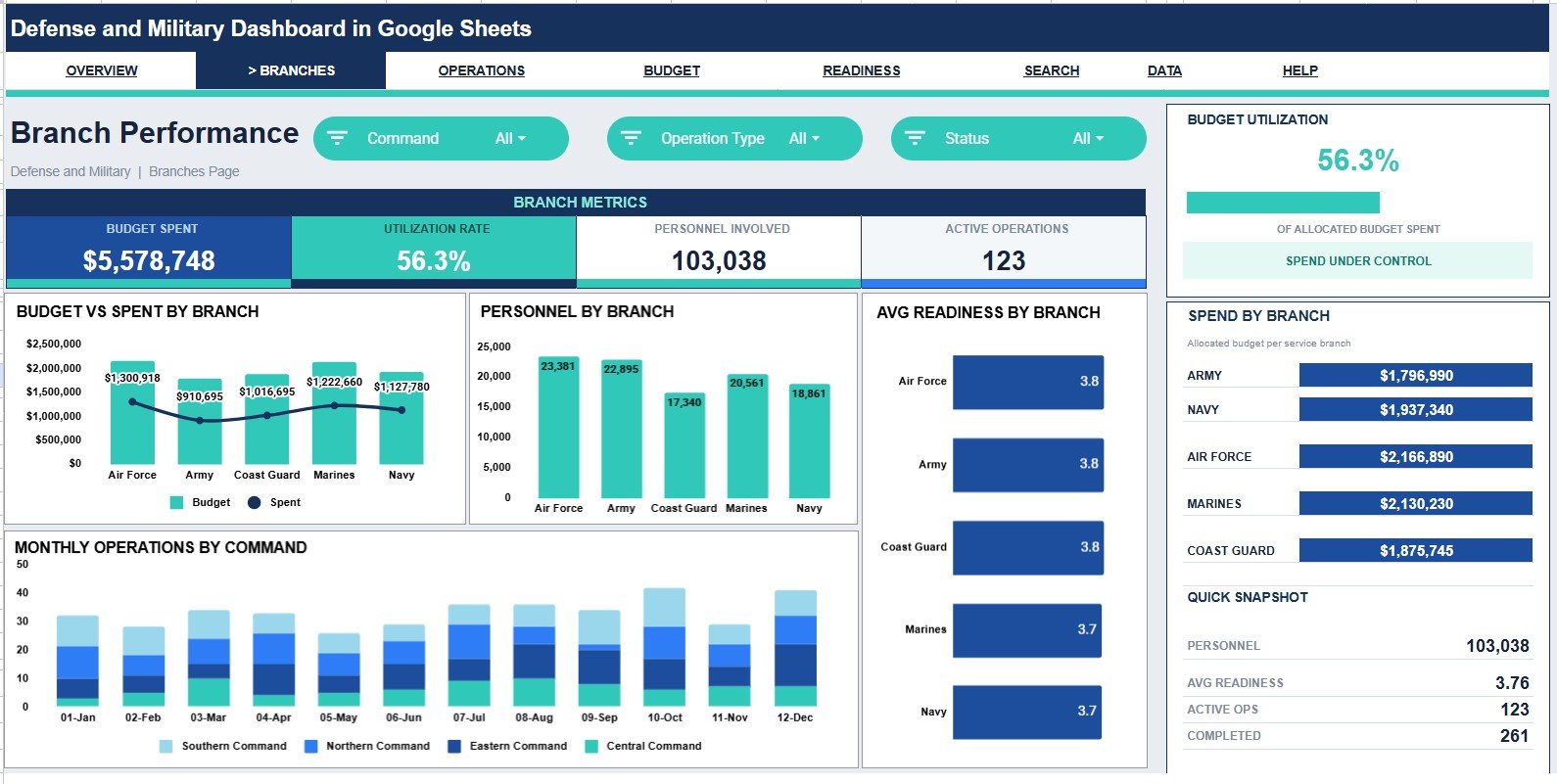
Branch Performance
3. Operations Center
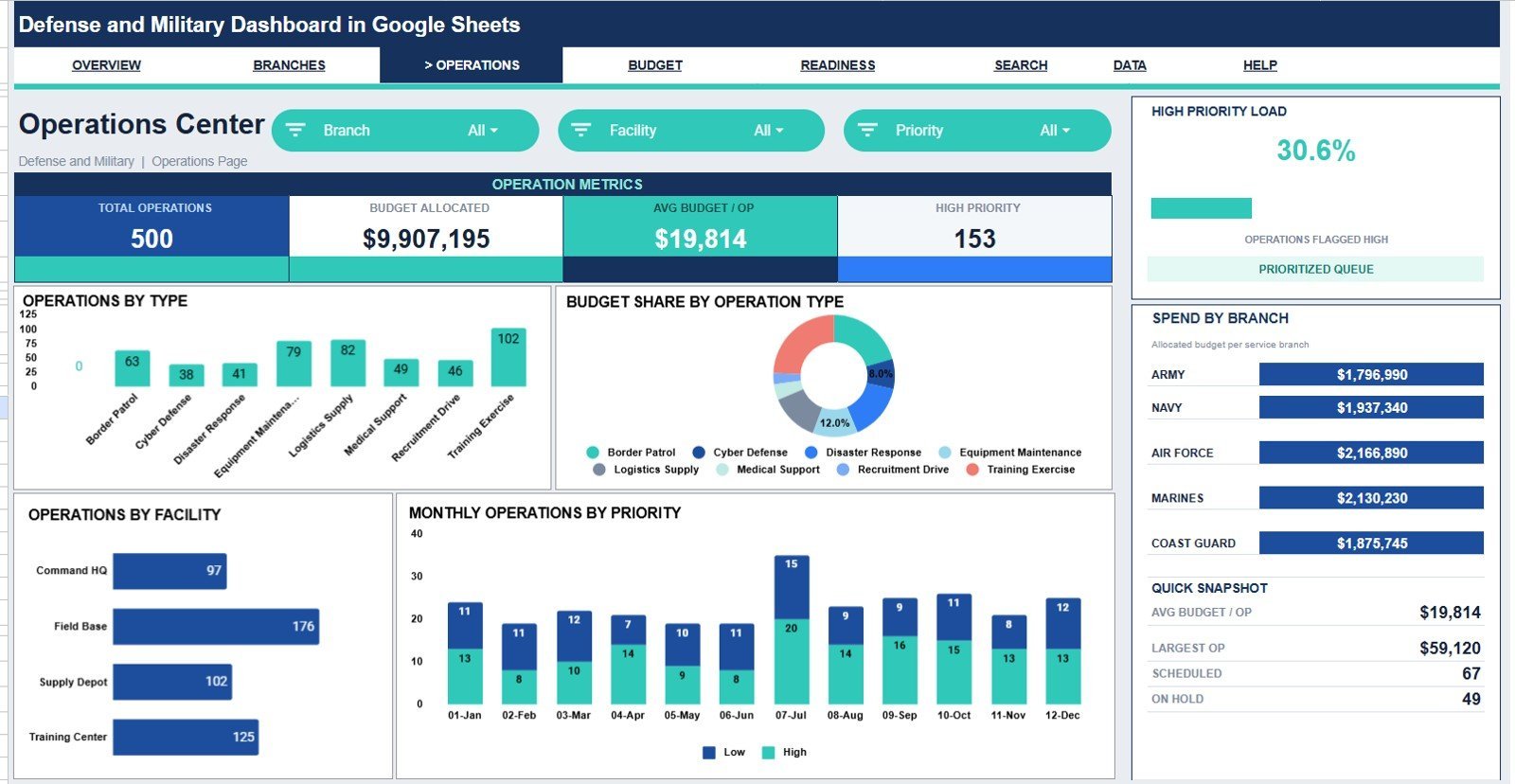
Operations by Operation Type: Shows how many records belong to each operation type. Use it to understand the mix of training, support, logistics, response, or other operational categories.
Budget Share by Operation Type: Displays how budget is distributed across operation types. Use it to see which activity categories consume the largest share of funding.
Operations by Facility: Compares operation count across facilities. Use it to identify high-use facilities and review capacity planning.
Monthly Operations by Priority: Tracks operations by priority over time. Use it to see whether high-priority workload is rising or falling.
Spend by Branch: Shows actual branch spend within the operations view. Use it to connect operational activity with spending patterns.
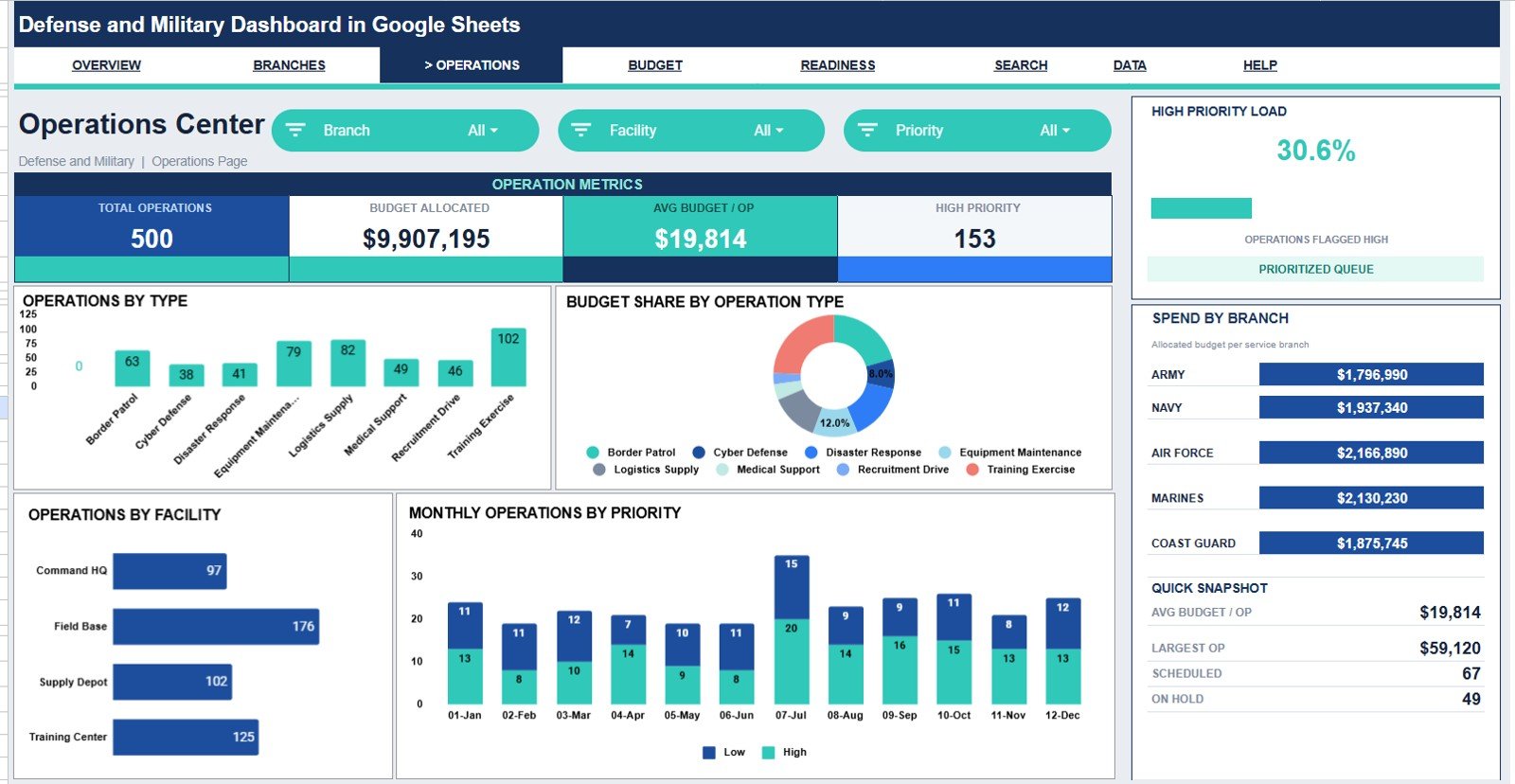
Operations Center
4. Budget and Spend
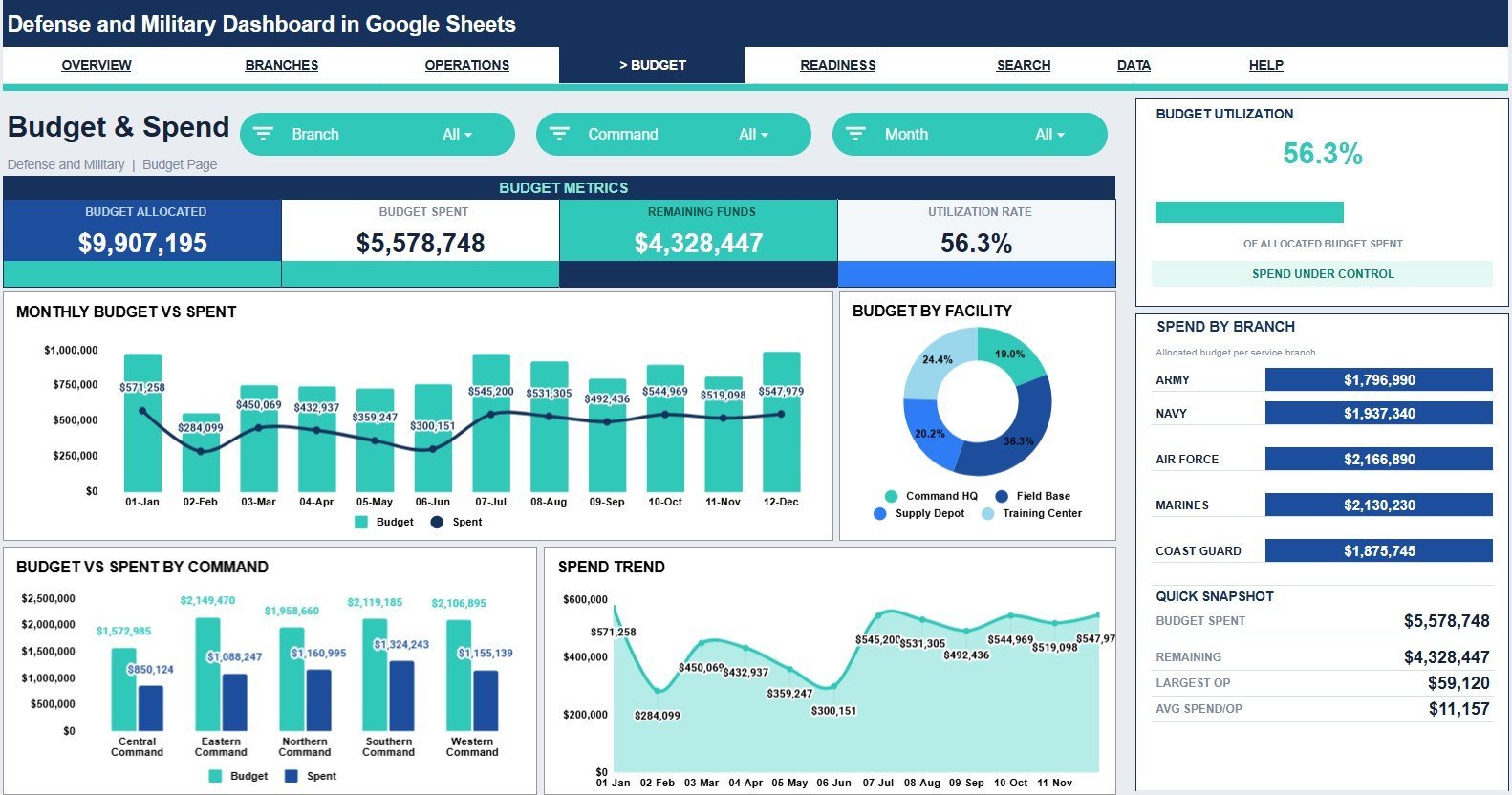
Budget vs Spent by Month: Compares monthly allocation and actual spend. Use it to detect overspend risk before the budget cycle closes.
Budget by Facility: Shows funding by facility. Use it to compare where planned resources are concentrated.
Budget vs Spent by Command: Reviews financial performance by command. Use it to identify commands that need budget rebalancing or closer review.
Spend by Month: Tracks actual spending trend over time. Use it to explain monthly cost movement and budget burn rate.
Spend by Branch: Compares actual spend by branch. Use it to review branch-level financial utilization during reporting meetings.
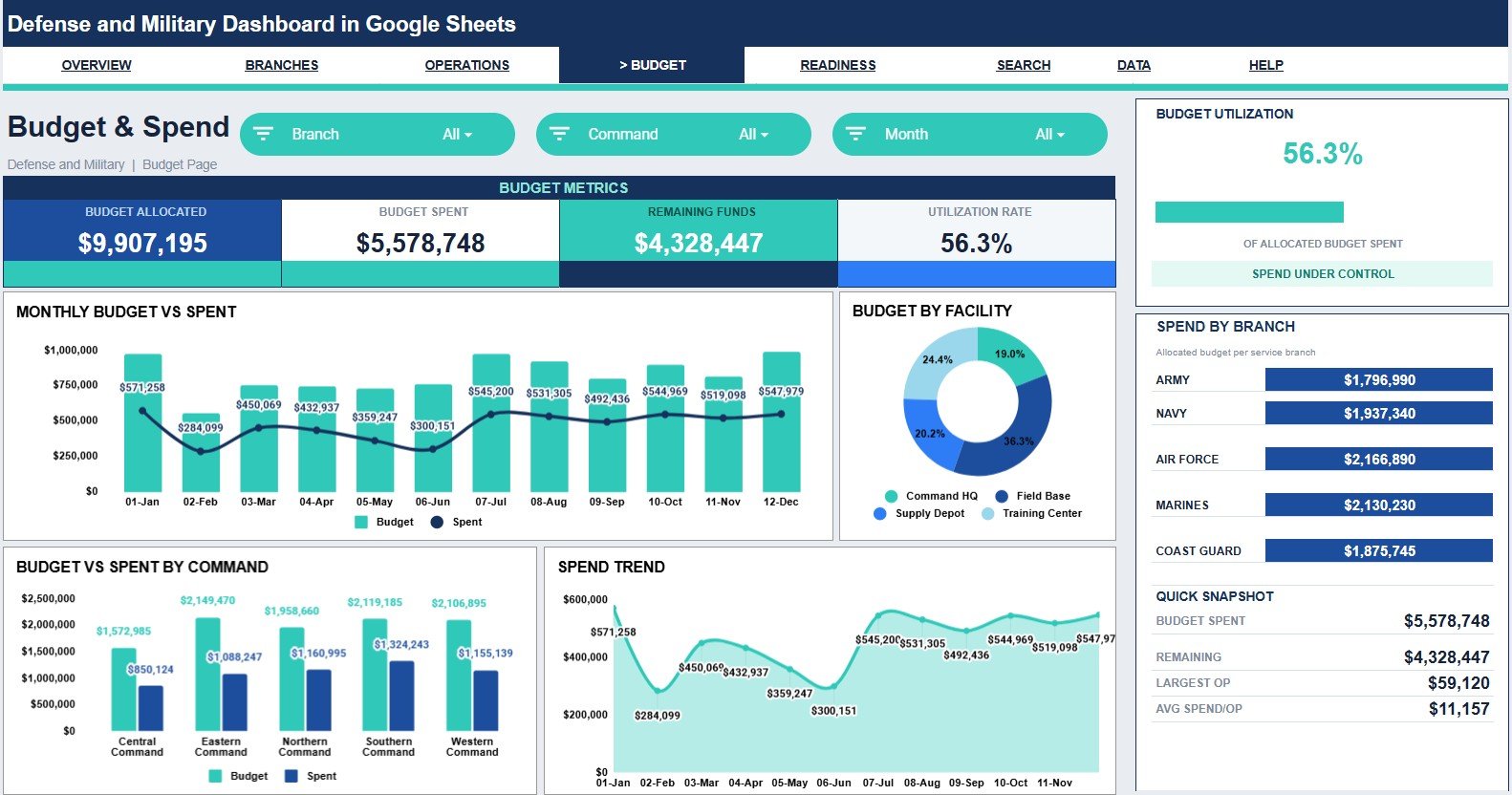
Budget and Spend
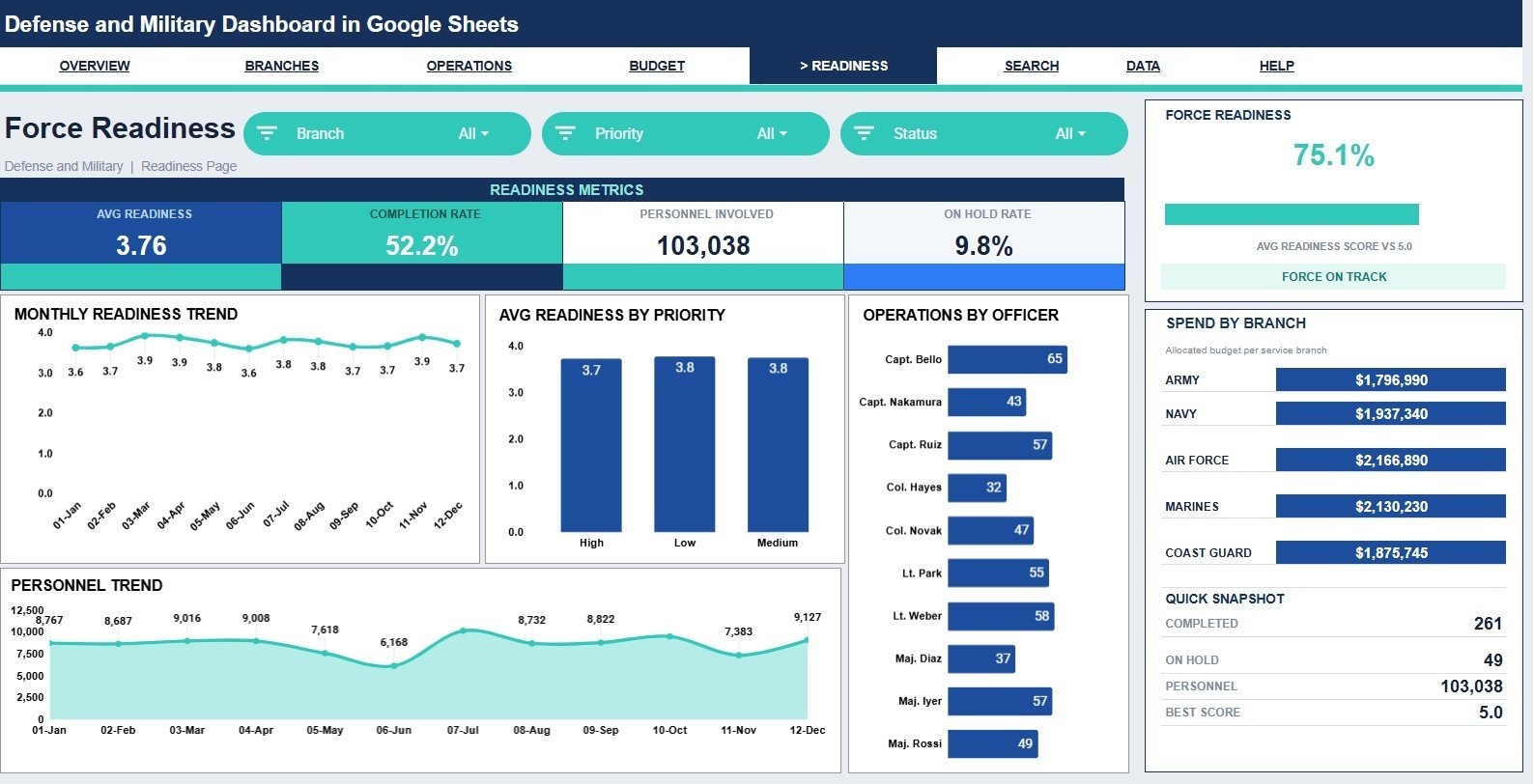
5. Force Readiness
Avg Readiness by Month: Tracks readiness score trend across months. Use it to see whether overall readiness is improving, declining, or holding steady.
Avg Readiness by Priority: Compares readiness by priority level. Use it to confirm whether high-priority operations are supported by strong readiness scores.
Operations by Officer: Shows operation count by assigned officer. Use it to review workload distribution and reporting ownership.
Personnel by Month: Tracks personnel involvement over time. Use it to understand manpower demand by reporting period.
Spend by Branch: Connects branch spend with readiness analysis. Use it to compare investment patterns with readiness outcomes.
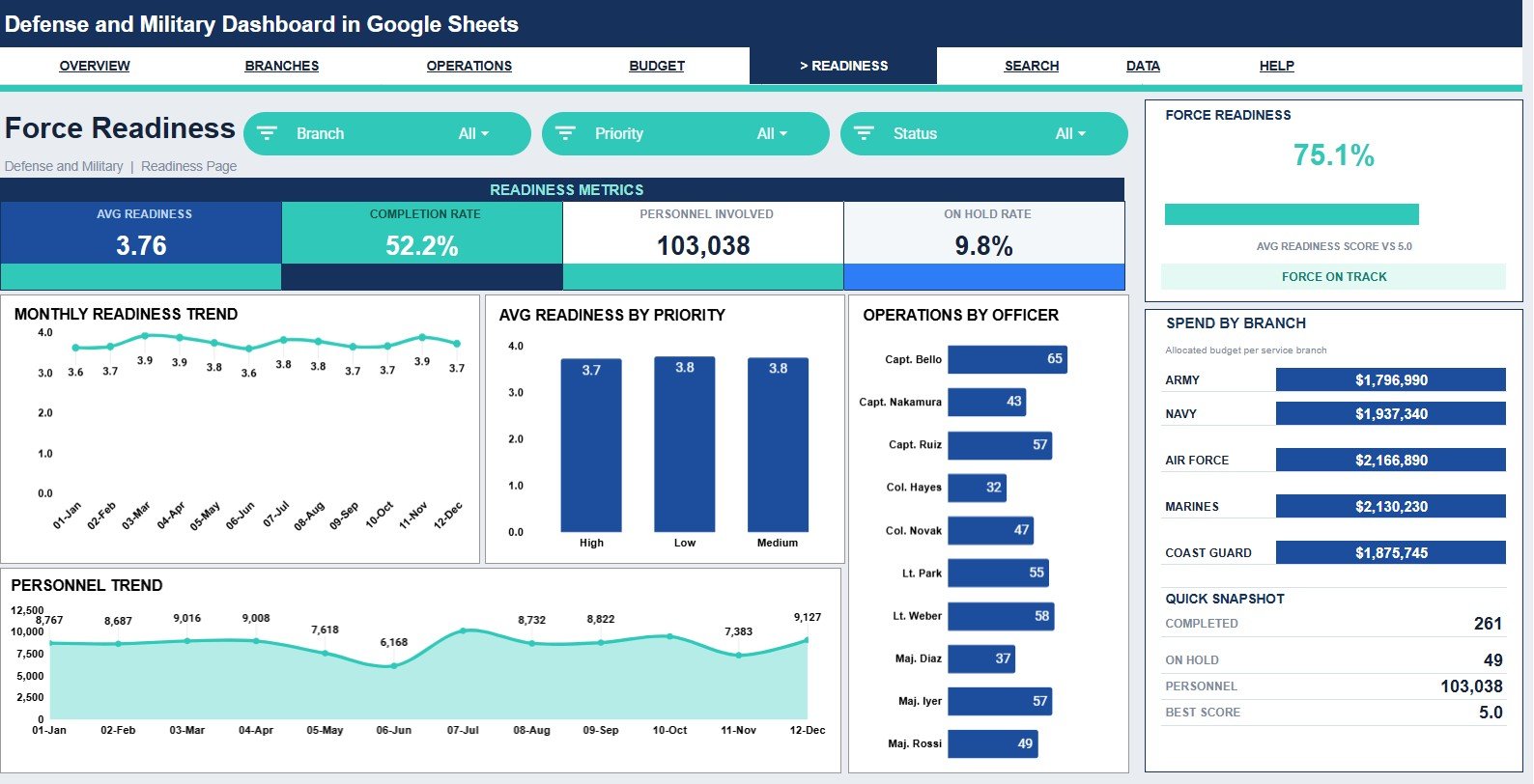
Force Readiness
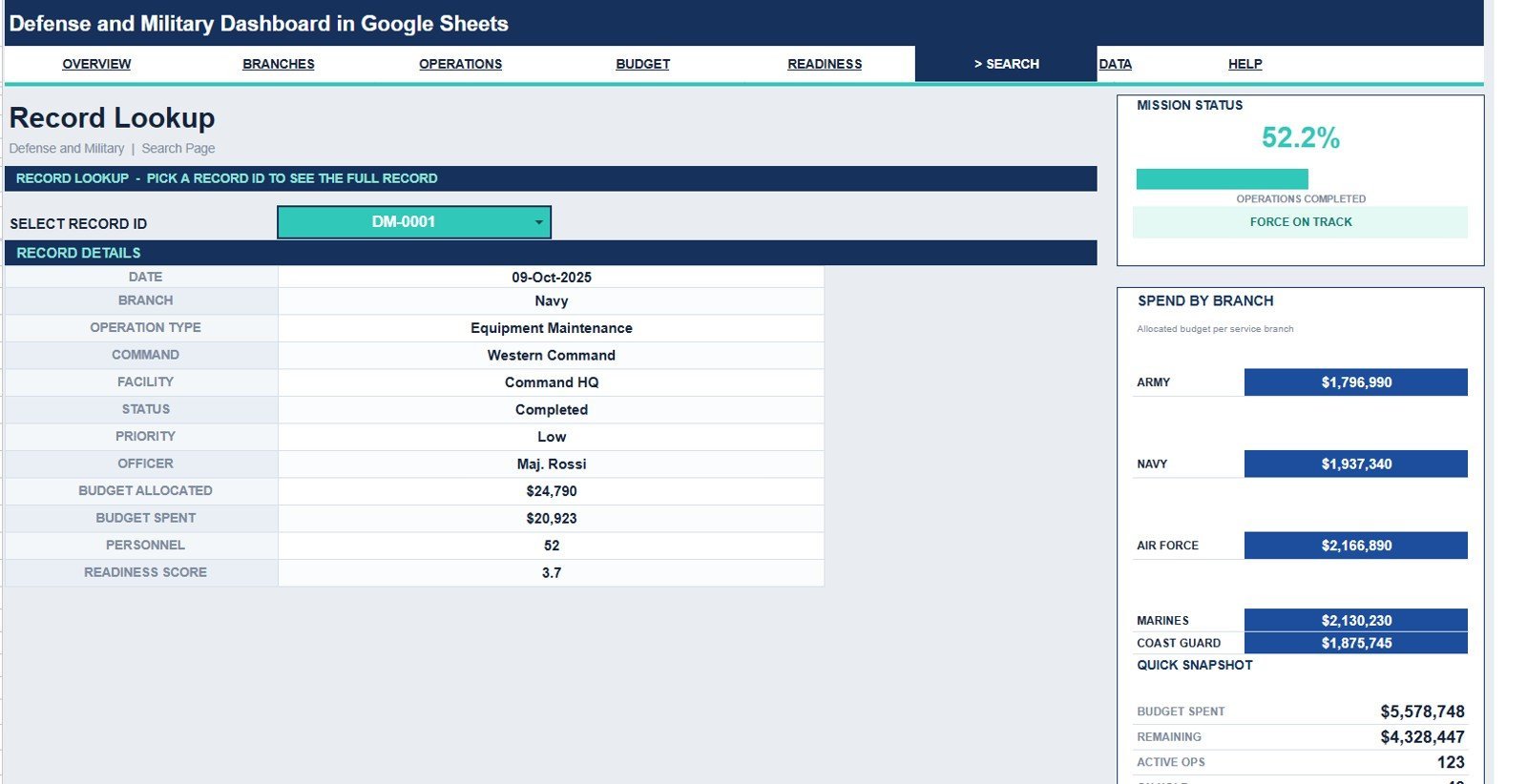
6. Search Sheet Tab
The Search sheet lets you select a Record ID and view the full operation record details in one place. It shows date, branch, operation type, command, facility, status, priority, officer, budget allocated, budget spent, personnel, and readiness score.
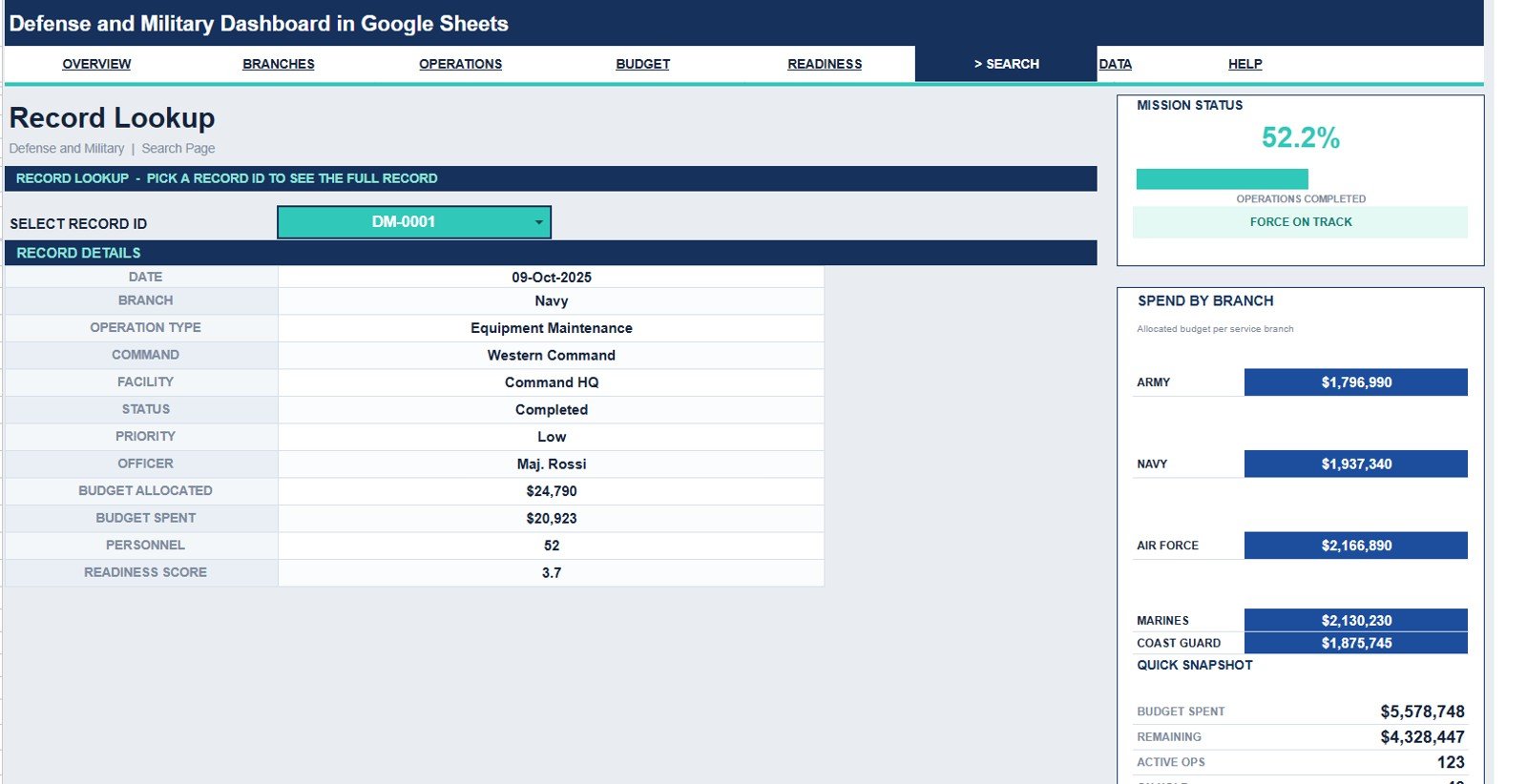
Search Sheet tab
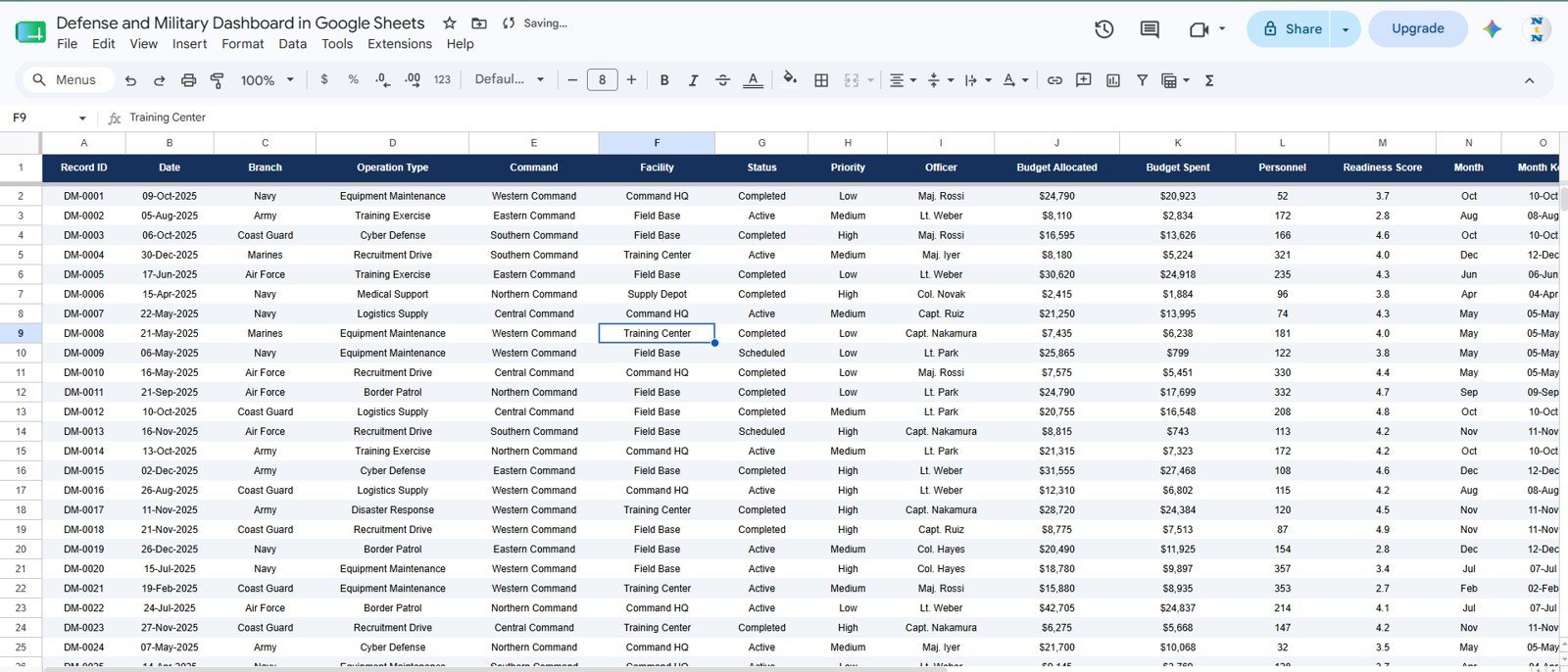
7. Data Sheet Tab
The Data sheet is where you add or replace records in the same format. Keep the supplied column structure intact so the KPI cards, charts, slicers, and Search sheet continue to update correctly.
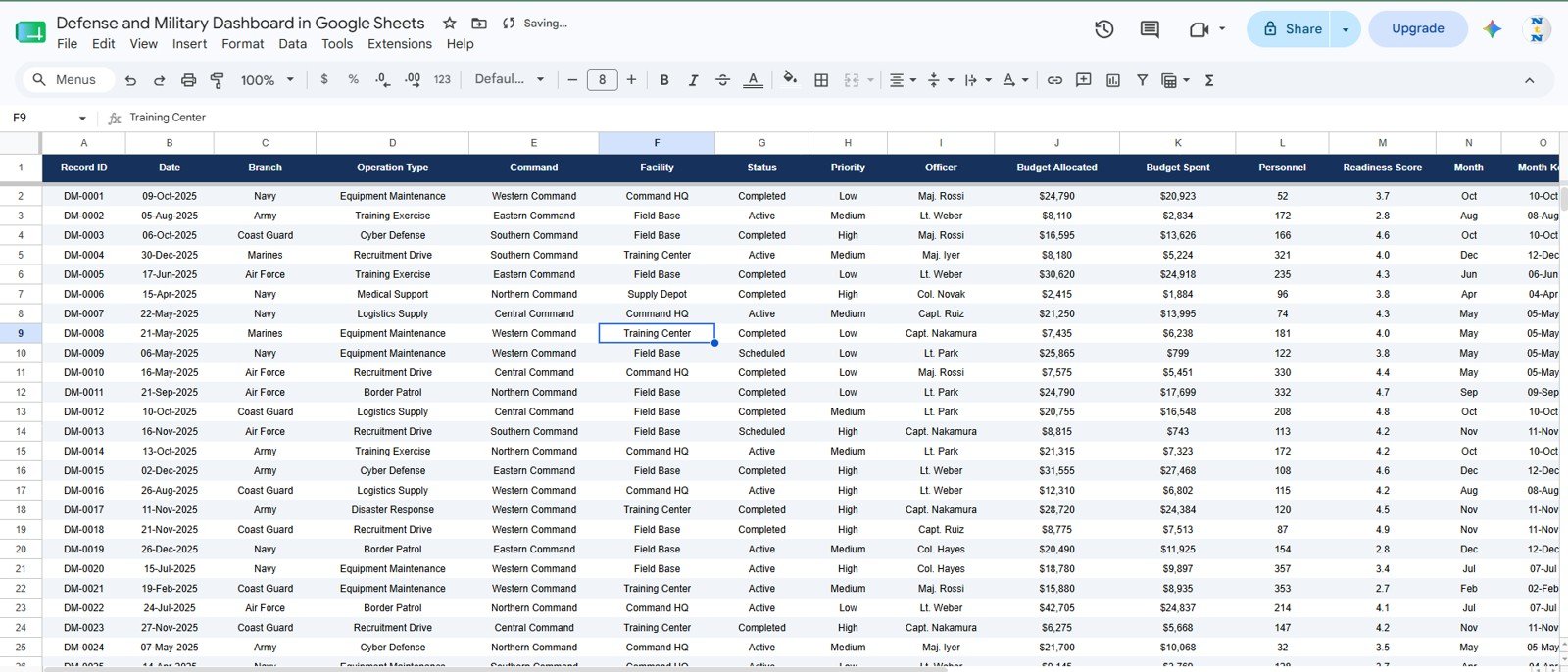
Data Sheet tab
Defense and Military Dashboard in Google Sheets vs. Microsoft Excel Dashboard vs. Paid SaaS – Where This Fits
| Feature | This Google Sheets Template | Microsoft Excel Dashboard | Paid SaaS or Custom BI |
|---|---|---|---|
| Cost | $9.99 sale price, one time | Template cost plus Excel license | Recurring subscription or implementation cost |
| Platform | Google Sheets in browser | Desktop or web Excel | Vendor cloud or internal BI stack |
| Setup time | Copy template and replace records | Open workbook and refresh | Varies by vendor and data integration |
| Real-time collaboration | Native Drive sharing | Microsoft 365 dependent | Usually available by paid seat |
| Mobile access | Google Sheets app or browser | Excel app or browser | Plan dependent |
| Customizable fields | Editable sheet structure | Editable workbook structure | Limited by permissions or vendor setup |
| Search by record | Built-in Record ID lookup | Possible with formulas | Usually available if configured |
| Year-1 cost at 5 users | $9.99, excluding Google Workspace | License dependent | Usually much higher |
Who This Template Is For – and Who It’s Not For
Best for: defense administration teams, operations analysts, public-sector reporting teams, facility managers, budget owners, readiness coordinators, and consultants who need a clear dashboard for approved operational records.
Not for: classified information, live tactical command, weapons systems, secure field communications, real-time dispatch, or regulated defense systems that require controlled hosting, audit trails, or security accreditation.
How to Use the Defense and Military Dashboard in Google Sheets
- Open the PDF guide in your download and use the Google Sheets copy link to create your own editable file.
- Go to the Data sheet and replace the sample rows with your approved records.
- Keep the same columns for date, branch, operation type, command, facility, status, priority, officer, budget, personnel, and readiness.
- Use slicers on the dashboard pages to filter the visible analysis.
- Open the Search sheet and select a Record ID to inspect one full operation record.
- Share the file only with approved team members through Google Drive permissions.
Real-World Use Cases
Asha, operations analyst: Asha uses the Overview and Operations Center pages before weekly status meetings to review active operations, priority trends, and facility workload.
Daniel, budget coordinator: Daniel uses the Budget and Spend page to compare allocation against actual spending by month, command, facility, and branch.
Meera, readiness lead: Meera reviews the Force Readiness page to track readiness by month and priority, then uses the Search sheet to inspect specific records.
Frequently Asked Questions
What does this Google Sheets dashboard track?
It tracks budget allocation, budget spent, remaining budget, operation count, mission status, branch, command, facility, personnel, officer, priority, and readiness score.
How many sheet tabs are included?
The template includes seven tabs: Overview, Branch Performance, Operations Center, Budget and Spend, Force Readiness, Search, and Data.
Can I filter the dashboard?
Yes. The dashboard uses slicers so you can quickly narrow the analysis by key dimensions such as branch, command, facility, status, or priority.
Does the Search sheet show full record details?
Yes. Select a Record ID to view the operation date, branch, operation type, command, facility, status, priority, officer, budget allocated, budget spent, personnel, and readiness score.
Can I add my own data?
Yes. Replace the sample data in the Data sheet while keeping the same format and column headings.
Is this for classified military data?
No. This is a Google Sheets reporting template for approved, non-sensitive structured records. Do not use it for classified, restricted, or controlled defense information.
About the Author
Built by PK – Microsoft Certified Professional with 15+ years of Excel, Google Sheets, and Power BI experience. Founder of NextGenTemplates, reaching 300K+ subscribers across YouTube channels. Every template is hand-built and tested before release.
Explore Related Templates
Need the same topic in another platform? See the Defense and Military Dashboard in Power BI, Defense Equipment Manufacturing Dashboard in Excel, and Defense Equipment Manufacturing Dashboard in Power BI. For nearby control and operational reporting, review the Compliance and Audit Dashboard in Google Sheets, Audit Operations Management Dashboard in Google Sheets, and Contract Manufacturing Dashboard in Google Sheets.
Browse all Google Sheets templates and Google Sheets dashboard templates.
Ready to review defense operations, budget, and readiness in Google Sheets? Add the template to your reporting toolkit, replace the sample records, and start analyzing approved operational data in one shareable file.
Watch the step-by-step video Demo:
Last updated: July 17, 2026.
Compatibility and Requirements
- Works in Google Sheets. You need a free Google account and a web browser.
- The dashboard pages use slicers to filter the charts. Google explains how charts work in Add and edit a chart or graph.













Reviews
There are no reviews yet.