

Personal Expense Tracker in Google Sheets is a powerful, cloud-based expense management template that helps you track, categorize, and analyze all your personal spending in one organized place. Whether you want to monitor your daily expenses, compare spending by category, review monthly summaries, or customize your budget limits — this Google Sheets Tracker Template delivers everything you need to take full control of your finances.
This template includes 4 professionally designed pages — a visual Dashboard, Monthly Summary analysis, Settings page, and a structured Data Entry sheet. It is ideal for individuals, freelancers, students, and small households looking to manage their personal expenses smarter using Google Sheets Templates.
🔑 Key Features of Personal Expense Tracker in Google Sheets
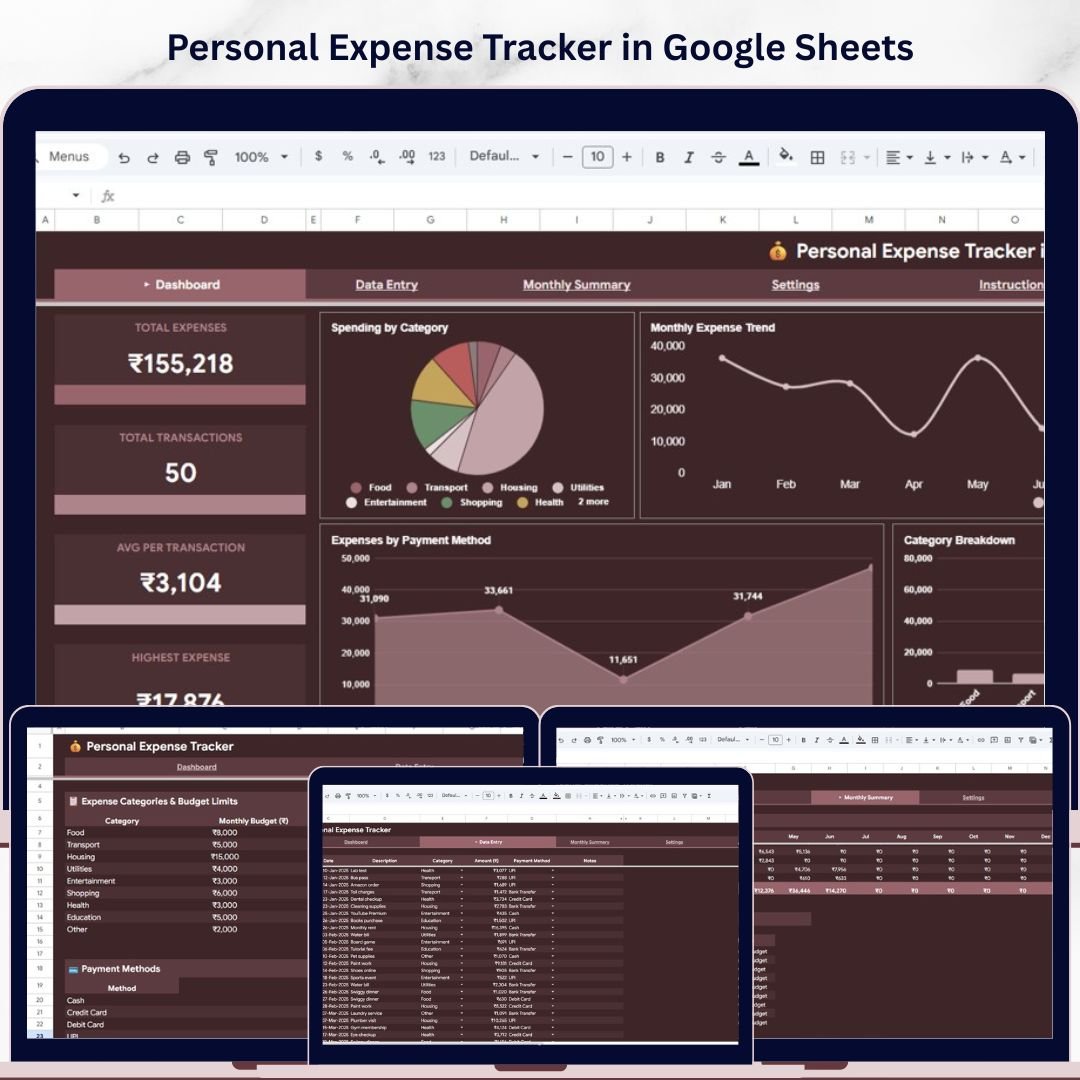
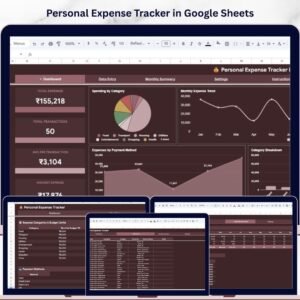
📌 Real-Time Expense Dashboard – Instantly view your Total Expenses, Total Transactions, Average Per Transaction, and Highest Expense through high-level KPI cards on the Dashboard page.
📌 4 Interactive Pages – This template includes a Dashboard overview, Monthly Summary analysis, a Settings configuration page, and a dedicated Data Entry sheet for recording your transactions.
📌 Visual Charts and Analytics – Analyze your spending visually with charts including Spending by Category, Monthly Expense Trend by Month, Expenses by Payment Method, and Category Breakdown by Category.
📌 Dynamic Slicers and Filters – Apply quick filters using built-in slicers on the Dashboard page to slice and dice your expense data by any dimension instantly.
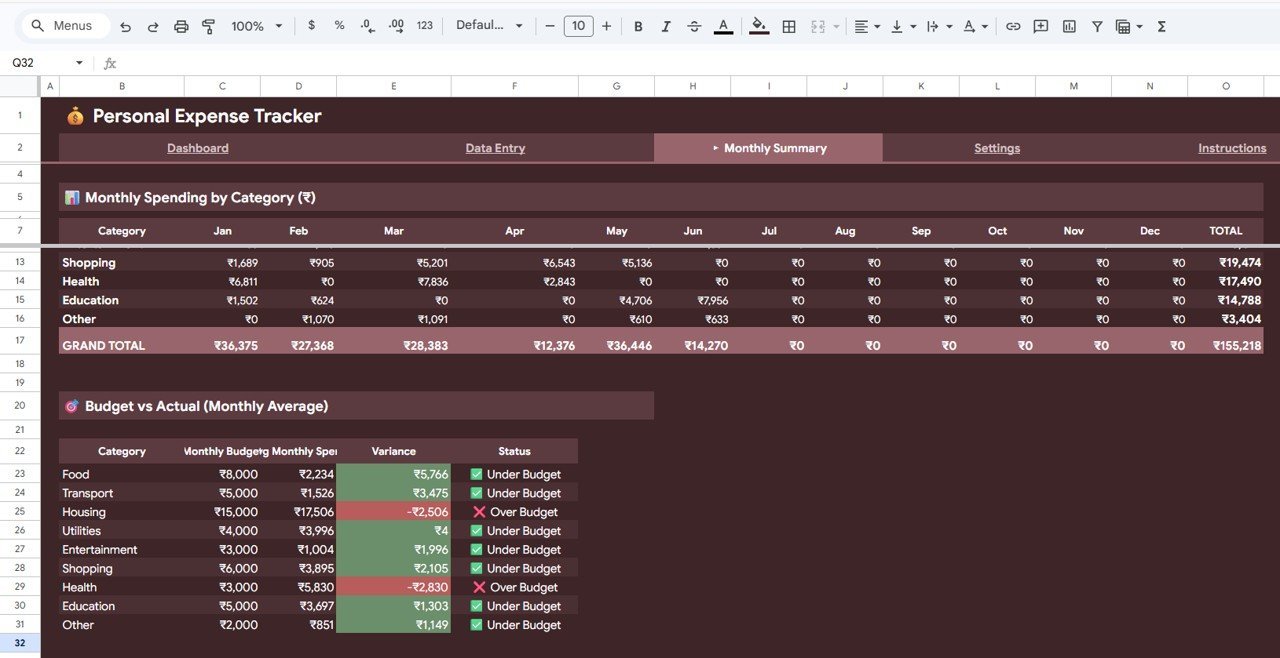
📌 Monthly Summary Analysis – Dive deeper into your spending with Monthly Spending by Category and Budget vs Actual by Monthly Average analysis to understand where your money goes each month.
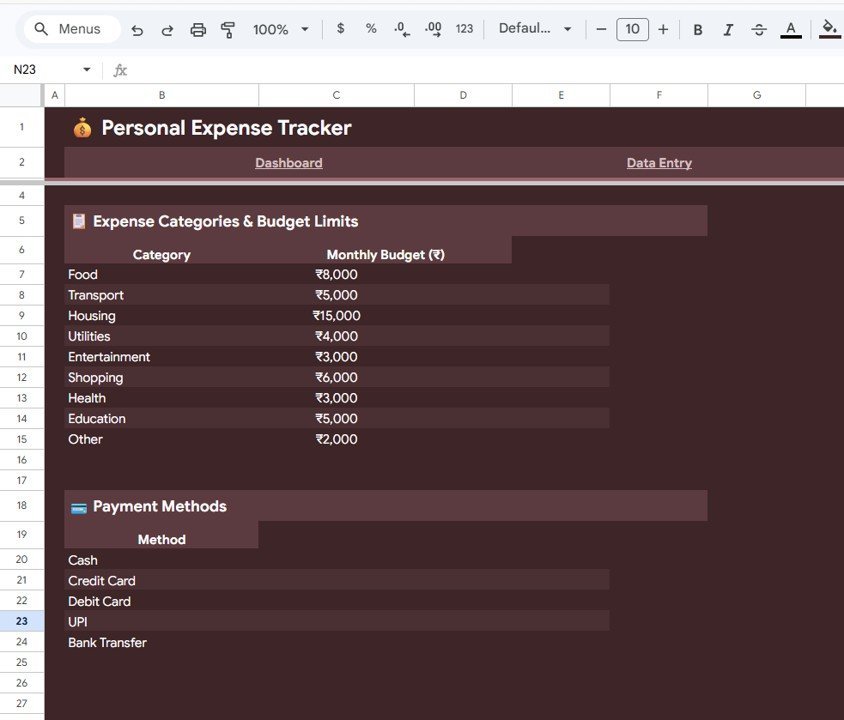
📌 Customizable Settings – Define your own Expense Categories and Budget Limits by Category, and configure Payment Methods through the dedicated Settings page.
📌 Cloud-Based and Shareable – Access your expense tracker from anywhere using Google Drive. No software installation required — works on any device with a browser.
📌 Easy Data Entry – Simply add your transaction records in the Data Sheet tab following the provided format, and all charts and KPIs update automatically.
📦 What’s Inside the Personal Expense Tracker in Google Sheets
📊 Dashboard Page – High-level overview with 4 KPI cards (Total Expenses, Total Transactions, Avg Per Transaction, Highest Expense) plus 4 analytical charts: Spending by Category, Monthly Expense Trend by Month, Expenses by Payment Method, and Category Breakdown by Category. Multiple slicers are provided for quick filtering.
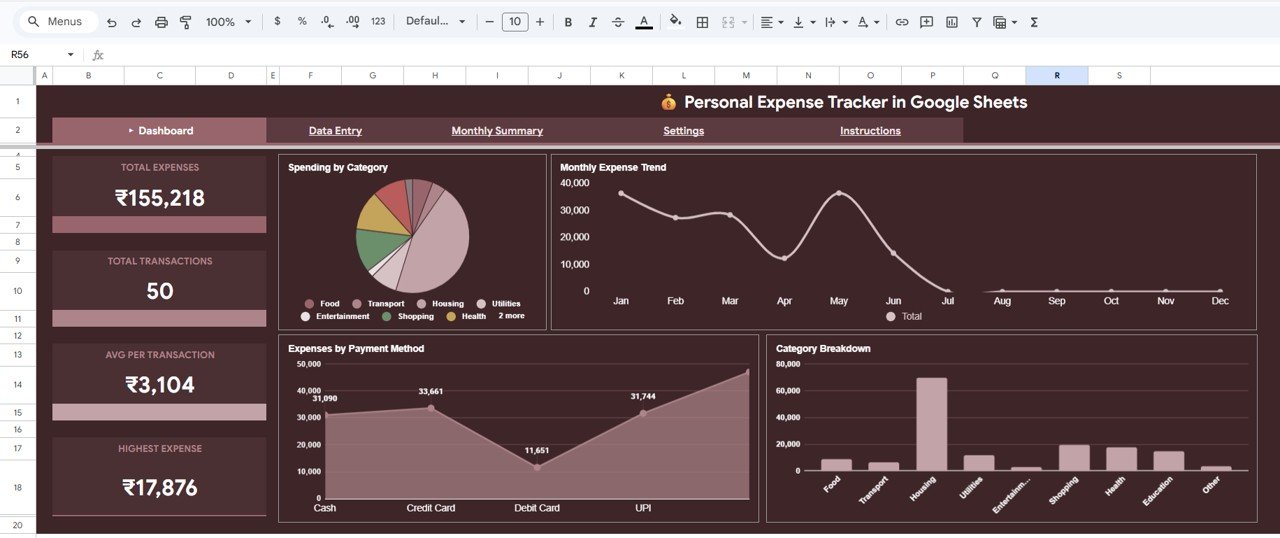 Dashboard
📊 Monthly Summary Page – Detailed analysis featuring Monthly Spending by Category and Budget vs Actual by Monthly Average charts to help you compare planned budgets against actual spending patterns.
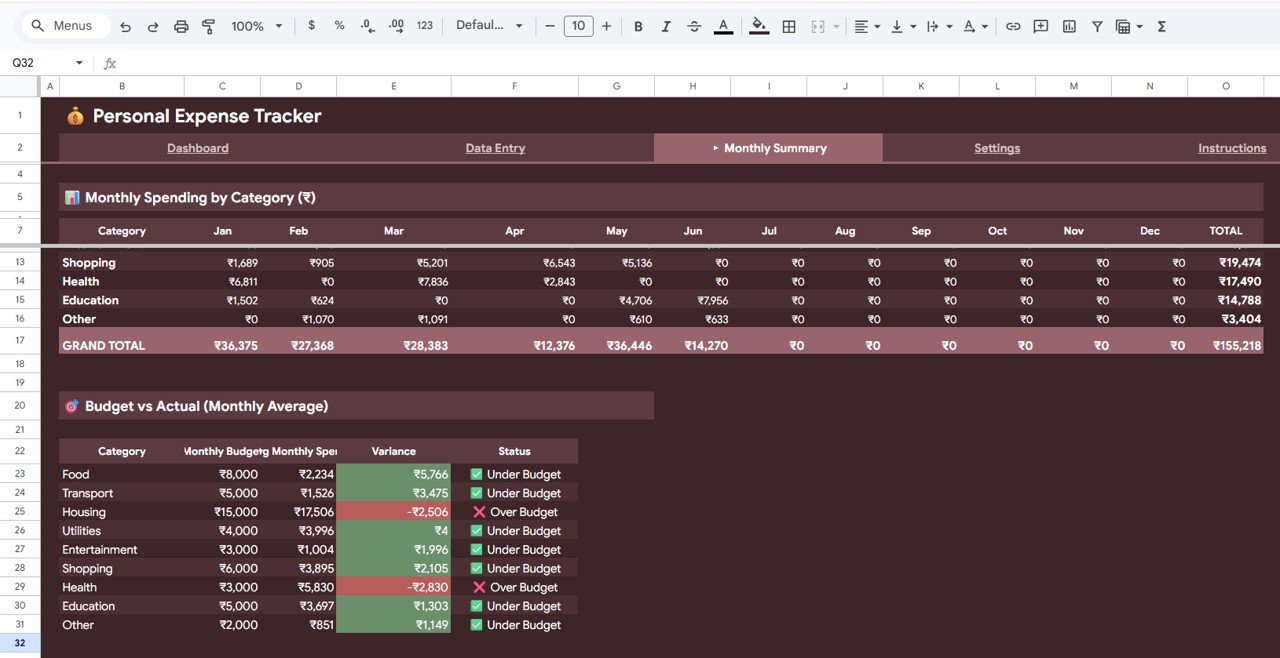 Monthly Summary
⚙️ Settings Page – Configure Expense Categories and Budget Limits by Category and manage Payment Methods. This gives you full control to customize the tracker to match your personal spending habits.
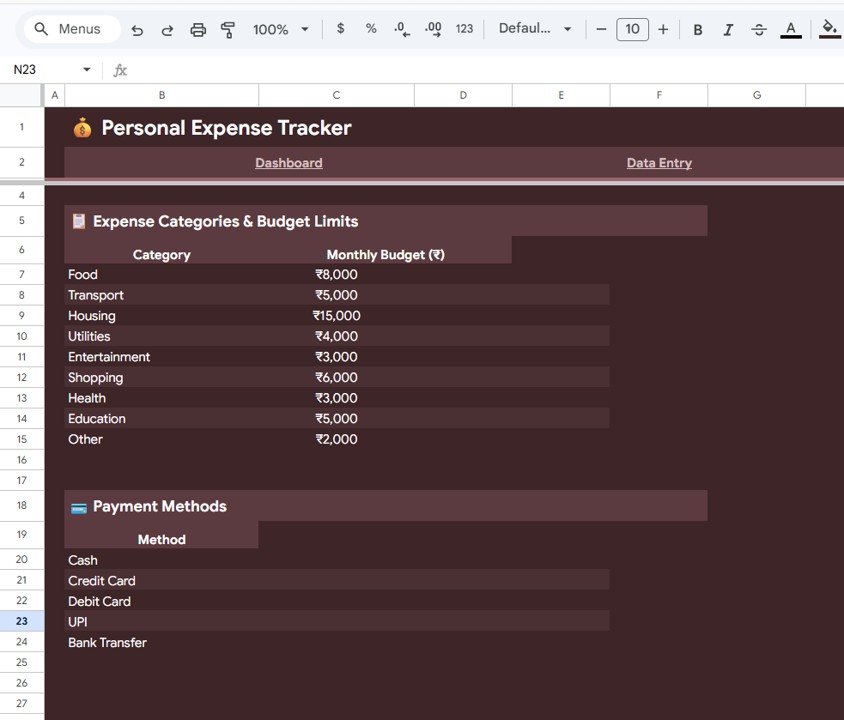 Settings
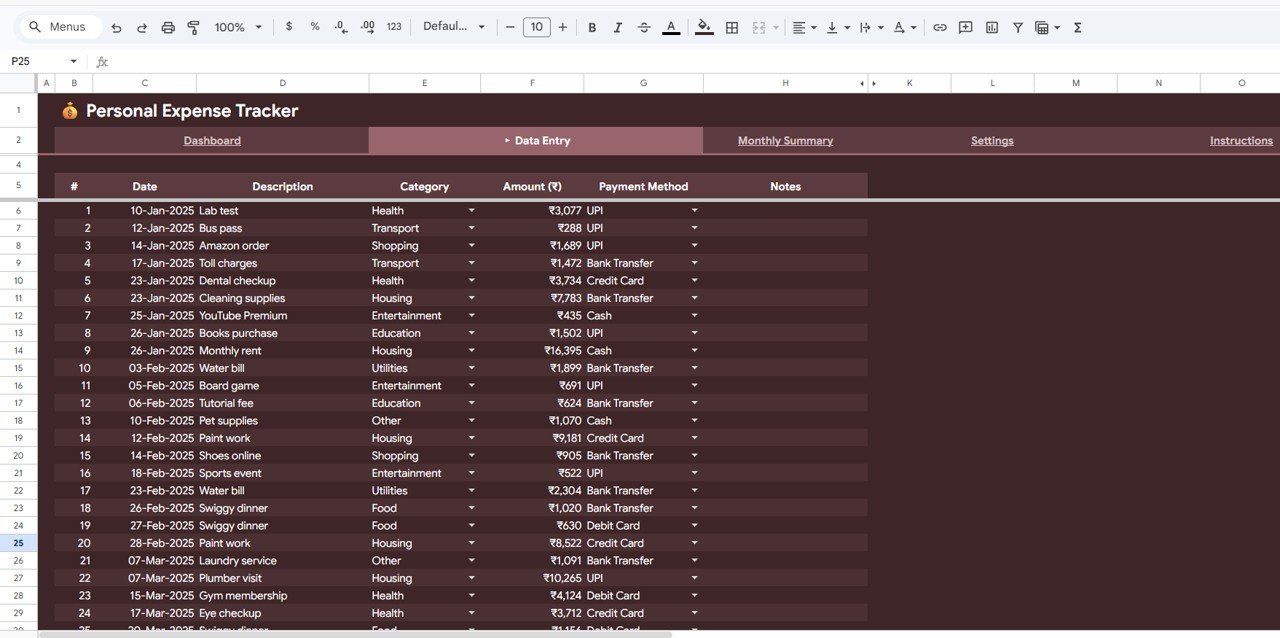
📝 Data Entry Sheet – A clean, structured data sheet where you record each transaction. Just add your data in the provided format and the entire dashboard updates automatically.
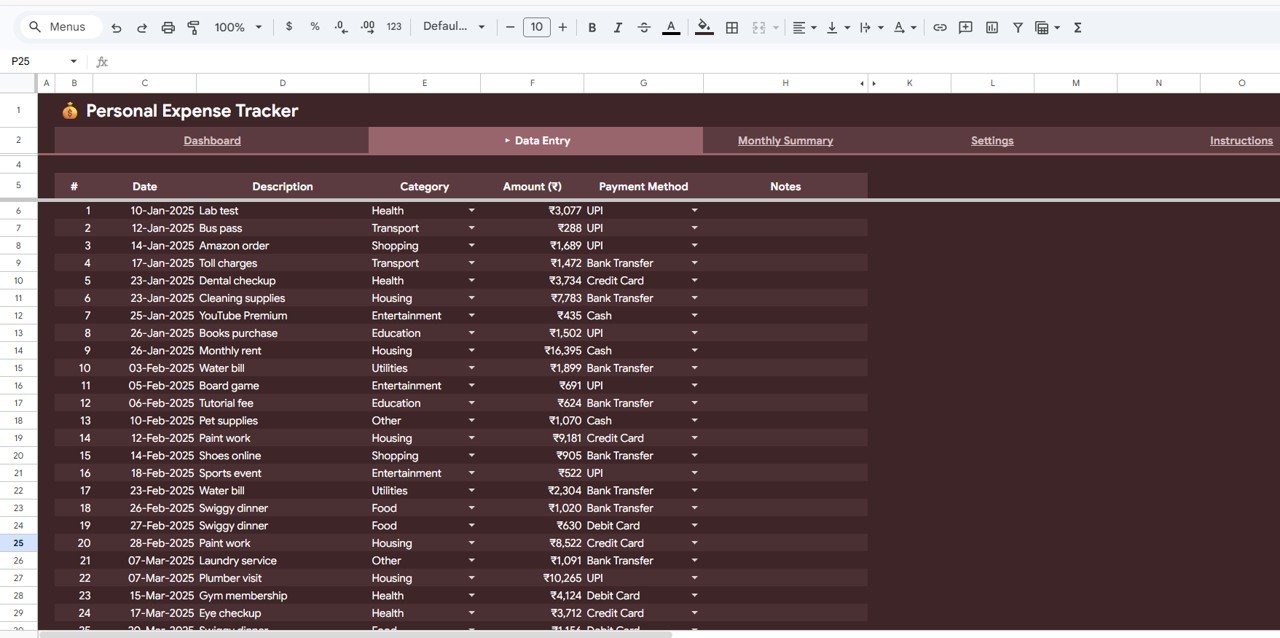 Data Entry Tab
⚙️ How to Use the Personal Expense Tracker in Google Sheets
1️⃣ Open the PDF guide included in your download and click the Google Sheets copy link to create your own editable copy in Google Drive.
2️⃣ Go to the Settings tab and configure your Expense Categories, Budget Limits, and Payment Methods to match your personal needs.
3️⃣ Navigate to the Data Entry sheet and start entering your daily transactions including date, amount, category, and payment method.
4️⃣ Visit the Dashboard page to see your expense KPIs and charts update automatically. Use slicers to filter by any dimension.
5️⃣ Review the Monthly Summary page to compare your spending against budget targets and identify areas for improvement.
👥 Who Can Benefit from This Personal Expense Tracker
📌 Individuals and families tracking household spending
📌 Freelancers and self-employed professionals monitoring business and personal expenses
📌 Students managing limited budgets
📌 Anyone looking to build better financial habits and reduce unnecessary spending
📌 Small households wanting a simple, visual expense management solution
❓ Frequently Asked Questions
What KPIs does the Personal Expense Tracker in Google Sheets track?
The Personal Expense Tracker in Google Sheets tracks 4 key performance indicators: Total Expenses, Total Transactions, Average Per Transaction, and Highest Expense. These KPI cards are displayed prominently on the Dashboard page for instant financial visibility.
Can I customize the expense categories in this tracker?
Yes. The Settings page allows you to define your own Expense Categories and set Budget Limits for each category. You can also configure your preferred Payment Methods to match your personal spending habits.
Do I need advanced Google Sheets skills to use this template?
No. Simply enter your transaction data in the Data Entry sheet following the provided format. All charts, KPIs, and analysis pages update automatically — no formulas or technical skills needed.
How does the Budget vs Actual analysis work?
The Monthly Summary page compares your actual monthly spending against the budget limits you defined in the Settings page. This helps you quickly identify categories where you are overspending and adjust your habits accordingly.
Can I access this tracker from my phone?
Yes. Since this is a Google Sheets template, you can access it from any device with the Google Sheets app or a web browser. Your data syncs automatically across all devices via Google Drive.
🔗 Explore Related Templates
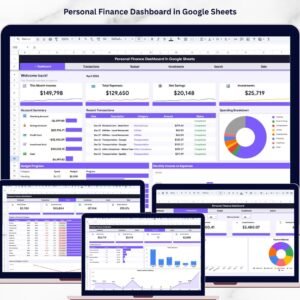
📌 Personal Finance Dashboard in Google Sheets – A comprehensive 6-page financial management dashboard covering income, expenses, investments, and budget analysis.
📌 Monthly Budget Plan Template in Google Sheets – Plan and track your monthly budget with detailed income vs expense analysis.
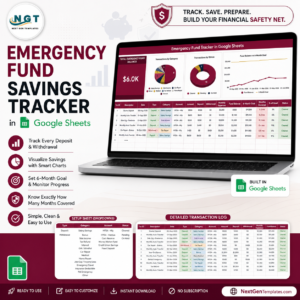
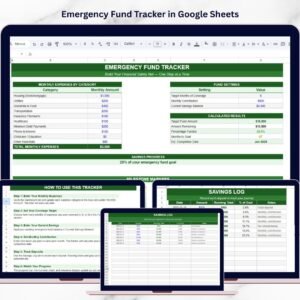
📌 Emergency Fund Tracker in Google Sheets – Track your emergency savings progress with goal-based monitoring.
📖 Click here to read the Detailed Blog Post
Watch the step-by-step video tutorial:


Reviews
There are no reviews yet.