


In today’s business environment, customer experience is the heartbeat of growth and success. Finance IT Customer Experience Calendar in Excel For Finance and IT teams, managing customer-focused activities requires not just planning—but precise organization. Yet, many businesses still rely on scattered spreadsheets or manual trackers, which often lead to confusion, missed deadlines, and overlooked opportunities.
That’s why we built the Finance IT Customer Experience Calendar in Excel—a smart, ready-to-use template designed to streamline all customer-related activities into one centralized system. Whether you’re planning annual strategy sessions, monthly reviews, or daily touchpoints, this calendar ensures nothing falls through the cracks.
✨ Key Features of the Finance IT Customer Experience Calendar
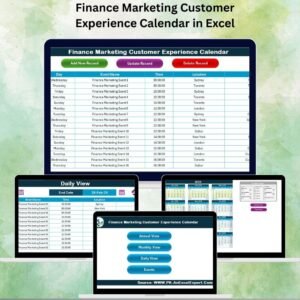
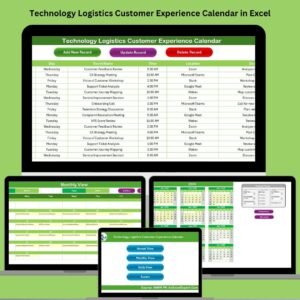
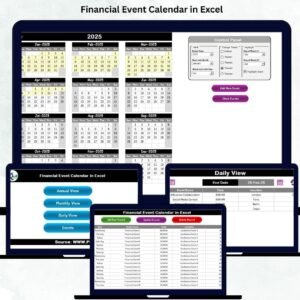
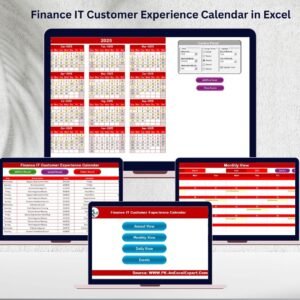
🏠 Home Sheet Tab – A clean index page with navigation buttons to Annual, Monthly, Daily, and Events views.
📅 Annual View – A year-at-a-glance perspective with control panels, color themes, and event highlighting.
📆 Monthly View – Plan and track events for a single month with quick “Add” and “Show” event buttons.
📋 Daily View – Drill down into specific dates or ranges for detailed event tracking.
🗂️ Events Sheet – A master database storing all event records with ID, Date, Day, Event Name, Time, Location, and Description.
📝 Event Management Forms – Add, update, or delete events easily with built-in forms.
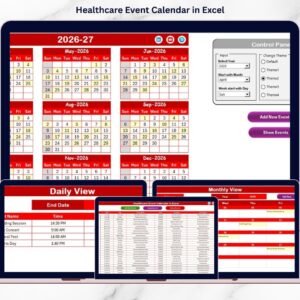
🎨 Customizable Themes – Choose from 5 color themes to align with company branding.
🔄 Automation & Controls – Dropdowns, conditional formatting, and interactive buttons save time and reduce errors.
📂 What’s Inside the Calendar
When you download the Finance IT Customer Experience Calendar in Excel, you’ll get:

Home Sheet Tab – The navigation hub with buttons for quick access to all views.
Annual View Sheet Tab – A high-level view of 12 months with options to highlight events and customize layouts.
Monthly View Sheet Tab – Detailed planning for one month, displaying all events and quick event management buttons.
Daily View Sheet Tab – Focused insights for selected date ranges, perfect for operations teams.
Events Sheet Tab – The backbone database where all events are recorded, updated, and managed.
This structure ensures seamless navigation and complete visibility at every level.
🛠️ How to Use the Finance IT Customer Experience Calendar
Open the Template – Start from the Home Sheet.
Plan Annual Events – Use the Annual View for long-term strategy and key milestones.
Organize Monthly Activities – Switch to the Monthly View for team-level planning.
Drill Down Daily – Monitor daily schedules in the Daily View.
Update Events – Add, edit, or delete records in the Events Sheet using the form controls.
Customize the Layout – Apply color themes, highlight weekends, or mark important financial dates.
Share Across Teams – Store in OneDrive or Google Drive for collaborative access.
With just a few clicks, your finance and IT teams can align activities and deliver better customer experiences.
👥 Who Can Benefit from This Calendar
Finance Teams – Track financial meetings, reporting schedules, and client reviews.
IT Departments – Plan support sessions, audits, product training, or service requests.
Customer Service Managers – Ensure seamless customer interactions.
Project Leaders – Align cross-functional events without overlaps.
Small & Medium Businesses – Adopt a cost-effective tool without investing in premium software.
This calendar is perfect for any organization aiming to enhance customer satisfaction while staying organized.
🔗 Click here to read the Detailed Blog Post
📺 Visit our YouTube channel to learn step-by-step video tutorials: Youtube.com/@PKAnExcelExpert
Watch the step-by-step video tutorial:
Compatibility and Requirements
- Works in Microsoft Excel desktop (Excel 2016 or later, or Microsoft 365).
- The calendar uses dropdowns, buttons and color themes, so open it in desktop Excel. Microsoft explains dropdown lists in Create a drop-down list.
Frequently Asked Questions
Which sheets are included?
Five sheets: Home, Annual View, Monthly View, Daily View and Events.
Where are the events stored?
On the Events sheet. Each record has an ID, Date, Day, Event Name, Time, Location and Description.
How do I add, update or delete an event?
Use the built-in event forms. The Monthly View also has quick Add and Show event buttons.
Can I change the colors?
Yes. There are 5 color themes, so you can match your company branding.
Is there a version for another team?
Yes. For example, the Finance Operations Customer Experience Calendar in Excel and the IT Customer Experience Calendar in Excel use the same calendar for those teams.
Related Customer Experience Templates
- IT Customer Experience Calendar in Excel: the same calendar for IT teams
- Finance Customer Service Customer Experience Calendar in Excel: for finance and customer service teams
- Finance Marketing Customer Experience Calendar in Excel: for finance and marketing teams
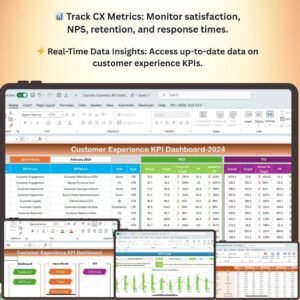
- Customer Experience KPI Dashboard in Excel: track customer experience KPIs
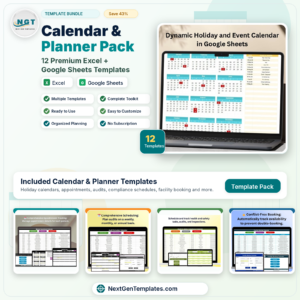
- Calendar & Planner Pack: 12 calendar and planner templates in one download
Browse all Excel calendar templates.







Reviews
There are no reviews yet.