

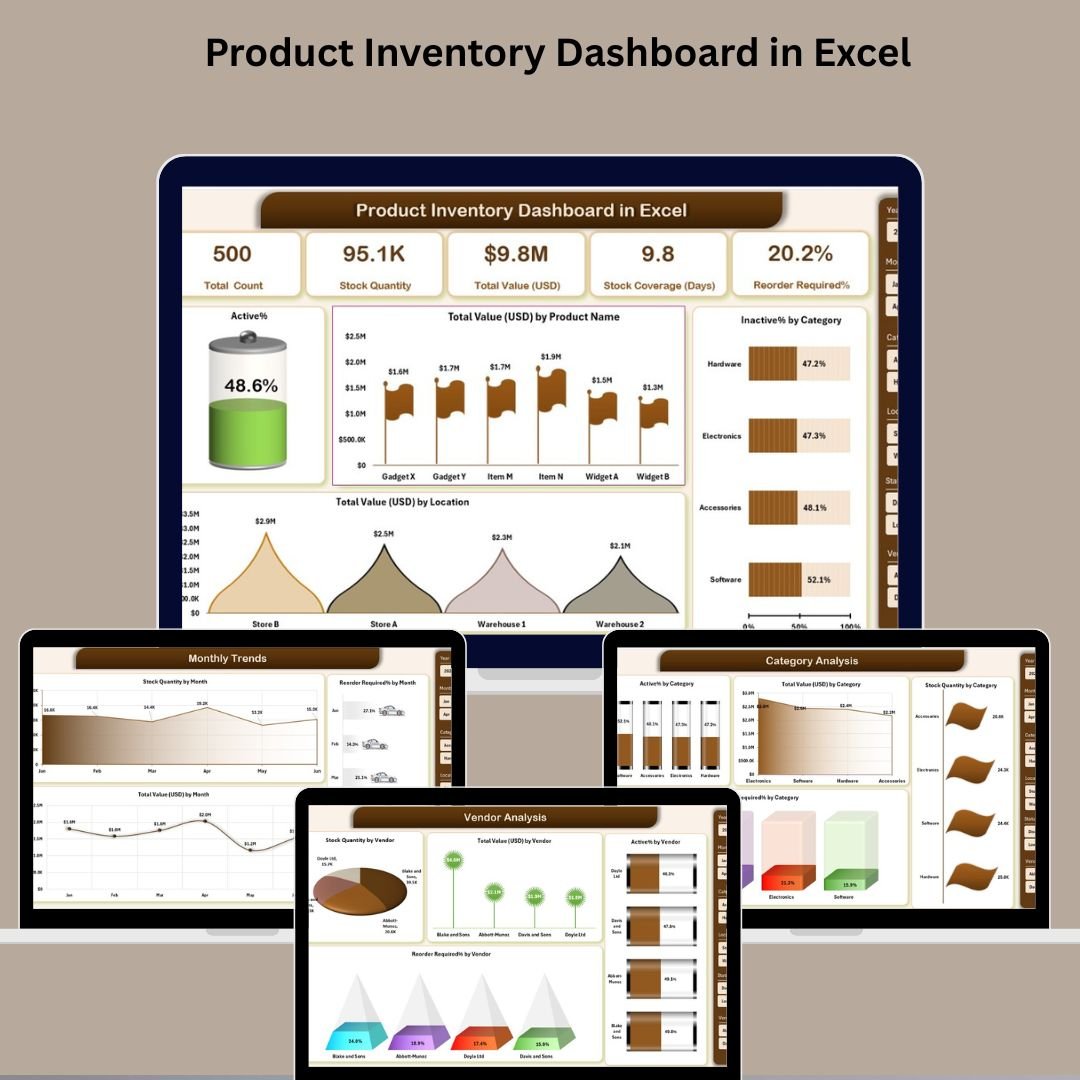

📦 Key Features of Product Inventory Dashboard in Excel
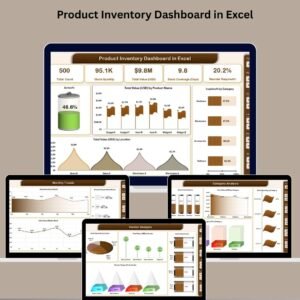
📊 All-in-One Inventory Control Center
Manage your stock levels, monitor product performance, and track reorder needs across categories, vendors, and locations—all from a single, interactive Excel dashboard.
🔍 5 Dynamic Dashboard Pages
Navigate through powerful pages like Overview, Category Analysis, Location Analysis, Vendor Analysis, and Monthly Trends—each equipped with smart slicers and insightful visuals.
📋 Smart KPI Cards and Visual Charts
View essential metrics instantly:
✅ Total Products
📦 Active & Inactive Products (%)
💰 Total Inventory Value
⚠️ Reorder Alerts
Backed by powerful charts like:
Active % (Doughnut)
Inventory Value by Product (Column)
Reorder % by Category/Location/Vendor (Line)
Value by Location (Pie)
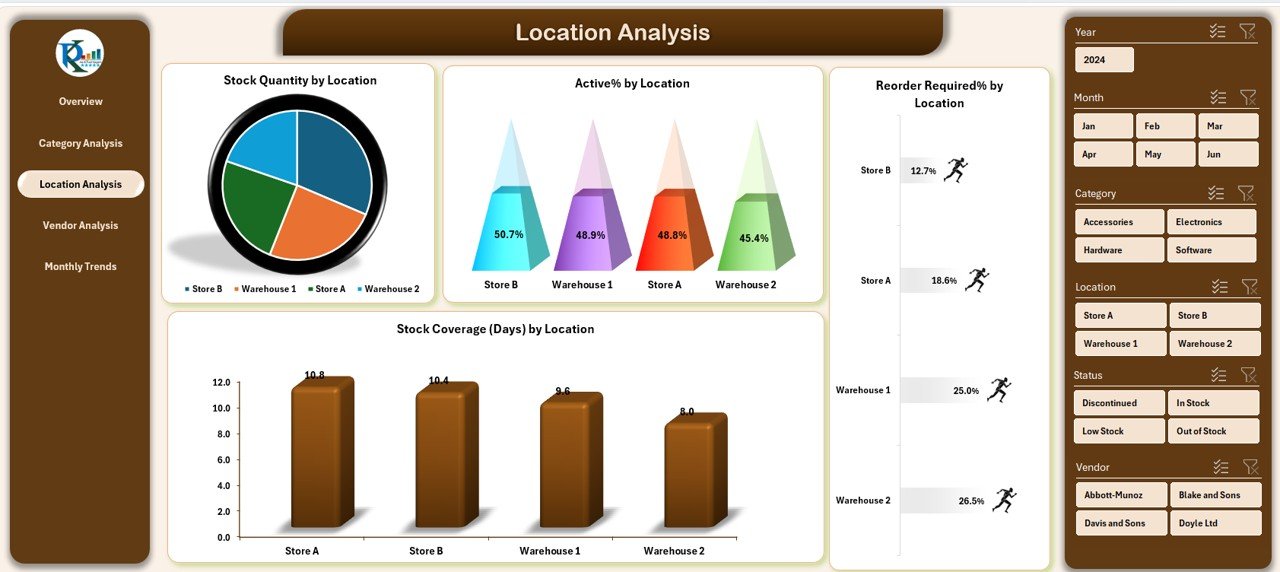
📍 Multi-Location Inventory Management
Compare stock, reorder needs, and stock coverage across warehouses, retail stores, or outlets.
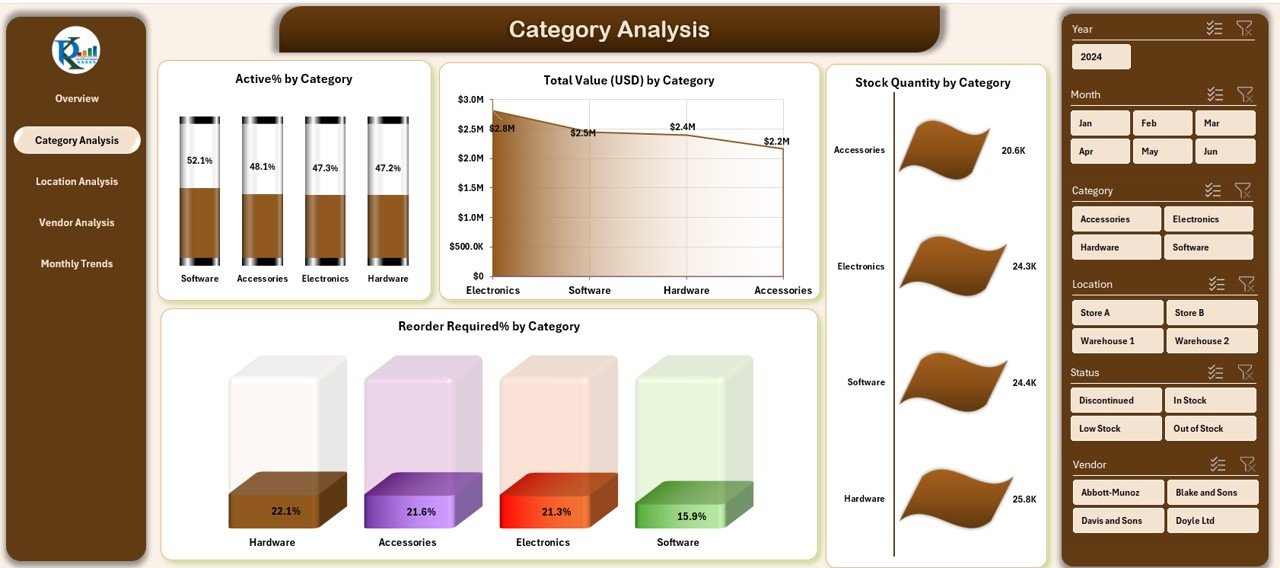
📑 Category-Wise Deep Dive
Analyze stock quantity, inventory value, and reorder requirements by product category—quickly identify overstock or low-moving categories.
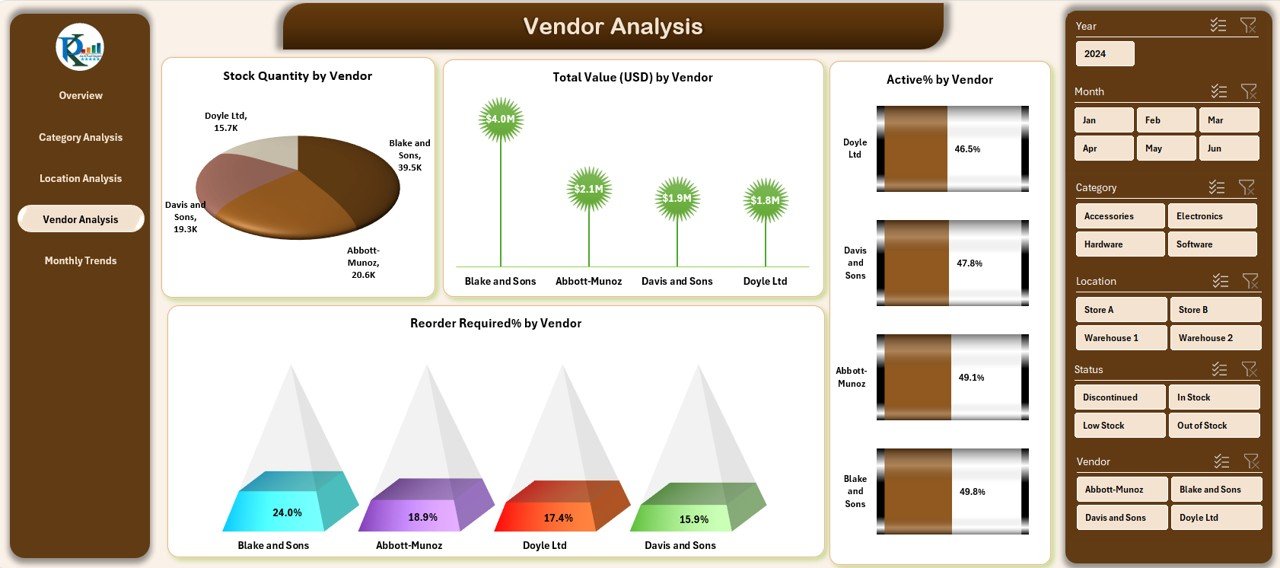
🚚 Vendor Performance Tracker
Evaluate vendor efficiency by looking at their supply volume, reorder frequencies, and stock health.
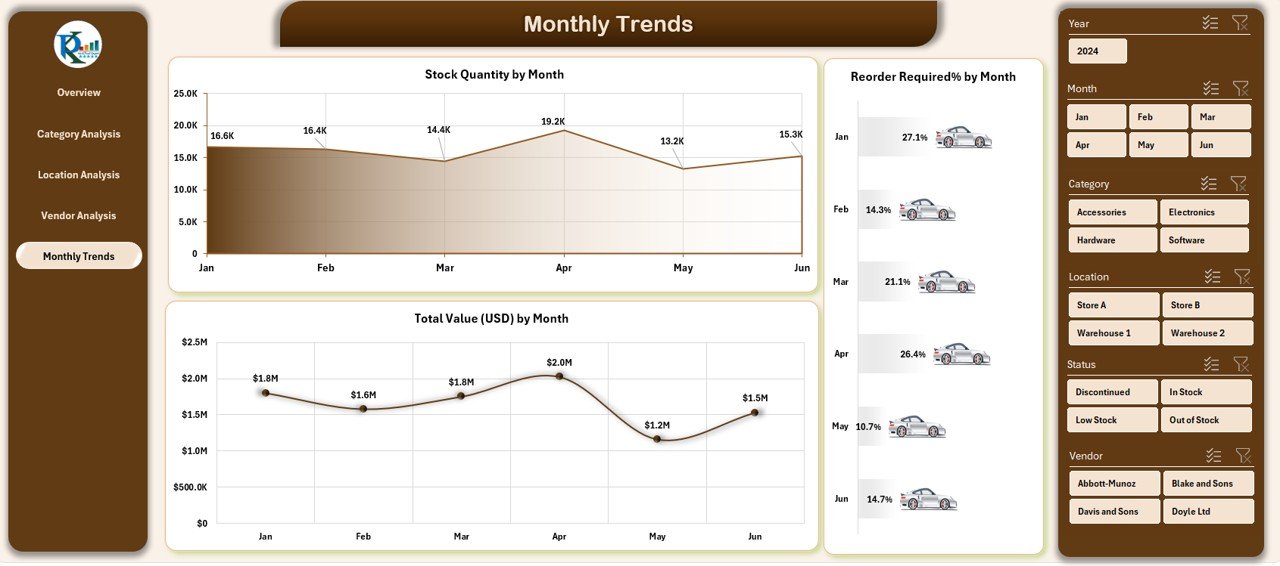
📅 Monthly Trends for Forecasting
Track inventory value, stock movement, and reorder alerts month-over-month—perfect for planning seasonal stock or promotional campaigns.
📥 Excel-Powered & User-Friendly
No plugins or coding needed—just open in Excel and start analyzing. Compatible with Excel 2016 and above.
📂 What’s Inside the Product Inventory Dashboard in Excel
✅ Excel File (.xlsx) – Prebuilt and ready to use
✅ 7 Worksheet Tabs:
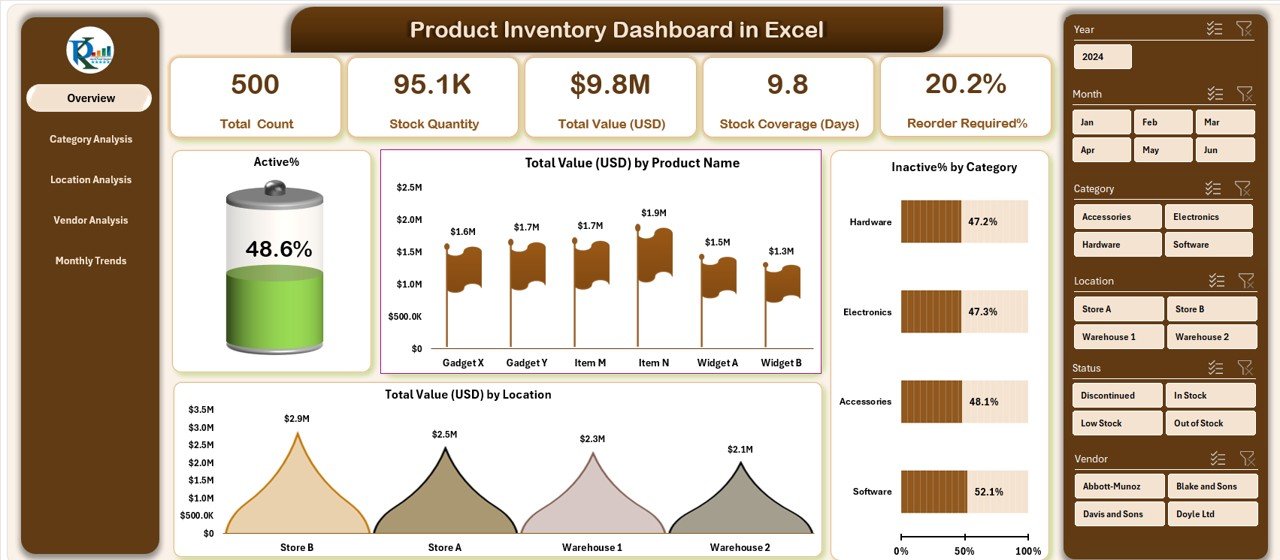
Overview – Summary cards and charts
Category Analysis – Product group performance
Location Analysis – Warehouse and store insights
Vendor Analysis – Track supplier performance
Monthly Trends – Time-based inventory movement
Data Sheet – Raw inventory input
Support Sheet – Dropdowns and background logic
✅ Interactive Slicers – Filter by status, category, vendor, location, or month
✅ Pivot-Powered Charts – Reliable, real-time calculations
✅ Automated KPIs – No manual formulas needed
✅ Easy to Customize – Modify fields, chart types, or add pages
✅ Ready to Share – Email the file or upload to shared drives
⚙️ How to Use the Product Inventory Dashboard
📁 Step 1: Input Data
Enter your product records into the Data Sheet, including columns like Product Name, Category, Quantity, Location, Vendor, Status, and Reorder Level.
📊 Step 2: Review KPIs on the Overview Page
Get a snapshot of inventory value, stock status, and total alerts. Use slicers to focus on specific branches or vendors.
🧠 Step 3: Analyze by Category, Location, or Vendor
Navigate to different pages to get detailed insights, spot underperforming areas, and assess reorder urgency.
📈 Step 4: Monitor Monthly Trends
Use time-series visuals to optimize forecasting, procurement, and storage plans.
📤 Step 5: Share or Export
Save as Excel or export visuals for reports and stakeholder presentations.
👥 Who Can Benefit from This Dashboard
🏪 Retail Businesses – Stay on top of fast-moving and slow-moving stock
🏭 Warehouse Managers – Control stock coverage and prevent excess
🛒 E-commerce Sellers – Monitor multi-vendor supplies and location-wise inventory
📦 Procurement Teams – Analyze vendor efficiency and reorder planning
💰 Finance Teams – Track valuation, spot deadstock, and monitor supply costs
📈 Operations Managers – Make smart decisions using visual, actionable data
🔗 Click here to read the Detailed blog post
🎥 Visit our YouTube channel to learn step-by-step video tutorials
Watch the step-by-step video tutorial:
Compatibility and Requirements
- Works in Microsoft Excel desktop (Excel 2016 or later, or Microsoft 365). The file is a standard .xlsx.
- No plugins or coding are needed.
- The pages are filtered with slicers. Microsoft explains them in Use slicers to filter data.
Frequently Asked Questions
Which sheets are included?
Seven: Overview, Category Analysis, Location Analysis, Vendor Analysis, Monthly Trends, a Data Sheet for your records and a Support Sheet for drop-downs.
Which KPIs are on the Overview page?
Total Products, Active and Inactive Products (%), Total Inventory Value and Reorder Alerts.
What data do I enter?
Product records in the Data Sheet, with columns such as Product Name, Category, Quantity, Location, Vendor, Status and Reorder Level.
Can it handle more than one warehouse?
Yes. The Location Analysis page compares stock, reorder needs and value across warehouses, stores or outlets.
Related Inventory Templates
- Product Inventory Dashboard in Power BI: the same topic in Power BI
- Inventory Management Dashboard in Google Sheets: a browser-based inventory dashboard
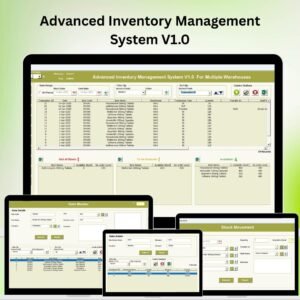
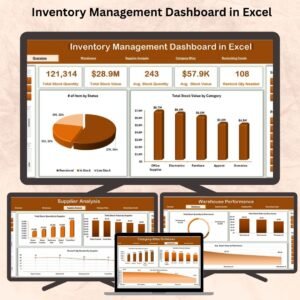
- Inventory Management Dashboard in Excel: another Excel view of stock and value
- Warehouse Management KPI Dashboard in Excel: track warehouse KPIs against targets
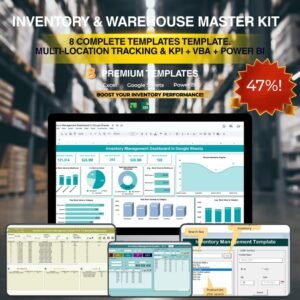
- Inventory & Warehouse Master Kit: 8 inventory templates in one bundle
Browse all Excel inventory templates or the Excel dashboards.




Reviews
There are no reviews yet.