



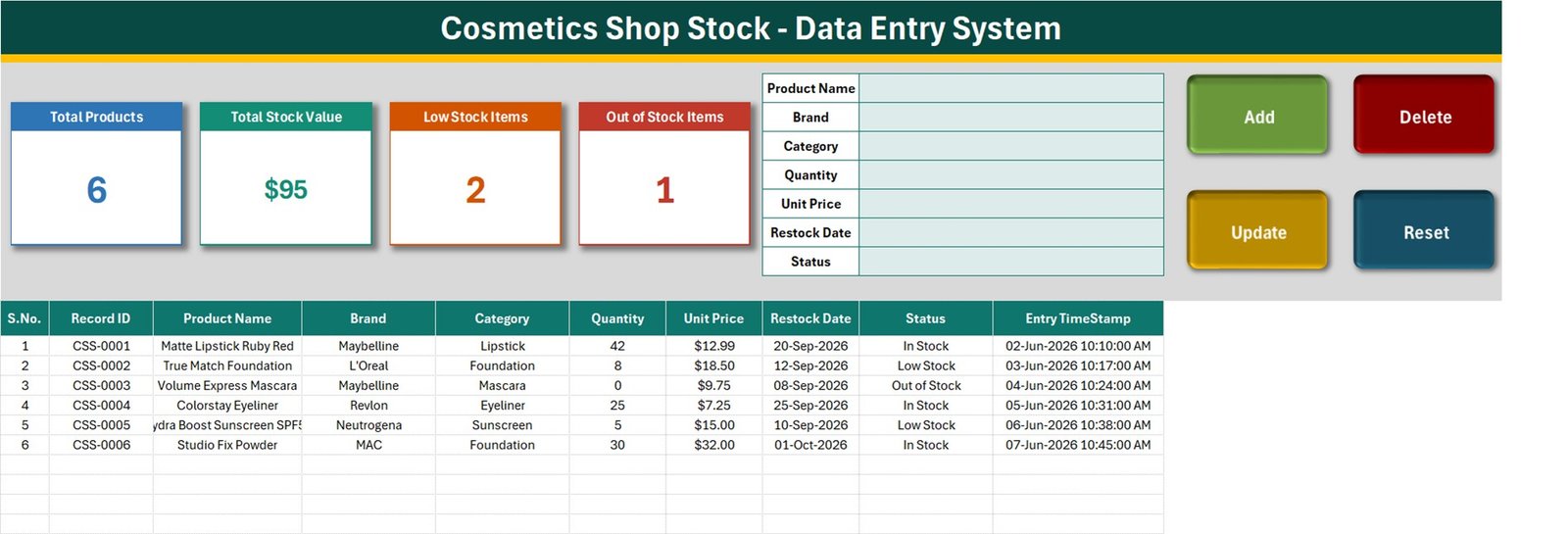
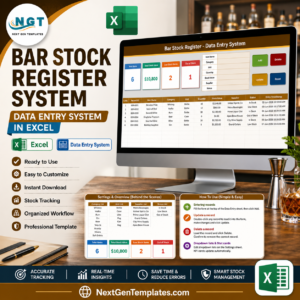
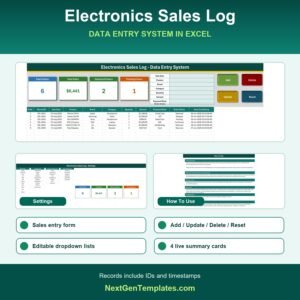
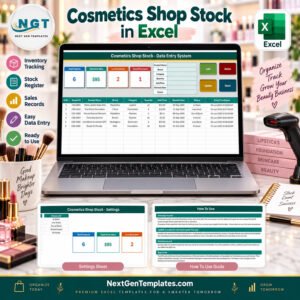
Cosmetics Shop Stock Data Entry System in Excel is a macro-enabled workbook for adding, updating, deleting, and reviewing cosmetics stock records from one structured screen. The sample file demonstrates 6 products with brand, category, quantity, unit price, restock date, and status and four live summary cards: Total Products, Total Stock Value, Low Stock Items, and Out of Stock Items. Enter values in the form, click Add, and the system creates a unique Record ID and timestamp. This is a one-time downloadable Excel tool rather than a subscription. It supports operational record entry; users remain responsible for validating stock, sales, pricing, and accounting information against approved source records.
Key Features of Cosmetics Shop Stock Data Entry System in Excel
- Four VBA actions: Add, Update, Delete, and Reset.
- Automatic identifiers: every new record receives a unique Record ID and entry timestamp.
- Four summary cards: Total Products, Total Stock Value, Low Stock Items, and Out of Stock Items.
- Structured fields: Product Name, Brand, Category, Quantity, Unit Price, Restock Date, Status.
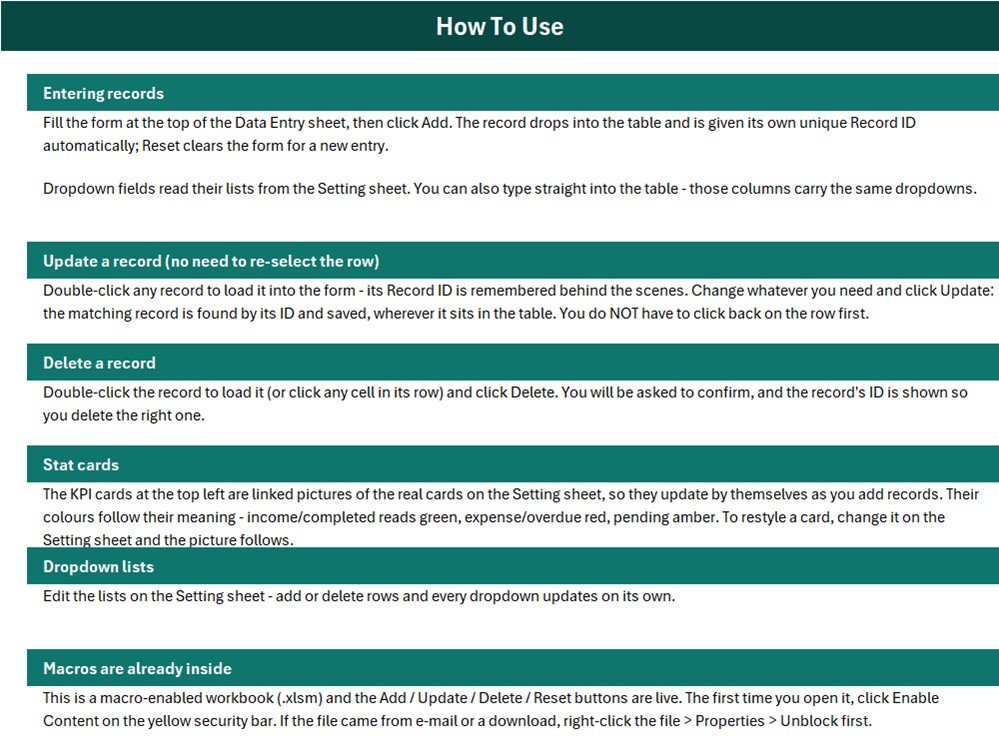
- Editable settings: change the dropdown lists used by the form and table.
- Direct table editing: update records in the table when preferred.
- Macro-enabled delivery: the ZIP contains the working .xlsm file.
What’s Inside This Excel Data Entry System
Data Entry Sheet
The main sheet combines the entry form, action buttons, KPI cards, and record table. Add saves a completed form, Update changes the loaded record, Delete asks for confirmation, and Reset clears the form. Double-click a record to load it without having to reselect the row after editing.
Settings Sheet
The Settings sheet stores the lists used by dropdown fields and the source cells for the summary cards. Editing those lists changes the available choices throughout the workbook.

How-to-Use Sheet
The instructions explain record entry, updates, deletion, summary cards, dropdown maintenance, and macro security. The workbook must be opened in Microsoft Excel for Windows desktop with macros enabled from a trusted source.
Excel Data Entry System vs. Plain Spreadsheet vs. Paid Inventory Software
| Consideration | This Excel system | Plain spreadsheet | Paid software |
|---|---|---|---|
| Cost | One-time purchase | Manual setup | Recurring subscription |
| Guided entry | VBA form | Direct cells | Usually included |
| Add/update/delete controls | Included | Manual | Included |
| Custom dropdowns | Editable | Manual setup | Plan-dependent |
| Multi-user cloud workflow | Not included | Limited | Often included |
| Accounting integration | Not included | Not included | Vendor-dependent |
Who This Template Is For – and Who It’s Not For
It fits cosmetics shops, beauty retailers, stock assistants, and small-store managers that need a simple local register and repeatable data-entry process. It is not a point-of-sale system, barcode platform, purchase-order system, accounting ledger, tax tool, or multi-location enterprise inventory application.
How to Use This Excel System
- Download and unzip the package.
- Right-click the .xlsm file, review Properties, and unblock it if appropriate.
- Open it in Excel for Windows desktop and enable macros only after confirming the source.
- Replace sample settings and records.
- Use the form and action buttons for routine entries.
- Reconcile totals with physical counts, sales documents, and accounting records.
- Save backups using a consistent version name.
Real-World Use Cases
An owner can add new cosmetics stock items. A store assistant can update quantities and statuses after a verified count. A manager can review the four cards before investigating the source rows. A bookkeeper can use exported figures as a working reference and reconcile them with the official ledger.
Frequently Asked Questions
Are macros required?
Yes. The form and Add, Update, Delete, and Reset buttons require macros in desktop Excel.
Can I edit the dropdowns?
Yes. Maintain the lists on the Settings sheet.
Can I replace the sample data?
Yes. The sample records are illustrative and should be replaced.
Does it work in Excel Online?
The table may open, but VBA buttons do not run in Excel Online.
Does it create invoices or accounting entries?
No. Use approved sales and accounting systems for official transactions.
Is a user manual included?
The workbook includes an on-sheet How-to-Use guide; this family ships the .xlsm file in the ZIP without a separate PDF.
About the Author
Built by PK – Microsoft Certified Professional with 15+ years of Excel, Google Sheets, and Power BI experience. Founder of NextGenTemplates, reaching 300K+ subscribers across YouTube channels. Every template is hand-built and tested before release.
Explore Related Templates
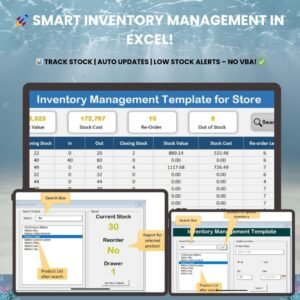
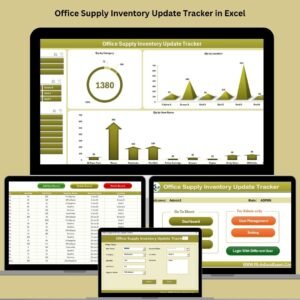
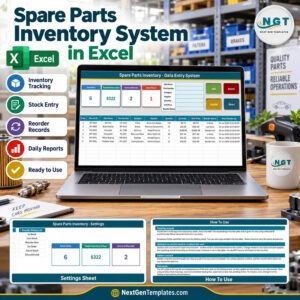
Browse Excel VBA tools, inventory management templates, and Microsoft Excel templates. Review Microsoft’s guidance for enabling or disabling macros.
Replace scattered entries with a controlled local register. Download the workbook, configure the lists, and validate every operational total against source records.
Last updated: September 10, 2026.










Reviews
There are no reviews yet.