

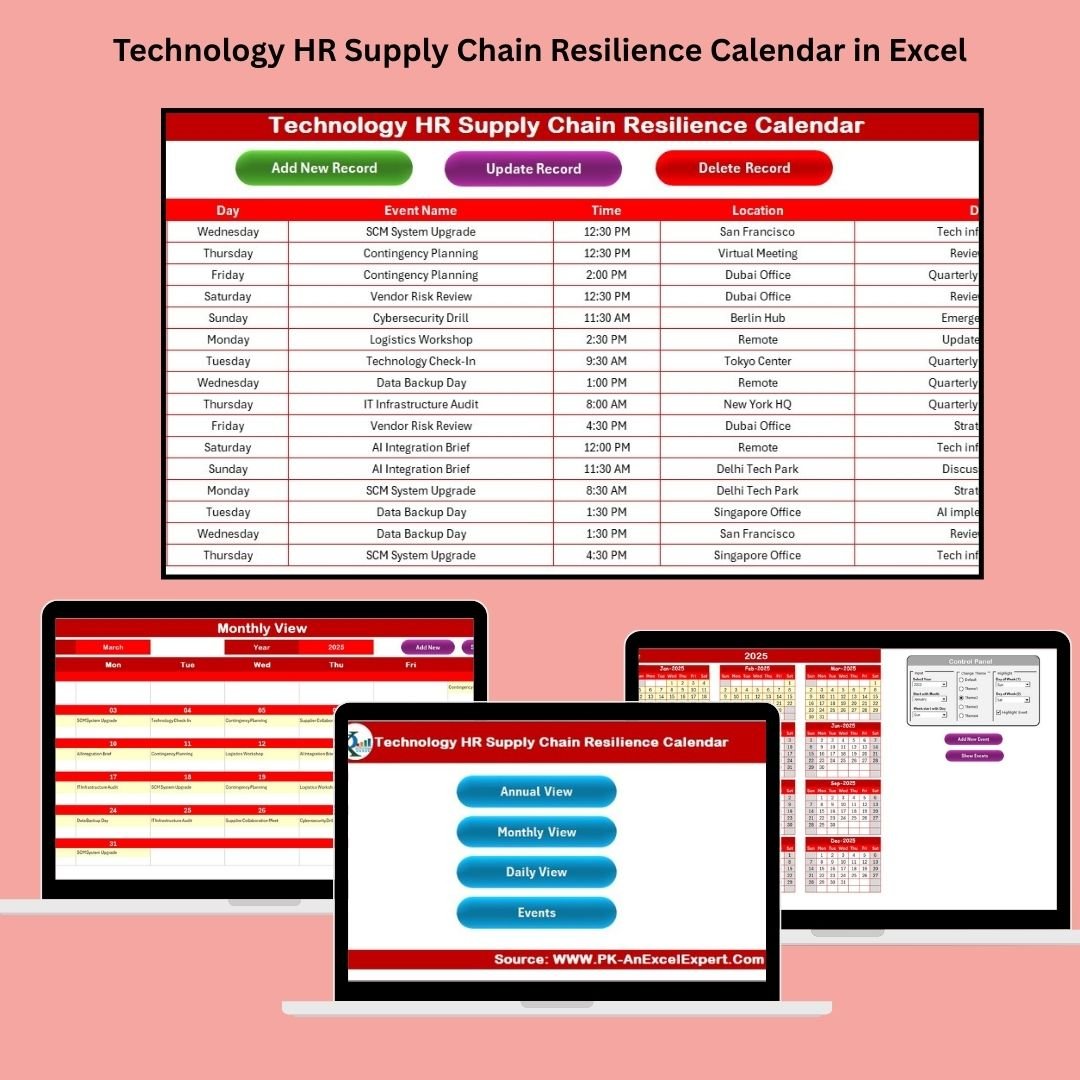

In today’s hybrid work environment—where technology, HR, and supply chain operations intersect—coordination is everything. That’s why the Technology HR Supply Chain Resilience Calendar in Excel is your all-in-one planning companion.
Whether you’re scheduling training sessions, system upgrades, audits, or employee engagement events, this smart, user-friendly Excel calendar helps organize, visualize, and communicate important activities across your organization. With dynamic views, built-in event forms, and fully customizable settings, this tool transforms routine scheduling into strategic planning.
✨ Key Features of Supply Chain Resilience Calendar in Excel
📅 Annual, Monthly & Daily Views
Navigate effortlessly between three interactive calendar formats to plan the big picture or zoom into specific days.
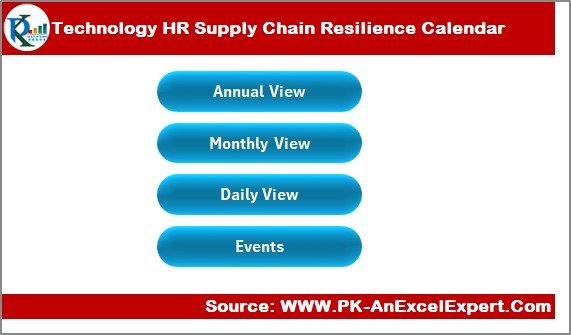
🧭 Home Sheet Navigation
Jump between views or the event database with one click. No scrolling through tabs.
🎛 Control Panel with Custom Options
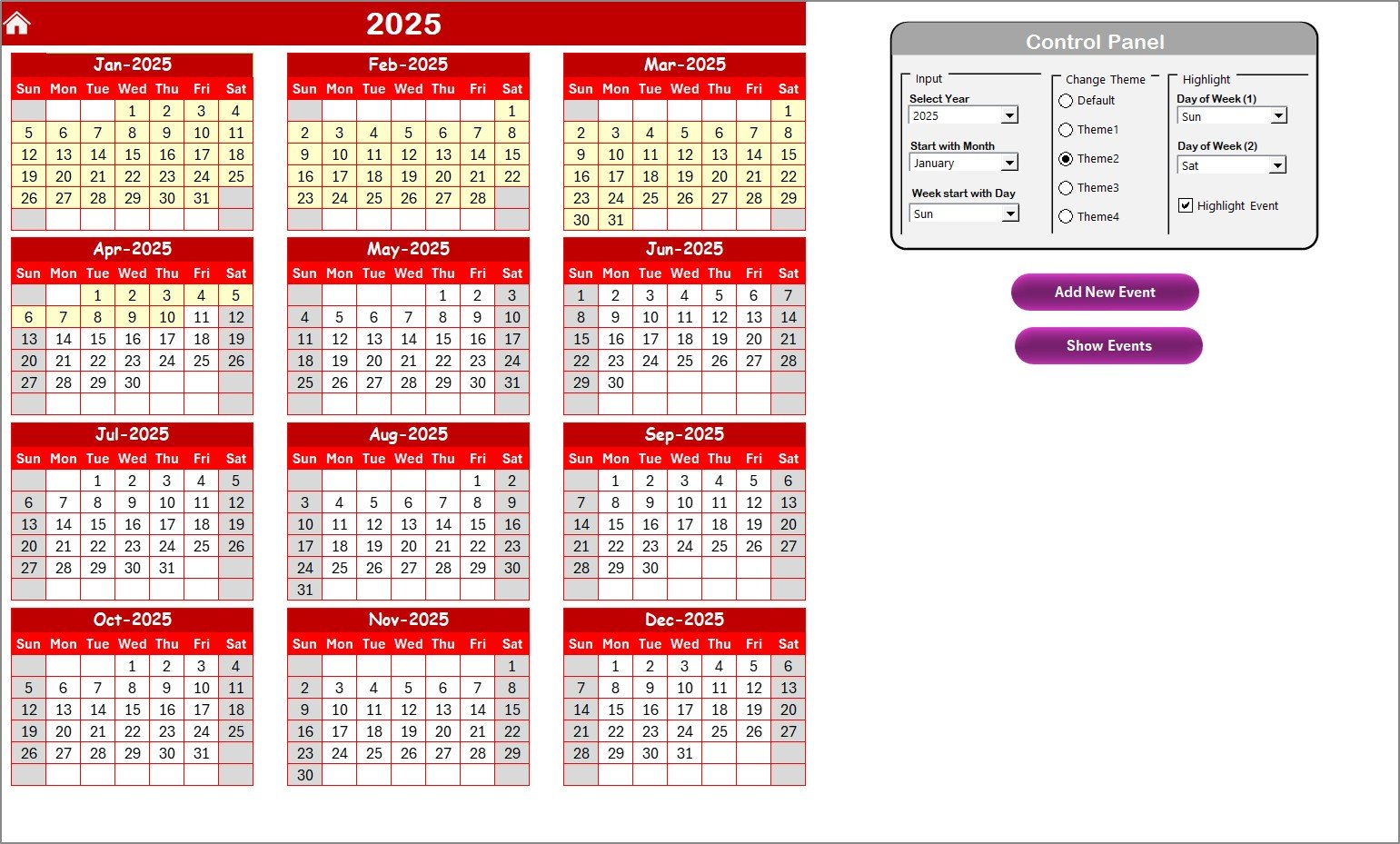
Set your year, start month, and weekday. Choose from five professional color themes. Highlight weekends or company-specific off-days.
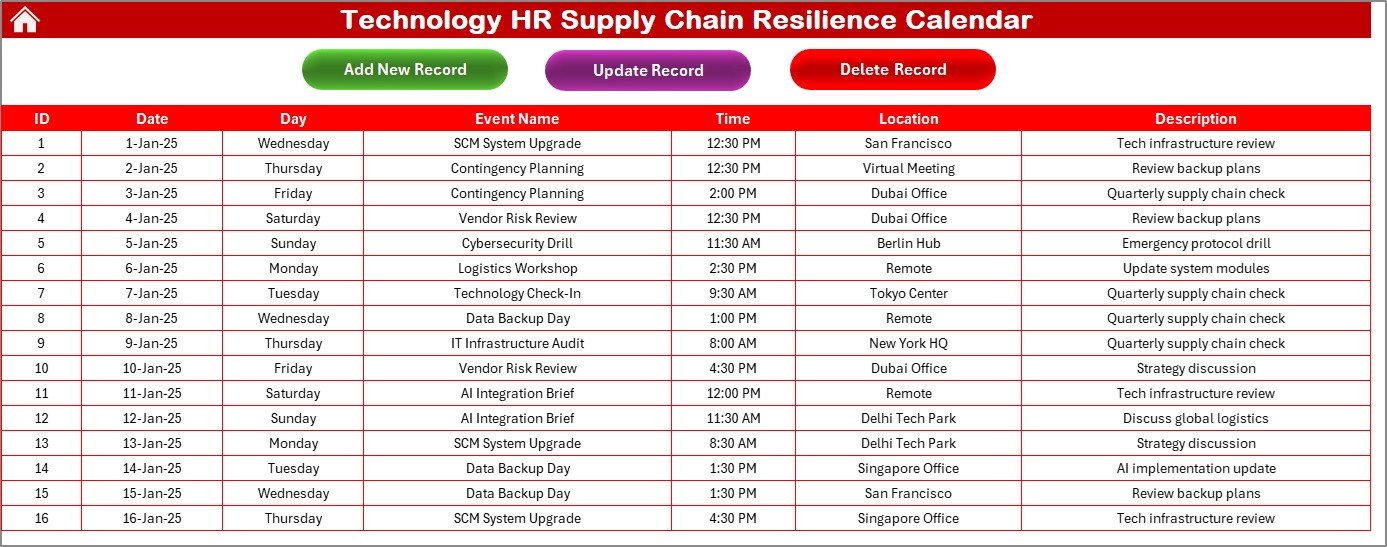
📝 Form-Based Event Entry & Editing
Add, update, or delete events via automated VBA forms. No manual cell editing required!
📋 Centralized Events Sheet
All events are auto logged with:
Unique Event ID
Date & Day
Event Name
Time
Location
Description
📆 Highlight Recurring Days
Use the highlight function to visually flag weekends, holidays, or any two custom weekdays.
💬 “More Than 1…” Notification
Get instant visibility when multiple events are scheduled on a single day.
📂 What’s Inside the Excel Template?
🟢 Home Sheet – Your navigation command center
📆 Annual View Sheet – 12-month calendar with controls and custom theme support
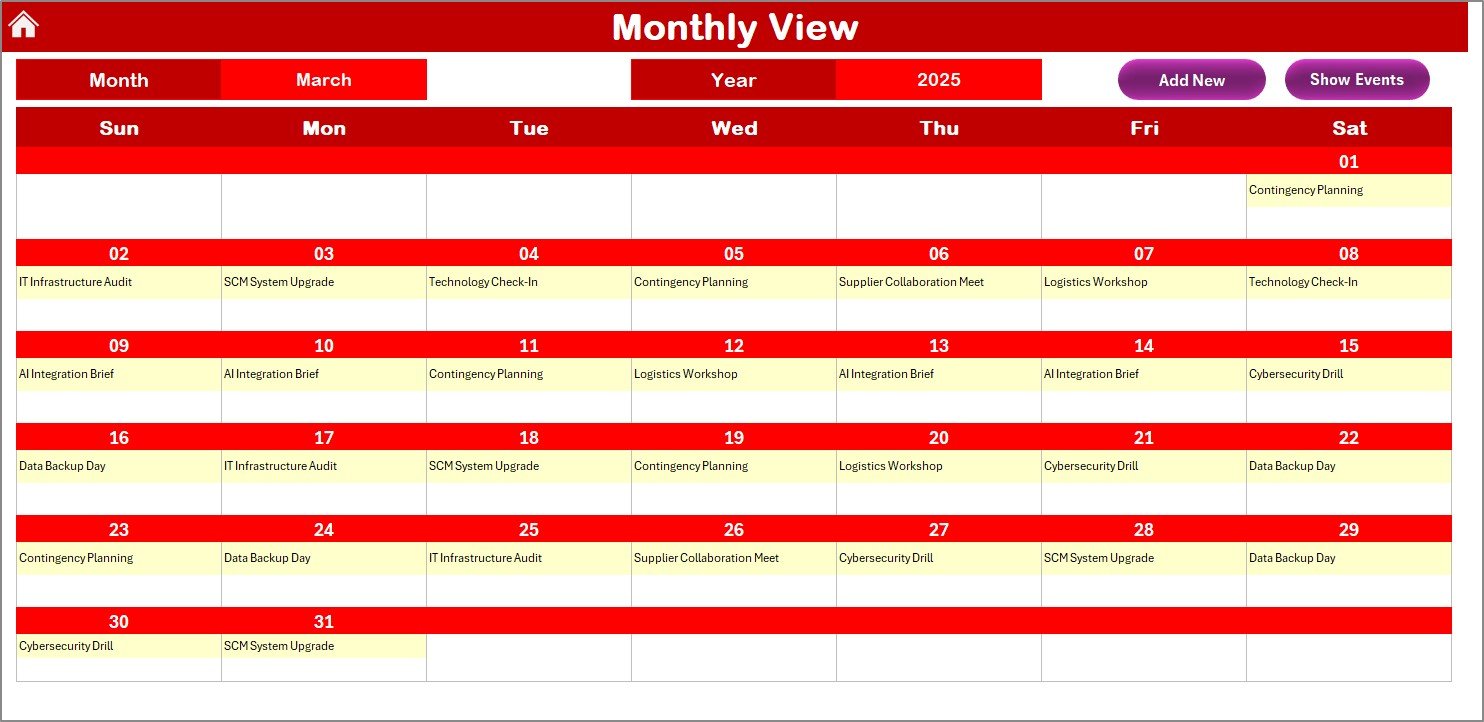
📅 Monthly View Sheet – One-month focus with interaction buttons
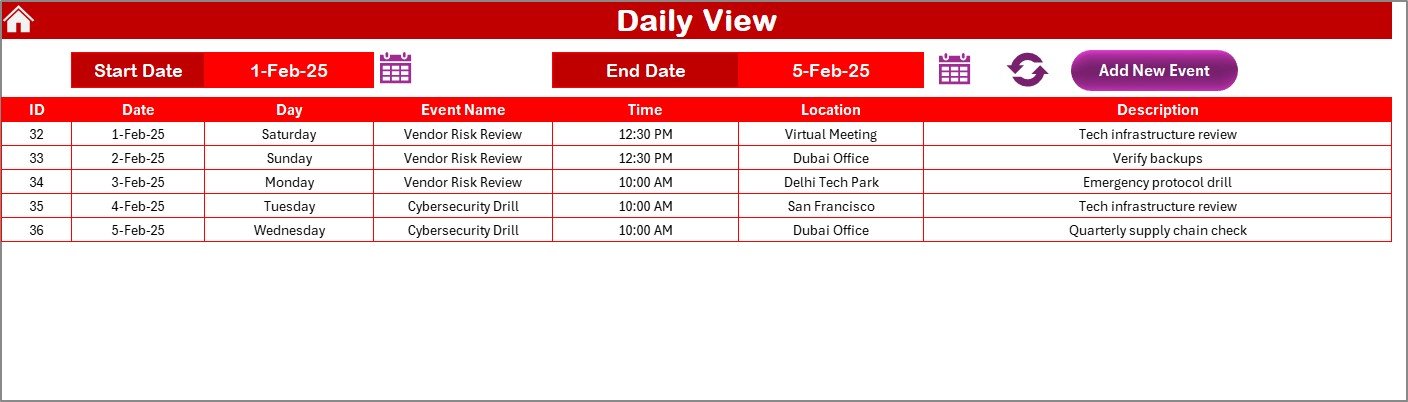
🗓️ Daily View Sheet – Select a date range to view all scheduled activities
📋 Events Sheet – Full database of all calendar records with form-based controls
🛠️ How to Use the Calendar Template
1️⃣ Open the File and Enable Macros
Macros power the interactive forms and buttons. Enable them for full functionality.
2️⃣ Set Your Year and Preferences
Use the control panel on the Annual View tab to configure the start month, first weekday, and theme.
3️⃣ Add Events Using Forms
Click “Add New Event” from any view to quickly enter new records with all key event details.
4️⃣ Track by Month or Date Range
Use Monthly View for high-level planning. Use Daily View to zoom in on any time window.
5️⃣ Update and Review Weekly
Modify or remove entries via the “Update Record” and “Delete Record” buttons. Keep your calendar current for accurate coordination.
👥 Who Can Benefit from This Excel Calendar?
👩💼 HR Professionals – Schedule training, onboarding, and wellness events
💻 IT Teams – Block time for upgrades, backups, and vendor maintenance
🏭 Supply Chain Coordinators – Plan audits, inspections, and vendor visits
🗂️ Project Managers – Align cross-functional deliverables across departments
📢 Internal Comms Teams – Map out engagement campaigns and leadership talks
🔗 Click here to read the Detailed blog post
📺 Visit our YouTube channel to learn step-by-step video tutorials
Watch the step-by-step video tutorial:
Compatibility and Requirements
- Works in Microsoft Excel desktop on Windows with macros enabled. The event forms and buttons run on VBA macros.
- It does not run in Excel for the web, Google Sheets or mobile apps. Microsoft explains how to turn macros on in Enable or disable macros in Microsoft 365 files.
Frequently Asked Questions
Which sheets are included?
Five sheets: Home, Annual View, Monthly View, Daily View and Events.
How do I add an event?
Click “Add New Event” from any view. A form opens where you enter the date, event name, time, location and description. The Events sheet logs each record with a unique Event ID and the day.
Can I edit or delete an event?
Yes. Use the “Update Record” and “Delete Record” buttons, so you do not edit cells by hand.
Can I change the year, start month and colors?
Yes. The control panel on the Annual View sheet sets the year, the start month and the first weekday. You can also pick one of five color themes and highlight weekends or two custom weekdays.
What happens when a day has several events?
The calendar shows a “More Than 1…” notice on that day. The Daily View lists all activities for the date range you select.
Related Supply Chain Resilience Calendars
- Technology IT Supply Chain Resilience Calendar in Excel: the same calendar for IT teams
- Technology Operations Supply Chain Resilience Calendar in Excel: for operations teams
- Technology Procurement Supply Chain Resilience Calendar in Excel: for procurement scheduling
- HR Supply Chain Resilience Calendar in Excel: an HR version without the technology focus
- Project Management Pro Bundle: 9 templates for project planning in one download
Browse all Excel calendar templates.





Reviews
There are no reviews yet.