
Managing project schedules, team meetings, deadlines, and important milestones can quickly become overwhelming when organizations rely on scattered notes, emails, or multiple spreadsheets. Without a structured system, teams often miss deadlines, forget meetings, and struggle to coordinate activities across departments.
This is exactly where the Team Performance Project Calendar in Excel becomes an incredibly powerful solution.
The Team Performance Project Calendar in Excel is a professionally designed, ready-to-use Excel template that helps organizations organize project activities, track important events, manage team schedules, and monitor deadlines from one centralized system.
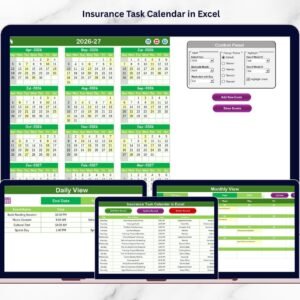
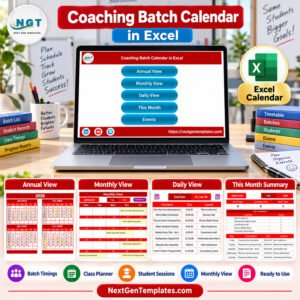
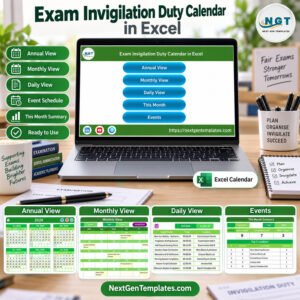
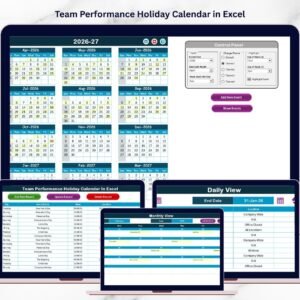
Because the template is built in Microsoft Excel, users can easily manage events, monitor project timelines, and coordinate team activities without using complicated software. The calendar provides annual, monthly, and daily views, making it easier for managers to monitor schedules from different perspectives.
As a result, organizations gain better control over project planning while improving team productivity and coordination.
Key Feature of Team Performance Project Calendar In Excel
🚀 Centralized Project Planning
All project events, meetings, and milestones are stored in one organized workbook, allowing teams to manage schedules efficiently.
📅 Multiple Calendar Views
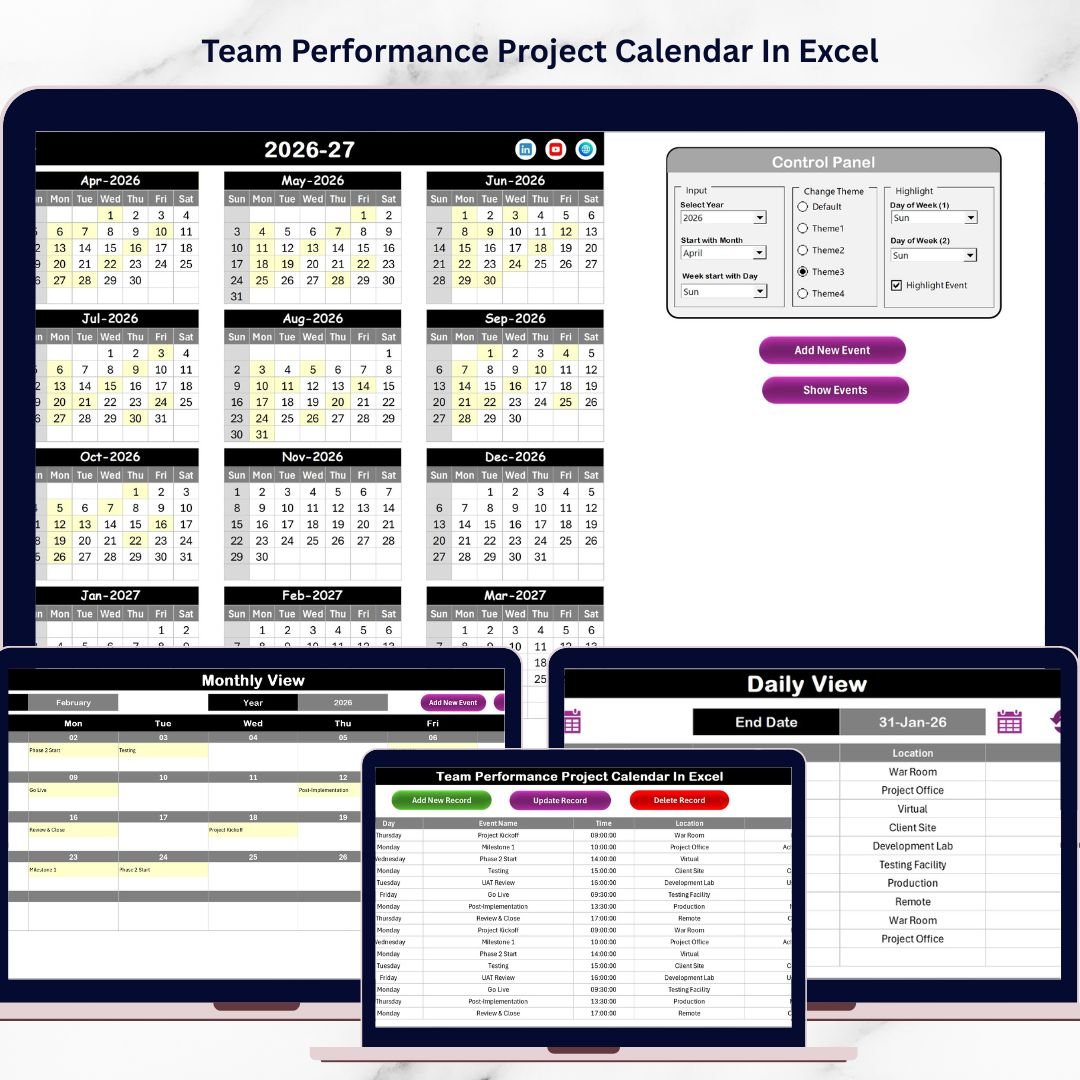
The template includes Annual, Monthly, and Daily views, enabling users to monitor activities at different planning levels.
⚡ Automated Calendar Updates
Changing the year, starting month, or week start day automatically updates the entire calendar structure.
🎨 Customizable Color Themes
Users can apply five different color themes across the workbook to enhance visual clarity and improve the dashboard appearance.
🖥 User-Friendly Navigation System
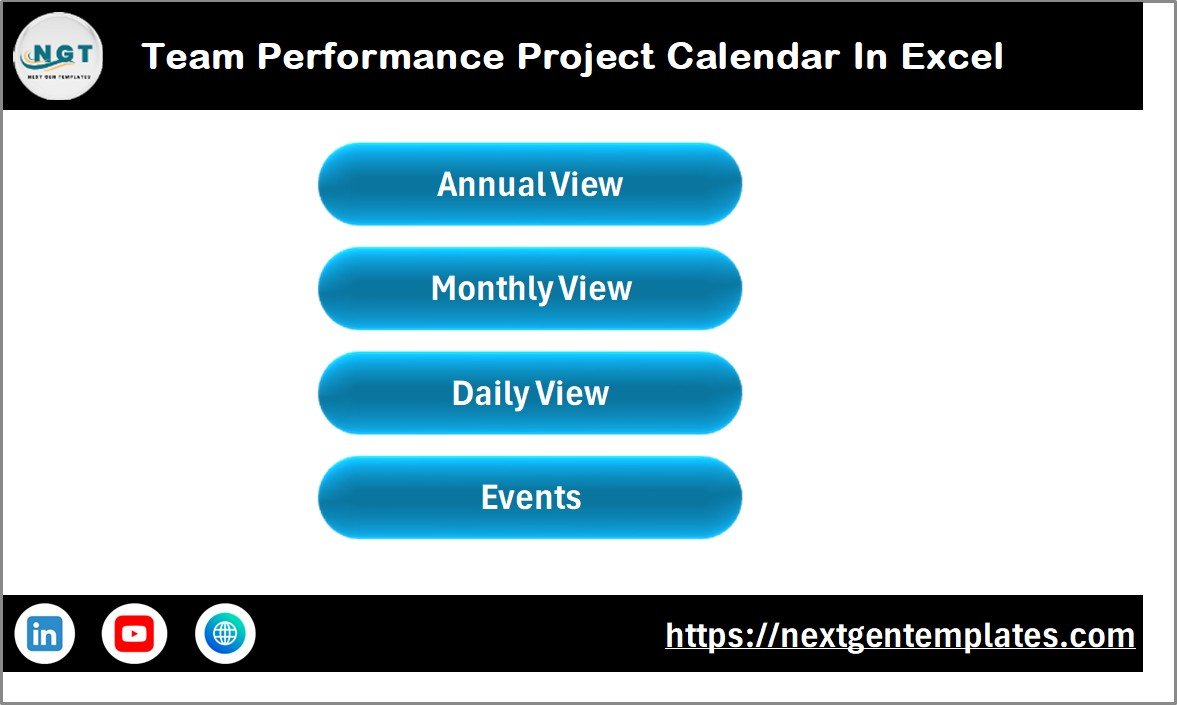
The Home sheet provides quick navigation buttons for Annual View, Monthly View, Daily View, and Events Database.
📝 Simple Event Management System
Users can easily add, update, view, or delete events using built-in forms and buttons.
📊 Automatic Event Highlighting
Important event dates are automatically highlighted, helping teams quickly identify project milestones.
🔍 Detailed Daily Event Tracking
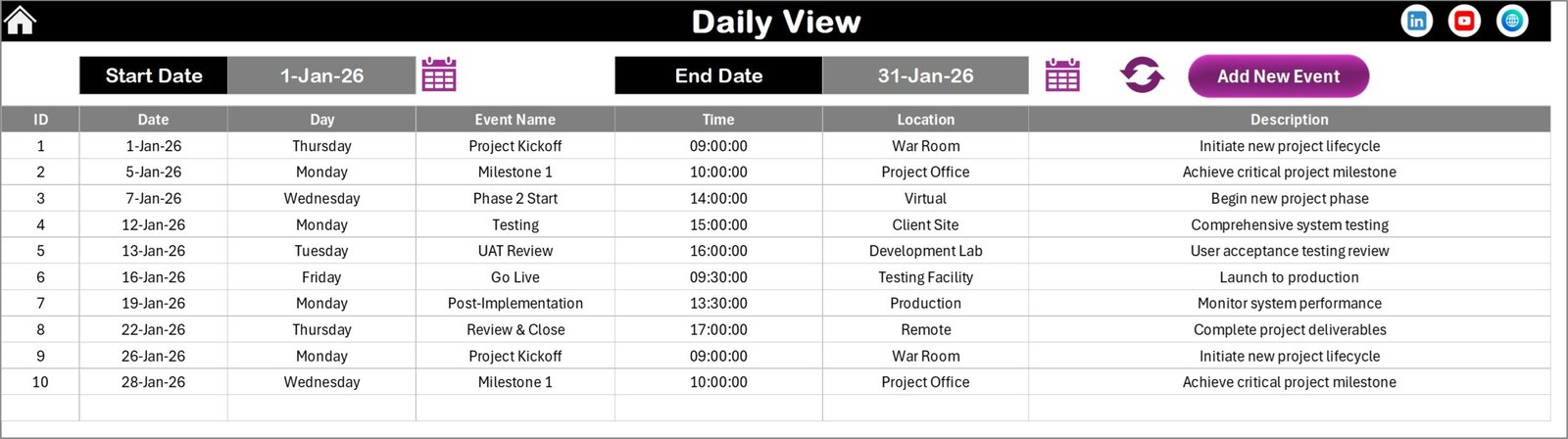
The Daily View allows managers to analyze events between selected date ranges.
What’s Inside the Team Performance Project Calendar In Excel
This Excel template includes five powerful worksheets, each designed to simplify project planning and team coordination.
1️⃣ Home Sheet – Navigation Hub
The Home sheet works as the central control panel of the template. It contains quick navigation buttons that allow users to jump directly to different calendar views without searching through worksheets.
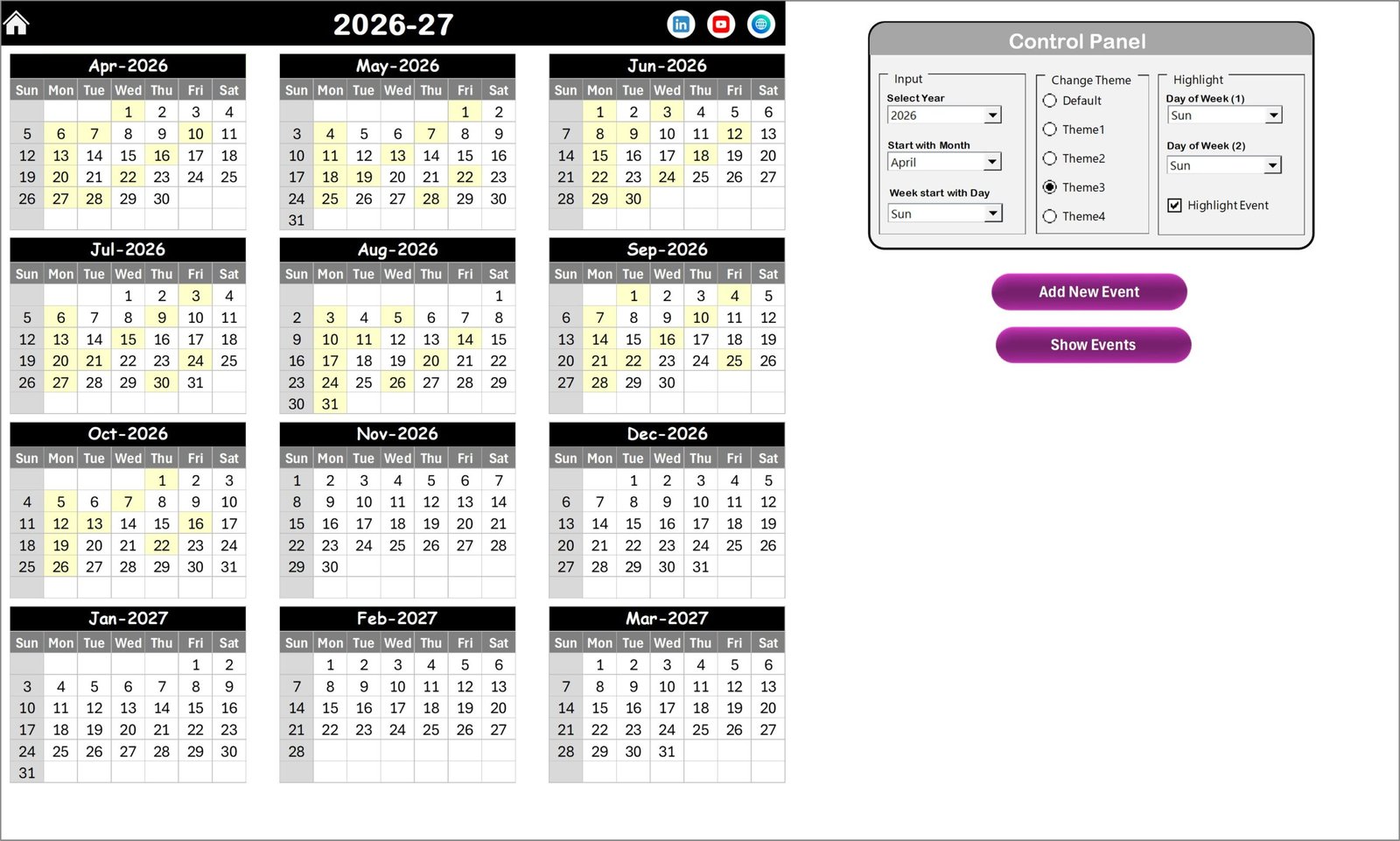
2️⃣ Annual View Sheet
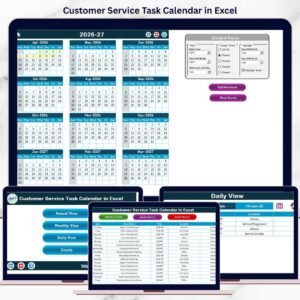
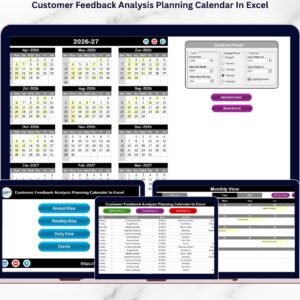
This sheet displays the complete 12-month calendar in a single view, allowing managers to review the entire year’s project schedule instantly.
The Annual View also includes a powerful control panel where users can:
Select the year
Change the starting month
Modify the starting day of the week
Apply different color themes
Highlight weekends or important days
Additionally, users can easily add or review events directly from the calendar using built-in buttons.
3️⃣ Monthly View Sheet
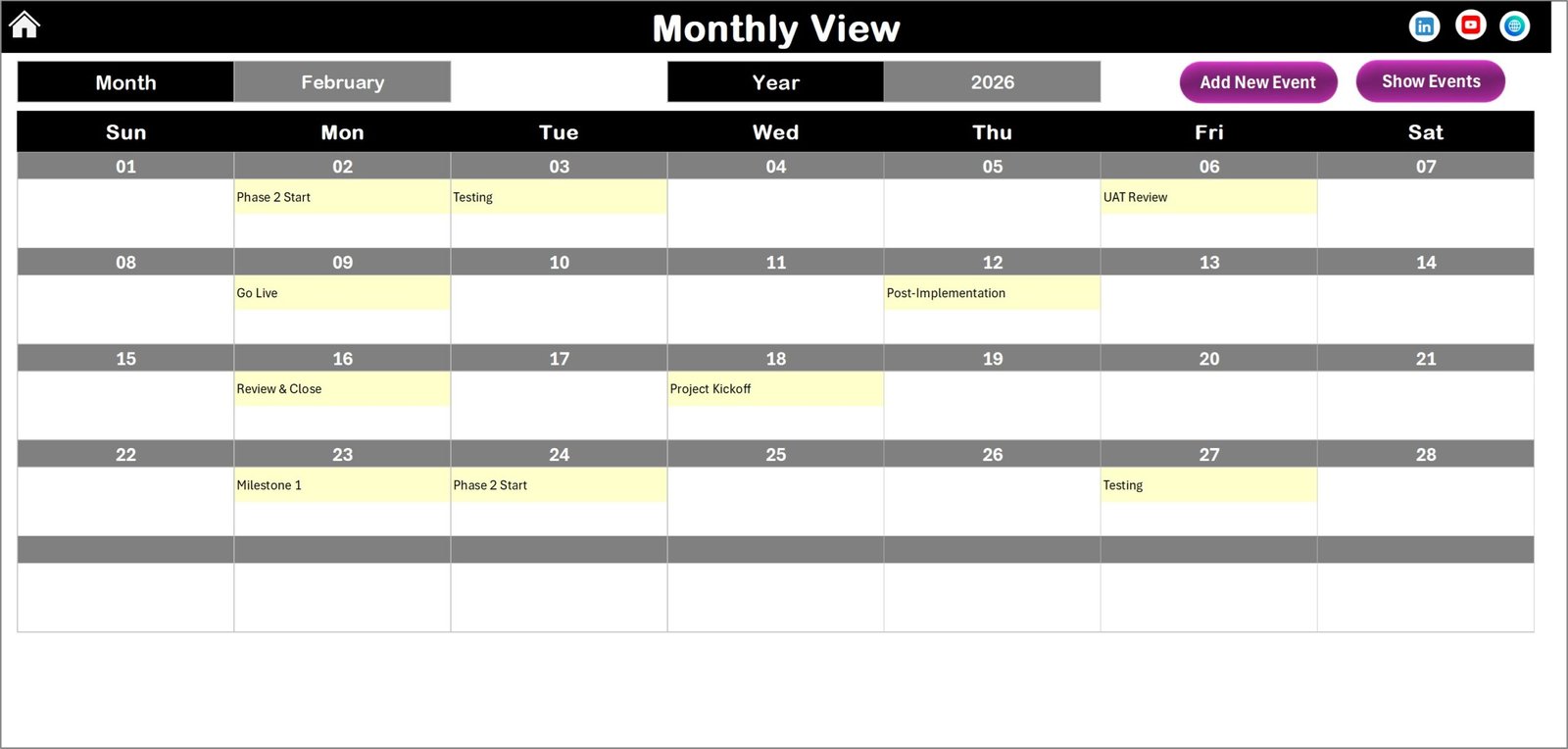
The Monthly View provides a focused look at a specific month, making short-term project planning easier.
If multiple events exist on a specific date, the calendar shows “More than 1…”, allowing users to quickly check detailed event information.
4️⃣ Daily View Sheet
This sheet allows users to view events between selected start and end dates, providing detailed information such as:
Event Date
Event Name
Event Time
Event Location
Event Description
This view is extremely useful for managers who want to analyze upcoming activities in detail.
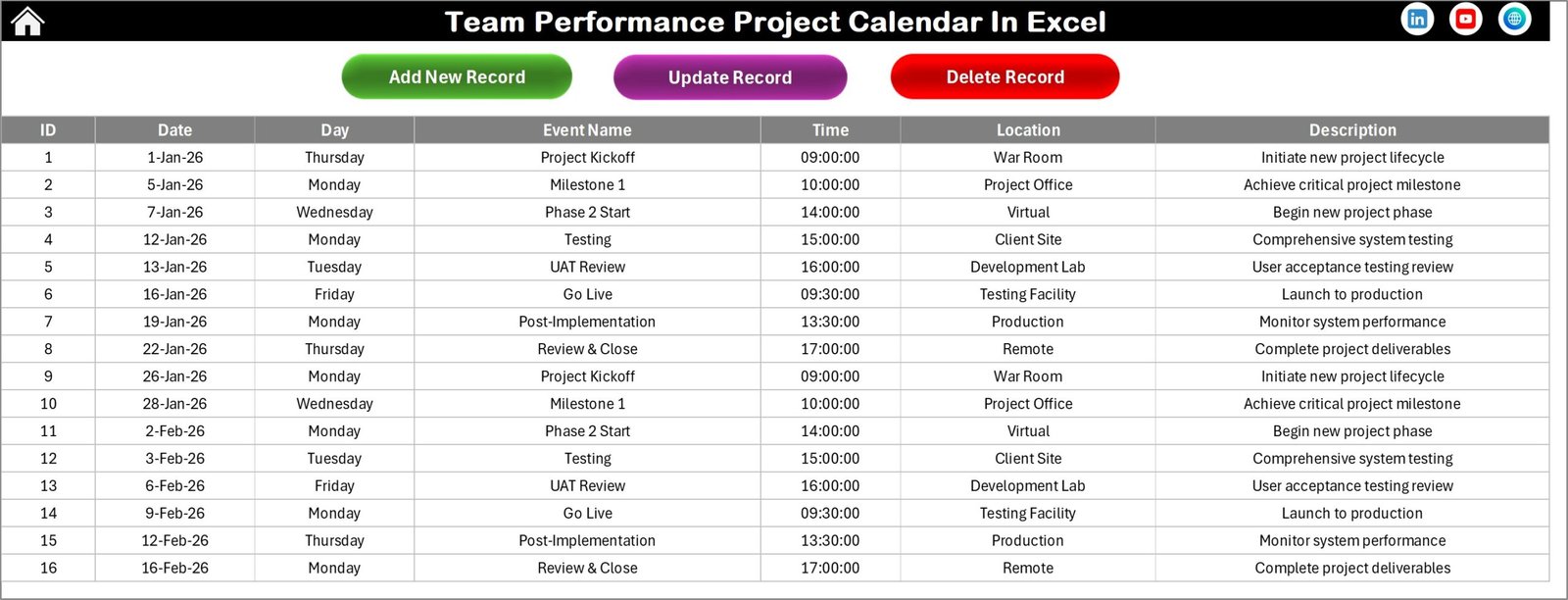
5️⃣ Events Sheet – Central Event Database
The Events sheet stores all event records in a structured format including:
Event ID
Date
Day
Event Name
Time
Location
Description
Users can easily add, update, or delete events using dedicated management buttons.
How to Use the Team Performance Project Calendar In Excel
Using the template is extremely simple, even for beginners.
Step 1 – Open the Excel Template
Download and open the calendar file in Microsoft Excel.
Step 2 – Configure Calendar Settings
Select the desired year, starting month, and starting day of the week from the control panel.
Step 3 – Add Project Events
Click the Add New Event button, enter the event details, and submit the form.
Step 4 – Monitor Activities
Use the Annual, Monthly, and Daily views to track project schedules.
Step 5 – Update or Delete Events
Modify or remove event records directly from the Events sheet.
This simple workflow allows organizations to manage project schedules efficiently without complicated tools.
Who Can Benefit from This Team Performance Project Calendar In Excel
This powerful Excel template is ideal for many professionals and organizations, including:
👨💼 Project Managers managing multiple project deadlines and milestones.
👥 Team Leaders coordinating meetings, activities, and team schedules.
🏢 HR Departments organizing performance meetings, training sessions, and events.
📊 Operations Managers monitoring operational tasks and team activities.
🚀 Startups and Small Businesses looking for a simple yet powerful project planning solution.
📅 Consultants and Agencies managing project timelines for multiple clients.
Because the template is flexible and easy to use, it can be adapted to many industries and project environments.
Click here to read the Detailed blog post
Watch the step-by-step video tutorial:
Visit our YouTube channel to learn step-by-step video tutorials
Compatibility and Requirements
- Works in Microsoft Excel desktop (Excel 2016 or later, or Microsoft 365).
- The event forms and the Add, Update and Delete buttons use macros. Open the file on Excel for Windows and enable macros as described in Enable or disable macros in Microsoft 365 files.
- The template does not run in Excel for the web, Google Sheets or mobile apps.
Frequently Asked Questions
Which sheets does the template include?
Five sheets: Home, Annual View, Monthly View, Daily View and Events.
How do I add an event?
Click the Add New Event button, fill in the event details in the form and submit it. You can also update or delete events from the Events sheet.
What details are stored for each event?
The Events sheet stores the Event ID, date, day, event name, time, location and description.
Can I change the year and the first day of the week?
Yes. The control panel on the Annual View sheet lets you choose the year, the starting month and the starting day of the week, and the calendar updates to match. You can also pick one of five color themes.
What happens when two events fall on the same date?
The Monthly View shows “More than 1…” on that date. You can then check the full details in the Daily View or on the Events sheet.
Related Team Performance Templates
- Team Performance Event Calendar in Excel: a calendar built around team events
- Team Performance Planning Calendar in Excel: a calendar for planning team work
- Project Deadline Calendar in Excel: a calendar focused on project deadlines
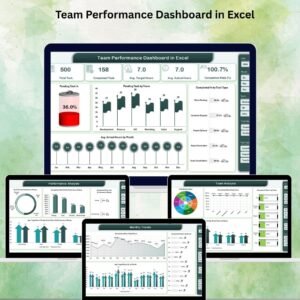
- Team Performance Dashboard in Excel: a dashboard to review team results
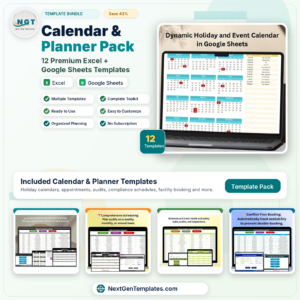
- Calendar & Planner Pack: 12 Excel and Google Sheets calendar and planner templates in one download
Browse all Excel calendar templates.