
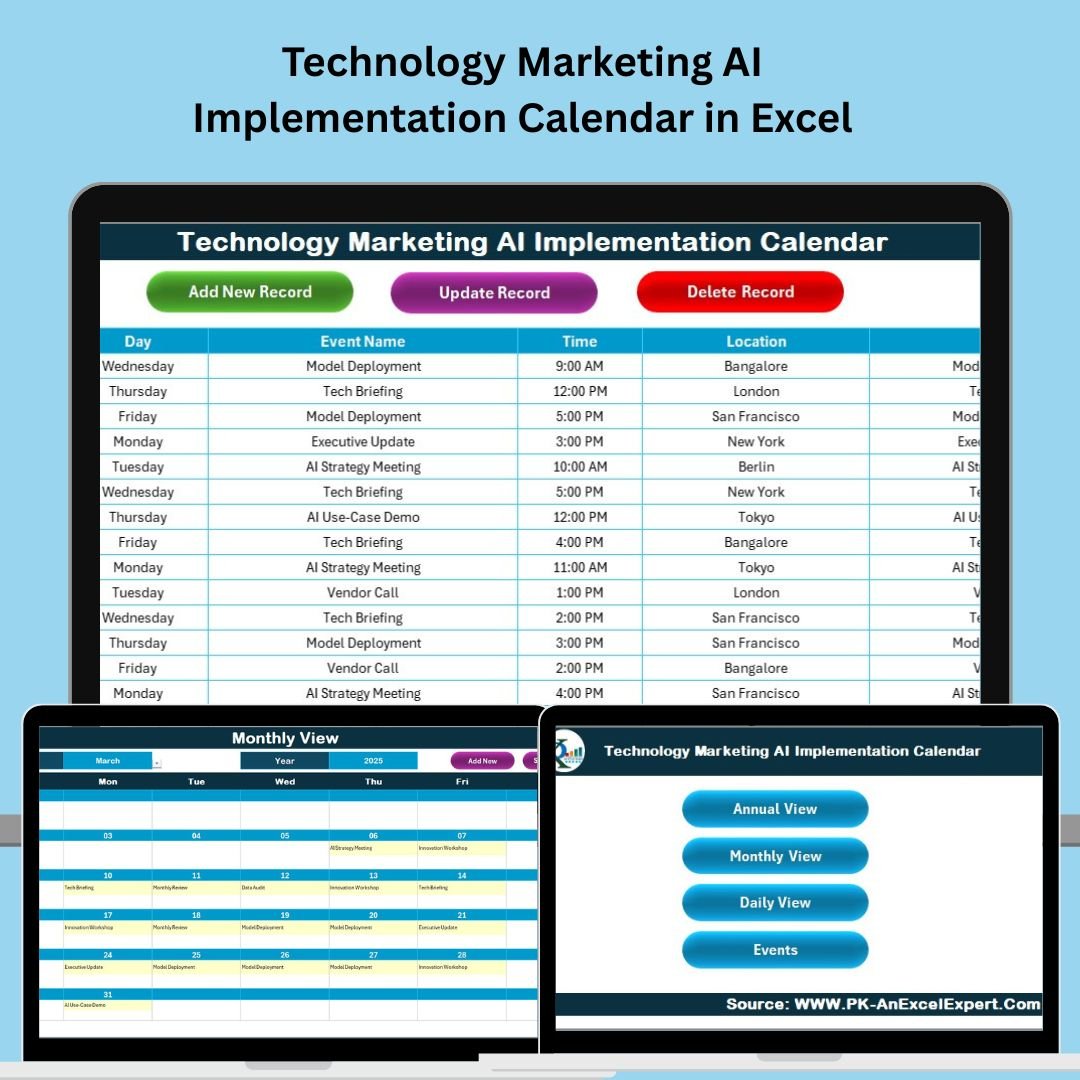
In today’s tech-driven world, AI marketing campaigns aren’t just ambitious — they’re complex. From model training timelines to multi-team alignment, success hinges on planning. That’s where the Technology Marketing AI Implementation Calendar in Excel becomes your must-have tool.
This smart, user-friendly Excel calendar is your AI project command center — enabling marketing and ops teams to map out strategies, assign responsibilities, and monitor deadlines across campaigns, vendors, and internal rollouts — without ever leaving Excel.
✨ Key Features of the AI Implementation Calendar
📂 5 Structured Worksheets for Total Visibility
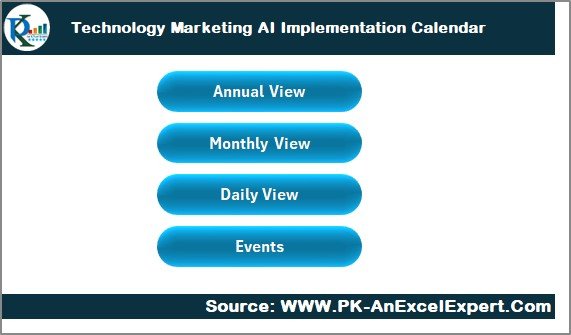
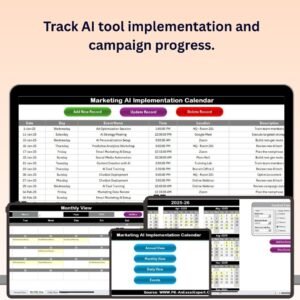
Home Sheet – Navigate instantly to any calendar view or database
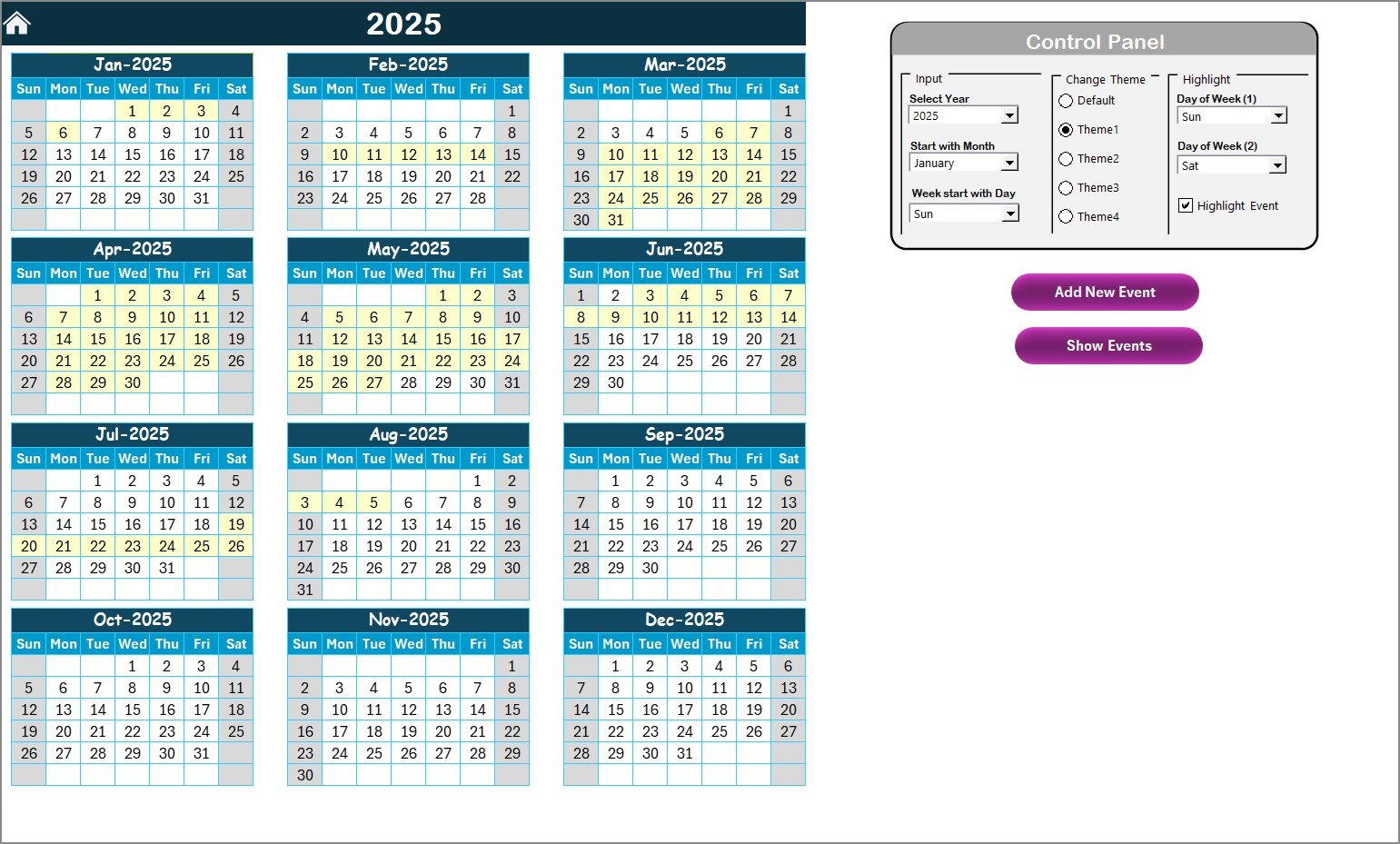
Annual View Sheet – Set long-term quarterly and yearly milestones
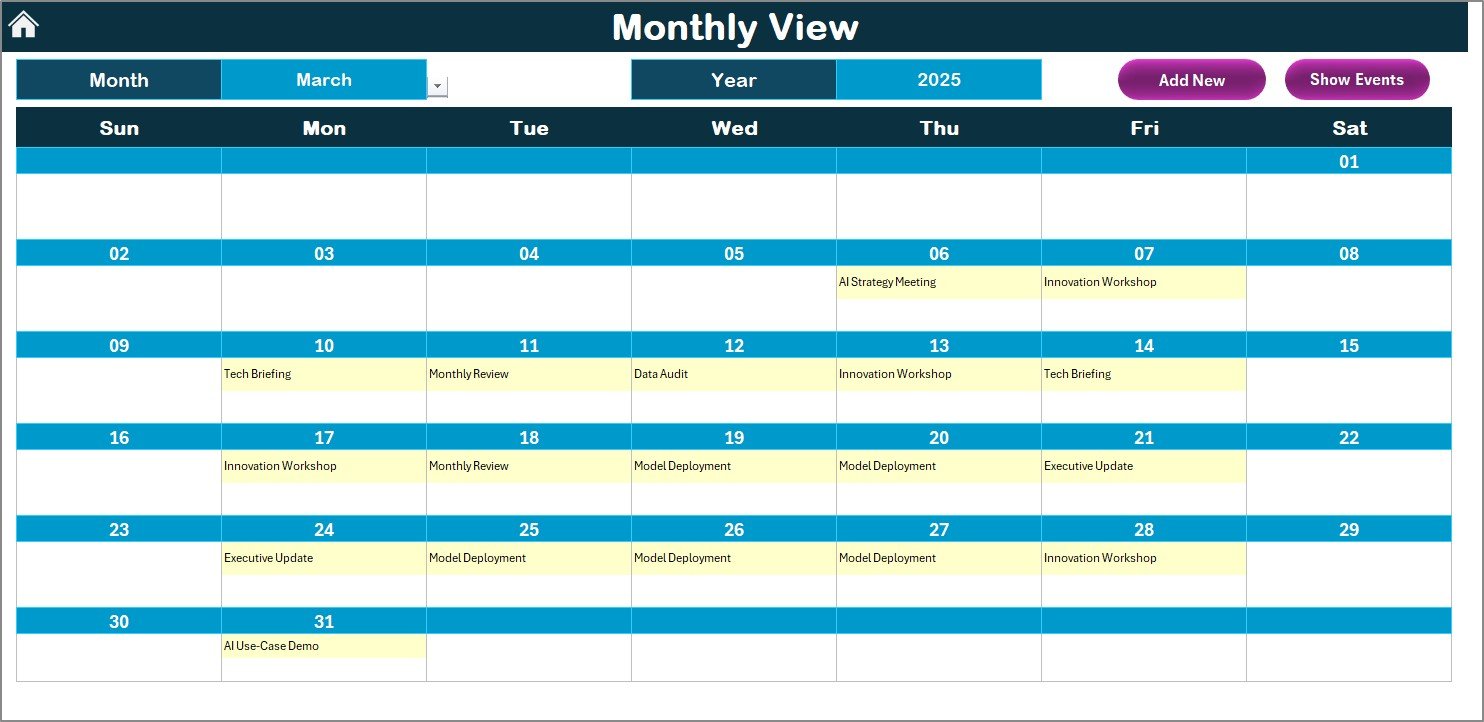
Monthly View Sheet – Visualize campaigns, AI testing, and delivery timelines
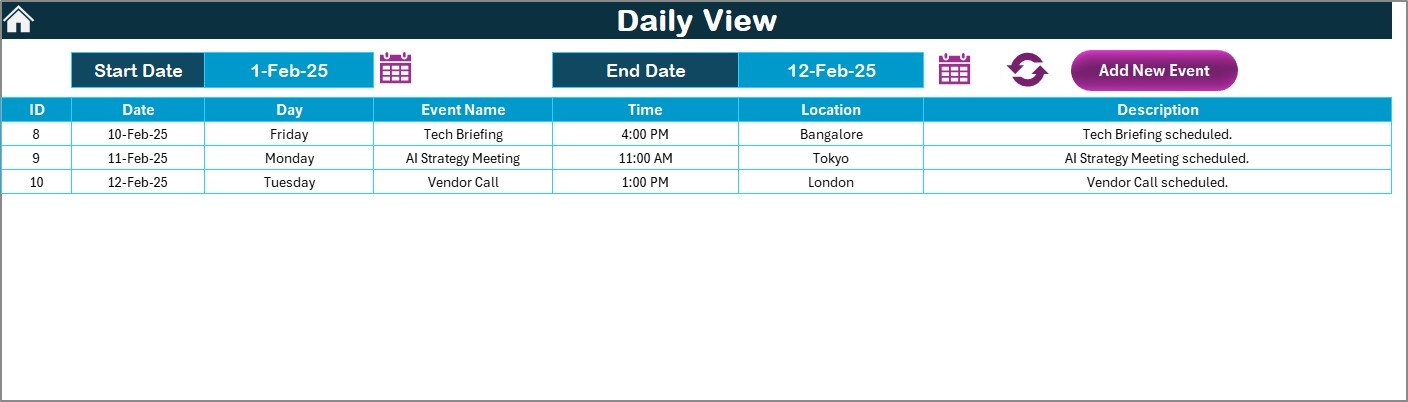
Daily View Sheet – Focus on short-term tasks and training events
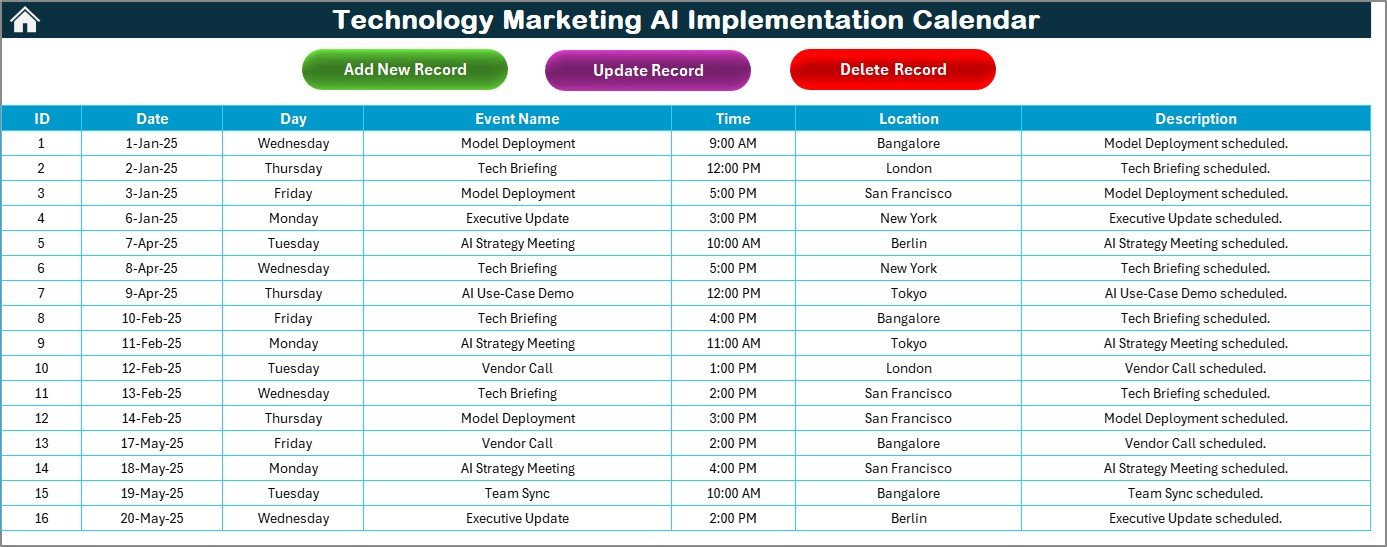
Events Sheet – Maintain an editable, searchable events database
🎛 Dynamic Control Panel (Annual View)
Set Year, Start Month, and Week Start Day
Choose from 5 professional color themes
Highlight up to 2 weekdays (e.g., Sat/Sun) or working vs. non-working days
One-click Add Event and Show Event functions
📆 Multiple View Modes
Yearly View for strategy planning
Monthly View for sprint scheduling and model iterations
Daily View for execution-level planning and check-ins
📝 Interactive Event Forms (No Manual Data Entry)
Add, Update, or Delete Events using built-in forms
All events auto-log to the Events Sheet with unique IDs
Event fields: Name, Date, Time, Location, Description
📦 What’s Inside the Excel Template?
🔹 Prebuilt calendar views with dropdowns for Year & Month
🔹 Dynamic data filters and refresh buttons
🔹 Macro-enabled (VBA-powered) event form system
🔹 Easy-to-edit visual layout and brandable color themes
🔹 Calendar icons for smooth date selection
🔹 Unlimited events — scale with your campaign size
🛠 How to Use the AI Calendar
✅ Start at the Home Sheet — your control panel
🧭 Use buttons to go to Annual, Monthly, or Daily View
📝 Add events via the form — they auto-sync with the database
🔍 Use “Show Event” to view tasks scheduled on specific dates
🎨 Customize your color theme, week start, or calendar year
🧠 Use the Daily View Sheet in meetings to keep teams aligned
Everything updates in real-time. No formulas needed, just click, enter, and plan.
👥 Who Should Use This Template?
Best for tech and marketing professionals including:
🤖 AI Project Managers – Coordinate vendors, model training, and release planning
📈 Marketing Ops Teams – Track content automation and AI testing events
📅 Digital Marketers – Schedule rollouts, customer targeting, and deliverables
🏢 Startups & Enterprise Teams – Plan at scale without costly SaaS tools
🧑💼 Cross-Functional Teams – Align development, marketing, and operations
🚀 Advantages of This Excel-Based Calendar
✅ All-in-One Campaign View – Track everything from AI pilots to webinars
📊 Visual Scheduling – Clear layout makes event conflicts easy to spot
🔧 Fully Customizable – Themes, controls, event fields – edit it all
🧾 Event Database Built-In – No double entry, no spreadsheet clutter
🧠 Macro Automation – No coding needed to use forms and filters
📤 Share & Collaborate – Works great on OneDrive or local network
📅 Supports AI-Specific Planning – Ideal for annotation milestones, model testing, and automation launches
💡 Best Practices for Success
📌 Set Quarterly Goals – Use Annual View to structure high-level objectives
📆 Plan Sprints Monthly – Organize testing and campaigns using Monthly View
🗓 Run Stand-Ups from Daily View – Keep tasks visible in daily check-ins
📥 Log Every Event – Use the Add Event form to reduce communication gaps
🎨 Match Themes to Brand – Stay visually aligned with your marketing identity
🧹 Clean Event Sheet Monthly – Delete outdated records for clarity
🛡 Enable Macros – Required for full form functionality
🔁 Click here to read the Detailed blog post
📺 Visit our YouTube channel to learn step-by-step video tutorials
Watch the step-by-step video tutorial:
Compatibility and Requirements
- Works in Microsoft Excel on Windows, with macros enabled. The event forms run on VBA, so the template does not run in Excel for the web, Google Sheets or mobile apps.
- Microsoft explains how to turn macros on in Enable or disable macros in Microsoft 365 files.
Frequently Asked Questions
Which sheets are included?
Five sheets: Home, Annual View, Monthly View, Daily View and Events.
How do I add an event?
Use the Add Event button on the Annual View sheet to open the event form. Enter the name, date, time, location and description. The event is saved to the Events sheet with a unique ID.
Can I update or delete an event?
Yes. The built-in forms let you add, update or delete events, and the Events sheet keeps the full list.
What can I change in the calendar?
On the Annual View sheet you can set the year, the start month and the week start day. You can also pick one of 5 color themes and highlight up to 2 weekdays or working and non-working days.
Is there a similar calendar for other teams?
Yes. See the Marketing AI Implementation Calendar in Excel and the Technology Sales AI Implementation Calendar in Excel.
Related Calendar Templates
- Marketing AI Implementation Calendar in Excel: the same AI rollout calendar for general marketing teams
- Technology Sales AI Implementation Calendar in Excel: AI rollout planning for sales teams
- Technology Marketing Cybersecurity Calendar in Excel: a calendar for security work in tech marketing
- Technology Marketing Supply Chain Resilience Calendar in Excel: schedule supply chain events for tech marketing
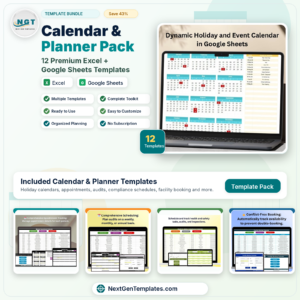
- Calendar & Planner Pack: 12 calendar and planner templates in one download
Browse all Excel calendar templates.











Reviews
There are no reviews yet.