

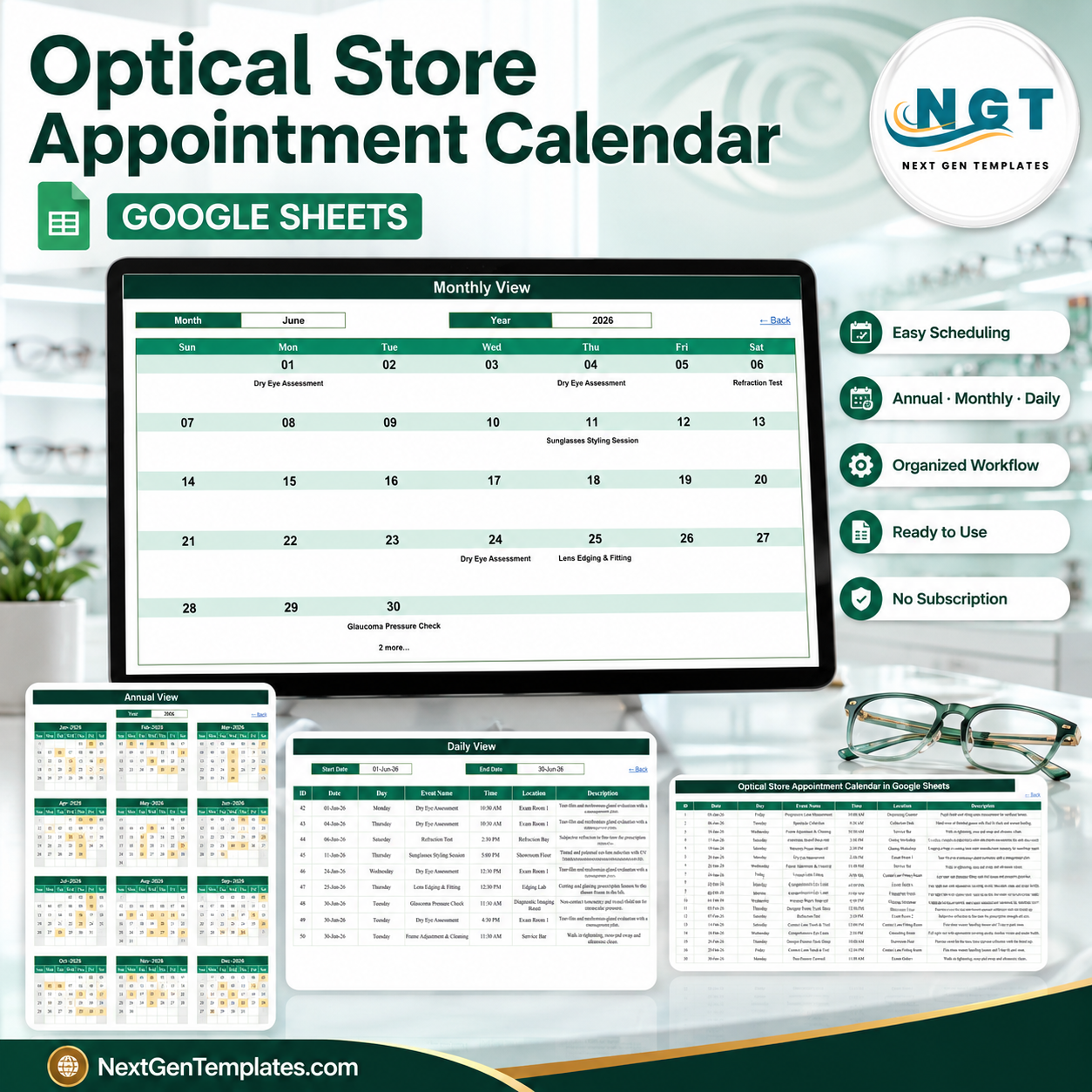

The Optical Store Appointment Calendar in Google Sheets is a formula-driven booking diary with 6 tabs, 3 linked calendar views and exactly 100 sample appointments already typed in, dated 02 January 2026 to 26 December 2026. Every booking lives on one Events tab with 7 columns, and the Annual, Monthly and Daily views all read from that single list. Setup takes under 10 minutes: make your copy, delete the sample rows, type your own bookings. No macros, no add-on, no sign-up.
🌎 Join 8,400+ teams in 40+ countries using NextGenTemplates to replace paid SaaS tools with one-time-purchase Excel, Google Sheets, Power BI and HTML templates.
✅ Instant download · One-time payment · No subscription · No per-user fees · Lifetime access
⚠️ Read this before you buy. This is a scheduling calendar. It plots appointment slots on a calendar grid. It is not a patient record, not an EHR or EMR, not a practice-management or dispensing system, and not an online booking engine. It stores no prescriptions, no Rx values, no clinical findings and no health data. It sends no reminders and no notifications of any kind — not email, not SMS, not push. It is not a medical device and it carries no HIPAA, GDPR or optical-board certification. Labels such as “Comprehensive Eye Exam” or “Glaucoma Pressure Check” in the file are simply text on the sample rows so you can see what a filled diary looks like.
🔑 Key Features of the Optical Store Appointment Calendar in Google Sheets
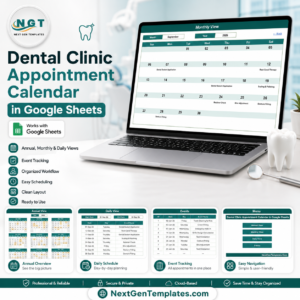
📅 Three views built from one list. The file holds 6 tabs — Home, Annual View, Monthly View, Daily View, Events and List. You type each booking once on the Events tab; the Annual View, Monthly View and Daily View all pull from it with worksheet formulas. There is no second copy of the data to keep in step.
🧮 Formulas do the work — there is nothing to enable. We opened the live file and counted. The Annual View runs on 12 DATE() formulas plus a FILTER that spills your booked dates into a 100-cell helper range, and a conditional-formatting rule (COUNTIF) shades every date that carries a booking. The Monthly View runs on 35 VLOOKUP formulas, one per date cell, plus 35 COUNTIF checks that print the “N more…” note. The Daily View is a single FILTER over a Start Date / End Date pair. No Apps Script, no macro, no add-on, no permission prompt.
🗁 A 7-column appointment log. The Events tab carries ID, Date, Day, Event Name, Time, Location and Description. The 100 sample rows run from 02-Jan-2026 to 26-Dec-2026 at 8 or 9 per month, across 18 appointment-type labels and 18 in-store locations (Exam Room 1, Exam Room 2, Refraction Bay, Contact Lens Fitting Room, Diagnostic Imaging Room, Pediatric Exam Room, Dispensing Counter, Edging Lab, Glazing Workshop, Service Bar, Showroom Floor, Frame Gallery, VIP Styling Lounge and more).
🕔 Shop-hours time slots. The samples use 15 start times from 9:30 AM to 5:30 PM, all on the hour or half-hour, and every date falls Monday to Saturday — 21 of the 100 are Saturdays and none is a Sunday, which is how most independent practices actually trade.
🔍 Every sample date checked. We recomputed the weekday of all 100 sample rows against the real 2026 calendar: 100 matched, 0 mismatched. IDs run 1 to 100 with no duplicates and no gaps. 98 distinct dates are used, and exactly one of them — 30 June 2026 — carries more than one booking, on purpose, so you can see how a busy day behaves.
📆 A 36-year date range. The List tab feeds the dropdowns: twelve month names and the years 2021 through 2056. Change the year on the Annual View, or the month and year on the Monthly View, and the grids rebuild. Nothing is hard-coded to 2026.
🧾 Room for your real diary. The view formulas reach row 999 on the Events tab, so you can add roughly 896 more bookings beyond the 100 samples without editing a single formula.
📦 What’s Inside the Optical Store Appointment Calendar in Google Sheets
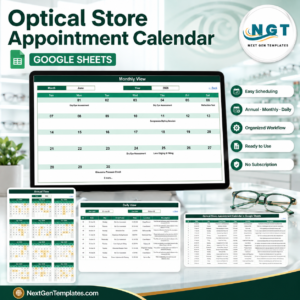
Page 1: Home — navigation menu. The landing tab with four buttons: Annual View, Monthly View, Daily View and Events. Each jumps straight to that tab, and every tab has a “Back” link to return.
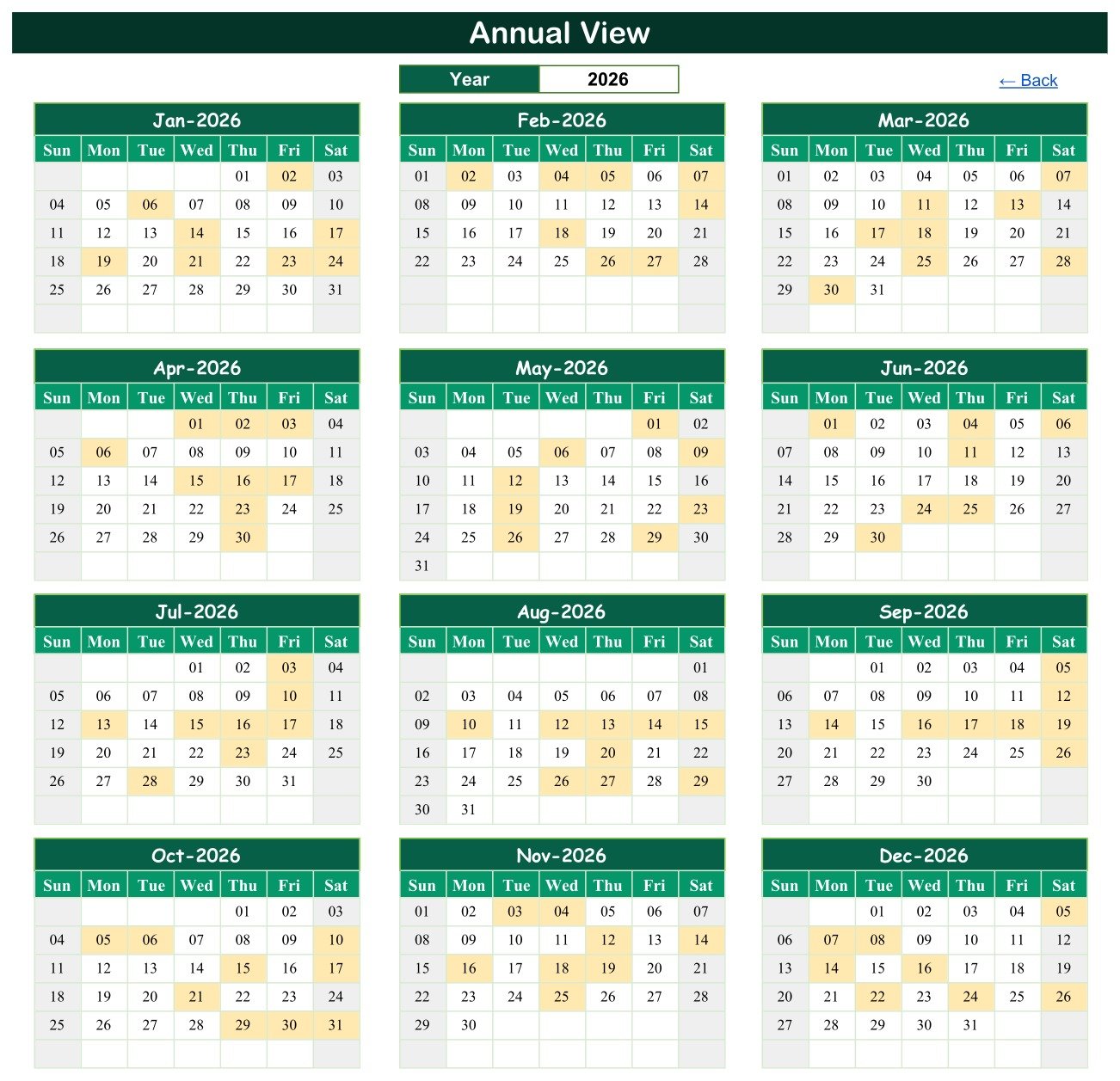
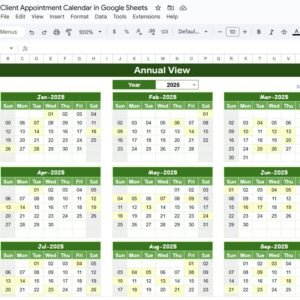
Page 2: Annual View — all 12 months of 2026 on one page. A full-year grid, January to December, three months per row and four rows deep. Dates carrying a booking are shaded amber, so a year’s workload is readable at a glance. In the shipped copy the shading marks 8 days in January, 8 in February, 8 in March, 9 in April, 8 in May, 7 in June, 8 in July, 9 in August, 8 in September, 9 in October, 8 in November and 8 in December. Pick a different year from the dropdown and the whole page redraws.
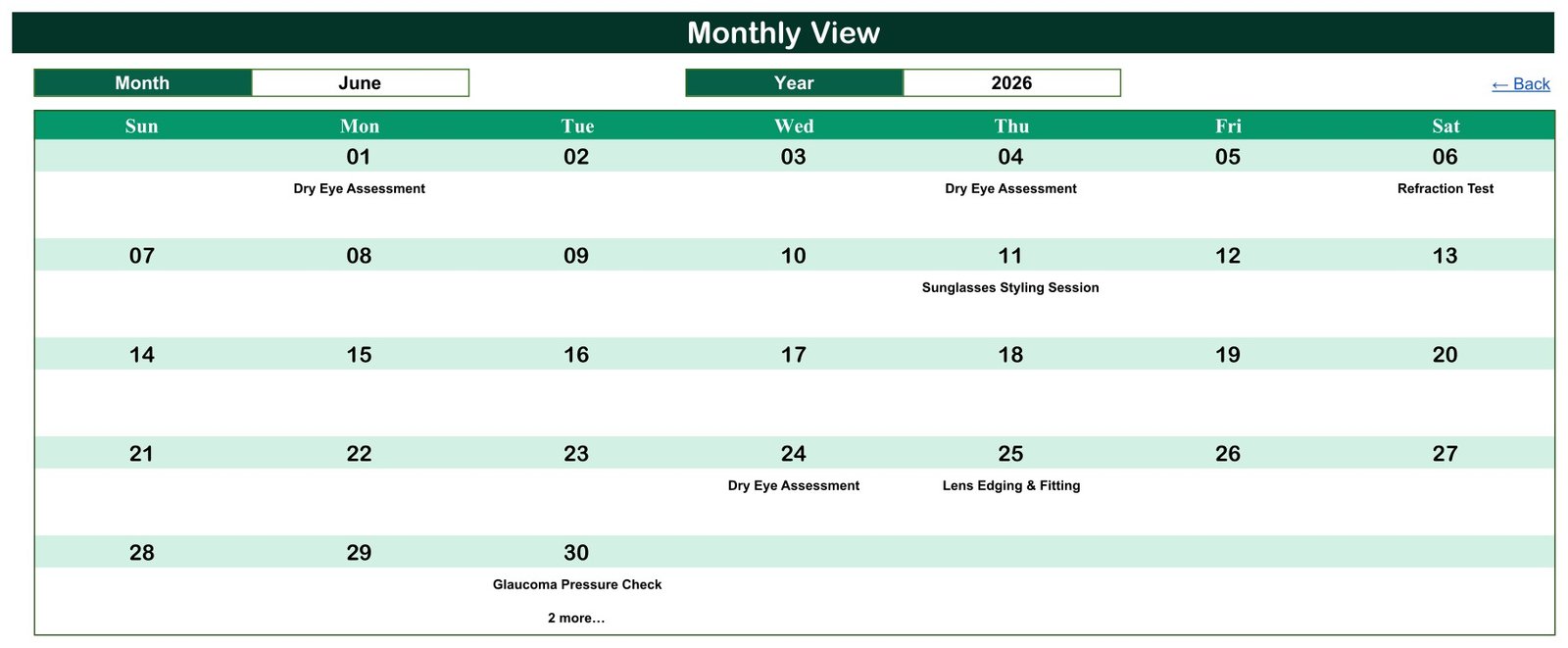
Page 3: Monthly View — pick a month, see the bookings on each date. Choose Month and Year from two dropdowns and the calendar rebuilds. Each date cell shows the first booking’s name, and a “N more…” note appears where a date carries several. The shipped screenshot shows June 2026: Dry Eye Assessment on Monday the 1st and Thursday the 4th, Refraction Test on Saturday the 6th, Sunglasses Styling Session on Thursday the 11th, Dry Eye Assessment on Wednesday the 24th, Lens Edging & Fitting on Thursday the 25th, and Glaucoma Pressure Check plus “2 more…” on Tuesday the 30th.
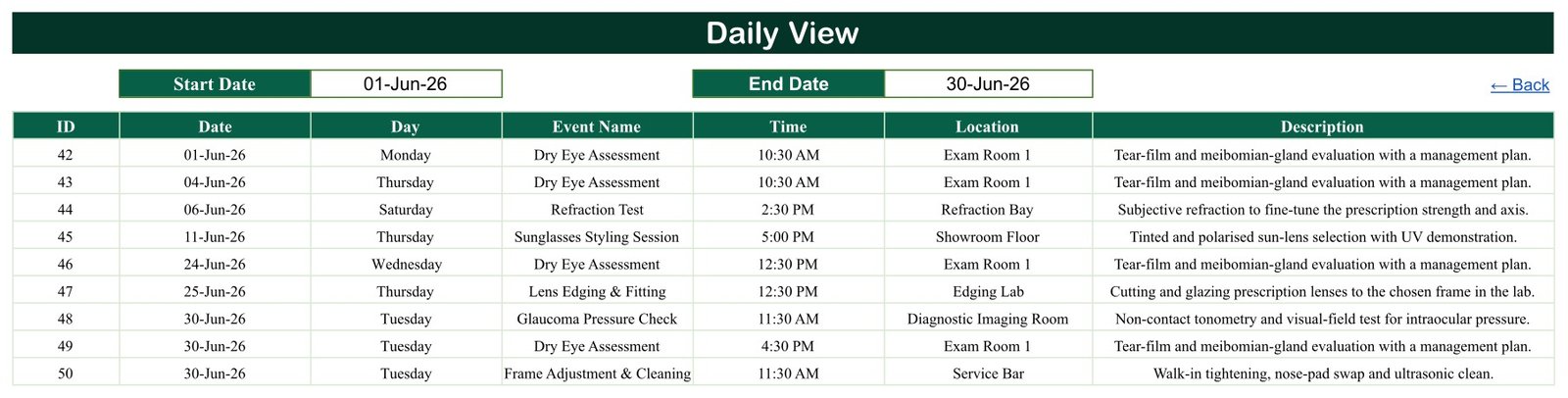
Page 4: Daily View — a printable date-range list. Set a Start Date and an End Date and the tab lists every booking between them with ID, Date, Day, Event Name, Time, Location and Description. The shipped screenshot shows 01-Jun-26 to 30-Jun-26 returning 9 rows, IDs 42 to 50. This is the front-desk print-out, and unlike the Monthly View it shows every booking on a multi-booking day.
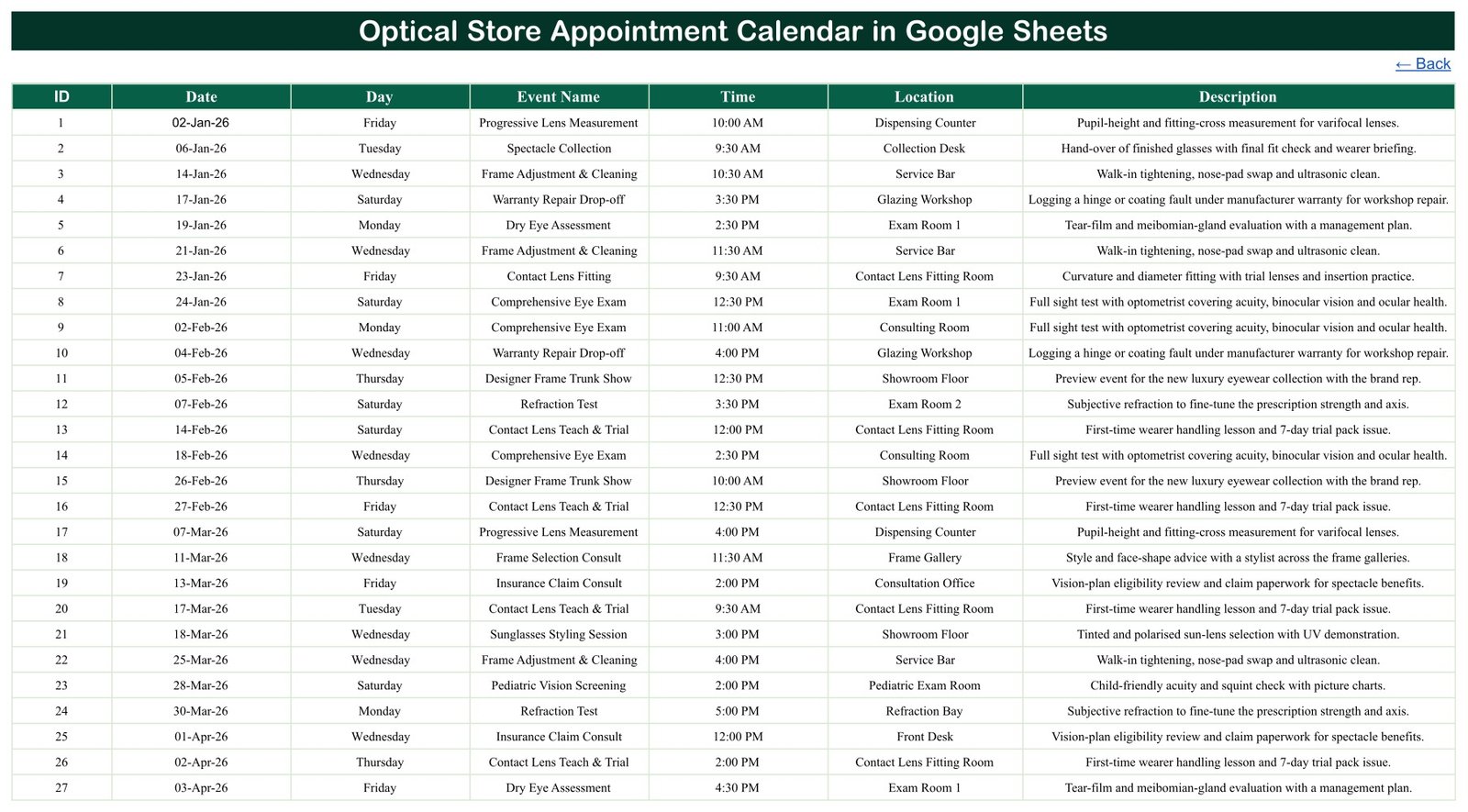
Page 5: Events — the one table everything reads from. The master log: ID, Date, Day, Event Name, Time, Location, Description. 100 sample rows ship in the file; delete them and the whole calendar is yours. The Date column carries a date-validation rule; the other columns are free text.
Page 6: List — the dropdown source. A small helper tab holding the twelve month names and the year range 2021-2056 that the Annual View and Monthly View dropdowns read from. Extend the year column and the pickers extend with it.
🔒 The Missing Customer Column Is the Point
We read every one of the 100 rows and every column header before writing this. The Events tab has exactly 7 columns, and there is no customer name, no patient name, no phone number, no email address, no date of birth, no insurance or vision-plan number, no prescription or Rx field, no sphere/cylinder/axis values, and no clinical-notes column anywhere in the file. The 18 sample descriptions describe the type of work (“Subjective refraction to fine-tune the prescription strength and axis”) and never carry a single person’s data. The 18 locations are in-store room names, not street addresses.
That is a deliberate design, not an omission. A link-shared Google Sheet is not appropriate storage for patient or customer health data. Book the slot here — date, time, room, type of appointment — and keep the person’s identity, contact details and clinical record in the system you already use for that. If you want the two to line up, put your own booking reference or an internal code in the Description cell rather than a name.
⚖ Google Sheets Calendar vs. Excel vs. Paid Optical Practice Software — Where This Fits
| What matters | This Google Sheets calendar | Excel calendar workbook | Paid optical practice software |
|---|---|---|---|
| Cost | $8.99 one-time (on sale $4.99) | $8.99 one-time | $70-$300+ per month, per practice |
| Platform | Any browser, Google Sheets, free account | Desktop Excel for Windows, macros enabled | Vendor cloud or a server in your back office |
| Setup time | Under 10 minutes | Under 10 minutes, plus enabling macros | Days to weeks, usually with paid onboarding |
| Real-time team collaboration | Yes, built in — two staff can edit at once | No, one file one editor unless it is on SharePoint | Yes |
| Mobile access | Yes, Google Sheets app | Limited | Yes, usually a paid mobile add-on |
| Customizable fields | Yes, it is a spreadsheet | Yes | Vendor-defined, often chargeable |
| Share with a link | Yes | No | No, per-seat logins |
| Year-1 cost at 5 users | $8.99 total | $8.99 total | $840-$3,600+ |
| Stores prescriptions / clinical records | No, by design | No | Yes, that is what you are paying for |
| Sends patient reminders | No | No | Yes, SMS and email |
| Prevents double-booking a room | No | No | Yes |
If you need reminders, an online booking page, insurance claiming or a patient record, buy practice software. If you need a diary that four staff can see at once, that costs $8.99 once and that you can bend to your own room names in an afternoon, this is it.
👥 Who This Template Is For — and Who It’s Not For
It is for: single-site independent opticians and optometry practices running a paper day-book or a whiteboard; optical retail chains that want a consistent diary format across branches; a practice manager who needs the year’s clinic load on one printable page; a locum optometrist keeping their own session diary; and anyone migrating off a shared Excel file because two people can never have it open at once.
It is not for you if: you need automatic appointment reminders; you need patients to self-book online; you need to store prescriptions, retinal images or clinical notes; you need the system to stop a room being booked twice; you need an audit trail of who changed what; or you are looking for something that satisfies a regulator. This file does none of those and we would rather you knew now.
🚀 How to Use the Optical Store Appointment Calendar in Google Sheets
1. Make your copy. Open the PDF in your download and click the “Make a copy” link. The copy lands in your own Google Drive and is yours to edit.
2. Rename the rooms. Go to the Events tab and replace the sample Location values with your own — your exam rooms, your dispensing counter, your workshop. There is no fixed list to maintain.
3. Set your appointment types. Replace the Event Name values with the ones your practice books: sight test, contact lens check, dispense, collection, adjustment, whatever you call them.
4. Delete the samples and start booking. Clear rows 4 to 103 and type your first real booking. Fill ID, Date, Day, Event Name, Time, Location and Description. Type the Day yourself — see the note below, it is not calculated.
5. Use the views. Annual View for the year at a glance, Monthly View for the wall print-out, Daily View for tomorrow’s front-desk list. Set the Daily View’s Start and End dates to the same day for a single-day sheet.
6. Share it properly. Share with named colleagues, not “anyone with the link”. Even without customer names in it, your trading pattern is your business.
🧩 Three Honest Limitations, and What To Do About Them
1. The Monthly View shows only the first booking on a busy day. Each date cell is a VLOOKUP, and a VLOOKUP returns the first match. Where a date carries several bookings the cell prints the first one and adds a “N more…” note underneath — you can see it on 30 June 2026 in the shipped file, which reads “Glaucoma Pressure Check” then “2 more…”. Nothing is lost; the Daily View’s FILTER lists every one. Use the Monthly View to spot busy days and the Daily View to work them.
2. Nothing stops you double-booking a room and a time. There is no validation, no warning and no conditional format on the Location or Time columns — only the Date column is validated. Two bookings in Exam Room 1 at 2:30 PM will both save without a murmur. If that matters, sort the Events tab by Date then Time before each week, or add your own COUNTIFS helper column; both take a couple of minutes.
3. The Day column is typed text, not a formula. We checked the cells: Day holds plain text, not =TEXT(B4,"dddd"). It is correct on all 100 sample rows — we recomputed every one — but if you later change a Date, the Day beside it will not update and will quietly disagree with the date. The one-minute fix: put =TEXT(B4,"dddd") in C4 and fill it down. Nothing else in the file depends on the Day column, so this is safe to do.
🏪 Real-World Use Cases
Priya runs a two-room independent optician on a high street. She has an optometrist in Exam Room 1 and a dispensing optician on the Dispensing Counter. She keeps the Monthly View open on the back-office screen so she can see which days are thin, and prints the Daily View each evening for the next morning’s front desk. Customer names stay in her practice system; the sheet holds the slot, the room and the type.
Daniel manages three branches for a small optical chain. Each branch keeps its own copy with the same 7 columns and the same view formulas, so he can compare a January Annual View across all three without reformatting anything. When head office asks how many Saturday clinics ran last year, the answer is a filter away.
Meera is a locum optometrist. She books her own sessions across four practices in one copy of the file, using the Location column for the practice name and the Description for the agreed rate reference. The Annual View is her availability at a glance when a new practice calls.
❓ Frequently Asked Questions
Is this a patient record or an EHR?
No. It is a scheduling calendar. There is no patient name, contact detail, date of birth, prescription or clinical-notes field anywhere in the file, and you should not add one — a link-shared Google Sheet is not appropriate storage for patient data. Keep the clinical record in your practice system and use this for the diary.
Does it send appointment reminders by SMS or email?
No. It sends nothing. There are no reminders, no notifications and no automation of any kind in this file — no macros and no Apps Script. If you need reminders you need a booking platform, not a spreadsheet.
Can customers book their own appointments through it?
No. There is no public booking page and no form. Bookings are typed onto the Events tab by your staff.
Is it HIPAA, GDPR or optical-board compliant?
No, and no template can make you compliant. This is a spreadsheet with no access control beyond Google’s own sharing, no encryption you control, no audit trail and no certification of any kind. How you handle personal data remains entirely your responsibility.
Will it stop me booking two people into the same room at the same time?
No. There is no double-booking check. It is a diary, not a scheduler with constraints. See the limitations section above for a two-minute workaround.
Do I need to enable anything, or install an add-on?
No. Everything runs on ordinary worksheet formulas — DATE, FILTER, VLOOKUP, COUNTIF, EOMONTH — plus conditional formatting. There is no Apps Script, no macro and no permission prompt. It opens and works in any browser with a free Google account.
Can I use a year other than 2026?
Yes. The List tab feeds the dropdowns with the years 2021 to 2056, and both the Annual View and Monthly View rebuild when you change the picker. Extend the year column on the List tab if you need to go further.
How many bookings can I add?
The view formulas cover the Events tab through row 999, so roughly 896 more bookings beyond the 100 samples without editing anything. Beyond that, extend the ranges in the Annual, Monthly and Daily formulas.
Is there an Excel version?
There is a separate Excel edition of this calendar, and it is a genuinely different build rather than a converted copy — it is a macro-enabled workbook with 7 sheets including a “This Month” summary page and a Setting sheet, a VBA add/update/delete form, 24 appointment-type labels and 7 room names, and its sample year runs 07-Jan-2026 to 31-Dec-2026. This Google Sheets edition has 6 tabs, 18 appointment types, 18 locations, no form and no macros, and works in a browser. Pick the one that matches how your team works.
👨💻 About the Author
Built by PK – Microsoft Certified Professional with 15+ years of Excel, Google Sheets, and Power BI experience. Founder of NextGenTemplates, reaching 300K+ subscribers across YouTube channels. Every template is hand-built and tested before release.
🔗 Explore Related Templates
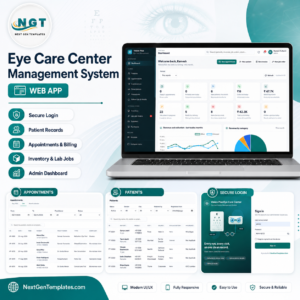
- Eye Care Center Management System Web App — the step up when a diary is no longer enough: a real multi-user booking and records system with logins.
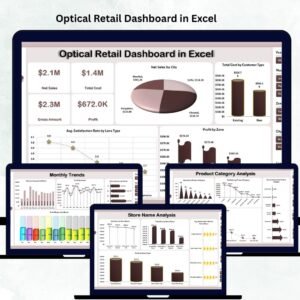
- Optical Retail Dashboard in Excel — sales, frames and lens-mix analytics for the retail side of the same shop.
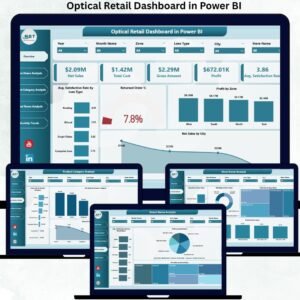
- Optical Retail Dashboard in Power BI — the same optical retail analysis with Power BI’s filtering and drill-through.
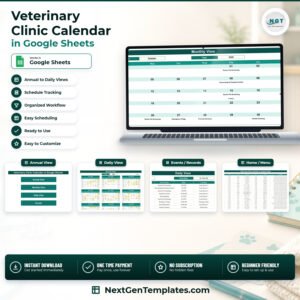
- Veterinary Clinic Calendar in Google Sheets — the same calendar engine, built for a veterinary practice.
- Home Nursing Visit Calendar in Google Sheets — the same engine again, for scheduling home visits.
- Browse the whole Google Sheets Calendar shelf, or every Google Sheets template we make.
🎯 Get Your Copy
One file, six tabs, three linked views and 100 checked sample appointments. $8.99, currently $4.99 — paid once, yours for good, no subscription and no per-user fee. Your download is a PDF carrying the “Make a copy” link; click it and the calendar lands in your own Google Drive in seconds.
Watch the step-by-step video Demo:
Last updated: 4 September 2026.
Compatibility and Requirements
- Works in Google Sheets. You need a free Google account and a web browser.
- You pick the year and month from dropdowns on the Annual View and Monthly View tabs. Google explains dropdowns in Create an in-cell dropdown list.










Reviews
There are no reviews yet.