

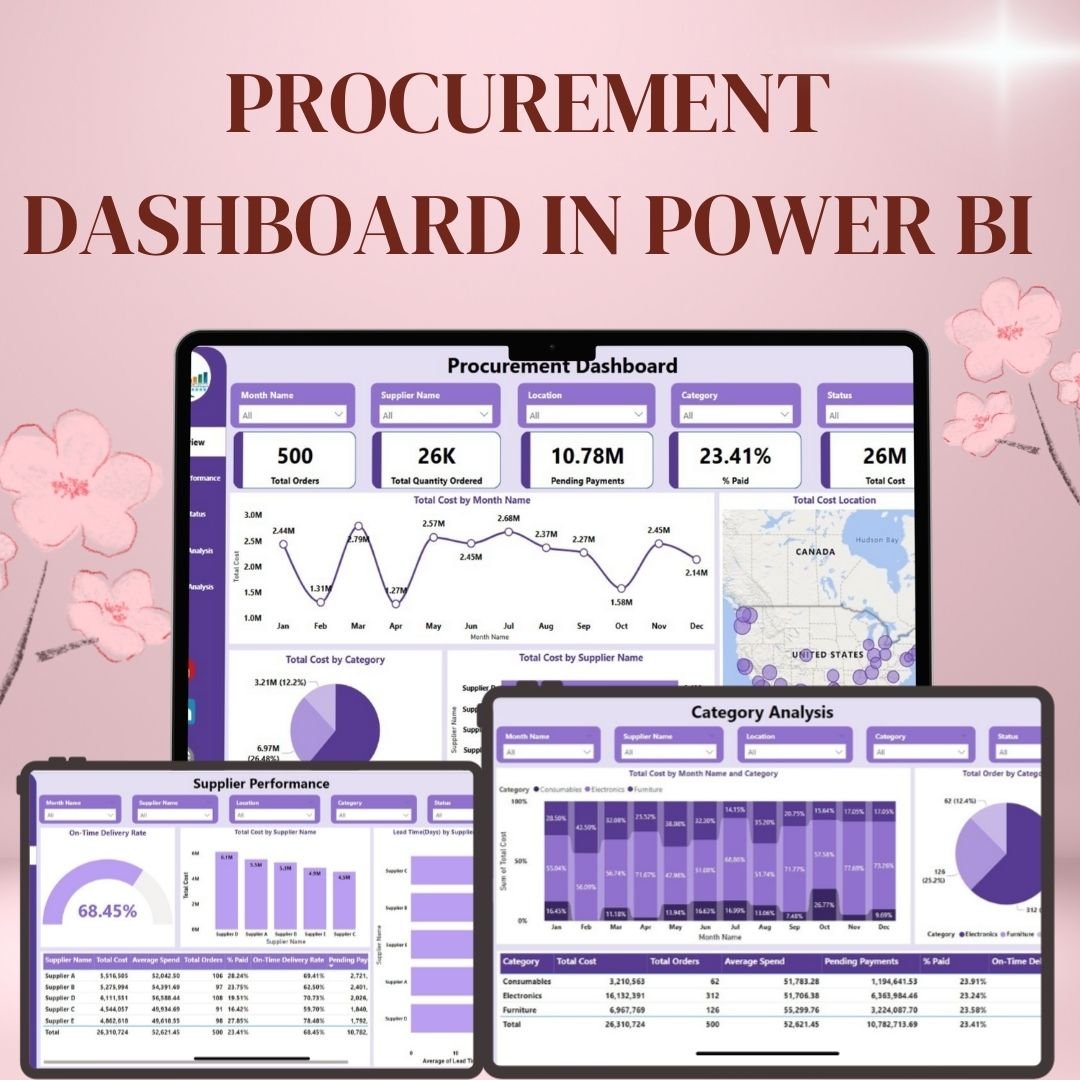

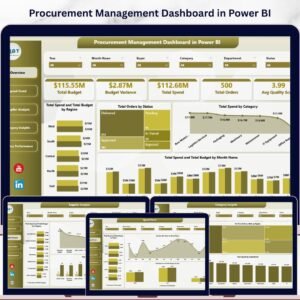
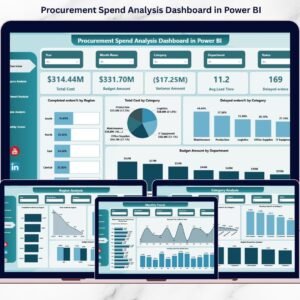
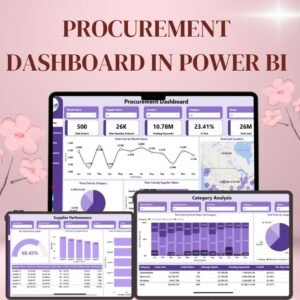
The Procurement Dashboard in Power BI brings purchasing data into five report views: Overview, Supplier Performance, Order Status, Payment Analysis and Category Analysis. Procurement and finance teams can examine spending, supplier delivery, order progress and unpaid amounts by the dimensions described below.

Key Features and Benefits:
1. Interactive Navigation for Seamless User Experience
The dashboard features a multi-page navigation pane, allowing users to switch between different analytical views, including:
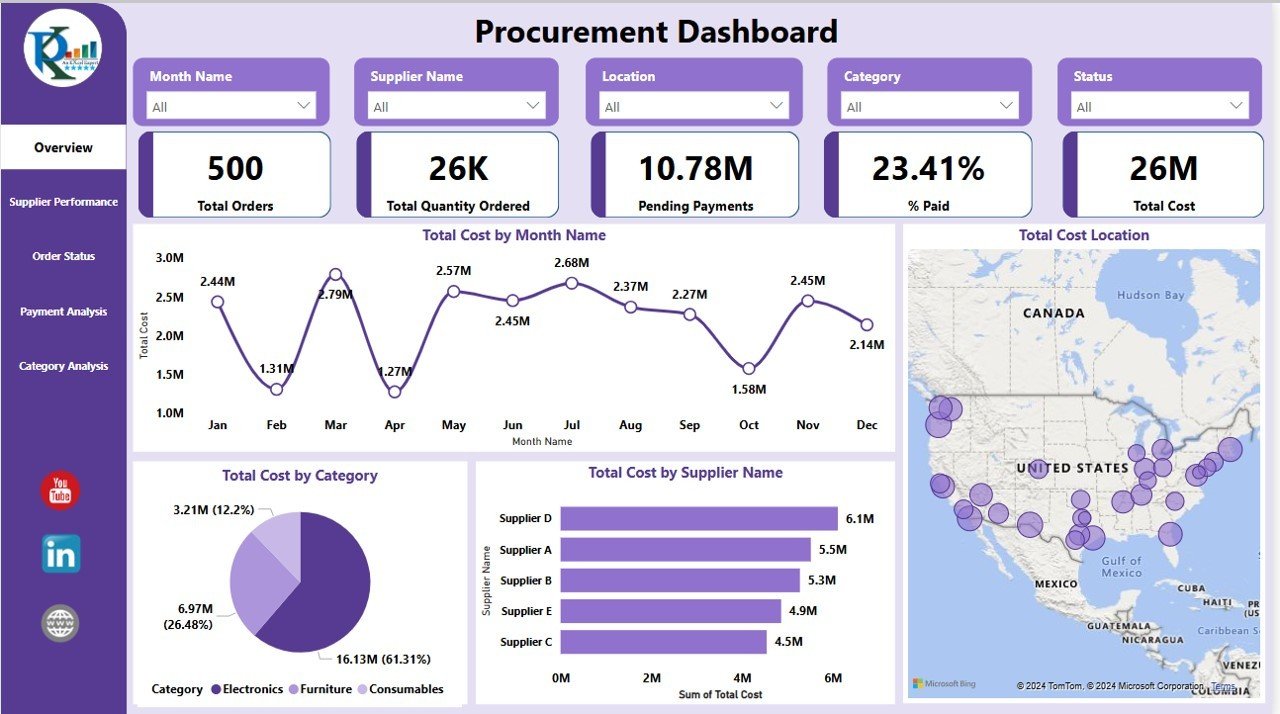
- Overview Dashboard – A snapshot of total orders, costs, payments, and procurement trends.
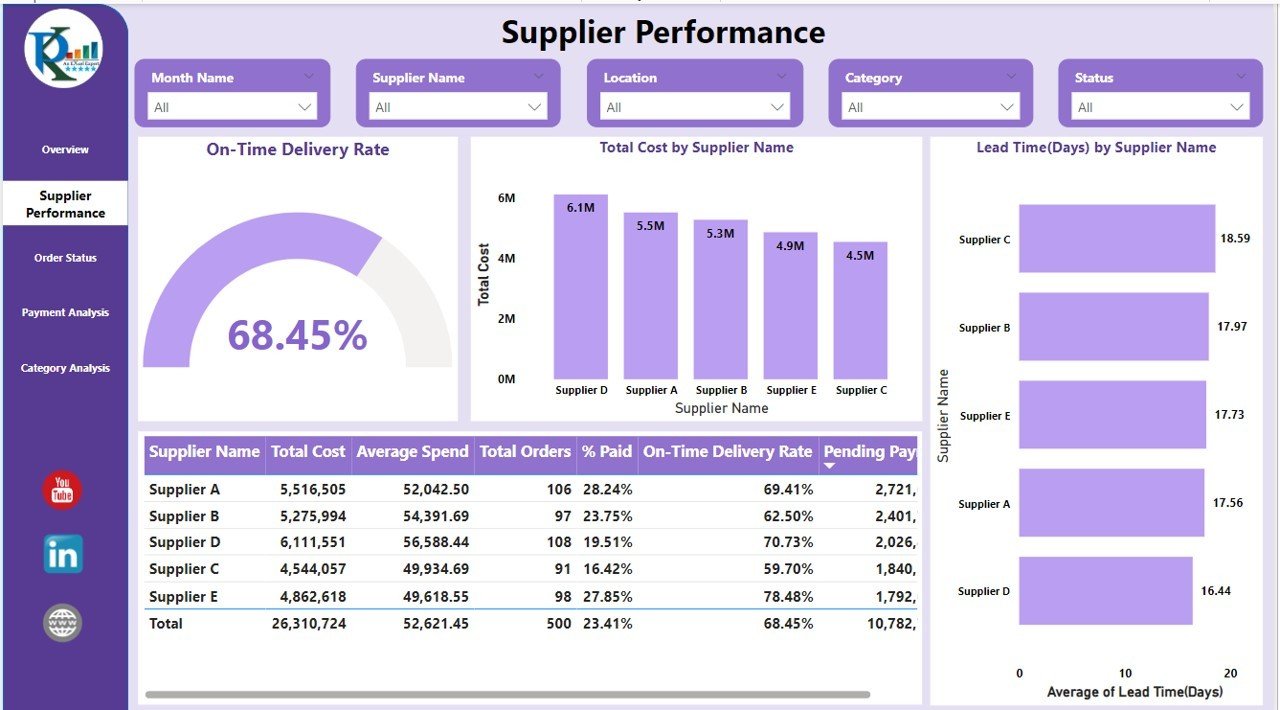
- Supplier Performance Dashboard – Evaluate supplier efficiency based on cost, order completion, and on-time delivery rates.
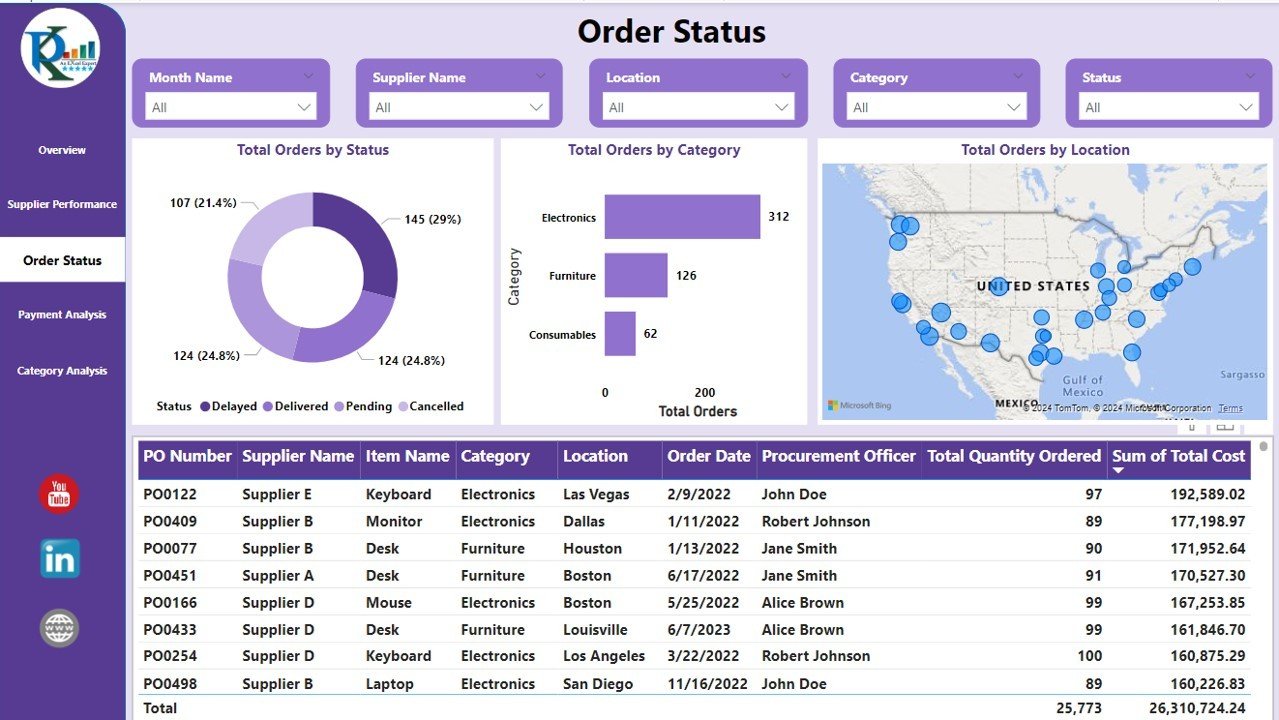
- Order Status Dashboard – Monitor the status of all procurement orders, including pending, delivered, or delayed.
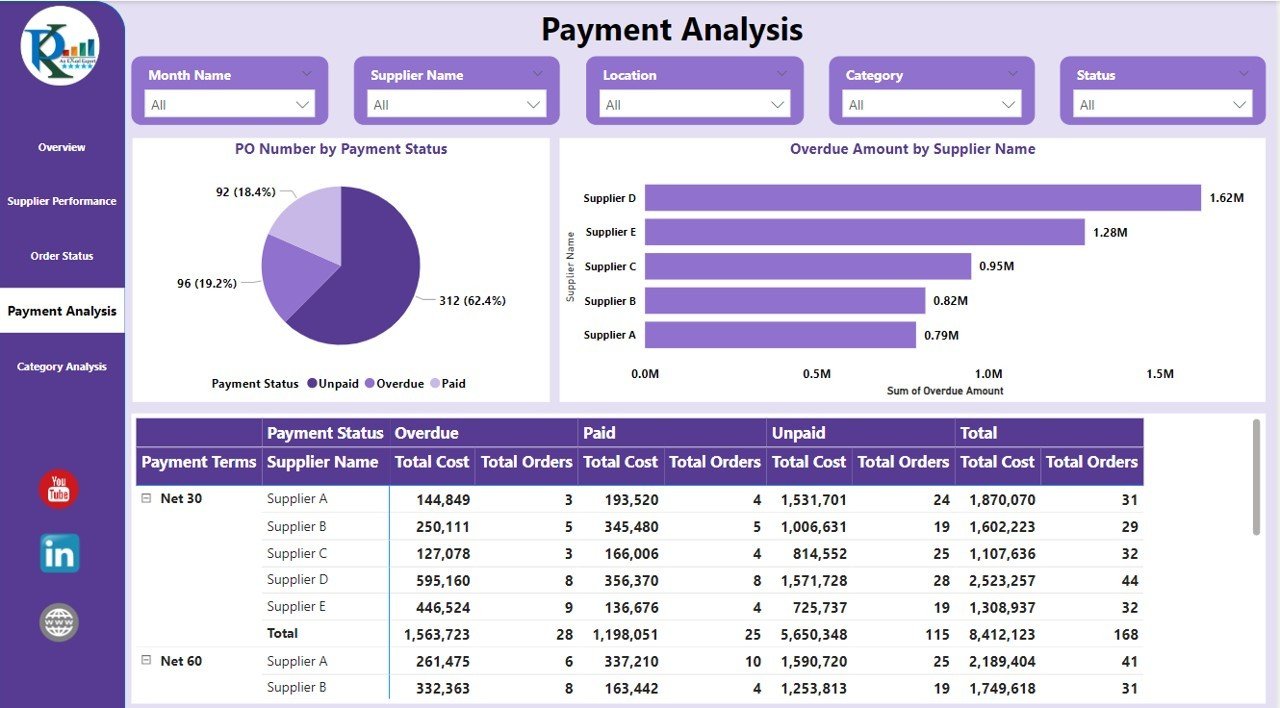
- Payment Analysis Dashboard – Identify overdue, unpaid, and paid invoices to maintain financial transparency.
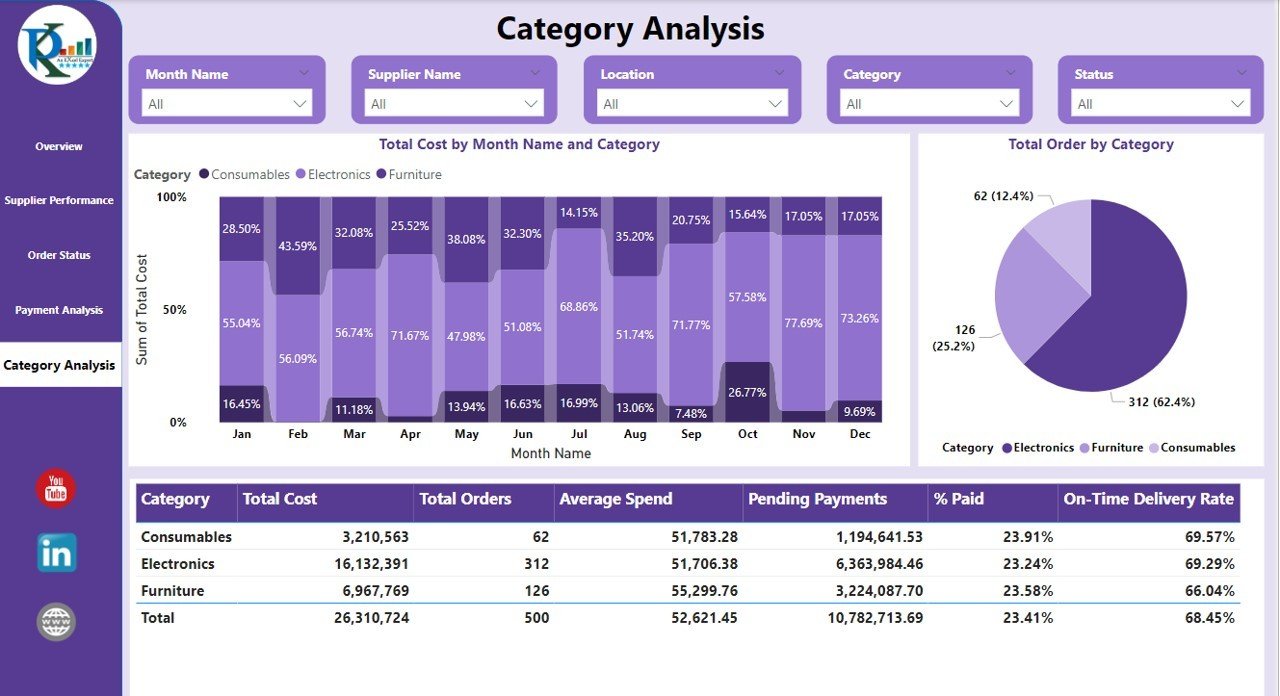
- Category Analysis Dashboard – Breakdown procurement costs by category, helping in better budgeting and planning.
2. Overview Dashboard – Real-Time Procurement Summary
The Overview Page provides a comprehensive summary of procurement activities.
🔹 Key Metrics:
- Total Orders: Displays the total number of procurement orders.
- Total Quantity Ordered: Shows the total number of items ordered across all suppliers.
- Pending Payments: Highlights unpaid invoices and outstanding supplier payments.
- % Paid: Indicates the proportion of total payments made.
- Total Procurement Cost: Summarizes the overall spending on procurement.
📊 Visual Representations:
- Total Cost by Month Name (Line Chart): Shows monthly spending trends.
- Total Cost by Category (Pie Chart): Breaks down procurement expenses into categories such as Electronics, Furniture, and Consumables.
- Total Cost by Supplier (Bar Chart): Identifies the top suppliers in terms of total spending.
- Geographical Cost Mapping: Displays procurement costs distributed across different locations.
3. Supplier Performance Dashboard – Evaluating Supplier Efficiency
This page helps procurement managers analyze supplier performance using:
- On-Time Delivery Rate (%) – Measures how often suppliers meet delivery deadlines.
- Total Cost by Supplier (Bar Chart) – Ranks suppliers based on procurement spending.
- Average Spend per Supplier – Shows cost distribution among different suppliers.
- Lead Time by Supplier (Bar Chart) – Displays the average number of days each supplier takes to deliver orders.
🔎 Actionable Insights:
- Identify underperforming suppliers with high delivery delays.
- Compare supplier costs and optimize vendor selection.
- Monitor supplier reliability with on-time delivery metrics.
4. Order Status Dashboard – Track and Manage Orders Effectively
This section provides real-time tracking of procurement orders, ensuring better control over the supply chain.
📌 Insights Available:
- Total Orders by Status (Pie Chart): View breakdowns of pending, delayed, delivered, and canceled orders.
- Total Orders by Category (Bar Chart): Understand procurement spending across product categories.
- Total Orders by Location (Geographical Map): Analyze where procurement expenses are concentrated.
✅ Benefits:
- Easily monitor pending orders.
- Detect order delays and act proactively.
- Optimize procurement strategies based on order trends.
5. Payment Analysis Dashboard – Ensure Financial Transparency
This page provides a detailed payment analysis, helping businesses track invoices and manage outstanding payments. 📊 Metrics Covered:
- Payment Status (Pie Chart): Breakdown of invoices marked as paid, unpaid, or overdue.
- Overdue Amount by Supplier (Bar Chart): Identifies suppliers with the highest unpaid amounts.
- Payment Terms Comparison: View overdue payments categorized by Net 30, Net 60, and other terms.
💰 Key Advantages:
- Reduce overdue payments with timely follow-ups.
- Improve cash flow visibility.
- Ensure better financial planning for procurement costs.
6. Category Analysis Dashboard – Optimize Procurement Spending
Gain deeper insights into procurement spending with the Category Analysis section. 📊 What’s Included:
- Total Cost by Month and Category (Stacked Chart): View monthly procurement trends per category.
- Total Orders by Category (Pie Chart): Get a percentage-based breakdown of procurement spending.
- Pending Payments by Category: Analyze outstanding supplier payments.
🚀 How This Helps:
- Allocate budgets effectively.
- Identify high-expenditure categories.
- Optimize spending across procurement categories.
Why Choose This Procurement Dashboard?
✔ Real-time tracking – Get up-to-date procurement data anytime, anywhere.
✔ Data-driven decisions – Improve supplier negotiations & cost efficiency.
✔ Financial transparency – Ensure better cash flow and payment tracking.
✔ Visual reports – Easy-to-understand charts and graphs for quick insights.
✔ Custom filtering – Adjust reports based on date, category, supplier, or location.
Click here to read the detailed blog
Visit our YouTube channel to learn step-by-step video tutorials
Watch the step-by-step video tutorial:
Also check our Quality Analysis Dashboard in Power BI
Questions about this template
What procurement information can I review?
The dashboard covers order quantities and costs, supplier lead time and on-time delivery, order status, payment status and spending by category. Use the report filters to focus on dates, suppliers, categories or locations.
For help comparing reporting tools for this area, see our supply chain and logistics template guide.
What do I need to open the dashboard?
Power BI Desktop, which is free from Microsoft. See Get Power BI Desktop.
Which report pages are included?
Five pages: Overview, Supplier Performance, Order Status, Payment Analysis and Category Analysis, with a navigation pane to move between them.
Which payment terms does it compare?
The Payment Analysis page groups overdue payments by terms such as Net 30 and Net 60, and shows overdue amounts by supplier.
Who uses this dashboard?
Procurement managers and finance teams who review spending, supplier delivery, order progress and unpaid invoices.
Related Procurement Templates
- Procurement Dashboard in Excel: the Excel edition of this dashboard
- Procurement Tracker and Dashboard in Google Sheets: the Google Sheets version
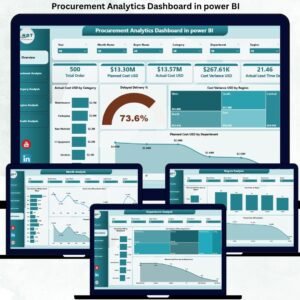
- Procurement Analytics Dashboard in Power BI: another Power BI procurement report
- Procurement Management Dashboard in Excel: purchase management in Excel
- Procurement and Vendor Management Kit: 7 premium procurement templates in one bundle
Browse all Power BI dashboards or the Power BI templates.


Reviews
There are no reviews yet.