


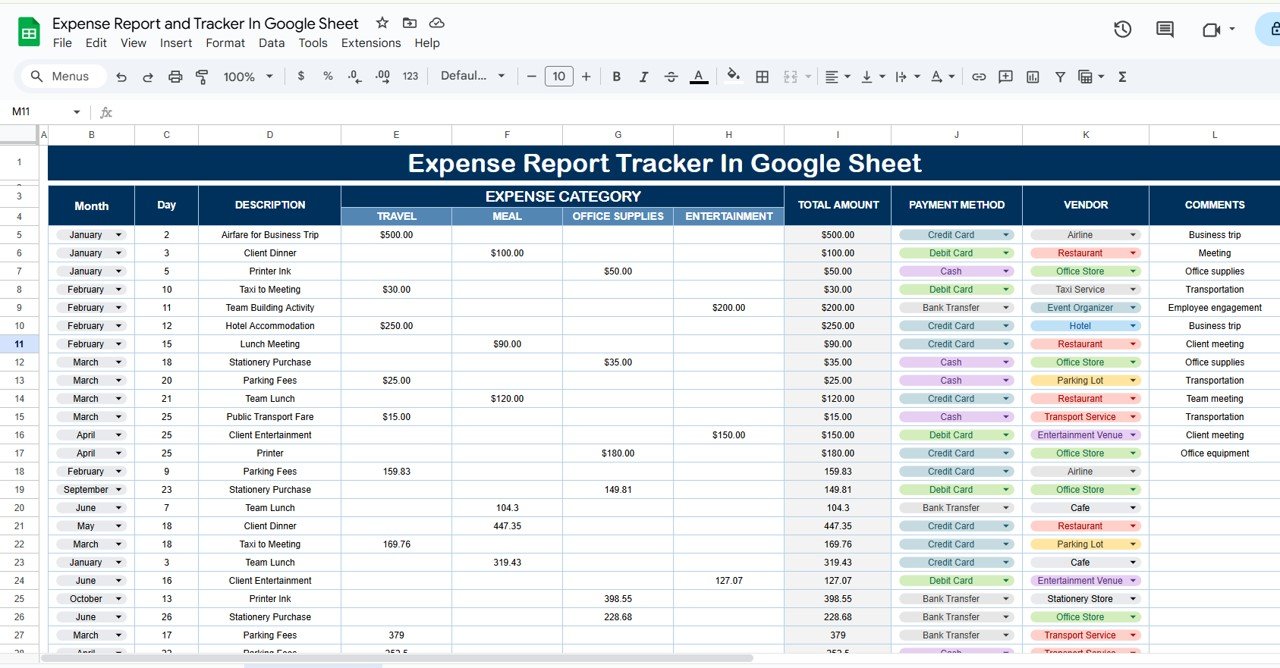


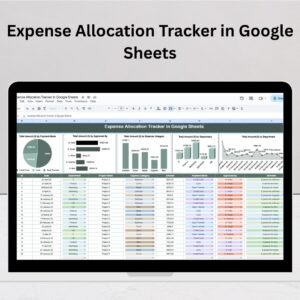
The Expense Report and Tracker in Google Sheets is a must-have tool for businesses, freelancers, and individuals who need to track and manage their expenses efficiently. This template provides a clear and easy way to record expenses, categorize spending, and generate reports for better financial management. With built-in features such as automatic calculations, custom categories, and visual graphs, it helps ensure that your financial records are organized and accurate.
Whether you’re tracking business expenses, personal spending, or both, this template allows you to manage your finances with ease and ensures you stay within budget.

Key Features of the Expense Report and Tracker in Google Sheets
📊 Expense Tracking: Record every expense with ease and categorize it for better financial insights.
⚙️ Customizable Categories: Create custom categories to track specific expenses (e.g., travel, office supplies, utilities).
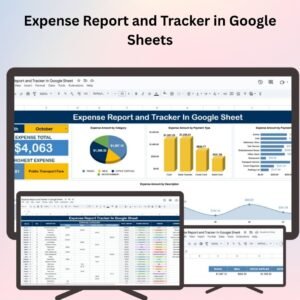
📈 Visual Graphs: Generate pie charts and bar graphs to visually track spending and compare categories.
💼 Budget Management: Set a budget for each category and monitor your spending to avoid exceeding limits.
📅 Monthly Overview: Track monthly expenses and compare them against set budgets for better financial control.
🔄 Real-Time Collaboration: Share the tracker with team members or accountants for real-time updates and collaboration.
Why You’ll Love the Expense Report and Tracker in Google Sheets
✅ Easy Expense Tracking: Simplify the process of logging and categorizing your expenses to keep your finances organized.
✅ Customizable for Your Needs: Modify categories and inputs to match your personal or business financial goals.
✅ Visualize Your Spending: Use charts and graphs to get a clear picture of where your money is going.
✅ Budget Control: Set limits for each category to ensure you stay within budget and avoid overspending.
✅ Real-Time Tracking: Share with team members and get instant updates, making it ideal for collaborative financial management.
What’s Inside the Expense Report and Tracker in Google Sheets?
📊 Expense Log: A clear and easy-to-use log for tracking your expenses by category, date, and amount.
⚙️ Custom Categories: Create and modify expense categories to fit your specific needs.
📈 Financial Dashboard: Visual representation of your expenses using graphs and charts for easy understanding.
💼 Budget Overview: Set budget goals for each category and track how your actual spending compares.
🔄 Collaboration Features: Share the template with others and track updates in real time for accurate financial management.
How to Use the Expense Report and Tracker in Google Sheets
1️⃣ Download the Template – Get the pre-configured expense report and tracker template in Google Sheets.
2️⃣ Input Your Expenses: Add your expenses, including amount, category, and date.
3️⃣ Track Your Spending: Monitor expenses and compare them to your set budget limits.
4️⃣ Visualize Your Data: Use the built-in charts and graphs to visualize your spending patterns.
5️⃣ Collaborate: Share with colleagues, accountants, or family members to track and update expenses together.
Who Can Benefit from the Expense Report and Tracker in Google Sheets?
🔹 Business Owners
🔹 Freelancers
🔹 Individuals Managing Personal Finances
🔹 Accountants and Financial Analysts
🔹 Project Managers
🔹 Finance Teams
Stay organized and in control of your finances with the Expense Report and Tracker in Google Sheets. An easy-to-use, customizable solution for tracking and managing expenses, helping you achieve better financial control.
Click here to read the detailed blog post
Visit our YouTube channel to learn step-by-step video tutorials
Watch the step-by-step video tutorial:
Compatibility and Requirements
- Works in Google Sheets with a free Google account and a web browser.
- Make a copy to your own Google Drive, then share it with your team if you want to work on it together.
- New to Sheets? Google’s guide How to use Google Sheets covers the basics.
- The spending charts are standard Google Sheets charts. Google’s help page Add & edit a chart or graph shows how to edit them.
Frequently Asked Questions
What does the expense log record?
Each expense is logged with its date, amount and category, so you can sort and total spending by category or month.
Can I set a budget for each category?
Yes. The budget overview lets you set a budget per category and compare it with your actual spending each month.
Can I use my own expense categories?
Yes. You can create and change categories such as travel, office supplies or utilities to match your business or personal spending.
Can my accountant see the tracker?
Yes. Share the Google Sheet with your accountant or team and everyone sees updates in real time.
Related Expense Templates
- Income and Expense Dashboard in Google Sheets: add income and see profit by month
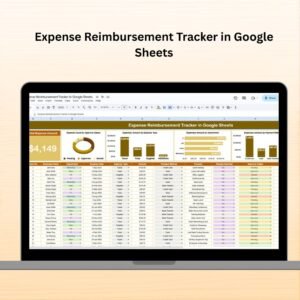
- Expense Reimbursement Tracker in Google Sheets: track staff expense claims until they are paid
- Expense Tracking Dashboard in Power BI: analyse expenses in Power BI
- Finance & Accounting Command Center: 8 finance templates in one bundle
Browse all Google Sheets financial tools or the Google Sheets trackers.







Reviews
There are no reviews yet.