


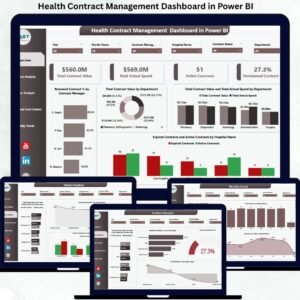
Contracts are at the heart of business success. They define obligations, responsibilities, and commitments with partners, vendors, and clients. But when contracts aren’t monitored effectively, companies risk missed deadlines, compliance issues, and financial leakage. That’s where the Contract Management Dashboard in Power BI becomes a game-changing solution.
This ready-to-use dashboard transforms scattered contract records into centralized, interactive insights. By integrating Excel or database inputs with Power BI’s visualization power, it provides real-time tracking of approvals, renewals, and responsible person performance—all in one place. From high-level overviews to detailed monthly trends, this tool helps decision-makers save time, improve compliance, and strengthen accountability.
✨ Key Features of Contract Management Dashboard in Power BI
📊 Five Analytical Pages – Overview, Contract Analysis, Renewal Analysis, Responsible Person Analysis, and Monthly Trends.
📑 Centralized Reporting – One-click access to contract approvals, renewals, rejections, and values.
🎛️ Interactive Slicers – Filter data by contract type, responsible person, month, or renewal status.
📈 Approval & Rejection Insights – Monitor trends across contract types and time periods.
👤 Responsible Person Tracking – Analyze performance of contract owners and identify top performers.
🔍 Renewal Monitoring – Track upcoming renewals and avoid missed deadlines.
📅 Monthly Trends Analysis – Spot seasonal spikes in approvals or rejections.
🖥️ Excel + Power BI Integration – Easy setup with familiar data sources.
📱 Mobile Friendly – View dashboards on laptops, tablets, or smartphones.
📦 What’s Inside the Contract Management Dashboard
The dashboard is structured into five key reporting pages:
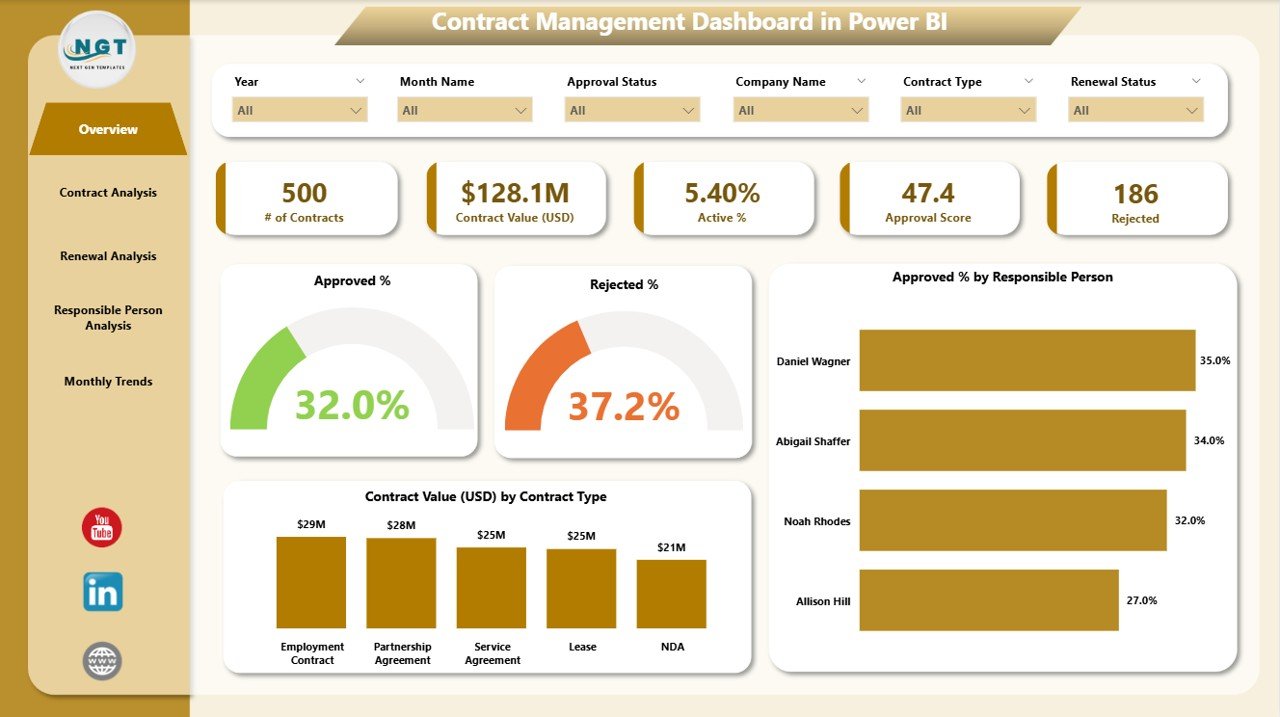
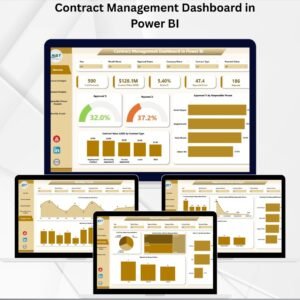
Overview Page – High-level summary of contract approvals and values. Charts: Approved % by Responsible Person, Contract Value by Type.
Contract Analysis – Breaks down contracts by type. Charts: Active %, Approvals, Rejections, and Distribution by Contract Type.
Renewal Analysis – Tracks contracts by renewal status, highlighting active, approved, and rejected renewal percentages.
Responsible Person Analysis – Accountability dashboard with charts for Number of Contracts, Value, Pending %, and Rejected % by Responsible Person.
Monthly Trends – Shows contracts by month with rejection % trends for spotting seasonal patterns.
Data Source – Excel or database tables containing contract details (type, status, responsible person, values, and dates).
🛠️ How to Use the Contract Management Dashboard
Connect Your Data – Import your Excel file or database into Power BI.
Navigate Pages – Start with the Overview, then drill down into specific analysis pages.
Filter with Slicers – Analyze contracts by type, person, renewal status, or month.
Track Renewals – Monitor renewal statuses to plan negotiations and avoid expirations.
Evaluate Accountability – Review performance of responsible persons with approval vs rejection ratios.
Analyze Trends – Use Monthly Trends to identify recurring patterns and forecast risks.
This simple workflow gives your team clarity, accountability, and efficiency in managing contracts.
👥 Who Can Benefit from This Dashboard
Contract Managers – Gain visibility into approvals, rejections, and renewals.
Finance Teams – Track contract values and identify cost leakages.
Legal & Compliance Teams – Ensure contracts align with regulatory requirements.
Executives – Monitor high-level KPIs and hold responsible persons accountable.
Small & Large Businesses – Scalable solution suitable for any organization size.
📖 Click here to read the Detailed blog post
🎥 Visit our YouTube channel to learn step-by-step video tutorials
Watch the step-by-step video tutorial:
Compatibility and Requirements
- Open the report in Power BI Desktop, which is free. Microsoft explains how to install it in Get Power BI Desktop.
- The data source is an Excel file or database table with contract type, status, responsible person, values and dates.
Frequently Asked Questions
Which pages does the Contract Management Dashboard include?
Five: Overview, Contract Analysis, Renewal Analysis, Responsible Person Analysis and Monthly Trends.
How can I filter the report?
Slicers filter by contract type, responsible person, month or renewal status.
Can I track contract renewals?
Yes. The Renewal Analysis page shows active, approved and rejected renewal percentages so you can plan ahead of expiry dates.
Can I see each contract owner’s results?
Yes. The Responsible Person Analysis page shows number of contracts, value, pending % and rejected % for each owner.
Related Contract Management Templates
- Contract Management Dashboard in Excel: the same topic for Excel users
- Contract Management Tracker in Excel: log contracts before reporting
- Contract Management Tracker in Google Sheets: contract tracking in Google Sheets
- Vendor Contract Renewal Calendar in Excel: see renewal dates on a calendar
- Power BI Dashboard Mega Collection: 15 Power BI dashboards in one bundle
Browse all Power BI dashboard templates or the Excel tracker templates.










Reviews
There are no reviews yet.