

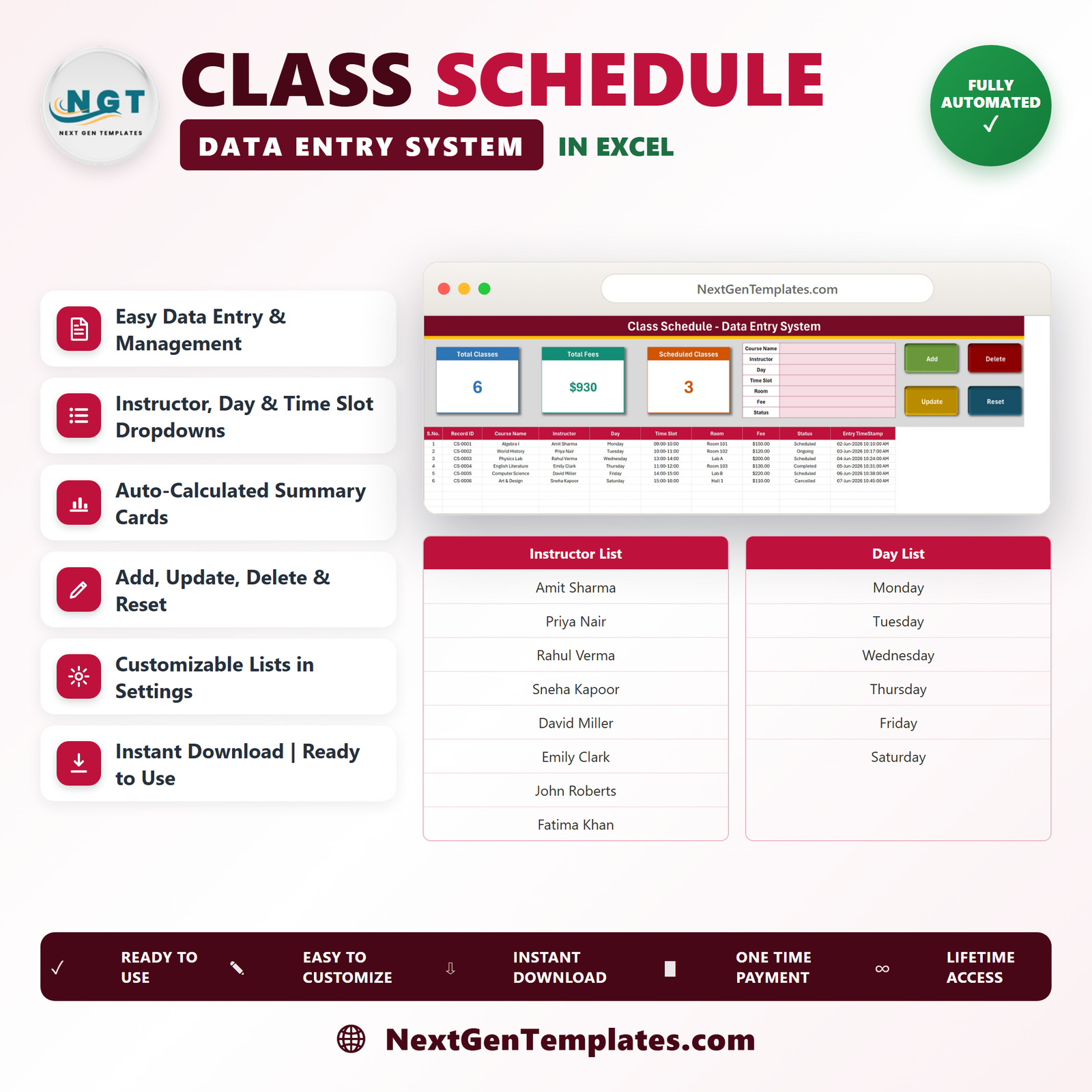
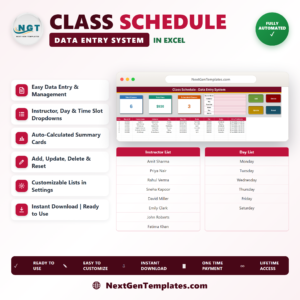
The Class Schedule Data Entry System in Excel runs a full timetable off a 7-field VBA form with Add, Update, Delete and Reset buttons, 3 live KPI cards and 5 editable dropdown lists. Every class you add is stamped with its own Record ID and entry time in a 10-column register. Setup takes under 10 minutes — unzip, enable macros, clear the six sample classes and start entering your own.
🌍 Join 8,400+ teams in 40+ countries using NextGenTemplates to replace paid SaaS tools with one-time-purchase Excel, Google Sheets, Power BI, and HTML templates.
✅ Instant download · One-time payment · No subscription · No per-user fees · Lifetime access
🔑 Key Features of the Class Schedule Data Entry System
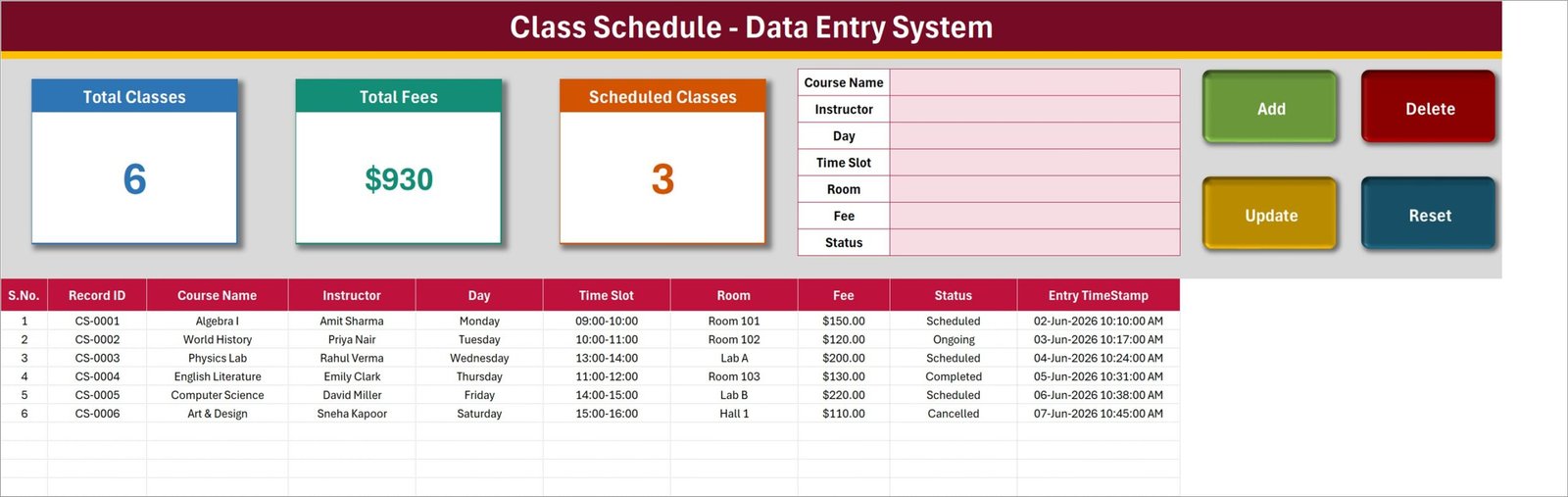
📝 A real data-entry form, not a spreadsheet you type into. The form at the top of the Data Entry sheet carries seven fields — Course Name, Instructor, Day, Time Slot, Room, Fee and Status — and four live VBA buttons: Add, Update, Delete and Reset. Click Add and the class drops into the register below with its Record ID and Entry TimeStamp already filled in.
🆔 Record IDs that never collide. Each class is assigned a sequential reference in the CS-0001 format the moment it is created. Update and Delete both find the record by that ID rather than by row position, so re-sorting or inserting rows never breaks anything.
📊 Three KPI cards that keep themselves current. Total Classes, Total Fees and Scheduled Classes sit across the top of the Data Entry sheet. They are linked pictures of live cards on the Setting sheet, so they recalculate as you work and can be restyled by editing the Setting sheet copy — the picture follows.
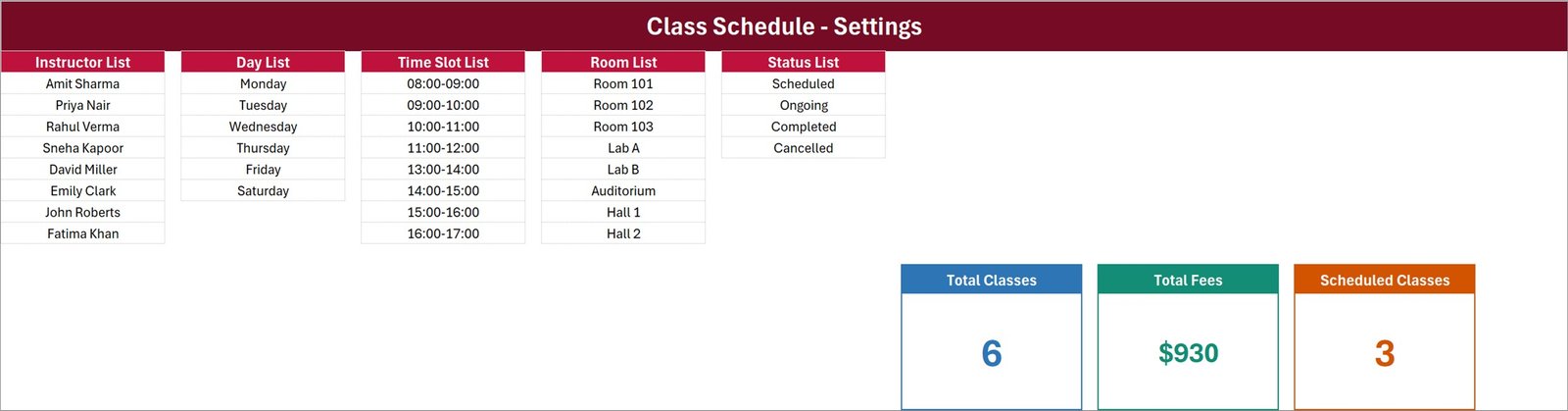
🗒️ Five dropdown lists you control. The Setting sheet holds the Instructor List, Day List, Time Slot List, Room List and Status List. Add or remove a row there and every dropdown — in the form and in the table columns — updates on its own. The sample file ships with 8 instructors, 6 days, 8 hourly slots from 08:00 to 17:00, 8 rooms (Room 101-103, Lab A, Lab B, Auditorium, Hall 1, Hall 2) and 4 status values.
✏️ Editing without hunting for the row. Double-click any record to load it into the form. Its ID is remembered behind the scenes, so you change what you need, click Update, and the right record is saved wherever it lives in the table. You never have to click back on the row first.
🗑️ Deletes that ask first. Delete loads the record, shows you its Record ID, and waits for confirmation before removing it. It is deliberately hard to wipe the wrong class in the middle of a busy term.
📅 Status you can actually report on. Scheduled, Ongoing, Completed and Cancelled cover the real lifecycle of a class, and the Scheduled Classes card counts the first of those at a glance. This system pairs naturally with our other Excel dashboard templates when you want charts on top of the register.
📦 What’s Inside the Class Schedule Data Entry System
Sheet 1: Data Entry
The working sheet. Three KPI cards (Total Classes, Total Fees, Scheduled Classes) sit beside the seven-field entry form and the Add / Delete / Update / Reset buttons, with the 10-column register underneath — S.No., Record ID, Course Name, Instructor, Day, Time Slot, Room, Fee, Status and Entry TimeStamp — pre-filled with six sample classes from Algebra I through Art & Design.
Sheet 2: Setting
Where the system is configured. Five master lists — Instructor List, Day List, Time Slot List, Room List and Status List — feed every dropdown in the workbook, and the three live KPI cards that the Data Entry sheet mirrors are built here.
Sheet 3: How To Use
A written guide covering entering records, updating without re-selecting the row, deleting safely, how the stat cards are wired, editing the dropdown lists, and the one-time step of enabling macros (including unblocking the file if it arrived by email or download).

📊 Class Schedule Data Entry System vs. Google Sheets Timetable vs. Classter / Teachworks — Where This Fits
| Feature | Class Schedule Data Entry System | Google Sheets Timetable | Classter / Teachworks |
|---|---|---|---|
| Cost | $6.99 one-time ✅ | Free | $2-8 per student per month |
| Platform | Microsoft Excel, offline ✅ | Browser only, needs internet | Cloud SaaS |
| Setup time | Under 10 minutes ✅ | 1-2 hours to build from scratch | Days, plus onboarding |
| Guided entry form | 7-field VBA form with 4 buttons ✅ | Type directly into cells | Yes ✅ |
| Automatic record IDs | Yes — CS-0001 format ✅ | Manual or formula | Yes ✅ |
| Works with no internet | Yes ✅ | No | No |
| Data stays on your machine | Yes — one .xlsm file ✅ | Stored in Google Drive | Vendor’s servers |
| Parent / student portal | No | No | Yes ✅ |
| Year-1 cost for 100 students | $6.99 total ✅ | $0 | $2,400-9,600 |
For a coaching centre, department or training provider that needs a proper entry form and a clean register without paying per student, the Class Schedule Data Entry System sits in the sweet spot.
👥 Who This Template Is For — and Who It’s Not For
✅ This template is built for:
- Coaching centres and tuition institutes scheduling 10-500 classes a term
- Department heads or timetable coordinators at schools and colleges
- Independent tutors and trainers who bill per class and need the Fee column
- Training providers running fixed slots across a handful of rooms and labs
- Anyone who wants a real Add / Update / Delete workflow without learning a database
❌ This template is NOT for:
- Institutions that need a student or parent login portal
- Teams on Mac Excel or Google Sheets — the buttons rely on Windows VBA macros
- Automatic clash detection across instructors and rooms — this records the timetable, it does not solve it
- Multi-user simultaneous editing; it is a single-file workbook, not a shared database
⚙️ How to Use the Class Schedule Data Entry System
- Unzip the download and open Class_Schedule_System.xlsm in Microsoft Excel.
- Click Enable Content on the yellow security bar. If the file came by email, right-click it first, choose Properties, and tick Unblock.
- Open the Setting sheet and replace the sample Instructor, Day, Time Slot, Room and Status lists with your own.
- Go back to the Data Entry sheet and delete the six sample class rows.
- Fill the form — Course Name, Instructor, Day, Time Slot, Room, Fee, Status — and click Add. The Record ID and Entry TimeStamp fill themselves.
- To change a class, double-click its row, edit the form and click Update. To remove one, load it and click Delete, then confirm.
- Click Reset any time you want to clear the form and start a fresh entry.
💼 Real-World Use Cases
Ravi runs a coaching centre with four rooms and nine tutors. Every term he loads the instructor and room lists onto the Setting sheet, then enters the timetable through the form. The Total Fees card gives him the term’s billing figure without a single formula, and the Scheduled Classes count tells him at a glance how much of the timetable is still to run.
Anita coordinates the science department’s lab slots. Lab A and Lab B are the constraint, so she filters the register by Room and Time Slot before confirming anything new. When a session moves, she double-clicks the row, changes the slot and clicks Update — the Record ID stays the same, so the paperwork still matches.
Marcus teaches music privately across six days. Each lesson goes in with its fee and a status. Cancelled lessons stay in the register rather than being deleted, so at the end of the month he can see exactly which sessions were completed and what he is owed.
❓ Frequently Asked Questions
What does the Class Schedule Data Entry System record?
The Class Schedule Data Entry System stores 10 fields per class — S.No., Record ID, Course Name, Instructor, Day, Time Slot, Room, Fee, Status and Entry TimeStamp — entered through a seven-field form and saved to a running register.
Do I need to enable macros?
Yes. The Class Schedule Data Entry System is a macro-enabled .xlsm workbook and the Add, Update, Delete and Reset buttons are VBA. Click Enable Content on the yellow bar the first time you open it, and unblock the file in Properties if it arrived by email.
How long does setup take?
Under 10 minutes. Unzip, enable macros, swap the five dropdown lists on the Setting sheet for your own instructors, rooms and time slots, delete the six sample classes, and the Class Schedule Data Entry System is ready.
How does this compare to Classter or Teachworks?
Those platforms charge roughly $2-8 per student per month and add portals, billing and communications. The Class Schedule Data Entry System is a $6.99 one-time purchase that covers the scheduling register itself, works offline, and keeps every record in a single file you own.
Can I add my own instructors, rooms and time slots?
Yes. Every dropdown reads from the Setting sheet. Add or delete rows in the Instructor List, Day List, Time Slot List, Room List or Status List and the Class Schedule Data Entry System updates all its dropdowns automatically.
Will it warn me about timetable clashes?
No. The Class Schedule Data Entry System records the schedule rather than solving it, so double-booked rooms are not flagged automatically. Sorting the register by Room and Time Slot makes clashes easy to spot by eye.
Does it work on Mac or in Google Sheets?
The Class Schedule Data Entry System is built for Microsoft Excel on Windows. The register and dropdowns open elsewhere, but the Add, Update, Delete and Reset buttons depend on Windows VBA and will not run on Google Sheets.
👤 About the Author
Built by PK — Microsoft Certified Professional with 15+ years of Excel, Google Sheets, and Power BI experience. Founder of NextGenTemplates, reaching 300K+ subscribers across YouTube channels (@PK-AnExcelExpert, @NextGenTemplates, @NeoTechNavigators). Every template is hand-built and tested before release.
🔗 Explore Related Templates
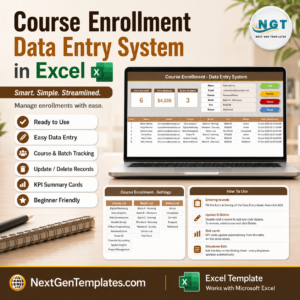
- Course Enrollment Data Entry System in Excel — the front half of the same workflow: who signed up for what.
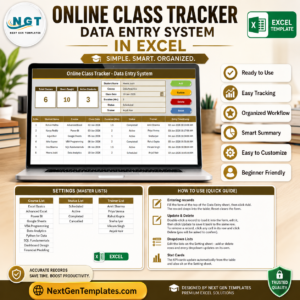
- Online Class Tracker Data Entry System in Excel — the remote-teaching equivalent, built the same way.
- Homework Submission Data Entry System in Excel — track what was set and what came back.
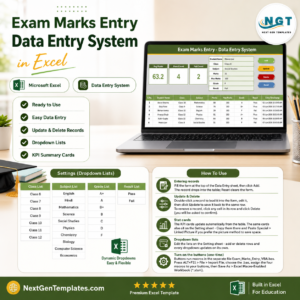
- Exam Marks Entry Data Entry System in Excel — close the loop at the end of the term.
If you want charts and slicers rather than a register, the School Transportation Services Dashboard in Excel shows how the same data looks as a full dashboard.
📖 Click here to read the Detailed Blog Post
🎥 Visit our YouTube channel for step-by-step video tutorials
👉 YouTube.com/@NextGenTemplates
📅 Last updated: August 2026













Reviews
There are no reviews yet.