


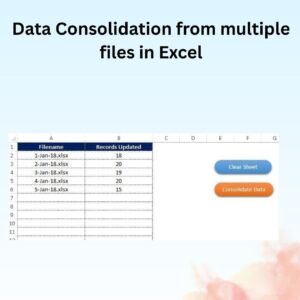
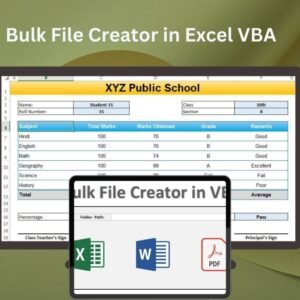
The Bulk File Creator in Excel VBA is a ready-made automation tool that lets you create multiple files at once, right inside the familiar Excel interface. It is built for business owners, managers, HR, sales, finance and data teams who need to produce reports, invoices or other documents in bulk. You set your data and template parameters, click a button, and the tool generates a series of customised files in seconds instead of hours of manual work.
With minimal VBA code behind the scenes, the tool pulls data from your Excel sheet and uses your template to generate a separate file for each row of data, such as an individual file for each customer or a set of project-specific reports. It is a simple, practical example of Excel VBA automation that saves time and keeps every file consistent and accurate.

Key Features of the Bulk File Creator in Excel VBA
- Bulk file generation: Automatically generate multiple files based on a template and your data input.
- Customizable templates: Use your existing Excel templates to create files with custom content such as names, dates and other parameters.
- Data integration: Automatically pull data from your Excel sheet and generate files customised for each row of data.
- User-friendly interface: Input data and configure the file creation process without needing advanced programming knowledge.
- Batch processing: Generate a batch of files at the same time, cutting the time spent creating files manually.
- File format options: Create files in various formats, such as Excel or CSV, depending on your needs.
- Automated workflow: Automate repetitive file creation tasks and keep every file consistent and accurate.
Why Choose This Tool for Automated File Creation
- Saves time: Create multiple files at once and drastically reduce the time spent on manual file creation.
- Simplifies complex tasks: Generate large numbers of files from one Excel workbook without complex programming.
- Customizable for various uses: Ideal for personalised reports, invoices and other documents for many recipients or projects.
- User-friendly design: No advanced VBA skills needed. Simply set your parameters and let the tool do the work.
- Increases productivity: Eliminate repetitive tasks so you can focus on more important activities.
What’s Inside the Bulk File Creator
| Component | What it does |
|---|---|
| Batch file creation | Automatically generates a batch of files based on data from your Excel sheet. |
| Template customization | Lets you use your own Excel templates with variables like names, addresses, dates and other information. |
| Automated data pulling | Pulls data directly from your Excel worksheet to generate customised files. |
| Multiple file formats | Generates files in different formats such as Excel, CSV and more. |
| Batch processing | Creates multiple files at the same time to save time and avoid manual entry. |
| Built-in VBA code | The downloadable Excel template comes with the VBA code for bulk file generation already included. |
Who Is It For?
The tool suits anyone who regularly needs to create multiple files from the same structure:
- Business owners producing documents for many customers
- Project managers creating project-specific reports
- HR teams preparing personalised files for employees
- Sales teams generating customer-wise documents
- Accountants and financial analysts creating invoices and reports in bulk
- Marketing professionals preparing files for multiple recipients
- Data analysts splitting data into customised outputs
How to Use the Bulk File Creator in Excel VBA
- Download the template: Get the Excel template with built-in VBA code for bulk file creation.
- Enable macros: After downloading and unzipping the file, make sure macros are enabled before use (see the tutorial below).
- Customize your template: Set up your Excel template with data placeholders and define the necessary parameters.
- Input data: Enter the data in your Excel sheet that will be used to generate the files.
- Generate files: Click a button to automatically create multiple files based on your template and data.
- Save and organize: Your generated files are saved in the desired location, ready for use.
After downloading and unzipping this file, ensure that macros are enabled before use. Refer to our tutorial for step-by-step instructions on enabling macros in Excel: https://www.pk-anexcelexpert.com/4-easy-ways-to-enable-macros-in-excel-vba/
Click here to read the detailed blog post
Watch the step-by-step video tutorial:
Visit our YouTube channel to learn from step-by-step video tutorials: Youtube.com/@PKAnExcelExpert
Frequently Asked Questions
What does the Bulk File Creator in Excel VBA do?
It automates file creation in Excel. Using your template and the data in your sheet, it generates a separate customised file for each row of data, so you can create multiple files at once in just a few clicks.
Do I need VBA or programming skills?
No advanced VBA skills are needed. The template comes with built-in VBA code and a simple interface, so you only set your parameters, enter your data and click a button.
Can I use my own templates?
Yes. You can use your existing Excel templates and include variables such as names, addresses, dates and other information, which are filled in automatically for each file.
Which file formats can it create?
The tool can create files in various formats, such as Excel or CSV, depending on your needs.
Do I need to enable macros?
Yes. Since this is an Excel VBA automation tool, macros must be enabled after downloading and unzipping the file. Follow the macro tutorial link above for step-by-step instructions.
What kind of documents can I generate in bulk?
It is ideal for personalised reports, invoices and other documents for a large number of recipients or projects, such as individual customer files or project-specific reports.
Streamline your workflow with bulk file generation that saves time while improving productivity and accuracy.
Also check our Asset Transfer Management System V1.0
Last updated: October 2026
Compatibility and Requirements
- Built with VBA macros, so it needs Excel desktop on Windows with macros enabled.
- It does not run in Excel for the web, Google Sheets or the Excel mobile apps.
- Microsoft explains how to turn macros on in Enable or disable macros in Microsoft 365 files.
Related Excel Automation Tools
- Split Data into Separate Workbooks: splits one dataset into separate workbooks
- Data Segregation Tool in Excel VBA: sorts and segregates data into categories by your own rules
- Automatic Bulk Salary Slips Generator in Excel: creates salary slips in bulk from Excel data
- Automated Bulk Emails Form in Excel VBA: sends emails in bulk from an Excel form
Browse all Excel utilities and converters or the Excel VBA tools.




















Reviews
There are no reviews yet.