

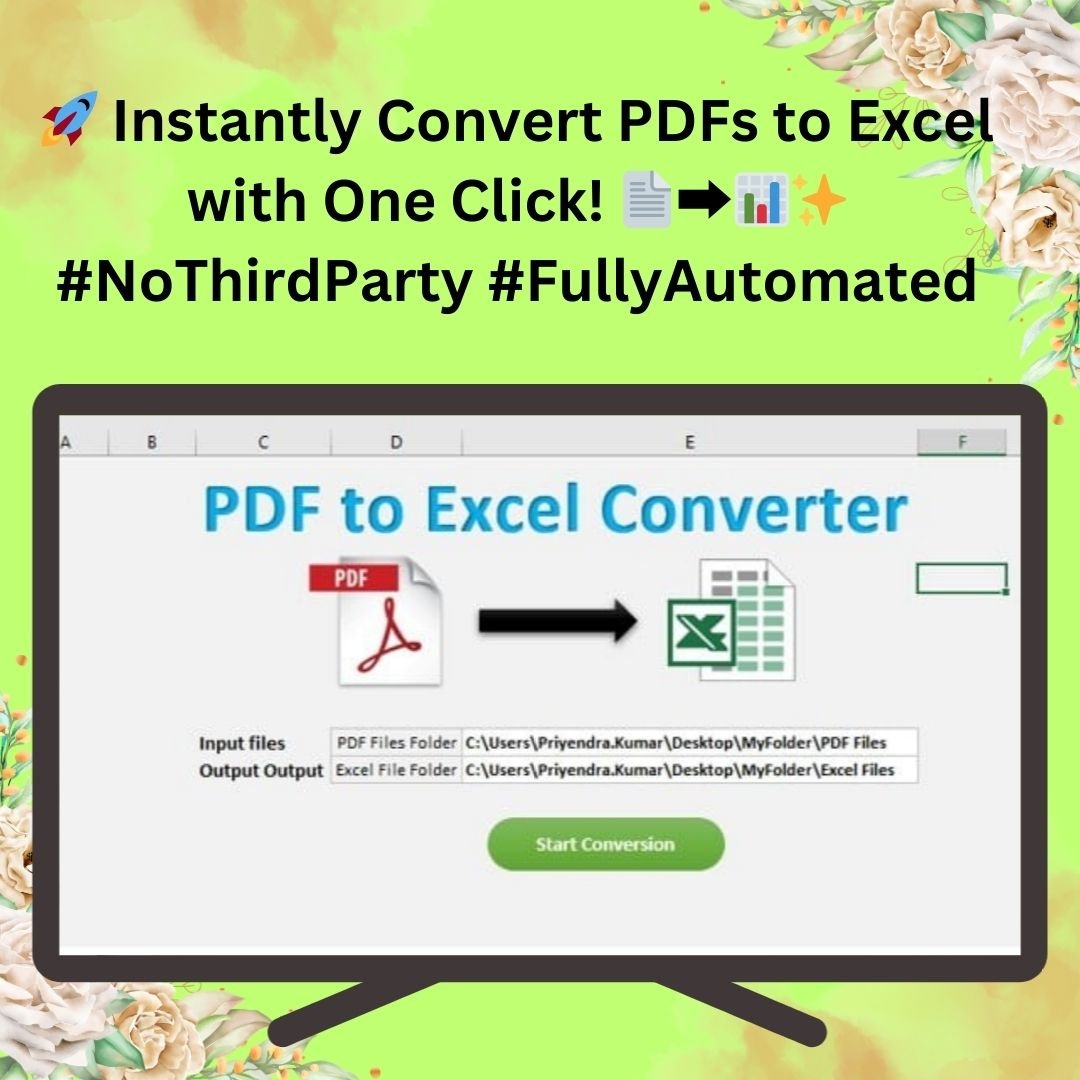

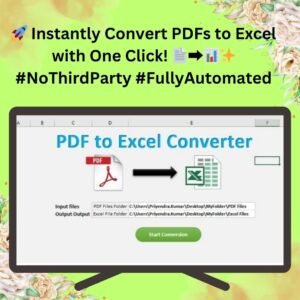
The PDF to Excel Converter in Excel VBA is a ready-made automation tool that converts multiple PDF files into Excel in a single click, right inside Microsoft Excel. It is built for financial analysts, business managers, HR and legal teams, researchers and small businesses who regularly pull data from PDF reports, invoices and documents. The result is organized Excel files ready for reporting and analysis, with no manual copy-pasting and no third-party software.
Why Use a VBA PDF Converter Instead of Online Tools?
Managing data from PDFs is time-consuming, especially when many files must be converted into Excel format. Online converters also mean uploading sensitive documents to third-party websites. This VBA PDF converter runs entirely on your local machine within Excel, works offline and keeps confidential business data private, helping you stay in line with your organization’s security policies.
Key Features
Simple Setup and User-Friendly Interface
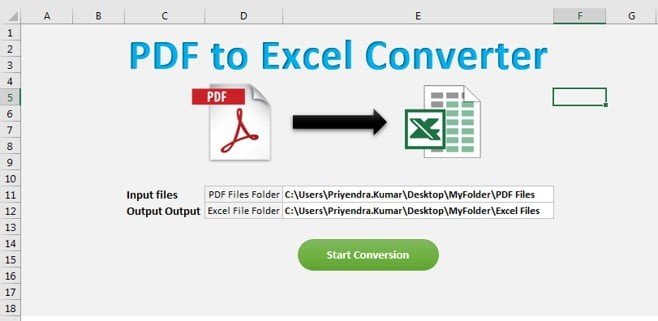
- Configure your PDF and Excel file paths in the Settings worksheet and you are ready to go.
- No complex installations or external software required: the converter runs entirely within Microsoft Excel using VBA.
Automated Batch PDF to Excel Conversion
- Instead of converting PDFs one by one, the tool automatically processes multiple PDFs from a specified folder in a single click.
- Extracted data is neatly arranged into Excel files, making it easy to use for reporting, analysis and further changes.
Fast and Efficient Data Extraction
- Converts PDFs within seconds, so your data is extracted and organized without manual effort.
- Saves significant time for professionals working with large datasets, finance records or bulk documents.
Customizable Output
- Choose the output folder where converted Excel files will be saved.
- Each PDF is saved as a separate Excel file for easy file management and organization.
Reliable VBA Script with Microsoft Scripting Runtime
- The VBA script uses Microsoft Scripting Runtime for file handling, keeping the conversion process smooth.
- No third-party add-ins: the tool is built on native Excel VBA for compatibility with your existing workflows.
Supports Bulk File Processing
- Handles multiple PDFs at once, so bulk conversion needs no repetitive manual input.
- Ideal for invoice processing, audit reports, HR documents and legal paperwork.
One-Click Execution with Progress Indicator
- Once the input and output folders are set, click the “Start Conversion” button and the VBA script does the rest.
- A progress indicator lets you know when the conversion is completed.
Secure, Offline and Standalone
- No need to upload sensitive documents to online converters: files are processed directly on your computer.
- Works offline for data privacy.
Instant Download and Easy Installation
- Available for instant download and can be set up and running in a few minutes.
- Includes step-by-step instructions for setting up file paths and running the VBA script.
What’s Inside
| Component | Purpose |
|---|---|
| Settings worksheet | Enter the PDF input folder and Excel output folder paths. |
| “Start Conversion” button | Runs the batch conversion of all PDFs in the input folder. |
| Progress indicator | Shows when the conversion is completed. |
| VBA script (Microsoft Scripting Runtime) | Handles file processing and saves each PDF as its own Excel file. |
| Step-by-step instructions | Guide you through setup and running the tool. |
Who Is This Tool For?
- Financial Analysts – extract data from PDF financial reports into Excel for deeper analysis.
- Business Managers – convert invoices and sales reports efficiently.
- HR and Legal Teams – organize employee records and contracts without manual entry.
- Researchers and Students – save time extracting data tables from research papers and reports.
- Small Businesses and Freelancers – manage bills, receipts and client reports with ease.
If you regularly work with financial reports, business analytics or structured data from PDFs, this Excel automation tool streamlines extracting numbers and text into Excel and gives organized outputs that reduce manual formatting.
How to Convert PDF to Excel with This Tool
- Download and unzip the file, then enable macros in Excel (see the tutorial below).
- Set input and output folders in the Settings worksheet: where your PDFs are stored and where the Excel files should be saved.
- Click “Start Conversion” – the tool automatically processes all PDFs in the folder.
- Check your Excel files – the converted data is stored in Excel format in your chosen output folder, ready for use.
After downloading and unzipping this file, make sure macros are enabled before use. Refer to our tutorial for step-by-step instructions on enabling macros in Excel: https://www.pk-anexcelexpert.com/4-easy-ways-to-enable-macros-in-excel-vba/
Click here to read the detailed blog post on PDF to Excel
Watch the Step-by-Step Video Tutorial: PDF to Excel
Visit our YouTube channel to learn from step-by-step video tutorials: Youtube.com/@PKAnExcelExpert
Why Choose This PDF to Excel Converter?
- Saves hours of work – no more manual copy-pasting from PDFs.
- Accurate and reliable – extracts structured data into organized Excel files.
- No additional software required – works within Excel using VBA.
- Secure and private – keeps sensitive business data confidential.
- Instant setup – get started in minutes with an easy-to-use interface.
Frequently Asked Questions
Can I convert multiple PDFs at once?
Yes. The tool performs batch PDF to Excel conversion, processing every PDF in the specified input folder with one click on “Start Conversion”.
Do I need any third-party software or add-ins?
No. The converter runs entirely within Microsoft Excel using native VBA and Microsoft Scripting Runtime for file handling.
Is my data uploaded anywhere?
No. Files are processed on your local machine and the tool works offline, so sensitive documents never go to online converters.
Where are the converted Excel files saved?
In the output folder you set in the Settings worksheet. Each PDF is saved as a separate Excel file.
What do I need to do before running the tool?
Unzip the download and enable macros in Excel. The included step-by-step instructions and the macro tutorial linked above walk you through it.
Is there a video showing how it works?
Yes. Watch the step-by-step video tutorial embedded above, or read the detailed blog post for more information.
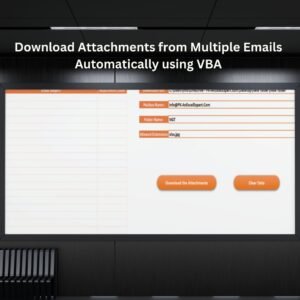
Also check our Download Attachments from Multiple Emails Automatically using VBA
Last updated: October 2026
Compatibility and Requirements
- Needs Microsoft Excel desktop on Windows with macros enabled, because the converter is a VBA tool.
- Unzip the download, then set the PDF input folder and Excel output folder on the Settings worksheet.
- It does not run in Excel for the web, Google Sheets or the Excel mobile apps.
- Microsoft explains how to turn on macros in Enable or disable macros in Microsoft 365 files.
Related Excel Converter Tools
- PDF to Word Converter Macro in Excel VBA: convert PDFs to Word files from Excel
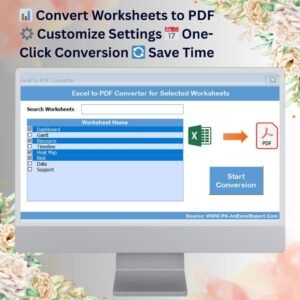
- Excel to PDF Converter for Selected Worksheets: go the other way and save sheets as PDF
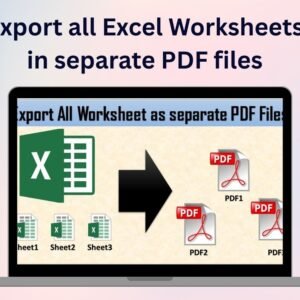
- Export All Excel Worksheets in Separate PDF Files: one PDF per worksheet
- Split Data into Separate Workbooks: break one data set into many files
- PK’s Utility Tool in Excel VBA: a free set of everyday Excel utilities
Browse all Excel utility and converter tools or the Excel VBA tools.










Reviews
There are no reviews yet.