



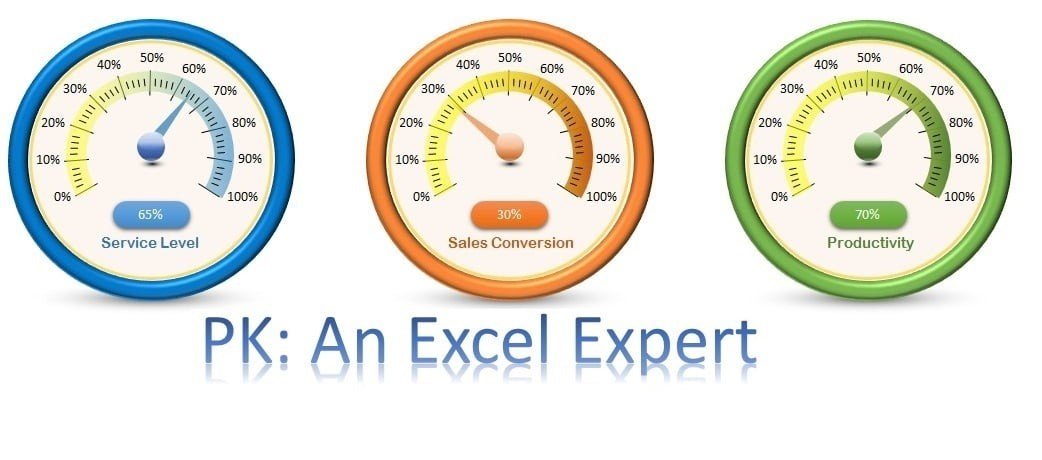
The Ultimate Speedometer in Excel is a customizable Excel dashboard tool that turns your key business numbers into a dynamic speedometer with a moving needle. It is built for managers, analysts and teams who want to track sales performance, financial targets, productivity and other progress-based metrics at a glance. Enter your data and the VBA-powered needle moves instantly, so you can see how close you are to your goals.
Key Features of the Ultimate Speedometer in Excel
- Custom-Built Visualization: The speedometer is crafted entirely from Excel auto-shapes, giving it a unique look you can personalize to your needs. Unlike traditional charting methods, it offers a more engaging and creative way to represent your data.
- Dynamic Needle Movement: A finely tuned VBA script makes the needle rotate automatically based on your inputs. This VBA needle movement adds an interactive, visually appealing element to business presentations.
- Real-Time Data Updates: As soon as new data is entered, the needle adjusts instantly, letting you track progress visually and understand immediately how far you are from your target.
- Versatile Application: Track sales conversion rates, service levels, productivity or any other progress-based metric. It can be adapted for multiple uses across different industries.
- No External Software Needed: Everything runs directly in Excel, with no third-party tools or add-on applications required.
- Engaging and Interactive Dashboards: Real-time updates make performance tracking interactive and fun, helping your team and stakeholders stay focused on key targets.
- Customizable: Tailor the speedometer for various metrics and business sectors.
- Easy to Use: Even with VBA scripting behind it, the tool is user-friendly and can be set up quickly without advanced Excel knowledge.
- Perfect for Presentations: A great visual for boardrooms and team meetings.
What’s Inside
The template gives you a ready-made Excel speedometer dashboard built with two core components working together:
- Auto-shape speedometer dial: A custom gauge designed with Excel auto-shapes rather than a standard chart, so it looks distinctive and can be restyled to match your reports.
- VBA needle engine: A VBA script that reads your input value and rotates the needle to the matching position on the dial.
- Data input area: Where you enter or update the metric you want to monitor; the needle responds as soon as the value changes.
| Component | What it does |
|---|---|
| Speedometer visual | Displays your metric as a gauge built from Excel auto-shapes |
| VBA script | Moves the needle automatically when data changes |
| Your data | Drives the needle position for sales, finance, productivity or service-level tracking |
Who It’s For
- Sales managers tracking sales performance and conversion rates against targets.
- Finance teams monitoring financial targets and progress toward goals.
- Operations and service leads watching productivity and service levels.
- Analysts and dashboard builders who want an eye-catching gauge for performance dashboards, target tracking and data monitoring tools.
- Presenters who need an engaging visual for boardrooms and team meetings.
In short, it is a practical solution for business metric tracking wherever a single progress number needs to stand out.
How to Use It
- Open the file in Microsoft Excel and enable macros so the VBA script can run.
- Enter the metric value you want to track in the input area.
- Watch the needle rotate instantly to reflect your value.
- Customize the dial colors, labels and shapes to suit your metric or business sector.
- Use the speedometer in your dashboard or presentation and update the value whenever new data arrives.
Click here to read the detailed blog post
Visit our YouTube channel to learn from step-by-step video tutorials.
Watch the step-by-step video tutorial:
Frequently Asked Questions
What is the Ultimate Speedometer in Excel?
It is a customizable Excel dashboard tool that displays a key metric as a speedometer built from auto-shapes, with a VBA-powered needle that moves when your data changes.
How does the needle move?
A VBA script reads your input value and rotates the needle automatically. This gives you real-time data updates: as soon as you enter new data, the needle adjusts instantly.
Do I need any external software or add-ins?
No. The speedometer operates directly in Excel, so no third-party tools or applications are required.
Do I need advanced Excel or VBA skills?
No. Although it uses VBA scripting, the tool is designed to be user-friendly and can be set up quickly without advanced Excel knowledge.
What metrics can I track with it?
Any progress-based metric, such as sales performance, sales conversion rates, financial targets, service levels and productivity. It can be adapted for different industries.
Can I customize the design?
Yes. Because it is built from Excel auto-shapes, you can tailor the look and setup for various metrics and business sectors.
Also check our Download Attachments from Multiple Emails Automatically using VBA
Last updated: October 2026
Compatibility and Requirements
- Made for Microsoft Excel desktop on Windows (Excel 2016 or later, or Microsoft 365).
- Macros must be enabled, because the needle is moved by a VBA script. Microsoft explains how in Enable or disable macros in Microsoft 365 files.
- Excel for the web, Google Sheets and the Excel mobile apps can’t run VBA, so the needle won’t move there.
Related Gauge and Meter Charts
- 3D Gauge Chart in Excel: a 3D gauge for one KPI
- RYG Dial Gauge Meter in MS Excel: red, yellow and green zones on a dial
- Dynamic Sales Score Meter Chart in Excel: a meter built for sales scores
- Credit Rating Meter Chart in Excel: a meter for rating-style values
- Data Analyst’s Chart & Visualization Pack: 10 chart templates for Excel and Google Sheets
Browse all Excel chart templates or the Excel VBA tools.










Reviews
There are no reviews yet.